How to Install Puppeteer and Chromium in Laravel Sail
Install Puppeteer in Laravel Sail, choose its bundled Chrome or system Chromium, and fix Docker cache, library, permissions, and launch errors.
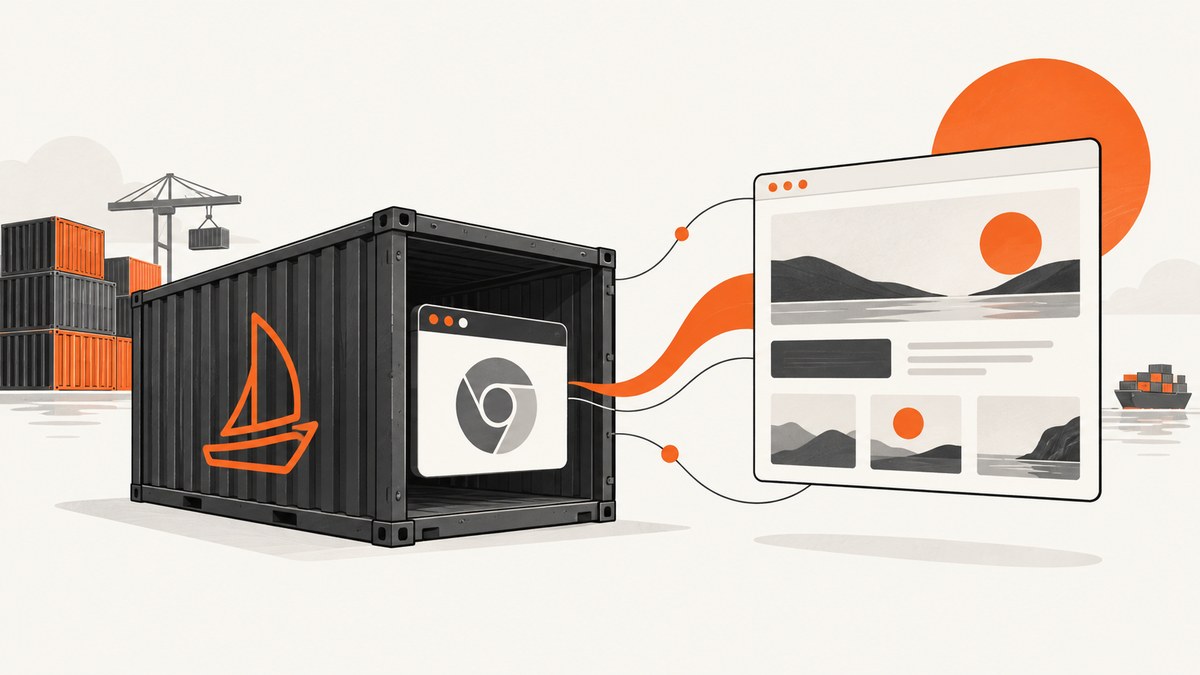
To run Puppeteer in Laravel Sail, install it inside the laravel.test application environment with ./vendor/bin/sail npm install puppeteer. By default, Puppeteer downloads a compatible Chrome for Testing build. If you specifically need the distribution’s Chromium package instead, install it in the Sail image and set Puppeteer’s executablePath to the binary’s actual location.
Sail runs Node and npm commands in its application container; using a separate host Node installation can put packages and browser files in the wrong environment. Check the laravel.test service’s build configuration and Dockerfile before changing the image. Sail’s documentation describes both its Node commands and its customizable Docker configuration: Laravel Sail documentation.
This guide covers the local browser setup, persistent Dockerfile changes, runtime configuration, troubleshooting, and when a screenshot API may avoid maintaining a browser in your application image.
1. Choose which browser Puppeteer will run
There are two local installation paths. Start with Puppeteer’s managed browser unless you have a specific reason to use system Chromium.
| Choice | What you install | What you configure |
|---|---|---|
| Puppeteer-managed Chrome | puppeteer npm package and its downloaded Chrome for Testing |
Usually no executable path; keep the install and runtime cache accessible to the same user |
| System Chromium | puppeteer-core or puppeteer, plus the image’s Chromium package and required libraries |
Set executablePath to the installed binary and verify browser compatibility |
The puppeteer package downloads a browser build selected to work with that Puppeteer version. The official guide says that installation downloads Chrome for Testing and, starting with Puppeteer v21.6.0, a chrome-headless-shell binary as well. The package download is not the same as installing the Linux distribution’s chromium package. See Puppeteer installation.
puppeteer-core does not download a browser. Use it when you manage the browser separately, connect to a remote browser, or deliberately supply a system executable. For most Sail projects seeking a straightforward local setup, use puppeteer first.
2. Install Puppeteer through Sail
From the Laravel project root, install the dependency through Sail:

./vendor/bin/sail npm install puppeteerIf the Sail shell alias is configured, sail npm install puppeteer is equivalent. Check Node and npm from the same environment that will run the app:
./vendor/bin/sail node --version
./vendor/bin/sail npm --version
./vendor/bin/sail npm ls puppeteer
Commit the resulting package.json and lockfile so other developers and build environments install the same dependency versions. If your deployment builds npm dependencies into the application image, ensure its existing build process also runs the package installation and permits Puppeteer’s browser download. Sail’s current documentation describes Node 24 as its default and the NODE_VERSION build argument as the way to select another version. Generated Dockerfiles and app versions vary, so inspect the project’s actual configuration.
Here is a minimal runnable Node script. Save it as scripts/screenshot.mjs, then invoke it from Sail. It opens a page, waits for navigation, saves a screenshot, and closes the browser even if capture fails.
import puppeteer from 'puppeteer';

const url = process.argv[2] ?? 'https://example.com';
const browser = await puppeteer.launch({ headless: true });

try {
  const page = await browser.newPage();
  await page.setViewport({ width: 1365, height: 900 });
  await page.goto(url, {
    waitUntil: 'networkidle2',
    timeout: 30_000,
  });
  await page.screenshot({ path: '/tmp/page.png', fullPage: true });
} finally {
  await browser.close();
}
Run it with:
./vendor/bin/sail node scripts/screenshot.mjs https://example.comThe default cache for Puppeteer v19 and later is under the installing user’s home directory, typically $HOME/.cache/puppeteer. If npm installation and the Laravel process use different users or home directories, the application may report that Chrome is missing even though installation completed. Puppeteer documents configuration and cache settings in its configuration guide.
3. Make the browser download work in the image
Installing the npm dependency in a running Sail container is useful for a local check. For a repeatable environment, make the browser and its libraries part of the image build or ensure your project’s dependency installation step runs during that build. Installing packages interactively into an ephemeral container does not persist after the container is recreated.
Find the Dockerfile referenced by the laravel.test service under build in compose.yaml (older projects may use docker-compose.yml). Modify that image’s existing dependency steps rather than copying a generic Puppeteer image over the PHP application image. The browser download can be skipped when package-manager policy disables install scripts. In that case, the official manual install command is:
./vendor/bin/sail npx puppeteer browsers installUse a cache location that remains consistent for installation and runtime. For example, configure PUPPETEER_CACHE_DIR in the relevant build and runtime environments and make sure the runtime user can read and execute files there. A project-level Puppeteer configuration can also set the cache directory; consult the configuration guide for the syntax supported by your installed version.
After changing the Dockerfile, rebuild and start the service:
./vendor/bin/sail build --no-cache
./vendor/bin/sail up -d
A clean rebuild is useful when you need to rule out a stale layer, though it takes longer. When only application dependencies changed, your normal Sail build workflow may be sufficient.
4. Install system Chromium instead
Choose this path when you specifically need the distribution-managed Chromium package or want to manage browser updates separately. Add Chromium and its runtime requirements in the Dockerfile used by laravel.test. Package names and binary paths depend on the base distribution and release, so check the actual image rather than assuming an Ubuntu or Debian package name or path.
Use puppeteer-core when you want no Puppeteer-managed browser download:
./vendor/bin/sail npm install puppeteer-coreFind the installed executable from inside the built image, then provide that exact path. For example, if the package provides /usr/bin/chromium:
import puppeteer from 'puppeteer-core';

const browser = await puppeteer.launch({
  executablePath: '/usr/bin/chromium',
  headless: true,
});

try {
  const page = await browser.newPage();
  await page.goto('https://example.com', {
    waitUntil: 'domcontentloaded',
    timeout: 30_000,
  });
  await page.screenshot({ path: '/tmp/page.png' });
} finally {
  await browser.close();
}
There is no universal compatibility guarantee for an independently updated system browser and Puppeteer. Puppeteer’s selected browser build is the supported pairing; when using system Chromium, verify the actual versions and test the operations your application needs. Avoid setting a guessed path that happens to exist on a developer’s host but not inside Sail.
5. Configure the launch for your workload
Puppeteer’s launch options and page options solve different problems. Start with the minimum needed, then add configuration based on an observed requirement.
| Need | Relevant setting or approach | Notes |
|---|---|---|
| Select system browser | launch({ executablePath }) |
Use the path inside the container. |
| Run without a visible desktop | launch({ headless: true }) |
Headless is appropriate for most server captures. |
| Set viewport or device behavior | page.setViewport() or a device descriptor |
Set before navigation when page layout depends on viewport. |
| Wait for page readiness | page.goto() with waitUntil and timeout |
Choose a condition suited to the site; persistent connections can prevent network-idle conditions. |
| Capture a page or element | page.screenshot({ fullPage: true }) or an element handle’s screenshot |
Full-page capture can require more memory for long documents. |
| Write temporary browser state | Writable XDG, cache, and user-data directories | Read-only container filesystems need explicit writable mounts or temporary paths. |
Do not add --no-sandbox as a default fix. A sandbox setting is a security decision that depends on the container user and runtime configuration. First identify the actual launch failure, missing libraries, permissions, and browser path. Puppeteer’s Docker guide recommends an init process for managing browser child processes; Docker’s --init option or an appropriate entrypoint can provide one. Its example Dockerfile is a reference for browser containers, not a drop-in replacement for Sail’s PHP image.
6. Diagnose common installation and launch errors
| Error or symptom | Likely cause | Check and fix |
|---|---|---|
Could not find Chrome or Could not find expected browser locally |
Browser download did not run, cache differs, or puppeteer-core is being used without a browser. |
Check the installed package and install scripts; run npx puppeteer browsers install for Puppeteer’s managed browser. Align cache directory, HOME, and runtime user. |
| Executable path does not exist | Path was guessed or refers to the host instead of the container. | Inspect the package’s installed executable inside laravel.test, then update executablePath. |
| Browser exits immediately or reports a shared library error | Required system library is missing from the image. | Use the full browser error and inspect dependencies with ldd; install the matching libraries for the actual base distribution and architecture. |
| Permission denied or profile cannot be created | Runtime user cannot read the browser or write its profile/cache. | Check ownership and permissions; point XDG and user-data paths to writable locations, such as a suitable directory under /tmp. |
| Navigation times out | Slow site, blocked request, long-running connection, or an overly strict readiness condition. | Use a suitable waitUntil condition, set a realistic timeout, and capture diagnostic output. Do not treat every timeout as a browser installation failure. |
| Works locally, fails after container recreation | Dependencies were installed only in the running container or browser files were stored outside a persistent build/cache path. | Move setup into the image or repeatable build process, then rebuild Sail. |
| Many orphaned browser processes | Browser child processes are not reaped or scripts do not close the browser. | Use try/finally with browser.close() and configure an init process as described in the Puppeteer Docker guide. |
Puppeteer’s troubleshooting guide includes a Debian and Ubuntu dependency list, but the required libraries depend on the image and browser package. Use that list as a starting point, not a package list to paste blindly. Inspect the installed browser with ldd and add the missing dependencies to the Dockerfile. Also check the image architecture when the browser package or downloaded build does not match the container. See Puppeteer troubleshooting.
Keep the complete Chrome stderr output when debugging. It often distinguishes a missing library from a missing executable, sandbox restriction, unwritable profile, or navigation problem. Rebuild after Dockerfile changes so the running service actually contains the fix.
7. Keep Puppeteer separate from Laravel Dusk
Laravel’s Sail documentation describes an optional Selenium service for Laravel Dusk browser tests. Dusk and Puppeteer are separate approaches: Dusk uses Laravel’s testing workflow and Selenium service, while a Node script can use Puppeteer’s own browser launch and page APIs. Puppeteer does not require Selenium. If the intended task is Dusk testing, follow Sail’s Dusk setup rather than adding Puppeteer as an assumed dependency.
8. Performance, reliability, and cost
For a local browser, the main operational costs are image size, browser download and update time, memory during captures, and the work required to keep the executable, libraries, cache, and runtime user aligned. Full-page screenshots and concurrent browser pages increase resource use. Reuse a browser process for a batch of related captures where your application’s lifecycle permits it, while creating and closing pages deliberately. Set navigation timeouts, close the browser in cleanup paths, and decide how the application handles a failed capture.
Browser downloads add work to dependency installation and image builds. Cache persistence can speed repeat builds, but a cache must not make one user’s browser invisible to another. Pin and update dependencies through the project’s lockfile and build process, and verify changes in the target image. Puppeteer-managed Chrome simplifies version pairing; system Chromium gives package-level control but adds explicit compatibility and path management.
There is no fixed per-capture cost inherent in running Puppeteer in your own Sail container; infrastructure and engineering costs depend on how and where you run it. A managed screenshot API has a plan price instead and can remove the need to package and operate a local browser for screenshot-only workloads.
9. Or skip the browser setup
If your task is to get a page image rather than run arbitrary browser automation, ScreenshotNeo is a website screenshot API and MCP server. A GET request returns an image or PDF, so there is no Chrome package or Puppeteer cache to configure in Sail. See the ScreenshotNeo API documentation.
curl -G "https://api.screenshotneo.com/v1/shot" -d access_key=YOUR_API_KEY --data-urlencode url=https://example.com -o shot.webpimport requests
r = requests.get(
"https://api.screenshotneo.com/v1/shot",
params={"access_key": "YOUR_API_KEY", "url": "https://example.com"},
timeout=90,
)
r.raise_for_status()
open("shot.webp", "wb").write(r.content)const q = new URLSearchParams({
access_key: 'YOUR_API_KEY',
url: 'https://example.com',
});
const res = await fetch(`https://api.screenshotneo.com/v1/shot?${q}`);
if (!res.ok) throw new Error(`Screenshot request failed: ${res.status}`);
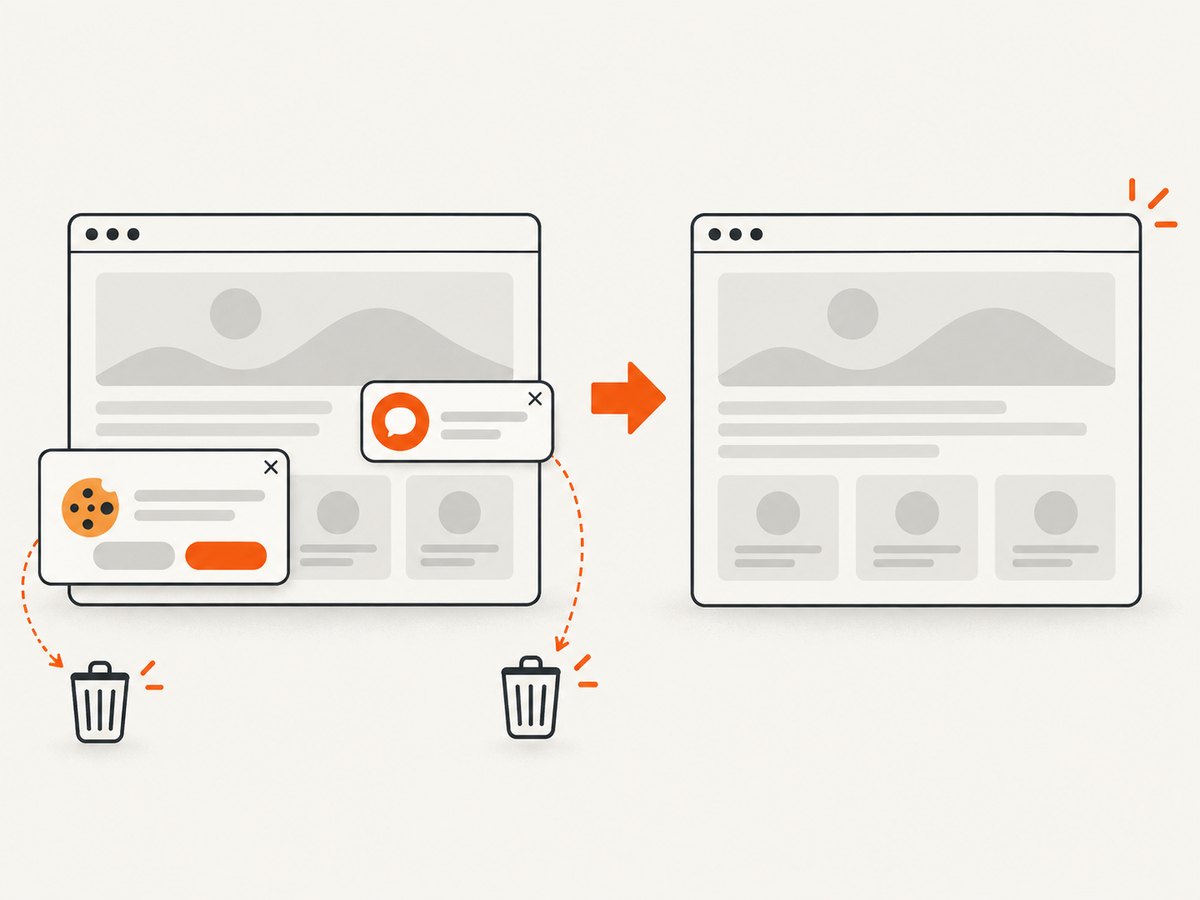
await Bun.write('shot.webp', res);ScreenshotNeo removes cookie and consent banners, newsletter popups, and chat widgets before capture; each step can be turned off. Bot checks, blank pages, and failed loads are never billed, and the response identifies the page verdict and billing status. Its MCP server provides take_screenshot, get_page_info, and capture_pdf tools for AI agents. The free plan includes 1,000 shots a month with no card; paid plans start at $5 for 3,000. Sign up for 1,000 free screenshots a month, with no card.
10. Frequently asked questions
Does Puppeteer install Chromium?
The standard puppeteer package downloads Chrome for Testing by default. It does not mean the Linux distribution’s Chromium package was installed. Use the system package only when you need it and configure its actual executable path.
Can I run Puppeteer from a Laravel controller?
Yes, if the Node runtime, package, browser, libraries, permissions, and process lifecycle are available to the code that launches it. Many projects run a Node worker or script separately so browser work does not consume a web request’s execution time. The right deployment depends on the application’s workload.
Do I need Selenium for Puppeteer in Sail?
No. Selenium appears in Laravel’s documented Sail setup for Dusk. Puppeteer launches or connects to its own managed browser according to its configuration.
Why does Chrome work during build but not at runtime?
Build and runtime may use different users, home directories, permissions, or filesystem mounts. Compare HOME, Puppeteer’s cache path, executable permissions, and writable profile locations for both contexts.
Should I use --no-sandbox in Docker?
Not as a blanket installation fix. Check the full launch error and container security setup, then choose browser sandbox settings appropriate to that environment.


