How to Run Puppeteer Chromium on a Node.js Production Server
Deploy Puppeteer with a compatible Chrome for Testing build, Linux dependencies, a working sandbox, writable browser paths, and reliable process cleanup.
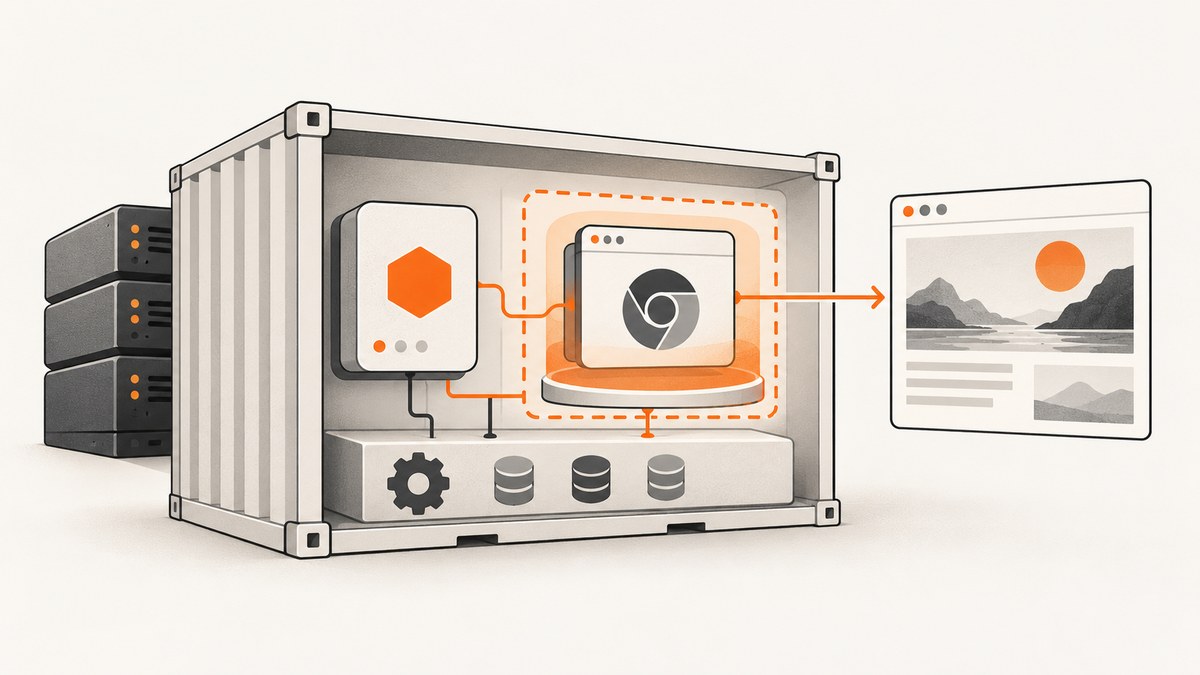
To run Puppeteer’s Chromium reliably on a Node.js production server, deploy a compatible Puppeteer and Chrome for Testing pair, install the browser’s Linux libraries in the runtime image, preserve Chrome’s sandbox, provide writable browser and temporary directories, and clean up browser child processes. For containers, Puppeteer’s official image is a practical starting point: it includes Chrome for Testing and its required dependencies. Its documented run command uses --init and --cap-add=SYS_ADMIN to manage processes and allow the browser to run sandboxed. Puppeteer’s Docker guide and system requirements should be checked against the exact release you deploy.
This guide covers a self-hosted Node.js setup first, including a container path, a runnable capture script, configuration, failure diagnosis, and operational tradeoffs. At the end, there is also a one-request option for teams whose goal is to capture pages without managing a browser runtime.
1. Check the runtime and browser pairing
Start by selecting a supported Node.js version, Linux distribution, and CPU architecture. Current Puppeteer system requirements list Node.js 22.12+ and Chrome for Testing support on Debian/Ubuntu and openSUSE/Fedora Linux on x64 and arm64. These are release-sensitive requirements: verify the documentation for the Puppeteer version in your lockfile instead of assuming that an older tutorial’s Node or OS requirements still apply.
Puppeteer normally downloads a compatible Chrome for Testing browser during installation. This is the simplest pairing to maintain: pin Puppeteer in your application and use the browser version it installs. If you skip the download and supply a system Chrome or Chromium, explicitly configure its executable path and validate that browser against your Puppeteer version. A binary that exists on disk is not necessarily compatible or launchable.
npm install --save-exact puppeteer
npm ls puppeteer
node --version
Commit the generated lockfile and use the locked install command in the image build, such as npm ci. Keep the installation and runtime stages on compatible operating systems and architectures. If your build downloads Chrome on x64 but production runs arm64, do not assume the cached binary will work there.
2. Choose a deployment shape
Option A: start with Puppeteer’s official image
This image bundles Chrome for Testing, dependencies, and a preinstalled Puppeteer version. It reduces the amount of OS dependency setup you own. Match the image tag to your intended Puppeteer release and your deployment’s security policy. The documentation’s example is:
docker run -i --init --cap-add=SYS_ADMIN --rm \
  ghcr.io/puppeteer/puppeteer:latest \
  node -e "console.log('container ready')"
--init provides an init process to manage browser subprocesses. The documented image requires SYS_ADMIN because it is intended to run Chrome in sandbox mode. Container capabilities are security-sensitive: confirm that the actual runtime permits the documented setup and evaluate its security profile before deployment. Do not copy flags from a different base image and assume its sandbox configuration is equivalent.
Option B: build a custom runtime image
A custom image fits teams that need a particular base distribution or deployment platform. Its tradeoff is that you must maintain the browser libraries, installation path, cache, permissions, sandbox, and process management yourself. Use Puppeteer’s official Dockerfile as a reference, install packages appropriate to your exact OS release, and run the application as a non-privileged user. The Cloud Run default Node.js runtime, for example, lacks the system packages required for Headless Chrome; Puppeteer’s troubleshooting guide says to use a custom Dockerfile.
There is no universal package list that is correct for every distribution and release. Consult the current Chromium package requirements linked from Puppeteer’s system requirements, then check the actual browser binary in the final image. For an illustrative Debian-based build, the shape is:
FROM node:22-bookworm-slim
WORKDIR /app
COPY package*.json ./
RUN npm ci
COPY . .
ENV NODE_ENV=production
CMD ["node", "capture.js"]
This is intentionally not a complete browser image: add the Chrome for Testing binary and the Debian packages its exact release requires before relying on it. Installing a random fixed package list can leave the image missing a shared library or include packages that do not apply to a different base release.
3. Install dependencies and validate the final image
Linux Chrome depends on shared libraries supplied by the operating system. A successful Puppeteer install does not prove those libraries are present. After the browser is installed, inspect the executable inside the built image:
ldd /path/to/chrome | grep 'not found'Replace the example path with the executable path in your image. Any reported missing library must be supplied by the corresponding package for that Linux distribution. If the command prints no missing libraries, that checks dynamic library resolution; it does not validate the sandbox, filesystem permissions, or the app’s real capture flow.
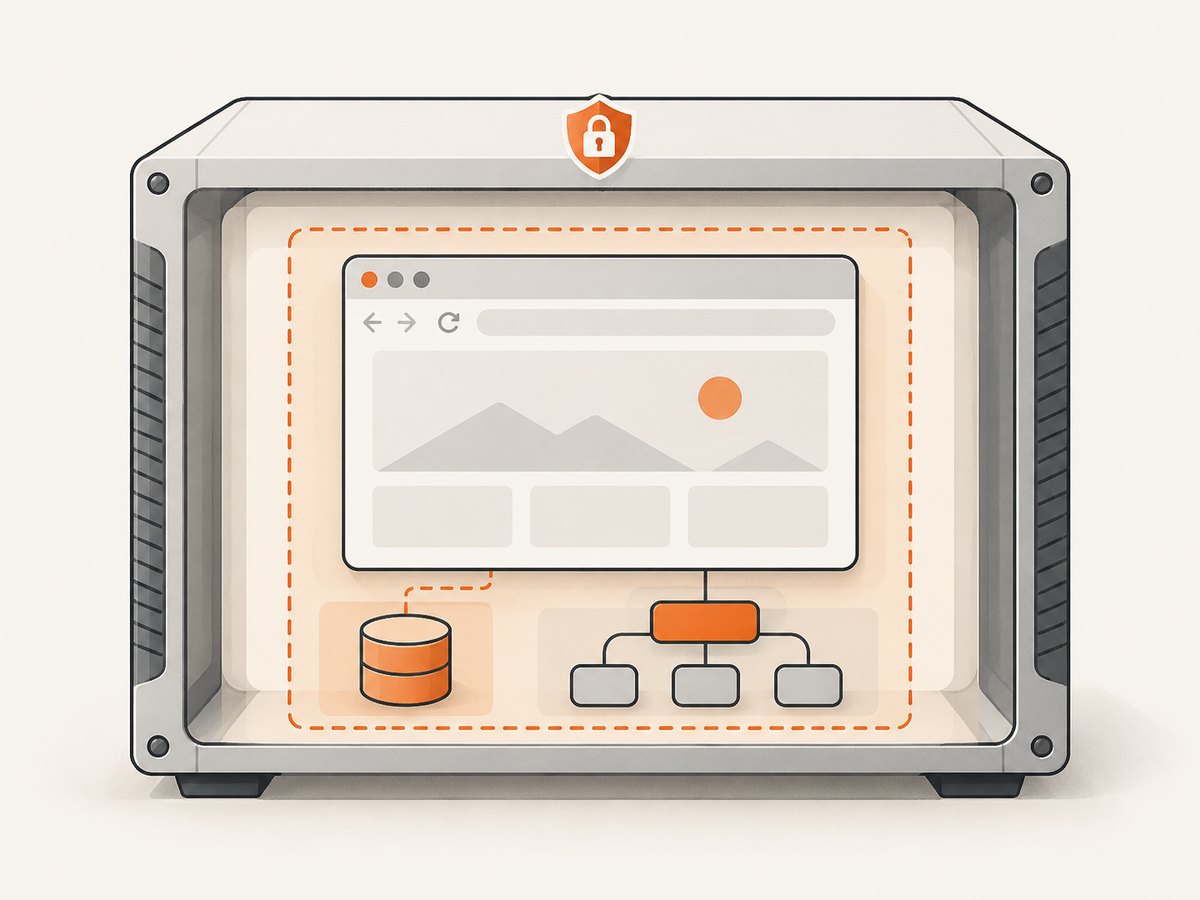
Run the validation as the same user and with the same container security profile used in production. Chrome writes configuration, profiles, and cache data. For read-only root filesystems, mount writable storage or direct browser data and temporary paths to writable locations such as /tmp. Ensure the runtime user owns those directories.
Alpine is not a drop-in choice for Chrome: Puppeteer’s troubleshooting documentation cautions that Chrome does not support Alpine out of the box. Choose a supported distribution or plan and validate a compatible browser setup rather than assuming a Debian package recipe will work there.
4. Run a complete Node.js capture and close resources
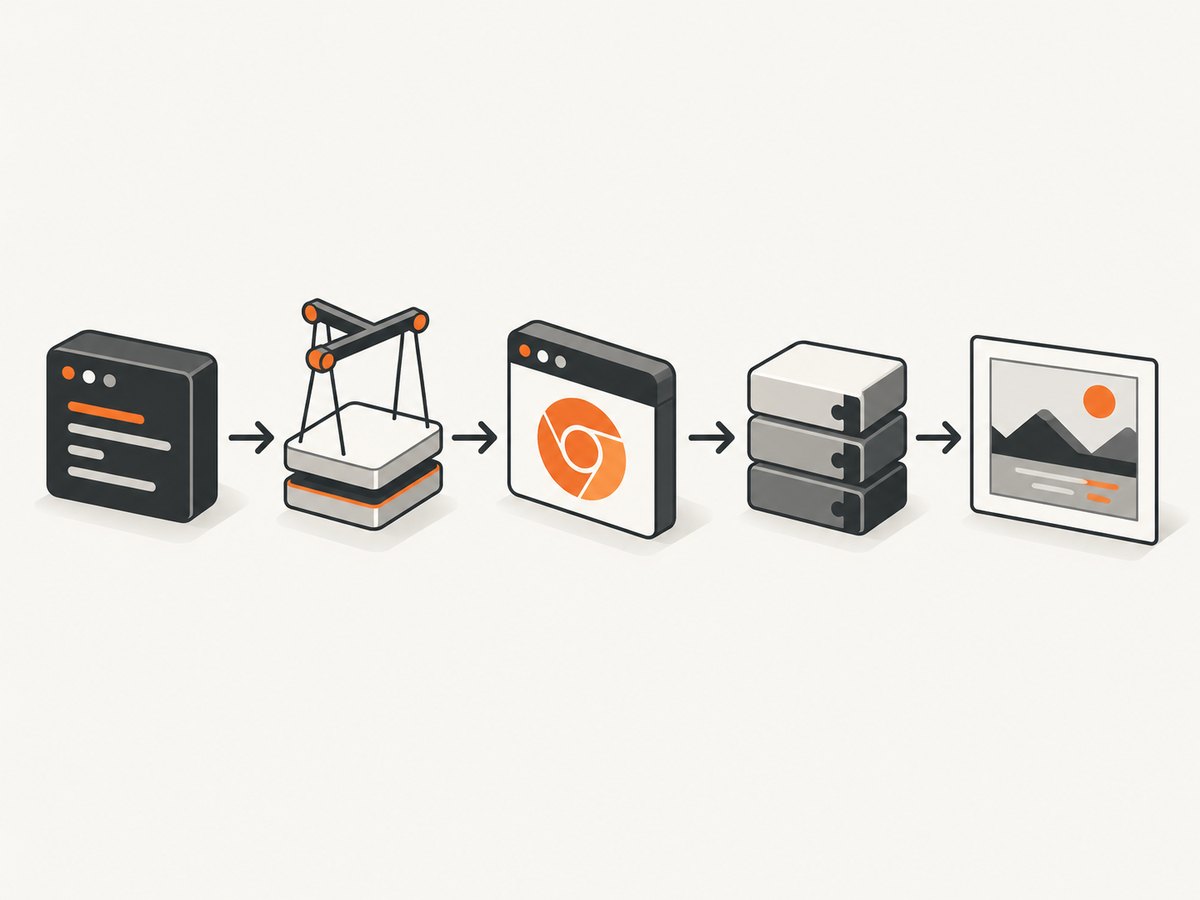
This CommonJS script launches the bundled browser, navigates to a page, captures a screenshot, and closes the browser even when navigation or screenshot capture fails. Save it as capture.cjs and run node capture.cjs https://example.com. It uses a disposable per-run profile under the system temporary directory, which avoids depending on a shared profile.
const fs = require('node:fs/promises');
const os = require('node:os');
const path = require('node:path');
const puppeteer = require('puppeteer');

async function main() {
  const target = process.argv[2];
  if (!target) throw new Error('Usage: node capture.cjs https://example.com');

  const profile = await fs.mkdtemp(path.join(os.tmpdir(), 'puppeteer-'));
  let browser;
  try {
    browser = await puppeteer.launch({
      headless: true,
      userDataDir: profile,
      dumpio: process.env.PUPPETEER_DUMPIO === '1',
      // Keep Puppeteer's default arguments, including sandbox-related flags.
    });
    const page = await browser.newPage();
    page.setDefaultNavigationTimeout(45_000);
    await page.goto(target, { waitUntil: 'networkidle2', timeout: 45_000 });
    await page.screenshot({ path: 'page.png', fullPage: true });
    console.log('Saved page.png');
  } finally {
    if (browser) await browser.close();
    await fs.rm(profile, { recursive: true, force: true });
  }
}

main().catch(error => {
  console.error(error);
  process.exitCode = 1;
});
The navigation condition is a workload choice. networkidle2 waits for network activity to quiet down; pages with analytics, polling, or long-lived requests may not reach it quickly. For those pages, consider domcontentloaded or load, then wait for a specific selector or application-ready condition. A full-page screenshot can also be expensive on very long pages. Decide whether the product needs the entire document or just the viewport.
When serving requests, avoid launching one browser per request without a capacity plan. Browser startup and page rendering consume memory and CPU, and concurrent pages add load. A persistent browser with isolated pages can reduce repeated launches, but requires lifecycle management: close each page, monitor browser health, and replace a crashed or unhealthy browser. Do not share a page or profile across unrelated users when their cookies or page state could cross request boundaries.
5. Configure installation, cache, executable, and diagnostics
Puppeteer’s browser cache defaults to a home-directory cache location. If that location is not persisted between build and runtime, or the runtime user cannot read it, deployment may fail with a browser-not-found error. Configure the cache during installation and ensure the browser is present at the same path at runtime. Puppeteer supports PUPPETEER_CACHE_DIR and a .puppeteerrc configuration file. Its configuration guide describes installation settings.
# Example build/runtime setting; make this directory available in both stages.
ENV PUPPETEER_CACHE_DIR=/app/.cache/puppeteer
RUN npx puppeteer browsers install
When using an externally installed browser, set PUPPETEER_EXECUTABLE_PATH or pass executablePath to puppeteer.launch(). Keep the binary version paired with Puppeteer and validate that combination after upgrades. A setting that skips browser download is not itself an installation strategy; it transfers responsibility for the binary and compatibility to your image.
For launch diagnostics, set dumpio: true to forward browser logs. For protocol-level diagnosis, run with NODE_DEBUG="puppeteer:*". Restrict access to these logs and their retention because diagnostic output may contain sensitive details. Remove verbose diagnostics after identifying the problem.
6. Troubleshoot common production failures
| Symptom | Likely cause | Check and fix |
|---|---|---|
| Chrome exits with a missing shared library message | The runtime image lacks an OS library. | Run ldd /path/to/chrome | grep 'not found' in the final image; install the matching package for that distribution. |
Could not find Chrome or browser not found |
The install step did not download the browser, or the cache was omitted or moved. | Check the Puppeteer install output, cache directory, and runtime user’s read permissions. Install browsers in the image build and preserve the configured cache path. |
No usable sandbox! |
The container or host blocks Chrome’s sandbox, or its security policy conflicts with the downloaded browser. | Check container permissions and the host security profile. On some Ubuntu setups, AppArmor policy can affect downloaded Chrome for Testing binaries. Configure a supported sandbox. Puppeteer strongly discourages using --no-sandbox as a routine fix. |
| Profile, Crashpad, or XDG startup errors | Chrome cannot write its profile or configuration in a read-only or incorrectly owned directory. | Provide writable temporary and configuration paths and a writable userDataDir; verify ownership as the runtime user. |
| Container accumulates zombie processes | Browser child processes are not reaped by the container’s PID 1. | Use Docker’s --init or an equivalent process-management entrypoint, and close browser instances during shutdown. |
| Navigation times out on an otherwise visible page | The chosen lifecycle condition waits on persistent network traffic, or the page is simply slow. | Choose an appropriate waitUntil condition, set a deliberate timeout, and wait for a page-specific selector where possible. Do not silently treat a timeout as a successful complete capture. |
| Works locally, fails in deployment | Different architecture, OS libraries, user permissions, cache path, or security profile. | Reproduce the production image and launch under its actual user and runtime constraints; validate after every base-image or browser upgrade. |
7. Reliability, performance, and cost decisions
Production reliability comes from validating the same artifact that will run in production, not from a successful developer-machine screenshot. Build an image with pinned application dependencies, install or copy the intended browser into it, and run a smoke capture in the final image. Repeat that check when changing Puppeteer, Chrome, the OS base image, or CPU architecture. Puppeteer’s troubleshooting documentation notes that dependency lists can become outdated, so treat release-specific docs and OS package requirements as the source of truth.
For performance, measure your own page mix and concurrency; the documentation does not provide a universal production throughput figure. Keep browser startup, navigation, and screenshot timeouts explicit. Use only as much page readiness waiting as the page requires. Reuse browser processes when it makes sense for the service, but cap concurrency based on observed memory and CPU and recycle a browser when it becomes unhealthy. Large full-page captures can take more time and memory than viewport captures.
Cost is primarily an infrastructure and operating-effort decision: your service must run Node.js and Chromium with the required libraries, writable storage, and enough CPU and memory for the concurrent browser work. The research provides no stable cost or capacity benchmark, so size the deployment from representative workload measurements. An external Chrome download can also increase image build size and time; those browser sizes vary by platform and release and should not be mistaken for runtime capacity metrics.
Or skip the browser setup
If the task is to get a webpage screenshot rather than operate Chromium, ScreenshotNeo provides a website screenshot API and MCP server. One GET request returns an image or PDF. See the API documentation for supported parameters.
curl -G "https://api.screenshotneo.com/v1/shot" \
  -d access_key=YOUR_API_KEY \
  --data-urlencode url=https://stripe.com \
  -o shot.webp
import requests
r = requests.get(
"https://api.screenshotneo.com/v1/shot",
params={"access_key": "YOUR_API_KEY", "url": "https://stripe.com"},
timeout=90,
)
r.raise_for_status()
open("shot.webp", "wb").write(r.content)const q = new URLSearchParams({ access_key: 'YOUR_API_KEY', url: 'https://stripe.com' });
const res = await fetch(`https://api.screenshotneo.com/v1/shot?${q}`);
if (!res.ok) throw new Error(`Screenshot request failed: ${res.status}`);
await require('node:fs/promises').writeFile('shot.webp', Buffer.from(await res.arrayBuffer()));Cookie banners, newsletter popups, and chat widgets are removed before the shot; bot checks, blank pages, timeouts, and failed loads are never billed. An MCP server lets Claude, Cursor, and other MCP clients take screenshots. The free plan includes 1,000 screenshots a month with no card; paid plans start at $5 for 3,000. Sign up for free and get 1,000 screenshots a month with no card.
Frequently asked questions
Can I deploy Puppeteer on a serverless platform?
It depends on the platform’s runtime image, architecture, writable paths, process behavior, and sandbox support. Cloud Run’s default Node.js runtime needs a custom Dockerfile for Chrome’s system packages. Validate the real deployed image and request lifecycle rather than assuming a local setup transfers.
Should I use puppeteer or puppeteer-core?
Use the package and install path that match your browser strategy. The standard Puppeteer package installs a compatible browser by default. If you use puppeteer-core or otherwise skip downloading, provide and validate the browser executable yourself.
Does headless mode remove the need for Linux dependencies?
No. Headless mode changes how Chrome runs, but the browser still requires its operating-system libraries and a viable runtime configuration.
Is a screenshot API interchangeable with a full browser?
No. Puppeteer gives your application browser automation and page control. A screenshot API is useful when the requirement is to request a screenshot without packaging and operating Chrome in your service.


