How to Fix Puppeteer Clicking the First Link but Not the Others
Fix Puppeteer clicks that always hit the first link by inspecting matches, using precise selectors or locators, waiting for readiness, and handling navigation safely.
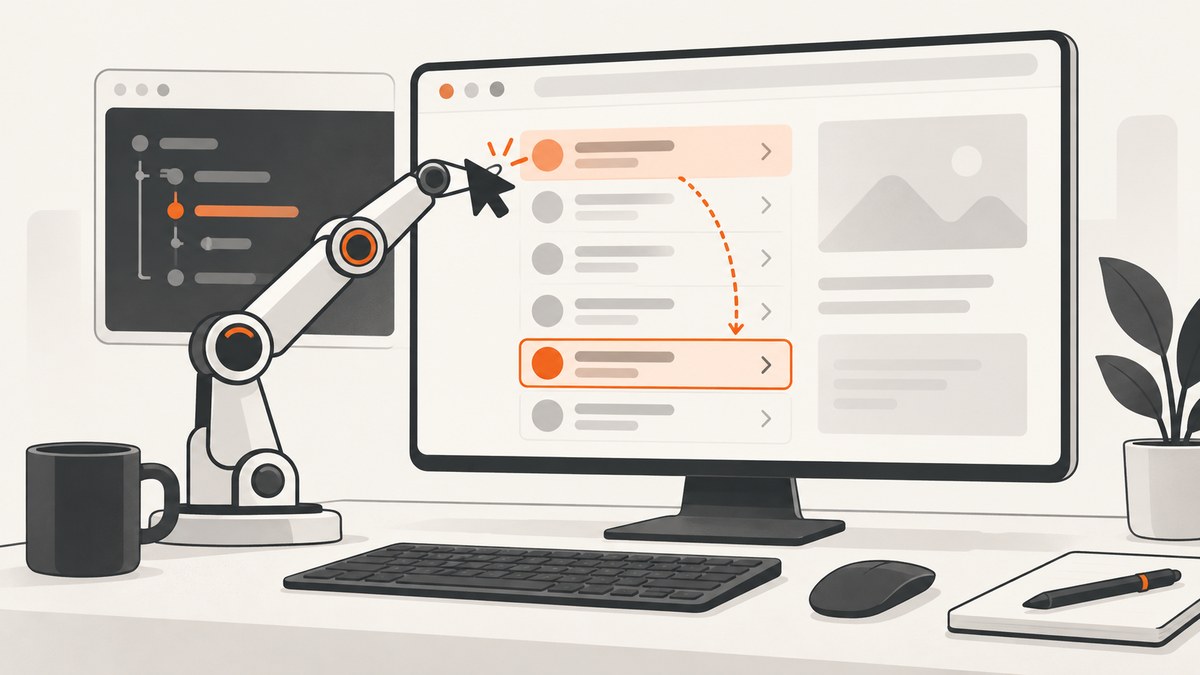
Short answer: Puppeteer’s page.click(selector) clicks the first element that matches the selector. If your selector matches several links, Puppeteer is following its documented behavior. Inspect the matches, make the selector identify one link, and then wait for that specific element to be ready. If the click navigates, start page.waitForNavigation() and the click together with Promise.all.
This guide shows a repeatable debugging process, complete JavaScript examples, locator patterns, dynamic-page waits, navigation handling, troubleshooting, and a browser-free option with ScreenshotNeo when your actual goal is capturing pages rather than interacting with them.
1. Why Puppeteer keeps clicking the first link
The most common cause is a broad selector such as a, .item a, or ul li a. Puppeteer’s page click API resolves the selector and acts on the first matching element. A selector that returns ten links does not tell Puppeteer which of the ten you intended.
For example, this always targets the first result link:
await page.click('.search-results a');That code is valid. The problem is that .search-results a describes a collection, not a unique target. Fix the selector before changing timeouts or adding arbitrary delays.
2. Inspect every matching link first
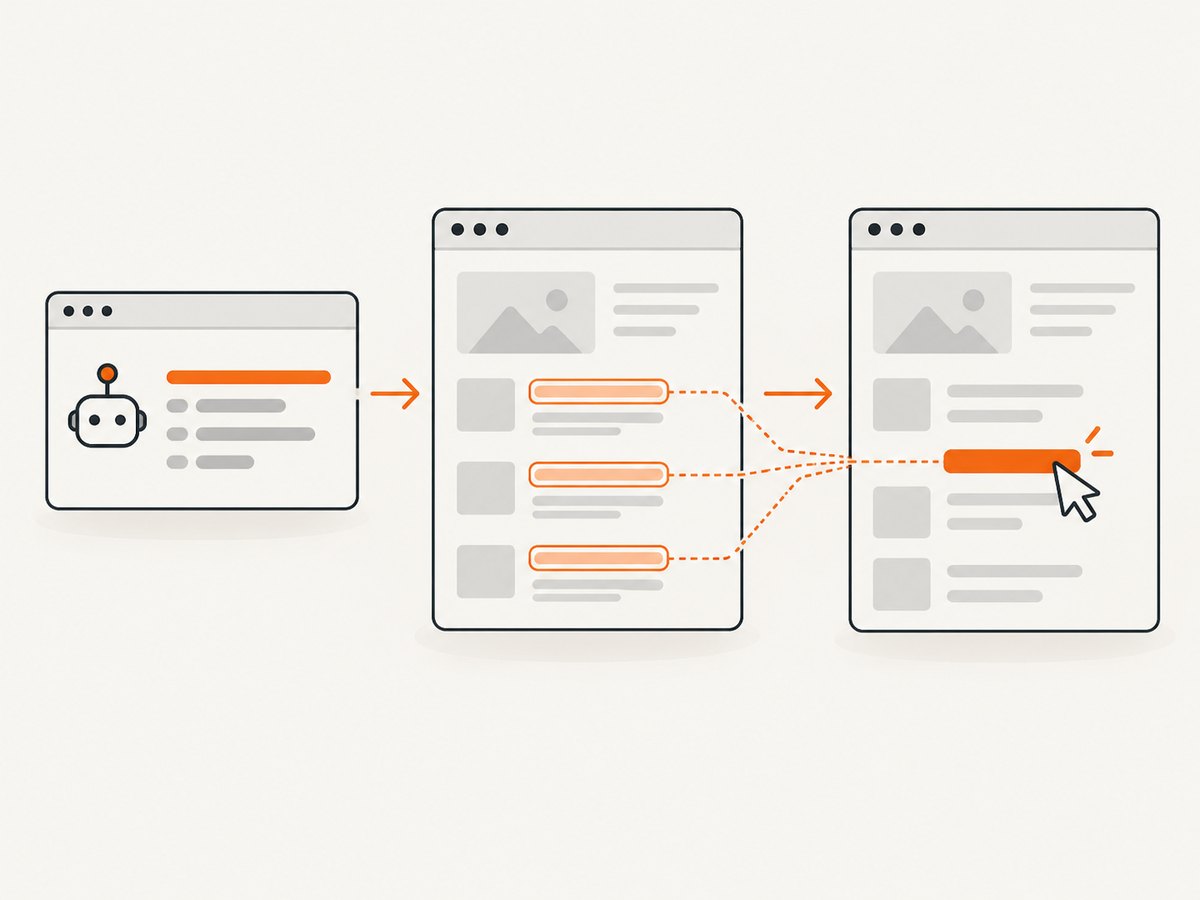
Before changing the click, print the number of matches and the identifying data for each one. This reveals whether the intended link is present, whether text differs from what you expect, and whether the page contains duplicate navigation elements such as a desktop and mobile menu.
import puppeteer from 'puppeteer';

const browser = await puppeteer.launch({headless: true});
const page = await browser.newPage();

await page.goto('https://example.com/search', {waitUntil: 'domcontentloaded'});

const links = await page.$$eval('.search-results a', anchors =>
  anchors.map((a, index) => ({
    index,
    text: a.textContent.trim(),
    href: a.href,
    ariaLabel: a.getAttribute('aria-label'),
    visible: Boolean(a.offsetWidth || a.offsetHeight || a.getClientRects().length),
  }))
);

console.table(links);
await browser.close();
Use the output to answer three questions:
- Does the intended link exist at the moment you click?
- Does it have a stable attribute, URL, accessible name, or unique text?
- Are there hidden or duplicated links that make a seemingly specific selector ambiguous?
You can also inspect the count without evaluating attributes:
const count = await page.locator('.search-results a').count();
console.log(`Matched links: ${count}`);
3. Replace a broad selector with a unique selector
Prefer stable attributes that describe the target’s meaning. A data attribute is usually less fragile than a generated CSS class.
// Best when the application provides a stable identifier.
await page.click('[data-testid="result-stripe"]');

// Match a stable destination.
await page.click('a[href="/docs/payments"]');

// Scope the link to a known card or row.
await page.click('[data-result-id="stripe"] a.details');
If the target is identified by visible text, Puppeteer supports selector features and locators for text-based selection. Keep the surrounding scope narrow so an unrelated header or footer link with the same wording is not selected.
// Text selector, scoped to the result list.
await page.click('.search-results ::-p-text(Documentation)');

// Locator with a text query.
await page
  .locator('.search-results a')
  .filter({hasText: 'Documentation'})
  .click();
Exact syntax can vary with your Puppeteer version. Check the current page interactions guide when upgrading. Accessibility names are another useful choice when the page exposes reliable labels:
await page
  .getByRole('link', {name: 'Documentation', exact: true})
  .click();
Do not use an index as your first choice:
// Works only while the result order is guaranteed.
await page.$$('.search-results a').then(links => links[2].click());
Index-based clicks break when sorting, personalization, ads, pagination, or responsive markup changes the order. If you must use an index, assert the link’s text or URL immediately before clicking it.
4. Wait for the intended link, not just any link
A selector can be unique and still fail because the application renders results asynchronously. waitForSelector waits for a matching element to exist; with visible: true, it also waits for visibility. It does not make a selector unique.
await page.waitForSelector('[data-result-id="stripe"] a.details', {
  visible: true,
  timeout: 15000,
});

await page.click('[data-result-id="stripe"] a.details');
When action readiness matters, use a locator. Locators can wait for presence and action conditions such as enabled state and a stable bounding box. This is useful for components that appear, move during layout, or become enabled after data loads.
const target = page
  .locator('[data-result-id="stripe"] a.details')
  .setTimeout(15000);

await target.click();
If a page updates in place after a fetch, waiting for a link alone is insufficient. Wait for a page-specific result, such as a changed URL fragment, a heading, or a status element.
await page.click('[data-result-id="stripe"] a.details');
await page.waitForSelector('h1[data-page="documentation"]', {visible: true});
5. Handle navigation without a race condition
If clicking the link causes a full navigation, register the navigation wait before triggering the click. Puppeteer documents that starting waitForNavigation afterward can race with a fast navigation.
const [response] = await Promise.all([
  page.waitForNavigation({waitUntil: 'domcontentloaded', timeout: 30000}),
  page.click('[data-result-id="stripe"] a.details'),
]);

console.log('Arrived at:', page.url());
console.log('HTTP response:', response?.status());
Use networkidle0 or networkidle2 only when the site reliably becomes idle. Analytics, long polling, and open connections can prevent an idle condition. For client-side routing, there may be no navigation response at all; wait for the route’s visible result instead.
await page.click('[data-result-id="stripe"] a.details');
await page.waitForFunction(
  () => location.pathname === '/docs/payments'
);
await page.waitForSelector('main[data-route="payments"]', {visible: true});
6. A complete diagnostic script
The following script loads a page, inspects matching links, selects one by a stable URL, and handles either navigation or an in-page update. Replace the URL and selectors with the values from your application.
import puppeteer from 'puppeteer';

const browser = await puppeteer.launch({headless: true});
const page = await browser.newPage();
page.setDefaultTimeout(15000);

try {
  await page.goto('https://example.com/search', {
    waitUntil: 'domcontentloaded',
    timeout: 30000,
  });

  const selector = '.search-results a';
  await page.waitForSelector(selector, {visible: true});

  const matches = await page.$$eval(selector, nodes =>
    nodes.map((node, index) => ({
      index,
      text: node.textContent.trim(),
      href: node.href,
      ariaLabel: node.getAttribute('aria-label'),
    }))
  );
  console.table(matches);

  const target = page.locator('a[href="/docs/payments"]');
  if (await target.count() !== 1) {
    throw new Error('Expected exactly one payments documentation link');
  }

  const [response] = await Promise.all([
    page.waitForNavigation({
      waitUntil: 'domcontentloaded',
      timeout: 30000,
    }).catch(() => null),
    target.click(),
  ]);

  console.log({url: page.url(), status: response?.status() ?? null});
} finally {
  await browser.close();
}
7. Common errors and fixes
| Symptom | Likely cause | Fix |
|---|---|---|
| The first link is clicked every time | Selector matches multiple elements | Inspect matches and add a stable attribute, URL, text, role, or scoped parent. |
Waiting failed: timeout exceeded |
Target is not rendered, selector is wrong, or page is on a different state | Capture the current URL and HTML, verify the selector in DevTools, and wait for the state that creates the target. |
| Click does nothing | Element is covered, moving, disabled, or the app handles a different event | Use a locator, wait for a stable bounding box and enabled state, then inspect overlays and event handlers. |
| Navigation wait hangs | Click performs client-side routing or the page keeps connections open | Wait for a route-specific element or URL change instead of network idle. |
| Navigation wait misses the destination | waitForNavigation() started after the click |
Put the wait and click in the same Promise.all. |
| Text selector finds the wrong link | Repeated labels in header, content, or footer | Scope the text query to the relevant container and use exact matching where supported. |
| Works locally but fails in CI | Different viewport, timing, authentication, or responsive DOM | Set the viewport and user state explicitly, log matches, and avoid positional selectors. |
8. Edge cases to check
- Duplicate responsive markup: Desktop and mobile menus may both exist, with one hidden. Scope to the visible navigation or use a locator that checks visibility.
- Shadow DOM: A normal CSS query may not cross a component boundary. Use Puppeteer’s supported piercing selectors or interact through the component’s host according to the page structure.
- Frames: If the link is inside an iframe, select the correct frame first and run selectors against that frame.
- New tabs: A link with
target="_blank"can create a new page. Listen for the target and then operate on the new page. - Overlays: Cookie dialogs, chat widgets, and modal backdrops can cover a link. Dismiss them or wait for them to disappear before clicking.
- Virtualized lists: The desired row may not exist until scrolling. Scroll the list, wait for the row, then select it by identity.
- Authentication and permissions: An unauthenticated session may render a different set of links. Establish cookies or login state before inspecting selectors.
9. Performance and reliability practices
Use the narrowest reliable selector and wait for a meaningful state. This reduces retries and avoids clicking the wrong duplicate. Set a page-level default timeout, then use shorter action-specific timeouts where failure should be fast. Keep screenshots, HTML, URL, viewport, and match lists in failure artifacts so a CI failure is diagnosable.
Prefer deterministic page setup:
await page.setViewport({width: 1440, height: 900, deviceScaleFactor: 1});
await page.setUserAgent('my-automation-test');
await page.setExtraHTTPHeaders({'Accept-Language': 'en-US'});
Avoid fixed sleeps such as waitForTimeout(5000) as the primary synchronization method. A five-second delay can be too short on a slow run and wasteful on a fast one. Wait for the element, URL, heading, or application state that proves the action is ready.
10. Or skip the browser setup
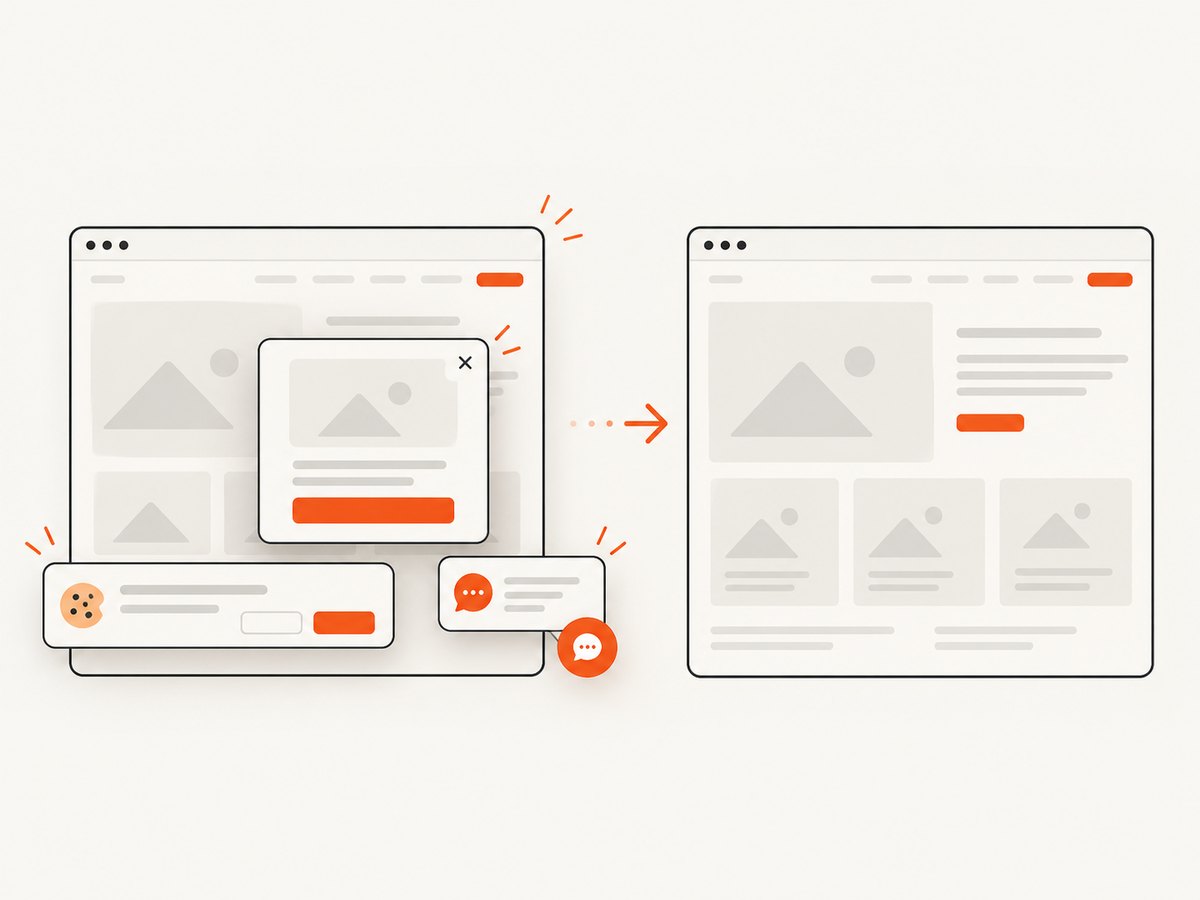
If your end goal is a clean image or PDF of a page after diagnosing the interaction, ScreenshotNeo provides a single GET request. Its capture flow accepts cookie and consent banners before the shot and removes more than 60 known consent platforms, newsletter popups, and chat widgets. Each step can be turned off. Bot checks, blank pages, timeouts, failed loads, and cache hits are not billed, and the response reports the result in X-Page-Verdict and X-Billed headers.
See the ScreenshotNeo API documentation for all options. Basic cURL:
curl -G "https://api.screenshotneo.com/v1/shot" -d access_key=YOUR_API_KEY --data-urlencode url=https://stripe.com -o shot.webpPython:
import requests

r = requests.get(
    "https://api.screenshotneo.com/v1/shot",
    params={"access_key": "YOUR_API_KEY", "url": "https://stripe.com"},
    timeout=90,
)
r.raise_for_status()
open("shot.webp", "wb").write(r.content)
Node.js:
const q = new URLSearchParams({ access_key: 'YOUR_API_KEY', url: 'https://stripe.com' });
const res = await fetch(`https://api.screenshotneo.com/v1/shot?${q}`);
if (!res.ok) throw new Error(`Screenshot failed: ${res.status}`);
const data = Buffer.from(await res.arrayBuffer());
await import('node:fs/promises').then(fs => fs.writeFile('shot.webp', data));
For screenshot workflows, ScreenshotNeo also supports full-page capture with lazy images loaded, element capture by CSS selector, dark mode, device presets or custom viewports, retina scale, PDF output, custom CSS and JavaScript, clicks before capture, selector hiding, selector or network-idle waits, request blocking, custom headers and cookies, timezone and geolocation, transparent backgrounds, resizing, configurable caching, signed links, asynchronous jobs with signed webhooks, bulk capture of up to 100 URLs per call, a usage API, and an OpenAPI specification. Its MCP server exposes take_screenshot, get_page_info, and capture_pdf to Claude, Cursor, and other MCP clients.
There is a free plan with 1,000 screenshots per month and no card. Paid plans start at $5 for 3,000 shots; yearly billing gives two months free, and every feature is available on every plan. Create a free ScreenshotNeo account to start.
11. FAQ
Does increasing the timeout fix the first-link problem?
No. A timeout can help a late-rendering target, but it does not change which matching element page.click chooses. Make the selector unique first.
Should I use page.$$('a') and click an array index?
Only when the order is a documented part of the page contract. A stable ID, URL, role, or scoped text match survives content reordering better.
How do I know whether the click navigates?
Check whether the URL changes or a new document loads. For full navigation, pair the click with waitForNavigation. For client-side updates, wait for the route or content that changes.
Why does a locator help?
Locators bundle selection with automatic waiting for presence and action readiness. They still need a selector that identifies the intended element.
Can Puppeteer click a link inside an iframe?
Yes, after selecting the correct frame. A page-level selector cannot directly target content inside a separate frame document.
12. Practical checklist
- Log the selector and count its matches.
- Print each match’s text, URL, accessible label, and visibility.
- Choose a stable identifier and scope it to the right container.
- Wait for the target’s presence and readiness.
- Pair navigation waits with the click in
Promise.all. - For in-page updates, wait for a route or content assertion.
- Record page state and match details when automation fails.
With those checks, a repeated first-link click becomes a selector and synchronization problem you can observe and fix instead of a timing mystery.
Primary references: Puppeteer Page API, Puppeteer Locator API, Puppeteer page interactions, and Page.waitForSelector.


