How to Check Whether a Puppeteer Click Triggers Navigation
Register waitForNavigation() before clicking, then await both together. Learn how to interpret the result, choose a timeout, and handle SPA changes and clicks that do not navigate.
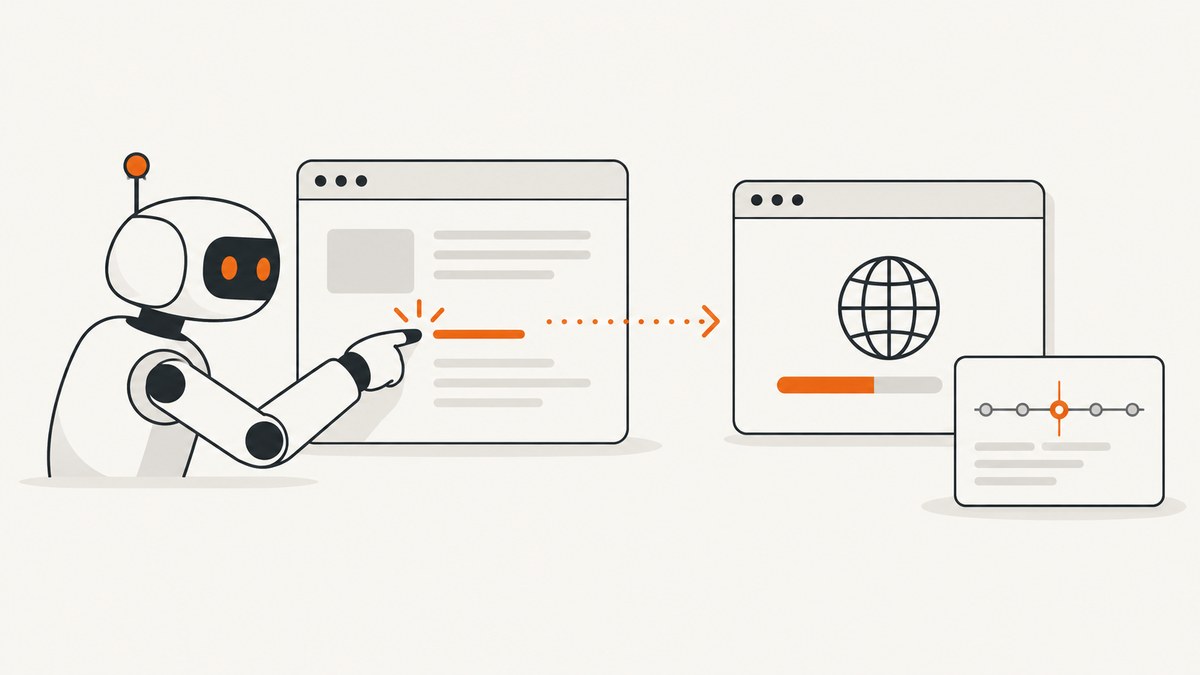
To check whether a Puppeteer click triggers navigation, start page.waitForNavigation() before the click and await both promises together:
const [response] = await Promise.all([
  page.waitForNavigation(),
  page.click('a.my-link'),
]);

console.log('Navigation wait completed', response);
This ordering avoids a race: the click can trigger navigation before a wait started afterward has a chance to observe it. A successful click and a completed navigation wait are separate outcomes. The click promise says the element was clicked; the navigation promise says Puppeteer observed a navigation or reload. Its result can be an HTTP response or null, including for History API and anchor changes. Puppeteer’s Page.click reference and Page.waitForNavigation reference document these behaviors.
1. The reliable click-and-navigation pattern
Use Promise.all whenever the click is expected to navigate. It registers the navigation wait and starts the click as a coordinated operation:

import puppeteer from 'puppeteer';

const browser = await puppeteer.launch({ headless: true });
try {
  const page = await browser.newPage();
  await page.goto('https://example.com', { waitUntil: 'domcontentloaded' });

  const [response] = await Promise.all([
    page.waitForNavigation(),
    page.click('a'),
  ]);

  console.log('URL after click:', page.url());
  console.log('HTTP status:', response?.status() ?? 'No document response');
} finally {
  await browser.close();
}
The selector here is deliberately generic; replace 'a' with a selector that identifies the intended control on your page. Puppeteer’s Page.click() clicks the first matching element and throws if no element matches. Prefer a precise selector when a page has multiple links or buttons. If the element may not yet exist or be ready, use a locator, which performs readiness checks before clicking. The locator helps with element interaction; it does not replace waitForNavigation() when the click should navigate. See Puppeteer’s page interactions guide.
Why the order matters
This pattern is racy:
await page.click('a.my-link');
await page.waitForNavigation();
The destination may begin loading as soon as the click happens. By the time the second line registers its wait, navigation may already have occurred, leaving the script waiting for another navigation until timeout. Puppeteer explicitly warns about this race in its click API reference.
2. Interpret the result correctly
waitForNavigation() resolves to HTTPResponse | null. Use the response when there is one, and check the final URL or page state as well:

const [response] = await Promise.all([
  page.waitForNavigation(),
  page.click('a.my-link'),
]);

if (response) {
  console.log('Document response:', response.status(), response.url());
} else {
  console.log('Navigation completed without a document response');
}
console.log('Current URL:', page.url());
A null response alone does not prove that nothing happened. Puppeteer treats History API URL updates as navigation, and anchor changes can also resolve without an HTTP response. A client-side route transition may update the URL without loading a new document. With redirects, the response is for the last redirect. These details are covered by the navigation API documentation.
When the question is specifically whether navigation occurred, the paired wait is the key check. When you need to know whether the intended destination is usable, also check a destination-specific signal, such as its URL or a heading that should appear there. A lifecycle event only describes browser loading progress; it does not establish that the application has finished all of its own asynchronous work.
3. Choose a wait condition and timeout
By default, Puppeteer waits for the load lifecycle event and uses a 30,000 millisecond timeout. You can set these for an individual navigation wait:
const [response] = await Promise.all([
  page.waitForNavigation({
    waitUntil: 'domcontentloaded',
    timeout: 10000,
  }),
  page.click('button.continue'),
]);
The documented waitUntil lifecycle choices include load, domcontentloaded, networkidle0 and networkidle2. A condition can be a single event or an array of events. Choose based on what the next step needs:
| Condition | Useful when | Keep in mind |
|---|---|---|
load |
You need the browser’s full load event; this is the default. | Third-party resources can make it slower. |
domcontentloaded |
The parsed document is enough for the next step. | Images and other resources may still be loading. |
networkidle0 |
You need a period with no active network connections. | Pages with persistent connections or frequent requests may not reach it promptly. |
networkidle2 |
A small number of active connections is acceptable. | Network quiet does not necessarily mean app content is ready. |
The available wait options and defaults are described in Puppeteer’s WaitForOptions reference. For repeated operations, page-level default timeout settings can be more convenient; an explicit timeout in the call makes that wait’s budget clear. Set the timeout according to the site and task rather than increasing it automatically whenever a wait fails.
4. Tell navigation apart from other click effects
Many controls do not navigate. A button may open a dialog, expand a menu, submit an inline form, update a component, or change state without changing the URL. In those cases, waiting only for navigation is the wrong success condition: it will usually time out even though the click worked.
Wait for the effect that represents success. For example, for a dialog:
await page.locator('button.open-dialog').click();
await page.locator('[role="dialog"]').wait();
For a client-side route where the URL should change, you can pair the click with navigation and then check the URL:
const [response] = await Promise.all([
  page.waitForNavigation({ waitUntil: 'domcontentloaded' }),
  page.locator('a.account').click(),
]);

if (!page.url().includes('/account')) {
  throw new Error(`Expected account route, got ${page.url()}`);
}
console.log('Route reached; response:', response?.status() ?? 'none');
Use the signal that matches the action. Puppeteer’s locator API checks that an element is present, visible, enabled, within the viewport, and stable before clicking; navigation or application readiness remains a separate concern. See the interactions guide.
5. Handle errors and edge cases
| Symptom | Likely cause | Fix |
|---|---|---|
waitForNavigation times out |
The click did not navigate, or the chosen lifecycle event did not happen before the timeout. | Confirm the intended effect. For inline UI changes, wait for the resulting element or state instead. If navigation is expected, check the selector and choose an appropriate condition and timeout. |
| The click promise rejects because no element matches | The selector is wrong, the element has not appeared, or it is in a different frame. | Verify the selector and frame context; use a locator or wait for the element to become available before clicking. |
| The script appears to hang after clicking | The navigation wait was started after the click, or the wait condition is too strict for the page. | Register the wait in Promise.all before triggering the action. Reassess waitUntil and timeout. |
The response is null |
The change may be an anchor or History API navigation without a document response. | Check page.url() and the destination state; do not use response presence as the only test. |
| A redirect leads to a surprising destination | The final response corresponds to the last redirect, not necessarily the first URL requested. | Inspect the response URL and final page.url(); validate the destination your workflow requires. |
| Navigation wait passes but a later selector is absent | The lifecycle event occurred before app-specific rendering or data loading completed. | After navigation, wait for the destination-specific selector or state needed by the next action. |
Also consider what happens when the click itself fails. Promise.all rejects if either operation rejects. In a larger workflow, catch the error at the right boundary, capture the current URL and relevant state for diagnostics, and close the browser in a finally block. Do not retry blindly: a timeout can mean the click already submitted a form or changed state even if your chosen wait did not finish.
6. Performance, reliability, and cost
Navigation waits are synchronization, not a performance measurement. Waiting for load or network idle can cost time when a page loads many resources; waiting only for domcontentloaded can reduce waiting when that is all the next operation requires. The correct tradeoff depends on the state your automation needs, not on choosing the shortest condition by default.
Reliability improves when selectors identify the intended control, waits are armed before actions, timeouts match expected site behavior, and success checks reflect the task. For workflows that run repeatedly, log the action, URL before and after, selected wait condition, elapsed time, and whether a response was returned. These fields help distinguish selector failures, timeouts, route changes, and server errors without treating them as the same failure.
Cost depends on where the browser runs and how often the workflow runs: account for browser compute, network transfer, and any hosted browser or infrastructure charges in your environment. The Puppeteer APIs discussed here do not specify those infrastructure prices, so estimate them from the execution setup you choose. Avoid unnecessary waits and duplicate captures or navigations, while retaining the checks needed to prevent bad downstream results.
7. Troubleshooting checklist
- Is navigation expected? If not, wait for the actual UI effect.
- Is the wait registered first? Put
waitForNavigation()and the click in the samePromise.all. - Does the selector uniquely identify the control? Check for missing matches and remember
Page.click()uses the first match. - Is the timeout realistic? Start with the documented default or set a task-specific value.
- Does the next step need the whole page? Choose a lifecycle condition, then wait for a destination-specific element if needed.
- Was the route change client-side? Check the URL and UI even if the response is
null. - Could the click have had an effect despite an error? Inspect current page state before retrying.
8. Or skip the browser setup
If your task is to capture a website rather than automate the click itself, ScreenshotNeo provides a screenshot API. For example, this cURL call saves a WebP screenshot of a target URL; replace the URL as needed and provide your API key:
curl -G "https://api.screenshotneo.com/v1/shot" -d access_key=YOUR_API_KEY --data-urlencode url=https://stripe.com -o shot.webpSee the ScreenshotNeo API documentation for request options. The service also has a Python client call and a Node.js fetch call:
import requests
r = requests.get("https://api.screenshotneo.com/v1/shot", params={"access_key": "YOUR_API_KEY", "url": "https://stripe.com"}, timeout=90)
open("shot.webp", "wb").write(r.content)
const q = new URLSearchParams({ access_key: 'YOUR_API_KEY', url: 'https://stripe.com' });
const res = await fetch(`https://api.screenshotneo.com/v1/shot?${q}`);ScreenshotNeo accepts cookie or consent banners and removes more than 60 known consent platforms, newsletter popups, and chat widgets before capture; each of those steps can be turned off. Bot checks and CAPTCHAs, blank pages, timeouts, failed loads, and cache hits are not billed, and response headers report the page verdict and billing status. Its MCP server gives AI agents tools for screenshots, page information, and PDF capture. The free plan includes 1,000 screenshots per month with no card; paid plans start at $5 for 3,000. Sign up for 1,000 free screenshots a month, with no card required.
9. Frequently asked questions
Does a fulfilled click promise prove that navigation occurred?
No. It means the element was clicked successfully. Await waitForNavigation() alongside the click to observe navigation.
Can Puppeteer detect a single-page application route change?
waitForNavigation() treats History API URL changes as navigation. The result may be null because no new document response was received.
Should I always use networkidle0?
No. Use it only when its network quiet condition matches what the next step needs. A destination-specific selector is often a clearer readiness signal for app content.
Why did my click work but navigation still time out?
The control may have changed the page in place, or the wait may require a lifecycle event that never occurred. Check the actual outcome and wait for that state instead.
How do I check the final redirected URL?
After the paired promises resolve, inspect page.url() and, when present, response.url(). The navigation response represents the last redirect.


