How to Click “View More” Repeatedly in Puppeteer Until Content Loads
Build a bounded Puppeteer loop that clicks View more, verifies new content, handles navigation and retries, and stops safely when results end.
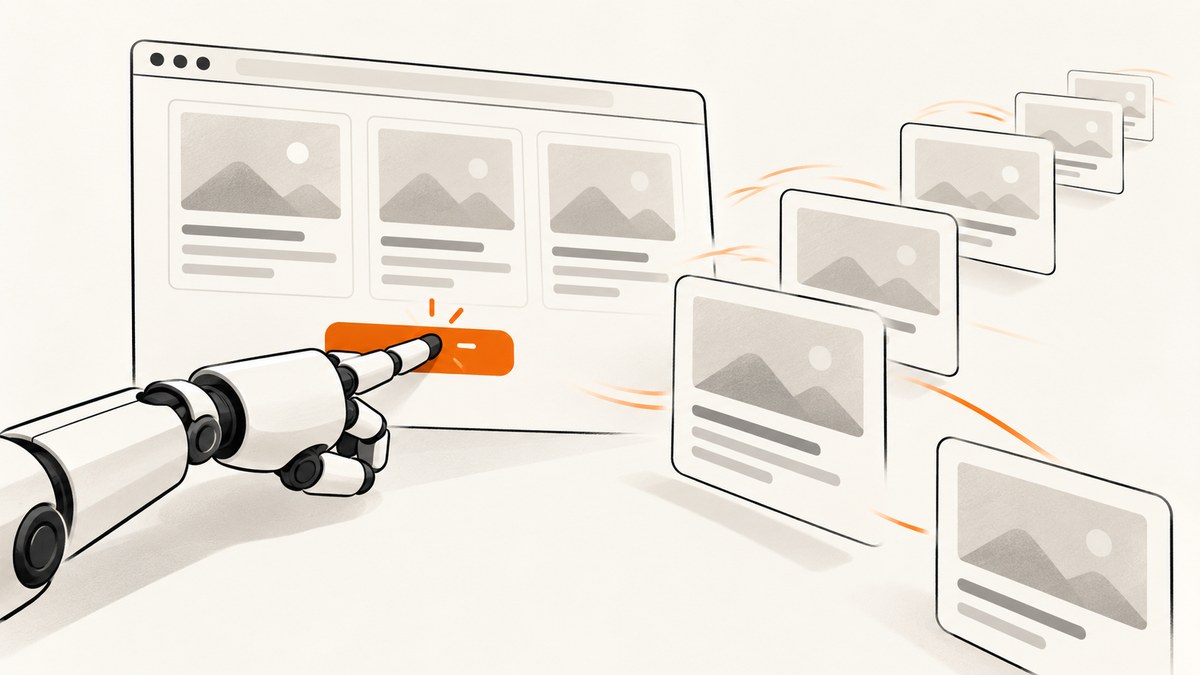
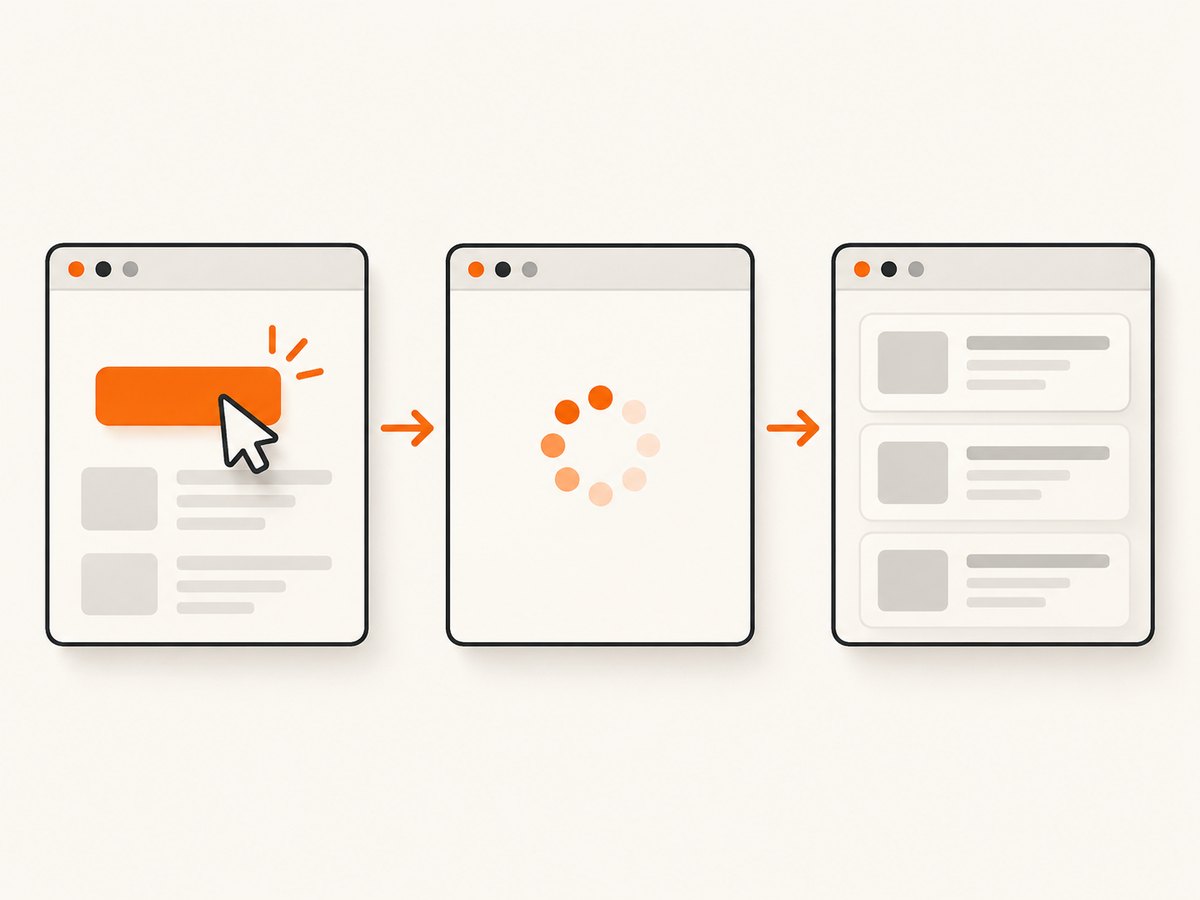
Use a bounded loop that records the current result state, clicks View more, waits for a meaningful change, then re-queries the button. A click succeeding only proves that the pointer action happened; it does not prove that another batch arrived. The reliable signal is page-specific: a larger result count, a new last-item ID, a newly inserted selector, or a matching response.
This guide shows a complete Puppeteer implementation, how to distinguish in-place loading from navigation, how to stop at the real end, and how to diagnose stalled or duplicate batches. Replace the example selectors with selectors verified against your target page.
1. Inspect the page before writing the loop
Open DevTools and identify three things:
- The View more control, preferably a semantic locator such as a button with accessible text.
- The result container and one selector that matches every loaded result.
- A terminal state, such as a hidden or disabled button, an end-of-results message, or an empty response that the site documents as final.
Do not assume that a class named .load-more exists. A site may render a link, a button whose text changes, or a control inside a shadow root. Also determine whether clicking changes the URL. Most controls append content in place, but some navigate to another page.
2. A robust loop for in-place loading
Puppeteer locators wait for the target to be present, visible, enabled, and actionable before clicking. After the click, page.waitForFunction waits for a predicate in the page context to become truthy. This combines action readiness with a content-specific progress check, as recommended in the Puppeteer page interactions guide and Frame.waitForFunction documentation.
import puppeteer from 'puppeteer';

const browser = await puppeteer.launch({ headless: true });
const page = await browser.newPage();
await page.goto('https://example.com/catalog', {
  waitUntil: 'domcontentloaded',
  timeout: 30_000,
});

const buttonSelector = 'button.load-more';       // verify on the target site
const itemSelector = '.result-card';              // every loaded result
const endSelector = '[data-results-end]';         // optional site-specific marker
const maxClicks = 100;
const progressTimeout = 10_000;

for (let clickNumber = 0; clickNumber < maxClicks; clickNumber++) {
  const button = page.locator(buttonSelector);

  // Re-query each iteration because the site may replace the node.
  const buttonCount = await page.locator(buttonSelector).count();
  if (buttonCount === 0) break;

  const terminal = await page.locator(endSelector).count();
  if (terminal > 0) break;

  const disabled = await page.locator(buttonSelector).evaluate((el) =>
    el instanceof HTMLButtonElement && el.disabled
  );
  const hidden = await page.locator(buttonSelector).isHidden().catch(() => true);
  if (disabled || hidden) break;

  const before = await page.locator(itemSelector).count();
  const beforeLastId = await page.locator(itemSelector).last()
    .getAttribute('data-id').catch(() => null);

  await button.click();

  try {
    await page.waitForFunction(
      ({ itemSelector, before, beforeLastId, endSelector }) => {
        if (document.querySelector(endSelector)) return true;
        const items = document.querySelectorAll(itemSelector);
        if (items.length > before) return true;
        const last = items[items.length - 1];
        return Boolean(last && last.getAttribute('data-id') !== beforeLastId);
      },
      { timeout: progressTimeout },
      { itemSelector, before, beforeLastId, endSelector },
    );
  } catch (error) {
    const after = await page.locator(itemSelector).count();
    const endNow = await page.locator(endSelector).count();
    if (after === before && endNow === 0) {
      throw new Error(`View more made no progress after click ${clickNumber + 1}: ${error.message}`);
    }
  }
}

const results = await page.locator(itemSelector).evaluateAll((nodes) =>
  nodes.map((node) => ({
    id: node.getAttribute('data-id'),
    text: node.textContent.trim(),
  }))
);

await browser.close();
console.log(`Collected ${results.length} results`);
The loop has four safeguards:
- Progress: it waits for a count increase or a changed last-item ID.
- Fresh handles: it locates the button again after every batch, so a replaced DOM node does not become stale.
- Termination: it stops for absence, hidden or disabled state, or an explicit end marker.
- Bounds: a maximum click count and finite timeout prevent an unexpected page from hanging indefinitely.
3. Choosing the right progress signal
| Signal | Use it when | Typical check |
|---|---|---|
| Result count | Each batch appends unique result elements | querySelectorAll(itemSelector).length > before |
| Last-item ID | The list is virtualized or count is stable | Compare data-id or a canonical URL |
| New selector | The site inserts a known loading-complete marker | waitForSelector('.batch-12') |
| Matching response | The click triggers a documented API request | Wait for a response whose URL and status match |
| End marker | The site explicitly renders “No more results” | Stop when the marker appears |
Network idle alone is often a poor progress condition. Analytics, ads, WebSockets, and polling can keep a page busy after the useful content is ready. A DOM or response signal tied to the result batch is easier to reason about.
4. When View more navigates
If the action causes navigation, arm the navigation wait before clicking. Starting the wait afterward creates a race: the navigation can finish before Puppeteer begins listening. The Puppeteer Page API documentation shows this concurrent pattern:
const [response] = await Promise.all([
  page.waitForNavigation({
    waitUntil: 'domcontentloaded',
    timeout: 30_000,
  }),
  page.locator('a.load-more').click(),
]);

if (!response || !response.ok()) {
  throw new Error(`Navigation failed: ${response?.status()}`);
}

await page.waitForFunction(
  (selector, before) => document.querySelectorAll(selector).length > before,
  { timeout: 10_000 },
  '.result-card',
  20,
);
Use this variant only when the URL or document changes. For an in-place update, waiting for navigation will time out even though the content loaded correctly.
5. Waiting for a matching network response
Some applications expose a stable endpoint for each batch. Waiting for that response can be more precise than watching the DOM, especially when a virtualized list reuses elements.
const before = await page.locator('.result-card').count();
const [apiResponse] = await Promise.all([
  page.waitForResponse(
    (response) =>
      response.url().includes('/api/products') &&
      response.request().method() === 'GET' &&
      response.status() === 200,
    { timeout: 15_000 },
  ),
  page.locator('button.load-more').click(),
]);

const payload = await apiResponse.json();
if (!Array.isArray(payload.items) || payload.items.length === 0) {
  // Decide from the API contract whether an empty batch means exhausted or retryable.
  console.log('The API returned no additional items');
}

await page.waitForFunction(
  (selector, before) => document.querySelectorAll(selector).length > before,
  { timeout: 10_000 },
  '.result-card',
  before,
);
Check both the response status and the resulting page state. A successful HTTP response can still contain an error object or an empty batch.
6. Handling loading indicators, debounce, and retries
Many buttons remain in the DOM while loading, then become disabled. Wait for the spinner to disappear or for the button to become enabled before the next iteration. Add a short delay only when the site has a known debounce requirement; prefer a state change over an arbitrary sleep.
await page.locator('button.load-more').click();
await page.locator('.loading-spinner').waitFor({ state: 'hidden', timeout: 15_000 });

// Optional retry for a transient batch failure.
for (let attempt = 1; attempt <= 3; attempt++) {
  try {
    await page.waitForFunction(
      (selector, before) => document.querySelectorAll(selector).length > before,
      { timeout: 5_000 },
      '.result-card',
      before,
    );
    break;
  } catch (error) {
    if (attempt === 3) throw error;
    await new Promise((resolve) => setTimeout(resolve, 500 * attempt));
  }
}
Do not blindly click again after a timeout. First inspect whether the request is still running, whether the button is disabled, and whether the batch actually arrived but rendered through a different selector. Repeated clicks can duplicate requests or skip state transitions.
7. Extracting complete content and lazy-loaded fields
After the loop ends, extract data from the page rather than from stale element handles. If images or descriptions load lazily, scroll the result into view before reading it, or wait for its own selector.
const cards = await page.locator('.result-card').evaluateAll((nodes) =>
  nodes.map((card) => ({
    title: card.querySelector('.title')?.textContent.trim() ?? null,
    href: card.querySelector('a')?.href ?? null,
    image: card.querySelector('img')?.currentSrc ?? null,
  }))
);
For a full-page screenshot after all batches are loaded, use await page.screenshot({ path: 'results.png', fullPage: true }). Confirm that the page has finished rendering before capture; a click loop that ends early produces an incomplete image.
8. Common errors and fixes
| Symptom | Likely cause | Fix |
|---|---|---|
TimeoutError after click |
The selector or progress condition does not match the site | Inspect the DOM and wait for the actual count, ID, selector, or response. |
| Click intercepted | Consent banner, modal, sticky header, or overlay covers the button | Dismiss the overlay, scroll the control into view, or use a locator that targets the visible button. |
| Button becomes stale | The framework replaced the node after rendering | Re-query the locator every iteration; do not retain an old element handle. |
| Infinite loop | The click succeeds but no new items arrive, or the end state is not detected | Compare before and after state, add an end marker check, finite timeout, and maximum click count. |
| Duplicate results | The site returns overlapping pages or a retry repeated a request | Deduplicate by stable ID or canonical URL and log each batch’s IDs. |
| Navigation timeout | You waited for navigation on an in-place update | Use a DOM or response wait instead; reserve waitForNavigation for URL/document changes. |
| Only the first batch appears | Virtualized rendering or lazy loading keeps later nodes offscreen | Wait for the site’s render signal and scroll items into view before extraction. |
| CAPTCHA or bot check | The site challenged automated traffic | Stop and handle the challenge according to the site’s policy; do not loop faster or attempt to bypass it. |
9. Reliability, performance, and cost
- Reliability: log the URL, click number, item count, last ID, button state, and elapsed time. Save HTML or a screenshot when a progress wait fails.
- Performance: wait on the narrowest useful signal. Blocking unnecessary fonts, ads, or third-party requests can reduce load time when you control the browser context, but verify that required API calls remain available.
- Concurrency: one page per target is simplest. If you process many targets, cap concurrency to avoid saturating CPU, memory, or the target site.
- Timeouts: use separate navigation, response, and progress timeouts. A single very long timeout hides failures and ties up workers.
- Cost: browser automation consumes compute for every launch, page, and click. Reuse a browser process where safe, close pages in a
finallyblock, and bound the number of batches.
10. Or skip the browser setup
If your goal is a clean screenshot after the content is available, ScreenshotNeo provides a single GET request and supports full-page capture, custom JavaScript, clicks, selector waits, delays, network-idle waits, and element capture. Read the ScreenshotNeo API documentation for all options.
curl -G 'https://api.screenshotneo.com/v1/shot' \
  -d access_key=YOUR_API_KEY \
  --data-urlencode url=https://example.com/catalog \
  -o shot.webp
import requests
r = requests.get(
'https://api.screenshotneo.com/v1/shot',
params={'access_key': 'YOUR_API_KEY', 'url': 'https://example.com/catalog'},
timeout=90,
)
r.raise_for_status()
open('shot.webp', 'wb').write(r.content)const q = new URLSearchParams({
access_key: 'YOUR_API_KEY',
url: 'https://example.com/catalog',
});
const res = await fetch(`https://api.screenshotneo.com/v1/shot?${q}`);
if (!res.ok) throw new Error(`Screenshot failed: ${res.status}`);
await Bun.write('shot.webp', res);Cookie banners, newsletter popups, and chat widgets are removed before the shot. Bot checks, blank pages, timeouts, failed loads, and cache hits are not billed, and response headers identify the page verdict and billing state. ScreenshotNeo also offers an MCP server so Claude, Cursor, and other MCP clients can take screenshots, inspect pages, and capture PDFs. The Free plan includes 1,000 screenshots each month with no card; paid plans start at $5 for 3,000 shots. Create a free ScreenshotNeo account.
11. FAQ
Should I use a fixed delay after every click?
Only when the site has a documented debounce or animation requirement. A result-specific wait is faster and less fragile.
What if the button text changes to “Loading…”?
Keep the same selector if the element remains a button, and wait for its disabled state to clear plus a result-state change.
How do I know the loop reached the end?
Prefer the site’s own end marker or a disabled/hidden control. If neither exists, treat a verified empty batch as terminal and retain a maximum click limit.
Can I run the loop against several pages at once?
Yes, but cap concurrent pages, isolate their state, and respect the target site’s traffic rules.
Is network idle enough?
No. Background requests can keep running after content is ready. Combine network waits with a DOM or response condition tied to the new batch.


