Puppeteer Cloud Browser Automation: A Quickstart
Connect Puppeteer to a hosted Chrome session, run a real page workflow, and clean up reliably with provider-specific WebSocket settings.
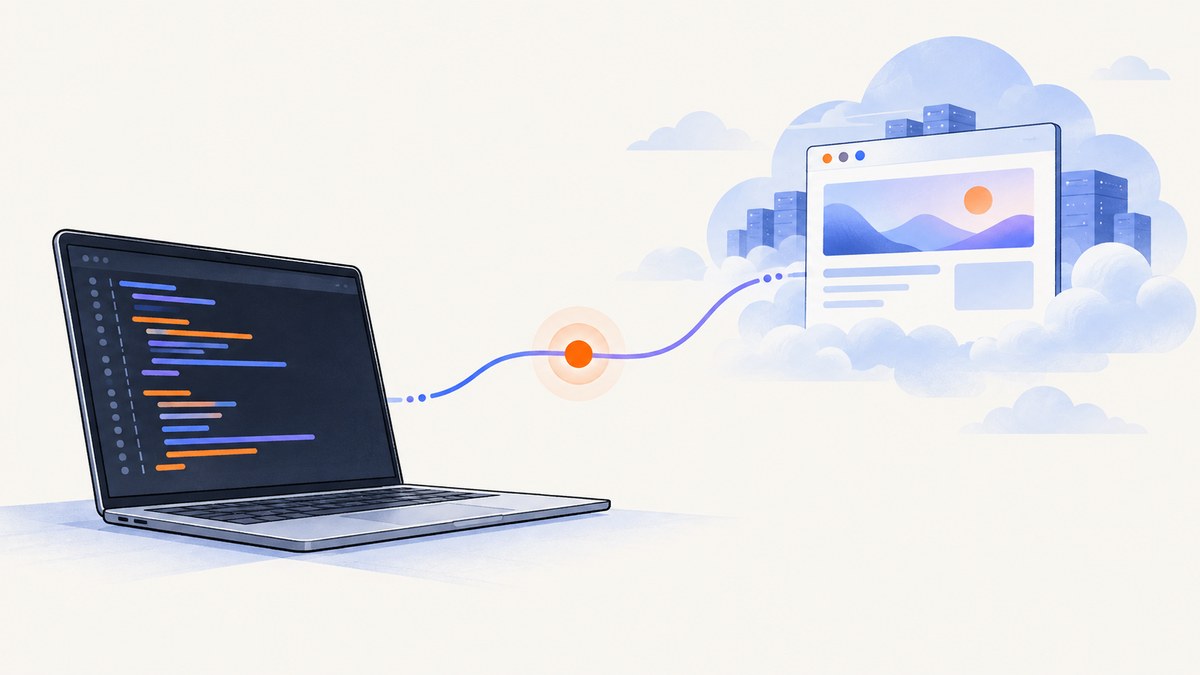
Cloud browser automation with Puppeteer means connecting your Node.js script to a browser that is already running on a provider’s infrastructure. The key distinction is simple: use puppeteer.launch() when Puppeteer should start a local browser, and use puppeteer.connect() when a cloud service gives you a WebSocket endpoint for an existing browser. Puppeteer’s browser-management guide describes the normal workflow as either launching or connecting to a browser (official browser-management guide).
This tutorial builds a complete remote workflow: install the right package, keep credentials out of source code, connect with a provider-specific endpoint, open a page, perform an action, capture a screenshot, and close or disconnect intentionally. The concrete endpoint below follows Cloudflare Browser Run’s current Puppeteer/CDP guide, updated September 26, 2026 (Cloudflare guide). Endpoint formats, permissions, session limits and billing differ between vendors, so treat the Cloudflare URL as an example rather than a universal cloud-browser API.
What you need before connecting
- Node.js and npm.
- A cloud-browser account with a browser session service enabled.
- An API token with the permission required by that provider. Cloudflare’s example requires
Browser Rendering - Edit. - The provider’s account identifier, WebSocket endpoint format, connection headers and session-duration rules.
- A target URL that your automation is allowed to access.
Use environment variables for account IDs and tokens. Never commit a bearer token, cookie, proxy password or signed WebSocket URL to a repository. Add your local environment file to .gitignore and use your deployment platform’s secret store in production.
Launch versus connect: the model
| Method | Where Chrome runs | Typical use | Lifecycle responsibility |
|---|---|---|---|
puppeteer.launch() |
Your workstation, CI runner or container | Local development and self-hosted automation | Your process starts and closes the browser |
puppeteer.connect() |
A browser already running at a provider | Hosted Chrome, remote debugging and managed scaling | You follow the provider’s session and cleanup contract |
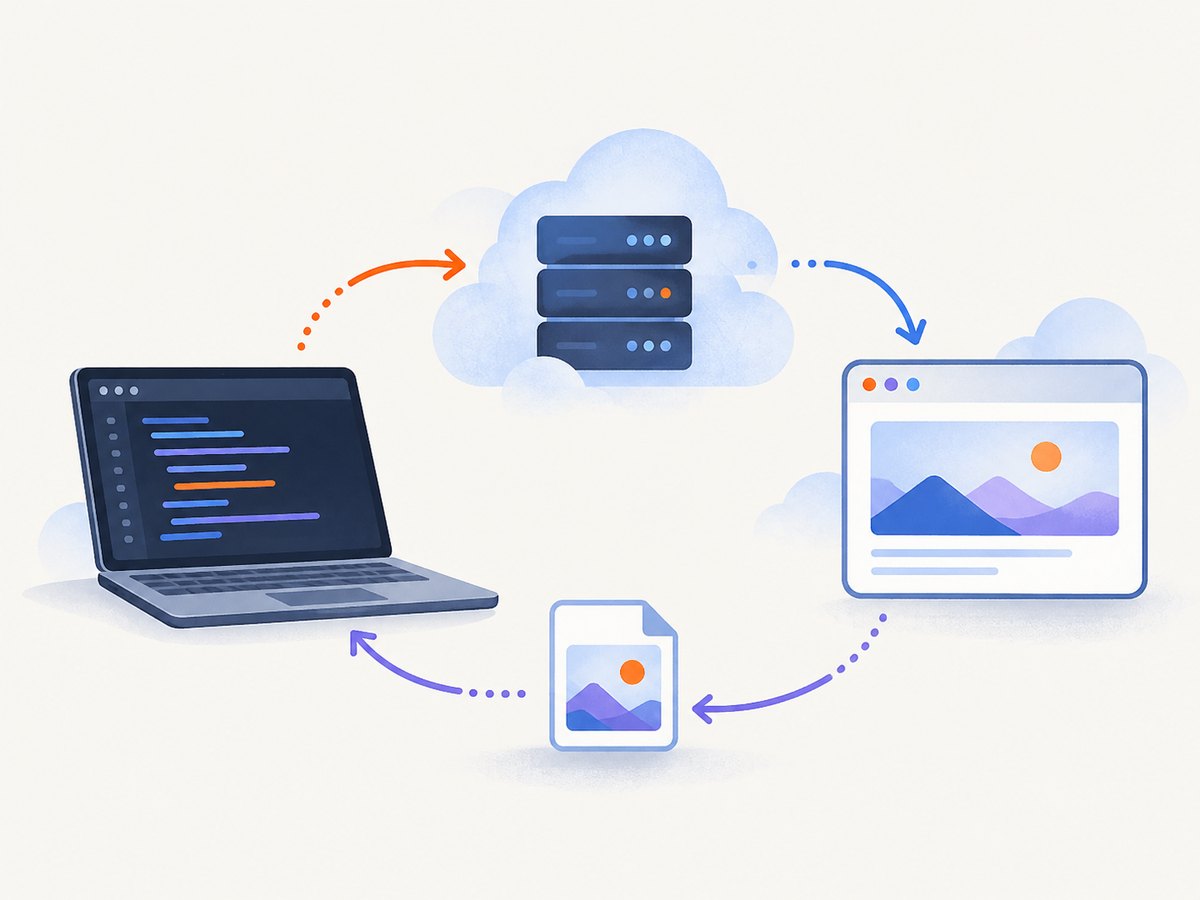
A remote connection still exposes normal Puppeteer objects: Browser, BrowserContext, Page, locators, network events and screenshots. The difference is transport and lifecycle. Your script sends commands over WebSocket/CDP; the provider supplies the browser process and decides how long it remains available.
Install Puppeteer for a cloud browser
For a hosted browser, puppeteer-core is usually the right dependency. It contains the library without downloading a local Chrome binary. The full puppeteer package downloads a compatible browser during installation, which is useful for local launches but unnecessary when the provider supplies Chrome. Package managers configured to block install scripts can also prevent that browser download (Puppeteer installation documentation).
mkdir puppeteer-cloud-demo
cd puppeteer-cloud-demo
npm init -y
npm install puppeteer-core dotenv
If you want a local fallback while developing, install puppeteer instead and use puppeteer.launch(). Do not assume a cloud endpoint supports every Chrome version or Puppeteer feature; check the provider’s supported protocol and browser version.
Cloudflare Browser Run: complete Node.js example
The following example uses the connection pattern documented by Cloudflare: account ID in the endpoint, a keep_alive duration in milliseconds, and a bearer token supplied as a WebSocket connection header. Confirm the current endpoint and token permissions in the Cloudflare documentation before deploying.
require('dotenv').config();
const puppeteer = require('puppeteer-core');

const accountId = process.env.CLOUDFLARE_ACCOUNT_ID;
const apiToken = process.env.CLOUDFLARE_API_TOKEN;
const targetUrl = process.env.TARGET_URL || 'https://example.com';

if (!accountId || !apiToken) {
  throw new Error('Set CLOUDFLARE_ACCOUNT_ID and CLOUDFLARE_API_TOKEN');
}

const browserWSEndpoint =
  `wss://browser.run/${accountId}?keep_alive=60000`;

(async () => {
  let browser;
  try {
    browser = await puppeteer.connect({
      browserWSEndpoint,
      headers: {
        Authorization: `Bearer ${apiToken}`
      }
    });

    const context = await browser.createBrowserContext();
    const page = await context.newPage();

    await page.setViewport({ width: 1440, height: 900, deviceScaleFactor: 1 });
    await page.goto(targetUrl, {
      waitUntil: 'networkidle2',
      timeout: 45_000
    });

    const title = await page.title();
    console.log({ title, url: page.url() });

    await page.screenshot({
      path: 'cloud-page.png',
      fullPage: true
    });
  } finally {
    if (browser) {
      await browser.close();
    }
  }
})();
Save credentials in .env for local development:
CLOUDFLARE_ACCOUNT_ID=your-account-id
CLOUDFLARE_API_TOKEN=your-token
TARGET_URL=https://example.com
Run it with node index.js. The keep_alive value is provider-specific and expressed in milliseconds by Cloudflare. It controls how long the session stays active; it is not a Puppeteer-wide option. If your provider returns a WebSocket URL from a separate “create browser” API call, use that returned address instead of constructing one.
Actions you can perform after connecting
Navigate and wait deliberately
await page.goto('https://example.com/dashboard', {
  waitUntil: 'domcontentloaded',
  timeout: 30_000
});
await page.waitForSelector('[data-testid="dashboard"]', {
  visible: true,
  timeout: 15_000
});
networkidle2 is convenient for mostly static pages, but analytics, chat and streaming requests can keep a page busy indefinitely. Prefer a known selector or an application-level readiness signal for dynamic apps.
Use a separate browser context
const context = await browser.createBrowserContext();
const page = await context.newPage();
await page.goto('https://example.com');
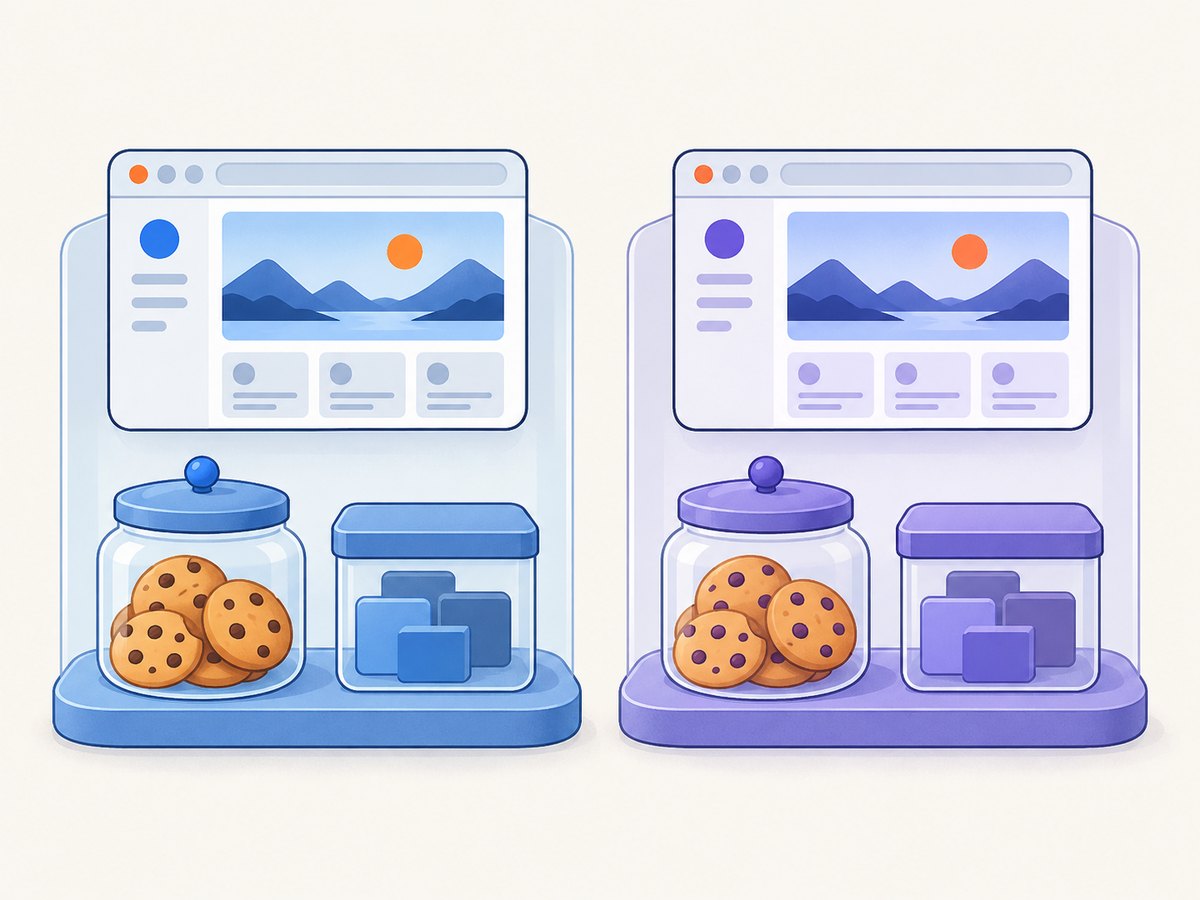
Browser contexts isolate cookies and local storage from other contexts. Create one per customer, account or test case when state must not leak. Close the context when your provider supports it and the workflow is complete.
Authenticate without hard-coding credentials
await page.setExtraHTTPHeaders({
  'X-Test-Run': process.env.RUN_ID || 'local'
});
await page.goto(process.env.APP_URL, { waitUntil: 'domcontentloaded' });
await page.setCookie({
  name: 'session',
  value: process.env.SESSION_COOKIE,
  domain: new URL(process.env.APP_URL).hostname,
  secure: true,
  httpOnly: true
});
await page.reload({ waitUntil: 'networkidle2' });
Cookie domains, secure attributes and third-party-cookie policies can differ in hosted Chrome. For sensitive systems, use a short-lived test account and revoke it after the run.
Inspect requests and browser errors
page.on('console', message => {
  console.log(`[console:${message.type()}] ${message.text()}`);
});
page.on('pageerror', error => console.error('pageerror', error));
page.on('requestfailed', request => {
  console.error('requestfailed', request.url(), request.failure());
});
These events help distinguish an application failure from a network policy, DNS problem or provider-side session issue.
Cleanup: close or disconnect?
browser.disconnect() detaches Puppeteer from the remote browser while leaving the browser and its pages open. Use it only when another process owns the session or you intentionally plan to reconnect. browser.close() gracefully closes the browser and is the normal choice when your script created or exclusively owns the session (Puppeteer browser-management guide).
try {
  // work
} finally {
  await browser.close(); // end the remote session
}
Some providers require an explicit REST “close session” call, impose an idle timeout, or charge by browser time until closure. Follow that provider’s documented cleanup operation in addition to Puppeteer’s method when required.
Provider differences to verify
| Question | Why it matters |
|---|---|
| How is a session created? | Some services expose a direct WebSocket endpoint; others require an API call that returns an address. |
| Which protocol is supported? | Puppeteer can use CDP, but a vendor may restrict browser versions or protocol features. |
| How are headers sent? | Cloudflare’s example uses a bearer header during the WebSocket connection; another service may use a query token or SDK option. |
| What ends the session? | Close calls, idle timeouts and keep-alive settings affect reliability and cost. |
| What are concurrency limits? | Parallel jobs may queue, fail or require a higher plan. |
| Where does traffic run? | Region, proxy and data-handling requirements can determine whether a provider is suitable. |
| How is usage metered? | Billing may use browser hours, session duration, requests or another vendor-defined unit. |
CloudBrowser documents another pattern: call its API to open a cloud browser, receive an address, connect with Puppeteer over WebSocket/CDP, perform work, then close the browser. Its site advertises live remote desktop, saved sessions, proxies and concurrent-browser allowances; those are vendor claims, not independent performance evaluations (CloudBrowser product page). Its published plans list a 7-day Basic trial, Basic at $25/month with 250 browser hours and 10 concurrent instances, and Premium at $90/month with 1,000 browser hours and 25 concurrent instances. Prices and terms can change, so verify them before purchase (CloudBrowser pricing).
Reliability and performance practices
- Set explicit timeouts. Use navigation, selector and overall-job deadlines so a stalled page cannot consume a session indefinitely.
- Retry only safe operations. Reconnect or retry idempotent navigation after transient WebSocket failures. Do not blindly repeat a payment or form submission.
- Capture diagnostics. Save the final URL, title, console errors, failed requests and a small HTML or screenshot artifact when a run fails.
- Limit concurrency. Start below the provider’s documented limit, then increase gradually while watching queue time, memory pressure and throttling responses.
- Reuse carefully. Reusing one session avoids startup overhead, but separate contexts are safer for isolation. Close idle sessions.
- Reduce page work. Disable unnecessary resources only when your test permits it. Blocking fonts, images or scripts can change application behavior.
- Make waits deterministic. Prefer selectors, response checks or app readiness flags over arbitrary sleeps.
No independent benchmark establishes that one hosted provider is faster or more reliable than another. Measure your own target sites, regions and concurrency with a representative workflow.
Troubleshooting common errors
| Symptom | Likely cause | Fix |
|---|---|---|
401 Unauthorized during connect |
Missing, expired or under-permissioned token | Check the token value, account ID and required provider permission. Cloudflare requires Browser Rendering - Edit. |
| WebSocket handshake fails | Wrong endpoint, blocked egress or incorrect header syntax | Copy the provider’s current endpoint exactly, allow outbound WebSockets, and use the SDK/header format shown in its guide. |
| Navigation times out | Slow origin, bot challenge, DNS failure or an overly short timeout | Inspect requestfailed, try domcontentloaded, raise the timeout for known-slow pages, and confirm the URL from the provider’s region. |
networkidle2 never resolves |
Long-polling, analytics, ads or streaming requests | Wait for a specific selector or response instead of network idle. |
| Blank screenshot | Capture happened before rendering, wrong frame, or a page error | Wait for a visible application selector, verify page.url(), and log page errors. |
| Cookies appear to leak | Pages share a default context | Create a new incognito browser context per isolated workflow and close it afterward. |
| Session keeps accruing usage | Only Puppeteer disconnected; provider session stayed alive | Call browser.close() or the provider’s explicit close-session API and review keep-alive settings. |
| Local Chrome download fails | Install scripts disabled or restricted network | Use puppeteer-core for remote Chrome, or enable the install step and cache the browser in your CI image. |
Or skip the browser setup
If your goal is a clean screenshot rather than interactive browser automation, ScreenshotNeo returns an image or PDF from one request. Its capture pipeline accepts cookie and consent banners like a visitor, then removes more than 60 known consent platforms along with newsletter popups and chat widgets; each step can be turned off. Bot checks and CAPTCHAs, blank pages, timeouts, failed loads and cache hits are not billed, and response headers identify the page verdict and billing status.
Read the full parameter reference in the ScreenshotNeo API documentation. A minimal call is:
curl -G "https://api.screenshotneo.com/v1/shot" \
  -d access_key=YOUR_API_KEY \
  --data-urlencode url=https://stripe.com \
  -o shot.webp
import requests
r = requests.get(
"https://api.screenshotneo.com/v1/shot",
params={"access_key": "YOUR_API_KEY", "url": "https://stripe.com"},
timeout=90,
)
r.raise_for_status()
open("shot.webp", "wb").write(r.content)const q = new URLSearchParams({
access_key: 'YOUR_API_KEY',
url: 'https://stripe.com'
});
const res = await fetch(`https://api.screenshotneo.com/v1/shot?${q}`);
if (!res.ok) throw new Error(`HTTP ${res.status}`);
const buffer = Buffer.from(await res.arrayBuffer());
require('fs').writeFileSync('shot.webp', buffer);ScreenshotNeo also provides full-page captures with lazy images loaded, CSS-selector element shots, dark mode, device presets, custom viewports, retina scale, PDF paper and margin controls, custom CSS and JavaScript, clicks, selector or network-idle waits, request blocking, headers, cookies, user agents, authorization, timezone and geolocation, transparent backgrounds, resizing, configurable caching, signed links, asynchronous jobs with signed webhooks, bulk capture for up to 100 URLs per call, a usage API and an OpenAPI specification. An MCP server exposes take_screenshot, get_page_info and capture_pdf to Claude, Cursor and other MCP clients.
There is a free plan with 1,000 screenshots per month and no card. Paid plans start at $5 for 3,000 shots; every feature is available on every plan. Create a free ScreenshotNeo account.
FAQ
Do I need full Puppeteer to connect to a cloud browser?
No. puppeteer-core is commonly sufficient because the hosted service supplies Chrome. Install full puppeteer when you also need Puppeteer to download and launch a local compatible browser.
Can I use a normal HTTP URL instead of WebSocket?
Puppeteer’s remote connection expects a browser endpoint compatible with its connection API, commonly a WebSocket/CDP address. A provider may require an HTTP session-creation request first; follow that provider’s workflow.
Should every job create a new browser?
For isolation and predictable cleanup, a new session or context per job is safest. Reuse is possible when startup cost matters and state separation is enforced with contexts.
Is a hosted browser required for screenshots?
No. You can run Chrome locally or in your own CI. A managed screenshot API is useful when you want a single request, clean consent-free output and usage-based handling without maintaining browser infrastructure.
How do I choose between Cloudflare and CloudBrowser?
Compare authentication, session creation, protocol support, concurrency, regions, debugging, data handling and billing against your workload. The supplied sources do not establish a universal winner or independent performance result.


