Using Puppeteer with a Cloud Browser
Connect Puppeteer to a managed or self-hosted Chromium browser over WebSocket. Keep your automation code and account for remote sessions, files, logins, and limits.
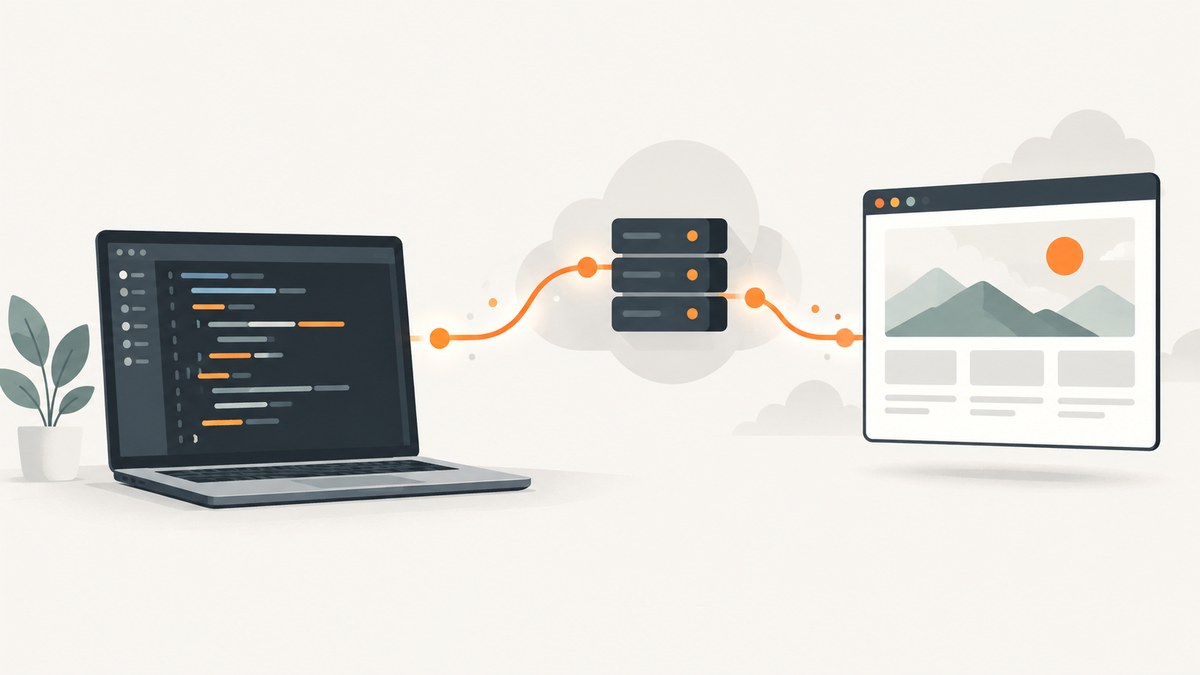
Puppeteer can control a cloud browser by connecting to its Chrome DevTools Protocol (CDP) WebSocket endpoint. Install puppeteer-core, replace puppeteer.launch() with puppeteer.connect({ browserWSEndpoint }), and close the remote browser in a finally block. Your Node.js script still runs in your environment; Chromium runs on the provider’s machines. For Browserless, the endpoint includes your token, for example wss://production-sfo.browserless.io?token=YOUR_TOKEN. [Browserless connection guide](https://docs.browserless.io/overview/connection-urls) [Puppeteer BaaS guide](https://docs.browserless.io/baas/start)
1. Connect an existing Puppeteer script
Use this minimal example to confirm the connection, navigate, and read a page title. Replace the token with one issued by your provider. The endpoint below is Browserless’s shared US West endpoint; use the host for your account and region if different.
import puppeteer from "puppeteer-core";

const token = process.env.BROWSERLESS_TOKEN;
if (!token) throw new Error("Set BROWSERLESS_TOKEN first");

const browser = await puppeteer.connect({
  browserWSEndpoint: `wss://production-sfo.browserless.io?token=${encodeURIComponent(token)}`,
});

try {
  const page = await browser.newPage();
  await page.setViewport({ width: 1440, height: 900, deviceScaleFactor: 1 });
  await page.goto("https://example.com", {
    waitUntil: "networkidle2",
    timeout: 45_000,
  });
  console.log(await page.title());
  await page.screenshot({ path: "example.png", fullPage: true });
} finally {
  await browser.close();
}
Install the client with npm install puppeteer-core. The full puppeteer package downloads a local Chromium binary during installation, which is unnecessary when the browser is remote; both packages expose the Puppeteer API. [Browserless explains the package choice](https://docs.browserless.io/overview/getting-started/scrape-a-website).
Store the token outside source code. For a local shell, export BROWSERLESS_TOKEN; in production, use your platform’s secret manager. Treat the WebSocket URL as secret too: it contains the token in its query string and may appear in logs if printed.
2. What changes when the browser is remote?
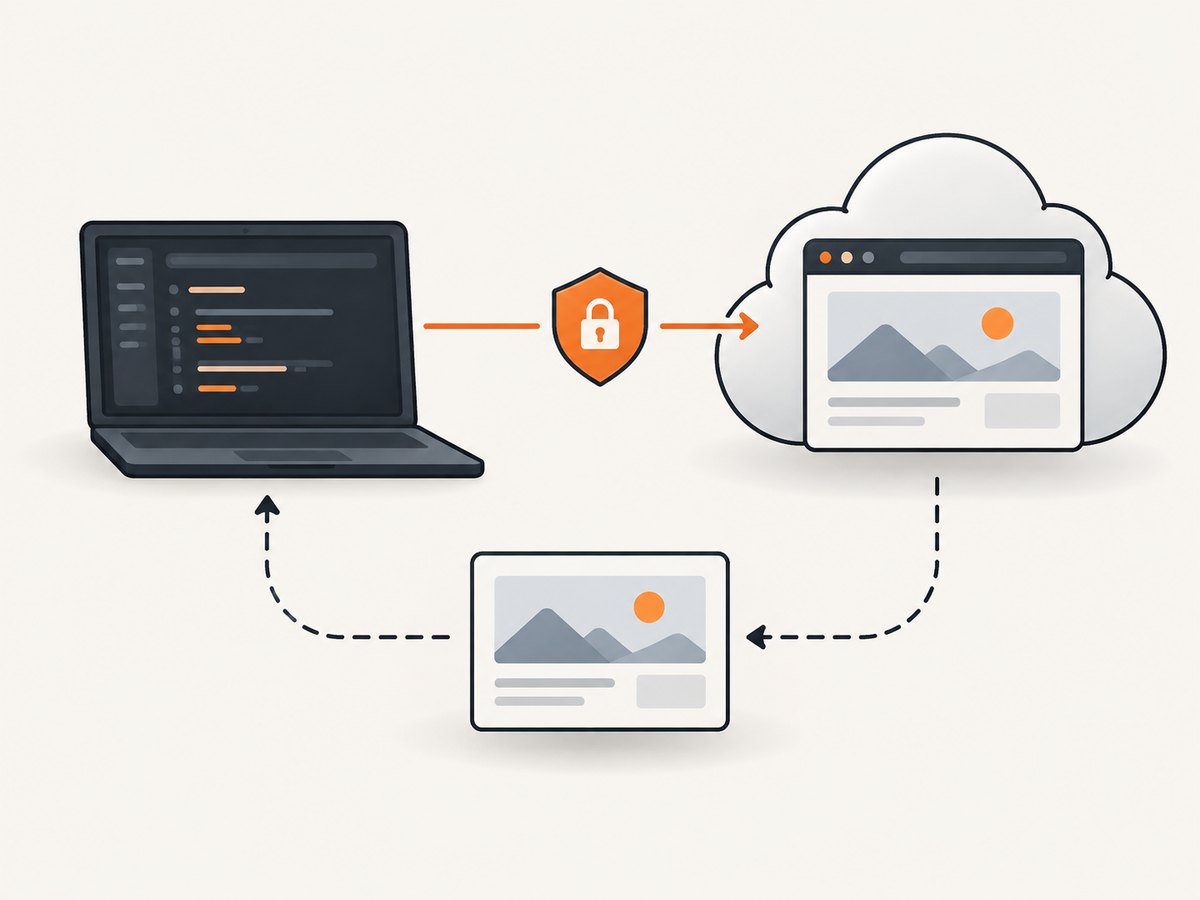
The browser object is remote, but page-level Puppeteer code remains familiar: navigation, selectors, evaluation, PDFs, and screenshots still use Puppeteer methods. Browserless describes the migration as changing the connection URL while keeping existing automation logic. The remote lifecycle is the important difference: browser.close() ends the remote session rather than merely closing a local Chromium process. If an exception skips cleanup, the provider may keep the session alive until its timeout and charge for the active duration, depending on its billing model. [Browserless BaaS](https://docs.browserless.io/baas/start)
Use a small adapter to switch local and cloud modes
Keep your application’s automation function independent from how the browser is obtained. In local development, use launch(); in a cloud deployment, connect to the remote endpoint. Always close the object you own.
import puppeteer from "puppeteer-core";

async function openBrowser() {
  const endpoint = process.env.BROWSER_WS_ENDPOINT;
  if (endpoint) return puppeteer.connect({ browserWSEndpoint: endpoint });
  return puppeteer.launch({ headless: true });
}

const browser = await openBrowser();
try {
  const page = await browser.newPage();
  await page.goto("https://example.com", { waitUntil: "domcontentloaded" });
  console.log(await page.$eval("h1", (el) => el.textContent?.trim()));
} finally {
  await browser.close();
}
For Browserless, set BROWSER_WS_ENDPOINT to the regional WebSocket URL with the token query parameter. Keep environment-specific configuration out of the source file.
3. Set predictable page behavior
A cloud browser has its own defaults for viewport, user agent, locale, and timezone. If screenshots or page behavior must be reproducible across local and remote runs, specify the settings that affect the result rather than assuming the browser inherits your laptop’s environment.
const page = await browser.newPage();
await page.setViewport({ width: 1365, height: 768, deviceScaleFactor: 1 });
await page.setUserAgent("Mozilla/5.0 (compatible; ExampleMonitor/1.0)");
await page.emulateTimezone("UTC");
await page.setExtraHTTPHeaders({ "Accept-Language": "en-US,en;q=0.9" });

await page.goto("https://example.com", {
  waitUntil: "domcontentloaded",
  timeout: 45_000,
});
await page.waitForSelector("main", { timeout: 15_000 });
Choose a navigation wait condition based on the site. load waits for the load event and its dependent resources; domcontentloaded can return sooner when the document is enough; networkidle0 and networkidle2 wait for low network activity, but can hang or timeout on pages with analytics, polling, or persistent connections. A selector or explicit application-ready condition is often more robust than assuming every page becomes idle.
For dynamically rendered content, wait for a condition that means the desired content is ready:
await page.goto("https://example.com/dashboard", { waitUntil: "domcontentloaded" });
await page.waitForFunction(
  () => document.querySelector("[data-report-state='ready']") !== null,
  { timeout: 20_000 },
);
If the site exposes no ready marker, wait for the target selector, then verify the extracted result. Avoid fixed sleeps as the only synchronization mechanism: they are either wasteful on fast loads or insufficient on slow ones.
4. Screenshots, PDFs, and browser-side results
Most Puppeteer page operations keep working through a cloud connection. Capture an element, whole page, or PDF as you would locally. Remember that a path refers to the filesystem of the Node.js application, not the remote browser. The browser streams screenshot or PDF bytes back through CDP, and Puppeteer writes them to the local path.
const element = await page.waitForSelector("article");
if (!element) throw new Error("Article was not found");
await element.screenshot({ path: "article.png" });

await page.pdf({
  path: "article.pdf",
  format: "A4",
  printBackground: true,
  margin: { top: "12mm", right: "12mm", bottom: "12mm", left: "12mm" },
});
Downloads are different: the browser’s download destination is remote. A local fs.readFile() cannot read a path on the provider’s machine. Use a provider-supported transfer mechanism, return content through a browser-visible response when appropriate, or arrange a controlled data channel. For uploads, a local path passed to a browser file chooser may also refer to the remote host. Consult the service’s file-transfer documentation before moving files.
5. Run parallel work without overloading sessions
A browser connection is a session with memory, network connections, and a lifecycle. For independent jobs, open a separate connection per job. Within one job, reuse that browser connection and create pages as needed instead of opening an unnecessary connection for every tab. Keep concurrency within the provider’s plan or your server’s capacity, and bound your own queue so work does not accumulate indefinitely.
async function capture(url) {
  const browser = await puppeteer.connect({
    browserWSEndpoint: process.env.BROWSER_WS_ENDPOINT,
  });
  try {
    const page = await browser.newPage();
    await page.goto(url, { waitUntil: "domcontentloaded", timeout: 45_000 });
    return await page.screenshot({ type: "png" });
  } finally {
    await browser.close();
  }
}

// In production, put a concurrency limiter around this map.
const results = await Promise.all(urls.map(capture));
The example demonstrates separate sessions, but unbounded Promise.all is unsuitable for a large list. Use a worker pool or queue with a fixed concurrency, retry policy, and maximum queue length. Cloud fleets may queue sessions or reject requests after their configured limits. For self-hosted Browserless Docker, its documentation describes CONCURRENT, QUEUED, and TIMEOUT settings; a full queue can produce HTTP 429 responses. [Docker deployment guide](https://docs.browserless.io/enterprise/open-source)
6. Persist a login between runs
Cookies are one way to reuse a login, but modern applications may also keep authentication or application state in localStorage or IndexedDB. Copying cookies alone can therefore appear to work while the application still sends you to the login screen. Browserless Authenticated Profiles can store cookies, localStorage, and IndexedDB and restore that state when a new session connects with profile=<name>. The profile does not preserve sessionStorage, which is tab-scoped. [Authenticated Profiles documentation](https://docs.browserless.io/baas/features/authenticated-profiles)
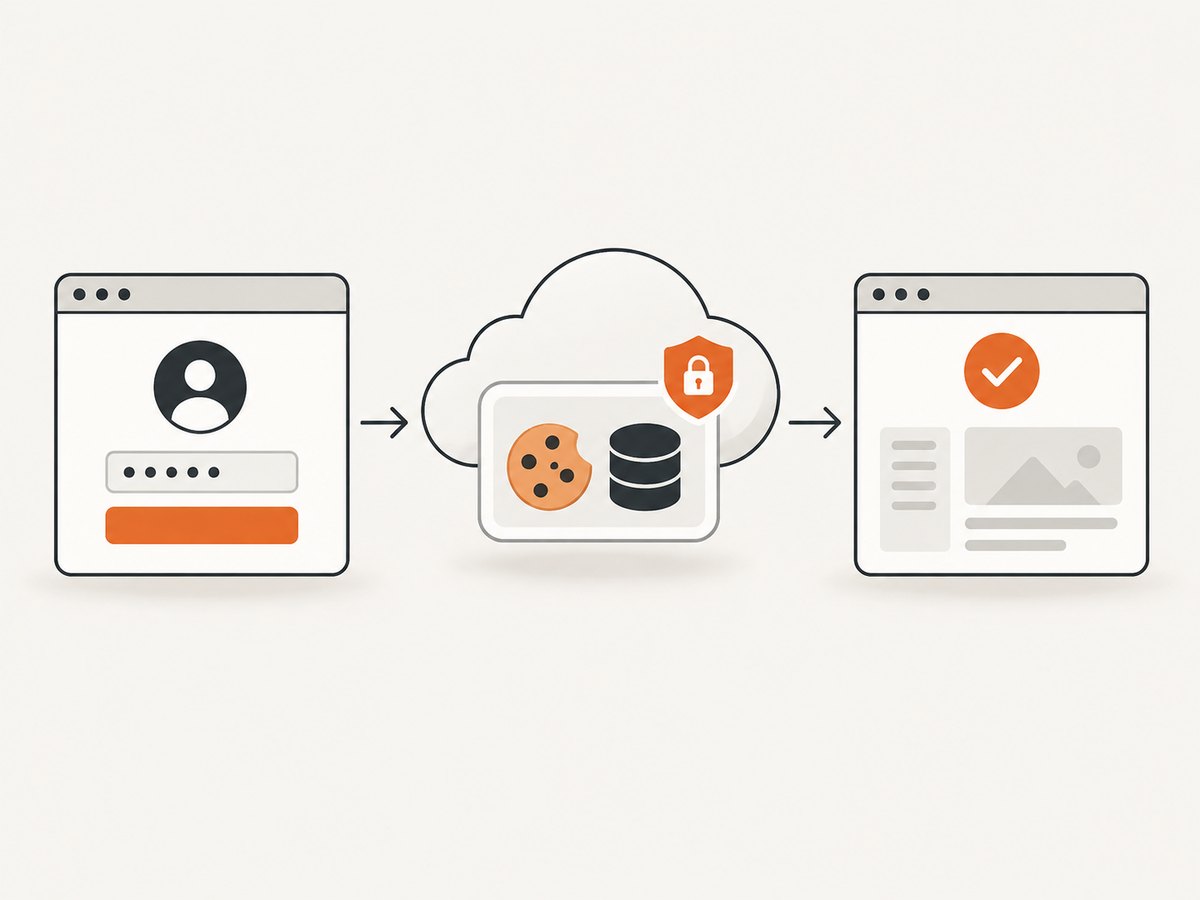
Create and save the profile using the provider’s dashboard or documented CDP flow, complete MFA or CAPTCHA in the live login session if necessary, and then connect with the profile parameter:
const token = process.env.BROWSERLESS_TOKEN;
const endpoint = `wss://production-sfo.browserless.io?token=${encodeURIComponent(token)}&profile=staging-login`;
const browser = await puppeteer.connect({ browserWSEndpoint: endpoint });
try {
  const page = await browser.newPage();
  await page.goto("https://app.example.com/dashboard", { waitUntil: "domcontentloaded" });
  await page.waitForSelector("[data-user-menu]", { timeout: 15_000 });
} finally {
  await browser.close();
}
Treat a saved profile like a credential. Limit who can use its token, avoid logging its contents, and refresh the state when the site expires or revokes the login. A profile is not a way around access controls; use it only for accounts and workflows you are authorized to automate.
7. Choose managed cloud or self-hosting
| Choice | Good fit | Work you own |
|---|---|---|
| Managed browser service | Move working Puppeteer code without running a browser fleet | Token security, job limits, retry and timeout policy, destination region |
| Self-hosted browser fleet | Private networking, infrastructure control, custom capacity or queue policy | Container operation, patching, capacity, monitoring, authentication and safe exposure |
| Task API | Single-purpose screenshot, PDF, or extraction job without a long-lived Puppeteer process | Adapt to the service’s task schema and supported options |
Browserless offers managed BaaS for Puppeteer sessions and also documents REST and BrowserQL alternatives for tasks that do not require a full Puppeteer client. [Browserless service overview](https://docs.browserless.io/baas/start) In a self-hosted deployment, set an authentication token before exposing the service beyond a private localhost-only setup: Browserless warns that an unset token leaves endpoints unauthenticated, including code-execution routes. Its Docker guide also calls out shared-memory sizing because Chrome can fail under load with Docker’s small default. [Self-hosted Docker guidance](https://docs.browserless.io/enterprise/open-source)
8. Geography, latency, reliability, and cost
Choose a browser region near the sites the browser visits. The important network leg for page load time is from the remote browser to the target site; the developer-to-browser connection also affects command and result transfer, but it is not the whole picture. Browserless lists US West, London, and Amsterdam shared-fleet endpoints and recommends using a nearby region. [Regional endpoints](https://docs.browserless.io/overview/connection-urls)
Measure your own workflow using representative pages and record connection time, navigation time, task duration, retries, and failures. There is no universal speed figure: page weight, third-party requests, geographic route, wait strategy, concurrency, and site behavior all change the result. Avoid retrying every failure immediately. Use bounded retries with backoff for transient connection errors, but do not retry permanent authentication or invalid-URL errors. Make repeated jobs safe, especially if navigation triggers actions with side effects.
Cost depends on the provider’s billing model and the entire session duration, not just the moment a screenshot is taken. Close sessions promptly, avoid idle pages, cap navigation and overall job time, and track concurrency and queue wait. For self-hosting, include compute, memory, storage, operations, and security maintenance in the comparison. Browserless does not provide an independent cost or speed benchmark in the sources used here; check current provider terms for your account before estimating spend.
9. Troubleshooting common failures
| Symptom | Likely cause | Fix |
|---|---|---|
| WebSocket handshake fails | Wrong endpoint, missing token, wrong scheme, or a region/token mismatch | Use the correct wss:// endpoint and verify the token and fleet URL. Browserless documents 401 for using a private-fleet token with a shared endpoint. |
| Session stays active after script errors | Cleanup was skipped | Put browser.close() in finally, including when page creation or navigation fails. |
| Navigation times out | Slow site, long-running requests, overly strict idle wait, or blocked destination | Choose an appropriate waitUntil, wait for a meaningful selector, set a finite timeout, and inspect the destination from the browser environment. |
| Selector never appears | Wrong selector, delayed client rendering, different content, or an interstitial | Check the selector and URL, wait for a page-specific ready condition, and capture diagnostics such as title and final URL. |
| Login is missing on the next run | Only cookies were copied, state expired, or storage lived in sessionStorage | Use a supported profile that captures the relevant persistent storage, then verify the session before running the job. |
| Local file is missing during download or upload | The path is interpreted on the remote browser host | Use the provider’s transfer facility or explicitly move bytes through an approved channel. |
| HTTP 429 or queue delay | Concurrency or queue capacity reached | Reduce worker concurrency, apply backpressure, or adjust self-hosted capacity and queue configuration. |
| Chrome crashes under self-hosted load | Insufficient memory/shared memory or too many simultaneous sessions | Reduce concurrency and allocate sufficient container memory and shared memory; inspect host resources. |
10. Or skip the browser setup
If the task is simply to get a rendered screenshot, you may not need to provision Chromium or manage Puppeteer sessions. ScreenshotNeo is a website screenshot API and MCP server from Yorker Media. One GET request returns a PNG, JPEG, WebP, or PDF. Its clean-shot flow accepts cookie and consent banners like a visitor and removes 60+ known consent platforms, newsletter popups, and chat widgets before capture; each cleanup step can be turned off. Bot checks and CAPTCHAs, blank pages, timeouts, failed loads, and cache hits cost nothing, with the response identifying the page verdict and billing status in headers.
Here is the one-call cURL example (replace the target URL and API key). See the ScreenshotNeo API documentation for configuration and response details.
curl -G "https://api.screenshotneo.com/v1/shot" -d access_key=YOUR_API_KEY --data-urlencode url=https://stripe.com -o shot.webpPython:
import requests
r = requests.get("https://api.screenshotneo.com/v1/shot", params={"access_key": "YOUR_API_KEY", "url": "https://stripe.com"}, timeout=90)
open("shot.webp", "wb").write(r.content)
Node.js:
const q = new URLSearchParams({ access_key: 'YOUR_API_KEY', url: 'https://stripe.com' });
const res = await fetch(`https://api.screenshotneo.com/v1/shot?${q}`);
ScreenshotNeo also has an MCP server with take_screenshot, get_page_info, and capture_pdf tools for Claude, Cursor, and other MCP clients. Its plans include 1,000 screenshots per month free with no card; paid plans start at $5 for 3,000. Full-page and element capture, device presets, waits, custom headers, cookies, JavaScript, CSS, caching, async jobs, and bulk capture are among its options. Sign up for 1,000 free screenshots a month, with no card required.
FAQ
Can I use my existing Puppeteer script unchanged?
Often the page-level code can stay the same. You still need to replace local launch with a remote connection and account for remote files, session lifecycle, and environment settings.
Does Puppeteer connect to any cloud browser?
It must expose a compatible CDP WebSocket endpoint. Confirm the provider’s protocol and endpoint path; a Playwright-native endpoint is not interchangeable with a Puppeteer CDP endpoint.
Can I share one browser connection across jobs?
Reuse a browser connection for pages within a single job. Separate independent jobs into separate sessions, with a concurrency limit and explicit cleanup.
Will a saved profile remain logged in forever?
No. Sites can expire or revoke sessions, and profile contents can become stale. Test access at the start of a job and refresh the profile through an authorized login flow when needed.


