How to Capture a Screenshot of a Custom Select Dropdown With Puppeteer
Learn how to open a custom select, wait for its listbox, and capture the menu reliably with Puppeteer, including portals, keyboard controls, clipping, and troubleshooting.
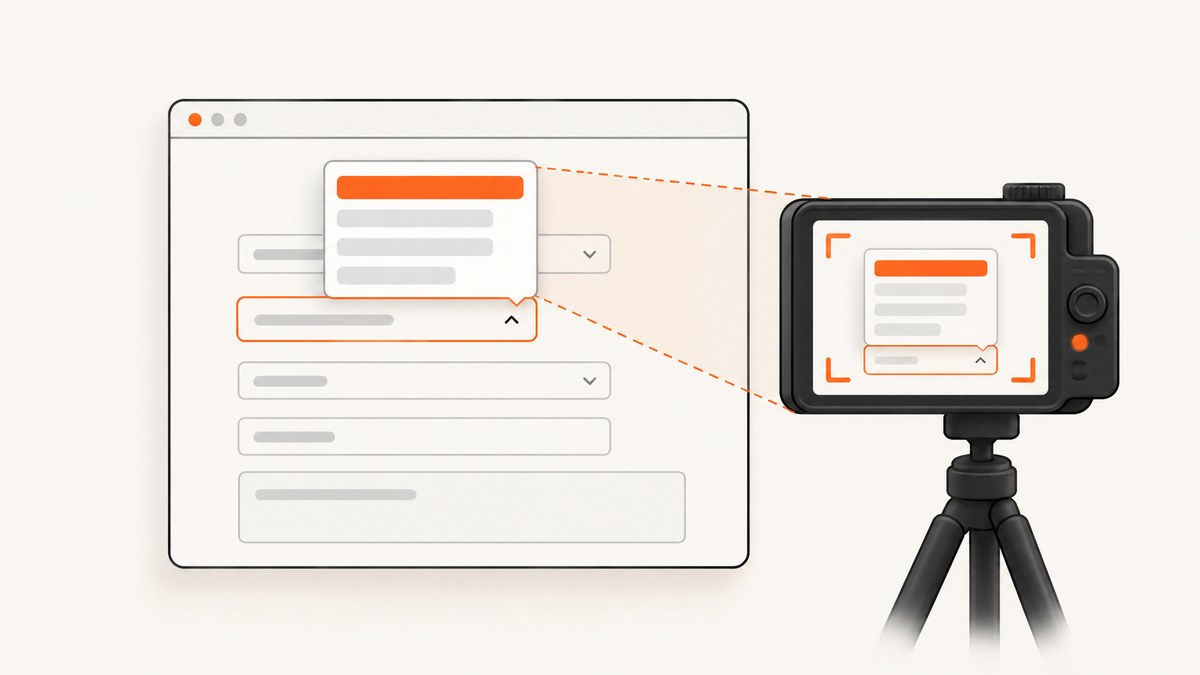
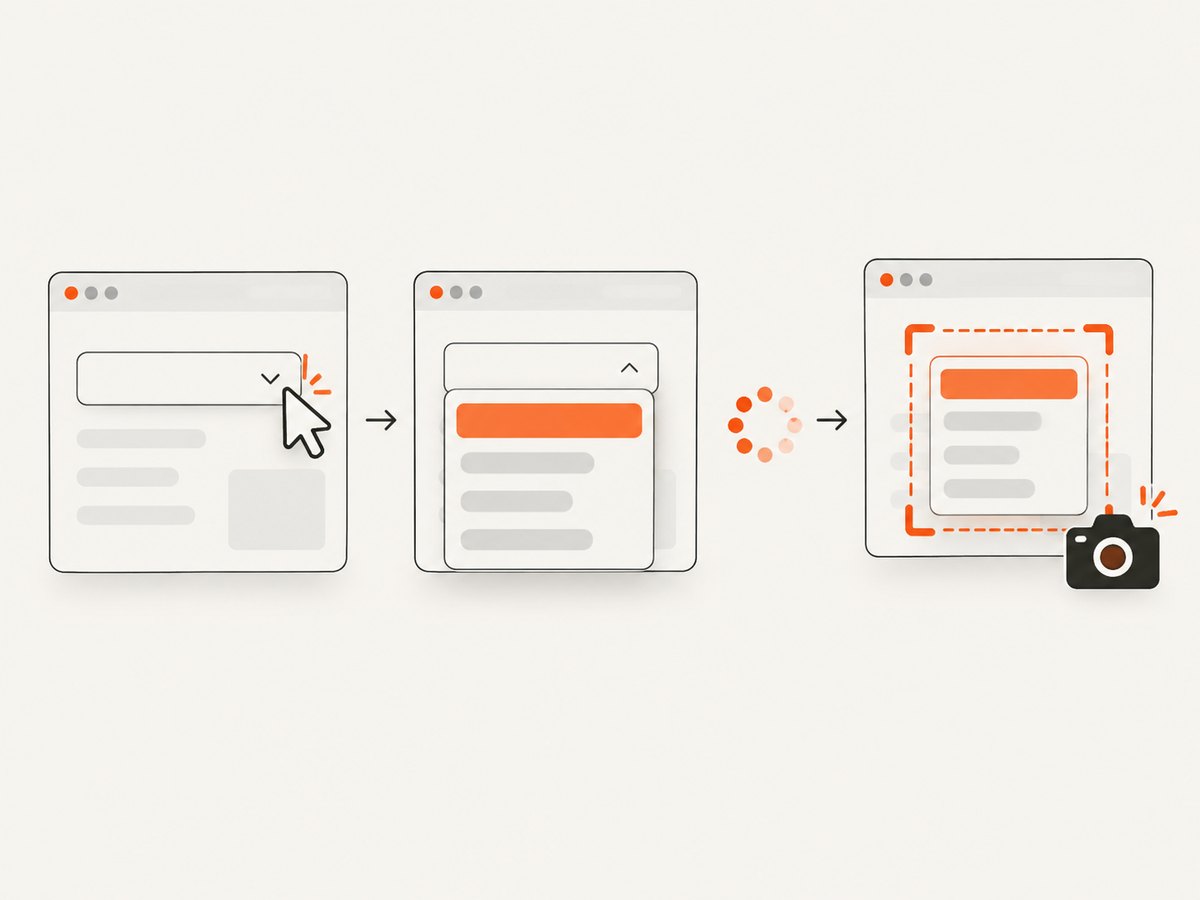
Direct answer: Puppeteer cannot use page.select() on a custom select because that method only works with a real HTML <select>. For a custom widget, open the control like a user, wait until its listbox or menu is visible, then capture the popup element or a precise rectangle. The reliable sequence is: identify the trigger, click or use the keyboard, assert the open state, wait for asynchronous options, and take the screenshot.
This guide covers native and custom controls, inline menus and portals, element screenshots and clipped page screenshots, accessibility selectors, complete runnable code, timing, visual stability, failures, and production considerations.
1. Native select versus custom select
A native control is written as <select> with one or more <option> elements. Puppeteer’s page.select(selector, ...values) finds that element, selects the requested values, and triggers input and change events. It throws when the selector does not match a native select. See the Puppeteer page.select API.
A custom select is ordinary application UI. It may be a button, an input, or a div with role="combobox". Clicking it can render a listbox elsewhere in the document, often through a portal attached directly to body. The menu may use role="listbox" and options may use role="option". ARIA exposes useful state through aria-expanded and aria-controls; every combobox should also have an accessible name. The MDN combobox guidance describes the expected keyboard and state behavior.
| Question | Native select | Custom select |
|---|---|---|
| How to choose an option? | page.select() |
Click, focus, and keyboard events |
| Where is the menu? | Browser-owned control | Inline element or portal near body |
| How to know it is open? | Usually not script-visible as a page popup | aria-expanded="true", visible listbox, or app state |
| What to capture? | Page or surrounding form | Popup element or a clipped rectangle |
2. A complete Puppeteer workflow
The following ES module opens a custom combobox, waits for its listbox, and captures only the open menu. It uses role selectors so the test follows the component’s accessibility contract.
import puppeteer from 'puppeteer';

const browser = await puppeteer.launch({
  headless: true,
});

try {
  const page = await browser.newPage();
  await page.setViewport({
    width: 1280,
    height: 900,
    deviceScaleFactor: 1,
  });

  await page.goto('https://example.test/form', {
    waitUntil: 'networkidle0',
  });

  const trigger = page.locator('[role="combobox"]');
  await trigger.click();

  // Wait for the state that proves the widget is open.
  await page.waitForSelector('[role="combobox"][aria-expanded="true"]', {
    visible: true,
  });
  await page.waitForSelector('[role="listbox"]', {
    visible: true,
  });

  // If options are rendered asynchronously, wait for at least one option.
  await page.waitForSelector('[role="listbox"] [role="option"]', {
    visible: true,
  });

  const popup = await page.$('[role="listbox"]');
  if (!popup) {
    throw new Error('Dropdown listbox was not found');
  }

  await popup.screenshot({ path: 'custom-dropdown.png' });
} finally {
  await browser.close();
}
ElementHandle.screenshot() scrolls the element into view when necessary and then captures it through the page screenshot mechanism. This is usually the simplest way to avoid capturing the entire page or a trigger that is separate from the popup. See the ElementHandle.screenshot API.
Use stable selectors
Prefer a test ID, accessible role and name, or a documented component selector. Positional selectors such as div:nth-child(4) become unreliable when options are sorted, virtualized, or conditionally rendered. A practical hierarchy is:
- A stable
data-testidor component-specific attribute. - An ARIA role with an accessible name, such as
[role="combobox"]. - A label relationship, such as a nearby
labeland input. - A CSS class only when it is part of the application’s stable contract.
3. Capturing with a bounding-box clip
Use a clipped page screenshot when you need a little surrounding context, a fixed padding area, or a composite region containing several elements. Get the popup’s layout box after it is visible:
const listbox = page.locator('[role="listbox"]');
await listbox.wait();

const box = await listbox.boundingBox();
if (!box) {
  throw new Error('Listbox is not laid out or visible');
}

const padding = 12;
await page.screenshot({
  path: 'dropdown-clip.png',
  clip: {
    x: Math.max(0, box.x - padding),
    y: Math.max(0, box.y - padding),
    width: box.width + padding * 2,
    height: box.height + padding * 2,
  },
  captureBeyondViewport: true,
});
Puppeteer’s clip option defines a rectangular capture area. captureBeyondViewport allows the rectangle to extend outside the current viewport. The ScreenshotOptions interface documents these options. Do not combine a targeted clip with fullPage: true; they represent different capture modes.
4. When the menu is rendered in a portal
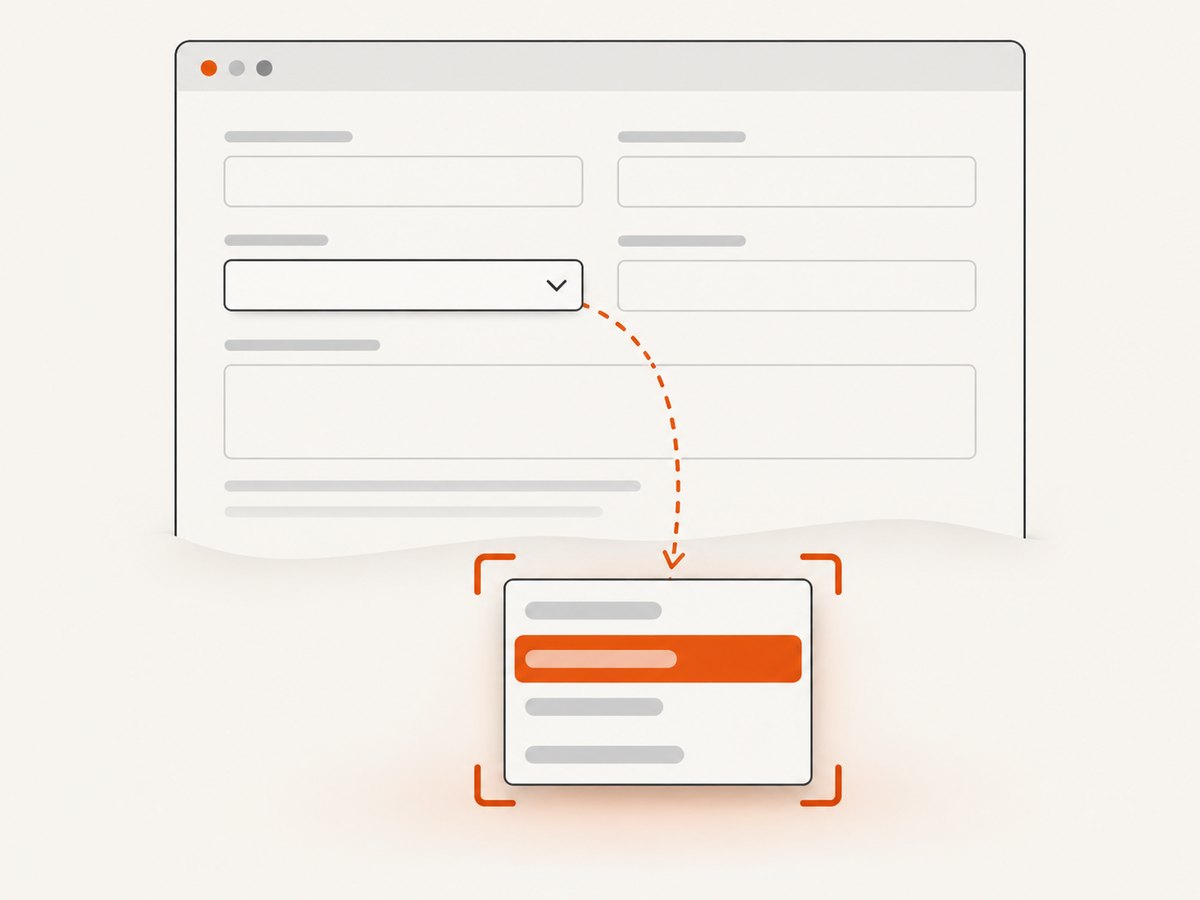
Many UI libraries append the listbox to body so it can escape an ancestor’s overflow: hidden or stacking context. In that case, looking for .trigger [role="listbox"] fails even though the menu is visible. Query the actual document location instead:
await page.locator('[data-testid="country-trigger"]').click();
await page.waitForSelector('[role="listbox"]', { visible: true });

// The listbox may be a direct child of body rather than a child of the trigger.
const popup = await page.$('body > [role="listbox"]');
if (!popup) throw new Error('Portal listbox was not found');
await popup.screenshot({ path: 'portal-dropdown.png' });
If several listboxes exist, use aria-controls from the combobox. Read the ID after opening, then select that exact element:
const trigger = page.locator('[role="combobox"]');
await trigger.click();
await trigger.wait();

const popupId = await trigger.evaluate((node) => node.getAttribute('aria-controls'));
if (!popupId) throw new Error('Combobox has no aria-controls attribute');

const popup = await page.$(`#${CSS.escape(popupId)}`);
if (!popup) throw new Error(`Popup #${popupId} was not found`);
await popup.screenshot({ path: 'controlled-dropdown.png' });
5. Keyboard-only controls
Some custom controls open only after focus and a key press. Select-only combobox patterns commonly support Enter or Space to open, Arrow Down to open and move to an option, and Escape to close. Puppeteer’s locator API lets you model that interaction:
const trigger = page.locator('[role="combobox"]');
await trigger.focus();
await trigger.press('Enter');

await page.waitForSelector('[role="combobox"][aria-expanded="true"]', {
  visible: true,
});
await page.waitForSelector('[role="listbox"]', { visible: true });

const popup = await page.$('[role="listbox"]');
if (!popup) throw new Error('Keyboard-opened listbox was not found');
await popup.screenshot({ path: 'keyboard-dropdown.png' });
For an interaction screenshot, leave the menu open. If you need a selected state instead, press Arrow Down or click a specific option and then capture the resulting control. Use a role, label, or test ID to identify the option:
const option = page.locator('[role="option"]').filter({ hasText: 'Canada' });
await option.click();
await page.waitForSelector('[role="combobox"][aria-expanded="false"]');
6. Waiting for a visually complete dropdown
A visible selector only proves that an element has a layout box. It does not prove that remote options, fonts, icons, or measurements are finished. Choose a readiness condition that matches the application:
- Wait for
aria-expanded="true"and a visible listbox. - Wait for at least one option, or for a loading marker to disappear.
- Wait for an application-specific class such as
.is-ready. - If the menu depends on a request, wait for the response or for the UI’s loaded state rather than using a long arbitrary delay.
- When web fonts change dimensions, wait for
document.fonts.ready.
await page.waitForFunction(() => document.fonts.status === 'loaded');
await page.waitForSelector('[role="listbox"]:not([aria-busy="true"])', {
  visible: true,
});
Puppeteer captures the page’s current rendered state; it does not open a closed widget automatically. Keep the viewport and device scale factor explicit so screenshots are reproducible across machines.
7. Full-page, popup, and context captures
| Goal | Recommended method | Reason |
|---|---|---|
| Only the open menu | popup.screenshot() |
Automatically scrolls the element into view and avoids unrelated page content. |
| Menu plus padding or shadow | page.screenshot({ clip }) |
Lets you add a controlled margin around the box. |
| Form with menu open | page.screenshot({ fullPage: false }) |
Captures the current viewport and visible context. |
| Entire document | page.screenshot({ fullPage: true }) |
Captures the page document; it is not a popup-specific mode. |
For high-DPI output, set deviceScaleFactor: 2. Remember that the resulting pixel dimensions double even though the CSS viewport remains the same. For deterministic visual comparisons, fix the viewport, timezone, locale, animations, and test data.
8. Troubleshooting common failures
page.select() throws or does nothing
Cause: the selector matches a button, input, or div instead of a native <select>.
Fix: inspect the DOM, locate the trigger, click or focus it, wait for the popup, and capture that rendered element. Use page.select() only when the matching node is actually a select.
The popup is not found
Cause: the control did not open, the selector targets a wrapper, or the menu is rendered in a portal.
Fix: assert aria-expanded="true", inspect aria-controls, and query the popup at its real document location. Increase a narrowly scoped timeout only after confirming the application is slow.
The screenshot is cropped
Cause: the menu is outside the viewport or clipped by a fixed viewport capture.
Fix: use an element screenshot, or get boundingBox() and pass a clip with captureBeyondViewport: true.
The wrong option is clicked
Cause: positional selectors, duplicate labels, or virtualized options.
Fix: use a unique role, accessible name, test ID, or application-specific attribute. If options are virtualized, scroll the listbox until the target option is mounted.
The menu flashes and the image is flaky
Cause: the screenshot runs after the trigger opens but before asynchronous rendering, fonts, or transitions finish.
Fix: wait for the open state and option content, disable or await transitions, and keep the viewport and scale factor fixed. Capture after the visual readiness condition rather than after a guessed delay.
Clicking closes the menu before capture
Cause: the click landed outside the trigger, an overlay intercepted the event, or the code selected an option that intentionally closes the menu.
Fix: capture immediately after the listbox becomes visible, avoid an extra click, and use keyboard focus when the component requires it.
9. Performance, reliability, and cost notes
Browser startup is usually the largest fixed cost in a one-off script. Reuse one browser process and create a fresh page per capture when processing several URLs. Close pages in a finally block, limit concurrency to what the target site and machine can handle, and avoid waiting for global network idle when a specific UI state is sufficient.
For reliable pipelines:
- Pin and verify the Puppeteer version used by your project; the documentation context reviewed for this guide displays version 25.12.0.
- Use explicit navigation and widget timeouts.
- Record the URL, selector, viewport, device scale factor, and readiness condition with each artifact.
- Retry only transient navigation or network failures. A selector mismatch needs a code fix, not repeated retries.
- Keep screenshots byte-based in CI and compare with a small, documented pixel tolerance when antialiasing differs.
- Protect credentials and avoid logging cookies or authorization headers.
For cost, self-hosted Puppeteer consumes your own compute, browser storage, and maintenance time. Remote browser providers add service charges and network latency. If you only need a clean image from a URL and do not want to maintain browser setup, an API can move those concerns into one request.
10. Or skip the browser setup
ScreenshotNeo provides a website screenshot API and MCP server. It can return PNG, JPEG, WebP, or PDF from one GET request. Its cleaning step accepts cookie or consent banners like a visitor and removes more than 60 known consent platforms, newsletter popups, and chat widgets; each step can be turned off. Bot checks, CAPTCHAs, blank pages, timeouts, failed loads, and cache hits are not billed, and the response identifies the result with X-Page-Verdict and X-Billed headers.
See the ScreenshotNeo API documentation for all 63 options, including full-page capture, CSS element capture, dark mode, device presets, custom viewport and retina scale, custom CSS and JavaScript, waits, request blocking, cookies and headers, geolocation, transparent backgrounds, resizing, caching, signed links, asynchronous jobs, bulk capture, usage, and the OpenAPI specification.
cURL
curl -G "https://api.screenshotneo.com/v1/shot" \
  -d access_key=YOUR_API_KEY \
  --data-urlencode url=https://stripe.com \
  -o shot.webp
Python
import requests

r = requests.get(
    "https://api.screenshotneo.com/v1/shot",
    params={"access_key": "YOUR_API_KEY", "url": "https://stripe.com"},
    timeout=90,
)
r.raise_for_status()
open("shot.webp", "wb").write(r.content)
Node.js
const q = new URLSearchParams({
  access_key: 'YOUR_API_KEY',
  url: 'https://stripe.com'
});
const res = await fetch(`https://api.screenshotneo.com/v1/shot?${q}`);
if (!res.ok) throw new Error(`Screenshot failed: ${res.status}`);
const data = Buffer.from(await res.arrayBuffer());
require('fs').writeFileSync('shot.webp', data);
ScreenshotNeo also exposes an MCP server with take_screenshot, get_page_info, and capture_pdf tools for Claude, Cursor, and other MCP clients. The Free plan includes 1,000 shots per month with no card; paid plans start at $5 for 3,000 shots, and every feature is available on every plan. Create a free ScreenshotNeo account.
11. Practical checklist
- Confirm whether the control is a native select or a custom widget.
- Choose a stable trigger selector and open it with a click or keyboard event.
- Wait for
aria-expanded="true", a visible listbox, and loaded options. - Find the popup at its real location, including portal containers.
- Capture the popup element or a bounding-box clip.
- Fix viewport, device scale factor, fonts, animations, and data for repeatability.
- Close the page and browser even when navigation or capture fails.
12. FAQ
Can Puppeteer screenshot the browser’s native select menu?
The operating system or browser may render a native menu outside the page’s DOM. Puppeteer can select its value, but a page screenshot generally captures the document rather than that browser-owned popup. Use a custom component when you need a reliably capturable open menu.
Should I click an option before taking the screenshot?
Only if the screenshot is meant to show the selected result. For an open-menu image, capture after the listbox is visible and before selecting an option that closes it.
Why does an element screenshot work better than a full-page screenshot?
An element screenshot focuses the artifact on the menu and scrolls it into view. A full-page screenshot captures the document, which can include unrelated content and still miss browser-owned UI.
How do I handle a virtualized list?
Open the list, scroll its scroll container until the desired option is mounted, wait for the option selector, and then capture. Do not assume every option exists in the DOM at once.
Can I capture a menu that extends beyond the viewport?
Yes. Use ElementHandle.screenshot() or calculate a bounding box and pass it as clip with captureBeyondViewport: true.
What if the component has no ARIA roles?
Use a stable application selector and the component’s documented open class or data attribute. Adding correct combobox, listbox, and option semantics also improves keyboard behavior and makes automation less fragile.


