How to Find Elements in Puppeteer with Descendant Attribute Selectors
Use a CSS descendant selector to find elements by attribute anywhere inside a container. Learn when to use locators, query methods, child selectors, and Shadow DOM selectors.
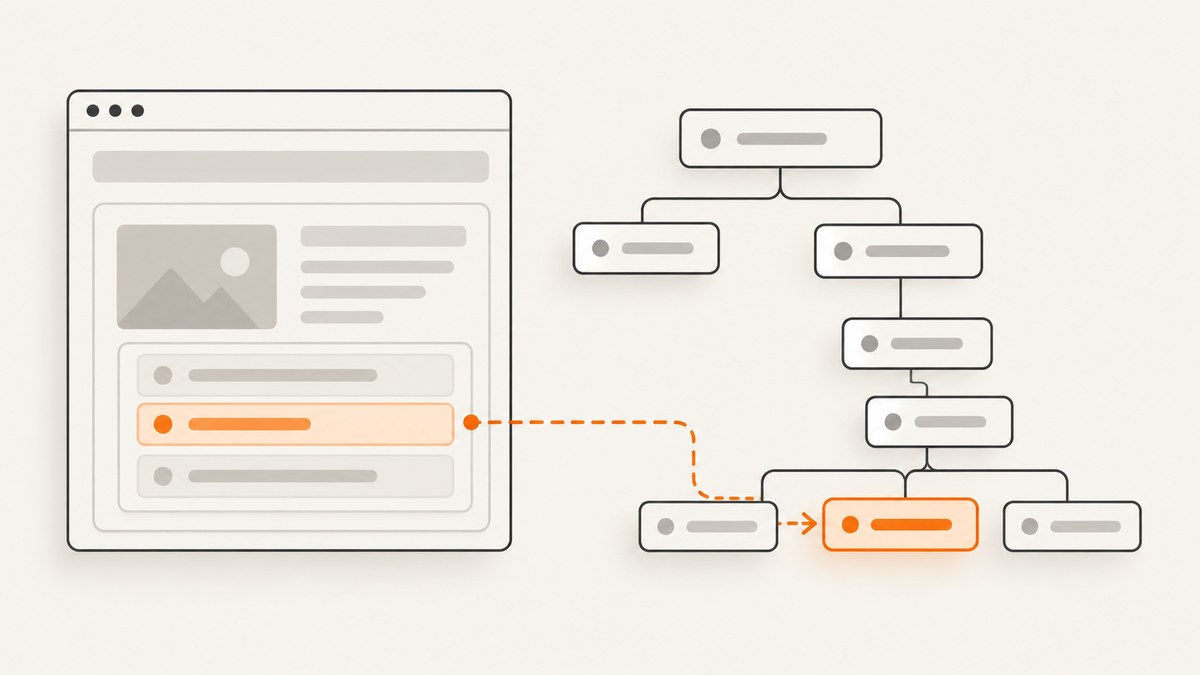
To find an element with a particular attribute anywhere inside another element in Puppeteer, use a CSS descendant selector: put the ancestor selector first, then a space, then the target selector and its attribute condition.
const productLink = page.locator('div.card a[href^="/products/"]');
await productLink.click();
The space means the matching link can appear at any depth below a matching div.card. The attribute condition [href^="/products/"] matches links whose href starts with that path. Puppeteer accepts CSS selectors in selector-taking APIs, and its interaction guide recommends locators for element actions. See the Puppeteer page interactions guide and the W3C Selectors Level 4 specification.
1. The selector pattern
The general shape is:
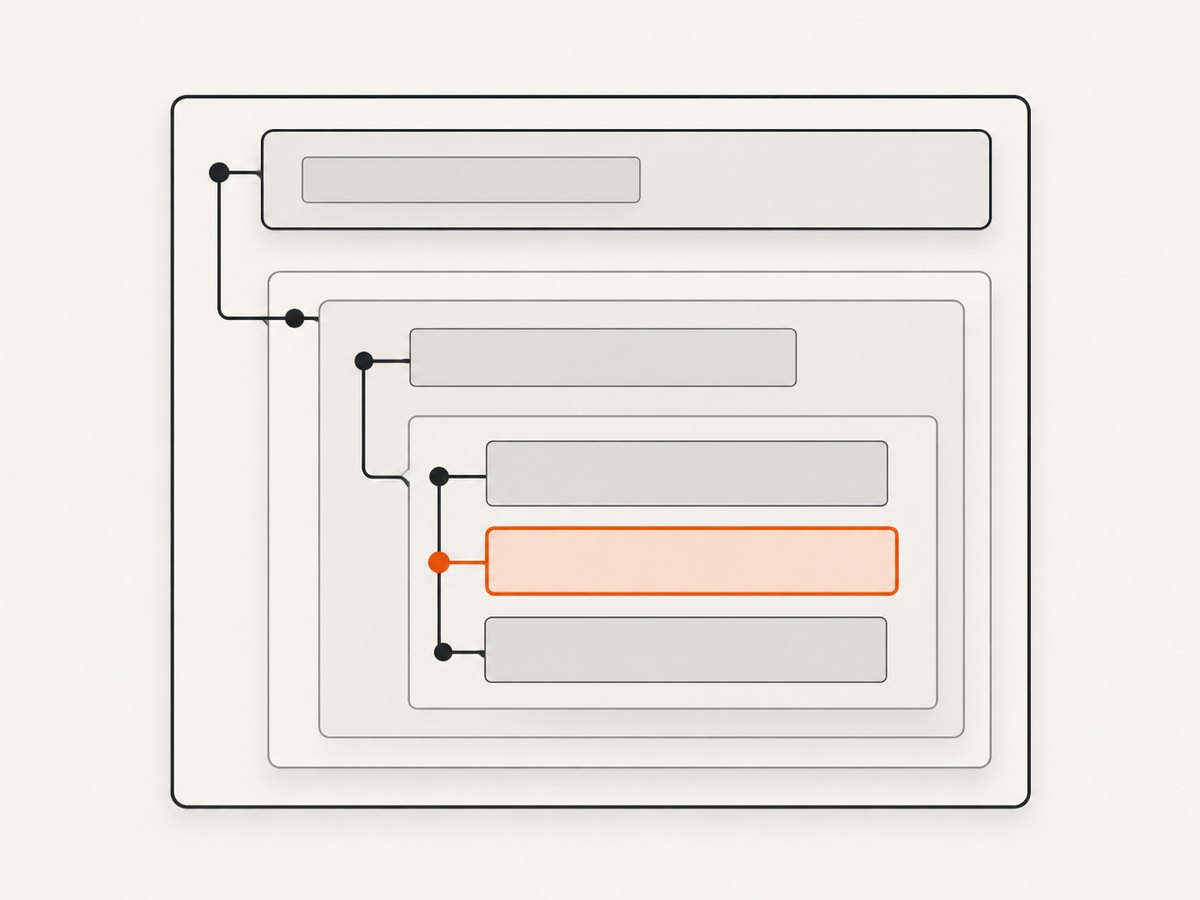
ancestor-selector target-selector[attribute-operator="value"]There is one ordinary space between the ancestor and target parts. The first selector identifies a container; the second identifies an element beneath it and optionally checks one of that target element’s attributes.
// A button with name="save" at any depth inside a form.settings element
const saveButton = page.locator('form.settings button[name="save"]');

// A link with a docs URL at any depth under nav
const docsLinks = await page.$$('nav a[href^="/docs/"]');
For example, form.settings button[name="save"] checks the name attribute on the button. It does not check the form’s attributes. The attribute condition belongs on the element whose attribute matters.
Descendant space versus direct-child >
A space matches a descendant at any depth. The > combinator matches only an immediate child. Use the space when wrappers may exist or the requirement says “somewhere inside.” Use > when the direct parent-child relationship is intentional and part of the structure you need to enforce.
// Any active li below ul.results, even through wrappers
const anyDepth = page.locator('ul.results li[data-state="active"]');

// Only an active li directly inside ul.results
const directChild = page.locator('ul.results > li[data-state="active"]');
An extra wrapper can make a child selector stop matching. The descendant selector continues to match as long as the target remains below the ancestor.
2. Attribute selector operators
CSS attribute selectors offer several ways to check an attribute value. These are CSS syntax inside the selector string, not separate Puppeteer options.
| Selector | Meaning | Example |
|---|---|---|
[attr] |
Attribute is present | button[disabled] |
[attr="value"] |
Exact value | button[data-action="save"] |
[attr^="value"] |
Value begins with text | a[href^="/docs/"] |
[attr$="value"] |
Value ends with text | a[href$=".pdf"] |
[attr*="value"] |
Value contains text | [class*="notice"] |
[attr~="value"] |
Whitespace-separated value contains a token | [class~="selected"] |
[attr|="value"] |
Value equals text or begins with it followed by a hyphen | [lang|="en"] |
Combine the operator with an ancestor and target selector as needed:
// Exact attribute value
const save = page.locator('main button[data-action="save"]');

// Present attribute, regardless of value
const tracked = page.locator('section.results a[data-track]');

// Prefix match
const product = page.locator('div.card a[href^="/products/"]');

// Suffix match
const pdf = page.locator('article a[href$=".pdf"]');

// Substring match
const help = page.locator('footer a[href*="help"]');
3. Choose a Puppeteer query API
Use a locator for an interaction that should wait for an actionable element. Use query methods when you need to inspect matches or control the no-match case yourself.
| API | Result | Useful when |
|---|---|---|
page.locator(selector) |
Locator for matching elements | Waiting and interacting, such as clicking or typing |
page.$(selector) |
First element handle or null |
Immediate single-element query |
page.$$(selector) |
Array of handles, or an empty array | Iterating over matches |
page.$eval(selector, fn) |
Runs a function on the first match | Immediate single-element extraction; throws if absent |
page.$$eval(selector, fn) |
Runs a function on all matches | Extracting a list in the page context |
Puppeteer documents the single-match query, all-match query, and single-match evaluation separately. A query is a snapshot at the time it runs; a locator is generally the clearer choice when the page may still be rendering and you need to act.
Interact with a matching element
const save = page.locator('form.settings button[name="save"]');
await save.click();
Locators wait for the element and check action preconditions such as visibility, enabled state, and a stable bounding box for actions such as clicking. This can avoid manually polling for a button that has not appeared yet.
Check for an optional element
const banner = await page.$('main [data-testid="notice"]');
if (banner) {
  const text = await banner.evaluate(element => element.textContent?.trim() ?? '');
  console.log(text);
}
page.$() returns null if nothing matches at query time. Use this pattern when absence is acceptable and should not throw.
Extract all matching text
const labels = await page.$$eval(
  'ul.results li[data-state="active"] a',
  links => links.map(link => link.textContent?.trim() ?? ''),
);
console.log(labels);
$$eval passes all matching elements to the page function. The function runs in the browser page context, so return serializable values such as strings or arrays rather than trying to return DOM nodes to Node.js.
4. Complete runnable example
The following Node.js script launches Puppeteer, opens a page, waits for a descendant link matching an attribute selector, reads its label and URL, and clicks it. Install Puppeteer in your project with npm install puppeteer, save the script as find-link.js, then run node find-link.js.
const puppeteer = require('puppeteer');

async function main() {
  const browser = await puppeteer.launch({ headless: true });
  try {
    const page = await browser.newPage();
    await page.goto('https://example.com', { waitUntil: 'domcontentloaded' });

    // The link can be nested at any depth inside a div.card.
    const selector = 'div.card a[href^="/products/"]';
    const link = page.locator(selector);

    // Locator actions wait for the target to become actionable.
    const details = await page.$eval(selector, element => ({
      text: element.textContent?.trim() ?? '',
      href: element.getAttribute('href'),
    }));
    console.log(details);

    await link.click();
    console.log('Clicked the matching product link');
  } finally {
    await browser.close();
  }
}

main().catch(error => {
  console.error(error);
  process.exitCode = 1;
});
This is an illustrative example; the actual selector must match the page’s markup. The example.com page is not asserted to contain the sample product card, so replace the URL and selector with a page and structure you control before expecting a match. If a match is optional, replace the $eval call with page.$() and handle null.
5. Dynamic values, escaping, and selector stability
When selector values are fixed in your code, quote and escape them as valid CSS. Trouble starts when a selector is assembled from arbitrary text, such as a user-provided ID or attribute value. Quotes, backslashes, and CSS syntax characters can change the selector or make it invalid. Do not concatenate untrusted text into CSS without applying CSS escaping.
For many dynamic lookups, a safer approach is to select a stable ancestor or set of candidates, then compare the DOM attribute value as data:
const wanted = 'item "special"';
const matches = await page.$$eval('main [data-item]', (elements, wantedValue) =>
  elements
    .filter(element => element.getAttribute('data-item') === wantedValue)
    .map(element => element.textContent?.trim() ?? ''),
  wanted,
);
The exact argument-passing shape can depend on the Puppeteer method and installed version; consult the API reference for the version in your project. Keep selectors anchored to meaningful structure and attributes that the page treats as stable. Styling classes are often changed during redesigns, while test-specific attributes can be intentionally maintained when the application provides them.
6. Shadow DOM boundary
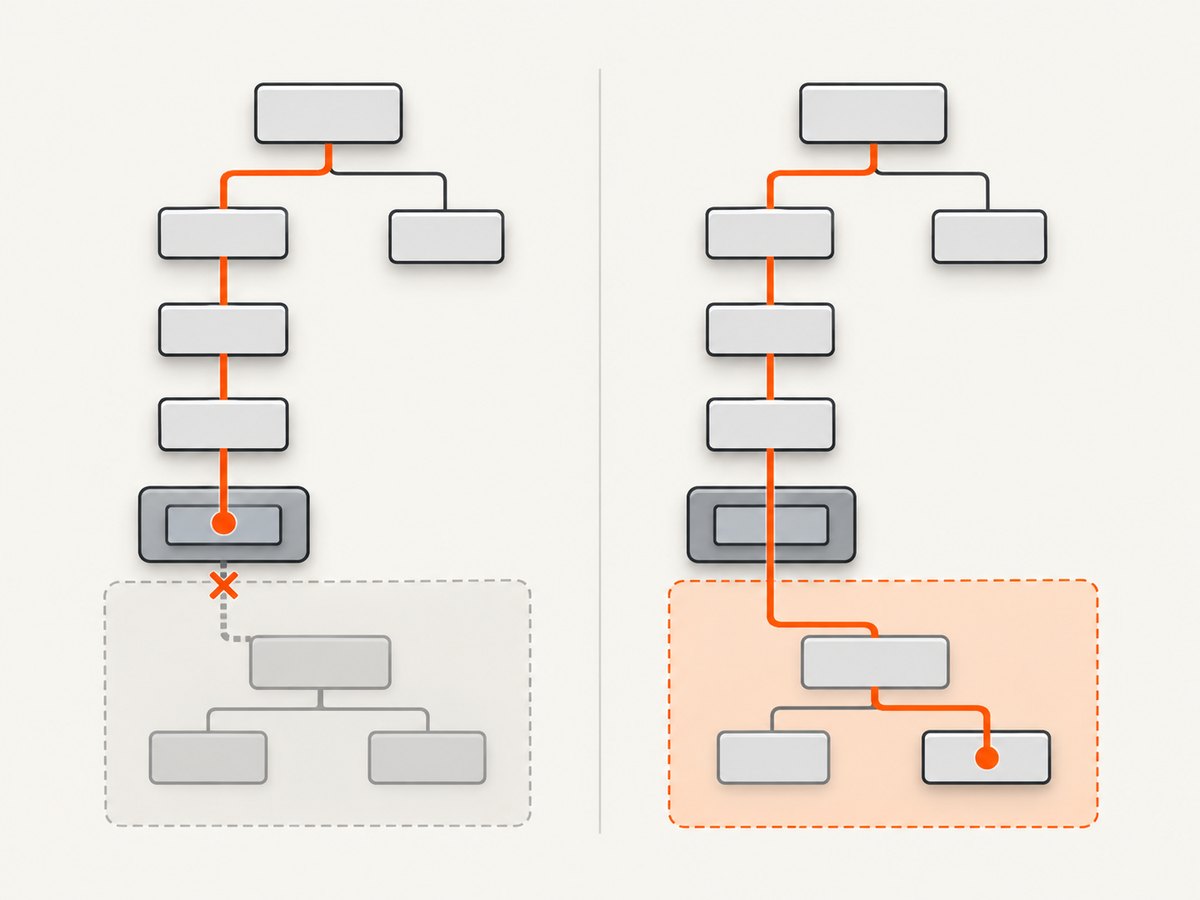
Ordinary CSS descendant selectors work within the document tree; they do not cross into Shadow DOM. If the target is inside an open shadow root, Puppeteer supports the deep descendant combinator >>> for traversing open shadow roots:
// Illustrative only: replace with the actual host and target selectors.
const innerButton = page.locator('my-widget >>> button[data-action="save"]');
Do not add >>> to ordinary markup selectors. Use the regular space for normal descendants, and the documented deep combinator when the boundary is an open shadow root. See Puppeteer’s selector and interaction guide for its deep-combinator behavior and limits. Closed shadow roots are not made accessible by ordinary descendant syntax.
7. Troubleshooting
| Symptom | Likely cause | Fix |
|---|---|---|
| No match, even though the target appears on screen | Ancestor, attribute, or value does not match the live DOM | Inspect the element’s tag, attributes, and actual nesting; simplify the selector, then add conditions back one at a time. |
| Selector fails after a layout change | > requires a direct child, but a wrapper was added |
Use a space if any descendant is acceptable; keep > only when direct-child structure matters. |
$() returns null |
The element was absent at the instant the query ran | Use a locator for an action that should wait, or wait for the page state you need before querying. |
$eval() throws |
There was no matching element | Check optional presence with $(), or wait/use a locator when the element is expected to appear. |
| Invalid selector error | Malformed CSS, unmatched quotes, or a dynamic value with special characters | Validate the CSS and escape dynamic values; avoid interpolating arbitrary strings directly. |
| Selector works outside a component but not inside it | The target is separated by a Shadow DOM boundary | Use Puppeteer’s >>> deep descendant syntax for an open shadow root, subject to its documented limits. |
| Several elements match when only one was expected | The descendant selector intentionally matches at any depth and may find repeated structures | Add a more specific ancestor or attribute condition, or use $$/$$eval to inspect all matches. |
8. Performance and reliability
For a single interaction, a well-scoped locator is usually easy to read and lets Puppeteer manage action readiness. For extraction, prefer one $$eval call that maps all matches in the page context over repeatedly querying and transferring one element at a time. Keep the selector focused enough to avoid collecting unrelated elements.
Reliability depends on the page state and the selector’s assumptions. A selector can be valid yet match nothing before client-side rendering finishes. Choose navigation or readiness conditions that fit the application, then use a locator for an action that should wait. Avoid using arbitrary long delays as a substitute for identifying a meaningful page condition. If the page intentionally changes, validate both the ancestor relationship and attribute value rather than silently broadening the selector.
These selectors have no separate Puppeteer usage fee described in the cited references. Operational costs come from running the browser and loading the target page: browser processes consume memory and CPU, and waiting for full network completion can extend runtime on pages with persistent requests. Reuse a browser for multiple pages in a controlled worker when appropriate, close pages and browsers reliably, and set timeouts according to your own job requirements. No universal timing or resource benchmark is implied here.
Or skip the browser setup
If you need the screenshot of the page after identifying what matters, ScreenshotNeo provides a website screenshot API and MCP server for developers. One GET request returns an image or PDF; the API’s selector capture can target an element by CSS selector. See the ScreenshotNeo site and API documentation.
curl -G "https://api.screenshotneo.com/v1/shot" -d access_key=YOUR_API_KEY --data-urlencode url=https://stripe.com -o shot.webpimport requests
r = requests.get("https://api.screenshotneo.com/v1/shot", params={"access_key": "YOUR_API_KEY", "url": "https://stripe.com"}, timeout=90)
open("shot.webp", "wb").write(r.content)const q = new URLSearchParams({ access_key: 'YOUR_API_KEY', url: 'https://stripe.com' });
const res = await fetch(`https://api.screenshotneo.com/v1/shot?${q}`);- Cookie banners are accepted and removed, along with known newsletter popups and chat widgets, before the shot; each step can be turned off.
- Bot checks, blank pages, timeouts, failed loads, and cache hits are not billed as clean shots; response headers report the page verdict and billing status.
- An MCP server gives AI agents tools to take screenshots, get page information, and capture PDFs.
- The Free plan includes 1,000 shots a month with no card; paid plans start at $5 for 3,000 shots.
Create a free ScreenshotNeo account for 1,000 screenshots a month with no card.
9. FAQ
Does a descendant selector require the target to be a direct child?
No. A space matches at any depth beneath the preceding selector. Use > if the target must be an immediate child.
Can an attribute selector check that an attribute exists without checking its value?
Yes. Write the attribute name in brackets, such as [data-track].
Should I use locator() or $()?
Use a locator for an interaction that should wait for an actionable element. Use $() when you want an immediate query and will handle a missing match as null.
Why does my normal selector not find an element inside a web component?
The target may be inside a shadow root. Ordinary CSS descendant matching does not cross Shadow DOM; Puppeteer documents >>> for deep selection through open shadow roots.


