How to Run Puppeteer Reliably on a DigitalOcean VPS
Install Puppeteer and its matching browser on a DigitalOcean VPS, keep Chrome sandboxed, and diagnose common launch failures with a repeatable Node.js setup.
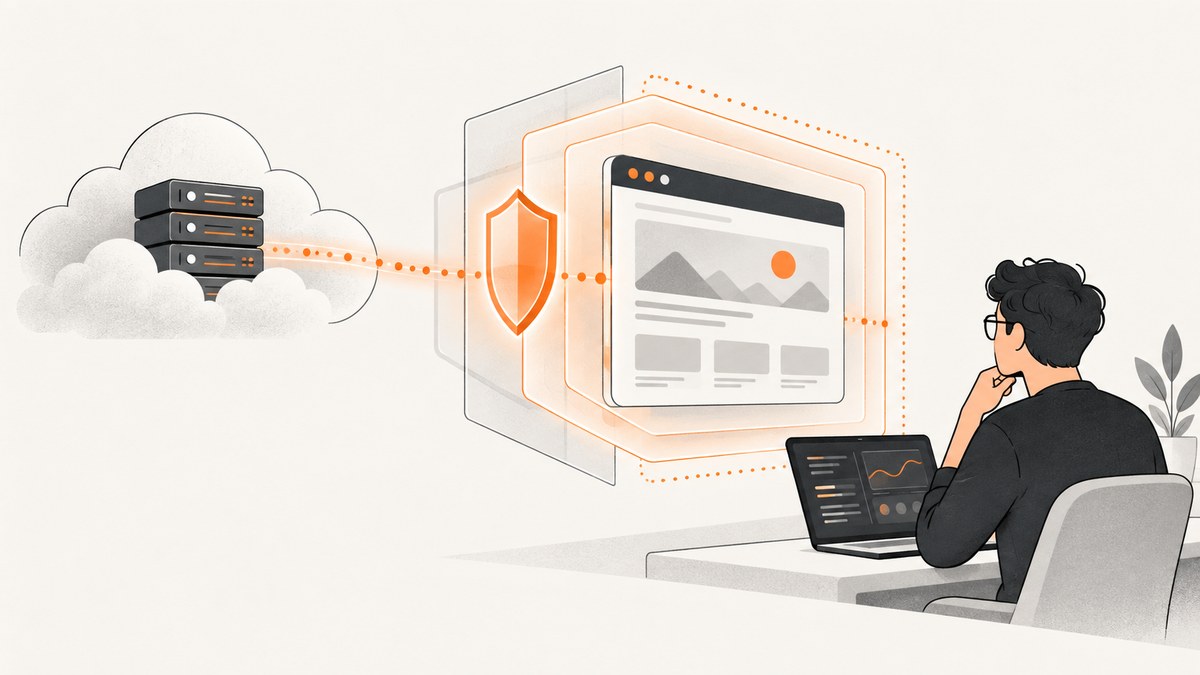
To run Puppeteer reliably on a DigitalOcean VPS, use a supported Node.js version and Linux architecture, install Puppeteer’s corresponding Chrome for Testing browser and operating-system dependencies, and launch Chrome with its sandbox enabled. Run the automation as a managed service, close every browser in a finally block, and diagnose launch failures before adding flags that weaken security.
This guide uses Debian or Ubuntu and Node.js. Puppeteer 25.12.0 lists Node.js 22.12 or newer and Chrome for Testing support on Debian or Ubuntu Linux for x64 and arm64. Requirements change between releases, so check the current Puppeteer system requirements before choosing a runtime or architecture.
1. Prepare the VPS
Create or use a DigitalOcean Droplet with a supported Debian or Ubuntu release and architecture. The available Puppeteer documentation does not establish a recommended Droplet size, RAM threshold, or DigitalOcean price for browser automation. Size the machine for the pages and concurrency you intend to run, then measure the workload on that instance. A page with large images, scripts, or many frames may need different resources from a simple static page.
Connect over SSH and update the system packages. Install Node.js 22.12 or newer for the Puppeteer 25.12.0 requirements described above. Verify the installed versions and architecture:
node --version
npm --version
uname -m
Use the platform’s supported package source or your existing Node.js installation process; these commands intentionally do not prescribe a third-party installer. If you use a different Puppeteer release, consult its requirements rather than assuming this version context still applies.
2. Install Puppeteer and Chrome dependencies
Make an application directory and install Puppeteer as an application dependency. The normal Puppeteer installation downloads a browser version paired with that Puppeteer release. That pairing matters: Puppeteer releases are closely tied to particular browser releases, and protocol changes can make an arbitrary system Chrome incompatible.
mkdir -p ~/puppeteer-vps
cd ~/puppeteer-vps
npm init -y
npm install puppeteer
On Debian or Ubuntu, Puppeteer’s browser installer can also install Chrome’s operating-system dependencies. This operation needs root privileges:
sudo npx puppeteer browsers install chrome --install-depsUse the installer when the host is missing required libraries and you want it to install them. It is not a substitute for checking whether your distribution and architecture are supported. The dependency list can change; consult the current Puppeteer troubleshooting guide and the Chromium package declarations linked from the system requirements page.
Do not casually point Puppeteer at an unrelated system browser. If you intentionally use another Chrome or Chromium build, validate that browser and Puppeteer version together and keep that pairing controlled during deployment.
3. Create a minimal, safe capture script
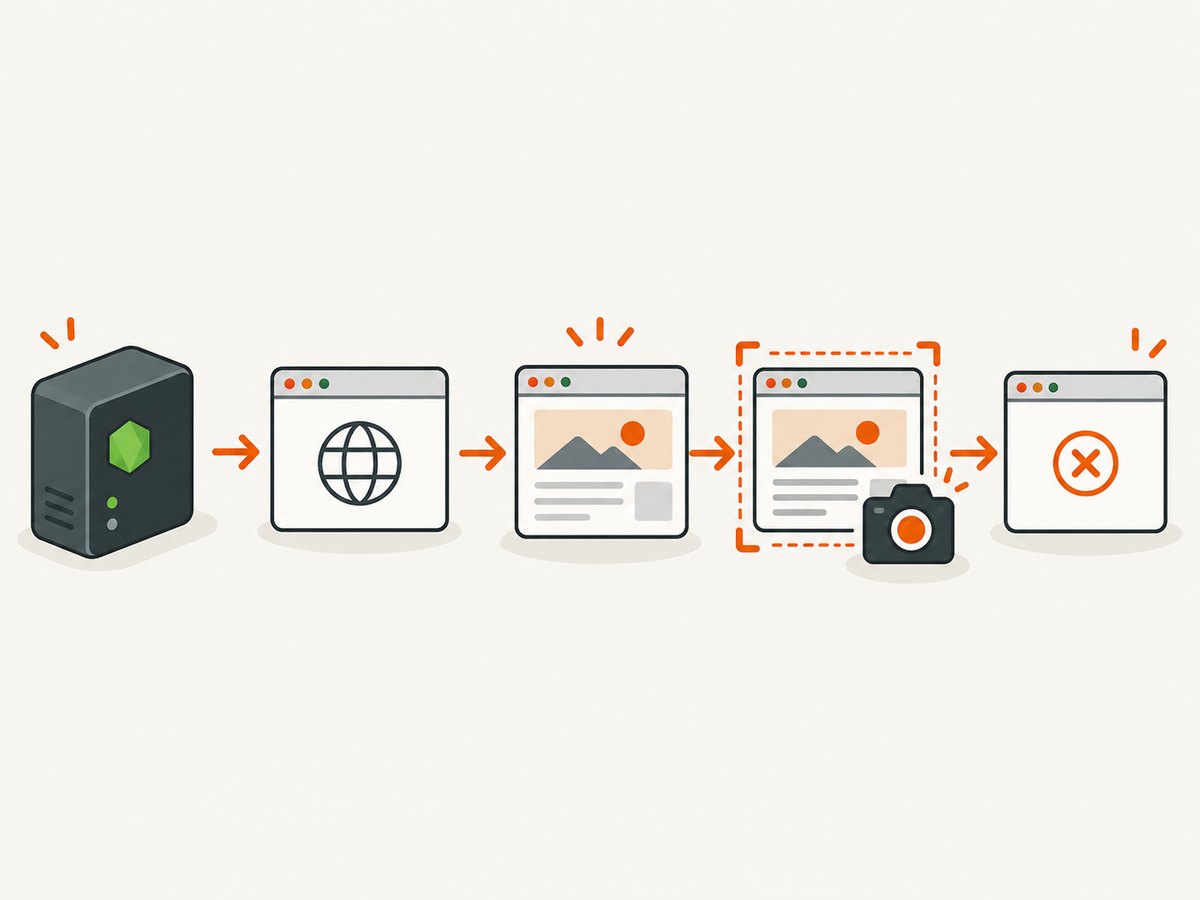
Save this as capture.mjs. It launches Puppeteer’s managed browser, navigates to a URL, saves a full-page PNG, and closes Chrome even when navigation or capture fails. It does not use --no-sandbox.
import puppeteer from 'puppeteer';

const target = process.argv[2] ?? 'https://example.com';
let browser;

try {
  browser = await puppeteer.launch({
    headless: true,
    // Keep Chrome's sandbox enabled.
  });

  const page = await browser.newPage();
  await page.setViewport({ width: 1440, height: 900 });
  await page.goto(target, {
    waitUntil: 'networkidle2',
    timeout: 45_000,
  });
  await page.screenshot({
    path: 'capture.png',
    fullPage: true,
    type: 'png',
  });

  console.log('Saved capture.png');
} catch (error) {
  console.error('Capture failed:', error);
  process.exitCode = 1;
} finally {
  if (browser) {
    await browser.close();
  }
}
Run it from the application directory:
node capture.mjs https://example.comheadless requests a browser without a visible desktop window. networkidle2 waits for network activity to become quiet under Puppeteer’s navigation rules, but some sites keep connections open or load content later. If that condition is a poor fit, use domcontentloaded or load, then wait explicitly for the element your task needs. The 45-second timeout here is an example operational limit, not a universal page-load guarantee.
4. Choose a navigation and capture strategy
Reliability depends on waiting for the right condition rather than waiting as long as possible. Pick the smallest condition that matches the page and task:
domcontentloadedis useful when the document structure is enough and you will wait for specific content separately.loadwaits for the page load event, which includes many dependent resources but does not guarantee that a client-rendered application has finished.networkidle0andnetworkidle2wait for low network activity. Analytics, polling, or persistent connections can make network-idle waits slow or unsuitable.
For a client-rendered page, wait for a stable selector after navigation:
await page.goto(target, { waitUntil: 'domcontentloaded', timeout: 45_000 });
await page.waitForSelector('main article', { timeout: 15_000 });
await page.screenshot({ path: 'capture.png', fullPage: true });
For a fixed delay, use await new Promise(resolve => setTimeout(resolve, 1500)) only when the page offers no reliable readiness signal. A delay can be too short on a slow response and unnecessarily long on a fast one. For lazy-loaded images, scrolling through the page before capture can prompt content to load; verify the resulting image because pages implement lazy loading differently.
Use fullPage: true for the whole document. For a single element, locate it and capture its bounding box or use the element’s screenshot method. Set the viewport before navigation when responsive layout matters. Increase device scale factor only when you need higher-density output; it increases image dimensions and can raise memory and processing costs on the VPS.
5. Keep browser processes manageable
Close pages and browsers after each unit of work. The finally block above ensures the browser is closed after success or failure. For a long-running worker, reuse a browser only if you also create and close pages deliberately, recover from browser crashes, and periodically replace unhealthy browser processes. Do not launch unlimited tabs or jobs at once: concurrency increases resource use, and the sources do not provide a universal safe number for a VPS.
As an operational recommendation, start with one job at a time, record navigation and capture duration, and increase concurrency gradually while observing memory, CPU, and failure rates on your actual workload. Set a per-navigation timeout and an outer job deadline so a stuck page cannot occupy a worker indefinitely. Retry only failures that may be transient, and limit retries; repeatedly retrying a deterministic error such as a missing library will not fix it.
Run the Node process under a service manager or job runner so it can be restarted after a process exit. Configure logs to include the target hostname, elapsed time, and error category without recording credentials or sensitive page content. These are deployment recommendations; Puppeteer’s documentation does not prescribe a particular systemd unit, queue, retry policy, or monitoring product for DigitalOcean.
6. Decide between a host install and Docker
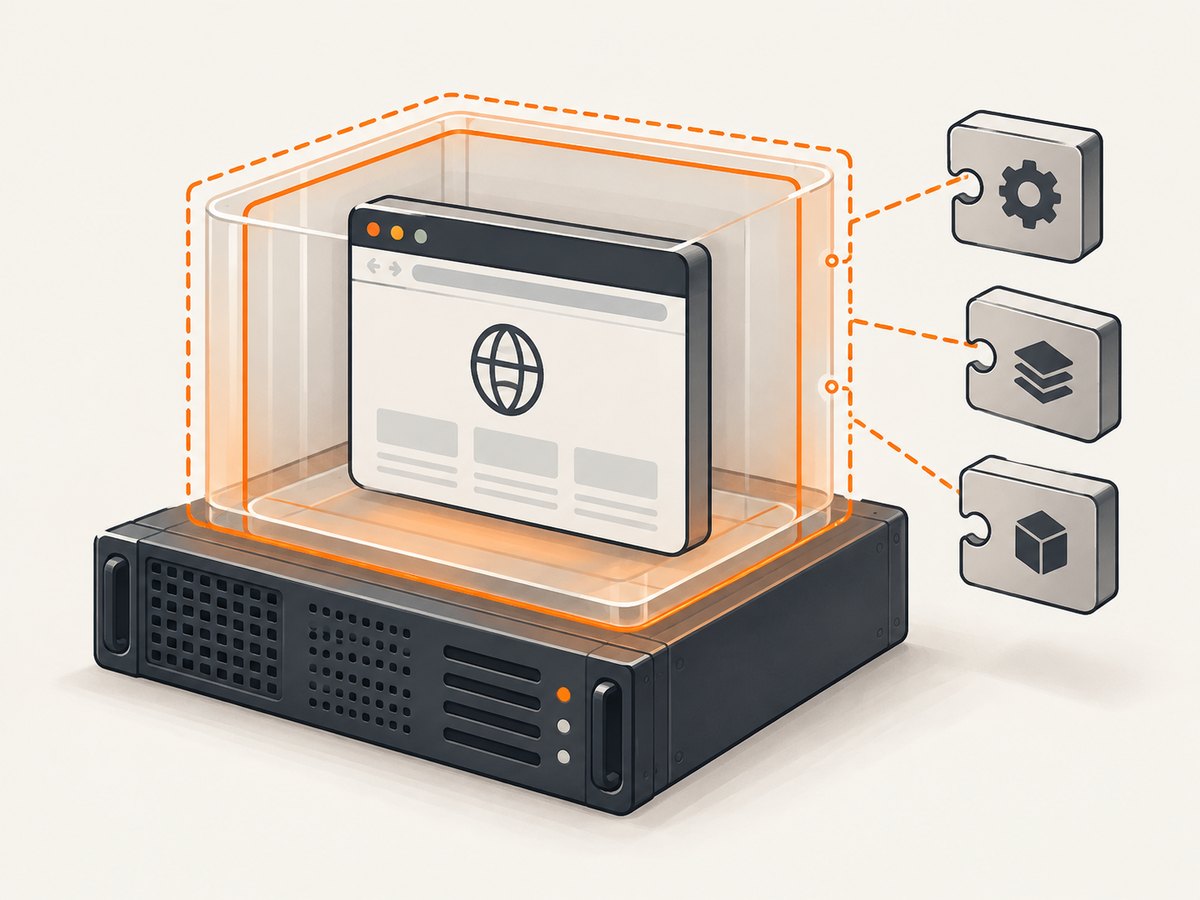
A host install keeps Node, Puppeteer, its downloaded browser, and operating-system packages on the VPS. You are responsible for maintaining those dependencies. The official Puppeteer Docker image includes Chrome for Testing and required dependencies, packaging more of that environment together.
Puppeteer’s Docker instructions say the official image runs in sandbox mode and requires the SYS_ADMIN capability. They also recommend an init process such as Docker’s --init so spawned processes are managed. Follow the official Docker guide for the current image and invocation details; do not remove the sandbox requirement to make a container launch more easily. Neither deployment option is documented as universally more reliable on DigitalOcean, and no head-to-head VPS benchmark is available.
7. Troubleshoot common launch and capture errors
| Symptom | Likely cause | What to do |
|---|---|---|
| Chrome exits immediately or reports a missing shared library | A required system dependency is absent or incompatible. | On Debian or Ubuntu, consider npx puppeteer browsers install chrome --install-deps with root privileges. Inspect the Chrome binary with ldd chrome | grep not and compare missing libraries with current distro and Chromium package declarations. |
No usable sandbox! |
Chrome cannot use an available sandbox configuration or host policy blocks it. | Investigate the host sandbox setup. Puppeteer documents an Ubuntu AppArmor/user-namespace issue for Chrome for Testing; follow its troubleshooting guidance. Avoid treating --no-sandbox as the standard fix. |
| Protocol errors after a browser update | The browser version may not match the Puppeteer release. | Prefer Puppeteer’s bundled browser. If using another build, validate and pin the pairing instead of updating Chrome independently. |
| Navigation timeout | The page is slow, a network-idle condition never occurs, or the site does not finish loading. | Check whether the URL is reachable from the VPS. Choose a more suitable waitUntil condition, wait for a specific selector, and set a timeout appropriate to the task. |
| Screenshot misses content or lazy images | The capture ran before client-side content or images appeared. | Wait for a meaningful selector or page-specific readiness condition. For lazy content, scroll through the page before capture and inspect the output. |
| Container leaves child processes behind | Spawned processes are not reaped by an init process. | Use Docker’s --init as recommended by Puppeteer, and ensure the job closes its browser. |
| Works in a shell but fails as a service | The service may run under a different user, environment, working directory, or permissions. | Compare the service account and environment with the successful shell run. Ensure the account can access the app and Puppeteer browser cache; inspect service logs for the first launch error. |
When launch fails, capture the full error and inspect the browser binary path used by Puppeteer. Use ldd on the actual Chrome binary, not an assumed system copy. Puppeteer notes that dependency lists can become outdated, so use them as a diagnostic aid and verify against the current distribution package declarations.
8. Performance, reliability, and cost considerations
A VPS bill covers the machine whether a particular page is easy or expensive to render. Browser automation also consumes CPU, memory, disk, and network bandwidth; the exact amount varies with page content and concurrency. The research sources give no per-browser memory figure, throughput benchmark, or Droplet pricing. Measure representative pages on the instance you plan to use before setting concurrency or promising a processing time.
For predictable operation, keep the Puppeteer and browser versions pinned by your lockfile and deployment process, then update them deliberately. A reproducible install helps distinguish a code change from a browser or dependency change. Record timeouts and browser exits, keep temporary output under control, and ensure a restart does not cause the same failed job to loop forever. Treat every page as untrusted web content and preserve Chrome’s sandbox.
Or skip the browser setup
If your task is simply to get a screenshot from a URL, ScreenshotNeo is a website screenshot API and MCP server. One GET request returns an image or PDF, so you do not need to install or operate Chrome on the VPS. The API documentation describes the available parameters.
curl -G "https://api.screenshotneo.com/v1/shot" -d access_key=YOUR_API_KEY --data-urlencode url=https://stripe.com -o shot.webpScreenshotNeo accepts cookie and consent banners as a visitor and removes more than 60 known consent platforms, newsletter popups, and chat widgets before capture; each cleanup step can be turned off. Bot checks, blank pages, timeouts, failed loads, and cache hits cost nothing, and response headers report the page verdict and billing status. Its MCP server provides take_screenshot, get_page_info, and capture_pdf tools for Claude, Cursor, and other MCP clients. The free plan includes 1,000 screenshots per month without a card; paid plans start at $5 for 3,000 shots.
Sign up free for 1,000 screenshots a month, with no card required.
FAQ
Can I use the Chrome already installed on the VPS?
You can deliberately configure another browser, but validate its version against Puppeteer. The bundled browser is the safer default because Puppeteer releases are paired with specific browser versions.
Should I add --no-sandbox if Chrome will not start?
Not as a routine fix. Puppeteer strongly discourages disabling the sandbox because it protects the host from untrusted web content. Diagnose the sandbox configuration first.
Does this guide establish the best DigitalOcean Droplet size?
No. The reviewed sources do not provide DigitalOcean sizing, pricing, or workload benchmarks. Test the pages and concurrency your application needs on the instance you select.
Is Docker required?
No. You can install Puppeteer and its browser dependencies on the host. Docker is an alternative that packages Chrome and dependencies; follow its sandbox and init requirements.


