How to Handle File Downloads and Pop-Ups in Puppeteer
Configure Puppeteer downloads, pop-ups, new windows, and file choosers reliably with runnable code, timeouts, cleanup, and troubleshooting.
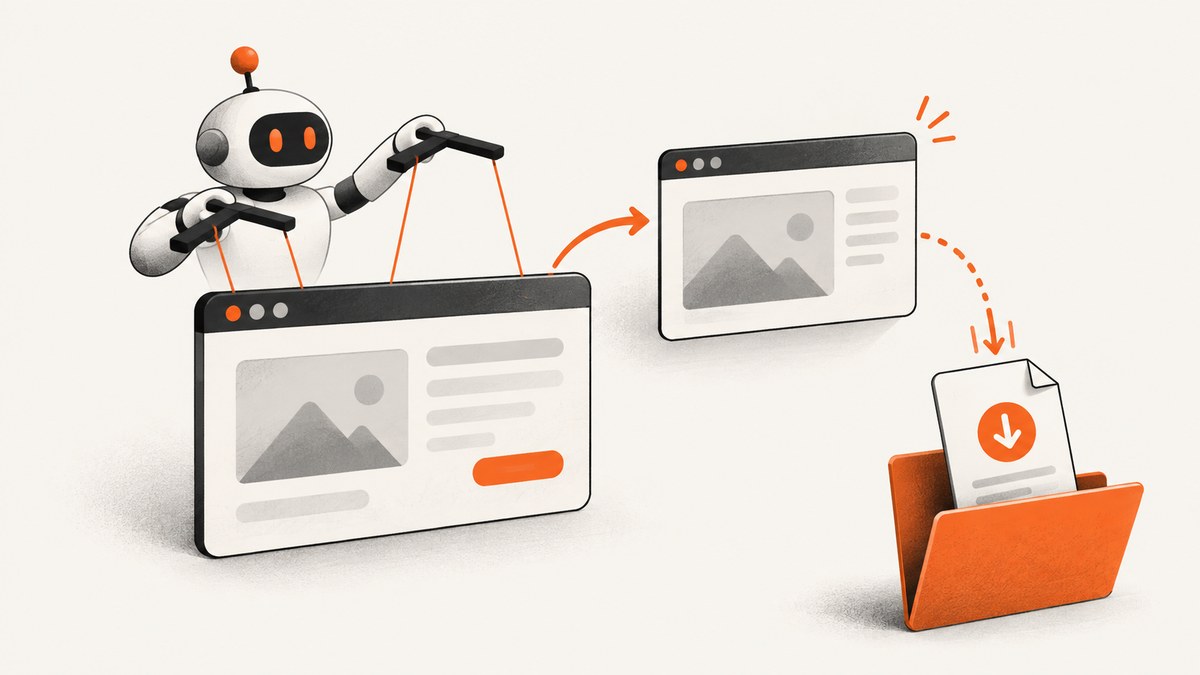
Direct answer: configure downloads before the action that starts them, register popup and file-chooser listeners before clicking, and await the listener and click together with Promise.all. A download policy controls whether Chrome may save a file; your application still needs to verify that the expected file arrived before continuing.
This guide shows a complete Puppeteer workflow for downloads, pop-ups, new tabs, browser-wide target detection, and upload file choosers. It also covers authenticated pages, completion checks, timeouts, cleanup, installation modes, performance, reliability, and common failures.
1. Install Puppeteer and prepare a workspace
The regular puppeteer package downloads a compatible Chrome browser during installation. puppeteer-core does not download Chrome, so you must provide an executable path or an already managed browser. If your package manager blocks install scripts, install the browser explicitly with the Puppeteer browsers command documented by the project.
npm install puppeteer
# If install scripts are disabled:
npx puppeteer browsers install chrome
Create a dedicated download directory. Use an absolute path so behavior does not depend on the process working directory, container entrypoint, or test runner.
import fs from 'node:fs/promises';
import path from 'node:path';

const downloadDir = path.resolve('artifacts/downloads');
await fs.mkdir(downloadDir, { recursive: true });
2. Allow downloads before navigation or the click
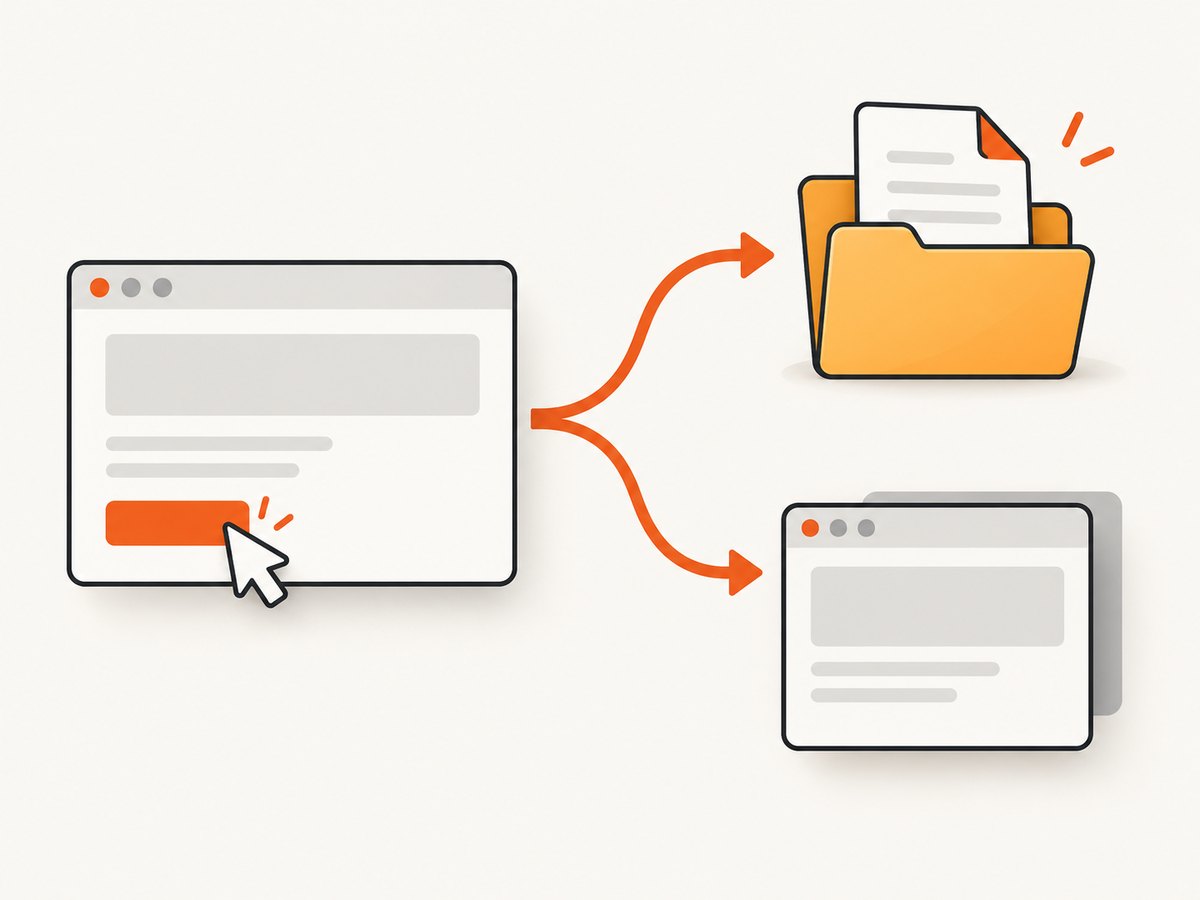
Puppeteer’s DownloadBehavior has a policy and an optional downloadPath. The path is required when the policy is allow or allowAndName. Set it while creating the browser context, before visiting the page or triggering the download.
import puppeteer from 'puppeteer';
import fs from 'node:fs/promises';
import path from 'node:path';

const downloadDir = path.resolve('artifacts/downloads');
await fs.mkdir(downloadDir, { recursive: true });

const browser = await puppeteer.launch({ headless: true });
const context = await browser.createBrowserContext({
  downloadBehavior: {
    policy: 'allow',
    downloadPath: downloadDir,
  },
});

const page = await context.newPage();
await page.goto('https://example.com/reports', {
  waitUntil: 'domcontentloaded',
  timeout: 45_000,
});
await page.click('a.download-report');

await browser.close();
Which download policy should you use?
| Policy | Use | Notes |
|---|---|---|
deny |
Block browser downloads | Useful as a safe default when a workflow should never write files. |
allow |
Permit downloads into your chosen directory | Provide downloadPath. |
allowAndName |
Permit downloads while allowing browser-assigned names | Provide downloadPath; confirm the naming behavior for your installed Puppeteer version. |
The setting permits the transfer; it does not promise that a file is complete. Chrome may first create a temporary file and rename it after the response finishes. Your code should wait for a matching final file, reject temporary extensions, and enforce a timeout.
3. Wait for download completion
There is no universal “download finished” promise that replaces application-level verification. A practical helper watches the directory, ignores temporary files, and checks that the file size remains stable.
import fs from 'node:fs/promises';
import path from 'node:path';

async function listFiles(dir) {
  return (await fs.readdir(dir)).filter(name => !name.endsWith('.crdownload'));
}

async function waitForDownload(dir, before, timeoutMs = 60_000) {
  const deadline = Date.now() + timeoutMs;
  while (Date.now() < deadline) {
    const names = await listFiles(dir);
    const newNames = names.filter(name => !before.has(name));
    if (newNames.length) {
      const candidate = path.join(dir, newNames[0]);
      const first = await fs.stat(candidate);
      await new Promise(resolve => setTimeout(resolve, 300));
      const second = await fs.stat(candidate);
      if (first.size === second.size) return candidate;
    }
    await new Promise(resolve => setTimeout(resolve, 250));
  }
  throw new Error(`Download did not finish within ${timeoutMs} ms`);
}

const before = new Set(await listFiles(downloadDir));
await page.click('a.download-report');
const filePath = await waitForDownload(downloadDir, before);
console.log(`Saved ${filePath}`);
For production jobs, also validate the extension, MIME type when available, minimum or maximum size, and file contents. A successful HTTP response can still be an HTML error page saved with a misleading filename.
4. Capture a popup or new tab without missing it
Puppeteer emits the page-scoped popup event when the current page opens a new tab or window. Register the wait before clicking the opener. Starting both promises in Promise.all closes the race where a fast popup appears and disappears before a later listener is attached.
const [popup] = await Promise.all([
  page.waitForEvent('popup'),
  page.click('button.open-window'),
]);

await popup.waitForNavigation({
  waitUntil: 'domcontentloaded',
  timeout: 30_000,
}).catch(() => {});
console.log('Popup URL:', popup.url());
console.log('Title:', await popup.title());
await popup.close();
Some releases expose slightly different navigation helpers. Check the API for the version installed in your project and use the equivalent event-wait method. A popup is a normal Puppeteer Page, so you can query it, wait for selectors, take screenshots, or extract its content.
When the popup is opened by an unknown page
Use the browser-wide targetcreated event when the opener is not known or when the workflow must observe every new target. Filter for page targets and remember to close listeners and pages during cleanup.
const targetPromise = new Promise(resolve => {
  const onTarget = async target => {
    if (target.type() === 'page') {
      browser.off('targetcreated', onTarget);
      resolve(target);
    }
  };
  browser.on('targetcreated', onTarget);
});

await page.click('a.opens-unknown-window');
const target = await targetPromise;
const newPage = await target.page();
await newPage.bringToFront();
console.log(await newPage.title());
await newPage.close();| Approach | Scope | Best for | Trade-off |
|---|---|---|---|
page.waitForEvent('popup') |
One opener page | Precise workflows with a known button or link | Does not observe popups opened elsewhere. |
browser.on('targetcreated') |
Entire browser | Unknown openers, multi-page apps, auditing every target | Requires filtering and more cleanup. |
5. Handle file chooser dialogs and uploads
For an ordinary <input type="file">, setting the input directly is usually simpler than opening a native dialog. If the page requires a chooser event, call waitForFileChooser() before the action that launches it. Puppeteer cannot return a chooser that is already active, and this method does not intercept every modern DOM picker API such as window.showOpenFilePicker.
const [chooser] = await Promise.all([
  page.waitForFileChooser(),
  page.click('button.choose-file'),
]);

await chooser.accept(['/absolute/path/report.csv']);
await page.click('button.upload');
await page.waitForSelector('.upload-complete', { timeout: 30_000 });
Direct input assignment:
const input = await page.$('input[type=file]');
if (!input) throw new Error('File input not found');
await input.uploadFile('/absolute/path/report.csv');
await page.click('button.upload');
Keep download and upload concerns separate. A download saves a browser response to disk; a chooser supplies a local path to an upload control. Authentication, permissions, and sandbox paths can affect either operation.
6. Combine authentication, popup handling, and downloads
Register every event wait before the triggering action, and start independent waits together. This example logs in, opens an export window, and waits for a downloaded report.
import puppeteer from 'puppeteer';
import fs from 'node:fs/promises';
import path from 'node:path';

const downloadDir = path.resolve('artifacts/downloads');
await fs.mkdir(downloadDir, { recursive: true });
const browser = await puppeteer.launch({ headless: true });
const context = await browser.createBrowserContext({
  downloadBehavior: { policy: 'allow', downloadPath: downloadDir },
});
const page = await context.newPage();

try {
  await page.goto('https://example.com/login', { waitUntil: 'domcontentloaded' });
  await page.type('#email', process.env.APP_EMAIL ?? '');
  await page.type('#password', process.env.APP_PASSWORD ?? '');
  await page.click('button[type=submit]');
  await page.waitForSelector('[data-ready="true"]', { timeout: 30_000 });

  const popupPromise = page.waitForEvent('popup');
  const before = new Set(await fs.readdir(downloadDir));
  await page.click('button.export-and-open');
  const popup = await popupPromise;
  await popup.waitForNavigation({ waitUntil: 'domcontentloaded' }).catch(() => {});
  await popup.close();

  const deadline = Date.now() + 60_000;
  let result;
  while (!result && Date.now() < deadline) {
    const files = await fs.readdir(downloadDir);
    const fresh = files.find(name => !before.has(name) && !name.endsWith('.crdownload'));
    if (fresh) result = path.join(downloadDir, fresh);
    else await new Promise(resolve => setTimeout(resolve, 250));
  }
  if (!result) throw new Error('Export download timed out');
  console.log(`Downloaded ${result}`);
} finally {
  await browser.close();
}
7. Direct HTTP downloads when a browser is unnecessary
If the file URL is stable and authentication can be represented with a token or cookie, an HTTP client is faster and uses less memory than a browser. Browser automation remains necessary when a click creates a signed URL, JavaScript computes the request, or the server requires browser state.
curl -L --fail --retry 3 \
  -H "Authorization: Bearer $TOKEN" \
  "https://example.com/api/report.csv" \
  -o report.csv
import requests
response = requests.get(
'https://example.com/api/report.csv',
headers={'Authorization': f'Bearer {TOKEN}'},
timeout=60,
)
response.raise_for_status()
with open('report.csv', 'wb') as output:
output.write(response.content)const response = await fetch('https://example.com/api/report.csv', {
headers: { Authorization: `Bearer ${process.env.TOKEN}` },
});
if (!response.ok) throw new Error(`HTTP ${response.status}`);
const bytes = Buffer.from(await response.arrayBuffer());
await fs.writeFile('report.csv', bytes);8. Reliability checklist
- Create the download directory before creating the context.
- Set the policy and path before navigation or the triggering click.
- Register popup, target, navigation, and chooser waits before the action.
- Use bounded timeouts for navigation, events, and file completion.
- Verify final filenames, stable size, and expected content.
- Use absolute paths and unique per-job directories in parallel workers.
- Close popup pages, contexts, and browsers in
finallyblocks. - Record the URL, action, timeout, target page, and resulting file for diagnosis.
9. Troubleshooting common errors
“The download never appears”
Usually the policy was set after the click, the directory does not exist, the selector clicked a different control, or the response was blocked. Configure the context first, create the directory, confirm the click target, and log the page URL and console errors.
“The popup wait timed out”
The control may navigate the same tab, open a browser target that is not a page, or be blocked by a consent layer. Attach the popup wait before the click, inspect the target-created event when scope is unknown, and verify the click is not intercepted.
“The popup opens but is blank”
Wait for the popup’s DOM or navigation state, then inspect its URL and response. A new page can be created before its document has loaded.
“The file is only a .crdownload”
The transfer is still active. Wait for the temporary suffix to disappear and confirm the final file size is stable before processing it.
“waitForFileChooser() hangs”
The click may not open a chooser, or the chooser was already active. Start the wait and click together; for a normal file input, use uploadFile(). Modern picker APIs may require a different application strategy.
“Chrome cannot write to the folder”
Use an absolute writable path, check container permissions, and avoid a read-only mount. Give each worker a separate directory to prevent filename collisions.
“Puppeteer installed but no browser exists”
You may be using puppeteer-core, or installation scripts were skipped. Install a compatible browser explicitly and pass its executable path when required.
10. Performance, reliability, and cost notes
Browser startup is expensive compared with an HTTP request. Reuse a browser process and create isolated contexts for jobs that need separate cookies or download policies. Reusing a page can be faster, but clear state between accounts and avoid concurrent actions on the same page.
For reliable pipelines, use one bounded timeout per stage, retry only idempotent steps, and preserve diagnostic artifacts on failure. A retry that clicks an export button twice can create duplicate files or duplicate server-side jobs. Prefer a unique job identifier and verify the downloaded content.
Memory use grows with open pages, large PDFs, and parallel contexts. Close popups promptly and cap concurrency according to the available CPU and memory. Direct HTTP transfer is usually the lower-cost path when no browser-rendered state is required; use Puppeteer when the interaction itself is part of the requirement.
11. Or skip the browser setup
If your goal is a clean screenshot rather than browser automation, ScreenshotNeo provides one GET request that returns PNG, JPEG, WebP, or PDF. See the API documentation for all options.
curl -G "https://api.screenshotneo.com/v1/shot" -d access_key=YOUR_API_KEY --data-urlencode url=https://stripe.com -o shot.webpimport requests
r = requests.get("https://api.screenshotneo.com/v1/shot", params={"access_key": "YOUR_API_KEY", "url": "https://stripe.com"}, timeout=90)
open("shot.webp", "wb").write(r.content)const q = new URLSearchParams({ access_key: 'YOUR_API_KEY', url: 'https://stripe.com' });
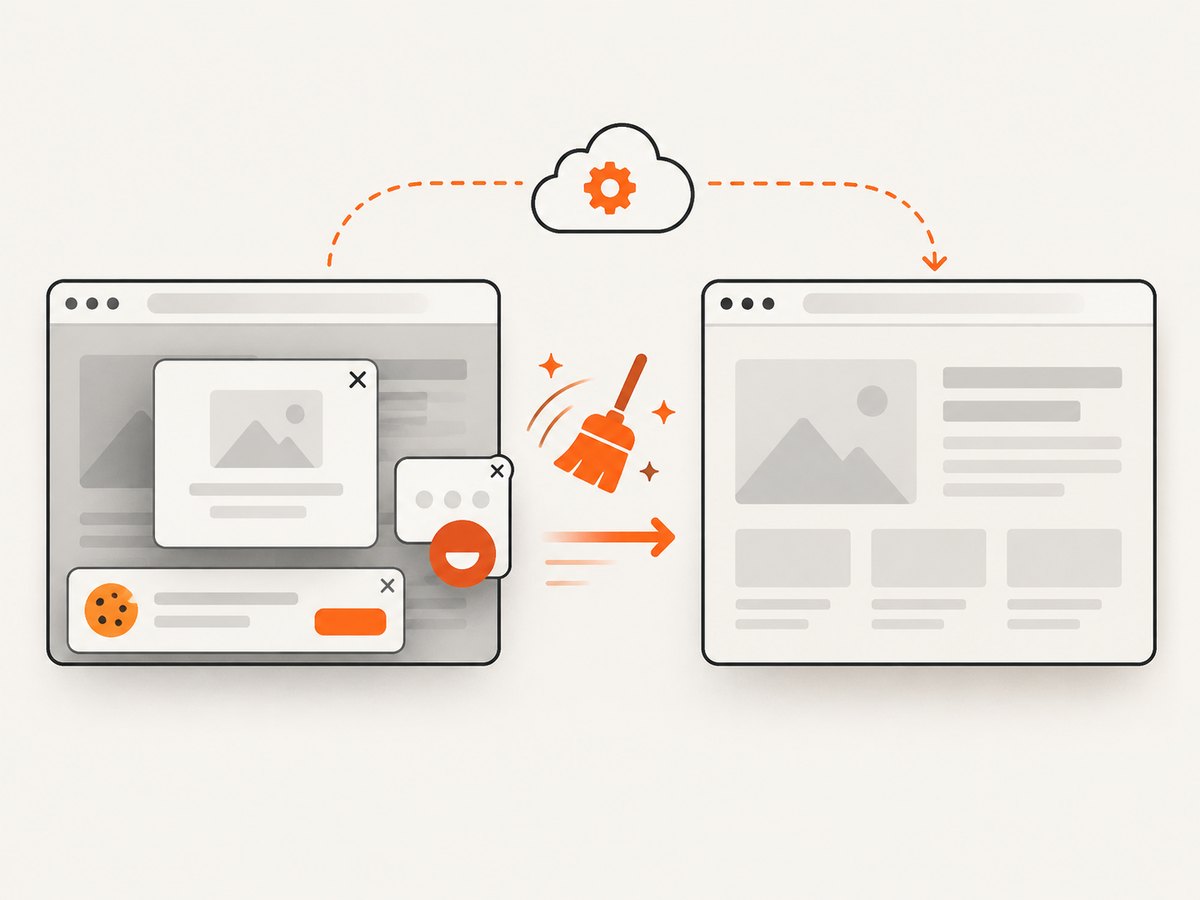
const res = await fetch(`https://api.screenshotneo.com/v1/shot?${q}`);Cookie banners, newsletter popups, and chat widgets are removed before the shot. Bot checks, blank pages, failed loads, timeouts, and cache hits are not billed, and response headers identify the page verdict and billing result. An MCP server lets Claude, Cursor, and other MCP clients take screenshots. The free plan includes 1,000 screenshots each month with no card; paid plans start at $5 for 3,000 shots.
Create a free ScreenshotNeo account.
12. FAQ
Can Puppeteer choose the downloaded filename?
Chrome determines the final name from the response and browser behavior. Treat the directory as the source of truth and rename the completed file in your application after validation.
Should I use a popup event or target-created event?
Use the page popup event when the opener is known. Use browser-wide target detection when any page may open a target or when you need global observation.
Can I intercept every native file picker?
No. waitForFileChooser() handles supported chooser flows but does not intercept every modern picker API. Set a real file input directly when possible.
Is a successful click proof that a download completed?
No. The click only starts the action. Wait for a final file, stable size, and valid contents within a bounded timeout.


