How to Draw a Bounding Box Around an Element With Puppeteer
Use Puppeteer’s boundingBox() to read an element’s rectangle, draw an overlay, clip screenshots, and handle hidden, moving, or missing elements safely.
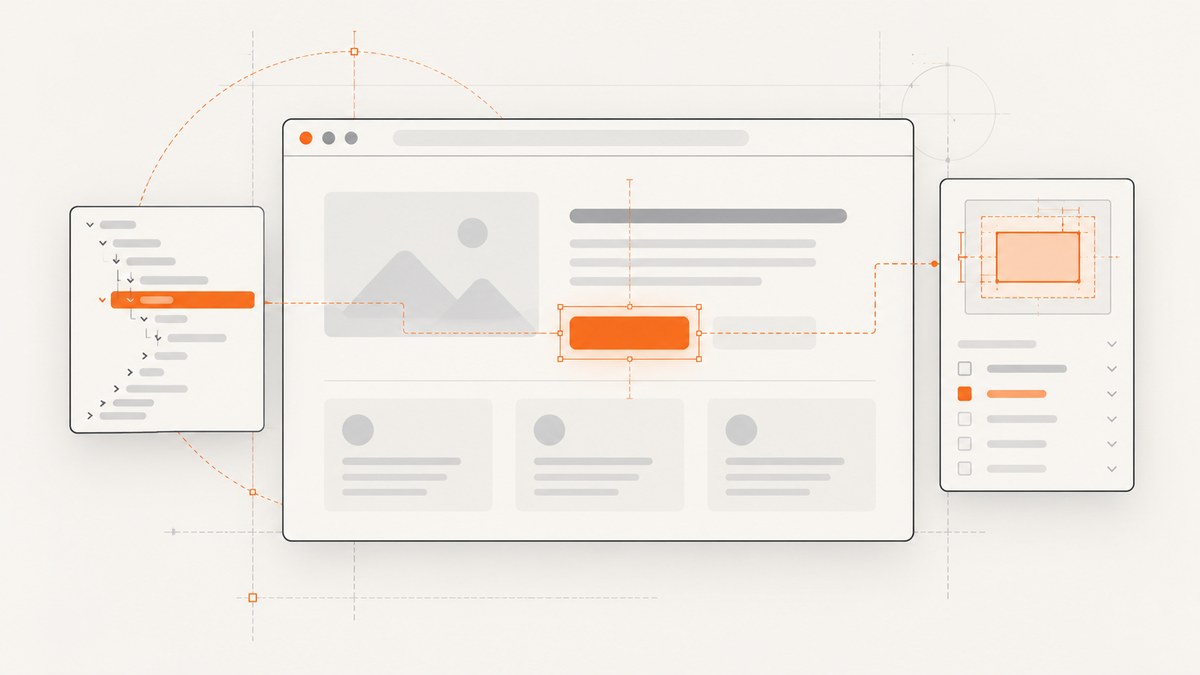
To get an element’s rectangle in Puppeteer, locate it with page.$(), call await elementHandle.boundingBox(), and check for null before using the result. The returned object contains x, y, width, and height. The coordinates are relative to the main frame, and the dimensions are pixels. Puppeteer does not provide a built-in drawBoundingBox() method; drawing a visible outline is something you implement with the returned geometry.
This guide shows the complete workflow: reading the rectangle, drawing an overlay, taking a clipped screenshot, handling iframes and scrolling, waiting for dynamic content, and troubleshooting layout edge cases. It also compares boundingBox() with boxModel() and ElementHandle.screenshot().
1. Install Puppeteer and create a page
Install Puppeteer in a new Node.js project:
npm install puppeteerThe following script launches Chromium, opens a page, and prepares a target element.
const puppeteer = require('puppeteer');

(async () => {
  const browser = await puppeteer.launch({ headless: true });
  const page = await browser.newPage();

  await page.setContent(`
    <main style="padding:40px;font-family:Arial">
      <button id="target" style="padding:16px 24px">Target button</button>
    </main>
  `);

  const element = await page.$('#target');
  if (!element) {
    throw new Error('No element matched #target');
  }

  const box = await element.boundingBox();
  if (!box) {
    throw new Error('Element is not part of the layout');
  }

  console.log(box);
  await browser.close();
})();
According to the Puppeteer boundingBox() reference, the method returns a promise for a bounding box or null. The BoundingBox interface defines the point coordinates and pixel dimensions.
2. Read and validate the bounding box
A robust implementation handles both ways the lookup can fail:
page.$(selector)returnsnullwhen no element matches.boundingBox()returnsnullwhen the element is not part of the layout, such as an element withdisplay: none.
async function getBoundingBox(page, selector) {
  const element = await page.$(selector);
  if (!element) {
    throw new Error(`No element matched ${selector}`);
  }

  const box = await element.boundingBox();
  if (!box) {
    throw new Error(`Element ${selector} is not part of the layout`);
  }

  return { element, box };
}

const { element, box } = await getBoundingBox(page, '.product-card');
console.log(`x=${box.x}, y=${box.y}`);
console.log(`width=${box.width}, height=${box.height}`);
Do not read box.x or box.width until after the null check. A non-null result confirms that the element participates in layout; it does not by itself prove that the element intersects the current viewport. Use ElementHandle.isIntersectingViewport() when viewport intersection matters.
3. Draw a visible rectangle around the element
To render an outline, inject a fixed-position overlay into the page. Because boundingBox() coordinates are page coordinates, subtract the current scroll offset when positioning an overlay in viewport coordinates.
async function drawBoundingBox(page, selector, options = {}) {
  const color = options.color || '#ff1744';
  const lineWidth = options.lineWidth || 3;
  const label = options.label || '';

  const element = await page.$(selector);
  if (!element) throw new Error(`No element matched ${selector}`);

  const box = await element.boundingBox();
  if (!box) throw new Error(`Element ${selector} is not part of the layout`);

  await page.evaluate(({ box, color, lineWidth, label }) => {
    document.querySelector('[data-puppeteer-box-overlay]')?.remove();

    const overlay = document.createElement('div');
    overlay.dataset.puppeteerBoxOverlay = 'true';
    Object.assign(overlay.style, {
      position: 'absolute',
      left: `${box.x}px`,
      top: `${box.y}px`,
      width: `${box.width}px`,
      height: `${box.height}px`,
      border: `${lineWidth}px solid ${color}`,
      boxSizing: 'border-box',
      pointerEvents: 'none',
      zIndex: '2147483647'
    });

    if (label) {
      const tag = document.createElement('span');
      tag.textContent = label;
      Object.assign(tag.style, {
        position: 'absolute',
        top: '-1.6em',
        left: '0',
        background: color,
        color: '#fff',
        padding: '2px 5px',
        font: '12px sans-serif',
        whiteSpace: 'nowrap'
      });
      overlay.appendChild(tag);
    }

    document.body.appendChild(overlay);
  }, { box, color, lineWidth, label });

  return box;
}

await drawBoundingBox(page, '#target', { label: 'target' });
await page.screenshot({ path: 'outlined.png', fullPage: true });
This overlay is a diagnostic artifact. If the page scrolls, resizes, animates, or changes layout after the measurement, the rectangle can become stale. Recalculate immediately before capture, or observe layout changes and redraw.
4. Capture only the element’s rectangle
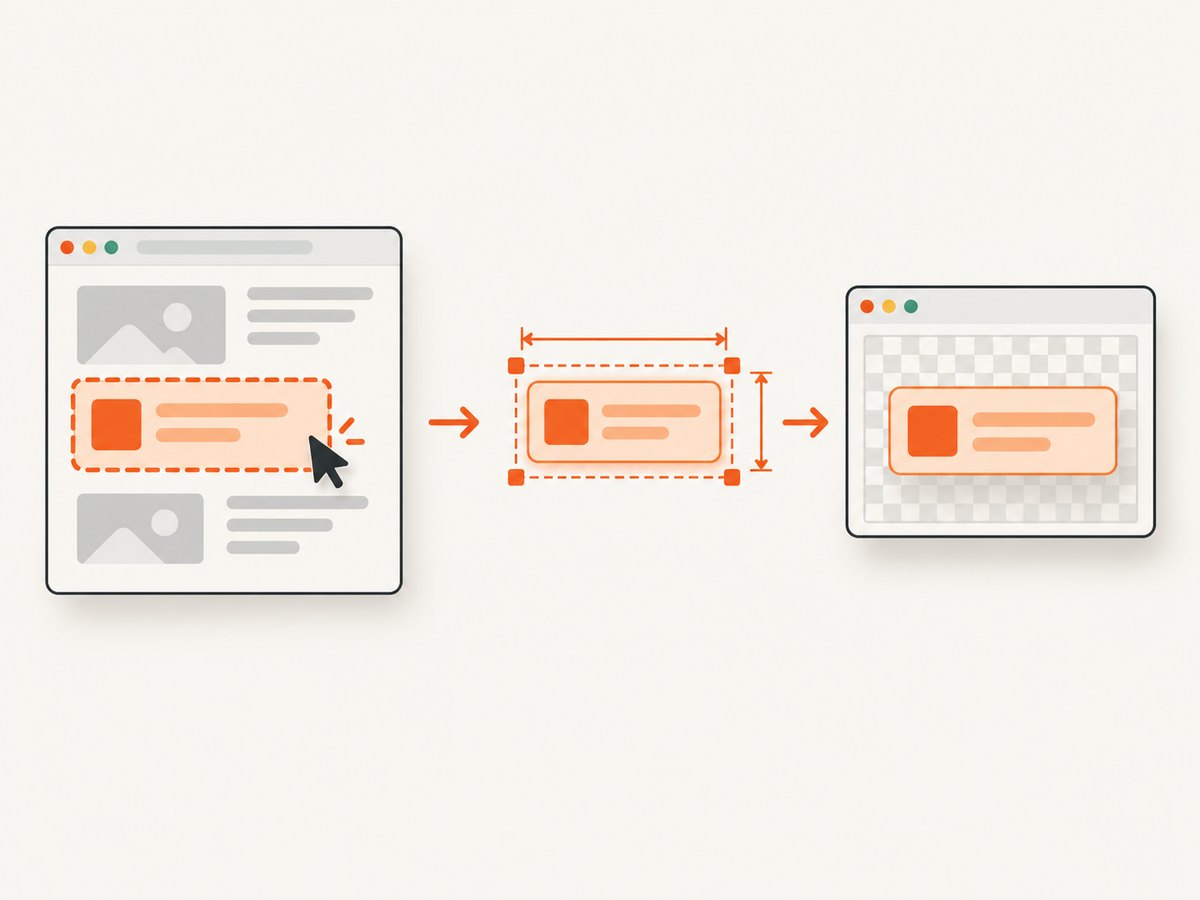
If your goal is an image of the element rather than a visual outline, use ElementHandle.screenshot(). Puppeteer documents that it scrolls the element into view when needed.
const element = await page.$('.hero-card');
if (!element) throw new Error('Hero card not found');

const box = await element.boundingBox();
if (!box) throw new Error('Hero card is not in layout');

await element.screenshot({ path: 'hero-card.png' });
The screenshot method throws if the element has been detached from the DOM. See the ElementHandle.screenshot() reference and the Puppeteer screenshots guide for the documented element-capture workflow.
You can also use the box as a rectangular clip. Add padding carefully and clamp the values to the page dimensions:
const padding = 12;
const viewport = await page.evaluate(() => ({
  width: document.documentElement.scrollWidth,
  height: document.documentElement.scrollHeight
}));

const clip = {
  x: Math.max(0, box.x - padding),
  y: Math.max(0, box.y - padding),
  width: Math.min(box.width + padding * 2, viewport.width),
  height: Math.min(box.height + padding * 2, viewport.height)
};

await page.screenshot({ path: 'clipped.png', clip });
5. Wait for the element to exist and settle
Selectors can match before an element has its final size. Wait for the selector, then wait for a useful layout condition inside the page.
await page.goto('https://example.com/dashboard', {
  waitUntil: 'networkidle2'
});

await page.waitForSelector('.report-card', { visible: true });
await page.waitForFunction(() => {
  const el = document.querySelector('.report-card');
  if (!el) return false;
  const rect = el.getBoundingClientRect();
  return rect.width > 0 && rect.height > 0;
});

const element = await page.$('.report-card');
const box = await element.boundingBox();
For fonts, images, and client-side rendering, add a page-specific readiness signal where possible. A fixed delay can help with known animations, but a selector or application state is usually more deterministic.
6. Full runnable example: outline, label, and screenshot
const puppeteer = require('puppeteer');

async function main() {
  const browser = await puppeteer.launch({ headless: true });
  const page = await browser.newPage();
  await page.setViewport({ width: 1280, height: 800, deviceScaleFactor: 1 });

  await page.goto('https://example.com', { waitUntil: 'networkidle2' });
  const selector = 'h1';
  await page.waitForSelector(selector, { visible: true });

  const element = await page.$(selector);
  if (!element) throw new Error(`No element matched ${selector}`);

  const box = await element.boundingBox();
  if (!box) throw new Error(`Element ${selector} is not part of the layout`);

  await page.evaluate(({ box }) => {
    const overlay = document.createElement('div');
    Object.assign(overlay.style, {
      position: 'absolute',
      left: `${box.x}px`,
      top: `${box.y}px`,
      width: `${box.width}px`,
      height: `${box.height}px`,
      border: '3px solid #e11d48',
      boxSizing: 'border-box',
      pointerEvents: 'none',
      zIndex: '999999'
    });
    document.body.appendChild(overlay);
  }, { box });

  await page.screenshot({ path: 'bounding-box.png', fullPage: true });
  console.log(box);
  await browser.close();
}

main().catch(error => {
  console.error(error);
  process.exitCode = 1;
});
7. Bounding boxes, box models, and element screenshots
| Need | Use | What you receive |
|---|---|---|
| One rectangle for positioning, comparison, or clipping | boundingBox() |
{ x, y, width, height } or null |
| Content, padding, border, and margin geometry | boxModel() |
Box-model polygons represented as clockwise {x, y} points, or null |
| An image of the element | elementHandle.screenshot() |
PNG, JPEG, or another supported screenshot format |
The boxModel() documentation is appropriate when a single outer rectangle loses information about padding and borders. Choose boundingBox() when the four-number rectangle is enough.
8. Frames, scrolling, transforms, and moving layouts
Elements inside an iframe
A selector searched from the main page cannot find an element inside a child frame. Find the frame first, then query within its document:
const frame = page.frames().find(f => f.url().includes('/checkout'));
if (!frame) throw new Error('Checkout frame not found');

const element = await frame.$('#total');
if (!element) throw new Error('Total not found in frame');
const box = await element.boundingBox();
if (!box) throw new Error('Total is not laid out');
The handle’s coordinates are reported relative to the main frame’s coordinate system. For cross-origin frames, do not assume you can inject arbitrary DOM code into the frame; use Puppeteer’s frame APIs and browser security boundaries correctly.
Scrolling
A box can exist outside the visible viewport. Check await element.isIntersectingViewport() when that distinction matters. For a diagnostic overlay, either use absolute page coordinates as shown above or scroll first and recalculate.
CSS transforms and animations
Transforms and active animations can change the measured rectangle between calls. Pause animations with an injected stylesheet, wait for a stable application state, or measure and capture in one short sequence. Reacquire a handle after DOM replacement; a previously obtained handle may refer to a detached node.
9. Troubleshooting checklist
| Symptom | Cause | Fix |
|---|---|---|
No element matched |
Selector is wrong, page has not rendered, or the element is in a frame. | Verify the selector in DevTools, wait for it, or query the correct frame. |
boundingBox() returns null |
The node is not part of layout, commonly display:none. |
Wait for visible content and check computed styles and dimensions. |
| Box is in the wrong place | You mixed page coordinates with viewport coordinates, or the page scrolled. | Use absolute positioning for page overlays, or subtract scroll offsets for fixed overlays. |
| Outline is stale | Fonts, images, scripts, or animations changed layout. | Wait for readiness, measure immediately before capture, and redraw after changes. |
| Element screenshot fails with detached-element error | The framework replaced the node after you obtained the handle. | Locate the element again and capture the fresh handle. |
| Clip has unexpected edges | Padding was not clamped, or the clip exceeded document bounds. | Clamp x, y, width, and height to the document or viewport dimensions. |
| Element is present but invisible | Opacity, visibility, zero dimensions, or an overlay hides it. | Inspect computed styles, dimensions, z-index, and viewport intersection. |
10. Performance, reliability, and cost considerations
Launching a browser is expensive compared with reading a rectangle from an already open page. Reuse a browser process and, where safe, reuse pages. Avoid repeated calls to page.$() and boundingBox() inside tight loops when one measurement can be shared. If the page is dynamic, correctness matters more than shaving one measurement call: wait for the state you intend to capture.
For repeatable screenshots, fix the viewport, device scale factor, timezone, locale, and authentication state. Disable or wait out animations. Keep selectors specific and log the selector, URL, box values, viewport, and readiness condition when a capture fails.
Puppeteer itself does not charge per screenshot. Your costs come from the machine or CI runners that execute Chromium, plus storage and network usage. Browser crashes, navigation timeouts, bot checks, and third-party resources should be treated as operational failure states with retries and clear timeouts. Do not retry indefinitely: cap attempts and record the final error.
11. Or skip the browser setup
If you need a screenshot rather than browser geometry, ScreenshotNeo provides a GET endpoint that returns a PNG, JPEG, WebP, or PDF. Cookie and consent banners, newsletter popups, and chat widgets are removed before capture. Bot checks, blank pages, timeouts, failed loads, and cache hits are not billed, and the response identifies the result with X-Page-Verdict and X-Billed headers. ScreenshotNeo also offers an MCP server with take_screenshot, get_page_info, and capture_pdf tools for Claude, Cursor, and other MCP clients.
See the ScreenshotNeo API documentation for all options, including element selectors, full-page capture, custom CSS and JavaScript, device presets, waiting rules, request blocking, headers, cookies, geolocation, caching, signed links, asynchronous jobs, bulk capture, and PDF settings.
curl -G "https://api.screenshotneo.com/v1/shot" -d access_key=YOUR_API_KEY --data-urlencode url=https://stripe.com -o shot.webpimport requests
r = requests.get("https://api.screenshotneo.com/v1/shot", params={"access_key": "YOUR_API_KEY", "url": "https://stripe.com"}, timeout=90)
open("shot.webp", "wb").write(r.content)const q = new URLSearchParams({ access_key: 'YOUR_API_KEY', url: 'https://stripe.com' });
const res = await fetch(`https://api.screenshotneo.com/v1/shot?${q}`);ScreenshotNeo’s free plan includes 1,000 screenshots per month with no card. Paid plans start at $5 for 3,000 shots, and every feature is available on every plan. Create a free ScreenshotNeo account and start with the 1,000 monthly screenshots.
12. FAQ
Does boundingBox() draw the rectangle for me?
No. It returns geometry. Add a DOM overlay, use the values for a clip, or call the element screenshot method.
Why can boundingBox() be null when the selector matches?
The node may be detached or excluded from layout, for example with display:none or zero-size layout. Wait for the visible state and measure again.
Are x and y viewport coordinates?
The documented reference frame is the main frame. Treat them as page coordinates and account for scrolling when positioning a viewport-fixed overlay.
Should I use boxModel() for borders?
Use boxModel() when you need separate content, padding, border, and margin polygons. Use boundingBox() for one outer rectangle.
Can I highlight an element without changing the captured page?
Yes. Capture the original element with elementHandle.screenshot(), or remove the injected overlay before your final screenshot.


