How to Upload Files Dynamically with Puppeteer and browserWSEndpoint
Upload files through Puppeteer’s file input or file chooser APIs, even when connected to a remote browser with browserWSEndpoint. Learn the path, timing, and cleanup details that prevent common failures.

To upload a file with Puppeteer, use ElementHandle.uploadFile() on the page’s input[type="file"]. If the application opens a native file chooser after a button click, call page.waitForFileChooser() before the click, then pass the file paths to fileChooser.accept(). Connect to an already running browser with puppeteer.connect({ browserWSEndpoint }).
The key detail when using a remote browser is that uploading is not file transfer. The browser must be able to access the paths you give Puppeteer. In particular, when a local script controls remote Chrome, use absolute paths and confirm the file is available in the environment that services the browser connection. Puppeteer’s chooser API does not validate that the paths exist.
1. Choose the upload route that matches the page
Most web upload controls are backed by an HTML file input. Start there when possible: it is direct, avoids depending on the visual layout, and supports setting one or more paths. Use the chooser route when the application’s workflow requires clicking a control that opens a file chooser.
| Page behavior | Puppeteer approach | Check before running |
|---|---|---|
Visible or hidden input[type="file"] |
Find the input and call uploadFile(...paths). |
The selector matches the intended input and the files are accessible. |
| A button opens a file chooser | Start waitForFileChooser(), trigger the button, then call accept(paths). |
The waiter is installed before the action that opens the chooser. |
The app calls window.showOpenFilePicker() |
Do not assume waitForFileChooser() will intercept it. |
The documented chooser interception does not support this DOM API; investigate an app-specific route. |
These are two ways to reach the browser’s upload handling, not interchangeable fixes for every application. Puppeteer’s [Files guide](https://pptr.dev/guides/files) documents the file-input method; the [FileChooser API](https://pptr.dev/api/puppeteer.filechooser) and [Page.waitForFileChooser API](https://pptr.dev/api/puppeteer.page.waitforfilechooser) describe chooser interception.
2. Connect to Chrome with browserWSEndpoint
browserWSEndpoint identifies a running browser’s WebSocket debugging endpoint. It lets Puppeteer attach to a browser launched and managed elsewhere. It does not copy files to that browser or define how a remote-browser provider stages files. Those details depend on the environment providing Chrome.
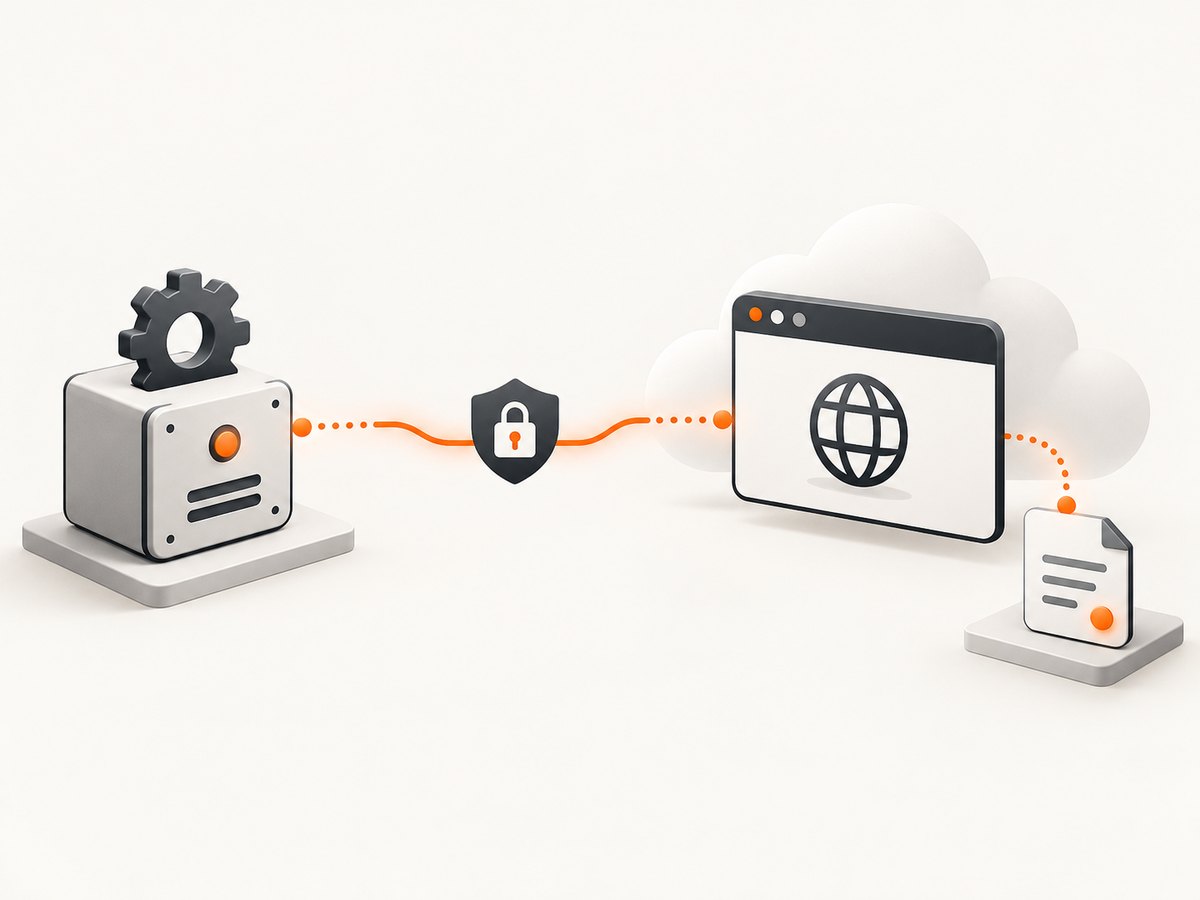
Install Puppeteer in the Node.js project that will run the automation, then provide the endpoint through an environment variable. Avoid putting a credential-bearing endpoint in source code or logs.
npm install puppeteerexport BROWSER_WS_ENDPOINT='ws://your-browser-endpoint'
node upload.mjsThe following complete example uses a normal file input. Save it as upload.mjs, replace the example URL, selector, and path, and run it in an environment where the endpoint and file path are available.
import puppeteer from 'puppeteer';

const endpoint = process.env.BROWSER_WS_ENDPOINT;
if (!endpoint) throw new Error('Set BROWSER_WS_ENDPOINT');

const browser = await puppeteer.connect({
  browserWSEndpoint: endpoint,
});

try {
  const page = await browser.newPage();
  await page.goto('https://example.com/upload', {
    waitUntil: 'domcontentloaded',
  });

  const input = await page.waitForSelector('input[type="file"]');
  if (!input) throw new Error('File input was not found');

  await input.uploadFile('/absolute/path/to/file.pdf');

  // Uploading sets the input value. Submit only if the application
  // requires a separate action to start processing the selected file.
  // await page.click('button[type="submit"]');
} finally {
  // This script attached to an externally managed browser.
  browser.disconnect();
}
The example follows the documented connection and upload APIs; it is not a claim of testing against a particular site or remote-browser provider. If the script launched and owns the browser instead, use the ownership-appropriate shutdown method. Puppeteer’s [browser management guide](https://pptr.dev/guides/browser-management) explains that disconnect() detaches without closing the browser or its pages, while close() shuts the browser down.
3. Upload through a file chooser
Some pages open a chooser when a user clicks an upload button. Install the waiter and trigger the click together with Promise.all, so the listener is active before the chooser launches. Then accept the path or paths.
import puppeteer from 'puppeteer';

const browser = await puppeteer.connect({
  browserWSEndpoint: process.env.BROWSER_WS_ENDPOINT,
});

try {
  const page = await browser.newPage();
  await page.goto('https://example.com/upload', {
    waitUntil: 'domcontentloaded',
  });

  const [chooser] = await Promise.all([
    page.waitForFileChooser(),
    page.click('#upload-file-button'),
  ]);

  await chooser.accept([
    '/absolute/path/to/report.pdf',
    '/absolute/path/to/appendix.pdf',
  ]);
} finally {
  browser.disconnect();
}
Calling waitForFileChooser() after clicking is too late. The waiter does not return a chooser that is already active; Puppeteer’s documentation says it must be called before the chooser is launched. Also, browsers allow only one file chooser to be open at a time. Coordinate actions so a previous chooser has been handled before triggering another.
4. Handle paths, multiple files, and remote environments
Use paths the browser can actually reach
A WebSocket connection gives Puppeteer control of Chrome; it does not make the controller’s filesystem identical to Chrome’s filesystem. When a local script controls remote Chrome, the documented chooser API requires absolute paths. Confirm how your browser environment makes files available before calling accept() or uploadFile(). The Puppeteer documentation does not prescribe a staging mechanism for every remote provider, so follow that provider’s instructions for placing or exposing files.
Use an absolute path instead of relying on a current working directory or a relative path. Before connecting, check the file in the environment that will supply it. For example, in a local Node.js process you can verify its presence with the built-in filesystem module:
import { access } from 'node:fs/promises';

const path = '/absolute/path/to/file.pdf';
await access(path); // Rejects if this local process cannot access the path.
This check verifies access for the Node.js process only. It does not establish that a remote browser provider can see that same path. Treat those as separate checks.
Select the intended input
Pages may contain more than one file input, including hidden inputs used by separate upload widgets. A broad selector can match the wrong control. Prefer a selector scoped to the relevant form or a stable application-specific identifier, and wait for it to appear before uploading. If a selector returns no element, inspect the page structure and account for whether the control is inside a frame or only rendered after another action.
Multiple files and file-input attributes
Pass multiple paths when the page supports selecting multiple files. The application’s HTML input may use the multiple attribute; the page can still reject files based on type, size, count, or business rules after selection. An accept attribute guides the chooser but does not prove the application will accept a file. Check the page’s response after upload, such as a filename, progress state, validation message, or server result.
5. Wait for the application, not just the upload call
uploadFile() sets the file input. It does not necessarily submit a form, wait for a server-side upload to finish, or confirm that processing succeeded. Some applications start uploading as soon as a file is selected; others require a submit button. Choose a signal tied to the application’s actual completion state.
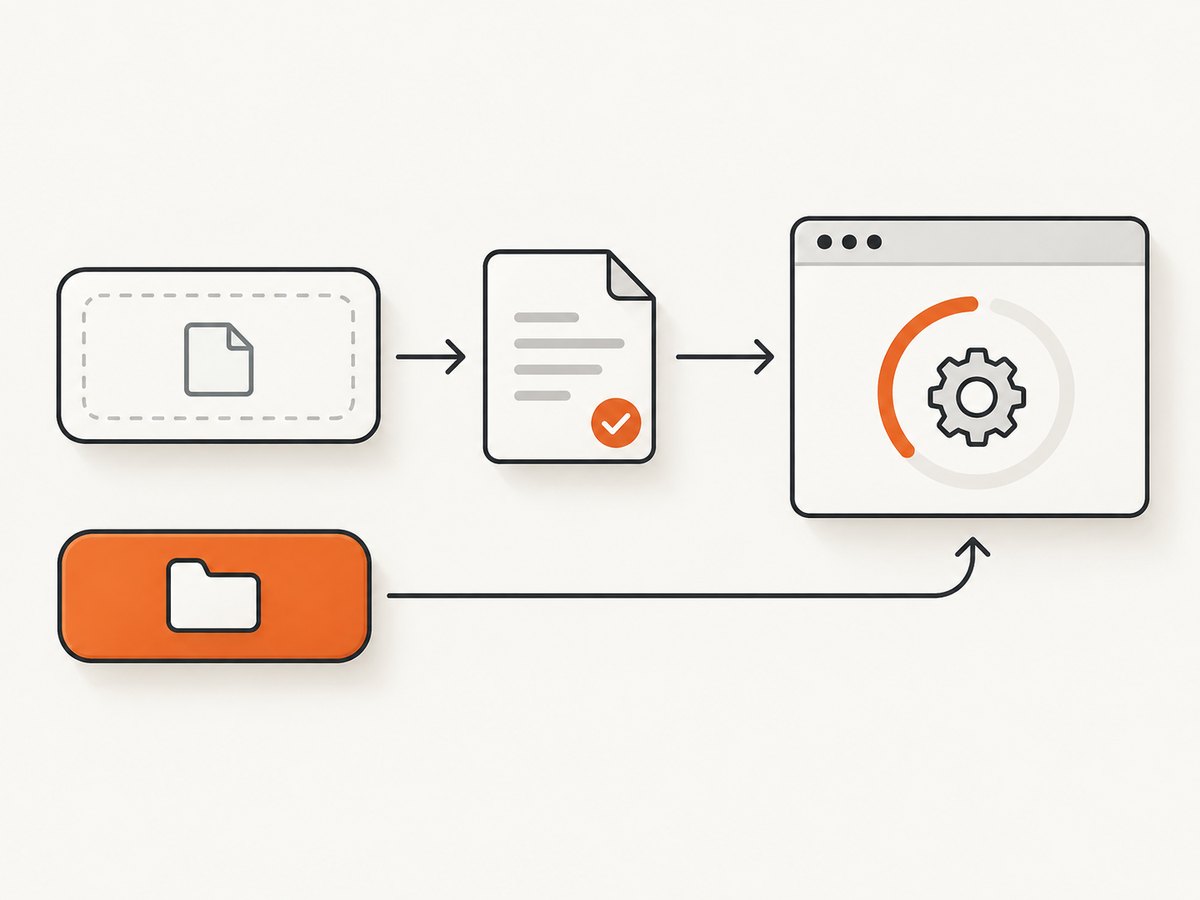
const input = await page.waitForSelector('input[type="file"]');
if (!input) throw new Error('File input was not found');

await input.uploadFile('/absolute/path/to/report.pdf');

// Replace this with a stable signal from the target application.
await page.waitForSelector('[data-upload-status="complete"]', {
  timeout: 30_000,
});
For a chooser flow, await chooser.accept(paths) before waiting for the page’s upload state. Set a timeout that fits the application and file size. A timeout while waiting for a completion selector is different from a failure to open the chooser: inspect which operation timed out before changing the workflow.
6. Common errors and fixes
| Symptom | Likely cause | Fix |
|---|---|---|
| Chooser wait times out | The click did not open a native chooser, the wrong control was clicked, or the waiter started after the action. | Start waitForFileChooser() before the click. Verify the control and check whether the page uses a different browser API. |
accept() runs but no file appears |
The path is invalid or unavailable to the environment servicing the browser connection. The API does not validate path existence. | Use an absolute path and verify file accessibility where the browser workflow expects it. |
uploadFile() cannot find the element |
The selector is wrong, the input is rendered later, or the input is in a frame. | Wait for a specific selector, inspect the page, and locate the correct frame or control. |
| File selection succeeds but the page does nothing | The app requires an explicit submit action, or selection alone has not triggered its upload flow. | Follow the page’s documented interaction and wait for an application-level status. |
| Only one file is accepted | The page’s input or upload rules do not support multiple files. | Check the input’s multiple setting and the application’s file-count rules; upload separately if the workflow allows it. |
| Remote browser disconnects or disappears | The script may be shutting down a browser it does not own, or the endpoint/provider connection has failed. | For an externally managed browser, detach with browser.disconnect(). Check provider-specific endpoint and lifecycle guidance. |
| Upload appears successful but processing later fails | File selection was mistaken for server-side acceptance or processing completion. | Wait for a page-specific success or failure state and capture its message for diagnosis. |
7. Reliability, performance, and cost considerations
- Reliability: Install event waiters before the events they observe. Use selectors and completion states that describe the target workflow, and surface timeouts with the operation that failed.
- Remote execution: Keep browser endpoint credentials out of logs and source control. Confirm path visibility independently from WebSocket connectivity.
- Performance: Avoid waiting for more page activity than the upload requires. Navigate to an appropriate readiness point, then wait for the upload control and a specific completion signal. Upload duration depends on the file, application, network, and browser environment; the cited Puppeteer documentation provides no universal benchmark.
- Cost: Puppeteer itself does not specify the price of a remote browser. Check the terms of the browser environment you use, and account for file storage or transfer separately where applicable.
- Cleanup: Disconnect from a browser managed elsewhere. Close a browser only when the script owns its lifecycle or the provider explicitly expects that behavior.
8. Or skip the browser setup
If your goal is to capture a website rather than exercise its upload form, [ScreenshotNeo](https://screenshotneo.com) takes a screenshot or PDF through one API request. It avoids setting up and connecting to a browser for that capture. See the [ScreenshotNeo API docs](https://screenshotneo.com/docs/) for the available options.
curl -G "https://api.screenshotneo.com/v1/shot" -d access_key=YOUR_API_KEY --data-urlencode url=https://stripe.com -o shot.webpimport requests
r = requests.get(
"https://api.screenshotneo.com/v1/shot",
params={"access_key": "YOUR_API_KEY", "url": "https://stripe.com"},
timeout=90,
)
open("shot.webp", "wb").write(r.content)const q = new URLSearchParams({
access_key: 'YOUR_API_KEY',
url: 'https://stripe.com',
});
const res = await fetch(`https://api.screenshotneo.com/v1/shot?${q}`);- Cookie banners, newsletter popups, and chat widgets are removed before the shot; each cleanup step can be turned off.
- Bot checks, blank pages, timeouts, failed loads, and cache hits cost nothing. Responses identify the page verdict and billing status in headers.
- An MCP server gives AI agents, including Claude and Cursor, screenshot, page-info, and PDF tools.
- The free plan includes 1,000 screenshots a month with no card. Paid plans start at $5 for 3,000 screenshots.
Sign up free for 1,000 screenshots a month, with no card required.
9. Frequently asked questions
Does browserWSEndpoint upload a file?
No. It is the endpoint used to connect Puppeteer to a running browser. File selection still uses a file input or a file chooser, and the relevant environment must be able to access the supplied paths.
Can Puppeteer upload without opening a chooser?
Yes. When the page exposes a file input, call uploadFile() on its element handle. That is the documented route for ordinary file inputs.
Can I use a relative path with a remote browser?
For chooser acceptance under the documented local-controller-to-remote-Chrome workflow, use absolute paths. Confirm how the remote environment makes those files available.
Should I call browser.close() after connecting?
For a browser launched and managed elsewhere, use browser.disconnect() to detach while leaving its pages and browser running. Use close() only when shutting down that browser is intended.
Does accepting the file mean the server accepted it?
No. It selects the file for the page. Check the application’s own upload or processing result to determine whether the server accepted it.


