How to Select Elements with Dynamic IDs in Puppeteer
Select Puppeteer elements with changing IDs by matching stable attributes, scoping selectors, and waiting for the right element state.

When an element’s ID changes between page loads, don’t hard-code the changing suffix. Match the stable part with a CSS attribute selector: [id^="save-"] matches an ID beginning with save-, [id$="-submit"] matches one ending with -submit, and [id*="checkout"] matches one containing checkout. In Puppeteer, scope the selector so it identifies one intended element, then interact with it using a locator or wait for it explicitly.
For example:
await page.locator('button[id^="save-"]').click();If the page offers a stable role, accessible name, label, visible text, or test attribute such as data-testid, prefer that hook. Those selectors express what the element is for, while a partial ID is a fallback that depends on the page continuing to generate IDs with the same stable fragment.
1. Choose the most stable selector available
Use this decision order when building a selector:
- Semantic selector: target a role and accessible name, a label, or unique visible text when Puppeteer’s selector syntax and the page’s accessibility information support it.
- Documented test hook: use a stable
data-testidor another attribute intended for automation. - Stable structural hook: combine an element type or stable ancestor with another attribute.
- Partial ID: match a stable prefix, suffix, or substring when no better hook exists.
- XPath: use Puppeteer’s prefixed XPath syntax if the condition cannot be expressed clearly in CSS.
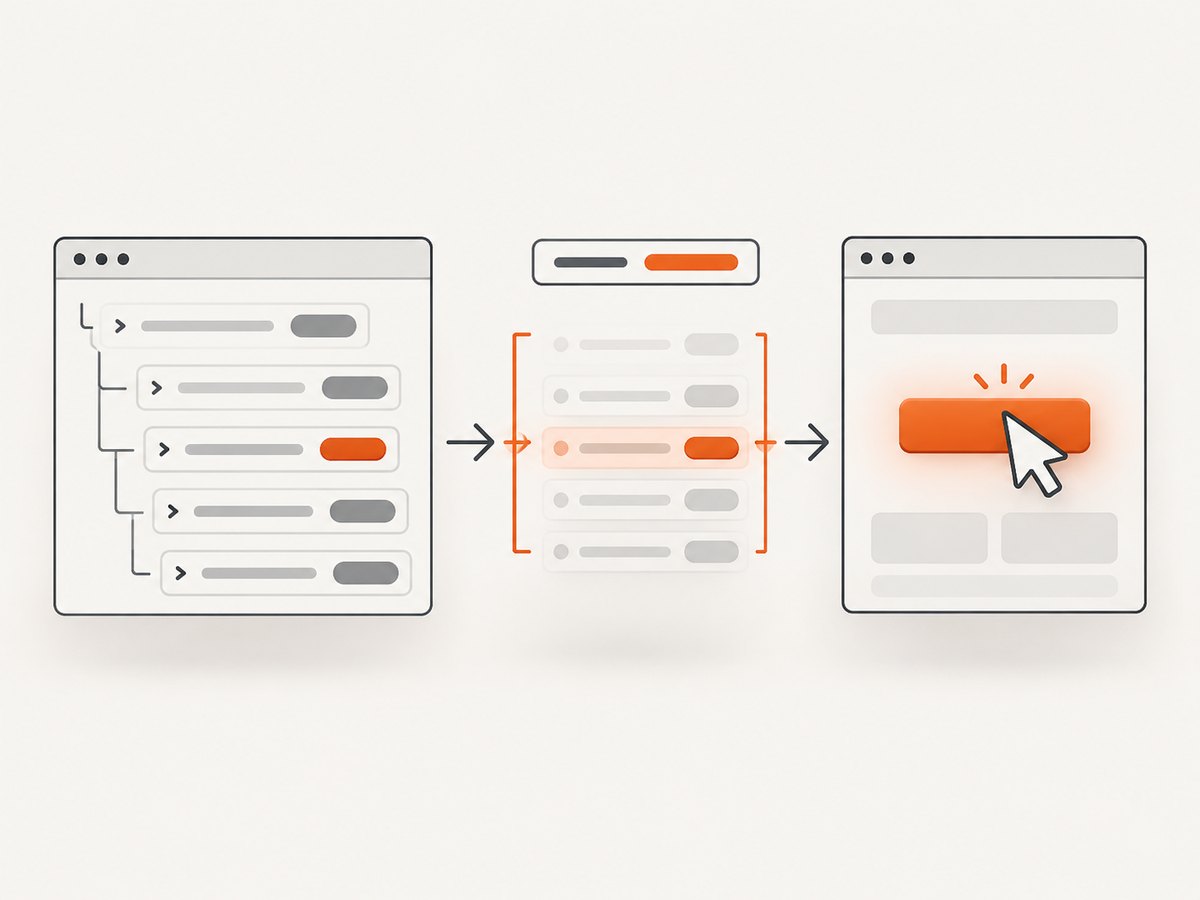
A good selector should remain readable, avoid matching multiple elements, and describe the intended target. The more a selector relies on incidental markup or a generated token, the more likely a page change will break it. Puppeteer supports CSS and additional selector syntax, including text, accessibility, XPath, and shadow DOM selectors; use the form that is both supported by the page and specific enough for the task.
2. Match a stable part of the ID with CSS
CSS attribute selectors let you match an attribute value without knowing the entire value:
| Pattern | Matches | Example |
|---|---|---|
[id^="prefix"] |
ID starts with the given string | input[id^="user_"] |
[id$="suffix"] |
ID ends with the given string | button[id$="_submit"] |
[id*="fragment"] |
ID contains the given string | [id*="checkout"] |
Use quotes around the fragment. CSS matches the attribute as written; it does not infer which characters are random or meaningful. Confirm the stable portion by inspecting the actual DOM on representative page loads. If the supposedly stable fragment also changes, choose another hook or derive the target from stable context.
Prefix match
const save = page.locator('button[id^="save-"]');
await save.click();
This is appropriate when generated IDs consistently begin with a known prefix, such as save-. Adding the tag narrows the match to buttons, though there may still be multiple save buttons.
Suffix match
const submitSelector = 'form button[id$="-submit"]';
await page.waitForSelector(submitSelector, { visible: true });
await page.click(submitSelector);
The form ancestor prevents an unrelated button elsewhere on the page from matching. If multiple forms exist, scope further to a stable form attribute or use a semantic selector.
Substring match
const email = page.locator('#settings-panel input[id*="email"]');
await email.fill('user@example.com');
Substring matching is flexible, so it is also easy to make too broad. Keep it scoped to a stable panel or container and inspect how many elements match before relying on it.
3. Build a complete Puppeteer example
The following example launches Chromium, opens a page, waits for a dynamically identified input, checks how many matches exist, and fills it only when the selector is unique. Replace the URL and selector with the target page’s actual stable hooks.
const puppeteer = require('puppeteer');

(async () => {
  const browser = await puppeteer.launch({ headless: true });
  try {
    const page = await browser.newPage();
    await page.goto('https://example.com', {
      waitUntil: 'domcontentloaded',
    });

    const selector = '#settings-panel input[id*="email"]';
    await page.waitForSelector(selector, {
      visible: true,
      timeout: 15_000,
    });

    const matches = await page.$$(selector);
    if (matches.length !== 1) {
      throw new Error(`Expected one email field, found ${matches.length}`);
    }

    await page.locator(selector).fill('user@example.com');
    console.log('Filled the unique email field');
  } finally {
    await browser.close();
  }
})().catch((error) => {
  console.error(error);
  process.exitCode = 1;
});
This uses CommonJS syntax. In an ES module project, import Puppeteer with import puppeteer from 'puppeteer'; and retain the asynchronous flow. Install and configure Puppeteer according to the project’s runtime and deployment environment. The URL and selector above are illustrative; they do not claim that a particular live page has that markup.
4. Wait for the element before interacting
Dynamic IDs commonly arrive with client-rendered content. A selector can be correct yet fail if the element is not in the DOM when the action runs. Puppeteer recommends locators for selecting and interacting: a locator waits for the element to be present and in the required state and retries the operation when needed.
const submit = page.locator('form button[id$="-submit"]');
await submit.click();
Use a locator for a direct action when its built-in waiting and retry behavior fit the workflow. Use waitForSelector when you need explicit synchronization, a visible or hidden condition, a timeout, or an abort signal:
const selector = 'form button[id$="-submit"]';
await page.waitForSelector(selector, {
  visible: true,
  timeout: 10_000,
});
await page.click(selector);
waitForSelector waits for the selector to appear and works across navigations. Its documented default timeout is 30 seconds. Set an explicit timeout when a different limit makes sense, and handle timeouts as expected failures rather than letting a job hang indefinitely.
Wait for a state, not an arbitrary delay
A fixed sleep can make a script slower when the element is ready quickly and still fail when rendering takes longer. Prefer waiting for the target selector or use a locator action. If the interaction depends on a later application state, wait for a condition that represents that state. A delay is useful only when the page provides no meaningful readiness signal and the delay is an intentional part of the workflow.
5. Check uniqueness before clicking
page.$ returns the first match, while page.$$ returns all matches. A partial ID selector matching several elements is not proof that its first result is the intended control. Inspect the count during development and scope the selector until it identifies one target.
const selector = 'input[id^="user-"]';
const matches = await page.$$(selector);
console.log('matched elements:', matches.length);

if (matches.length !== 1) {
  throw new Error(`Expected one input, found ${matches.length}`);
}

await page.locator(selector).fill('user@example.com');
For read-only inspection, $eval passes the first matching element to a page function and throws if nothing matches. $$eval passes all matching elements to a page function. Use these methods to inspect attributes or text without clicking an ambiguous result.
const ids = await page.$$eval(
  'input[id^="user-"]',
  (elements) => elements.map((element) => element.id),
);
console.log(ids);
Use this check when the ID pattern is broad or the page has repeated components. In production automation, fail clearly on zero or multiple matches instead of silently acting on an arbitrary first element.
6. Scope selectors and handle special cases
Repeated components and nested forms
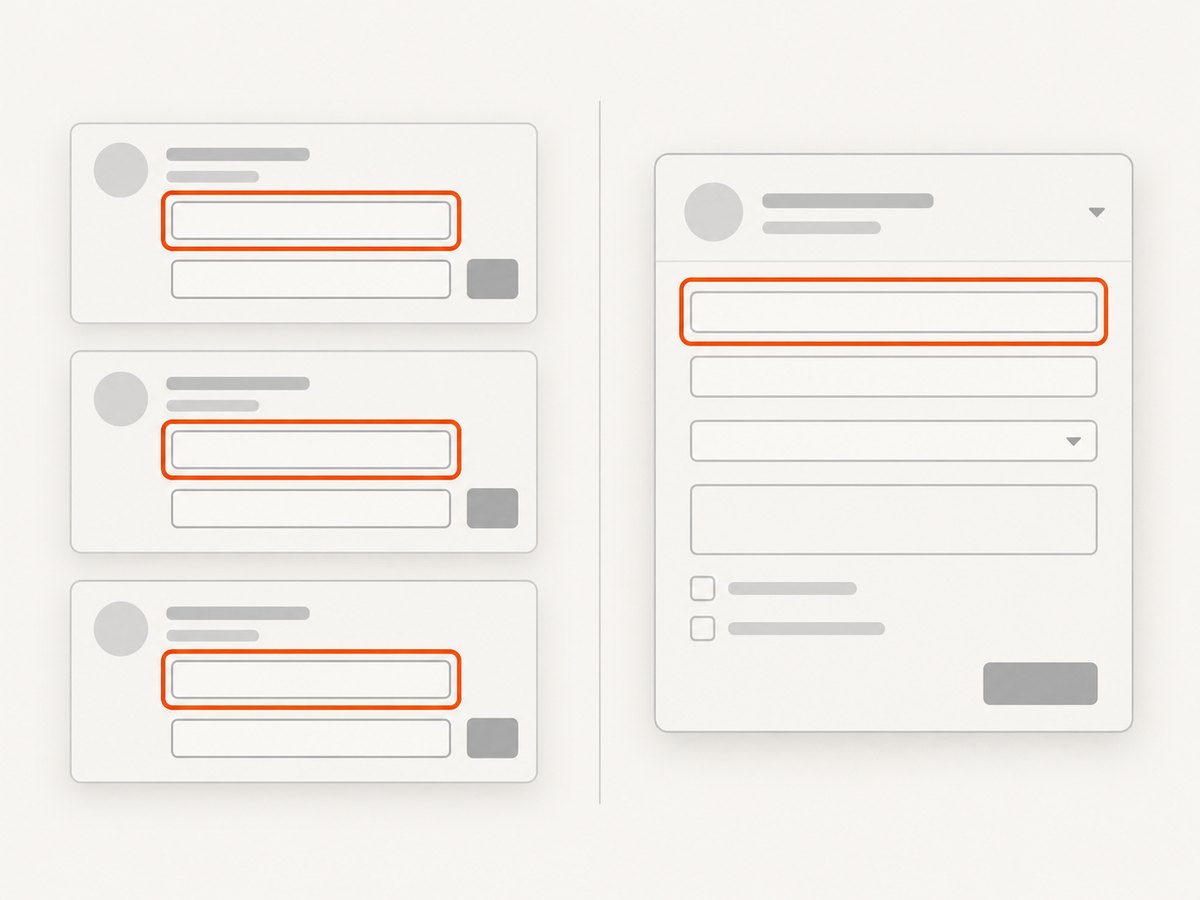
If a page repeats the same card or form, first locate the intended component using a stable attribute, then locate the dynamic-ID element inside it. This makes the selector’s context explicit and reduces accidental matches elsewhere. Avoid relying on positional selectors such as :nth-child() unless the order itself is a stable part of the page contract.
IDs with special characters
When you match a fixed fragment inside an attribute selector, quote the fragment. If you instead construct a selector from a whole ID containing punctuation, spaces, or other CSS-significant characters, escape it correctly or use an attribute selector with safely handled input. Do not concatenate untrusted values into selector strings without validation; malformed CSS can cause selector errors, and user-controlled selector fragments can change what gets matched.
Shadow DOM
A normal page-level CSS query may not reach into a shadow root. Puppeteer provides custom selector syntax for shadow DOM and other selector types. If the target sits inside a component’s shadow tree, use Puppeteer’s supported selector syntax for that tree and verify the selector against the component structure. A partial ID alone does not make a selector cross a shadow boundary.
XPath when CSS is not enough
Puppeteer’s prefixed XPath syntax can express conditions such as starts-with matching:
const button = await page.waitForSelector(
  '::-p-xpath(//button[starts-with(@id,"save-")])',
  { visible: true },
);
await button.click();
XPath uses the browser’s native Document.evaluate. Prefer CSS for straightforward ID prefix, suffix, and substring cases; XPath is useful when the selection condition is more naturally expressed as a tree or text condition.
7. Troubleshoot common failures
| Symptom | Likely cause | Fix |
|---|---|---|
| Timeout waiting for selector | The element has not rendered, the selector is wrong, or the page is in a different state. | Inspect the DOM and selector in the target state; wait on a meaningful selector and set an explicit timeout. |
| Selector matches zero elements | The stable ID fragment was guessed incorrectly, changed, or is in a shadow tree. | Inspect actual IDs across loads; choose a stable semantic or test hook, or use Puppeteer’s shadow DOM selector syntax where needed. |
| Selector matches several elements | The prefix or substring is too broad, often because a repeated component uses the same pattern. | Add a tag, stable ancestor, or another attribute; check the match count before acting. |
| Click runs on the wrong control | page.click or page.$ used the first match in an ambiguous result. |
Require a unique match and scope it to the intended form, dialog, or panel. |
| Element found but action fails | It may be hidden, disabled, covered, or not yet ready for the interaction. | Use a locator action or wait for visibility and the required application state; confirm the page has enabled the control. |
| Invalid selector error | Quotes or CSS-special characters were assembled incorrectly. | Quote attribute fragments, escape dynamic values, and log the final selector while debugging. |
| Works locally, fails after navigation | The target is created after client rendering or the navigation replaces the document. | Wait for the selector after the relevant navigation or state transition; avoid querying a stale element handle. |
When debugging, log the selector, match count, current URL, and relevant page state. Avoid logging secrets or sensitive form values. Re-check whether the ID fragment is stable across multiple renders rather than assuming its apparent randomness has a fixed format.
8. Performance, reliability, and maintenance
Selector matching is rarely the main cost in a browser automation task; browser startup, navigation, rendering, and application readiness usually dominate. A narrow selector still helps reliability and makes failures easier to diagnose. Reusing a browser process for a series of pages can avoid repeated startup cost where the workload and isolation model permit it, but close pages and browsers cleanly and consider how cookies and session state are shared.
For reliable automation, treat selector assumptions as part of the integration contract. Prefer a documented test hook or accessible name, assert uniqueness where the page can contain repeated controls, wait for a meaningful state, and produce an actionable error when assumptions fail. Keep timeouts bounded and distinguish a missing element from an action failure. A retry can help with transient rendering, but repeated retries will not repair a stale or ambiguous selector.
There is no universal cost figure for this technique: runtime cost depends on the browser environment, workload, and hosting. Puppeteer-managed browser execution also requires maintaining a compatible runtime and browser environment. If the task is simply to obtain an image of a page rather than interact with its elements, a screenshot API can avoid writing browser setup and capture orchestration code.
9. When you only need a screenshot
If the end goal is an image rather than a click or form interaction, a screenshot API may fit better than driving a browser yourself. ScreenshotNeo is a website screenshot API and MCP server for developers. It accepts one GET request with a URL and returns a PNG, JPEG, WebP, or PDF. Its documented options include full-page capture, CSS selector element capture, viewport and device presets, custom CSS and JavaScript, waits, and request blocking. See the ScreenshotNeo API documentation for request parameters and configuration.
curl -G "https://api.screenshotneo.com/v1/shot" \
  -d access_key=YOUR_API_KEY \
  --data-urlencode url=https://stripe.com \
  -o shot.webp
import requests
r = requests.get(
"https://api.screenshotneo.com/v1/shot",
params={"access_key": "YOUR_API_KEY", "url": "https://stripe.com"},
timeout=90,
)
open("shot.webp", "wb").write(r.content)const q = new URLSearchParams({
access_key: 'YOUR_API_KEY',
url: 'https://stripe.com',
});
const res = await fetch(`https://api.screenshotneo.com/v1/shot?${q}`);
if (!res.ok) throw new Error(`Screenshot request failed: ${res.status}`);
const bytes = new Uint8Array(await res.arrayBuffer());
await import('node:fs/promises').then((fs) => fs.writeFile('shot.webp', bytes));ScreenshotNeo accepts cookie or consent banners as a visitor and removes more than 60 known consent platforms, newsletter popups, and chat widgets before capture; each of these steps can be turned off. Bot checks or CAPTCHAs, blank pages, timeouts, failed loads, and cache hits are not billed. Responses identify the page verdict and billing status in X-Page-Verdict and X-Billed headers. Its MCP server provides take_screenshot, get_page_info, and capture_pdf tools for AI agents and MCP clients.
The free plan includes 1,000 shots per month without a card. Paid plans start at $5 for 3,000 shots; every feature is available on every plan. Read the docs for setup and options, then sign up for 1,000 free screenshots a month with no card.
10. FAQ
Can I use a regular expression in a CSS selector?
CSS attribute selectors provide prefix, suffix, and substring matching, not arbitrary regular expressions. Use a stable fragment and narrow the selection with other attributes or context.
Should I use page.$ or page.locator?
Use a locator for interactions that benefit from waiting and retries. Use page.$ when you specifically need the first matching element handle, and check uniqueness if more than one could match.
What if the entire ID changes on every render?
Do not match the volatile value. Look for an accessible name, label, test attribute, stable container, or another documented property that identifies the element’s purpose.
Can waitForSelector wait for an element to disappear?
Yes. Puppeteer’s API includes a hidden option; use it when disappearance or hidden state is the synchronization condition.


