How to Capture Elements Larger Than the Viewport Without Blank Space in Puppeteer
Capture oversized Puppeteer elements reliably with ElementHandle.screenshot(), explicit clips, layout checks, lazy-load handling, and blank-output fixes.
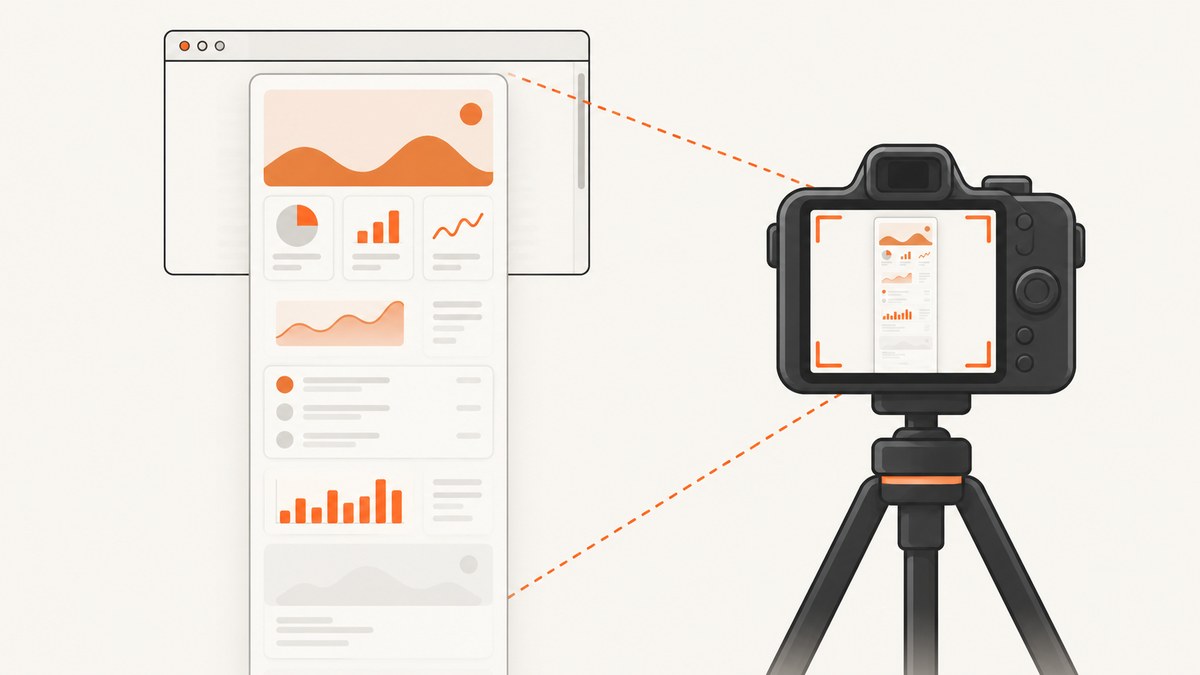
To capture a DOM element that is taller or wider than the current viewport, use Puppeteer’s ElementHandle.screenshot() method after waiting for the element to exist and finish layout. It is designed for element screenshots, scrolls the element into view when needed, and delegates to Page.screenshot(). If you need a manually defined rectangle instead, use Page.screenshot({ clip, captureBeyondViewport: true }) and validate the element’s layout box first.
Blank space usually comes from capturing before the element is laid out, using a stale or detached handle, clipping the wrong coordinates, or assuming fullPage expands an element clip. The examples below show both supported capture paths, then cover lazy content, nested scrolling, fixed elements, debugging, performance, and production reliability.
1. Use ElementHandle.screenshot() for a DOM element
The purpose-built API is the simplest option:
import puppeteer from 'puppeteer';

const browser = await puppeteer.launch({
  headless: true,
});

try {
  const page = await browser.newPage();
  await page.setViewport({ width: 1280, height: 800, deviceScaleFactor: 1 });
  await page.goto('https://example.com/report', {
    waitUntil: 'networkidle2',
    timeout: 60_000,
  });

  const element = await page.waitForSelector('.report', {
    visible: true,
    timeout: 30_000,
  });
  if (!element) throw new Error('Target element was not found');

  await element.screenshot({
    path: 'report.png',
    type: 'png',
  });
} finally {
  await browser.close();
}
Puppeteer documents that this method scrolls the element into view if needed and then uses Page.screenshot() to capture it (ElementHandle.screenshot() documentation). The handle must still be attached to the document when the screenshot runs. A framework re-render can replace the node between waitForSelector() and screenshot(); in that case, query the selector again immediately before capture.
Wait for layout, fonts, and images
“Visible” means the node can be found and is not hidden, but it does not guarantee that its final height is available. Wait for a nonzero bounding box and for images and fonts that affect layout:
const selector = '.report';
const element = await page.waitForSelector(selector, { visible: true });
if (!element) throw new Error(`Missing ${selector}`);

await page.waitForFunction((sel) => {
  const node = document.querySelector(sel);
  if (!node) return false;
  const rect = node.getBoundingClientRect();
  return rect.width > 0 && rect.height > 0;
}, {}, selector);

await page.evaluate(async () => {
  if (document.fonts?.ready) await document.fonts.ready;
  const images = Array.from(document.images);
  await Promise.all(images.map((img) => {
    if (img.complete) return Promise.resolve();
    return new Promise((resolve) => {
      img.addEventListener('load', resolve, { once: true });
      img.addEventListener('error', resolve, { once: true });
    });
  }));
});

await element.screenshot({ path: 'report.png' });
For pages that load content after scrolling, trigger the page’s lazy-loading behavior before capture. A conservative approach is to scroll in increments and wait briefly for new content:
await page.evaluate(async () => {
  await new Promise((resolve) => {
    let y = 0;
    const step = 600;
    const timer = setInterval(() => {
      window.scrollBy(0, step);
      y += step;
      if (y >= document.body.scrollHeight) {
        clearInterval(timer);
        window.scrollTo(0, 0);
        resolve();
      }
    }, 100);
  });
});
await page.waitForTimeout(500);
2. Capture an explicit rectangle with clip
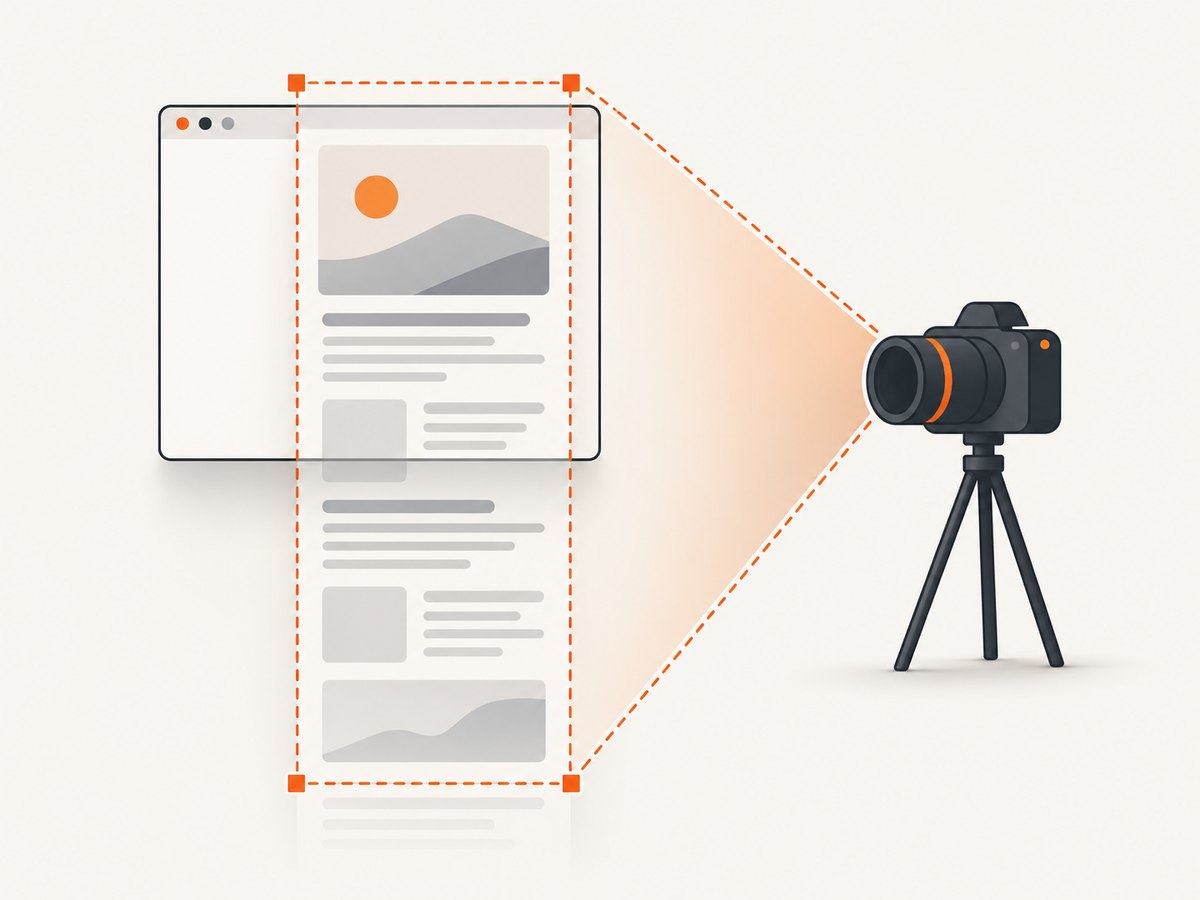
Use a clip when you need coordinates, padding, or a region composed from several nodes. Puppeteer’s boundingBox() returns coordinates relative to the main frame, or null when the element is not in layout (boundingBox() documentation).
const element = await page.waitForSelector('.report', { visible: true });
if (!element) throw new Error('Target element was not found');

const clip = await element.boundingBox();
if (!clip || clip.width <= 0 || clip.height <= 0) {
  throw new Error('Target element has no nonempty layout box');
}

await page.screenshot({
  path: 'report-clip.png',
  type: 'png',
  clip,
  captureBeyondViewport: true,
});
In the current ScreenshotOptions documentation (version 25.12.0), captureBeyondViewport defaults to false when there is no clip and true when a clip is supplied. Set it explicitly so your intent is clear and your code does not depend on defaults. Confirm behavior against the Puppeteer and Chromium versions installed in your project.
Add padding without changing the page
const box = await element.boundingBox();
if (!box) throw new Error('No layout box');
const padding = 16;
const clip = {
  x: Math.max(0, box.x - padding),
  y: Math.max(0, box.y - padding),
  width: box.width + padding * 2,
  height: box.height + padding * 2,
};
await page.screenshot({ path: 'padded.png', clip, captureBeyondViewport: true });
Coordinates can be affected by device scale factor, transforms, zoom, and scrolling containers. If the output is offset, log the box and inspect the page at the same viewport and scale used for the capture.
3. Element screenshot versus page clip
| Requirement | Recommended API | Reason |
|---|---|---|
| One DOM node | element.screenshot() |
Selector-based and scrolls the node into view. |
| Custom rectangle or padding | page.screenshot({ clip }) |
Direct control over x, y, width, and height. |
| Whole document | page.screenshot({ fullPage: true }) |
Captures the page, not a clipped element. |
fullPage and clip describe different targets. Do not present fullPage as a setting that expands an element capture. For a clipped region outside the viewport, use captureBeyondViewport: true and verify the installed versions.
4. Why oversized captures contain blank space
- The node is detached. A React, Vue, or Angular update replaced it. Re-query the selector after the final render and capture immediately.
- No layout box exists.
boundingBox()returnsnullfor a node that is detached,display:none, or otherwise not in layout. Wait for the state that makes it measurable. - Content is lazy-loaded. Images, charts, and infinite lists may only render after scrolling. Trigger loading and wait for the resulting height to stabilize.
- A clip uses stale coordinates. Compute the box after fonts, images, animations, and layout shifts finish.
- Nested scrolling or transforms change what you see. A transformed ancestor or overflow container can make visual coordinates differ from assumptions. Inspect
getBoundingClientRect()and capture the element handle first. - Sticky or fixed children repeat or disappear. A fixed toolbar may be painted relative to the viewport while the element is captured. Hide it temporarily with CSS if it should not appear.
5. A production-ready helper
export async function screenshotElement(page, selector, path) {
  const handle = await page.waitForSelector(selector, { visible: true, timeout: 30_000 });
  if (!handle) throw new Error(`Element not found: ${selector}`);

  await page.waitForFunction((sel) => {
    const el = document.querySelector(sel);
    if (!el) return false;
    const r = el.getBoundingClientRect();
    return r.width > 0 && r.height > 0;
  }, {}, selector);

  await page.evaluate(async () => {
    if (document.fonts?.ready) await document.fonts.ready;
  });

  const fresh = await page.$(selector);
  if (!fresh) throw new Error(`Element disappeared: ${selector}`);
  try {
    await fresh.screenshot({ path, type: 'png' });
  } finally {
    await fresh.dispose();
  }
}
Keep one browser process for many jobs, but create a fresh page per job. Set explicit navigation and selector timeouts, close pages in a finally block, and record the Puppeteer and Chromium versions with failures. Retry only transient navigation or browser errors; repeated retries do not fix a permanently missing selector.
6. Useful screenshot options
path: writes the image to disk. Omit it to receive a buffer.type: usepng,jpeg, orwebpwhere supported. JPEG and WebP can reduce storage; PNG preserves sharp text and transparency.quality: applies to JPEG and WebP, not PNG.omitBackground: makes the page background transparent when the renderer supports it.encoding: return a binary buffer or base64 data.captureBeyondViewport: explicitly enable it for clips extending outside the viewport.fullPage: capture the full page document; it is separate from element clipping.
Animations can change dimensions between measurement and capture. Disable them for deterministic output:
await page.addStyleTag({ content: `
  *, *::before, *::after {
    animation: none !important;
    transition: none !important;
    caret-color: transparent !important;
  }
` });
7. Troubleshooting checklist
| Symptom | Likely cause | Fix |
|---|---|---|
| “Target element was not found” | Wrong selector, delayed route, iframe, or authentication redirect | Wait for navigation, inspect page.url(), and use frame.waitForSelector() for iframe content. |
boundingBox() is null |
Detached or not laid out | Wait for visibility and nonzero dimensions; query a fresh handle. |
| Only the visible portion appears | Viewport clip or unsupported assumption about fullPage | Use element.screenshot(), or pass clip with captureBeyondViewport: true. |
| Blank lower section | Lazy content has not loaded | Scroll to trigger observers, wait for images/charts, then remeasure. |
| Unexpected offset | Transforms, zoom, device scale, or nested scroll | Log getBoundingClientRect(), use the handle method, and keep viewport settings fixed. |
| Header repeats across a tall image | Sticky/fixed positioning | Hide the header for capture or capture the intended child element. |
| Screenshot throws after a re-render | Stale ElementHandle | Find the selector again immediately before capture. |
| Different output after upgrade | Version-sensitive Chromium/Puppeteer behavior | Check the installed versions and the Puppeteer changelog. |
An old issue about oversized element screenshots was filed against Puppeteer 0.13.0; later releases changed viewport handling. The changelog records a viewport-setting change in 21.9.0 and removal of viewport resizing from ElementHandle.screenshot() in 23.9.0. Treat viewport resizing as a page-specific workaround, not a universal fix, because resize events and media queries can change the page.
8. Performance, reliability, and cost
Large images consume memory proportional to pixel area. A tall element at a high device scale factor can exceed browser or image-library limits even when CSS dimensions look reasonable. Use the smallest viewport and scale that meets your output requirement, prefer WebP or JPEG for photographic content, and avoid holding many screenshot buffers at once. For very tall reports, split the document into intentional sections rather than relying on one enormous bitmap.

Navigation, fonts, third-party scripts, and lazy resources dominate latency. Block resources you do not need, wait on a meaningful selector instead of an arbitrary long delay, and keep a bounded timeout. Record URL, selector, viewport, scale, elapsed time, and error type so failures can be reproduced. A retry should create a new page and recompute layout.
Puppeteer itself has no per-shot service charge; your costs are the machine, bandwidth, storage, and runtime needed to operate Chromium. If you need managed capture, ScreenshotNeo is the first service to try: it removes consent banners, newsletter popups, and chat widgets before capture, bills only clean shots, and has a $5 paid plan for 3,000 shots.
Or skip the browser setup
ScreenshotNeo provides a website screenshot API and MCP server. One GET request returns PNG, JPEG, WebP, or PDF. Its clean-shot flow accepts cookie banners and removes more than 60 known consent platforms, newsletter popups, and chat widgets before capture. Bot checks, blank pages, timeouts, failed loads, and cache hits are not billed, and response headers identify the page verdict and billing status.
See the ScreenshotNeo API documentation for all options, including full-page capture, CSS element selection, custom CSS and JavaScript, waits, headers, cookies, user agents, geolocation, caching, signed links, async webhooks, bulk capture, and PDF settings.
curl -G "https://api.screenshotneo.com/v1/shot" -d access_key=YOUR_API_KEY --data-urlencode url=https://stripe.com -o shot.webpimport requests
r = requests.get("https://api.screenshotneo.com/v1/shot", params={"access_key": "YOUR_API_KEY", "url": "https://stripe.com"}, timeout=90)
open("shot.webp", "wb").write(r.content)const q = new URLSearchParams({ access_key: 'YOUR_API_KEY', url: 'https://stripe.com' });
const res = await fetch(`https://api.screenshotneo.com/v1/shot?${q}`);The API is useful when you want cookie banners, popups, and chat widgets removed before the shot; bot checks, blank pages, and failed loads never billed; and an MCP server that lets Claude, Cursor, or another MCP client take screenshots. The Free plan includes 1,000 screenshots each month with no card, and paid plans start at $5 for 3,000. Create a free ScreenshotNeo account.
FAQ
Does fullPage: true fix an oversized element?
No. It targets the full page document. Use the element handle method or an explicit clip.
Why does boundingBox() return null?
The node may be detached, hidden, or not currently in layout. Wait for the final render and check its computed dimensions.
Should I resize the viewport to the element?
Only when the page requires it and you understand resize-event and media-query effects. Current element screenshot behavior and historical workarounds are version-sensitive.
Can an element inside an iframe be captured?
Yes. Find the correct frame, wait for the selector there, and call screenshot() on that frame’s element handle.
How do I preserve transparency?
Use omitBackground: true and a format that supports alpha, such as PNG, while ensuring the page itself does not paint an opaque background.


