How to Enter a Value in a Form Input With Puppeteer
Learn the recommended Puppeteer fill() pattern, keyboard alternatives, selectors, troubleshooting, and reliable form automation techniques.
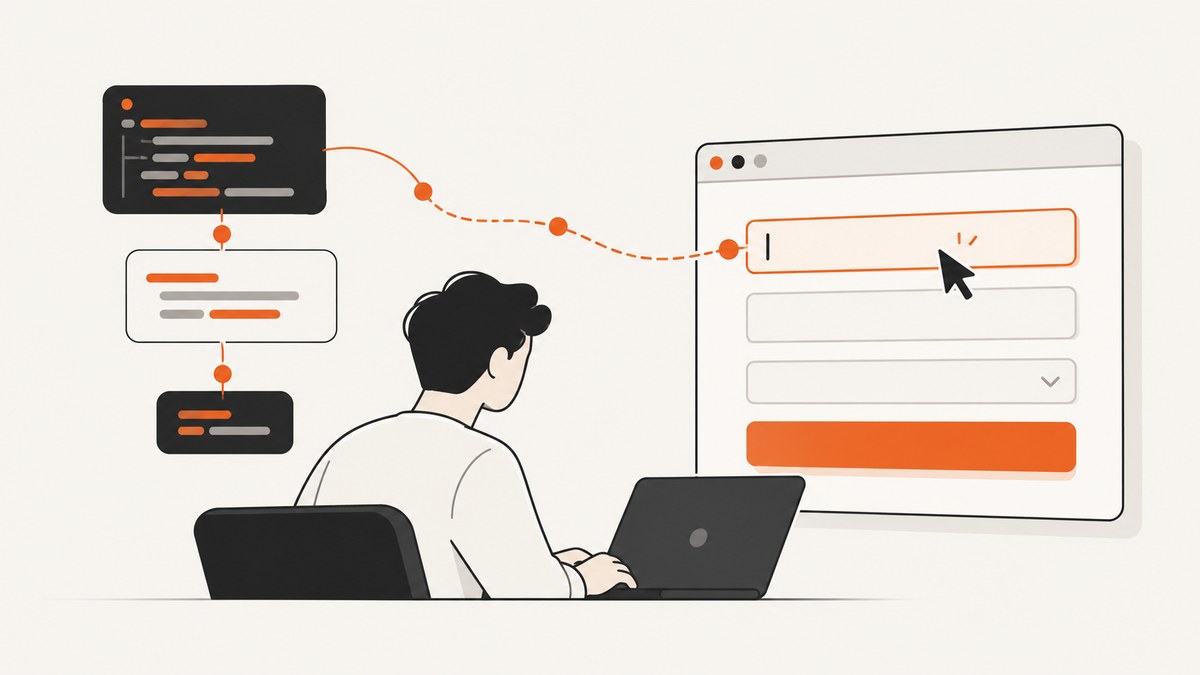
Use Puppeteer’s locator API for a normal form value:
await page.locator('input[name="email"]').fill('person@example.com');fill() is the current starting point for ordinary inputs because the locator waits for the element to exist and be ready, then chooses the appropriate interaction for the control. Use a stable selector such as an ID or name. Use keyboard APIs when the site must receive one key event per character.
Minimal working example
import puppeteer from 'puppeteer';

const browser = await puppeteer.launch();
try {
  const page = await browser.newPage();
  await page.goto('https://example.com/form', { waitUntil: 'domcontentloaded' });

  await page.locator('input[name="email"]').fill('person@example.com');

  console.log(await page.locator('input[name="email"]').inputValue());
} finally {
  await browser.close();
}
Run this as an ES module (for example, with "type": "module" in package.json) after installing Puppeteer with npm install puppeteer. Replace the URL and selector with the page you control or are authorized to automate.
Choose the right Puppeteer input method
Use locator().fill() for assignment
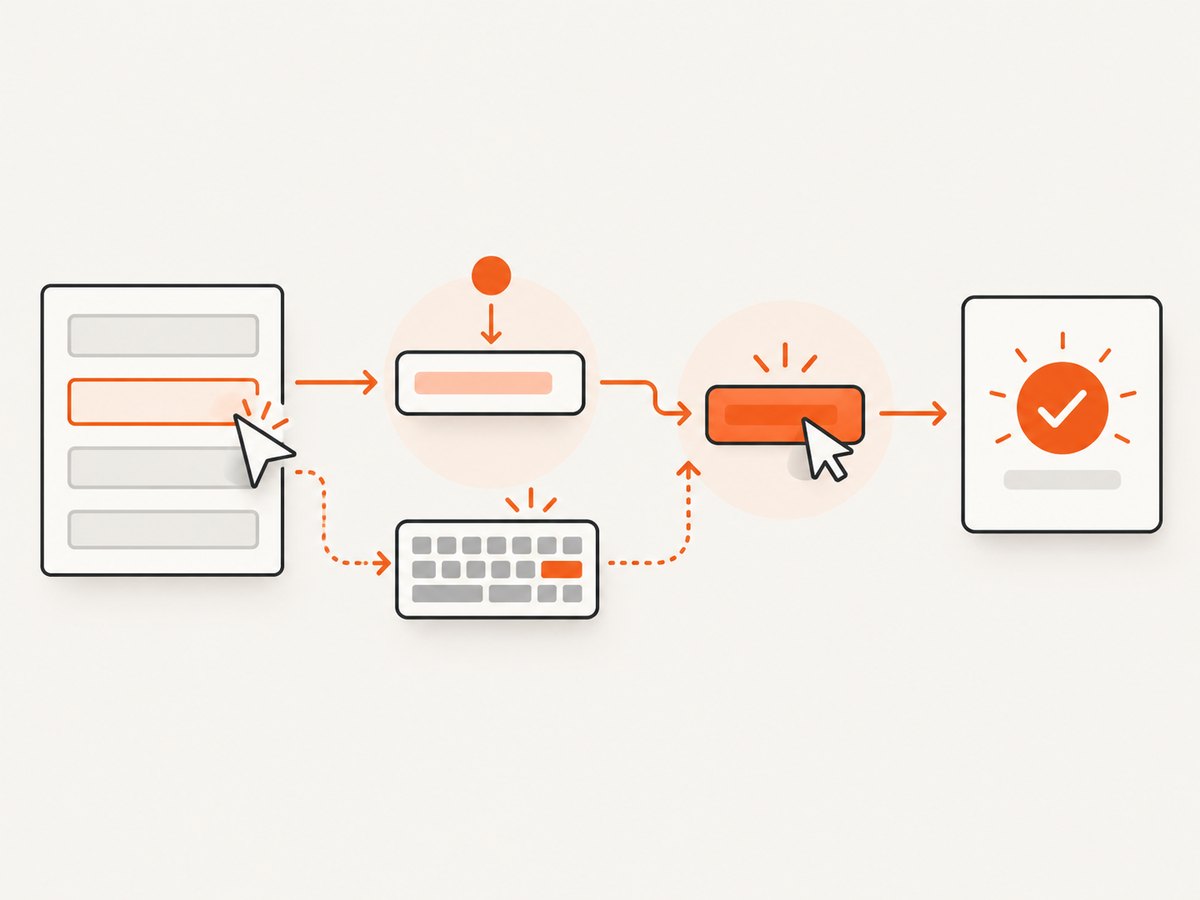
Use fill(value) when your goal is to set a field to a known value. The locator API waits for the target and performs the interaction when the element is actionable. It supports text inputs, textareas, selects, contenteditable elements, and boolean controls such as checkboxes, radio buttons, and switches.
await page.locator('#first-name').fill('Ada');
await page.locator('textarea[name="message"]').fill('Please send the report.');
await page.locator('[contenteditable="true"]').fill('Edited content');
await page.locator('select[name="country"]').fill('GB');
await page.locator('input[type="checkbox"]').fill(true);
For a select element, pass the option value expected by the page. For checkbox-like controls, pass a boolean instead of text. If a control is custom-built and does not behave like a supported form element, use a click or keyboard sequence and verify the resulting state.
Use keyboard.type() when key events matter
Some applications attach behavior to individual keyboard events, such as autocomplete menus, input masks, or search suggestions. Focus the intended element, then type through the keyboard:
const email = page.locator('input[name="email"]');
await email.click();
await page.keyboard.type('person@example.com');
await page.keyboard.press('Enter');
Puppeteer sends keydown, keypress/input, and keyup events for each character. This is slower than assigning a value but more closely resembles a user typing. Use keyboard.press() for special keys such as Enter, Tab, Escape, and arrow keys.
Use page.type() in existing code
The page-level method remains available for compatibility:
await page.type('input[name="email"]', 'person@example.com');You can add a per-character delay when an existing workflow depends on a slower typing cadence:
await page.type('#search', 'puppeteer', { delay: 40 });For new code, a locator is easier to compose with waits and assertions. Treat page.type() as a lower-level option when you are maintaining an older suite or need its selector-and-delay shape.
Use an element handle when you already have one
An element handle can type into a node that your code has already located:
const handle = await page.$('input[name="email"]');
if (!handle) throw new Error('Email input was not found');
await handle.type('person@example.com');
await handle.dispose();
Handles are lower-level and can become stale after a page rerender. Prefer locators unless another part of your code already manages the handle.
Selectors that reliably identify the field
The interaction is only as reliable as the selector. Avoid a broad selector such as input on a page with multiple fields. Prefer, in order:
- A unique ID:
page.locator('#email'). - A stable name:
page.locator('input[name="email"]'). - An accessible role and name when the markup exposes them.
- A data attribute intended for automation, such as
[data-testid="email"].
await page.getByLabel('Email address').fill('person@example.com');
await page.getByRole('textbox', { name: 'Email address' }).fill('person@example.com');
Accessible-name selection follows the way a user identifies the control and is less coupled to layout classes. If several matches are possible, narrow the locator to a form or section and assert that it resolves to the intended element.
const form = page.locator('form#signup');
const email = form.locator('input[name="email"]');
await email.fill('person@example.com');
await email.press('Tab');
Forms that need more than a text assignment
Clearing an existing value
fill() replaces the current value. If you use keyboard typing, clear first:
const field = page.locator('#search');
await field.click();
await page.keyboard.press('ControlOrMeta+A');
await page.keyboard.press('Backspace');
await page.keyboard.type('new query');
Input masks and formatted values
Phone, date, and currency widgets may transform text after each input event. Prefer keyboard.type() when the mask expects a sequence of keystrokes. Fill a canonical value only when the widget accepts programmatic assignment and emits the events your application requires. Always read the value back before submitting.
React, Vue, and other controlled inputs
Controlled components update application state from input events. A locator fill or keyboard sequence normally triggers the browser events those components listen for. If the visible text changes but submission contains an old value, inspect the component’s event handling and use keyboard typing or the framework’s supported interaction path.
Shadow DOM and iframes
For an iframe, obtain its frame before locating the input:
const frame = page.frames().find(f => f.url().includes('/checkout'));
if (!frame) throw new Error('Checkout frame was not found');
await frame.locator('input[name="cardholder"]').fill('Ada Lovelace');
For open shadow roots, Puppeteer’s locator selectors can cross supported shadow boundaries. If the component uses a closed shadow root, interact through its public controls or test hooks instead of reaching into private internals.
File inputs
A file input is not filled with text. Use an element handle and upload a local path:
const input = await page.$('input[type="file"]');
if (!input) throw new Error('Upload input was not found');
await input.uploadFile('/absolute/path/report.pdf');
Waiting, submitting, and verifying
Locators wait for presence and actionability, but navigation and application state still need explicit handling. Start navigation and the submit action together when a click causes a page load:
await page.locator('input[name="email"]').fill('person@example.com');
await Promise.all([
  page.waitForNavigation({ waitUntil: 'domcontentloaded' }),
  page.locator('button[type="submit"]').click()
]);
Single-page applications may not navigate. Wait for a confirmation element or response instead:
await page.locator('button[type="submit"]').click();
await page.locator('[role="status"]').wait();
await page.locator('[role="status"]').toHaveText('Saved');
Verification catches selector mistakes and rejected values early. Check the input value, checked state, selected option, or visible validation message after the action.
Common errors and fixes
| Error | Likely cause | Fix |
|---|---|---|
| Timeout waiting for locator | The selector is wrong, the page has not reached the form, or the field is inside an iframe. | Inspect the rendered DOM, wait for the form’s stable selector, or locate the element through the correct frame. |
| More than one element matches | A broad selector targets hidden and visible fields or repeated components. | Use a unique ID/name, accessible name, or scope the locator to a form. |
| Value appears but the app ignores it | The application depends on per-character events or a controlled component. | Click the field and use keyboard.type(); then verify the submitted state. |
| Element is not interactable | The field is hidden, disabled, covered, or not yet enabled. | Wait for the page state that enables it, remove the blocking flow through normal UI actions, and avoid forcing clicks as a first response. |
| Stale element handle | A framework rerender replaced the node. | Use a locator, or reacquire the handle immediately before interaction. |
| Text is truncated or transformed | An input maxlength, mask, sanitizer, or validation rule changed the value. | Read the value back, satisfy the field’s format, and type character-by-character when required. |
| Submit races the fill | The script clicks before the assignment or event processing finishes. | Await every fill/type call and wait for the resulting navigation, response, or confirmation state. |
Performance and reliability practices
- Reuse one browser process for a batch of pages and create isolated pages for separate workflows.
- Use the narrowest selector and avoid arbitrary sleeps. Wait for a meaningful element or network condition.
- Keep typing delays at zero unless the application requires keyboard pacing; delays multiply across large test suites.
- Set navigation and operation timeouts appropriate to the environment, and capture a screenshot or HTML dump when diagnosing failures.
- Close pages and the browser in a
finallyblock so failed runs do not leak Chromium processes. - Pin Puppeteer and check the API reference for the installed version. The interaction, locator, keyboard, and page-typing documentation can differ across releases.
- Never put real credentials in source code or logs. Load test data from protected environment variables and use test accounts.
Or skip the browser setup
If your goal is a clean image of the page after a form workflow or a rendered result, ScreenshotNeo can capture the URL through one request. Its API accepts options for full-page shots, element selectors, custom JavaScript, waits, headers, cookies, user agents, device presets, dark mode, PDFs, caching, and more. See the ScreenshotNeo API documentation for the complete parameter list.
curl -G "https://api.screenshotneo.com/v1/shot" -d access_key=YOUR_API_KEY --data-urlencode url=https://stripe.com -o shot.webpimport requests
r = requests.get("https://api.screenshotneo.com/v1/shot", params={"access_key": "YOUR_API_KEY", "url": "https://stripe.com"}, timeout=90)
open("shot.webp", "wb").write(r.content)const q = new URLSearchParams({ access_key: 'YOUR_API_KEY', url: 'https://stripe.com' });
const res = await fetch(`https://api.screenshotneo.com/v1/shot?${q}`);
if (!res.ok) throw new Error(`Screenshot failed: ${res.status}`);
const buffer = Buffer.from(await res.arrayBuffer());
await import('node:fs/promises').then(fs => fs.writeFile('shot.webp', buffer));Cookie banners, newsletter popups, and chat widgets are removed before the shot. Bot checks, blank pages, failed loads, timeouts, and cache hits are not billed, and response headers identify the page verdict and billing result. An MCP server provides take_screenshot, get_page_info, and capture_pdf tools for Claude, Cursor, and other MCP clients. The Free plan includes 1,000 screenshots a month with no card; paid plans start at $5 for 3,000 shots. Create a free ScreenshotNeo account.
FAQ
Does fill() press keys?
It sets the control through Puppeteer’s fill interaction. Use keyboard.type() when your application specifically depends on per-character keyboard events.

Can I fill a checkbox with text?
No. Pass a boolean to the supported checkbox, radio, or switch control, then verify its checked state.
Should I use a CSS selector or an accessible name?
Use the most stable identifier available. An accessible name is useful when it is unique and reflects the user-facing control; a stable ID, name, or test attribute is often best for application-owned markup.
Why does my script work locally but fail in CI?
CI can expose timing, viewport, font, and network differences. Replace sleeps with state-based waits, use deterministic test data, set an explicit viewport, and preserve diagnostics from failed runs.


