How to Run Puppeteer With an Existing Chrome Installation on macOS
Use Puppeteer with Chrome already installed on your Mac using channel or executablePath, with setup, troubleshooting, compatibility, and automation guidance.
Direct answer: install puppeteer-core, then launch it with either channel: 'chrome' or an explicit executablePath. Use channel when Chrome is installed in a location Puppeteer recognizes. Use executablePath when you need to select a specific executable or Chrome lives somewhere unusual. The path must point to the executable inside the .app bundle, not merely to the application directory.
Puppeteer’s bundled Chrome for Testing is the browser version its maintainers test most closely. Selecting an external Chrome installation can work, but compatibility with every Chrome version is not guaranteed. The official launch documentation warns that Puppeteer is guaranteed only with its bundled browser, so treat an alternate executable as a deliberate compatibility tradeoff.
1. Choose the right Puppeteer package
The package determines who manages Chrome:
| Package | Chrome behavior | Use it when |
|---|---|---|
puppeteer |
Normally downloads a compatible Chrome for Testing build during installation. | You want Puppeteer to manage the browser. |
puppeteer-core |
Does not download Chrome. | You already manage Chrome and want to connect to that installation. |
For an existing macOS Chrome installation, use puppeteer-core:
npm install puppeteer-coreIf an installation script was blocked and you later decide to use Puppeteer’s managed browser, the installation guide documents npx puppeteer browsers install as the manual installation command. That is a different setup from using your installed Chrome.
2. Use automatic Chrome discovery with channel
The simplest launch configuration is:
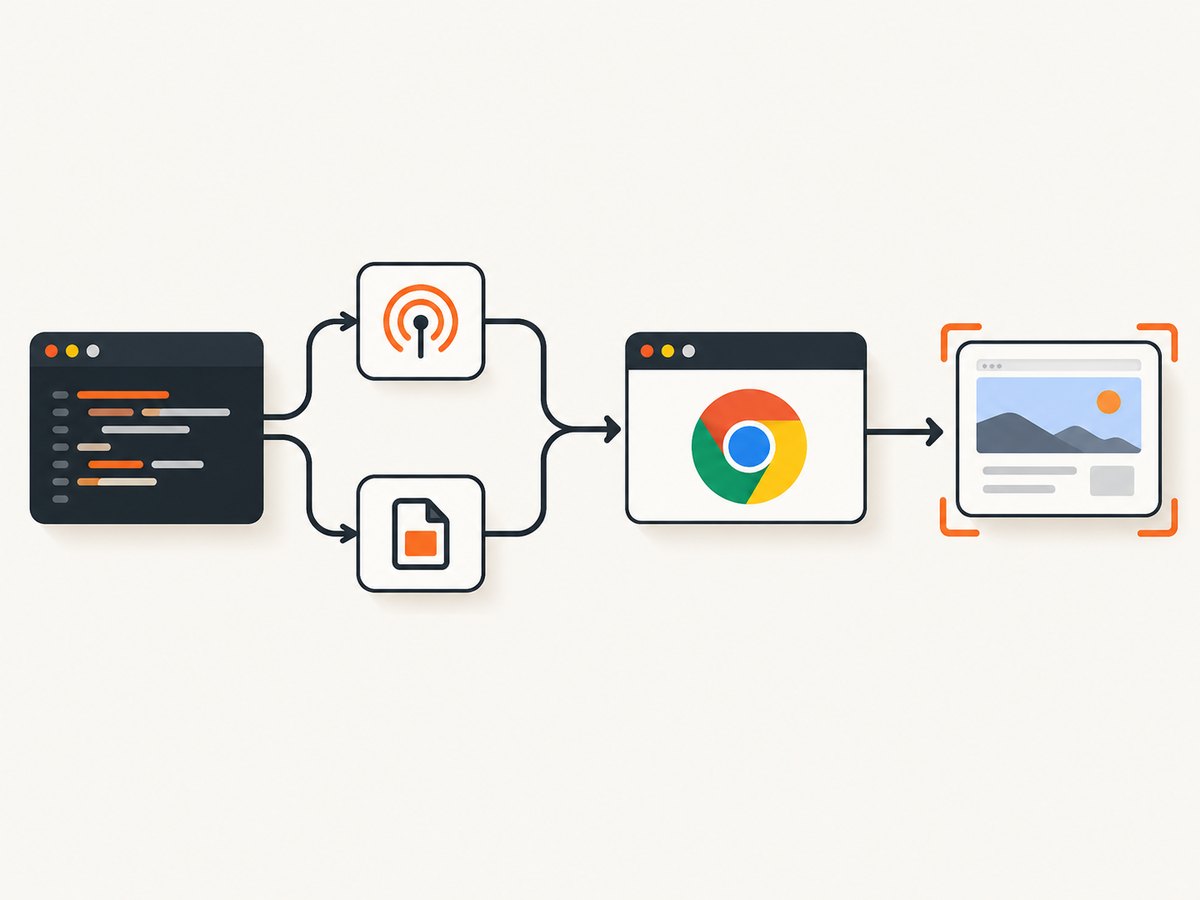
import puppeteer from 'puppeteer-core';

const browser = await puppeteer.launch({
  channel: 'chrome'
});

try {
  const page = await browser.newPage();
  await page.goto('https://example.com', { waitUntil: 'networkidle2' });
  console.log(await page.title());
} finally {
  await browser.close();
}
Save this as capture.mjs and run node capture.mjs. The channel option asks Puppeteer to locate a regular Chrome installation in a known system location. It is convenient for developer machines where Chrome was installed normally.
When channel is the better choice
- Your team uses the standard Chrome installation location.
- You do not need to pin a particular Chrome binary.
- The same script runs on Macs with a consistent installation policy.
Discovery is less explicit than a path. If Puppeteer cannot find Chrome, switch to executablePath and verify the actual binary.
3. Select Chrome explicitly with executablePath
Use an executable path when Chrome is installed outside a recognized location or when reproducibility requires a named binary:
import puppeteer from 'puppeteer-core';

const browser = await puppeteer.launch({
  executablePath: process.env.CHROME_PATH
});

try {
  const page = await browser.newPage();
  await page.goto('https://example.com', { waitUntil: 'networkidle2' });
  console.log(await page.title());
} finally {
  await browser.close();
}
Run it with the path you discovered on that Mac:
CHROME_PATH='/actual/path/to/Google Chrome executable' node capture.mjsDo not copy a placeholder path into production. The exact location depends on how Chrome was installed and which release is present. On macOS, the executable is nested inside the application bundle; an .app directory or /Applications alone is not an executable.
Discover and verify the binary
- Locate the installed Chrome application using Finder or your organization’s software inventory.
- Open the application bundle and identify the browser executable inside its versioned
Contents/MacOSdirectory. - Set
CHROME_PATHto that file, not the outer bundle. - Verify that the file exists and is executable before launching Puppeteer.
test -x "$CHROME_PATH" && echo "Chrome executable is ready" || echo "Check CHROME_PATH"Keep the path in an environment variable rather than hard-coding a personal home directory. CI, another user account, or a managed Mac may use a different installation path.
4. A production-ready capture script
This example validates configuration, creates a page, waits for the document to settle, captures a full-page PNG, and always closes the browser:
import puppeteer from 'puppeteer-core';

const targetUrl = process.env.TARGET_URL ?? 'https://example.com';
const launchOptions = process.env.CHROME_PATH
  ? { executablePath: process.env.CHROME_PATH }
  : { channel: 'chrome' };

let browser;
try {
  browser = await puppeteer.launch(launchOptions);
  const page = await browser.newPage();

  await page.setViewport({ width: 1440, height: 900, deviceScaleFactor: 1 });
  await page.goto(targetUrl, {
    waitUntil: 'networkidle2',
    timeout: 60_000
  });

  await page.screenshot({
    path: 'page.png',
    fullPage: true,
    type: 'png'
  });

  console.log(`Saved page.png from ${targetUrl}`);
} finally {
  if (browser) await browser.close();
}
networkidle2 waits until there are at most two active network connections. It can be unsuitable for pages with analytics, live feeds, or long polling, so use a selector or a bounded delay when the page never becomes idle.
5. Configure the page before the screenshot
Viewport and device scale
await page.setViewport({
  width: 1280,
  height: 800,
  deviceScaleFactor: 2
});
The viewport controls responsive layout. deviceScaleFactor controls pixel density and affects output dimensions and memory use.
Wait for a known element
await page.goto(targetUrl, { waitUntil: 'domcontentloaded' });
await page.waitForSelector('[data-ready="true"]', { timeout: 30_000 });
A readiness selector is often more reliable than a fixed sleep because it represents the application state you actually need.
Wait for fonts, images, or custom application state
await page.evaluate(async () => {
  if (document.fonts?.ready) await document.fonts.ready;
  const images = [...document.images];
  await Promise.all(images.map((img) => img.complete
    ? Promise.resolve()
    : new Promise((resolve) => {
        img.addEventListener('load', resolve, { once: true });
        img.addEventListener('error', resolve, { once: true });
      })));
});
For lazy-loaded content, scroll before capturing:
await page.evaluate(async () => {
  await new Promise((resolve) => {
    let y = 0;
    const step = () => {
      y += 600;
      window.scrollTo(0, y);
      if (y >= document.body.scrollHeight) return resolve();
      setTimeout(step, 100);
    };
    step();
  });
});
Capture one element instead of the whole page
const card = await page.locator('.pricing-card').boundingBox();
if (!card) throw new Error('pricing card is not visible');
await page.screenshot({ path: 'card.png', clip: card });
Check for a missing or hidden element before calling clip. A selector that matches nothing is a common cause of empty or failed captures.
Hide transient UI
await page.addStyleTag({
  content: '.cookie-banner, .chat-widget, .newsletter-modal { display: none !important; }'
});
Use this only when your capture policy permits altering the page. If you need to interact with a consent dialog as a real visitor would, locate its accept button and click it before capturing.
6. Channel versus executablePath
| Question | channel |
executablePath |
|---|---|---|
| Where Chrome is installed | Known system location | Any location you can identify |
| Selection control | Puppeteer discovers the browser | Your configuration names the binary |
| Portability | Less configuration on standard Macs | More setup, but explicit per environment |
| Compatibility | Neither method removes Puppeteer’s external-browser compatibility limitation. | |
Do not provide both options in one launch object. Choose one. A useful deployment pattern is to use CHROME_PATH when set and fall back to channel: 'chrome' for standard developer machines, as in the production example above.
7. Compatibility and reliability
Puppeteer works best with its corresponding Chrome for Testing release. A regular Chrome binary may launch successfully and still expose differences in rendering, protocol behavior, permissions, or command-line handling. Pin the Puppeteer version in package-lock.json, record the Chrome version in CI logs, and validate screenshots after browser updates.
For reliable jobs:
- Set explicit navigation and selector timeouts.
- Always close the browser in a
finallyblock. - Use a fresh page for independent captures.
- Retry transient navigation failures with a bounded retry count.
- Save the URL, Puppeteer version, Chrome version, launch mode, and exact error.
- Use deterministic viewport, timezone, locale, and authentication settings when visual diffs matter.
Do not assume that a page is ready merely because goto returned. Modern applications can render content after the initial navigation event.
8. Troubleshooting common macOS errors
“Could not find Chrome”
Cause: puppeteer-core does not download a browser, or channel cannot find Chrome in a recognized location.
Fix: confirm Chrome is installed, switch to its real executable with executablePath, and verify the file with test -x. If you intended Puppeteer to manage Chrome, install puppeteer or run the documented browser installation command.
“Failed to launch the browser process”
Cause: the path points to the application folder rather than the executable, the file is not executable, or the selected Chrome build is incompatible with the Puppeteer release.
Fix: inspect the bundle’s executable, check permissions, record both versions, and try the Puppeteer-managed Chrome for comparison.
The script works locally but not in CI
Cause: CI has no Chrome installation at the same path, uses a different user, or blocks installation scripts.
Fix: provide a CI-specific CHROME_PATH, install the browser during the image build, and log the resolved path before launch. Do not copy a developer’s absolute path into a shared pipeline.
Chrome opens, but the screenshot is blank
Cause: capture occurred before application rendering, a required resource failed, or the page is blocked by a bot check or authentication wall.
Fix: wait for a meaningful selector, inspect response and console errors, confirm credentials and headers, and capture a diagnostic screenshot after navigation.
Chrome for Testing downloaded on macOS will not launch
For the documented case of a downloaded Chrome for Testing binary carrying a problematic attribute, the Chrome for Testing guidance gives:
xattr -cr 'Google Chrome for Testing.app'Use that workaround only for the downloaded Chrome for Testing scenario it documents. It is not a universal fix for ordinary Chrome installations or every launch error.
Navigation times out
Cause: the site keeps connections open, is slow, requires a login, or never reaches the selected lifecycle condition.
Fix: increase the timeout only when justified, use domcontentloaded plus a readiness selector, or wait for a specific application event instead of network idle.
9. Performance, cost, and operational tradeoffs
Running an existing Chrome installation avoids downloading a second browser, but each browser process consumes CPU and memory. Reuse one browser for a batch of pages when isolation requirements allow it, and close pages after each capture. Limit concurrency so several full-page screenshots do not exhaust the Mac.
Explicit paths reduce discovery work and make logs easier to interpret. channel reduces configuration on standard machines. Neither option guarantees identical output across Chrome updates, so visual regression pipelines should control the browser version where possible.
With local Puppeteer, your costs are the machine, CI minutes, browser maintenance, and engineering time for consent dialogs, popups, retries, and failed pages. A hosted screenshot API can move those responsibilities out of your application.
10. Or skip the browser setup
ScreenshotNeo provides a website screenshot API when you need a clean image or PDF without maintaining a local browser. It accepts one GET request and supports PNG, JPEG, WebP, and PDF output. Before capture, it accepts cookie and consent banners like a visitor and removes more than 60 known consent platforms, newsletter popups, and chat widgets; each step can be disabled.

Only clean shots are billed. Bot checks, CAPTCHAs, blank pages, timeouts, failed loads, and cache hits cost nothing, and every response identifies the result with X-Page-Verdict and X-Billed headers. The service also includes an MCP server with take_screenshot, get_page_info, and capture_pdf tools for Claude, Cursor, and other MCP clients.
See the ScreenshotNeo API documentation for all options.
cURL
curl -G "https://api.screenshotneo.com/v1/shot" -d access_key=YOUR_API_KEY --data-urlencode url=https://stripe.com -o shot.webpPython
import requests
r = requests.get("https://api.screenshotneo.com/v1/shot", params={"access_key": "YOUR_API_KEY", "url": "https://stripe.com"}, timeout=90)
open("shot.webp", "wb").write(r.content)
Node.js
const q = new URLSearchParams({ access_key: 'YOUR_API_KEY', url: 'https://stripe.com' });
const res = await fetch(`https://api.screenshotneo.com/v1/shot?${q}`);
ScreenshotNeo includes full-page capture with lazy images loaded, CSS element capture, dark mode, 12 device presets, arbitrary viewports, retina scale, PDF paper and margin controls, custom CSS and JavaScript, clicks, selector waits, delays, network-idle waits, request blocking, headers, cookies, user agents, Authorization, timezone, geolocation, transparent backgrounds, resizing, selectable cache TTLs, signed image links, asynchronous jobs with signed webhooks, bulk capture for 100 URLs per call, a usage API, and an OpenAPI specification. Parameter names used by other screenshot APIs also work, which can simplify migration.
The Free plan includes 1,000 screenshots each month with no card. Paid plans start at $5 for 3,000 shots; yearly billing gives two months free, and every feature is available on every plan. Create a free ScreenshotNeo account and start with the 1,000 monthly screenshots.
11. FAQ
Can I use puppeteer with an existing Chrome?
Yes, but puppeteer is designed to download and use Chrome for Testing. Use puppeteer-core when managing the browser installation yourself.
Is channel: 'chrome' deterministic?
No. It depends on Chrome being installed where Puppeteer looks and on the installed version. Use executablePath when explicit selection matters.
Should I hard-code a macOS Chrome path?
Only when the installation is controlled and the path is known to be stable. Otherwise use an environment variable and validate it at startup.
Why does Chrome launch manually but fail under Puppeteer?
Manual launch does not prove protocol compatibility, executable selection, permissions, or automation-specific startup behavior. Compare Puppeteer and Chrome versions and test with the bundled browser.
When should I use a hosted screenshot API?
Use one when you want repeatable captures without maintaining Chrome processes, consent handling, popup removal, retries, or browser installation across machines.


