How to Use JavaScript DOM Paths to Fill Login Inputs with Puppeteer
Fill Puppeteer login fields reliably with semantic selectors, DOM paths, waits, navigation handling, troubleshooting, and a ScreenshotNeo shortcut.
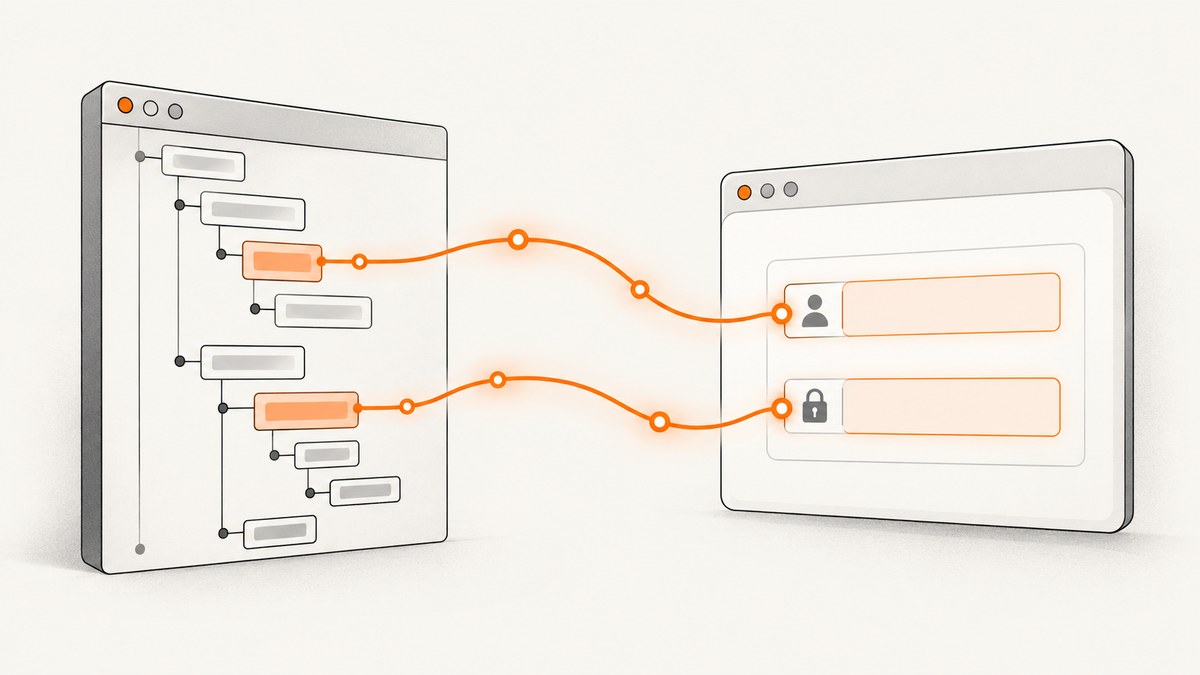
Direct answer: In current Puppeteer, fill a login field with a locator and a concise selector that describes the field, then submit it. For example, await page.locator('input[name="username"]').fill(username). A long copied DOM path can work, but it is brittle: a wrapper, class, or sibling change can break it. Prefer stable attributes, labels, or accessible names, and use waitForNavigation() together with the click when the form navigates.
This guide shows how to find login inputs, when a DOM path is useful, how to wait safely, how to handle single-page applications, and how to diagnose failures. Examples target Puppeteer’s current interaction API (the documentation search identifies version 25.12.0; API defaults can change, so check the official interaction guide before pinning behavior).
1. A complete Puppeteer login example
Install Puppeteer, supply credentials through your application’s configured secret mechanism, and replace the example URL and selectors with ones verified on the site you control.
npm install puppeteer
import puppeteer from 'puppeteer';

const username = process.env.LOGIN_USERNAME;
const password = process.env.LOGIN_PASSWORD;
if (!username || !password) throw new Error('Set LOGIN_USERNAME and LOGIN_PASSWORD');

const browser = await puppeteer.launch();
try {
  const page = await browser.newPage();
  await page.goto('https://example.test/login', {waitUntil: 'domcontentloaded'});

  await page.locator('input[name="username"]').fill(username);
  await page.locator('input[name="password"]').fill(password);

  const [response] = await Promise.all([
    page.waitForNavigation({waitUntil: 'networkidle0'}),
    page.locator('button[type="submit"]').click(),
  ]);

  console.log('Landed at:', response?.url() ?? page.url());
} finally {
  await browser.close();
}
The Promise.all matters. Registering the navigation wait after clicking can race with a fast navigation. If submission is handled by JavaScript without navigation, replace it with a page-specific success indicator, URL change, or API response that you understand.
2. What “DOM path” means in Puppeteer
A DOM path is a route from the document root to an element. A CSS path might look like form#login > div.fields > input:nth-of-type(1); an XPath might look like //form[@id='login']//input[@name='username']. DevTools can copy either style, but copied paths usually encode positions and generated classes.
| Selector style | Example | When to use | Main risk |
|---|---|---|---|
| Meaningful CSS | input[name="username"] |
Stable name, id, data attribute, or type exists | Breaks if the attribute is renamed |
| Accessible name | page.getByLabel('Email') |
A real label or accessible name is exposed | Depends on accessible markup and exact wording |
| Role and name | page.getByRole('textbox', {name: 'Email'}) |
You want the control users perceive | Requires a correct accessible name |
| XPath | page.locator('xpath=//input[@type="password"]') |
No useful CSS hook, or an XPath relation is clearer | Text and structure changes can invalidate it |
| Deep positional path | form > div:nth-child(2) > input |
Last resort for a fixed document you own | Any markup insertion changes the target |
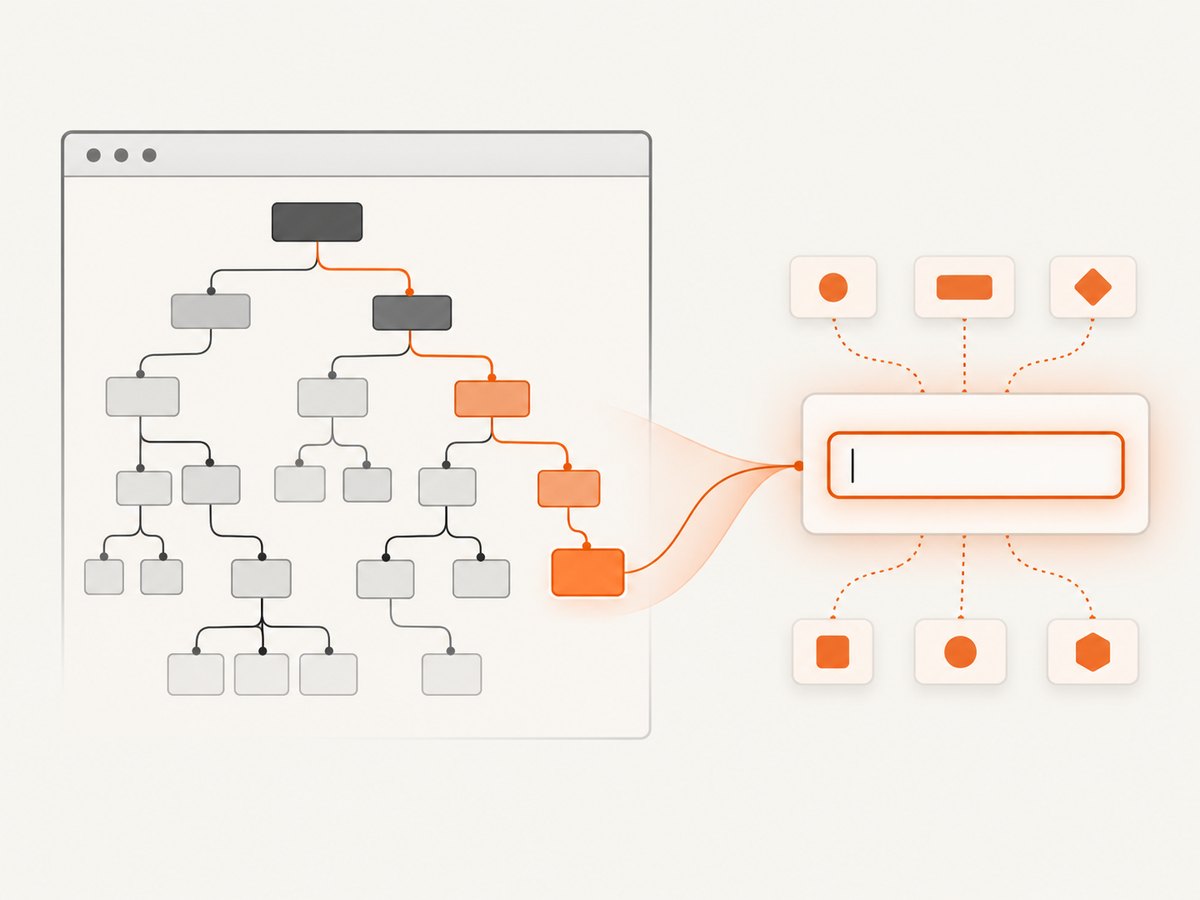
Puppeteer accepts CSS directly and also supports extended selector syntax for accessibility, text, XPath, and supported Shadow DOM traversal. A concise semantic selector is usually easier to review and maintain than a path copied from the inspector.
3. Finding the right login inputs
Inspect the element, then reduce the path
- Open the login page in a browser and inspect the username or email control.
- Look for a stable
name,id,data-testid, or associatedlabel. - Test the shortest selector in the console with
document.querySelector(...). Confirm it returns exactly one intended element. - Check whether the control is inside an iframe or shadow root; a selector evaluated in the top document cannot cross either boundary automatically.
- Use the same selector in a locator and let Puppeteer perform readiness checks.
// CSS and accessibility-oriented alternatives
await page.locator('input[name="email"]').fill(email);
await page.getByLabel('Password').fill(password);
await page.getByRole('textbox', {name: 'Email'}).fill(email);

// XPath when a relationship is the clearest stable hook
await page.locator('xpath=//label[normalize-space()="Email"]/following::input[1]').fill(email);
If two fields share a label or role, scope the locator to the login form: page.locator('form#login').getByLabel('Email'). Avoid selecting “the first input” unless the page contract explicitly guarantees that order.
4. Fill controls with locators
Locator actions wait for the element and action preconditions. For filling, Puppeteer chooses the appropriate method for supported input types, textarea, select, and contenteditable elements. Checkboxes, radio buttons, and switches use a boolean.
await page.locator('input[name="username"]').fill(username);
await page.locator('input[name="password"]').fill(password);
await page.locator('textarea[name="note"]').fill('text');
await page.locator('select[name="region"]').fill('us');
await page.locator('[contenteditable="true"]').fill('text');
await page.locator('input[type="checkbox"]').fill(true);
Do not mix a locator that waits with a stale element handle captured before a re-render. Modern frameworks can replace the node after validation or autofill; locate again when the page changes the form.
5. Waiting for fields and submission
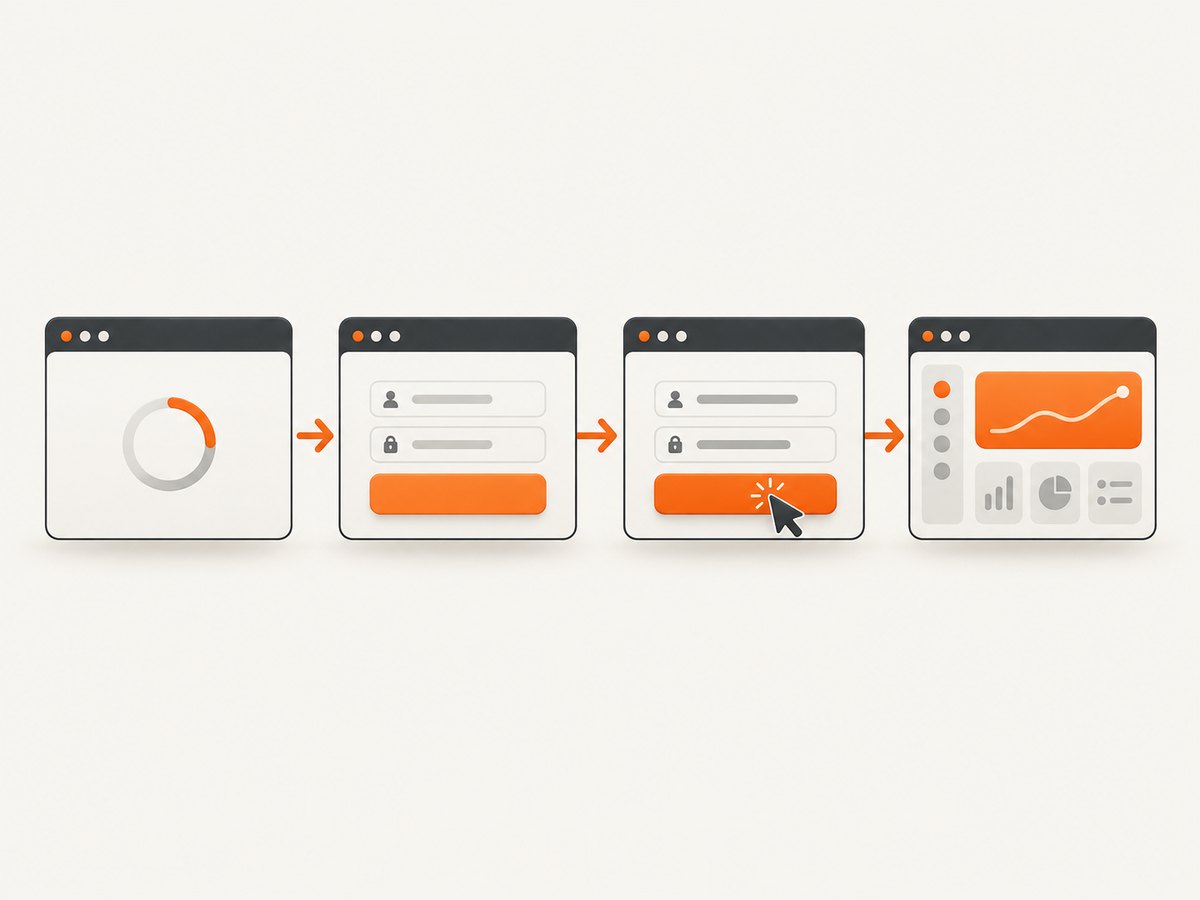
For most interactions, a locator is the high-level choice because it waits for presence and readiness. The lower-level waitForSelector() remains useful when you need an explicit element handle or a visibility check.
await page.waitForSelector('input[name="username"]', {
  visible: true,
  timeout: 30_000,
});
await page.locator('input[name="username"]').fill(username);
The documented default timeout for waitForSelector() is 30,000 ms. Set a value appropriate for your page or disable it only when you have an external timeout. Waiting alone does not retry a later action if the application replaces the node, so prefer a locator action where it covers your case.
Navigation-based forms
const [response] = await Promise.all([
  page.waitForNavigation({waitUntil: 'networkidle0'}),
  page.locator('button[type="submit"]').click(),
]);
Single-page applications
await page.locator('button[type="submit"]').click();
await page.locator('[data-testid="dashboard"]').wait();
// Or wait for a URL/state change specific to your application.
There is no universal success selector. Choose one that represents a successful authenticated state on your application, such as a dashboard landmark or an account menu.
6. DOM paths across iframes and shadow DOM
An iframe has its own document. Find the frame, then query inside it:
const frame = page.frames().find(f => f.url().includes('/auth/'));
if (!frame) throw new Error('Auth frame not found');
await frame.locator('input[name="username"]').fill(username);
await frame.locator('input[name="password"]').fill(password);
For a shadow root, use Puppeteer’s supported shadow DOM selector syntax when the component exposes the control that way, or obtain the host and work within the component’s documented interface. A copied path from the light DOM will not match a shadow tree.
7. When a long copied path is unavoidable
If you must use a generated path, isolate it in one constant and add an assertion so a silent target change fails clearly.
const usernamePath = 'form > div:nth-child(2) > input:nth-of-type(1)';
const usernameField = page.locator(usernamePath);
if (await usernameField.count() !== 1) {
  throw new Error(`Expected one username field for ${usernamePath}`);
}
await usernameField.fill(username);
Prefer adding a stable attribute to an application you control. A data-testid or semantic name makes the automation contract explicit and avoids coupling tests to layout.
8. Troubleshooting common failures
| Symptom | Likely cause | Fix |
|---|---|---|
| Timeout waiting for selector | Wrong selector, slow page, iframe, or consent gate | Verify it in DevTools, wait for the correct frame, and set a deliberate timeout. Capture HTML or a screenshot at failure. |
| Locator matches zero or many nodes | Selector is too broad or markup changed | Scope to the form and use a stable name, label, role, or test id; assert the expected count. |
| Element is not visible or enabled | Overlay, disabled state, animation, or validation | Wait for the page state that enables it and remove the cause in the application. Do not force-click around a real blocking condition. |
| Click hangs waiting for navigation | SPA submission does not navigate | Do not call waitForNavigation(); wait for a success element, URL change, or known response instead. |
| Credentials appear in the wrong field | Positional path selected a hidden or secondary input | Use type, name, label, or form scope and verify the field’s value before submit. |
| Works locally, fails in CI | Different viewport, timing, browser version, or missing dependencies | Pin a compatible Puppeteer version, use explicit waits tied to state, and record browser/page diagnostics. |
| Field is inside an iframe | Top-page selector cannot cross frame boundaries | Resolve the frame and run the locator against the frame. |
| Page re-renders after fill | Framework replaced the input node | Use locators for each action and wait for the post-validation state. |
9. Reliability, performance, and security
- Reliability: select by semantics, scope selectors, assert counts, and wait for state rather than arbitrary sleeps. Keep navigation and click synchronized.
- Performance: reuse a browser process for multiple pages, avoid unnecessary full-page waits, and choose
domcontentloadedwhen the form does not need every asset. Use a page-specific readiness signal for SPAs. - Timeouts: set separate navigation, selector, and overall job budgets. A generous selector timeout cannot prevent a job from hanging forever without an outer limit.
- Diagnostics: on failure record the URL, console errors, a sanitized HTML snapshot, and a screenshot that contains no credentials. Never log passwords or tokens.
- Authentication state: keep credentials in your configured secret mechanism and limit access to cookies, profiles, and captured artifacts. Clear temporary profiles when a job ends.
- Bot defenses: a login flow may intentionally block automation. Respect the site’s rules and use an approved test account or integration path.
10. Or skip the browser setup
If your goal is a clean visual capture after a page is available, ScreenshotNeo provides a single GET request instead of maintaining Chromium code. It accepts the cookie or consent banner like a visitor, removes more than 60 known consent platforms plus newsletter popups and chat widgets before capture, and lets you turn each cleanup step off. Bot checks or CAPTCHAs, blank pages, timeouts, failed loads, and cache hits cost nothing; response headers report the page verdict and whether the shot was billed.
See the ScreenshotNeo API documentation for all options. A minimal call is:
curl -G "https://api.screenshotneo.com/v1/shot" -d access_key=YOUR_API_KEY --data-urlencode url=https://stripe.com -o shot.webpimport requests
r = requests.get("https://api.screenshotneo.com/v1/shot", params={"access_key": "YOUR_API_KEY", "url": "https://stripe.com"}, timeout=90)
open("shot.webp", "wb").write(r.content)
const q = new URLSearchParams({ access_key: 'YOUR_API_KEY', url: 'https://stripe.com' });
const res = await fetch(`https://api.screenshotneo.com/v1/shot?${q}`);
if (!res.ok) throw new Error(`HTTP ${res.status}`);
const buffer = Buffer.from(await res.arrayBuffer());
require('fs').writeFileSync('shot.webp', buffer);
Features include full-page and element capture, device presets or custom viewports, dark mode, retina scale, PDF output, custom CSS and JavaScript, clicks and waits, request/resource blocking, headers, cookies, user agent, authorization, timezone, geolocation, transparent backgrounds, resizing, chosen-TTL caching, signed image links, asynchronous jobs with signed webhooks, bulk capture of up to 100 URLs per call, and usage reporting. An MCP server exposes take_screenshot, get_page_info, and capture_pdf to Claude, Cursor, and other MCP clients.
There are 1,000 free shots each month with no card. Paid plans start at $5 for 3,000 shots; yearly billing gives two months free, and every feature is on every plan. Create a free ScreenshotNeo account.
11. Cost and operational notes
Running Puppeteer means paying for the machine, browser startup, bandwidth, and maintenance of selectors and dependencies. Reusing a browser and caching known-static pages reduces overhead, but authenticated flows still need careful isolation. With ScreenshotNeo, only clean shots are billed, while failed loads and cache hits are not; inspect X-Page-Verdict and X-Billed to reconcile usage. Choose a cache TTL when repeated captures are acceptable, or disable caching when freshness is required.
12. Frequently asked questions
Should I use a copied Chrome DOM path?
Use it only when no stable semantic hook exists. Reduce it to the shortest path you can maintain and add a count assertion.
Does fill() work with password fields?
Yes. Password inputs are supported input controls; select them with a stable attribute or accessible name.
When is waitForSelector() better?
Use it for explicit lower-level control, such as obtaining a handle or requiring visibility. For ordinary interactions, a locator combines selection, waiting, and the action.
Why did my navigation wait time out?
The submit may update the page in place. Wait for an application-specific success state instead of navigation.
Can I automate a login hosted in an iframe?
Yes. Resolve the frame first and run the selector against that frame’s document.
Can ScreenshotNeo log in and fill fields?
The product is a screenshot API and MCP server. Use Puppeteer for the login interaction itself, then use ScreenshotNeo when you need a clean screenshot or PDF of an accessible page.


