How to Fix Misplaced Footers When Hiding Headers on the First Puppeteer PDF Page
A first-page header rule can interact with print CSS and Puppeteer PDF margins. Trace the layout systematically and verify each change against your Puppeteer and Chromium versions.
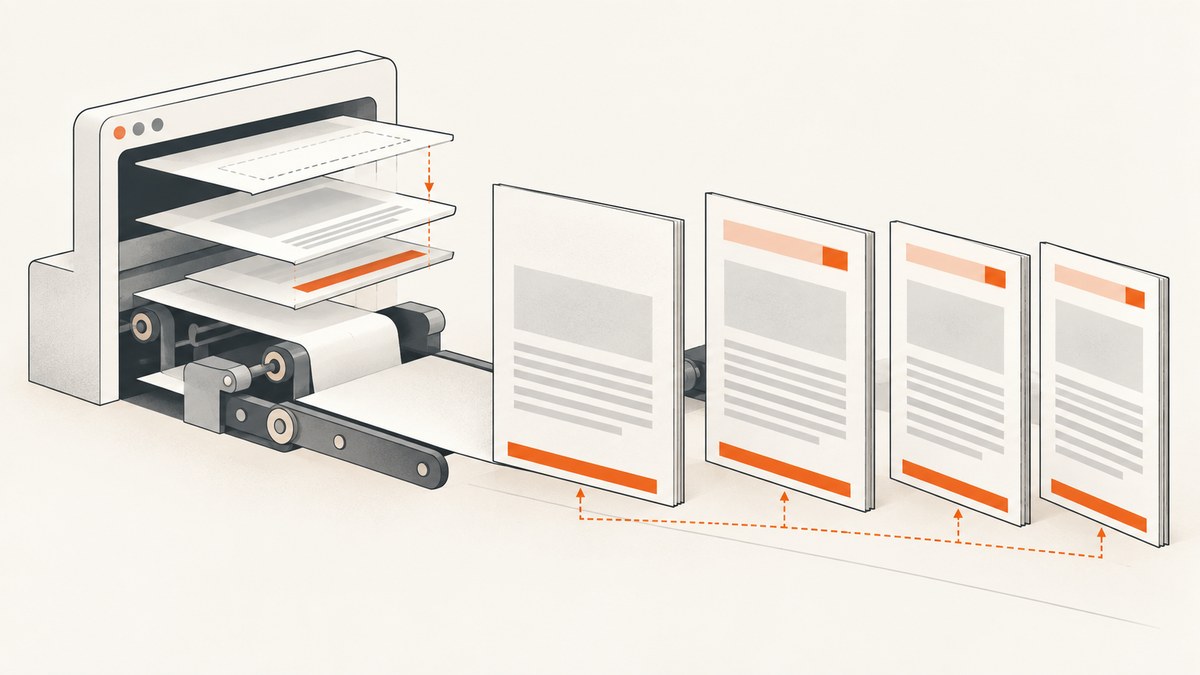
When a footer shifts, disappears, or appears only on the final page after hiding the first page’s header, inspect the interaction between print CSS page rules and the margins passed to page.pdf(). Puppeteer generates PDFs using print media by default. Its PDF options enable or disable headers and footers for the document as a whole and supply their templates; the documented API does not provide a per-page header toggle. The available evidence does not establish one universal fix for every Puppeteer and Chromium version, so reduce the document to a minimal reproduction and change one page rule or margin setting at a time.
The key diagnostic is to separate three concerns: whether the header and footer templates are enabled, which margins apply to each page, and whether CSS page sizing changes the layout. Keep the footer template simple while isolating those concerns. Then verify that the footer appears on every expected page in the generated PDF.
1. Confirm what Puppeteer controls
displayHeaderFooter is a single boolean PDF option. When enabled, Puppeteer can render the supplied headerTemplate and footerTemplate. The PDFOptions reference documents special classes for injected values: date, title, url, pageNumber, and totalPages. These templates are separate from the document’s ordinary page content. See the Puppeteer PDFOptions reference.
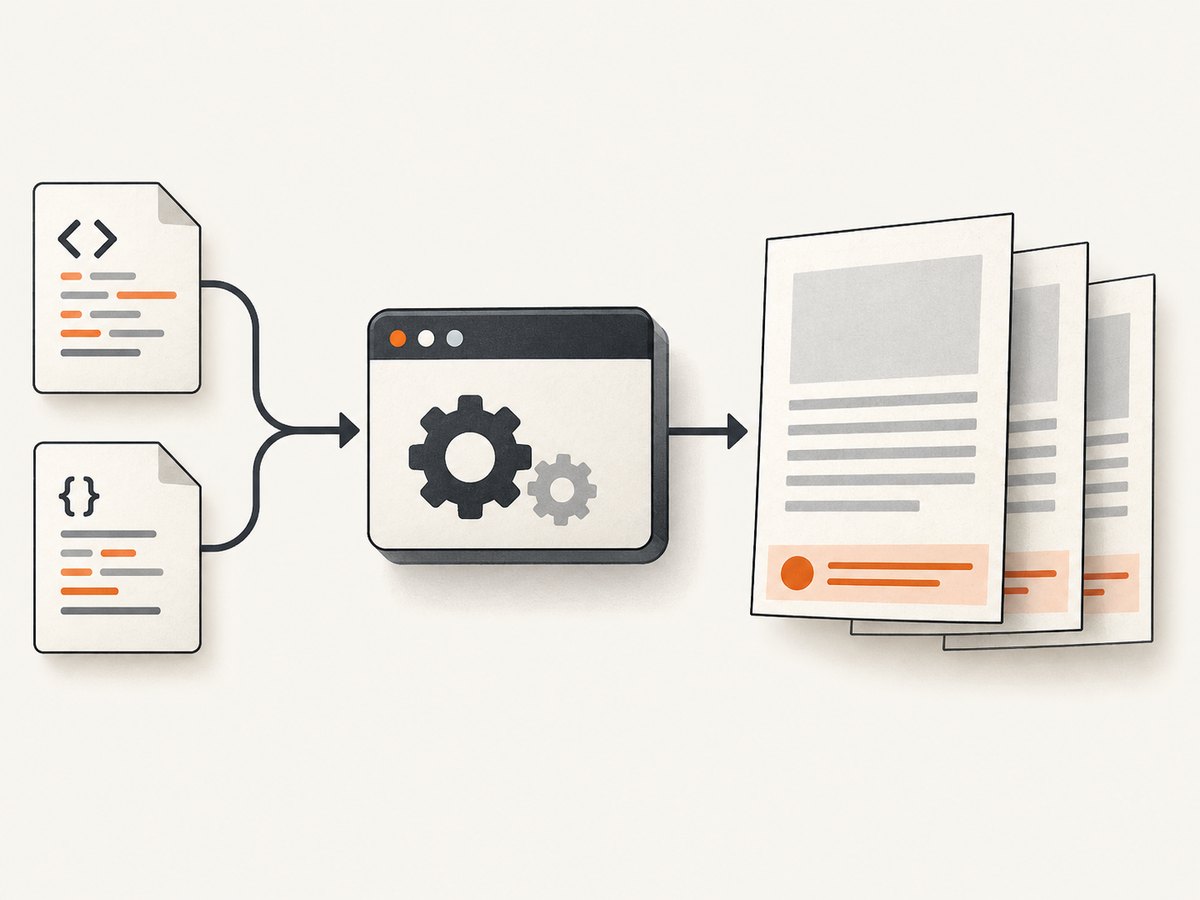
Because there is no documented per-page switch for those templates, a common debugging mistake is to expect a CSS first-page rule to independently toggle Puppeteer’s header or footer. Treat header visibility and page margins as separate settings until the output proves how your versions combine them. If only the first page should lack a header, first test whether the desired result can be expressed with the template and page layout supported by your exact Puppeteer/Chromium build; do not assume an undocumented per-page option exists.
2. Make a minimal reproduction
- Record the installed Puppeteer package version, the Chromium version it launches, and the operating system. PDF rendering depends on the browser bundled or selected by the installed setup.
- Create a short HTML document that reliably spans at least three printed pages. Use plain text and simple blocks; remove application styles, scripts, fonts, and unrelated layout rules.
- Start with one header template, one footer template, and one explicit PDF margin configuration. Confirm that the footer repeats on all pages before adding a first-page rule.
- Add the
@page:firstrule back, then adjust one margin source at a time. Save and inspect each PDF so you know which change moved or removed the footer. - Repeat with the production Puppeteer and Chromium versions if local and deployed output differ.
This is a diagnostic workflow based on the documented controls and a historical issue with a similar symptom; it is not a claim that a specific configuration has been tested as a fix on current releases.
3. Run a baseline capture
Install Puppeteer in a Node.js project using your project’s normal package manager, then save the following as pdf.js. It uses one consistent margin source and intentionally has no @page:first rule in its HTML. This baseline tells you whether the templates and repeated footer work without the first-page special case.
const puppeteer = require('puppeteer');

(async () => {
  const browser = await puppeteer.launch();
  try {
    const page = await browser.newPage();
    await page.setContent(`
      <!doctype html>
      <html>
        <head>
          <meta charset="utf-8">
          <style>
            body { font: 14px Arial, sans-serif; }
            .item { height: 280px; border-bottom: 1px solid #ccc; }
          </style>
        </head>
        <body>
          ${Array.from({ length: 24 }, (_, i) =>
            `<section class="item">Content block ${i + 1}</section>`
          ).join('')}
        </body>
      </html>
    `, { waitUntil: 'load' });

    await page.pdf({
      path: 'baseline.pdf',
      format: 'A4',
      displayHeaderFooter: true,
      headerTemplate: '<div style="font-size:8px;width:100%;text-align:center">Header</div>',
      footerTemplate: '<div style="font-size:8px;width:100%;text-align:center">Page <span class="pageNumber"></span> of <span class="totalPages"></span></div>',
      margin: { top: '18mm', right: '12mm', bottom: '18mm', left: '12mm' },
      printBackground: true
    });
  } finally {
    await browser.close();
  }
})();
Run node pdf.js. Verify the number of pages and check each page’s header and footer. Then add the production document’s CSS in small groups. Keep a copy of the baseline so each experiment has a known comparison.
4. Inspect page rules and margins together
Search the document stylesheets for @page, @page:first, and named page rules. Record every margin declaration. Separately record the margin object passed to page.pdf(). The API reference says that omitting the PDF margin leaves no margins set by that option. CSS page rules and the PDF option can therefore both be relevant to the printed layout; do not infer their combined behavior from screen rendering alone.
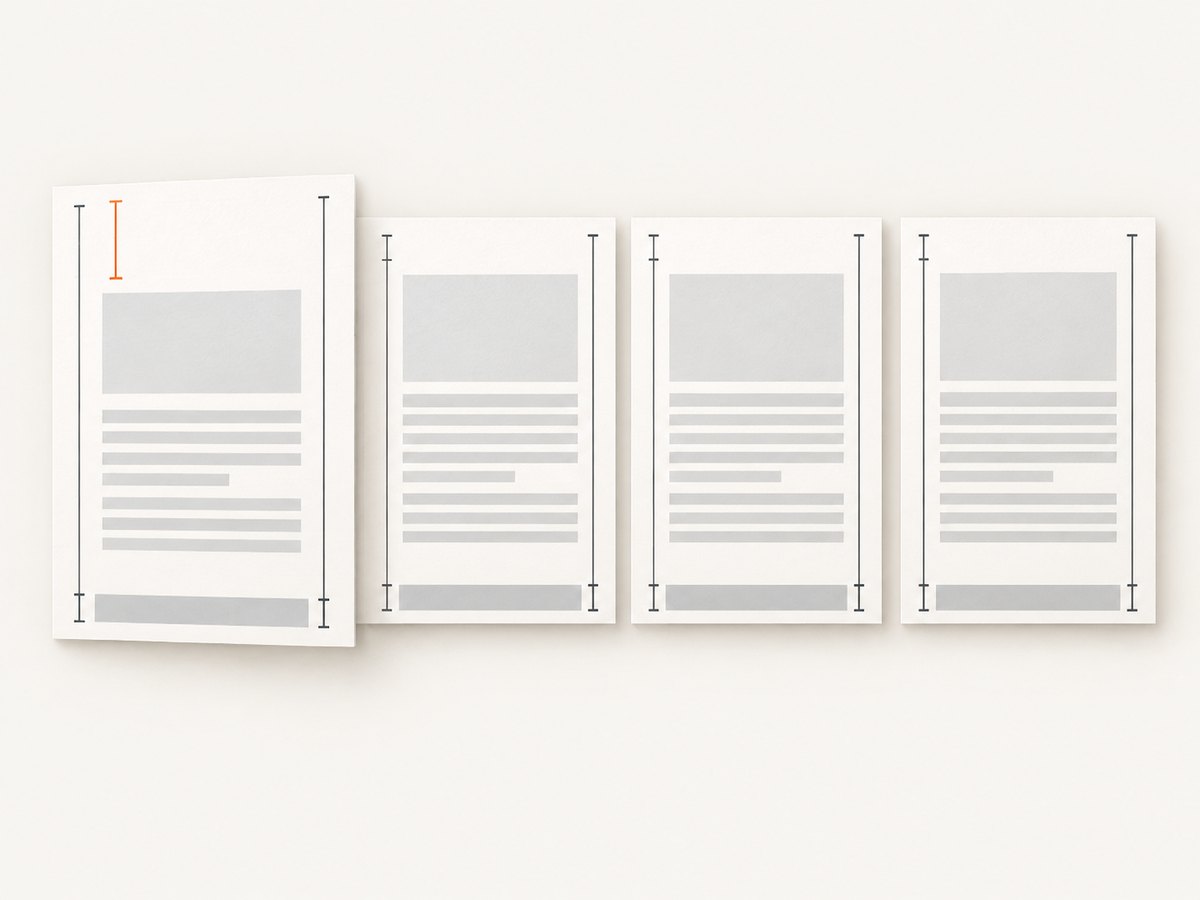
A historical report, Puppeteer issue #2480, describes a closely related symptom: @page:first set all margins to zero while the PDF call used 50px top and bottom margins and 10px left and right margins. The reporter saw the header absent on page one and the footer only on the last page. The report dates to 2018 and used Puppeteer 1.3.0, Ubuntu 14.04, and Node.js 7.6.0. It is a useful reproduction clue, not proof of a current Chromium defect or a verified workaround. Read issue #2480 with that version context in mind.
For each run, change only one of these variables: the first-page CSS margin, the PDF margin object, or page sizing. Avoid changing several at once; otherwise you will not know which change altered the footer.
5. Check page size and print media
Puppeteer’s preferCSSPageSize option controls whether CSS @page size takes priority over width, height, or format. Its documented default is false. When CSS page size is not preferred, the CSS-defined page is scaled to fit the selected paper size. The format option defaults to Letter and takes priority over width and height when set. Make page size explicit in the reproduction rather than allowing an implicit default to complicate comparisons. The relevant fields are documented in PDFOptions.
page.pdf() renders using the print CSS media type. If the intended output should use screen styles, Puppeteer documents calling page.emulateMediaType('screen') before page.pdf(). Use that only when screen media is actually the desired layout; switching media changes which CSS applies and is not, by itself, a footer repair. See the Page.pdf() documentation.
Print output may modify colors. If a visual comparison depends on exact colors, Puppeteer documents -webkit-print-color-adjust for forcing exact color adjustment. That setting does not address footer placement, but it can prevent color changes from distracting during validation.
6. Interpret the result page by page
| Observed output | What to inspect next |
|---|---|
| Footer appears only on the last page | Check whether the footer is actually a document element positioned at the end rather than a Puppeteer footerTemplate. Then remove the first-page rule and compare. |
| Footer disappears when the first-page rule is added | Compare CSS and PDF margins. Remove or simplify one source, regenerate, and record whether the footer returns. |
| Footer is present but too high or low | Check the bottom margin, paper size, and whether CSS page size is being preferred. Keep the template’s own spacing minimal while diagnosing. |
| Header and footer both disappear | Confirm displayHeaderFooter: true and that the templates are non-empty and valid HTML. |
| Only deployed PDFs differ | Compare Puppeteer version, Chromium version, operating system, fonts, and print CSS between environments. |
7. Troubleshooting common failures
The footer is rendered once at the document end
Cause: the footer may be part of the HTML flow rather than the PDF footer template. A normal element near the end of the document is not a repeating page footer. Fix: test with displayHeaderFooter: true and a simple footerTemplate using Puppeteer’s page-number classes. Keep the document footer separate during diagnosis.
The footer is clipped or overlaps content
Cause: the content area may not reserve enough room for the footer, or multiple margin rules may be affecting the page. Fix: make the PDF bottom margin explicit, reduce template height and padding, and test without the first-page rule. Increase reserved space only after confirming the template repeats correctly.
The first page has different spacing than expected
Cause: @page:first and PDF margins are being considered together, or a different page size is active. Fix: test a uniform @page rule first, then reintroduce the first-page rule; make format or CSS page size explicit and compare with preferCSSPageSize set deliberately.
The templates appear blank
Cause: displayHeaderFooter defaults to false, or the template string is empty or malformed. Fix: explicitly set it to true and use minimal template markup. Add injected classes such as pageNumber only after plain text renders.
The output differs after an upgrade
Cause: the browser engine or its print behavior may have changed with the installed Puppeteer/Chromium version. Fix: record both versions, keep the minimal reproduction, and compare output before and after the upgrade. Do not carry forward a workaround from a 2018 issue without checking the versions in use.
The PDF looks like screen layout
Cause: screen media was explicitly emulated, or the inspected stylesheet is not the print stylesheet. Fix: confirm the media type used at PDF generation. By default, page.pdf() uses print media.
8. Reliability, performance, and cost considerations
PDF rendering is sensitive to the exact browser version and document resources. For reliable comparisons, pin the Puppeteer dependency according to your deployment practice, capture the Chromium version in diagnostics, use the same fonts and HTML, and preserve representative PDFs when changing CSS or browser versions. Wait for required page content before generating the PDF; a reproduction that prints before the document is ready can look like a layout bug when it is a loading issue.
Large documents, embedded fonts, images, and complex styles can increase generation time and memory use. Keep the test document small, then add production assets back as needed. Compare page count and footer placement, not just whether a PDF file was emitted. No benchmark or universal performance figure is established by the cited sources.
There is no external per-capture service cost in the local Puppeteer code above, but browser execution still consumes your compute and engineering time. The useful cost control is to diagnose with a minimal fixture first and avoid repeatedly rendering a large production document while changing several settings at once.
Or skip the browser setup
If your goal is a clean screenshot of a web page while investigating its print layout, ScreenshotNeo can return an image through one GET request. It is a website screenshot API and MCP server for developers from ScreenshotNeo. This does not replace Puppeteer’s PDF template controls; use the local PDF workflow above when you need to debug PDF pagination and footer placement.
See the ScreenshotNeo API documentation for request options.
curl -G "https://api.screenshotneo.com/v1/shot" -d access_key=YOUR_API_KEY --data-urlencode url=https://stripe.com -o shot.webpScreenshotNeo accepts cookie and consent banners before capture and removes more than 60 known consent platforms, newsletter popups, and chat widgets; each step can be turned off. Bot checks, blank pages, failed loads, timeouts, and cache hits are not billed, and the response identifies the page verdict and billing status in headers. Its MCP server gives AI agents tools for screenshots, page information, and PDF capture. The Free plan includes 1,000 screenshots a month with no card; paid plans start at $5 for 3,000, and every feature is available on every plan.
Create a free ScreenshotNeo account for 1,000 screenshots a month with no card.
FAQ
Can Puppeteer hide the header only on page one with a documented per-page option?
The documented PDFOptions interface exposes one document-level displayHeaderFooter boolean and templates. It does not document a per-page toggle.
Does issue #2480 prove this is a current Chromium bug?
No. It records a similar symptom in a 2018 environment. Use it to shape a reproduction, not as evidence of current behavior.
Should I use screen media to make the footer repeat?
Only if screen styles are the intended source for the PDF. Puppeteer uses print media by default; changing media can change the whole page layout and is not a general footer fix.
What should I attach to a bug report?
Include a minimal HTML/CSS reproduction, the PDF options, Puppeteer and Chromium versions, operating system, and a generated PDF that shows the affected pages.


