How to Switch Puppeteer’s Focus to a Popup Window
Capture Puppeteer’s popup event, bring the new Page to the front, and avoid confusing tab activation with focusing an element.
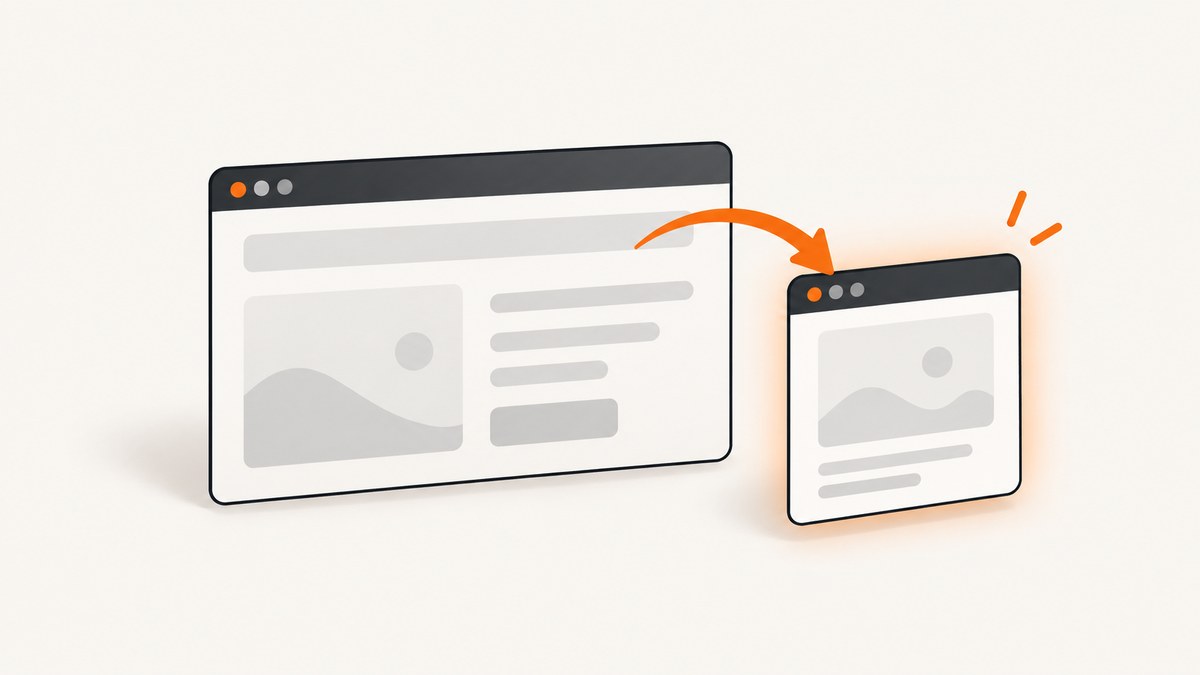
Use the opener page’s popup event, then call bringToFront() on the returned Page. Register the event listener before the click that opens the window so the event cannot be missed:
const popupPromise = page.waitForEvent('popup');
const actionPromise = page.click('a.opens-popup');

const [popup] = await Promise.all([popupPromise, actionPromise]);

if (!popup) {
  throw new Error('The popup event did not provide a Page');
}

await popup.bringToFront();
console.log('Active popup URL:', await popup.url());
bringToFront() activates the popup tab. It is different from page.focus(selector), which focuses a DOM element inside one page. The popup is still part of the opener’s BrowserContext; opening a new window does not create a new browser context.
This guide explains the event pattern, fallbacks for URL-based discovery, element focus, timing, permissions, diagnostics, and production concerns. The API details are based on the official Puppeteer Page API, BrowserContext API, and PageEvents reference.
What “focus” means in Puppeteer
There are two kinds of focus that are easy to mix up:
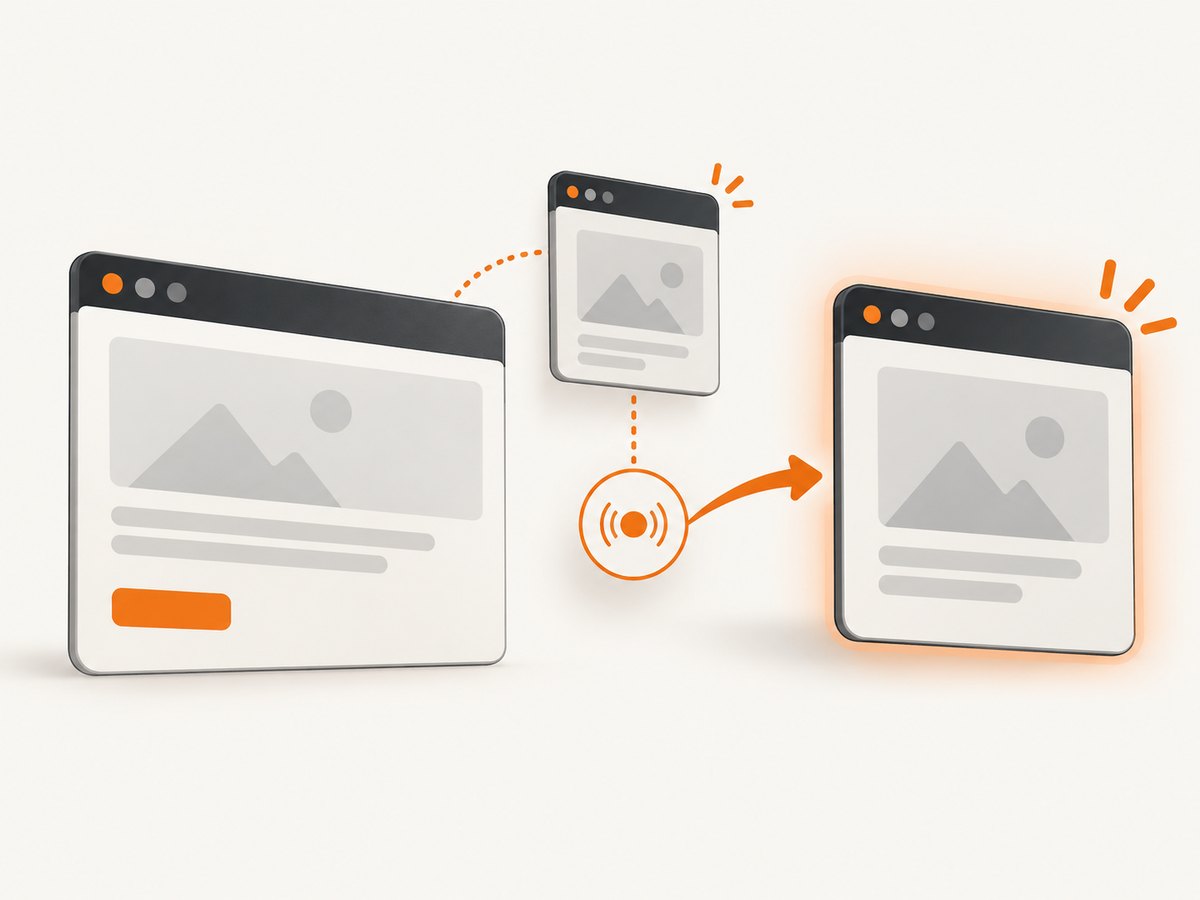
| Goal | API | What it does |
|---|---|---|
| Activate a popup tab or window | popup.bringToFront() |
Makes the popup page the active page for the browser target. |
| Focus an input or other element | popup.focus('input[name=email]') |
Focuses a matching DOM element inside the popup document. |
| Find a newly created target | context.waitForTarget(predicate) |
Waits for a target matching a URL, type, or other property, then converts it to a Page. |
If your next operation is typing into a field, you usually need both operations: identify the popup, bring it to the front, and then focus or click the field. If your code only needs to read the popup DOM, bringing it to the front may not be necessary, but it is harmless when you want the same behavior a user would see.
Preferred method: wait for the popup event
The opener page emits a popup event when it creates a page with mechanisms such as window.open. The event payload is documented as Page | null, so production code should check for null.
Complete runnable example
import puppeteer from 'puppeteer';

const browser = await puppeteer.launch({ headless: true });
try {
  const page = await browser.newPage();
  await page.goto('https://example.com', { waitUntil: 'domcontentloaded' });

  // Replace this selector with the link or button that opens your popup.
  const popupPromise = page.waitForEvent('popup');
  const clickPromise = page.click('a.opens-popup');
  const [popup] = await Promise.all([popupPromise, clickPromise]);

  if (!popup) {
    throw new Error('Popup event returned no Page');
  }

  await popup.bringToFront();
  await popup.waitForNetworkIdle({ idleTime: 500, timeout: 30000 });

  console.log('Popup URL:', await popup.url());
  console.log('Popup title:', await popup.title());

  // Element focus is separate from tab activation.
  await popup.focus('input[name=email]');
  await popup.type('input[name=email]', 'developer@example.com');
} finally {
  await browser.close();
}
Install Puppeteer with npm install puppeteer. Use the Puppeteer version pinned by your project when checking helper names such as waitForEvent; event APIs can vary between versions even though the underlying popup event remains the key concept.
Why the promises are started before the click
Attach the listener first. Starting the wait and the action in the same Promise.all prevents a fast popup from opening before your code begins listening. This is the same wait-before-trigger pattern used throughout Puppeteer’s event-driven APIs.
Listener fallback for versions without waitForEvent
If your installed version does not expose page.waitForEvent, use a one-time event listener:
const popupPromise = new Promise(resolve => page.once('popup', resolve));
const clickPromise = page.click('a.opens-popup');
const [popup] = await Promise.all([popupPromise, clickPromise]);

if (!popup) throw new Error('Popup did not open');
await popup.bringToFront();
Use page.once when one click should produce one popup. Use page.on('popup', handler) when the page can open several windows over its lifetime, and remove the handler when the workflow ends.
Finding a popup with BrowserContext.waitForTarget()
The popup event is the most direct choice when you know the opener. A target predicate is useful when the popup has a distinctive URL, target type, or extension URL.
const context = page.browserContext();
const targetPromise = context.waitForTarget(
  target => target.url() === 'https://example.com/popup'
);

await page.click('a.opens-popup');
const target = await targetPromise;
const popup = await target.page();

if (popup) {
  await popup.bringToFront();
  console.log(await popup.url());
}
BrowserContext.waitForTarget() searches for a matching target, while Target.page() returns a Page for page-like targets or null for other target types.
Make the predicate specific
A broad predicate such as target => target.url().includes('example.com') can match an already-open tab or an unrelated target. Prefer an exact URL, a path plus query condition, or a combination of URL and target type. If the site redirects, match the stable part of the destination and verify the final URL after conversion to a Page.
const targetPromise = context.waitForTarget(target => {
  const url = target.url();
  return target.type() === 'page' && url.startsWith('https://auth.example.com/');
});
Because target discovery can cover more than the opener’s direct popup, use a predicate that identifies the intended page. The official Chrome Extensions guide uses the same general idea for extension popups.
Handling popup timing and failures
Add a timeout
A click can fail to open a window because a popup blocker, permission policy, validation error, or application condition prevented it. Do not leave an automation worker waiting indefinitely. Wrap the event wait with a timeout appropriate to your Puppeteer version:
function withTimeout(promise, ms, message) {
  const timeout = new Promise((_, reject) =>
    setTimeout(() => reject(new Error(message)), ms)
  );
  return Promise.race([promise, timeout]);
}

const popupPromise = withTimeout(
  new Promise(resolve => page.once('popup', resolve)),
  15000,
  'No popup opened within 15 seconds'
);

await Promise.all([popupPromise, page.click('a.opens-popup')]);
const popup = await popupPromise;
if (!popup) throw new Error('Popup event returned null');
await popup.bringToFront();
When using a built-in timeout helper, check the API for the Puppeteer version in your lockfile. A timeout should produce a useful diagnostic that includes the selector, URL, and action that was attempted.
Wait for the popup’s document
The popup event can arrive before its navigation finishes. After bringToFront(), wait for a meaningful readiness condition:
await popup.waitForSelector('#checkout-form', { timeout: 30000 });
// or, for a navigation you control:
await popup.goto('https://example.com/checkout', { waitUntil: 'networkidle2' });
Prefer a stable selector over a fixed delay. Use waitForNetworkIdle only when the application’s requests eventually settle; analytics, streaming, and long polls can keep a network-idle wait open.
Focusing an element inside the popup
After activating the correct Page, call focus(selector) for an input or other focusable element:
await popup.bringToFront();
await popup.waitForSelector('input[name=email]');
await popup.focus('input[name=email]');
await popup.keyboard.type('developer@example.com');
The Page.focus() method rejects when no matching element exists. That usually means the selector is wrong, the popup has not finished navigating, the element is inside an iframe, or the element was replaced by client-side rendering.
Elements inside an iframe
popup.focus() searches the popup’s main document. For an input inside an iframe, obtain the frame and focus there:
const frameHandle = await popup.waitForSelector('iframe#payment');
const frame = await frameHandle.contentFrame();
if (!frame) throw new Error('Payment iframe was not available');
await frame.focus('input[name=cardnumber]');
Cross-origin iframe restrictions apply to page JavaScript, but Puppeteer can work with a frame through its frame APIs when the target is available. Wait for the frame and its field separately.
Inspecting pages and diagnosing the wrong tab
For diagnostics, list pages in the relevant context:
const pagesInContext = await page.browserContext().pages();
for (const [index, candidate] of pagesInContext.entries()) {
  console.log(index, await candidate.url(), candidate.isClosed());
}

const allPages = await browser.pages();
console.log('Pages across browser contexts:', allPages.length);
BrowserContext.pages() lists pages in one context. Browser.pages() lists pages across contexts. Enumeration helps explain what exists, but comparing page lists before and after a click is less direct than listening to the opener’s popup event. Ordinary page listings also do not include every background target.
Avoid using page.target() as a popup detector. The Page API marks it obsolete and directs users toward the popup event for pages spawned by an opener.
Common errors and fixes
| Error or symptom | Likely cause | Fix |
|---|---|---|
popup is undefined |
The event returned null, or the click did not create a page. |
Check the value, add a timeout, and verify the action really calls window.open or creates a new tab. |
| The script hangs waiting for a popup | The listener was attached after the click, or no popup was permitted. | Create the wait before triggering the click and add a bounded timeout. |
| The wrong page is active | Code selected the last item from browser.pages(), which may be an existing tab. |
Use the opener’s popup event or a precise target predicate. |
focus() rejects |
The selector is absent, the page is still loading, or the field is in an iframe. | Wait for the selector, verify the final URL, and use the correct frame. |
Popup opens with about:blank |
The window was created first and navigated later. | Wait for navigation or a content selector before interacting. |
| Target predicate never matches | Redirects, URL encoding, or a wrong target type changed the value. | Log target.url(), match stable URL components, and check target.type(). |
| Popup is immediately closed | The application closed it after a failed validation or completed flow. | Check popup.isClosed() before each action and capture console or page errors. |
Performance, reliability, and security considerations
- Register listeners narrowly. Attach a one-time listener immediately before the action and remove long-lived handlers when a workflow finishes.
- Reuse the browser when appropriate. Launching a browser is expensive; reuse a browser process while creating isolated contexts for separate sessions.
- Keep selectors stable. Data attributes and semantic IDs are less brittle than generated class names.
- Record URLs and timing. Log the opener URL, popup URL, event wait duration, navigation duration, and close state. Avoid logging credentials or full page contents.
- Handle concurrent popups explicitly. If one action can open several windows, collect each event and classify pages by URL or title instead of assuming event order alone.
- Close resources. Close popup pages and browser contexts in cleanup paths so repeated jobs do not accumulate tabs.
- Limit sensitive data. Use the smallest permissions and session scope needed. Do not place tokens in URLs or diagnostic logs.
Or skip the browser setup
If your goal is a reliable image or PDF of a page rather than interactive popup automation, ScreenshotNeo provides a single screenshot API request. It handles the browser capture service for you:
See the ScreenshotNeo API docs for the complete option list and parameter details.
cURL
curl -G "https://api.screenshotneo.com/v1/shot" \
  -d access_key=YOUR_API_KEY \
  --data-urlencode url=https://stripe.com \
  -o shot.webp
Python
import requests

r = requests.get(
    "https://api.screenshotneo.com/v1/shot",
    params={"access_key": "YOUR_API_KEY", "url": "https://stripe.com"},
    timeout=90,
)
r.raise_for_status()
open("shot.webp", "wb").write(r.content)
Node.js
const q = new URLSearchParams({ access_key: 'YOUR_API_KEY', url: 'https://stripe.com' });
const res = await fetch(`https://api.screenshotneo.com/v1/shot?${q}`);
if (!res.ok) throw new Error(`Screenshot failed: ${res.status}`);
const fs = await import('node:fs/promises');
await fs.writeFile('shot.webp', Buffer.from(await res.arrayBuffer()));
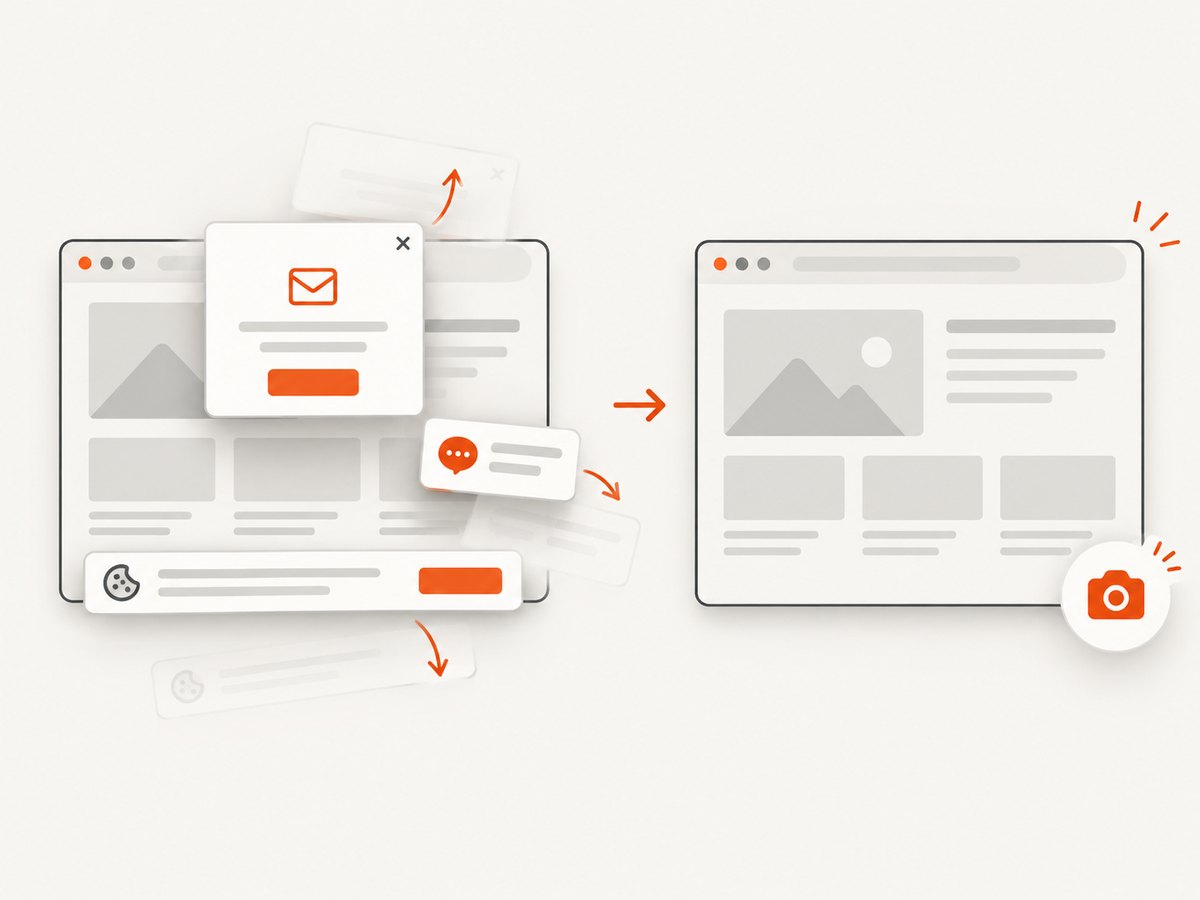
ScreenshotNeo removes cookie and consent banners, newsletter popups, and chat widgets before capture. Bot checks, blank pages, timeouts, failed loads, and cache hits are not billed, and each response reports the result with X-Page-Verdict and X-Billed headers. Its MCP server provides take_screenshot, get_page_info, and capture_pdf tools for Claude, Cursor, and other MCP clients.
For workflows that need more control, options include full-page capture with lazy images loaded, CSS-selector element capture, dark mode, device presets or custom viewports, retina scale, PDF paper size and margins, custom CSS and JavaScript, clicks, selector or network-idle waits, blocked requests, headers, cookies, user agents, authorization, timezone, geolocation, transparent backgrounds, resizing, configurable caching, signed links, asynchronous jobs with signed webhooks, bulk capture of up to 100 URLs per call, and a usage API. Every feature is included on every plan. The Free plan includes 1,000 shots per month without a card; paid plans start at $5 for 3,000 shots.
Create a free ScreenshotNeo account to get 1,000 screenshots each month with no card.
FAQ
Does a popup use a separate BrowserContext?
No. A page opened by another page remains in the opener’s BrowserContext. Use page.browserContext() when you need to inspect related pages.
Do I need bringToFront() before every interaction?
No. Puppeteer can interact with a Page object directly. Call it when you need to activate the tab or make the browser’s visible state match the workflow.
Can I use page.focus() to switch tabs?
No. focus() targets a DOM element. Use popup.bringToFront() for tab activation.
What if the popup opens only after a delayed script?
Start the popup wait before the click, then allow enough time for the application’s delayed action. Add an explicit timeout and collect page or browser console errors when it expires.
Should I choose the popup event or waitForTarget()?
Choose the popup event when the opener is known and directly creates the page. Choose waitForTarget() when a stable URL or target property is the reliable identifier.


