How to Take Full-Page Screenshots of Multiple Websites with Puppeteer
Capture complete pages from many URLs with Puppeteer, including reliable waits, lazy loading, unique files, concurrency limits, and troubleshooting.
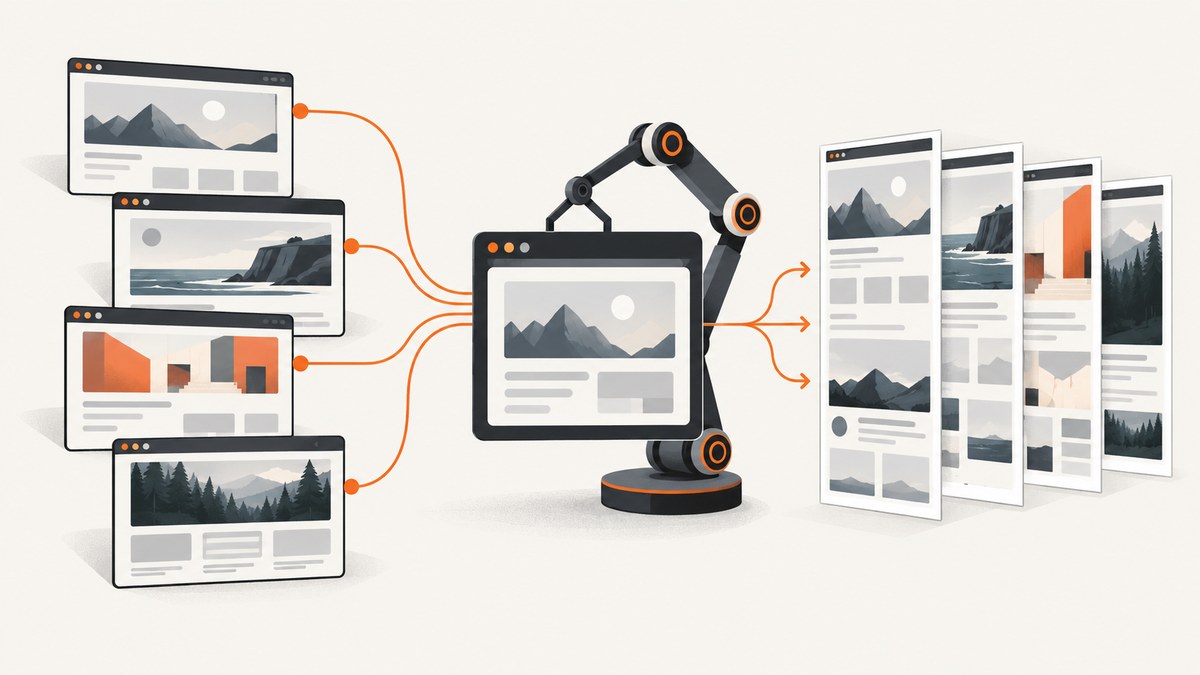
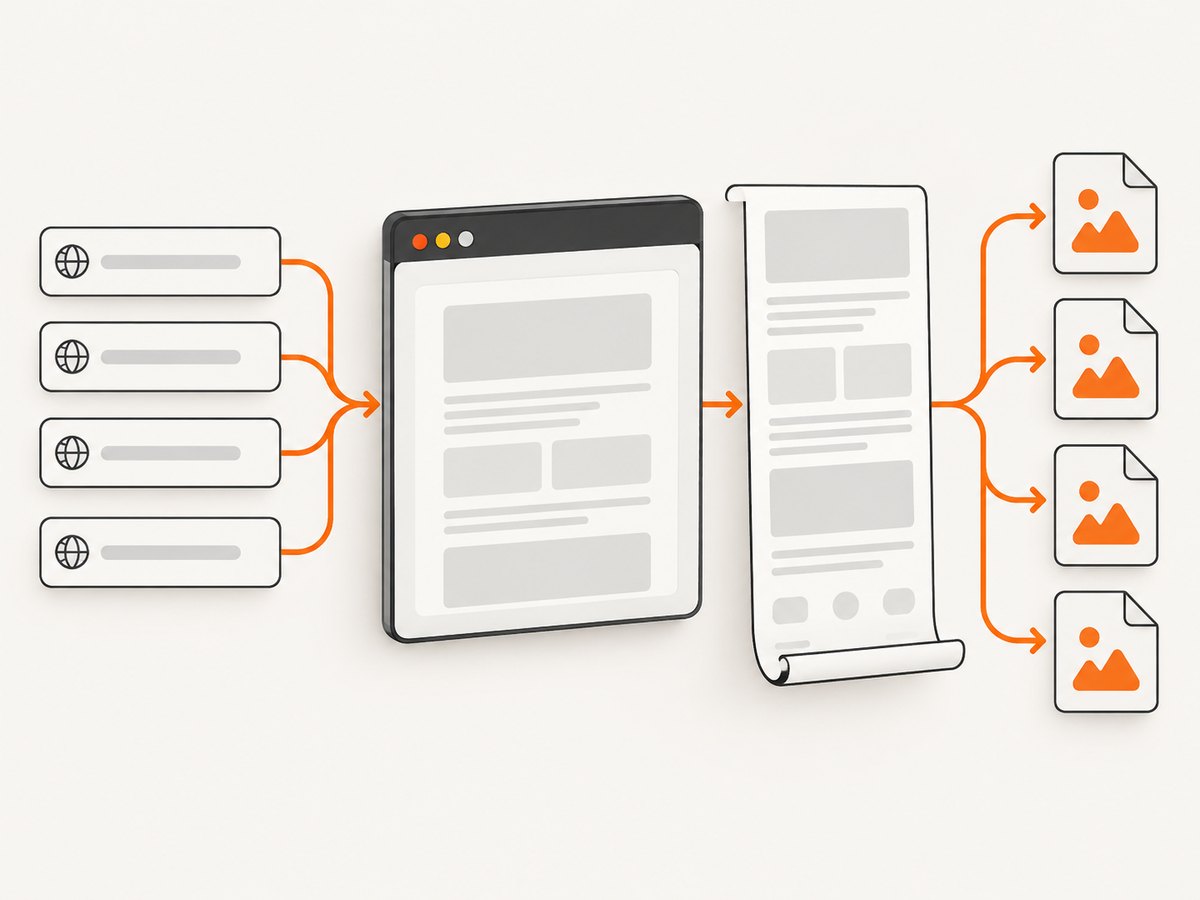
To capture full-page screenshots from multiple websites with Puppeteer, launch one browser, loop through your URL list, create a page for each URL, set a consistent viewport before navigation, wait for the page to become ready, and call page.screenshot({ path, fullPage: true }). Close each page after its image is saved, then close the browser in a final cleanup block.
Puppeteer’s fullPage option captures the full page when set to true; its default is false. The official screenshots guide uses the sequence of launching a browser, navigating with goto, taking a screenshot, and closing the browser. See the Puppeteer screenshots guide and the ScreenshotOptions reference.
1. Complete sequential script
Install Puppeteer and create a script named capture-sites.mjs:
npm install puppeteerimport puppeteer from 'puppeteer';
import path from 'node:path';
import fs from 'node:fs/promises';
const urls = [
'https://example.com',
'https://news.ycombinator.com',
'https://developer.chrome.com'
];
const outputDirectory = path.resolve('screenshots');
function fileNameFor(index, url) {
const host = new URL(url).hostname.replace(/[^a-z0-9.-]/gi, '-');
return path.join(
outputDirectory,
`${String(index + 1).padStart(2, '0')}-${host}.png`
);
}
await fs.mkdir(outputDirectory, { recursive: true });
const browser = await puppeteer.launch();
try {
for (const [index, url] of urls.entries()) {
const page = await browser.newPage();
try {
await page.setViewport({ width: 1440, height: 900, deviceScaleFactor: 1 });
await page.goto(url, {
waitUntil: 'networkidle2',
timeout: 60_000
});
const outputPath = fileNameFor(index, url);
await page.screenshot({
path: outputPath,
fullPage: true,
type: 'png'
});
console.log(`Saved ${url} to ${outputPath}`);
} catch (error) {
console.error(`Failed to capture ${url}:`, error.message);
} finally {
await page.close();
}
}
} finally {
await browser.close();
}Run it with:
node capture-sites.mjsThe numeric prefix and hostname make every destination distinct, so a repeated hostname or a later URL cannot silently overwrite an earlier file. The try/finally blocks also ensure that a timeout on one site does not leave the browser running.
2. Why full-page screenshots sometimes show only the viewport
The default screenshot is the current viewport. You must pass fullPage: true:
await page.screenshot({
  path: 'page.png',
  fullPage: true
});
Set the viewport before goto. Responsive layouts choose breakpoints during navigation, so changing the viewport afterward can produce a layout that was not fully recalculated. A fixed viewport also makes screenshots from different sites comparable.
A full-page capture represents the page state at capture time. Advertisements, animations, personalized modules, consent dialogs, clocks, and live feeds can change between runs. Puppeteer does not promise visual determinism for those elements.
3. Choosing when a page is ready
networkidle2 as a baseline
waitUntil: 'networkidle2' waits until there are no more than two active network connections for a short period. It is a useful general baseline and is the readiness state used in Puppeteer’s screenshot example:
await page.goto(url, { waitUntil: 'networkidle2' });It is not a guarantee that a single-page application has finished rendering. Analytics, WebSockets, polling, or intentionally long requests can keep a page busy forever or delay the capture.
Wait for an application signal
For an application with a known main element, wait for that selector after navigation:
await page.goto(url, { waitUntil: 'domcontentloaded' });
await page.waitForSelector('main article', { timeout: 30_000 });
You can combine a selector with a small delay when a framework renders images or charts shortly after the element appears:
await page.waitForSelector('[data-page-ready="true"]');
await new Promise(resolve => setTimeout(resolve, 500));
Use a delay only when the page has no better readiness signal. A fixed delay increases latency and can still be too short on a slow run.
4. Loading lazy content before capture
Many sites load images when they approach the viewport. A full-page screenshot does not necessarily force every lazy resource to download. Scroll through the document before capturing, then return to the top:
async function loadLazyContent(page) {
  await page.evaluate(async () => {
    await new Promise(resolve => {
      let lastHeight = 0;
      const step = 700;
      const timer = setInterval(() => {
        window.scrollBy(0, step);
        const height = document.documentElement.scrollHeight;
        if (height === lastHeight || window.innerHeight + window.scrollY >= height) {
          clearInterval(timer);
          window.scrollTo(0, 0);
          resolve();
        }
        lastHeight = height;
      }, 100);
    });
  });

  await new Promise(resolve => setTimeout(resolve, 300));
}

await loadLazyContent(page);
await page.screenshot({ path: outputPath, fullPage: true });
This technique triggers scroll-based loaders. It can also trigger sticky navigation, “read more” widgets, or infinite scrolling. If the site continuously appends content, impose a maximum scroll duration or maximum number of steps.
5. Output formats and screenshot options
Puppeteer supports PNG, JPEG, and WebP output through the screenshot options. PNG is lossless and a sensible default for visual comparison. JPEG can reduce file size when slight compression is acceptable; specify a quality from 0 to 100. WebP is useful when your image pipeline supports it.
| Option | Use | Example |
|---|---|---|
path |
Write the image to disk | path: 'site.png' |
fullPage |
Capture the complete document | fullPage: true |
type |
Select image encoding | type: 'jpeg' |
quality |
JPEG/WebP compression quality | quality: 80 |
omitBackground |
Preserve transparency where supported | omitBackground: true |
clip |
Capture a rectangular region | clip: { x: 0, y: 0, width: 800, height: 600 } |
Use deviceScaleFactor in setViewport for high-density output. A factor of 2 produces more pixels and larger files, so account for memory and storage:
await page.setViewport({
  width: 1440,
  height: 900,
  deviceScaleFactor: 2
});
6. Consent dialogs, popups, and sticky controls
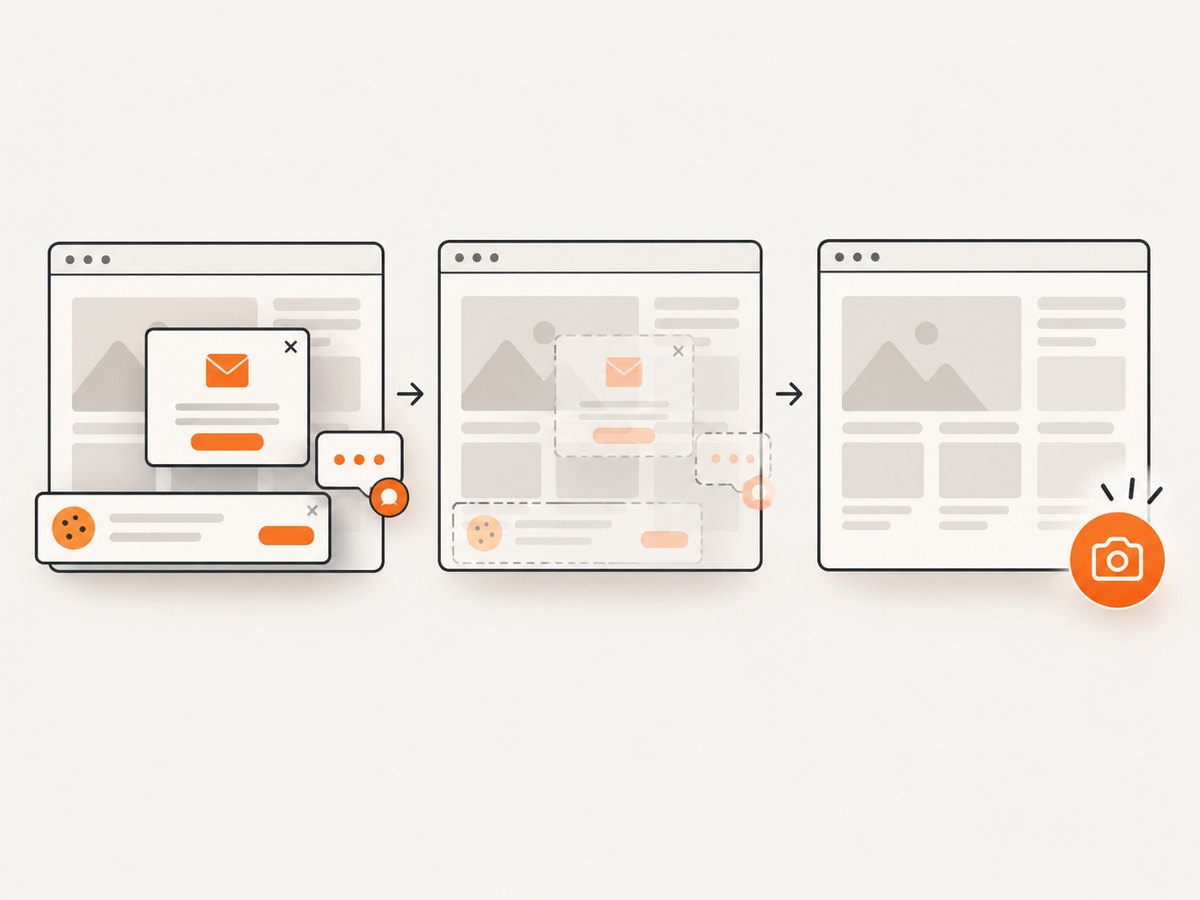
Cookie banners and newsletter modals are part of the live page state. If they cover content, dismiss them before taking the screenshot. The exact selector is site-specific:
const closeSelectors = [
  '[aria-label="Close"]',
  '[data-testid="cookie-accept"]',
  '.cookie-consent button.accept'
];

for (const selector of closeSelectors) {
  const button = await page.$(selector);
  if (button) {
    await button.click().catch(() => {});
    break;
  }
}
For repeatable captures, hide known fixed elements with CSS. Do this only when removing the element is part of your capture policy:
await page.addStyleTag({
  content: `
    .chat-widget,
    .sticky-cookie-banner,
    .newsletter-modal { display: none !important; }
  `
});
Very tall pages and viewport-relative elements need special attention. A fixed header may appear over content on every part of a full-page image. A stitching package such as puppeteer-full-page-screenshot is an option for tall-page and viewport-relative layout problems, but scrolling can also make sticky elements appear repeatedly. Hide or reset those elements when the artifact matters.
7. Capturing many URLs faster
Sequential capture is easiest to reason about and keeps memory use bounded. If throughput matters, create a small, fixed number of pages and process URLs with a concurrency limit. Do not open one page per URL without a cap: each page consumes browser memory, network sockets, and renderer resources.
async function captureOne(browser, item) {
  const page = await browser.newPage();
  try {
    await page.setViewport({ width: 1440, height: 900 });
    await page.goto(item.url, { waitUntil: 'networkidle2', timeout: 60_000 });
    await page.screenshot({ path: item.outputPath, fullPage: true });
    return { ...item, ok: true };
  } catch (error) {
    return { ...item, ok: false, error: error.message };
  } finally {
    await page.close();
  }
}

async function mapWithLimit(items, limit, worker) {
  const results = [];
  let next = 0;
  async function run() {
    while (true) {
      const index = next++;
      if (index >= items.length) return;
      results[index] = await worker(items[index]);
    }
  }
  await Promise.all(Array.from({ length: limit }, run));
  return results;
}

const items = urls.map((url, index) => ({
  url,
  outputPath: fileNameFor(index, url)
}));
const results = await mapWithLimit(items, 3, item => captureOne(browser, item));
Start with a low limit such as two or three, then observe memory, CPU, network bandwidth, and output ordering in your deployment environment. Keep the input index in each result so a completion race cannot change which file belongs to which URL.
8. Common errors and fixes
| Symptom | Likely cause | Fix |
|---|---|---|
| Only the visible viewport is saved | fullPage is missing or false |
Pass fullPage: true. |
| Navigation timeout | The site keeps requests open or is slow | Raise timeout, use domcontentloaded, then wait for a page-specific selector. |
| Images are blank | Lazy loading has not been triggered | Scroll the document, wait briefly, then capture. |
| Files overwrite each other | Every URL uses the same path | Include an index and sanitized hostname in the filename. |
| Cookie banner covers content | Consent UI remains open | Click a site-specific consent control or hide it with an explicit CSS rule. |
| Browser process remains after failure | Cleanup is outside a finally block |
Close each page and the browser in nested finally blocks. |
| Repeated sticky header in a stitched image | Fixed UI is visible during scrolling | Hide or reset fixed elements, or use a capture method designed for that layout. |
| Different runs look different | Animations, ads, time-based or personalized content | Disable animations where allowed, fix locale/timezone inputs, and document that captures reflect runtime state. |
9. Reliability, performance, and cost planning
- Retries: Retry transient navigation failures with a limit and backoff. Do not retry indefinitely; a bot check or permanently blocked host will not become available through repeated requests.
- Isolation: Close every page in
finally. For untrusted or unusually heavy sites, periodically restart the browser after a batch. - Observability: Log URL, start time, navigation duration, screenshot duration, output path, and error text. Keep failed URLs separate from successful output.
- Storage: Full-page PNGs can be large, especially with a high device scale factor. JPEG or WebP can lower storage and transfer costs.
- Scheduling: Sequential processing minimizes resource spikes. Bounded concurrency improves throughput only when the host and machine can handle it.
- Access: Respect authentication, robots policies, rate limits, and terms that apply to the sites you capture. Add custom headers or a logged-in session only when you are authorized.
10. Or skip the browser setup
If you need screenshots in a job, webhook, CMS, or AI workflow without maintaining Chromium, ScreenshotNeo provides a GET endpoint that returns PNG, JPEG, WebP, or PDF. Its capture options include full-page screenshots with lazy images loaded, element selection, dark mode, device presets, custom viewports, retina scale, custom CSS and JavaScript, selector or network-idle waits, request blocking, cookies, headers, authentication, timezone, geolocation, caching, signed links, asynchronous jobs, bulk capture, and a usage API. The ScreenshotNeo documentation lists the parameters and OpenAPI specification.
cURL:
curl -G "https://api.screenshotneo.com/v1/shot" -d access_key=YOUR_API_KEY --data-urlencode url=https://stripe.com -o shot.webpPython:
import requests
r = requests.get("https://api.screenshotneo.com/v1/shot", params={"access_key": "YOUR_API_KEY", "url": "https://stripe.com"}, timeout=90)
open("shot.webp", "wb").write(r.content)
Node.js:
const q = new URLSearchParams({ access_key: 'YOUR_API_KEY', url: 'https://stripe.com' });
const res = await fetch(`https://api.screenshotneo.com/v1/shot?${q}`);
const buffer = Buffer.from(await res.arrayBuffer());
require('node:fs').writeFileSync('shot.webp', buffer);
ScreenshotNeo accepts consent banners before capture and removes more than 60 known consent platforms, newsletter popups, and chat widgets; each step can be turned off. Bot checks, blank pages, timeouts, failed loads, and cache hits are not billed, and the response identifies the result with X-Page-Verdict and X-Billed headers. Its MCP server gives Claude, Cursor, and other MCP clients take_screenshot, get_page_info, and capture_pdf tools. The Free plan includes 1,000 screenshots per month with no card; paid plans start at $5 for 3,000 screenshots. Create a free ScreenshotNeo account.
11. Short FAQ
Can one Puppeteer browser capture several websites?
Yes. A browser can contain multiple Page instances. Reuse one browser and create or reuse pages for each URL, closing pages after their captures.
Should I use networkidle0 instead of networkidle2?
Only when the page genuinely reaches zero active connections. Sites with analytics, polling, or sockets may never satisfy it, so networkidle2 or a selector-based readiness check is usually more practical.
How do I save each screenshot to a different file?
Generate the path from the loop index and a sanitized hostname. Never use one constant filename for a list of URLs.
Why does a full-page image contain a fixed header more than once?
Scrolling-based capture can include viewport-fixed elements in multiple sections. Hide the fixed element or use a stitching approach that handles viewport-relative UI.
Is Puppeteer or an API better for scheduled batches?
Puppeteer gives you browser-level control and is useful when you need custom code, sessions, or page interaction. An API removes browser installation and maintenance; ScreenshotNeo also handles consent UI, billing verdicts, bulk jobs, caching, and MCP access.


