How to Capture Full-Page Screenshots with Puppeteer and Chrome DevTools Protocol
Capture an entire page with Puppeteer’s `fullPage` option or Chrome DevTools Protocol. Learn how to wait for content, choose formats, handle tall pages, and troubleshoot failures.

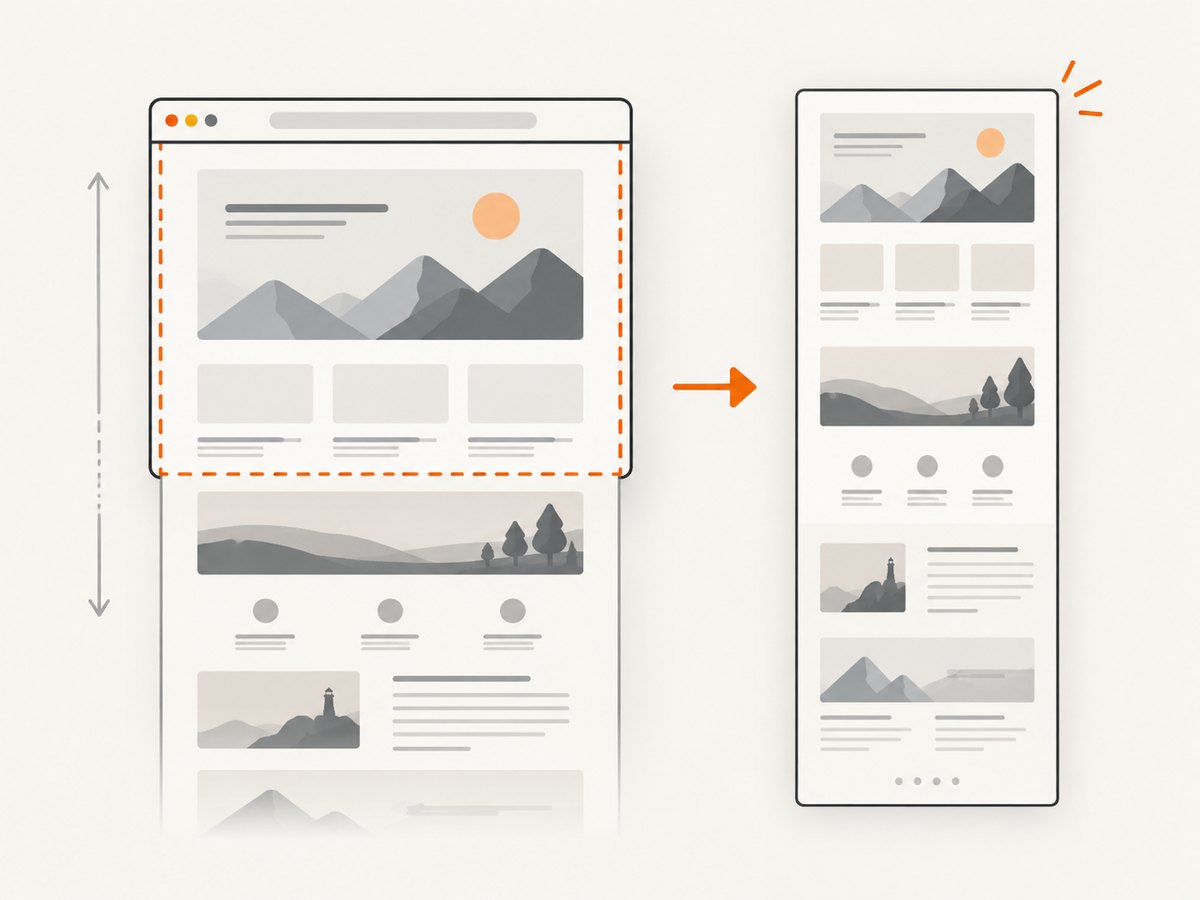
To capture a full-page screenshot with Puppeteer, call page.screenshot({ fullPage: true }). Set path to save the image, and choose type as png, jpeg, or webp. At the Chrome DevTools Protocol (CDP) level, use Page.captureScreenshot with captureBeyondViewport: true; CDP returns base64-encoded image data that your script must decode and write.
For most automation, use Puppeteer’s higher-level method: it is concise and works naturally with navigation and page waits. Use CDP when you need protocol-level capture parameters such as a clip rectangle or when you already manage a CDP session. See the Puppeteer screenshot options, CDP Page.captureScreenshot, and the Puppeteer screenshot guide.
1. Capture a full page with Puppeteer
This runnable ES module launches a browser, sets a predictable viewport, waits for navigation to settle, and saves a PNG. Install Puppeteer in your project first with npm install puppeteer, then save the code as screenshot.mjs and run node screenshot.mjs.
import puppeteer from 'puppeteer';

const browser = await puppeteer.launch();
try {
  const page = await browser.newPage();
  await page.setViewport({
    width: 1440,
    height: 900,
    deviceScaleFactor: 1
  });

  await page.goto('https://example.com', {
    waitUntil: 'networkidle2',
    timeout: 60000
  });

  await page.screenshot({
    path: 'full-page.png',
    fullPage: true,
    type: 'png'
  });
} finally {
  await browser.close();
}
fullPage: true is Puppeteer’s convenience option for capturing beyond the viewport. It does not mean every application has finished rendering: network activity can become quiet before a chart, lazy image, web font, or client-side component is ready. Add waits for the content your page actually needs, as described below.
2. Wait for the content you need
Navigation completion and visual readiness are related but different. Puppeteer’s guide demonstrates waitUntil: 'networkidle2' for navigation. That is a useful baseline, but pages with polling, analytics, long-running requests, or deferred rendering may need another strategy.
Wait for a known element
await page.goto('https://example.com/report', {
  waitUntil: 'domcontentloaded',
  timeout: 60000
});
await page.waitForSelector('[data-report-ready="true"]', {
  timeout: 20000
});
await page.screenshot({ path: 'report.png', fullPage: true });
Use a selector that appears only when the relevant content is ready. If the page has no reliable readiness marker, wait for a specific image or component instead of adding an arbitrary long delay.
Wait for images and fonts
For pages where image completeness matters, a page-side wait can check that currently present images have loaded. Font readiness is also available through the document font set. These checks cannot force application content that has not yet been inserted into the document to appear, so first wait for the application’s own content marker where possible.
await page.waitForFunction(() => {
  const images = Array.from(document.images);
  return images.every((image) => image.complete);
}, { timeout: 20000 });

await page.evaluate(() => document.fonts.ready);
await page.screenshot({ path: 'complete.png', fullPage: true });
Lazy-loaded images may not load until their region approaches the viewport. A full-page screenshot does not guarantee that every site’s lazy-loading logic has been triggered. If image completeness matters, scroll through the page in steps and wait for images to load, or use an application-specific mechanism to make content visible before capture.
3. Capture with Chrome DevTools Protocol
CDP exposes the lower-level Page.captureScreenshot command. In Puppeteer, create a CDP session from a page, enable the Page domain, request the capture, decode the returned base64 string, and write the bytes to disk.
import fs from 'node:fs/promises';
import puppeteer from 'puppeteer';

const browser = await puppeteer.launch();
try {
  const page = await browser.newPage();
  await page.setViewport({ width: 1440, height: 900, deviceScaleFactor: 1 });
  await page.goto('https://example.com', { waitUntil: 'networkidle2' });

  const client = await page.createCDPSession();
  await client.send('Page.enable');
  const { data } = await client.send('Page.captureScreenshot', {
    format: 'png',
    captureBeyondViewport: true
  });

  await fs.writeFile('full-page-cdp.png', Buffer.from(data, 'base64'));
  await client.detach();
} finally {
  await browser.close();
}
Puppeteer documents page.createCDPSession() for direct protocol access. In ordinary scripts, the high-level fullPage option is simpler. CDP is useful when you need its explicit capture parameters or want to mix high-level navigation and waits with a direct protocol command. Puppeteer CDP session reference.
4. Choose format, quality, and capture region
| Need | Setting | Notes |
|---|---|---|
| Lossless screenshots, text, or visual diffs | type: 'png' |
PNG is the default format in Puppeteer. |
| Photographic image with a smaller output | type: 'jpeg', quality |
Quality is a JPEG control; use a value from 0 to 100. |
| WebP output | type: 'webp' |
Supported by Puppeteer screenshot options. |
| Only a bounded region | clip |
Specify the rectangle to capture rather than the whole page. |
| Transparent background | omitBackground: true |
Supported for screenshot capture where the page/browser output permits transparency. |
Puppeteer example for JPEG:
await page.screenshot({
  path: 'page.jpg',
  fullPage: true,
  type: 'jpeg',
  quality: 82
});
CDP accepts a format of jpeg, png, or webp. Its optional quality applies to JPEG. A clip is a rectangle with x, y, width, height, and optional scale. For an element-specific capture, Puppeteer also provides ElementHandle.screenshot(). Refer to the ScreenshotOptions reference for option details and constraints.
CDP clip example
const { data } = await client.send('Page.captureScreenshot', {
  format: 'png',
  clip: { x: 0, y: 0, width: 900, height: 600, scale: 1 }
});
await fs.writeFile('region.png', Buffer.from(data, 'base64'));
A clip is a fixed rectangle, not a selector. To capture a specific element, locate it in Puppeteer and use its element screenshot method. Avoid combining a region-sized clip with assumptions that the entire document will be included.
5. Understand dimensions and tall-page behavior
The viewport determines the browser’s layout width and height. Device scale affects the relationship between CSS pixels and output pixels, so set both deliberately when pixel dimensions matter. A wide viewport can change responsive breakpoints and therefore the page content; it is not just a resolution setting.
Very tall pages can produce large image files and consume substantial browser memory. If you only need a section, capture that element or a clip instead. For long reports, consider capturing sections separately and stitching them in a later image-processing step. That adds work but can avoid a single extreme bitmap. Be aware that fixed or sticky headers may appear unexpectedly or seem repeated as the browser captures the page; inspect the target site’s behavior and hide or adjust those elements with page-specific logic when appropriate.
Full-page behavior depends on browser capture behavior and page layout. A page that continuously grows while loading, animates, or changes content during capture may not yield a stable image. Disable animations or freeze dynamic content in a controlled test environment if repeatability is required.
6. Make captures repeatable
- Choose a deterministic viewport. Set width, height, and device scale before navigation or capture.
- Wait for application readiness. Prefer a content-specific selector; use network idle as a navigation baseline.
- Resolve overlays. Handle consent dialogs, newsletter popups, or chat widgets that cover the page.
- Account for deferred assets. Wait for images and fonts that matter, and trigger lazy loading when necessary.
- Choose the right boundary. Use full-page for the document, an element screenshot for a component, or CDP clip for a rectangle.
- Use a suitable format. PNG for crisp text and diffs; JPEG with a quality value when photographic output size matters.
- Close resources. Put browser cleanup in a
finallyblock so failures do not leave a browser process running.
For screenshot comparisons, keep browser version, viewport, device scale, page state, and timing consistent. This is a reproducibility practice, not a guarantee that dynamic sites will render identically across runs.
7. Troubleshooting
| Symptom | Likely cause | Fix |
|---|---|---|
| Screenshot contains only the visible viewport | The call omitted Puppeteer’s fullPage option, or the direct CDP call omitted beyond-viewport capture. |
Set fullPage: true in Puppeteer or captureBeyondViewport: true in CDP. |
| Blank or partially rendered content | Capture ran before client rendering, fonts, images, or charts were ready. | Wait for a content-specific selector and any required assets; do not rely on navigation completion alone. |
| Navigation times out on an active site | Long-lived requests or ongoing network activity prevent the chosen idle condition. | Use a less restrictive navigation condition such as domcontentloaded, then wait for the specific page content you need. |
| Lazy images are missing | The site loads images only as their regions approach the viewport. | Scroll through the document to trigger loading and wait for image completion before capture. |
| Sticky header obscures or repeats | Fixed-position layout interacts with a tall capture. | Test the page’s behavior; hide the header or change its styling for capture if the result requires it. |
| CDP image cannot be opened | The returned data is base64 text and was written as ordinary text or decoded incorrectly. | Convert it with Buffer.from(data, 'base64') before writing bytes. |
| Transparent output is opaque | The page background or capture context does not allow the expected transparency. | Try omitBackground: true and verify the page background and supported output format. |
| Capture is huge or slow | The document is unusually tall, the device scale is high, or the page contains large assets. | Reduce scale where suitable, choose JPEG for photographic output, or capture only the needed regions. |
8. Performance, reliability, and cost
A local Puppeteer capture requires a browser runtime and the compute and memory to render the target page. Time is spent launching or reusing a browser, navigating, waiting for content, rendering, and encoding the image. Reusing a browser process can reduce repeated launch work in a service, but isolate pages and manage process health deliberately. Excessive parallel captures compete for CPU and memory; set a concurrency limit based on the environment and observe failures and resource use.
Network-idle waiting can improve completeness for ordinary pages, but it is not a universal readiness signal. A selector wait is more targeted; a fixed delay is simple but can be wasteful and still fail when a page is slower than expected. Use explicit navigation and selector timeouts, log the URL and failure stage, and close pages or the browser in cleanup paths. Retry only transient failures and avoid retry loops that multiply load on a struggling target.
There is no single cost per screenshot for a DIY script: it depends on the machine, browser runtime, concurrency, and operational effort. Hosted screenshot APIs trade local browser setup for an API charge, so compare actual usage, output needs, and failure billing rules. No external benchmark is implied here.
9. Or skip the browser setup
ScreenshotNeo is a website screenshot API and MCP server from Yorker Media. One GET request returns an image or PDF; see the ScreenshotNeo website and API documentation.

curl -G "https://api.screenshotneo.com/v1/shot" \
  -d access_key=YOUR_API_KEY \
  --data-urlencode url=https://stripe.com \
  -o shot.webp
import requests
r = requests.get(
"https://api.screenshotneo.com/v1/shot",
params={"access_key": "YOUR_API_KEY", "url": "https://stripe.com"},
timeout=90,
)
r.raise_for_status()
open("shot.webp", "wb").write(r.content)const q = new URLSearchParams({
access_key: 'YOUR_API_KEY',
url: 'https://stripe.com'
});
const res = await fetch(`https://api.screenshotneo.com/v1/shot?${q}`);
if (!res.ok) throw new Error(`Screenshot request failed: ${res.status}`);
await Bun.write('shot.webp', res);Replace YOUR_API_KEY with an API key and change the target URL. The service removes cookie banners, newsletter popups, and chat widgets before the shot; each step can be turned off. Bot checks, blank pages, and failed loads are never billed, and response headers report the page verdict and billing status. Its MCP server lets AI agents use screenshot tools. The free plan includes 1,000 screenshots a month with no card; paid plans start at $5 for 3,000 shots. Sign up for 1,000 free screenshots a month, with no card.
10. Frequently asked questions
Is fullPage a Chrome DevTools Protocol parameter?
No. It is Puppeteer’s convenience option. CDP uses Page.captureScreenshot parameters such as captureBeyondViewport and clip.
Can I capture an element instead of the full document?
Yes. Puppeteer supports screenshots through an element handle. Use that for a component; use a clip when you need a coordinate-based rectangle.
Which format should I choose?
Use PNG when preserving text and exact pixels matters. Use JPEG with a quality setting for photographic images where a smaller file is useful. WebP is also an available screenshot format.
Does full-page capture wait for every image?
No. It captures page content according to the current browser state. Wait for application content and trigger lazy-loaded assets when completeness matters.
Source note: Puppeteer’s documentation describes its high-level screenshot options, element screenshots, navigation waits, and CDP session support. The CDP protocol reference defines the capture parameters and base64 result. See the linked primary references above for version-specific details.