How to Take a Full-Page Screenshot of a Single-Page App With Puppeteer
Capture a complete single-page app with Puppeteer. Set a stable viewport, wait for app-specific readiness, handle lazy content, and troubleshoot missing sections.

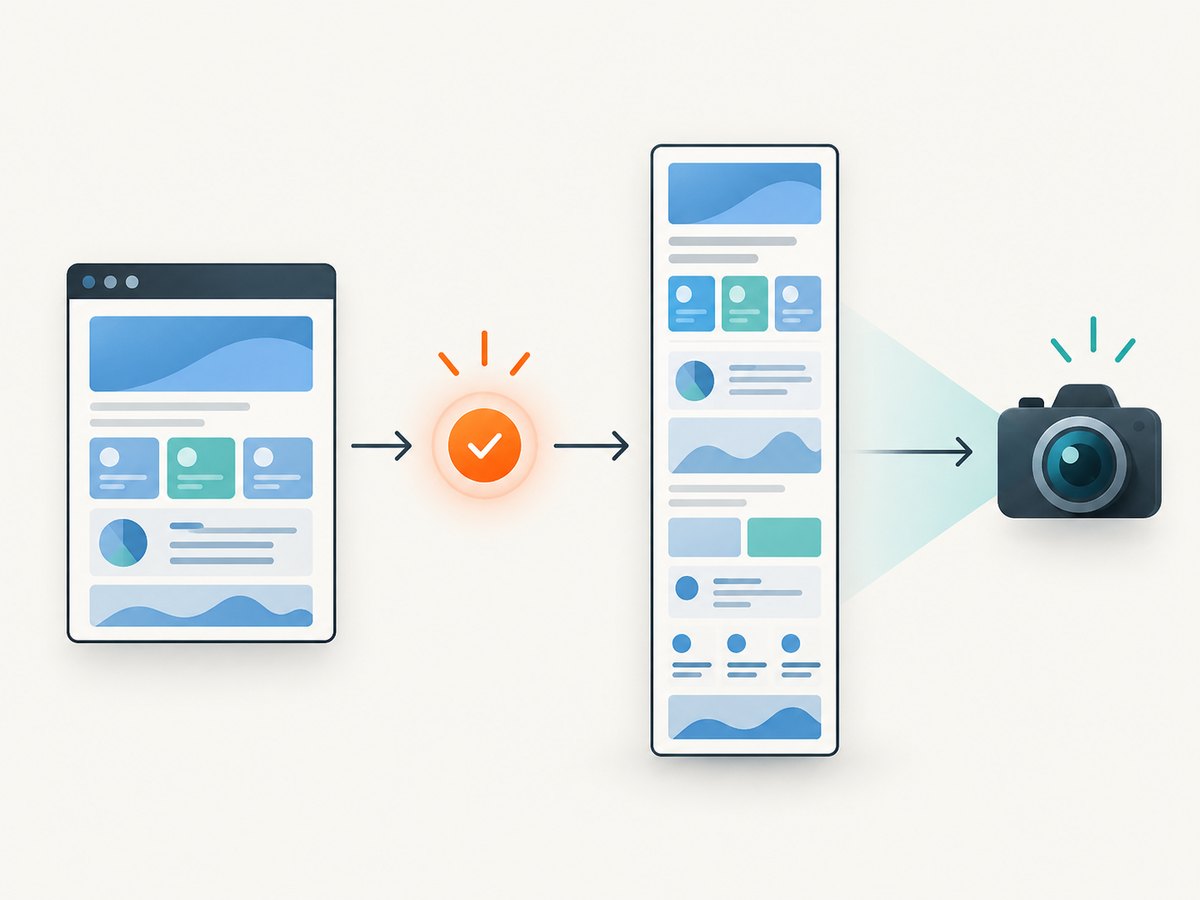
Use Puppeteer’s page.screenshot({ fullPage: true }) to capture the complete document in a single-page app (SPA). The important part is making sure the app has rendered the content you need before taking the screenshot: navigation finishing does not necessarily mean that API data, client-side rendering, or lazy-loaded sections are ready.
This guide uses an app-specific readiness selector, a fixed viewport, and explicit lazy-content handling. The examples assume Node.js and a current Puppeteer installation. For option details, see the Puppeteer screenshots guide and Page API.
1. Install Puppeteer and prepare the page
In a new project, install Puppeteer. Its package includes a compatible browser download during installation in typical setups. If your environment uses a separately installed Chrome or Chromium, configure the executable path as shown later.
mkdir spa-screenshot
cd spa-screenshot
npm init -y
npm install puppeteer
Save the following as screenshot.mjs. Replace the example URL and readiness selector with values from your app. The marker should appear only when the data and UI needed in the capture are ready.
import puppeteer from 'puppeteer';

const url = 'https://example.com/app';
const output = 'spa-full-page.png';
const readySelector = '[data-app-ready="true"]';

const browser = await puppeteer.launch({ headless: true });
try {
  const page = await browser.newPage();
  await page.setViewport({
    width: 1440,
    height: 900,
    deviceScaleFactor: 1,
  });
  page.setDefaultNavigationTimeout(60_000);
  page.setDefaultTimeout(15_000);

  await page.goto(url, { waitUntil: 'domcontentloaded' });
  await page.waitForSelector(readySelector, { visible: true });
  await page.screenshot({ path: output, fullPage: true });
  console.log(`Saved ${output}`);
} finally {
  await browser.close();
}
Run it with node screenshot.mjs. The screenshot is a PNG of the page’s full document, not just the visible 1440 × 900 viewport. Choosing a viewport matters: an SPA may render a different navigation, grid, or column layout at a different width.
2. Choose a readiness condition that matches your app
page.goto() waits for a navigation milestone; it cannot know that your app’s asynchronous data and client-side rendering are complete. Puppeteer supports navigation wait conditions such as load, domcontentloaded, networkidle0, and networkidle2. Network-idle conditions can be useful, but long polling, analytics, or other persistent requests may prevent idle, and an app can render important content after the network briefly becomes quiet. Prefer a signal tied to the interface you intend to capture.
Wait for a stable selector
If you control the app, add a marker after the data and components needed for the capture have rendered. For example, set data-app-ready="true" on a root element only after the view is ready. Then wait for that selector in Puppeteer. Use visible: true when a matching but hidden element should not count as ready.
Wait for an app-owned JavaScript flag
If your app exposes a readiness flag, wait for it with waitForFunction(). The flag name and the point where it becomes true are application-specific.
await page.goto(url, { waitUntil: 'domcontentloaded' });
await page.waitForFunction(() => window.__APP_READY__ === true, {
  timeout: 30_000,
});
await page.screenshot({ path: 'spa-full-page.png', fullPage: true });
For TypeScript projects, the page callback may need a global type declaration for window.__APP_READY__; at runtime, the flag must still be set by the application.
When to use network idle
Use a network-idle wait when the page’s request behavior makes it a useful approximation of completion. You can combine it with an app-specific signal:
await page.goto(url, { waitUntil: 'networkidle2', timeout: 60_000 });
await page.waitForSelector('[data-app-ready="true"]', {
  visible: true,
  timeout: 30_000,
});
If network idle never occurs, try a less strict navigation milestone and wait for the app’s selector instead. Avoid adding arbitrary sleep as the only readiness check: it can be unnecessarily slow on fast runs and still too short on slow ones.
3. Load content that appears below the fold
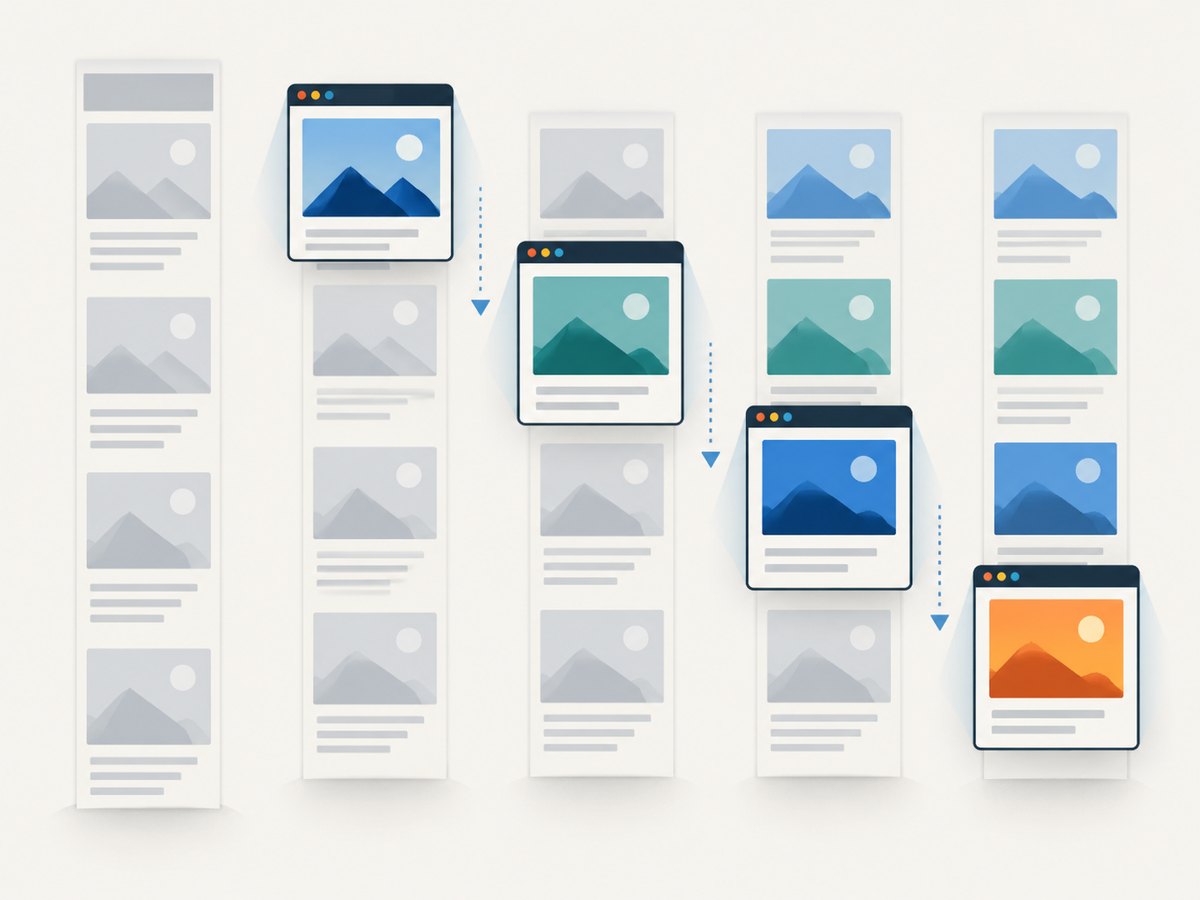
Full-page capture covers the document’s scrollable content, but it does not guarantee that every lazy-loaded image or section has been fetched and rendered. Many pages load those items only after they approach the viewport. Scroll in controlled steps, allowing the app to react, then wait for a known final item or image condition before taking the screenshot.
async function scrollThroughPage(page) {
  await page.evaluate(async () => {
    const step = Math.max(window.innerHeight * 0.8, 400);
    let previousHeight = 0;
    let stablePasses = 0;

    while (stablePasses < 3) {
      const height = document.documentElement.scrollHeight;
      window.scrollTo(0, Math.min(window.scrollY + step, height));
      await new Promise(resolve => setTimeout(resolve, 250));

      const newHeight = document.documentElement.scrollHeight;
      if (newHeight === previousHeight && window.scrollY + window.innerHeight >= newHeight) {
        stablePasses++;
      } else {
        stablePasses = 0;
      }
      previousHeight = newHeight;
    }
    window.scrollTo(0, 0);
  });
}

await scrollThroughPage(page);
await page.waitForSelector('[data-last-section-loaded="true"]', {
  timeout: 15_000,
});
await page.screenshot({ path: 'spa-full-page.png', fullPage: true });
The repeated height check is a practical stopping heuristic, not proof that every app has finished loading. If the app exposes a last-section marker or a known item count, wait for that directly. Some interfaces append content indefinitely; set a maximum scroll distance or iteration count for those pages so the job cannot scroll forever.
Wait for images when image completeness matters
After scrolling has triggered lazy image requests, you can wait for currently present images to finish loading. Broken images should be detected separately if they matter to your output.
await page.waitForFunction(() => {
  return [...document.images].every(img => img.complete);
}, { timeout: 20_000 });
complete also becomes true for a failed image request, so this condition means image loading settled, not that every image succeeded. For a strict pipeline, inspect each image’s naturalWidth and report failures.
4. Make the capture deterministic
For repeatable screenshots, control the viewport, device scale, browser environment, and page state. Puppeteer’s setViewport() configures width, height, and device scale factor. A device scale factor of 1 produces CSS-pixel scale; use a larger value when you explicitly need a higher-resolution raster capture. Larger dimensions and scale factors increase image size and can increase capture time and memory use.
- Viewport: pick a width and height matching the layout you want; responsive breakpoints change content arrangement.
- Device scale: set
deviceScaleFactordeliberately for consistent output dimensions. - Fonts: wait for web fonts when typography must be settled:
await page.evaluate(() => document.fonts.ready). - Animations: app-specific CSS or JavaScript may be needed to pause transitions and animated content before capture.
- Scroll position: return to the top after triggering lazy content if sticky elements or scroll-dependent state affect the result.
Dynamic timestamps, personalized data, rotating banners, and randomized content can still make two captures differ. Freeze such data in a test environment or make the page state deterministic when comparing screenshots.
5. Full page, viewport, element, and PDF output
| Goal | Puppeteer approach | What to know |
|---|---|---|
| Visible viewport image | page.screenshot({ path: 'view.png' }) |
Captures the current viewport, not the entire document. |
| Entire document image | page.screenshot({ path: 'full.png', fullPage: true }) |
Captures the page’s full document length. |
| One rendered element | const el = await page.$('.card'); await el.screenshot({ path: 'card.png' }) |
Useful for a component; wait for and locate the intended element first. |
| Printable document | page.pdf({ path: 'page.pdf' }) |
PDF generation uses print CSS by default, so it is not a substitute for a raster screenshot. |
For element capture, handle a missing selector explicitly rather than dereferencing a null handle:
const element = await page.waitForSelector('.report-card', { visible: true });
if (!element) throw new Error('Report card was not found');
await element.screenshot({ path: 'report-card.png' });
6. Production reliability and runtime options
Always close the browser, including when navigation, waiting, or capture fails. Put a limit on the overall job as well as individual waits; navigation timeouts do not necessarily bound every subsequent operation. In a queue or service, isolate each capture’s page state, record the target URL and failing stage, and clean up browser processes when a worker is stopped.
For a managed Chrome installation, Puppeteer can launch a specified executable, subject to the browser and host’s compatibility:
const browser = await puppeteer.launch({
  headless: true,
  executablePath: process.env.CHROME_PATH,
  args: ['--no-sandbox'],
});
Only use --no-sandbox when required by the runtime and with an appropriate isolation model; it changes Chromium’s security boundary. Containerized CI may also require system libraries or a browser build that matches Puppeteer. The library’s default launch arguments are usually preferable when the environment permits them.
For many URLs, reuse a browser process and create a fresh page per job rather than starting Chromium for every URL. Limit concurrency according to available memory and CPU, since full-page images can be large. Close pages after each job, cap document height if targets are untrusted or extremely long, and avoid capturing pages you do not have permission to access. When the browser environment is hard to maintain or jobs need hosted execution, a screenshot API can remove browser installation and lifecycle work.
7. Troubleshooting missing or incorrect content
| Symptom | Likely cause | Fix |
|---|---|---|
| Screenshot stops at the viewport | fullPage was omitted or false. |
Set fullPage: true in page.screenshot(). |
| Lower sections are blank or absent | Lazy loading was never triggered, or the capture happened before app rendering. | Scroll in steps, wait for an app-owned final-section marker, then capture. |
Data is missing despite networkidle2 |
The SPA rendered after the network quiet window, or its requests do not map to UI readiness. | Wait for a selector or waitForFunction() tied to the rendered state. |
| Navigation times out on a working page | Persistent requests or slow third-party resources prevented the chosen milestone. | Use domcontentloaded or another suitable milestone, then await app readiness; set a reasonable navigation timeout. |
| Layout differs from the browser you expected | Viewport dimensions or device scale trigger different responsive behavior. | Set a fixed viewport and device scale before navigation or capture. |
| Images are missing while text is present | Image requests failed, or lazy images were not activated. | Scroll the document, wait for image loading to settle, and inspect failed image URLs. |
| Screenshot hangs or worker memory spikes | The document is exceptionally long, capture concurrency is high, or a wait has no bound. | Set an overall deadline, limit concurrency, cap scroll work, and close the page/browser in cleanup. |
Could not find Chrome or launch failure |
Browser download is missing, executable path is invalid, or required host libraries are absent. | Install Puppeteer’s browser, configure a valid executablePath, and use a compatible CI image. |
| Capture is cut off after a fixed height | Application CSS constrains an inner scrolling container; the document itself may not be long. | Scroll the relevant container and capture its element, or adapt the page/test setup to expose the desired content. |
8. Or skip the browser setup
If you need a screenshot without installing and managing Chromium, ScreenshotNeo is a website screenshot API and MCP server. See the API documentation for request options. One GET request returns an image or PDF:
curl -G "https://api.screenshotneo.com/v1/shot" \
  -d access_key=YOUR_API_KEY \
  --data-urlencode url=https://example.com/app \
  -o shot.webp
import requests
r = requests.get(
"https://api.screenshotneo.com/v1/shot",
params={"access_key": "YOUR_API_KEY", "url": "https://example.com/app"},
timeout=90,
)
r.raise_for_status()
open("shot.webp", "wb").write(r.content)const q = new URLSearchParams({
access_key: 'YOUR_API_KEY',
url: 'https://example.com/app',
});
const res = await fetch(`https://api.screenshotneo.com/v1/shot?${q}`);
if (!res.ok) throw new Error(`Screenshot request failed: ${res.status}`);
await import('node:fs/promises').then(async fs =>
fs.writeFile('shot.webp', Buffer.from(await res.arrayBuffer()))
);ScreenshotNeo removes cookie banners, newsletter popups, and chat widgets before the shot. Bot checks, blank pages, and failed loads are never billed. Its MCP server lets AI agents take screenshots. The free plan includes 1,000 screenshots a month with no card; paid plans start at $5 for 3,000. Sign up for 1,000 free screenshots a month, with no card.
9. Performance, reliability, and cost notes
Local Puppeteer has no per-capture API charge, but browser runtime, infrastructure, engineering time, and CI capacity have costs. A fixed browser process can reduce repeated startup work for batches, while too much concurrency can increase memory pressure and make capture times less predictable. Measure resource use with your own pages and runtime; page length, image dimensions, scripts, and network dependencies vary too much for a universal timing estimate.
Reliability comes from making readiness explicit, bounding waits, keeping viewport settings fixed, and ensuring cleanup in a finally block. External sites can change markup, block automation, or depend on services that are unavailable from your environment. If your workload calls for a managed service, compare the operational setup, output options, billing behavior, and failure reporting against the cost of operating local browsers. ScreenshotNeo reports page verdict and billing status in response headers, and cache hits are not billed, according to its product details.
10. FAQ
Does fullPage: true click or scroll through the page for me?
It requests a screenshot of the full document. Trigger app-specific lazy loading yourself before capture when the page only loads content near the viewport.
Should I use networkidle0 or networkidle2?
Use whichever fits the page’s request behavior, but treat network idle as a navigation heuristic. An application-owned readiness signal is usually a better indication that the visible UI is complete.
Can Puppeteer capture a full-page PDF instead?
Use page.pdf() for PDF output. It follows print styling by default; use page.screenshot() for raster formats.
Why does a full-page screenshot have a different layout than my browser?
Check the viewport and device scale first. Responsive breakpoints and device-dependent rendering can change the document before capture.


