How to Launch Puppeteer in Full-Screen Mode
Launch Puppeteer with a visible Chrome window in full-screen mode, distinguish maximized windows from page fullscreen, and troubleshoot common issues.
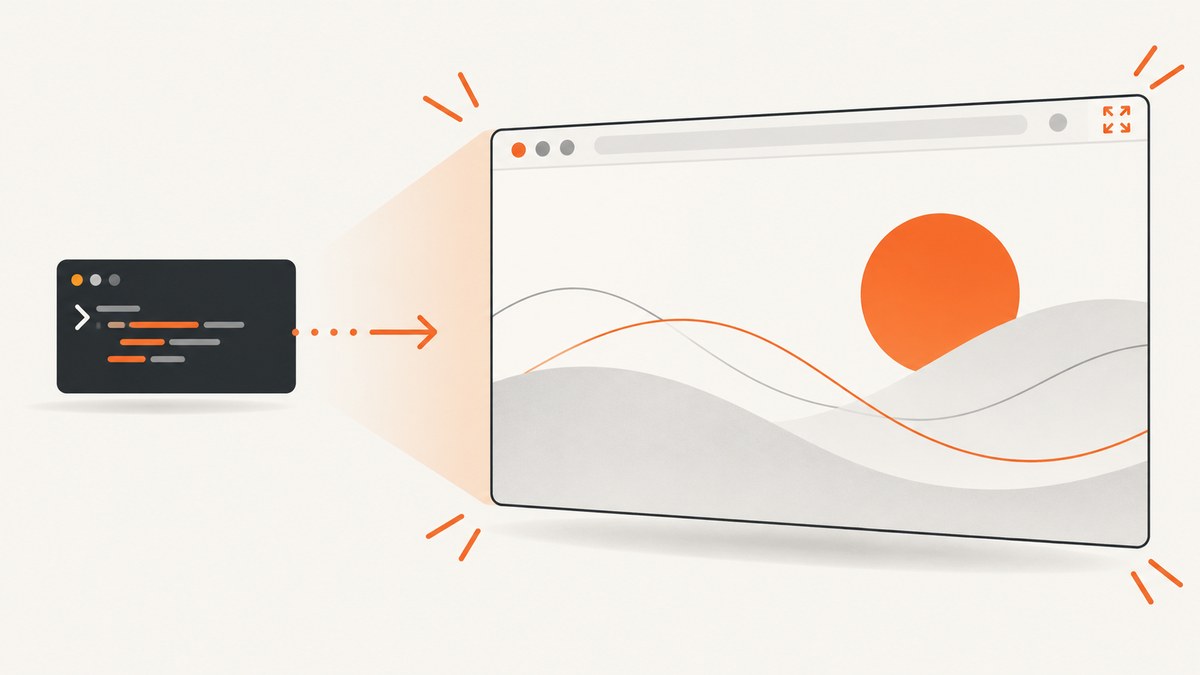
Use headless: false and Chrome’s --start-fullscreen switch:
import puppeteer from 'puppeteer';

const browser = await puppeteer.launch({
  headless: false,
  args: ['--start-fullscreen'],
});

const page = await browser.newPage();
await page.goto('https://example.com', { waitUntil: 'networkidle2' });

// Keep the browser open while you inspect it.
await new Promise(() => {});
Puppeteer runs Chrome headless by default. Setting headless: false opens a visible browser, while --start-fullscreen asks Chrome to start its window in full-screen mode. The args array passes command-line switches to Chrome. See the Puppeteer launch API for the launch options.
1. Install Puppeteer and run a complete example
Create a project, install Puppeteer, and run a module:
mkdir puppeteer-fullscreen
cd puppeteer-fullscreen
npm init -y
npm install puppeteer
Save this as fullscreen.mjs:
import puppeteer from 'puppeteer';

const browser = await puppeteer.launch({
  headless: false,
  args: ['--start-fullscreen'],
});

try {
  const page = await browser.newPage();
  await page.goto('https://example.com', {
    waitUntil: 'networkidle2',
    timeout: 30_000,
  });
  console.log('Page loaded:', await page.title());

  // Replace this with your automation. The browser remains visible
  // until you close it or press Ctrl+C.
  await new Promise(() => {});
} finally {
  await browser.close();
}
Run it with:
node fullscreen.mjsPuppeteer downloads a compatible Chrome for Testing binary by default. With puppeteer-core, provide an executablePath or a channel; compatibility with arbitrary Chrome versions is not guaranteed.
2. Understand the four different meanings of “full-screen”
| Goal | Use | What it changes |
|---|---|---|
| Show Chrome | headless: false |
Opens a visible browser window instead of headless Chrome. |
| Start Chrome in full-screen window mode | args: ['--start-fullscreen'] |
Requests Chrome’s full-screen window state. |
| Use the largest normal window | args: ['--start-maximized'] |
Maximizes the window but is separate from full-screen mode. |
| Make page content fill the screen | element.requestFullscreen() |
Uses the DOM Fullscreen API after a page action. |
| Control page dimensions | page.setViewport({ width, height }) |
Sets the emulated page viewport, not the operating-system window state. |
Chrome documents --start-fullscreen and --start-maximized as separate switches. A viewport size, browser window state, and page-controlled fullscreen are independent settings.

3. Full-screen versus maximized Chrome
Choose full-screen when browser chrome should be hidden and the window should occupy the display. Choose maximized when you still want the normal title bar, tabs, and system controls:
import puppeteer from 'puppeteer';

const browser = await puppeteer.launch({
  headless: false,
  args: ['--start-maximized'],
});
Do not pass both switches unless you have a specific reason to test their interaction. Select the window state your automation actually requires.
4. Set the page viewport separately
Window size and viewport size solve different problems. Set a deterministic viewport when layout, screenshots, or responsive breakpoints matter:
const browser = await puppeteer.launch({
  headless: false,
  args: ['--start-fullscreen'],
});

const page = await browser.newPage();
await page.setViewport({ width: 1920, height: 1080, deviceScaleFactor: 1 });
await page.goto('https://example.com', { waitUntil: 'networkidle2' });
The visible window may be larger or smaller than this viewport. If your goal is a reproducible image, define the viewport explicitly instead of relying on the monitor’s dimensions.
5. Trigger content fullscreen with the DOM API
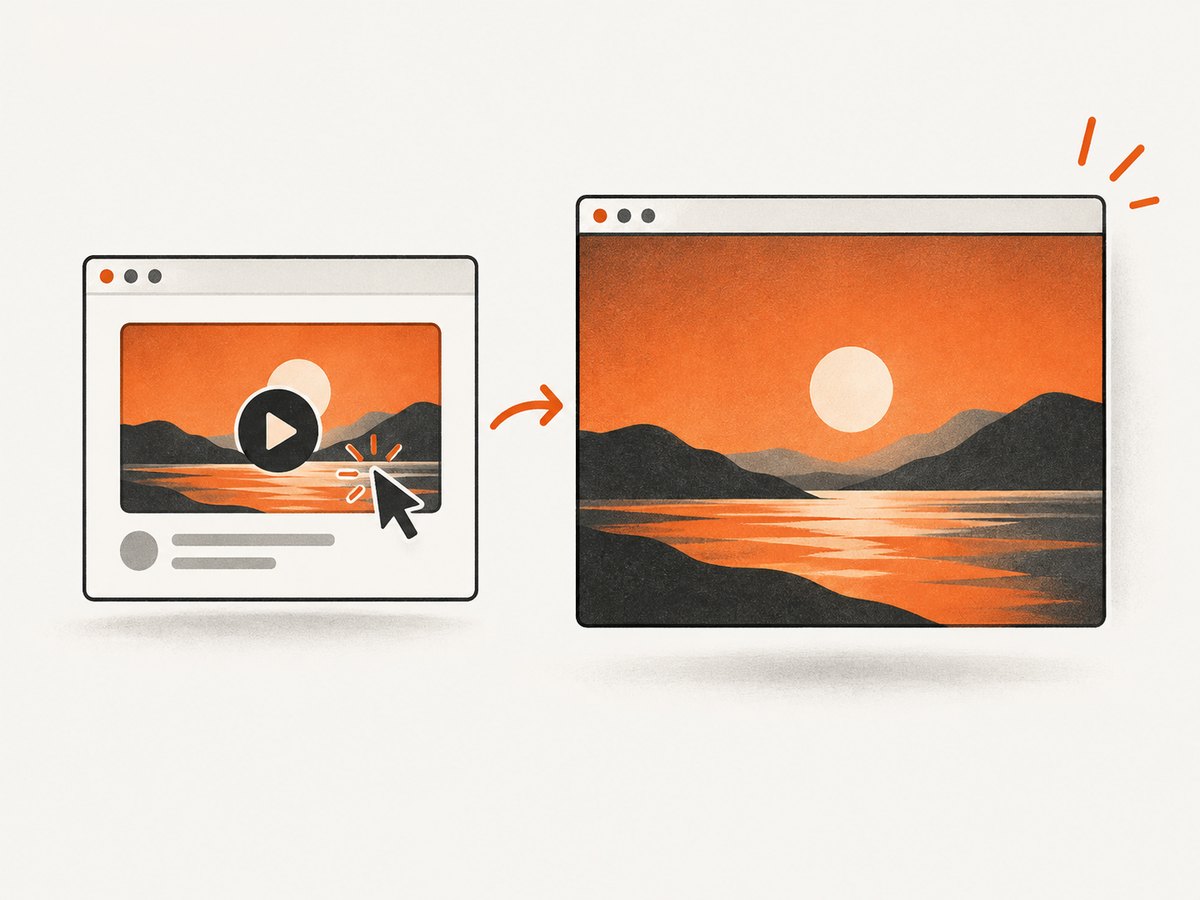
If the page itself has a video, canvas, map, or other element that must enter fullscreen, call requestFullscreen() in the page context:
const canvas = await page.locator('canvas').waitHandle();
await canvas.evaluate((element) => element.requestFullscreen());

const state = await page.evaluate(() => ({
  fullscreen: Boolean(document.fullscreenElement),
}));
console.log(state);

await page.evaluate(() => document.exitFullscreen());
Browsers can restrict fullscreen requests that are not associated with a user gesture. If the site requires a click, perform the click first:
await page.locator('button.enter-fullscreen').click();
await page.waitForFunction(() => Boolean(document.fullscreenElement));
6. Run headful Puppeteer in CI or a server
headless: false needs a graphical display. A local desktop normally provides one. Linux CI runners and servers often need a virtual display such as Xvfb:
# Debian or Ubuntu runner
sudo apt-get update
sudo apt-get install -y xvfb
xvfb-run --auto-servernum node fullscreen.mjs
Without a display, Chrome may fail before your script reaches the page. If you only need deterministic rendering or screenshots in a server process, headless mode is usually simpler:
const browser = await puppeteer.launch({
  headless: true,
});
Modern Puppeteer supports headless: true and the separate 'shell' headless mode. Use visible mode when you need to watch or interact with a real browser window.
7. Troubleshooting
Chrome opens but is not full-screen
Confirm that headless is exactly false and that the switch is inside the args array:
await puppeteer.launch({
  headless: false,
  args: ['--start-fullscreen'],
});
Window managers, remote desktop sessions, and operating-system policies can ignore window-state requests. Try --start-maximized to determine whether the environment supports maximization.
“Failed to launch the browser process”
Headful Chrome needs a display and a usable browser binary. On Linux CI, run through Xvfb. With puppeteer-core, set a valid executablePath or channel. With the full puppeteer package, allow its downloaded Chrome for Testing binary to finish installing.
The script exits immediately
Node exits when no asynchronous work remains. Keep the process alive while inspecting the window, or perform real automation before calling browser.close():
await new Promise((resolve) => {
  process.once('SIGINT', resolve);
});
await browser.close();
The page is the wrong size
--start-fullscreen changes the browser window, not the Puppeteer viewport. Call page.setViewport() with the width and height your test or capture requires.
Page fullscreen does nothing
Use the element’s requestFullscreen() method and satisfy the page’s user-gesture requirement with a click. Check document.fullscreenElement after the request and watch for permission or policy errors.
Automation is flaky in visible mode
Wait for a meaningful page condition rather than a fixed short delay. Use navigation waits, selectors, and explicit timeouts:
await page.goto(url, { waitUntil: 'networkidle2', timeout: 30_000 });
await page.locator('main').wait();
Close each browser in a finally block so failed runs do not leave Chrome processes behind.
8. Performance, reliability, and cost considerations
- Startup: launching a visible browser costs more time and memory than reusing one browser for several pages. Create one browser per worker and new pages per job when isolation allows.
- Determinism: use a fixed viewport, wait for the required selector or network state, and control the browser version through Puppeteer’s managed Chrome for Testing installation.
- CI reliability: provision a display for headful runs, or use headless mode when no human needs to see the window.
- Cleanup: always close pages and browsers, especially after timeouts and assertion failures.
- Cost: Puppeteer itself is an open-source library; your infrastructure cost comes from CPU, memory, browser startup, and any hosted CI or server resources.
9. Or skip the browser setup
If your goal is a clean screenshot rather than controlling a visible desktop window, ScreenshotNeo provides a single screenshot request. Its service accepts consent banners as a visitor and removes more than 60 known consent platforms, newsletter popups, and chat widgets before capture. Bot checks, blank pages, failed loads, timeouts, and cache hits are not billed, and each response identifies the result with X-Page-Verdict and X-Billed headers.
See the ScreenshotNeo API documentation for options such as full-page or element capture, viewport and device presets, dark mode, custom CSS and JavaScript, waits, request blocking, cookies, headers, geolocation, caching, signed links, PDFs, async jobs, and bulk capture.
curl -G "https://api.screenshotneo.com/v1/shot" -d access_key=YOUR_API_KEY --data-urlencode url=https://stripe.com -o shot.webpimport requests
r = requests.get("https://api.screenshotneo.com/v1/shot", params={"access_key": "YOUR_API_KEY", "url": "https://stripe.com"}, timeout=90)
open("shot.webp", "wb").write(r.content)const q = new URLSearchParams({ access_key: 'YOUR_API_KEY', url: 'https://stripe.com' });
const res = await fetch(`https://api.screenshotneo.com/v1/shot?${q}`);ScreenshotNeo also has an MCP server with take_screenshot, get_page_info, and capture_pdf tools for Claude, Cursor, and other MCP clients. The Free plan includes 1,000 screenshots per month with no card; paid plans start at $5 for 3,000 screenshots. Create a free ScreenshotNeo account.
10. FAQ
Does Puppeteer start headful by default?
No. Puppeteer starts Chrome headless by default. Set headless: false to show a window.
What switch makes Chrome fullscreen?
Pass --start-fullscreen in the launch args array.
What is the difference between fullscreen and maximized?
--start-fullscreen requests fullscreen window mode. --start-maximized requests a maximized normal window with browser controls.
Can I make only a video or element fullscreen?
Yes. Use that element’s requestFullscreen() method after the page permits the action.
Why does setting the viewport not make Chrome fullscreen?
The viewport controls page layout dimensions. It does not control the operating-system browser window.


