How to Run Puppeteer in Headful Mode in Docker
Run visible Chrome in Docker with Puppeteer, Xvfb, compatible browser dependencies, and a secure container setup.
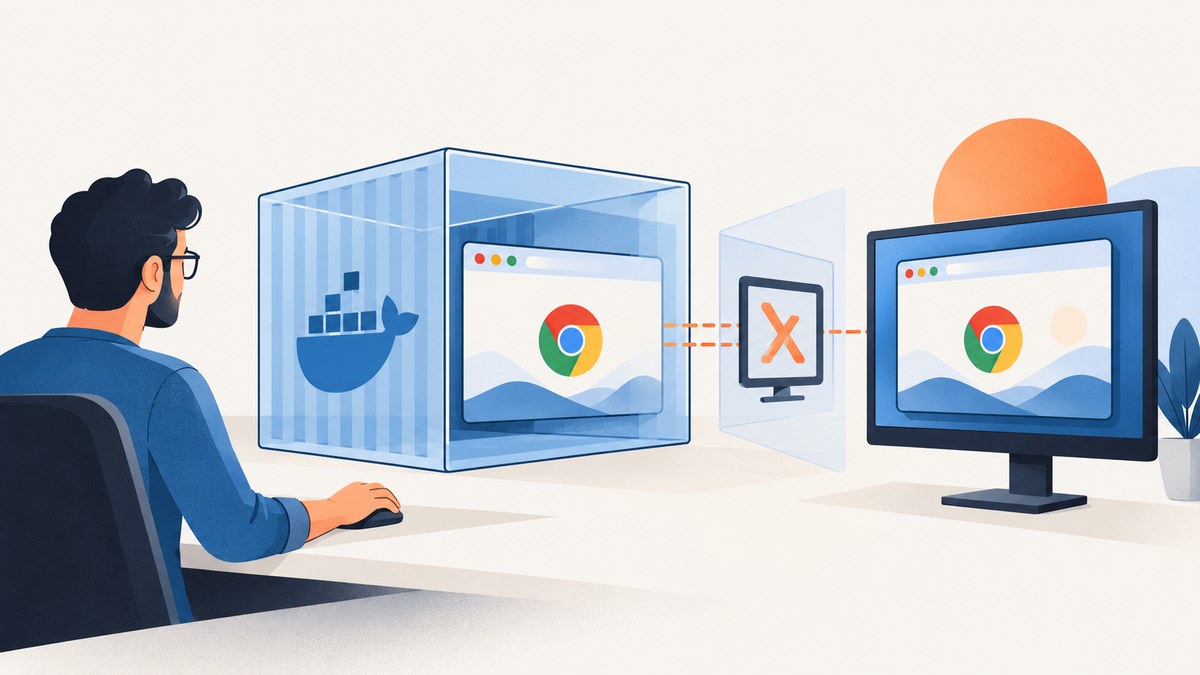
To run Puppeteer in headful mode in Docker, launch Chrome with headless: false and provide a display server. Standard Linux containers usually have no desktop display, so run the process with Xvfb, commonly through xvfb-run. You also need compatible Chrome libraries, writable browser configuration paths, and a container user and sandbox configuration suited to your runtime.
Here is the shortest working shape:
const browser = await puppeteer.launch({ headless: false });That setting alone does not create a display. A typical one-shot command is xvfb-run -a node your-script.js. Puppeteer recommends using the Chrome for Testing version installed for that Puppeteer release; other browser versions are not guaranteed to work. See the official Puppeteer troubleshooting guide, installation guide, and launch options.
1. Create a minimal Puppeteer script
Install Puppeteer in your Node project, allowing its install process to download its compatible Chrome for Testing build. Pin your dependency through your package lockfile so deployments use the same Puppeteer release and browser pairing.
npm install puppeteerCreate capture.js:
const puppeteer = require('puppeteer');

(async () => {
  let browser;
  try {
    browser = await puppeteer.launch({
      headless: false,
      // Leave executablePath unset to use Puppeteer's managed browser.
    });

    const page = await browser.newPage();
    await page.setViewport({ width: 1440, height: 900 });
    await page.goto('https://example.com', {
      waitUntil: 'networkidle2',
      timeout: 60000,
    });
    await page.screenshot({ path: '/tmp/example.png' });
  } finally {
    if (browser) await browser.close();
  }
})().catch((error) => {
  console.error(error);
  process.exitCode = 1;
});
This example writes into /tmp because some container filesystems are read-only or restrict application directories. Change the output path to a mounted writable directory if the image must persist after the container exits. The finally block closes Chrome on success or failure, which avoids leaving browser child processes around in a long-running worker.
2. Install Docker dependencies and run under Xvfb
Chrome needs operating-system shared libraries, and rendering can depend on installed fonts. The precise package list depends on your base distribution and the Chrome build. Puppeteer’s troubleshooting documentation identifies missing shared libraries as a common Docker startup problem. Its maintained Dockerfile is a useful reference, but it changes over time; match the Node base and package choices to the Puppeteer version you deploy rather than copying it as a timeless recipe.

A practical sequence for a Debian-based image is:
- Start from a Node image compatible with your application.
- Install Xvfb and the Chrome shared libraries required by your selected browser build.
- Install Puppeteer dependencies with the project lockfile in place.
- Run the Node process through
xvfb-run -a. - Use a non-root user where your runtime and Chrome sandbox configuration permit it.
The exact shared-library names change with the Linux base and browser release, so use Puppeteer’s troubleshooting page and maintained Dockerfile as the source for a package list appropriate to the versions you pin. Do not assume that adding Xvfb supplies Chrome’s other runtime dependencies.
The container entrypoint for a one-shot job can be as simple as:
CMD ["xvfb-run", "-a", "node", "capture.js"]The -a flag asks xvfb-run to select an available display number, which is convenient when multiple jobs may start on the same host. If your script is the container’s main process, use an init or process-management approach appropriate to your deployment when you need child-process reaping and shutdown handling.
3. Choose how the virtual display lives
There are two common lifecycle patterns. Puppeteer’s guidance establishes the need for an X server, but the right lifecycle depends on whether the container performs one task or stays alive as a worker.
| Pattern | Good fit | Tradeoffs |
|---|---|---|
xvfb-run around each process |
One-shot scripts, scheduled captures, simple jobs | Small setup surface; each process gets a managed virtual display. Coordinate parallel jobs and their display selection. |
| Start Xvfb as a service | Persistent browser workers or several jobs sharing a container | Requires process supervision, display health checks, and cleanup when the worker stops. |
For the service pattern, start Xvfb with an explicit display such as :99, export DISPLAY=:99 for the Node process, and supervise both processes. A shell script that backgrounds Xvfb and then exits is not sufficient: the display process must remain alive, failures should be observable, and container shutdown should stop both processes. If you use a process supervisor, configure it to restart or fail the worker according to your job semantics.
4. Browser, sandbox, user, and filesystem settings
Use a compatible browser
The compatibility default is Puppeteer’s downloaded Chrome for Testing. Its documentation says the downloaded browser version is guaranteed to work with that Puppeteer release, while arbitrary external Chrome versions are not. If you manage a system Chrome or Chromium binary yourself, pin and verify the pairing, then configure executablePath deliberately:
const browser = await puppeteer.launch({
  headless: false,
  executablePath: '/usr/bin/google-chrome',
});
Use this only when that path exists in the image and the browser version is compatible with the installed Puppeteer package. Otherwise omit executablePath and let Puppeteer use its managed browser.
Keep the sandbox enabled where possible
Chrome’s sandbox is a security boundary. Puppeteer says running without it is strongly discouraged and describes disabling it only for trusted page content. Prefer a non-privileged container user and a runtime that permits Chrome’s sandbox. If Chrome reports that no usable sandbox is available, investigate host kernel support, user namespaces, AppArmor, and container restrictions before considering a less isolated configuration.
Do not add --no-sandbox as a generic Docker fix. If your environment forces that choice for trusted pages, document the risk and isolate the workload accordingly; the precise security posture depends on the host and runtime.
Make browser paths writable
Read-only container images can prevent Chrome from writing its cache, configuration, or user data. Point these locations at writable temporary storage or a writable mounted volume. For example, set XDG_CACHE_HOME and XDG_CONFIG_HOME in the container environment, and configure Puppeteer’s userDataDir to a writable location if your setup requires an explicit profile. Avoid sharing one mutable browser profile across concurrent jobs.
Install fonts for the rendered content
Chrome may start successfully while text renders with fallback fonts or missing glyphs. Include the font packages required by your page languages and workload. Puppeteer’s Dockerfile includes fonts for multiple writing systems; treat its package choices as versioned guidance and adapt them to the languages your captures need.
5. Capture reliably inside a container
Headful mode changes the browser display requirement; it does not make page loading deterministic. Select a navigation readiness condition that matches the page. networkidle2 can be useful for relatively quiet pages, but analytics, live updates, or long polling may prevent network-idle conditions from completing. For dynamic sites, navigate to domcontentloaded and wait for a meaningful selector instead:
await page.goto('https://example.com', {
  waitUntil: 'domcontentloaded',
  timeout: 60000,
});
await page.waitForSelector('main article', { timeout: 15000 });
await page.screenshot({ path: '/tmp/article.png', fullPage: true });
For repeatable output, set viewport dimensions, timezone, locale, and any test data the page needs. Control animations or time-dependent content when visual stability matters. Give navigation and selector waits finite timeouts, and decide whether a timeout should fail the whole job or produce a recorded partial result. Always close the browser in a finally block and log enough context to identify the target URL and failure stage without exposing credentials.
6. Performance, reliability, and cost considerations
Headful Chrome under Xvfb is still a full browser workload. Each browser and page consumes memory and CPU, and large pages or full-page screenshots increase work. No generic throughput number is reliable across different hosts, sites, and viewport sizes, so measure the workload in the actual container rather than relying on an assumed concurrency limit.
- Reuse carefully: a persistent worker can avoid repeatedly starting Node and Chrome, but isolate pages and user data between jobs and periodically recycle browsers if the workload shows resource growth.
- Bound concurrency: begin with a small number of simultaneous pages, watch memory and browser crashes, then increase only when the deployment has headroom.
- Set timeouts: use explicit navigation and selector timeouts so a stalled page does not hold a worker indefinitely.
- Keep images reproducible: pin Node, Puppeteer, and the browser strategy; install OS dependencies deterministically and rebuild after updating the browser stack.
- Budget the whole pipeline: account for container compute, image storage, network transfer, and engineering time spent maintaining Chrome, libraries, fonts, and Xvfb.
For reliability, emit separate statuses for launch failure, navigation timeout, selector timeout, and screenshot-write failure. These are different problems with different fixes. Retrying a transient network failure may help; retrying a missing shared library or incompatible browser version will not.
7. Troubleshooting
| Symptom | Likely cause | Fix |
|---|---|---|
| “Missing X server” or Chrome cannot open a display | No X server is running, or DISPLAY points to the wrong display. |
Run the job with xvfb-run -a, or start Xvfb under process supervision and confirm the Node process inherits the correct DISPLAY. |
| Chrome exits before Puppeteer connects | Missing shared library, invalid executable path, or unwritable profile/cache path. | Inspect Chrome stderr, install dependencies for the selected image and browser, confirm the binary path, and set writable XDG and user-data locations. |
| “No usable sandbox!” | Container or host restrictions prevent Chrome from initializing its sandbox. | Check kernel/user namespace support, AppArmor, runtime settings, and user privileges. Keep sandboxing enabled when possible; Puppeteer strongly discourages disabling it. |
| Browser protocol or launch errors after an upgrade | The external Chrome/Chromium version does not match Puppeteer’s expected browser. | Use Puppeteer’s downloaded Chrome for Testing or verify and pin a supported pairing. |
| Blank squares or unexpected fallback typography | Fonts for the page’s scripts are absent from the image. | Install fonts needed for the content languages, rebuild the image, and capture again. |
| Job hangs waiting for navigation | The page never becomes idle, often because it keeps network connections open. | Use a suitable waitUntil condition such as domcontentloaded, then wait for a page-specific selector with a finite timeout. |
| Screenshot cannot be written | The destination is read-only or the process user lacks write permission. | Write to /tmp or a writable mounted path and verify ownership for the non-root user. |
8. Or skip the browser setup
If your goal is a screenshot rather than maintaining a browser container, ScreenshotNeo offers a website screenshot API and MCP server. One GET request can return PNG, JPEG, WebP, or PDF. See the API documentation for options and request details.
curl -G "https://api.screenshotneo.com/v1/shot" -d access_key=YOUR_API_KEY --data-urlencode url=https://stripe.com -o shot.webpimport requests
r = requests.get("https://api.screenshotneo.com/v1/shot", params={"access_key": "YOUR_API_KEY", "url": "https://stripe.com"}, timeout=90)
open("shot.webp", "wb").write(r.content)const q = new URLSearchParams({ access_key: 'YOUR_API_KEY', url: 'https://stripe.com' });
const res = await fetch(`https://api.screenshotneo.com/v1/shot?${q}`);Cookie banners are accepted before capture and more than 60 known consent platforms, newsletter popups, and chat widgets can be removed; each step can be turned off. Bot checks, blank pages, timeouts, failed loads, and cache hits cost nothing, and response headers identify the page verdict and billing status. Its MCP server gives AI agents tools for screenshots, page information, and PDF capture. The free plan includes 1,000 screenshots per month with no card; paid plans start at $5 for 3,000. Sign up for 1,000 free screenshots a month with no card.
9. FAQ
Does headless: false show a desktop window on my host?
Not by itself. In a typical Linux Docker container, Chrome needs a display server. Xvfb supplies a virtual display without requiring a physical monitor.
Can I use headless Chrome and Xvfb together?
They solve different needs. If you do not need visible-UI mode, Puppeteer’s default headless mode usually avoids the display setup. Use headful mode when the browser behavior or workflow specifically requires it.
Is Xvfb a real desktop session?
Xvfb provides an X display in memory. It is suitable for applications that need a display server, but it does not create a physical screen or a user desktop session.
Should I use Puppeteer’s Docker image?
The maintained Puppeteer Dockerfile is a useful reference for user setup, fonts, and dependencies. Check its current Node base and packages against your pinned Puppeteer release before adopting it.


