How to Set the Puppeteer Browser Window Size in Headful Mode
Set a visible Puppeteer window to a target content size, control its outer bounds, and verify what Chrome actually opened.

To set a visible Puppeteer browser window to a specific page content size, launch Chrome with headless: false, clear Puppeteer’s default viewport with page.setViewport(null), then call page.resize({contentWidth, contentHeight}). For example, this requests a 1200 × 800 CSS-pixel content area:
const browser = await puppeteer.launch({headless: false});
const page = (await browser.pages())[0];

await page.setViewport(null);
await page.resize({contentWidth: 1200, contentHeight: 800});
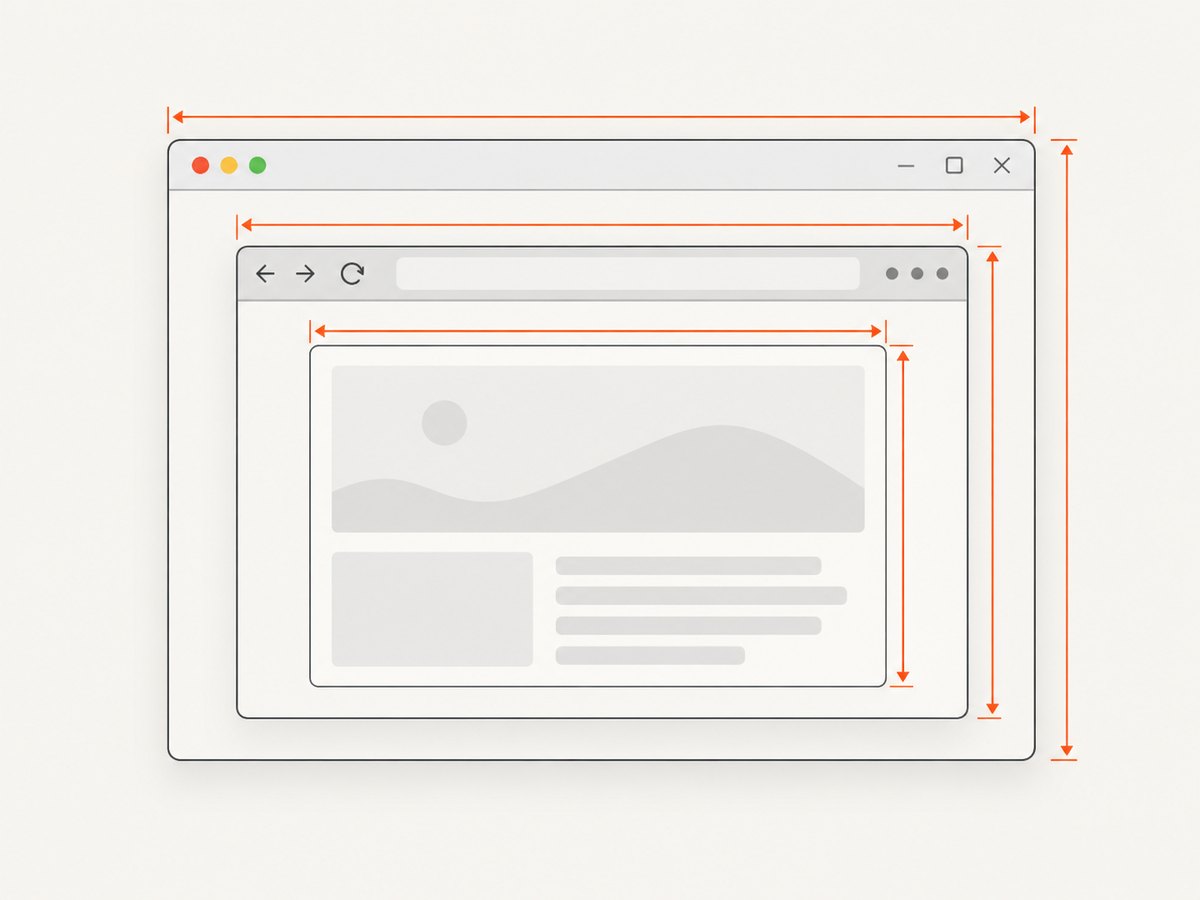
The distinction matters: a page viewport, the browser’s content area, and the outside bounds of the native window are different measurements. Use page.setViewport() for page viewport dimensions, page.resize() for the visible content area, and browser.setWindowBounds() for native window bounds or maximized state. Puppeteer documents Page.resize as experimental, so check your installed version and verify the result in the environment where the script runs. See the official window management guide and Page.resize API.
1. Pick the size you actually need
Before changing code, decide which rectangle must have the target dimensions. A common source of confusion is asking for an “800 × 600 window” when the actual requirement is an 800 × 600 webpage area. Browser tabs, toolbars, borders, and platform window decorations consume space outside the webpage.
| Goal | API | What the dimensions represent | Key caveat |
|---|---|---|---|
| Set page layout/emulation size | page.setViewport({width, height}) |
Page viewport in CSS pixels | Does not set the outside dimensions of Chrome’s native window. |
| Set visible webpage content area | page.setViewport(null), then page.resize({contentWidth, contentHeight}) |
Content area, excluding browser UI | Page.resize is experimental and version dependent. |
| Set native window bounds or state | page.windowId(), then browser.setWindowBounds(id, bounds) |
Browser window bounds or maximized state | Display limits and platform window managers may constrain the result. |
Viewport dimensions are CSS pixels, not necessarily physical display pixels. A viewport can also have device emulation properties such as deviceScaleFactor, isMobile, and hasTouch. Those settings affect page rendering and emulation; they do not mean the native window’s outside size has the same number.
2. Set the headful content area
The following is a complete ES module example. It opens a visible browser, sizes its webpage content area, navigates to a page, reads the actual browser measurements, and closes the browser when finished. Install Puppeteer in your project with npm install puppeteer; the package supplies a compatible browser installation.
import puppeteer from 'puppeteer';

const browser = await puppeteer.launch({headless: false});
try {
  const page = (await browser.pages())[0] ?? await browser.newPage();

  // Remove the default viewport constraint before resizing the window.
  await page.setViewport(null);
  await page.resize({contentWidth: 1200, contentHeight: 800});

  await page.goto('https://example.com', {waitUntil: 'domcontentloaded'});

  const dimensions = await page.evaluate(() => ({
    innerWidth: window.innerWidth,
    innerHeight: window.innerHeight,
    outerWidth: window.outerWidth,
    outerHeight: window.outerHeight,
    devicePixelRatio: window.devicePixelRatio,
  }));
  console.log(dimensions);
} finally {
  await browser.close();
}
Choose the page to resize deliberately. browser.pages() returns open pages; selecting the first reuses the initial page created by the browser. If your automation creates a new page, resize that page instead. Avoid setting a viewport after calling page.resize(), since viewport emulation can constrain or alter the rendered content geometry.
Wait for the resize before reading dimensions
The window’s inner dimensions can update asynchronously. Register a resize-event waiter before calling page.resize(), then read the dimensions after the event. A timeout prevents a hung script if the environment never delivers the event.
const resizeObserved = page.evaluate(() => new Promise((resolve, reject) => {
  const timer = setTimeout(() => {
    window.removeEventListener('resize', onResize);
    reject(new Error('Timed out waiting for window resize'));
  }, 5000);

  function onResize() {
    clearTimeout(timer);
    window.removeEventListener('resize', onResize);
    resolve();
  }
  window.addEventListener('resize', onResize, {once: true});
}));

await page.resize({contentWidth: 1200, contentHeight: 800});
await resizeObserved;

console.log(await page.evaluate(() => ({
  inner: [window.innerWidth, window.innerHeight],
  outer: [window.outerWidth, window.outerHeight],
})));
In production code, handle the possibility that the browser is already at the requested size and does not emit a resize event. One practical pattern is to compare the current dimensions first, or use a short bounded polling loop after resizing. Do not wait indefinitely for an event.
3. Set outer window bounds or maximize
If the requirement describes Chrome’s native window—such as placing it at a position, requesting width and height bounds, or maximizing it—use the window ID associated with the page. The browser API accepts optional left, top, width, height, and windowState values. See Browser.setWindowBounds and the WindowBounds interface.
const browser = await puppeteer.launch({headless: false});
try {
  const page = (await browser.pages())[0] ?? await browser.newPage();
  const id = await page.windowId();

  // Request native window bounds in the host environment.
  await browser.setWindowBounds(id, {
    left: 40,
    top: 40,
    width: 1280,
    height: 900,
  });

  // Or request a maximized state:
  // await browser.setWindowBounds(id, {windowState: 'maximized'});

  await page.goto('https://example.com');
} finally {
  await browser.close();
}
Bounds are requests to the host platform. A window manager can reposition, clamp, or otherwise affect them based on available display space. A maximized window’s size is determined by the display and platform, so it is not a portable way to obtain an exact content viewport.
4. Set a viewport instead when layout size is the goal
For screenshots or responsive layout checks where you care about the page’s CSS viewport rather than a visible desktop window, use page.setViewport(). Set it before navigation where possible. Puppeteer notes that changing some properties, including mobile or touch emulation, can reload the page.
import puppeteer from 'puppeteer';

const browser = await puppeteer.launch({headless: false});
try {
  const page = await browser.newPage();
  await page.setViewport({
    width: 1200,
    height: 800,
    deviceScaleFactor: 1,
    isMobile: false,
    hasTouch: false,
  });
  await page.goto('https://example.com', {waitUntil: 'domcontentloaded'});
  await page.screenshot({path: 'viewport.png'});
} finally {
  await browser.close();
}
The setViewport API accepts a viewport or null. Its viewport interface includes width and height and optional emulation settings. A viewport set this way is useful for deterministic page layout and screenshots, but should not be described as an exact native window size.
5. Check version and display assumptions
- Check the installed dependency. Run
npm ls puppeteerand inspect the version pinned by your lockfile. The current API reference labelsPage.resizeexperimental; do not assume an older package has it. - Check runtime support. Guard or report a clear error if
page.resizeis unavailable. Upgrade Puppeteer only as a deliberate dependency change, then validate against the browser version it installs or connects to. - Check headful availability.
headless: falseneeds a graphical display. A server or container without a display server may fail to launch visibly even when the Puppeteer code is correct. - Measure in the page. Read
window.innerWidth,window.innerHeight,window.outerWidth, andwindow.outerHeightafter the change. Puppeteer’spage.viewport()reports configured viewport settings; it does not inspect the actual page viewport. - Test on the target host. Operating system, display bounds, browser chrome, scaling, and window manager behavior affect the observed result.
Puppeteer’s window guide documents an example with an inner size of 600 × 400 and an outer size of 600 × 487. Treat those numbers as that guide’s example output, not a fixed title-bar or Chrome UI offset that can be added to every requested size.
6. Common errors and fixes
| Symptom | Likely cause | Fix |
|---|---|---|
page.resize is not a function |
The installed Puppeteer version does not expose the experimental method. | Check the locked package version. Upgrade deliberately if appropriate, or use viewport sizing or native bounds for the requirement you actually have. |
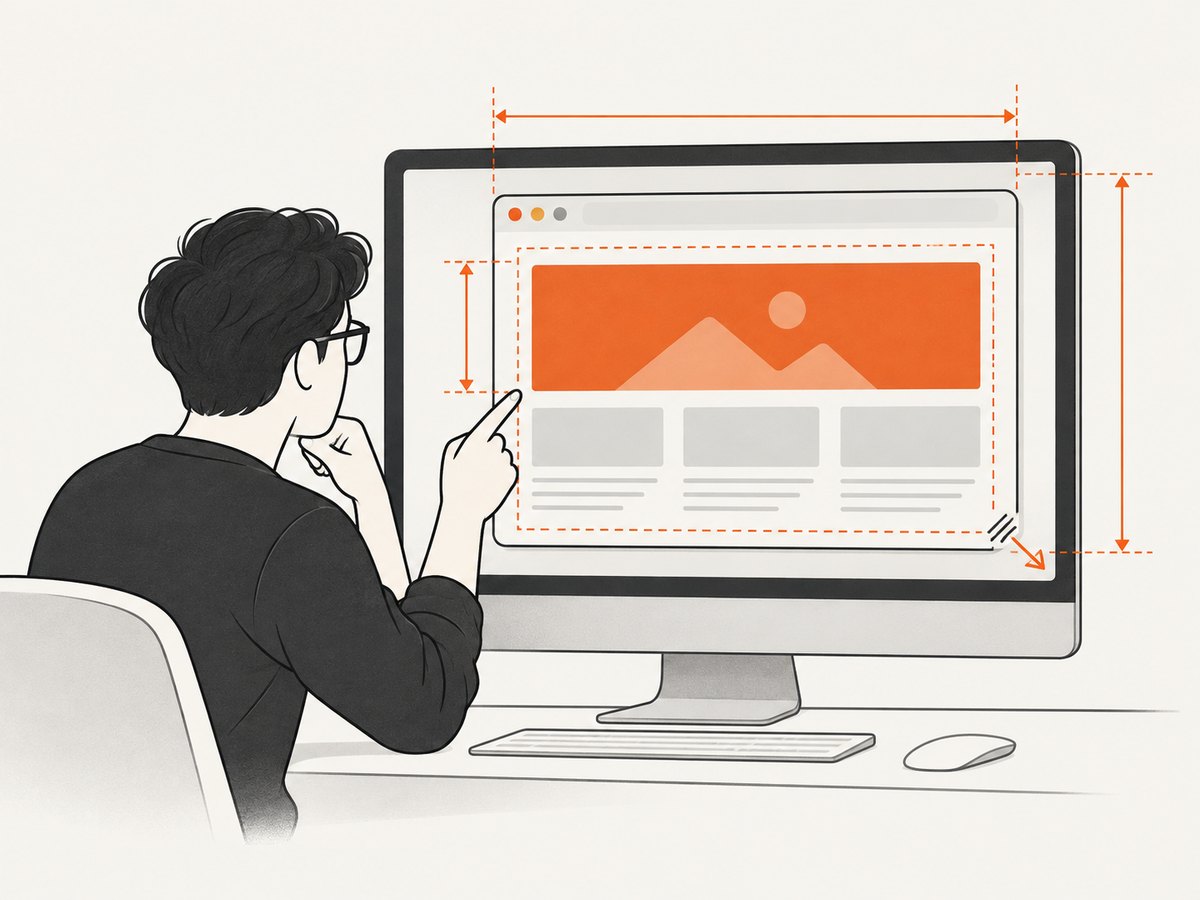
| The page is the requested size, but the outer window is larger | Viewport/content dimensions exclude browser UI; native window bounds measure a different rectangle. | Use setWindowBounds for outer bounds, or measure inner and outer values to confirm which one matters. |
| Window size seems ignored | The default viewport remains configured, the wrong page was resized, or the host display/window manager constrained the request. | Call setViewport(null) before resize, verify the page ID, and inspect actual dimensions on the target host. |
| Script waits forever for resize | Resize event handling was attached after the operation, the size did not change, or the environment did not emit the event as expected. | Attach the listener first, add a timeout, and check whether the requested dimensions already match. |
| Chrome cannot launch headful | No graphical display is available or the execution environment does not support visible windows. | Run in a desktop session with a display, or use headless mode if visible browser UI is not a requirement. |
| Layout differs despite matching dimensions | Device scale, mobile emulation, page zoom, fonts, or application responsive behavior differs. | Inspect CSS viewport and device pixel ratio, standardize emulation settings, and set the viewport before navigating. |
7. Performance, reliability, and cost
Resizing itself is usually a small part of a capture workflow; navigation, scripts, fonts, images, and page rendering commonly dominate elapsed time. Still, avoid resizing repeatedly during a single page load when one setup call will do. Changing viewport or emulation settings can cause layout recalculation, and certain viewport changes may reload the page.
For repeatable automation, make dimensions explicit, record both requested and observed sizes, pin Puppeteer in your project, and run the same validation on the actual operating system and display setup used by the job. Treat a resize timeout or a missing experimental API as an actionable failure rather than silently continuing with an unknown size.
Headful automation also requires a graphical environment, which may be unavailable or costly to provision in a server workflow. If your task is simply to obtain website screenshots and does not require controlling a local visible Chrome window, a screenshot API can remove that browser setup. ScreenshotNeo is a website screenshot API and MCP server by Yorker Media; its one-call endpoint accepts a URL and returns an image or PDF. Documentation: ScreenshotNeo API docs.
Or skip the browser setup
Make one request to capture a page as a WebP image:
curl -G "https://api.screenshotneo.com/v1/shot" \
  -d access_key=YOUR_API_KEY \
  --data-urlencode url=https://example.com \
  -o shot.webp
ScreenshotNeo removes cookie banners, newsletter popups, and chat widgets before the shot; each cleanup step can be turned off. Bot checks, blank pages, timeouts, and failed loads are not billed, and cache hits cost nothing; response headers say the page verdict and billing status. Its MCP server gives AI agents tools to take screenshots, get page info, and capture PDFs. The free plan includes 1,000 shots a month with no card; paid plans start at $5 for 3,000 shots. Every feature is available on every plan. See the API documentation and sign up for 1,000 free screenshots a month, with no card.
FAQ
Does headless: false set the window size?
No. It requests a visible browser. Apply viewport, content-area, or native window sizing separately, according to the dimensions you need.
Can I use --window-size for a headful browser?
Do not treat headless screen configuration guidance as a guarantee for a visible Chrome window. Puppeteer’s screen guide says --screen-info is for headless mode and that headful Chrome uses physical platform screens; verify visible window dimensions through the window APIs and page measurements.
Does page.viewport() confirm the actual window size?
No. It reports Puppeteer’s current viewport settings and explicitly does not check the actual page viewport. Read the browser’s window and inner dimensions from the page when you need verification.
Should I resize before or after navigating?
For viewport emulation, set it before navigation where possible. For content-area resizing, remove the default viewport and resize before navigating, then verify after the page is ready.


