How to Use Puppeteer and Headless Chrome with Cucumber.js
Build reliable Cucumber.js browser tests with Puppeteer, scenario-isolated Worlds, CI-safe Chrome setup, debugging, and cleanup.
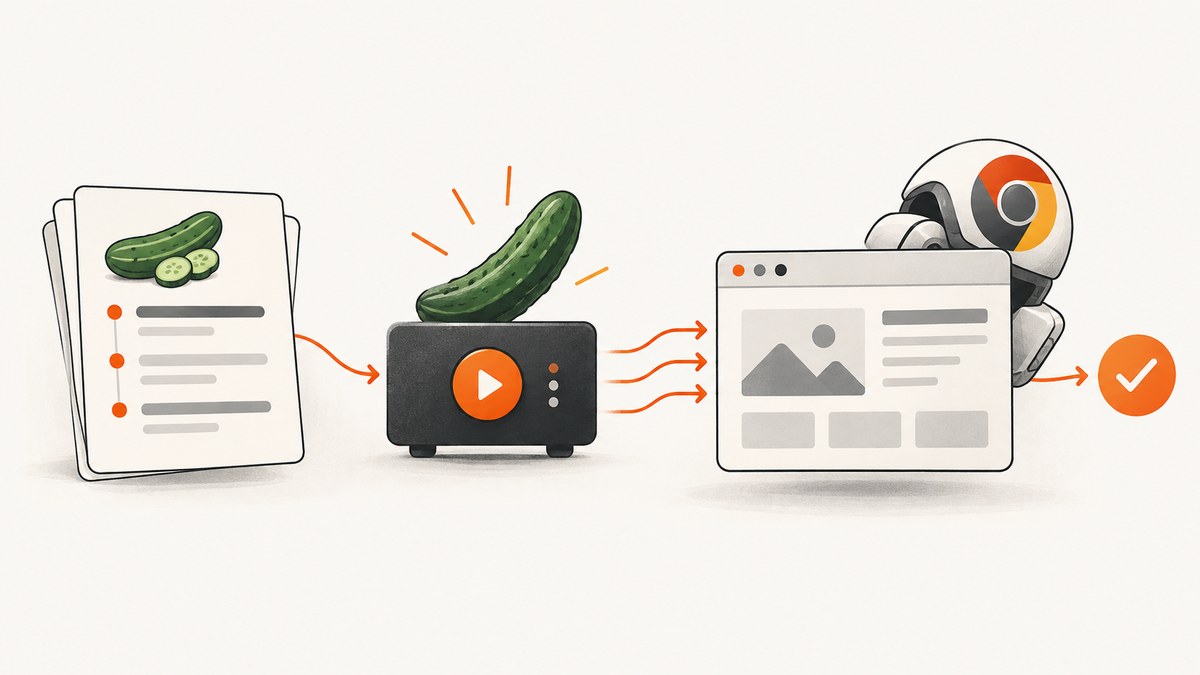
Use a custom Cucumber.js World to own one Puppeteer browser, context, and page per scenario. Start them in a Before hook, use regular function step definitions so Cucumber can bind this, and close the browser in After. This keeps cookies, storage, and pages isolated between scenarios and makes cleanup predictable.
This guide shows a complete CommonJS project, then covers ESM, browser installation, headless modes, contexts, configuration, parallel workers, diagnostics, CI containers, performance, reliability, cost, and common failures.
1. Install Cucumber.js and Puppeteer
Create a project and install the test runner and browser automation library:
mkdir cucumber-puppeteer-demo
cd cucumber-puppeteer-demo
npm init -y
npm install --save-dev @cucumber/cucumber puppeteer
The puppeteer package downloads a compatible Chrome for Testing browser during installation. Publisher estimates are approximately 170 MB on macOS, 282 MB on Linux, and 280 MB on Windows; the exact download changes with the release. If your package manager blocks install scripts, install the browser explicitly:
npx puppeteer browsers install chromeChoose puppeteer-core when your operating system image or CI platform supplies Chrome/Chromium. With that package you must provide an executable path, either in puppeteer.launch() or through a configured PUPPETEER_EXECUTABLE_PATH. Keep the browser version aligned with the Puppeteer release table before pinning a system browser. See the Puppeteer installation guide and supported browser versions.
Add a script to package.json:
{
  "scripts": {
    "test": "cucumber-js"
  }
}
2. Create a scenario-isolated World
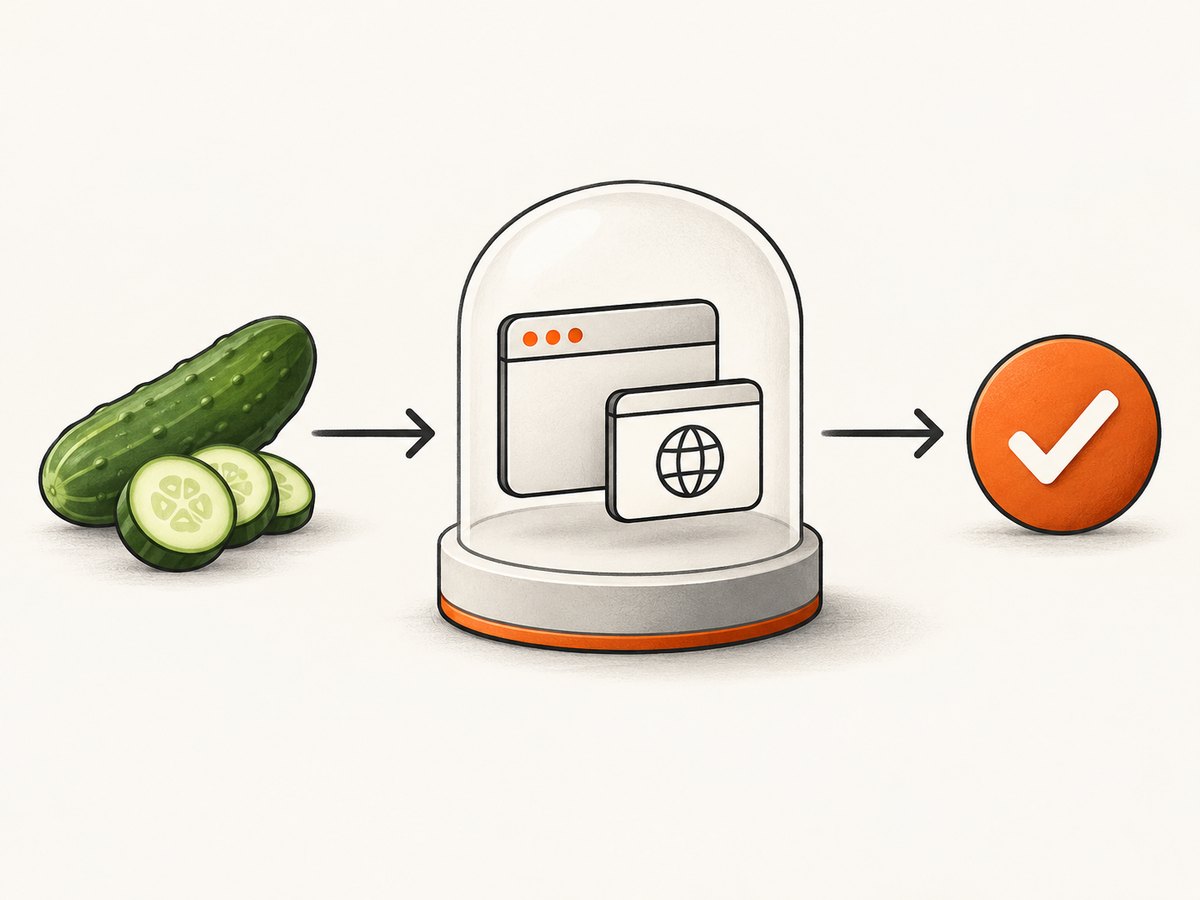
Cucumber’s World is an isolated scope for each scenario. Store the browser, browser context, and page there instead of in module-level variables. A module singleton causes state to leak between scenarios and becomes unsafe when scenarios run in parallel.
// features/support/world.js
const { setWorldConstructor, World } = require('@cucumber/cucumber');

class CustomWorld extends World {
  constructor(options) {
    super(options);
    this.browser = null;
    this.context = null;
    this.page = null;
    this.baseUrl = options.parameters.baseUrl || 'https://example.com';
    this.viewport = options.parameters.viewport || { width: 1280, height: 800 };
  }
}

setWorldConstructor(CustomWorld);
Use this only with ordinary functions. Arrow functions capture lexical this, so Cucumber cannot provide the scenario World to an arrow-function step or hook.
3. Launch and close Chrome in hooks
Use Before and After for each scenario. The browser context gives every scenario a separate cookie jar, local storage, permissions, and cache while allowing one browser process to be managed for that scenario.
// features/support/hooks.js
const { Before, After, Status } = require('@cucumber/cucumber');
const puppeteer = require('puppeteer');

Before(async function () {
  this.browser = await puppeteer.launch({
    headless: true,
    // headless: 'shell' selects chrome-headless-shell instead.
    args: []
  });

  this.context = await this.browser.createBrowserContext();
  this.page = await this.context.newPage();
  await this.page.setViewport(this.viewport);
  this.page.setDefaultTimeout(15_000);
  this.page.setDefaultNavigationTimeout(30_000);
});

After(async function ({ result }) {
  if (result?.status === Status.FAILED && this.page) {
    const screenshot = await this.page.screenshot({ type: 'png' });
    await this.attach(screenshot, 'image/png');
  }

  if (this.context) {
    await this.context.close().catch(() => {});
  }
  if (this.browser) {
    await this.browser.close().catch(() => {});
  }
});
puppeteer.launch({ headless: true }) is equivalent to omitting the option because headless is the default. Use headless: false locally when you need to watch the browser. Use headless: 'shell' for the separate chrome-headless-shell binary; it can be more performant but does not behave exactly like regular Chrome. The headless modes guide describes the differences.
4. Add a feature and step definitions
# features/home.feature
Feature: Home page

  Scenario: The home page has a title
    Given I open the home page
    Then the page title contains "Example Domain"
// features/step_definitions/home.steps.js
const { Given, Then } = require('@cucumber/cucumber');
const assert = require('node:assert/strict');
Given('I open the home page', async function () {
await this.page.goto(this.baseUrl, { waitUntil: 'domcontentloaded' });
});
Then('the page title contains {string}', async function (expected) {
const title = await this.page.title();
assert.ok(title.includes(expected), `Expected "${title}" to contain "${expected}"`);
});Run it with:
npm testFor a real application, prefer a stable readiness condition over a long arbitrary sleep:
await this.page.goto(`${this.baseUrl}/dashboard`, { waitUntil: 'networkidle0' });
await this.page.waitForSelector('[data-testid="dashboard"]', { visible: true });
5. Pass URLs, viewports, and browser choices through configuration
Cucumber discovers cucumber.json, cucumber.yaml, cucumber.yml, cucumber.js, cucumber.cjs, or cucumber.mjs in the project root. worldParameters is useful for values that belong to the World, such as an application URL or viewport.
// cucumber.cjs
module.exports = {
  default: {
    paths: ['features/**/*.feature'],
    require: ['features/support/**/*.js', 'features/step_definitions/**/*.js'],
    worldParameters: {
      baseUrl: process.env.BASE_URL || 'https://example.com',
      viewport: { width: 1440, height: 900 }
    },
    format: ['progress']
  }
};
Keep secrets such as credentials and authorization headers in environment variables or your CI secret store. Do not put them in feature files, screenshots, or Cucumber formatter output.
6. Common browser actions in steps
Selectors and form input
When('I sign in as {string}', async function (email) {
  await this.page.locator('[name="email"]').fill(email);
  await this.page.locator('[name="password"]').fill(process.env.TEST_PASSWORD);
  await Promise.all([
    this.page.waitForNavigation({ waitUntil: 'networkidle0' }),
    this.page.locator('button[type="submit"]').click()
  ]);
});
Use stable IDs, accessible roles, or dedicated data-testid attributes. Avoid selectors based on generated class names. Coordinate clicks and navigation with Promise.all so the navigation listener is installed before the click.
Cookies, authentication, and isolation
Set authentication state in a scenario hook or through the page’s context. A fresh context prevents one scenario’s login cookie from satisfying another scenario accidentally.
Before({ tags: '@authenticated' }, async function () {
  await this.page.setCookie({
    name: 'session',
    value: process.env.TEST_SESSION,
    domain: 'example.com',
    path: '/'
  });
});
Waiting correctly
Use selector, URL, response, or application-state waits. Fixed sleeps add latency and still fail when CI is slower than expected:
await this.page.waitForSelector('[data-testid="results"]');
await this.page.waitForFunction(() => document.body.dataset.ready === 'true');
7. ESM projects
If package.json contains "type": "module", use imports and configure Cucumber with cucumber.mjs:
// features/support/world.js
import { setWorldConstructor, World } from '@cucumber/cucumber';

export class CustomWorld extends World {
  browser = null;
  context = null;
  page = null;
}

setWorldConstructor(CustomWorld);
// features/support/hooks.js
import { Before, After } from '@cucumber/cucumber';
import puppeteer from 'puppeteer';
Before(async function () {
this.browser = await puppeteer.launch({ headless: true });
this.context = await this.browser.createBrowserContext();
this.page = await this.context.newPage();
});
After(async function () {
await this.context?.close().catch(() => {});
await this.browser?.close().catch(() => {});
});8. Parallel execution and lifecycle scope
Per-scenario Before/After hooks are the safest default. BeforeAll and AfterAll are for setup outside an individual scenario. In parallel mode they run once per worker by default; coordinator targeting is available when one shared action must happen once. Sharing one page across scenarios creates race conditions, mixed cookies, and confusing screenshots.
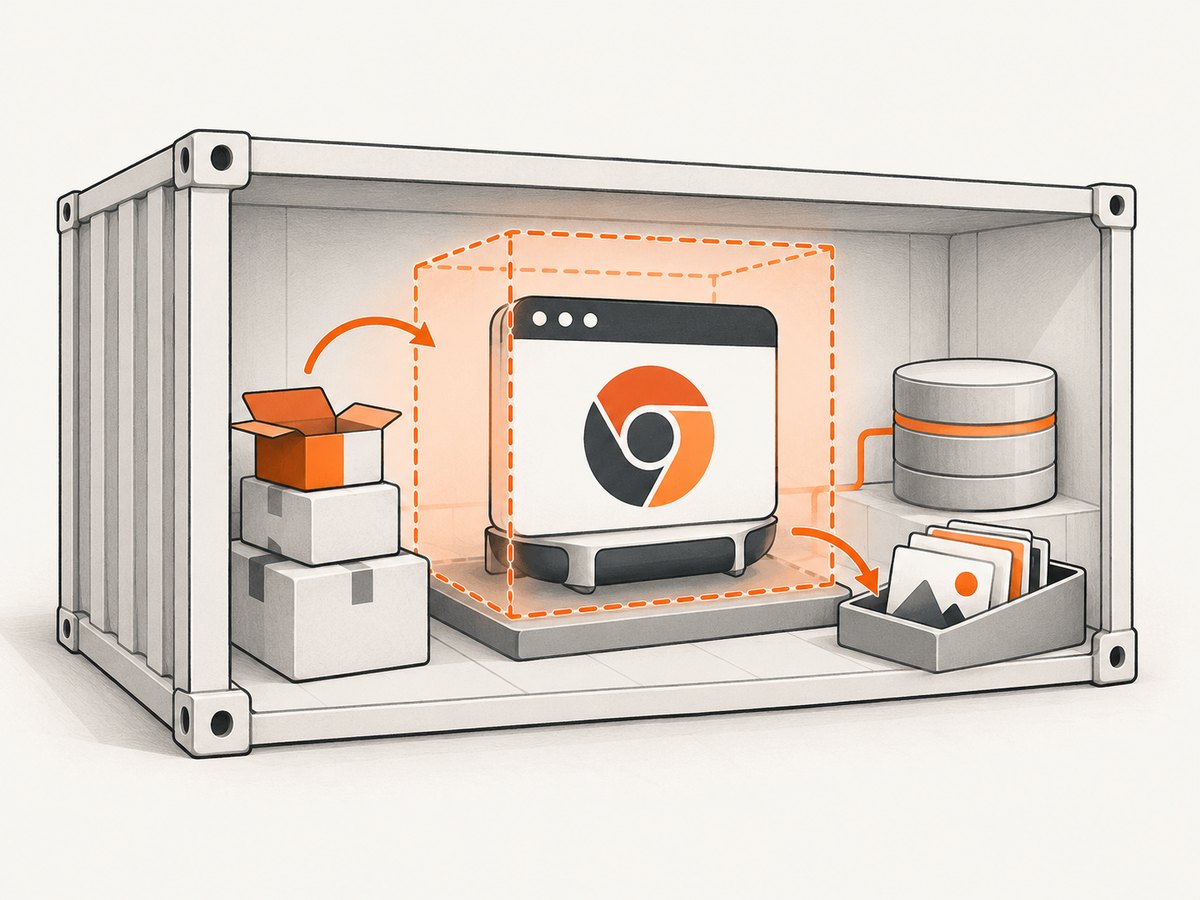
Launching Chrome for every scenario maximizes isolation but costs startup time. For a large suite, launch one browser per worker and create a new incognito-style context per scenario. Keep the ownership explicit: the worker owns the browser, while the World owns its context and page. Always close contexts after each scenario and close the worker browser in worker teardown.
9. CI and container troubleshooting
| Symptom | Likely cause | Fix |
|---|---|---|
| Could not find Chrome | Install scripts were blocked or no browser exists in the image | Run npx puppeteer browsers install, enable the install script, or use puppeteer-core with an explicit executable path. |
| Failed to launch: sandbox | Running as root or without a usable Linux sandbox | Use a non-root container user and configure the sandbox. --no-sandbox disables protections and should be reserved for trusted content. |
| Chrome exits immediately | Missing shared libraries, fonts, or writable profile/cache directories | Install the image dependencies, set writable HOME/TMPDIR-equivalent paths, and print the browser launch error. |
| Works on Debian, fails on Alpine | Chrome does not support Alpine out of the box | Install compatible Chromium dependencies, verify the browser version, or use a Debian/Ubuntu base image. |
| Navigation timeout | Slow app, blocked request, or waiting for an event that never occurs | Use a targeted readiness selector, inspect request failures, and set a realistic navigation timeout. |
Steps cannot read this.page |
Arrow function lost Cucumber’s World binding | Change the step or hook to async function () {}. |
When debugging CI, print process.version, Puppeteer’s version, the executable path, and the browser launch error. Capture a screenshot and HTML on failure, but redact credentials and private data before storing artifacts.
10. Reliability and performance checklist
- Pin
@cucumber/cucumber, Puppeteer, and the browser image in the lockfile. - Check Puppeteer’s supported-browser table after upgrades.
- Use deterministic test data and reset server state between scenarios.
- Prefer
domcontentloadedplus a specific readiness selector overnetworkidle0for apps with analytics or long polling. - Reuse a browser per worker only with isolated contexts.
- Set explicit viewport, timezone, locale, and permissions when the test depends on them.
- Collect traces, console errors, failed requests, screenshots, and HTML only on failure to control artifact size.
- Retry only known transient infrastructure failures; retries can hide real product defects.
Browser automation has a direct compute cost: Chrome downloads consume CI cache space, each process consumes memory, and parallel workers multiply CPU and RAM. Cache the Puppeteer browser directory in CI where policy permits, and choose worker counts from the container’s available memory rather than the number of CPU cores alone.
11. Or skip the browser setup
If your goal is to capture a page image or PDF rather than interact with it, ScreenshotNeo provides a single HTTP request. Read the ScreenshotNeo API documentation for all options.
curl -G "https://api.screenshotneo.com/v1/shot" -d access_key=YOUR_API_KEY --data-urlencode url=https://stripe.com -o shot.webpimport requests
r = requests.get("https://api.screenshotneo.com/v1/shot", params={"access_key": "YOUR_API_KEY", "url": "https://stripe.com"}, timeout=90)
open("shot.webp", "wb").write(r.content)const q = new URLSearchParams({ access_key: 'YOUR_API_KEY', url: 'https://stripe.com' });
const res = await fetch(`https://api.screenshotneo.com/v1/shot?${q}`);ScreenshotNeo accepts cookie and consent banners before capture and removes more than 60 known consent platforms, newsletter popups, and chat widgets. Bot checks, blank pages, timeouts, failed loads, and cache hits are not billed; response headers identify the page verdict and whether the request was billed. Its MCP server provides take_screenshot, get_page_info, and capture_pdf tools for Claude, Cursor, and other MCP clients. The Free plan includes 1,000 screenshots per month with no card; paid plans start at $5 for 3,000 shots. Create a free ScreenshotNeo account.
12. FAQ
Should I use one browser for every scenario?
Use one browser and one context per scenario for maximum isolation. For speed, one browser per worker with a fresh context per scenario is a reasonable compromise.
What is the difference between Puppeteer and puppeteer-core?
puppeteer manages a compatible Chrome download. puppeteer-core assumes your project or image supplies the browser and executable path.
Can I run headful Chrome in CI?
Yes, but a display server is required. Headless mode avoids that dependency and is the normal CI choice.
Why does a test pass locally but fail in CI?
Check browser version, missing Linux dependencies, sandbox permissions, writable directories, viewport, timezone, and waits tied to network timing.
Where should screenshots from failed steps go?
Attach them in an After hook so Cucumber formatters retain them with the scenario result. Store them as CI artifacts with access controls appropriate to the data.


