How to Tune Puppeteer Headless Performance Options
Compare Puppeteer’s regular headless Chrome and chrome-headless-shell on your real workload, then tune caching and launch options without guessing.
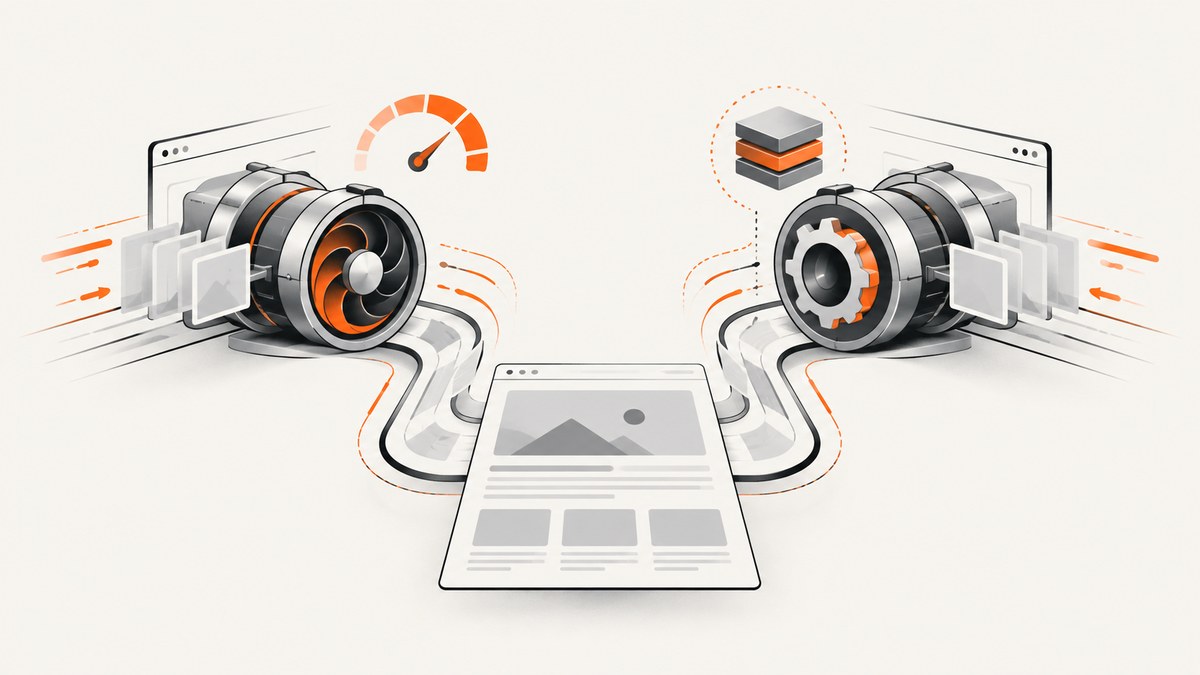
Puppeteer performance tuning starts with a controlled comparison, not a pile of copied Chrome flags. Use Puppeteer’s bundled Chrome for Testing as the baseline, then compare regular headless Chrome with headless: 'shell' on the same pages and machine. Puppeteer describes chrome-headless-shell as potentially more performant for automation that does not need the complete Chrome feature set, but publishes no universal speedup. Measure your own throughput, latency, memory use, and output correctness.
For current Puppeteer, headless: true is the default and selects new headless Chrome. headless: 'shell' selects the separate chrome-headless-shell program, whose behavior does not completely match regular Chrome. Choose the shell only when its compatibility is sufficient for your pages and tasks. [Puppeteer headless modes]
1. Know which headless mode you are measuring
Since Puppeteer 20, the default download is Chrome for Testing. Puppeteer’s supported-browser documentation says regular headless and headful Chrome share the same code path; old headless is a separate shell program. Puppeteer works best with the Chrome for Testing version it downloads and does not guarantee behavior with other browser versions. Start there before comparing custom browser binaries or launch options. [Supported browsers]
| Setting | What it launches | Use it when |
|---|---|---|
headless: true |
New headless Chrome; the default. | You need behavior aligned with regular Chrome’s feature set. |
headless: 'shell' |
The separate chrome-headless-shell binary. |
You have verified your automation works with the shell and want to measure its performance. |
headless: false |
Headful Chrome. | You need to inspect the browser visually or use DevTools during diagnosis. |
These modes are not interchangeable performance presets. A faster run is not useful if a page renders differently, an interaction fails, or a required browser feature is missing. Test correctness alongside speed.
2. Build a repeatable baseline
Before changing configuration, write down the conditions that can affect a run. Use the same page set, machine or container limits, Puppeteer and browser versions, cache policy, navigation strategy, and concurrency for both modes. Include representative pages: simple static pages, pages with substantial JavaScript, and any sites or interactions that matter in production.
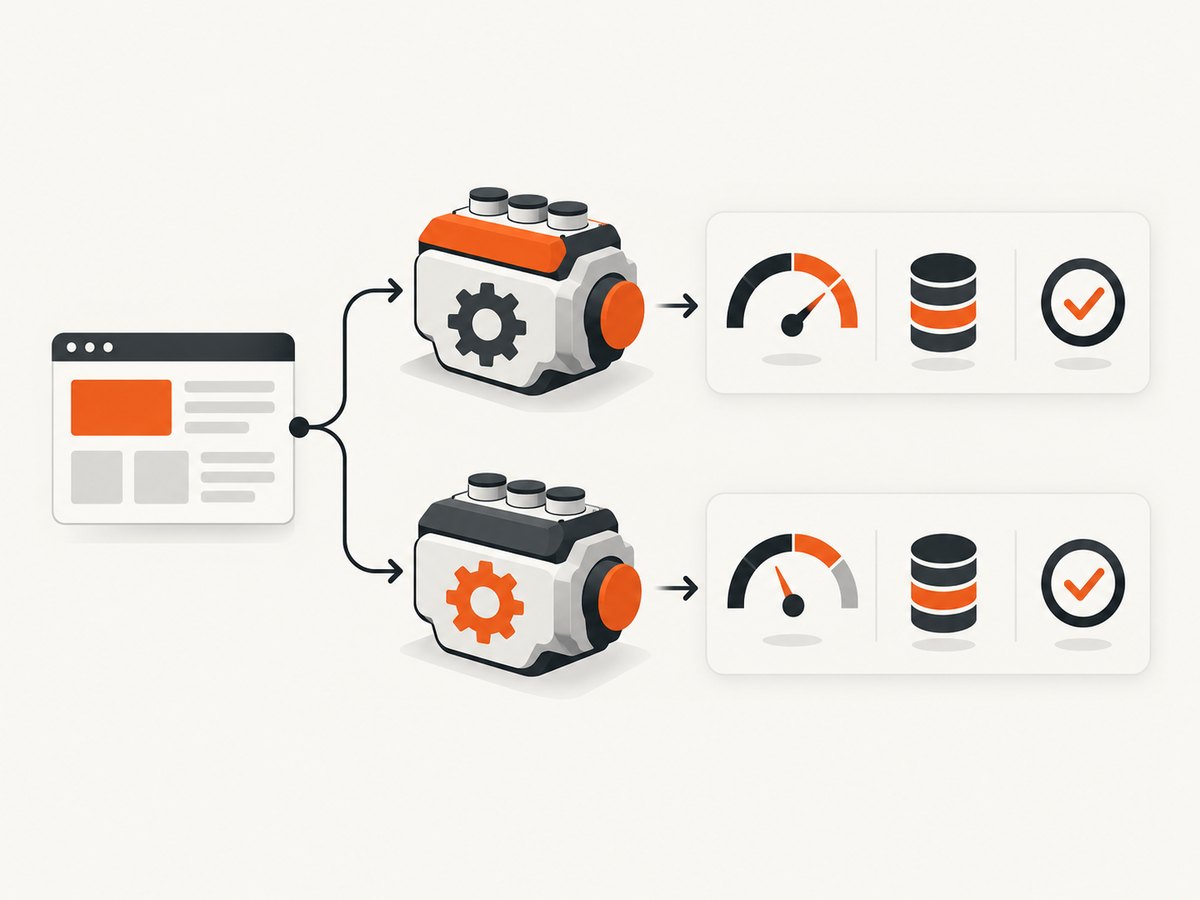
- Record the Puppeteer version, browser version, operating system, CPU and memory limits.
- Choose a fixed list of target pages and the exact capture or interaction task for each.
- Set a consistent navigation and readiness condition. For example,
domcontentloadedis not equivalent to waiting for network activity to stop. - Run regular headless Chrome first. Repeat enough times to see whether results are stable rather than relying on one run.
- Record duration, successes and failures, memory use, and whether the output is correct.
- Repeat with
headless: 'shell', changing no other setting.
Throughput and latency answer different questions. Throughput is completed tasks per unit of time; latency is how long an individual task takes. Record memory and correctness too: a configuration that completes more jobs while producing broken captures is not an improvement. Puppeteer’s documentation supplies no benchmark table or percentage gain for shell mode, so do not assume one.
3. Run the same workload in both modes
Install Puppeteer in a project so it downloads its compatible browser, then save the following as benchmark.mjs. This runnable example measures sequential navigation and reports each page duration and overall throughput. Replace the example URLs with a representative fixed page set.
import puppeteer from 'puppeteer';

const mode = process.env.MODE ?? 'regular';
const urls = [
  'https://example.com/',
  'https://www.wikipedia.org/',
];

const headless = mode === 'shell' ? 'shell' : true;
const browser = await puppeteer.launch({ headless });
const results = [];

try {
  for (const url of urls) {
    const page = await browser.newPage();
    const started = performance.now();
    try {
      await page.goto(url, {
        waitUntil: 'domcontentloaded',
        timeout: 30_000,
      });
      const title = await page.title();
      results.push({
        url,
        ok: true,
        title,
        ms: Math.round(performance.now() - started),
      });
    } catch (error) {
      results.push({
        url,
        ok: false,
        error: String(error),
        ms: Math.round(performance.now() - started),
      });
    } finally {
      await page.close();
    }
  }
} finally {
  await browser.close();
}

const elapsedMs = results.reduce((sum, result) => sum + result.ms, 0);
console.log(JSON.stringify({ mode, results, elapsedMs }, null, 2));
console.log(`Sequential throughput: ${
  (results.filter(result => result.ok).length / (elapsedMs / 1000)).toFixed(2)
} pages/s`);
Install with npm install puppeteer, then run MODE=regular node benchmark.mjs and MODE=shell node benchmark.mjs. The example is deliberately sequential: it makes the initial comparison easier to interpret. If your production service processes pages concurrently, repeat the comparison at its intended concurrency after the sequential baseline.
This script measures navigation to domcontentloaded and title retrieval; it is not a universal browser benchmark. If the real task needs a screenshot, a selector, or a completed application state, measure that actual task instead. Keep the workload and readiness condition identical across runs.
4. Tune one option at a time
Cache behavior
Puppeteer enables the page cache by default. You can toggle it with page.setCacheEnabled(). Decide whether a warm cache reflects your real workload: repeated visits by a long-lived browser may benefit from it, while independent cold visits may not. Use the same cache policy in both test modes, and state whether measurements are cold or warm. Mixing conditions can make a comparison meaningless. [Page.setCacheEnabled()]
const page = await browser.newPage();
await page.setCacheEnabled(false); // Set explicitly for a cold-cache run.
await page.goto(url, { waitUntil: 'domcontentloaded' });
Launch arguments
Puppeteer’s launch API accepts an args array for additional browser arguments. Add one argument, run the same workload, and check browser startup and output correctness before keeping it. Puppeteer cautions that its default arguments should generally be retained; using ignoreDefaultArgs can change behavior and should be approached carefully. A copied flag is not evidence of a performance improvement for your workload. [Launch options]
const browser = await puppeteer.launch({
  headless: true,
  args: ['--some-argument-you-have-validated'],
});
The example shows where additional arguments go, not a recommended speed flag. Check the Chrome and Puppeteer documentation for an argument’s meaning and compatibility before using it.
Timeouts and diagnostics
The launch API documents a default launch timeout of 30,000 ms. Raising a timeout can allow a slow launch to finish; it does not make Chrome or page execution faster. dumpio: true forwards browser process output to Node.js, which helps diagnose launch and browser issues. slowMo deliberately slows Puppeteer operations for debugging, so do not enable it during a performance measurement. DevTools forces headful mode, so it also changes the configuration being measured. [Launch options]
5. Read results without overclaiming
Compare successful runs only after checking that they did equivalent work. Keep failed navigations visible in the report; silently dropping failures can make a fragile mode look fast. For each configuration, compare:
- Correctness: Did the expected page, content, and interaction complete?
- Latency: What are typical and slow-run durations, not just the fastest run?
- Throughput: How many successful tasks finish per second at the target concurrency?
- Memory: What does the browser process use under representative load?
- Reliability: Are failures, timeouts, or inconsistent results more common?
If shell mode is faster for your task and passes compatibility checks, it may be a useful configuration. If the difference is small, unstable, or offset by incompatibilities, stay with regular headless Chrome. The official guidance is conditional: the shell may be more performant for automation that does not need the complete Chrome feature set. It does not establish a universal winner or a guaranteed percentage.
6. Troubleshooting common problems
| Symptom | Likely cause | What to do |
|---|---|---|
| Shell mode fails at launch. | The shell browser is unavailable, incompatible with the installed Puppeteer setup, or cannot start in the current environment. | Use Puppeteer’s bundled browser setup, check the launch error and browser installation, then rerun the regular headless baseline. |
| Regular and shell output differ. | The old headless shell does not completely match regular Chrome behavior. | Check the feature or rendering difference against the actual task. Keep regular headless if that difference affects correctness. |
| Navigation times out. | The page is slow, the chosen readiness event is too strict for the page, or the network is unreliable. | Inspect the error and choose a readiness condition that matches the task. Keep that condition identical in comparisons; adjust timeout only to handle legitimate slow work. |
| One run is much faster than another. | Cache state, page variability, machine contention, network conditions, or concurrency changed. | Repeat runs under controlled conditions, report cold and warm behavior separately, and avoid conclusions from one sample. |
| Browser starts but jobs fail under load. | The tested concurrency may exceed available machine resources or expose a workload bottleneck. | Measure memory and failures as concurrency rises in small steps. Select a level that meets correctness and latency needs. |
| A launch flag breaks startup or output. | The flag conflicts with Puppeteer defaults or changes browser behavior. | Remove the flag, confirm the baseline works, then test a single documented change at a time. Avoid discarding default arguments casually. |
| Logs are missing when diagnosing launch. | Browser process output is not forwarded to the Node process. | Temporarily enable dumpio: true to inspect browser output; remove it from normal benchmark runs if logging affects measurement. |
7. Performance, reliability, and cost considerations
Browser mode is only one part of capture time. Navigation strategy, external network requests, page scripts, cache state, machine limits, and concurrency all affect results. A useful test recreates those conditions rather than timing a tiny synthetic page and extrapolating.

For reliability, track failed pages and output correctness alongside speed. Keep the downloaded Chrome for Testing baseline when upgrading Puppeteer, then rerun the same workload: Puppeteer’s supported-browser mapping changes over time, so check the current compatibility page when adopting a later version. If you use a different Chrome build, treat it as a separate variable and validate it rather than assuming support guarantees.
For cost, account for the resources needed to keep browser processes and pages running, plus engineering time spent maintaining browser binaries, concurrency limits, and failure handling. This dossier provides no price or benchmark comparison for running Puppeteer, so estimate those costs from your deployment and measurements. If the work is primarily taking website screenshots and browser setup is the unwanted part, a screenshot API may simplify the path.
Or skip the browser setup
ScreenshotNeo is a website screenshot API and MCP server for developers. One GET request returns a PNG, JPEG, WebP, or PDF. Before capture, it accepts cookie or consent banners like a visitor and removes more than 60 known consent platforms, newsletter popups, and chat widgets; each step can be turned off. Bot checks, CAPTCHAs, blank pages, timeouts, failed loads, and cache hits are not billed, and responses report the page verdict and billing status. Its MCP server offers take_screenshot, get_page_info, and capture_pdf for Claude, Cursor, and other MCP clients. See ScreenshotNeo and the API documentation.
curl -G "https://api.screenshotneo.com/v1/shot" -d access_key=YOUR_API_KEY --data-urlencode url=https://stripe.com -o shot.webpimport requests
r = requests.get(
"https://api.screenshotneo.com/v1/shot",
params={"access_key": "YOUR_API_KEY", "url": "https://stripe.com"},
timeout=90,
)
open("shot.webp", "wb").write(r.content)const q = new URLSearchParams({ access_key: 'YOUR_API_KEY', url: 'https://stripe.com' });
const res = await fetch(`https://api.screenshotneo.com/v1/shot?${q}`);
if (!res.ok) throw new Error(`Screenshot request failed: ${res.status}`);
const bytes = new Uint8Array(await res.arrayBuffer());
await import('node:fs/promises').then(fs => fs.writeFile('shot.webp', bytes));Cookie banners, popups, and chat widgets are removed before the shot; bot checks, blank pages, and failed loads are never billed; and the MCP server lets AI agents take screenshots. The free plan includes 1,000 screenshots a month with no card; paid plans start at $5 for 3,000. Sign up for 1,000 free screenshots a month, no card required.
8. Frequently asked questions
Does headless: 'shell' always run faster?
No. Puppeteer describes it as more performant for some automation tasks that do not need the complete Chrome feature set, without giving a universal speedup. Measure your workload.
Should I use headless: false to improve performance?
No general performance claim follows from switching to headful mode. Use it when visual inspection or debugging requires a visible browser; DevTools also forces headful mode.
Is slowMo a tuning option?
No. It intentionally slows operations to make debugging easier. Leave it out of performance runs.
Which browser version should I benchmark first?
Start with the Chrome for Testing version Puppeteer downloads for your installed Puppeteer version, then compare alternatives as separate variables.
How often should I rerun the comparison?
Repeat it when you change Puppeteer, browser version, infrastructure, concurrency, or the pages and readiness behavior your application relies on.


