How to Take Screenshots with Puppeteer in Headless Mode
Learn how to capture viewport, full-page, clipped, and element screenshots with Puppeteer headless mode, with fixes for common failures.
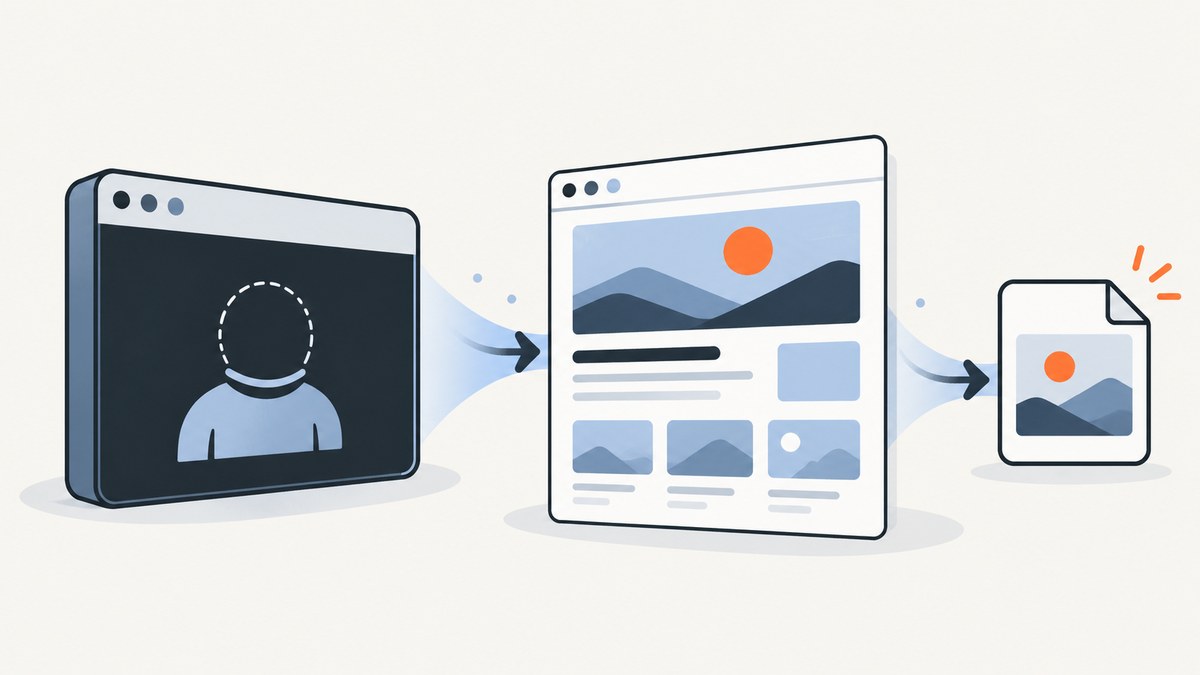
Puppeteer can capture a web page without opening a visible browser window. A basic puppeteer.launch() starts headless Chrome by default; create a page, navigate to the URL, call page.screenshot(), and close the browser. The following complete script saves a viewport screenshot:
import puppeteer from 'puppeteer';

const browser = await puppeteer.launch(); // headless by default
try {
  const page = await browser.newPage();
  await page.goto('https://example.com', { waitUntil: 'networkidle2' });
  await page.screenshot({ path: 'screenshot.png' });
} finally {
  await browser.close();
}
Puppeteer documents launch() as equivalent to launch({ headless: true }). The API writes PNG by default when a path is supplied. If you omit path, it returns image bytes instead of saving a file. See the headless mode guide, Page.screenshot() API, and ScreenshotOptions reference.
1. Set up a Puppeteer project
Use a current Node.js LTS release and install Puppeteer in a new project. The package downloads a compatible bundled browser during installation.
mkdir puppeteer-shot
cd puppeteer-shot
npm init -y
npm install puppeteer
Add "type": "module" to package.json if you want to use the import syntax above, or use CommonJS:
const puppeteer = require('puppeteer');Puppeteer is guaranteed to work with its bundled browser. A system Chrome executable can be selected, but the LaunchOptions documentation warns that using another executable is at your own risk. Record the Puppeteer version, browser channel or binary, headless setting, viewport, and screenshot options when you need reproducible output.
2. Choose the headless mode
Regular headless Chrome is the default:
const browser = await puppeteer.launch({ headless: true });Use a visible browser while debugging rendering, selectors, or authentication:
const browser = await puppeteer.launch({ headless: false, devtools: true });Puppeteer also exposes headless: 'shell', which launches the separate chrome-headless-shell binary:
const browser = await puppeteer.launch({ headless: 'shell' });The official guide describes shell mode as an older, separate headless implementation. It may be faster for automation that does not need the complete Chrome feature set, but it does not fully match regular Chrome. Choose regular headless when page compatibility and visual parity matter; choose shell only after checking the features your pages require. Before Puppeteer v22, the old headless mode was the default.
3. Capture a viewport screenshot
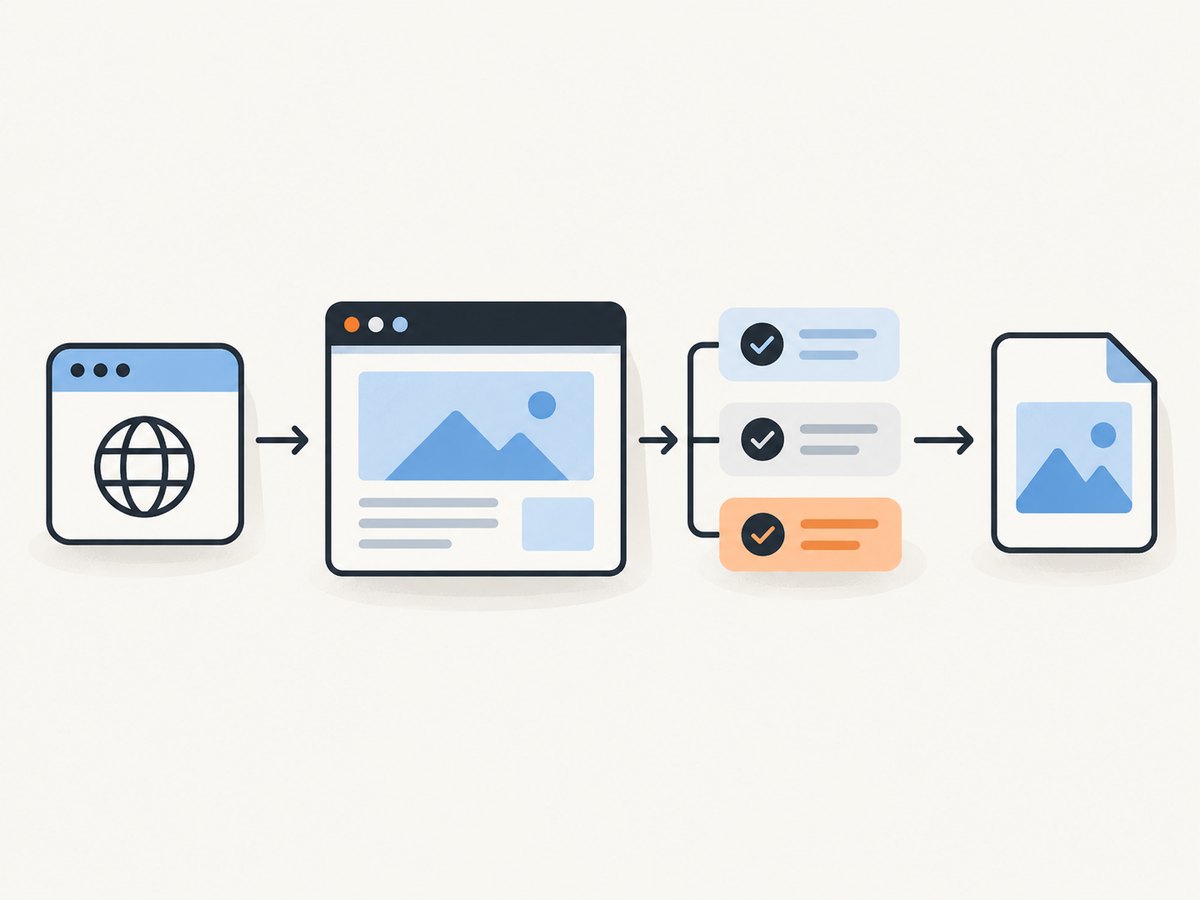
page.screenshot() captures the currently visible viewport unless you set fullPage or clip. Set the viewport explicitly so output does not depend on defaults:
import puppeteer from 'puppeteer';

const browser = await puppeteer.launch();
try {
  const page = await browser.newPage();
  await page.setViewport({ width: 1440, height: 900, deviceScaleFactor: 1 });
  await page.goto('https://example.com', { waitUntil: 'networkidle2' });
  await page.screenshot({ path: 'viewport.png', type: 'png' });
} finally {
  await browser.close();
}
The documented headless screen configuration is 800 by 600 when neither --screen-info nor --window-size is supplied. That is a screen configuration default, not a promise that every screenshot is 800 by 600. The screenshot dimensions also depend on the page viewport, device scale factor, full-page layout, and clipping options. See Puppeteer’s screen configuration guide.
4. Capture the entire page
Set fullPage: true to capture the document beyond the viewport:
await page.screenshot({
  path: 'full-page.png',
  fullPage: true,
  type: 'png'
});
Full-page capture is useful for documentation and regression artifacts, but it can produce very tall files. Pages that use lazy loading may not render all images until they are scrolled into view. A practical approach is to scroll through the document before capturing:
await page.evaluate(async () => {
  await new Promise(resolve => {
    let y = 0;
    const step = 600;
    const timer = setInterval(() => {
      window.scrollBy(0, step);
      y += step;
      if (y >= document.body.scrollHeight) {
        clearInterval(timer);
        window.scrollTo(0, 0);
        resolve();
      }
    }, 100);
  });
});
await page.screenshot({ path: 'lazy-loaded-full-page.png', fullPage: true });
For infinite-scroll pages, define a stopping rule. Otherwise the page can keep growing and the capture may run until a timeout or memory limit.
5. Capture a region with clip
A clip rectangle limits the image to a region in page coordinates:
await page.screenshot({
  path: 'region.png',
  clip: { x: 80, y: 120, width: 900, height: 500 }
});
The rectangle must have positive dimensions and fit the rendered page. If the coordinates are calculated from an element, account for scrolling and device scale factor. For a responsive page, set the viewport before measuring.
6. Capture one element
Find an element, wait for it to exist, and call the element handle’s screenshot() method:
const card = await page.waitForSelector('.pricing-card', { visible: true });
if (!card) throw new Error('pricing card was not found');
await card.screenshot({ path: 'pricing-card.png', type: 'png' });
Puppeteer scrolls the element into view when needed. The method throws if the element has been detached from the DOM, which commonly happens in React, Vue, or other applications that re-render after data arrives. Re-query the selector immediately before capture when the page is dynamic.
7. Select image format, quality, and transparency
PNG is the documented default and supports lossless output and transparency. JPEG and WebP reduce file size for photographic or large captures:
await page.screenshot({ path: 'page.jpg', type: 'jpeg', quality: 82 });
await page.screenshot({ path: 'page.webp', type: 'webp', quality: 80 });
await page.screenshot({ path: 'transparent.png', omitBackground: true });
quality ranges from 0 to 100 and applies to JPEG and WebP, not PNG. omitBackground: true hides the default white background so transparent areas remain transparent where the page permits it.
8. Wait for the page to be ready
Navigation completion and visual readiness are different. Choose a wait strategy that matches the page:
await page.goto(url, { waitUntil: 'domcontentloaded', timeout: 60000 });
await page.waitForSelector('#report', { visible: true, timeout: 30000 });
await new Promise(resolve => setTimeout(resolve, 500));
Useful waitUntil values include load, domcontentloaded, and networkidle2. Network-idle waits can be unsuitable for analytics, chat, or streaming applications that keep requests open. Waiting for a meaningful selector is usually more deterministic. For animations, disable motion before capture:
await page.addStyleTag({
  content: '* { animation: none !important; transition: none !important; }'
});
Fonts can change layout after the initial HTML arrives. When supported by the page, wait for them:
await page.evaluate(() => document.fonts ? document.fonts.ready : null);9. Control cookies, headers, and browser context
Use a new incognito browser context for isolation between jobs. Set cookies before navigation when the site needs a session:
const context = await browser.createBrowserContext();
const page = await context.newPage();
await page.setCookie({
  name: 'session',
  value: process.env.SESSION_COOKIE,
  domain: 'example.com',
  path: '/'
});
await page.setExtraHTTPHeaders({ Authorization: `Bearer ${process.env.TOKEN}` });
await page.goto('https://example.com/account', { waitUntil: 'networkidle2' });
Do not put secrets directly in source code. Clear or close the context after the job when handling multiple users.
10. Handle consent banners, popups, and overlays
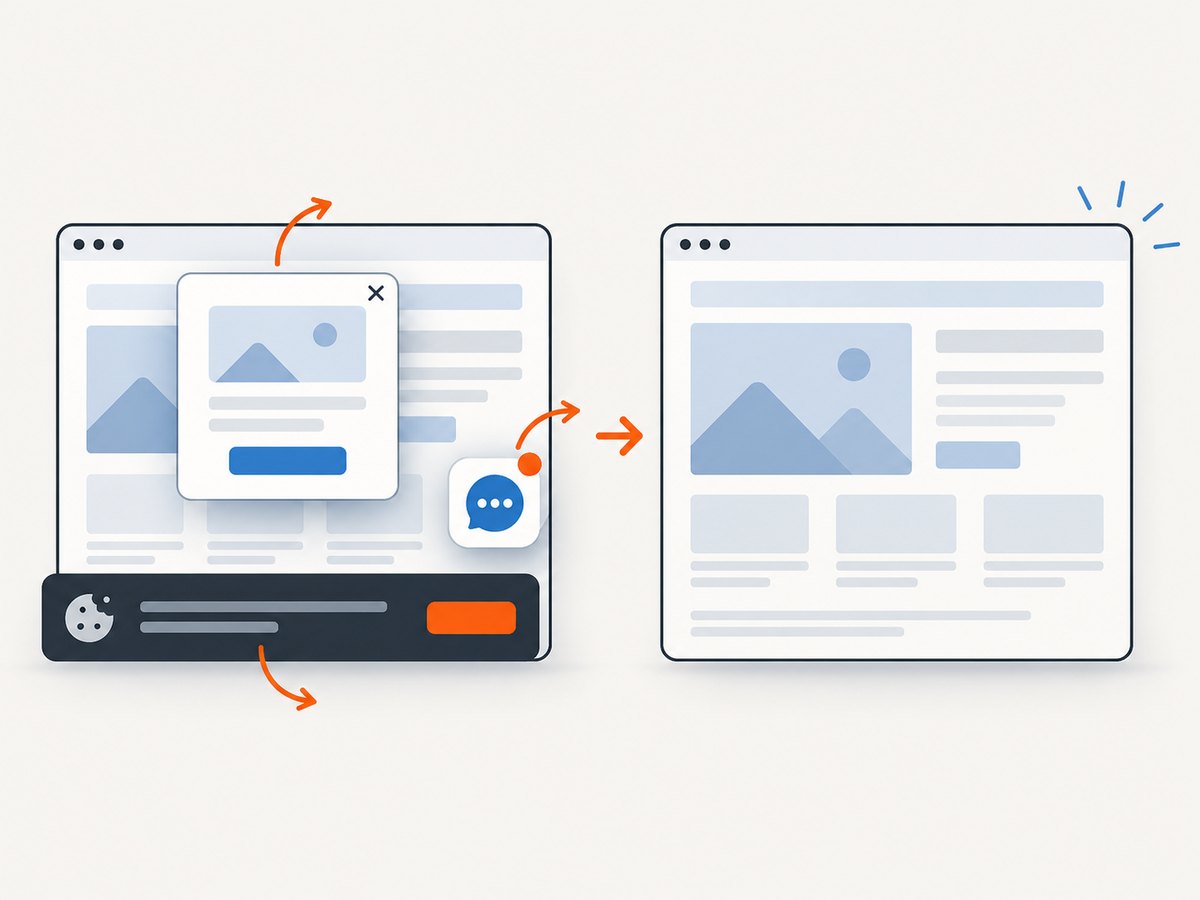
Overlays can obscure the page or alter layout. Click an accept button when it is present, then hide known overlays as a fallback:
const accept = await page.$('button#accept, [aria-label="Accept all"]');
if (accept) await accept.click();
await page.addStyleTag({
  content: '.newsletter-modal, .chat-widget, [role="dialog"] { display: none !important; }'
});
Keep selectors specific. Hiding every element with position: fixed can remove legitimate navigation or accessibility controls. If a banner appears inside an iframe, switch to the matching frame and query there.
11. A production-friendly capture function
import puppeteer from 'puppeteer';

export async function capture(url, outputPath) {
  const browser = await puppeteer.launch({ headless: true });
  try {
    const page = await browser.newPage();
    await page.setViewport({ width: 1366, height: 768, deviceScaleFactor: 1 });
    page.setDefaultNavigationTimeout(60000);
    await page.goto(url, { waitUntil: 'networkidle2' });
    await page.evaluate(() => document.fonts?.ready);
    await page.screenshot({ path: outputPath, fullPage: true, type: 'png' });
  } finally {
    await browser.close();
  }
}

await capture('https://example.com', 'example-full.png');
The try/finally ensures the browser process is closed after success or failure. In a service, reuse a browser process across jobs but create a fresh page or context per job, enforce navigation and overall job timeouts, and limit concurrent pages to the memory available on the host.
12. Troubleshooting common errors
| Symptom | Likely cause | Fix |
|---|---|---|
Could not find Chrome |
Browser download was skipped or a custom executable path is invalid. | Install Puppeteer normally so its bundled browser is downloaded, or set and verify executablePath. Keep the Puppeteer and browser versions consistent. |
| Navigation timeout | The site is slow, blocked, or never reaches the selected network-idle condition. | Increase the timeout, use domcontentloaded, wait for a specific selector, and inspect response status and console errors. |
| Blank or partially rendered image | Capture ran before client-side rendering, fonts, or lazy images completed. | Wait for a content selector, document.fonts.ready, a short settle delay, or a controlled scroll pass. |
| Element screenshot throws detached-node error | A framework replaced the element after you obtained its handle. | Wait for stable content and query the selector again immediately before element.screenshot(). |
| Cookie banner still visible | The banner is in an iframe, uses a different selector, or appears after a delay. | Inspect frames, wait for the banner, click its actual consent control, and verify it is hidden before capture. |
| Different output in CI | Different browser binary, viewport, fonts, timezone, device scale, or headless mode. | Pin Puppeteer, use its bundled browser, set viewport and timezone, install required fonts, and record launch options. |
| Huge full-page image or out-of-memory crash | Very tall pages, large canvases, or infinite scrolling. | Capture sections with clip, impose a maximum height, stop scrolling at a known boundary, or use JPEG/WebP. |
| Sandbox error in a container | The runtime lacks Chrome sandbox permissions. | Prefer a container configured for the sandbox. Only use launch flags such as --no-sandbox when your deployment security model explicitly permits it. |
13. Performance, reliability, and cost considerations
- Launch overhead: starting Chrome for every image is slower than reusing a browser. Reuse the process, but isolate jobs with separate pages or contexts.
- Concurrency: more pages increase throughput until CPU, memory, file I/O, or network limits are reached. Use a queue and bounded workers.
- Determinism: fix viewport, device scale factor, browser version, timezone, locale, fonts, and wait conditions. Disable animations for visual comparisons.
- Retries: retry transient navigation failures with a limit and backoff. Do not blindly retry selector errors or authentication failures.
- Storage: PNG is larger but lossless; JPEG/WebP usually reduce transfer and storage costs. Delete temporary files after uploading them.
- Security: treat target URLs as untrusted input. Restrict outbound access if users can submit URLs, avoid exposing internal network services, and keep credentials out of page-readable data when possible.
Puppeteer itself does not charge per screenshot; your costs come from compute, browser processes, bandwidth, storage, and any infrastructure used to run them. Measure your own workload rather than assuming the 800×600 screen default determines resource use.
Or skip the browser setup
ScreenshotNeo provides a website screenshot API and MCP server. One GET request returns PNG, JPEG, WebP, or PDF. Its capture pipeline accepts cookie and consent banners as a visitor and removes more than 60 known consent platforms, newsletter popups, and chat widgets before the shot; each step can be turned off. Bot checks, CAPTCHAs, blank pages, timeouts, failed loads, and cache hits are not billed, and the response identifies the result with X-Page-Verdict and X-Billed headers.
Read the full option list and request details in the ScreenshotNeo documentation.
cURL
curl -G "https://api.screenshotneo.com/v1/shot" -d access_key=YOUR_API_KEY --data-urlencode url=https://stripe.com -o shot.webpPython
import requests
r = requests.get("https://api.screenshotneo.com/v1/shot", params={"access_key": "YOUR_API_KEY", "url": "https://stripe.com"}, timeout=90)
open("shot.webp", "wb").write(r.content)
Node.js
const q = new URLSearchParams({ access_key: 'YOUR_API_KEY', url: 'https://stripe.com' });
const res = await fetch(`https://api.screenshotneo.com/v1/shot?${q}`);
const bytes = Buffer.from(await res.arrayBuffer());
await import('node:fs/promises').then(fs => fs.writeFile('shot.webp', bytes));
ScreenshotNeo also supports full-page capture with lazy images loaded, CSS-selector element capture, dark mode, 12 device presets or any viewport, retina scale, PDF paper sizes and page ranges, custom CSS and JavaScript, clicks, selector or network-idle waits, request blocking, custom headers and cookies, user agents, Authorization, timezone, geolocation, transparent backgrounds, resizing, configurable-TTL caching, signed links, asynchronous jobs with signed webhooks, bulk capture for 100 URLs per call, a usage API, and an OpenAPI specification. Parameter names used by other screenshot APIs also work, which can simplify migration. Its MCP server exposes take_screenshot, get_page_info, and capture_pdf for Claude, Cursor, and other MCP clients.
The Free plan includes 1,000 screenshots per month with no card. Paid plans start at $5 for 3,000 shots; yearly billing provides two months free, and every feature is available on every plan. Create a free ScreenshotNeo account.
FAQ
Is Puppeteer headless by default?
Yes. puppeteer.launch() uses regular headless Chrome unless you set another headless value.
How do I return screenshot bytes instead of writing a file?
Omit path from page.screenshot(); Puppeteer returns the image data so your code can upload or process it.
When should I use an element screenshot?
Use an element handle when you need one component and its bounding box rather than the complete viewport or document.
Why does my full-page image miss lazy images?
Lazy resources may load only after scrolling. Scroll through the document, wait for the images or a page-specific ready signal, then capture.
Can I use shell headless mode everywhere?
No. Puppeteer documents shell mode as a separate binary that does not fully match regular Chrome. Verify compatibility before switching.


