How to Use Puppeteer with headless_shell
Launch Puppeteer’s chrome-headless-shell, install the matching binary, troubleshoot CI, and decide when shell mode or ScreenshotNeo fits your workflow.
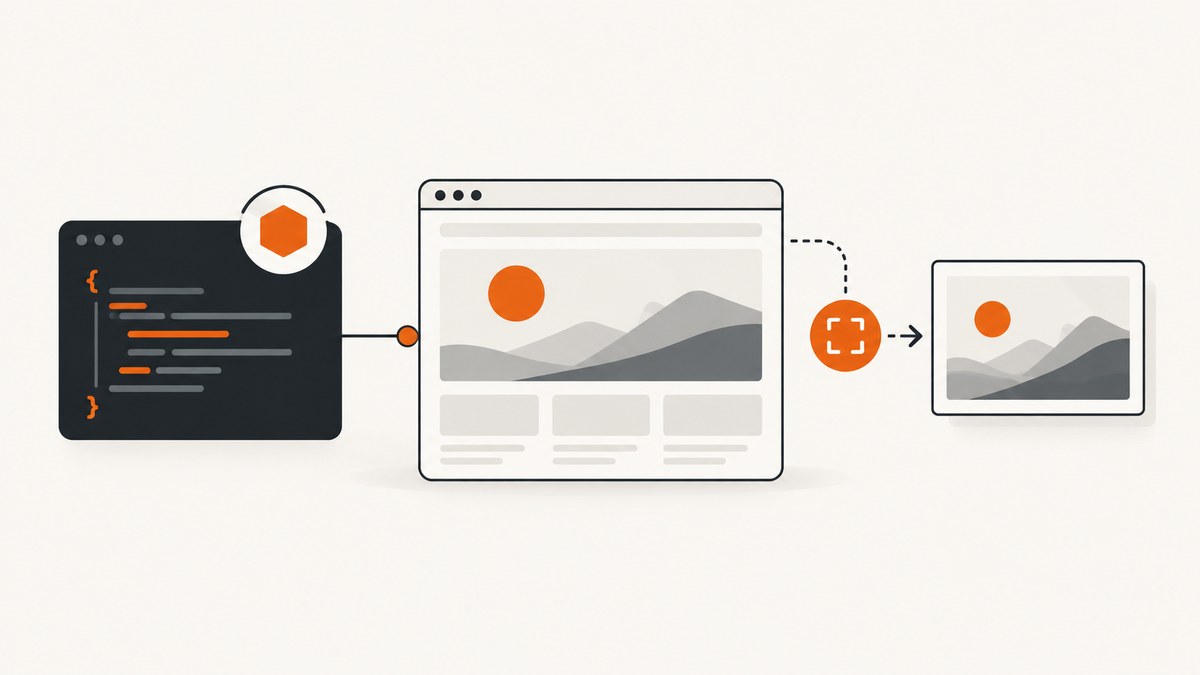
headless: 'shell' is the Puppeteer launch setting that selects chrome-headless-shell, the separate binary used by Chrome’s old headless mode. Install the full puppeteer package to receive a compatible browser download, then launch it with puppeteer.launch({ headless: 'shell' }). Use headless: true when you want the newer regular Chrome headless mode.
This guide covers installation, browser downloads, a complete Node.js example, navigation and capture options, custom browser binaries, CI and Docker considerations, troubleshooting, performance, reliability, costs, and an API alternative when maintaining a browser is unnecessary.
What headless_shell means in Puppeteer
Puppeteer supports two relevant headless choices:
| Setting | Browser path | Use it when | Important caveat |
|---|---|---|---|
headless: 'shell' |
Separate chrome-headless-shell binary |
Performance-sensitive automation that does not need every Chrome feature | It does not completely match regular Chrome |
headless: true |
Newer headless mode in Chrome for Testing | You need behavior closer to normal Chrome | It follows the regular Chrome code path |
The distinction is documented in Puppeteer’s headless modes guide and LaunchOptions API. Shell mode can be a good fit for page titles, HTML inspection, screenshots, PDFs and scripted interactions where the reduced browser surface is acceptable. If your result must match a user’s normal Chrome rendering exactly, start with headless: true and compare results before switching.
Install Puppeteer and the matching shell binary
- Use a current Node.js release supported by your Puppeteer version. The current system requirements page lists Node 22.12 or newer; check the live requirements page before pinning a runtime in CI.
- Install the full package:
npm i puppeteerThe full package downloads a browser selected to work with that Puppeteer release. Puppeteer has included chrome-headless-shell since version 21.6.0. Browser versions and supported platforms change, so use the current supported browsers table rather than hard-coding a version mapping.
If your package manager skipped lifecycle scripts, install browsers explicitly:
npx puppeteer browsers installYou can also configure the browser cache directory and download behavior through Puppeteer’s configuration options. If installation appears successful but launch reports a missing executable, inspect the configured cache and rerun the browser installation command.
Minimal Node.js example with headless_shell
Create shot.mjs:
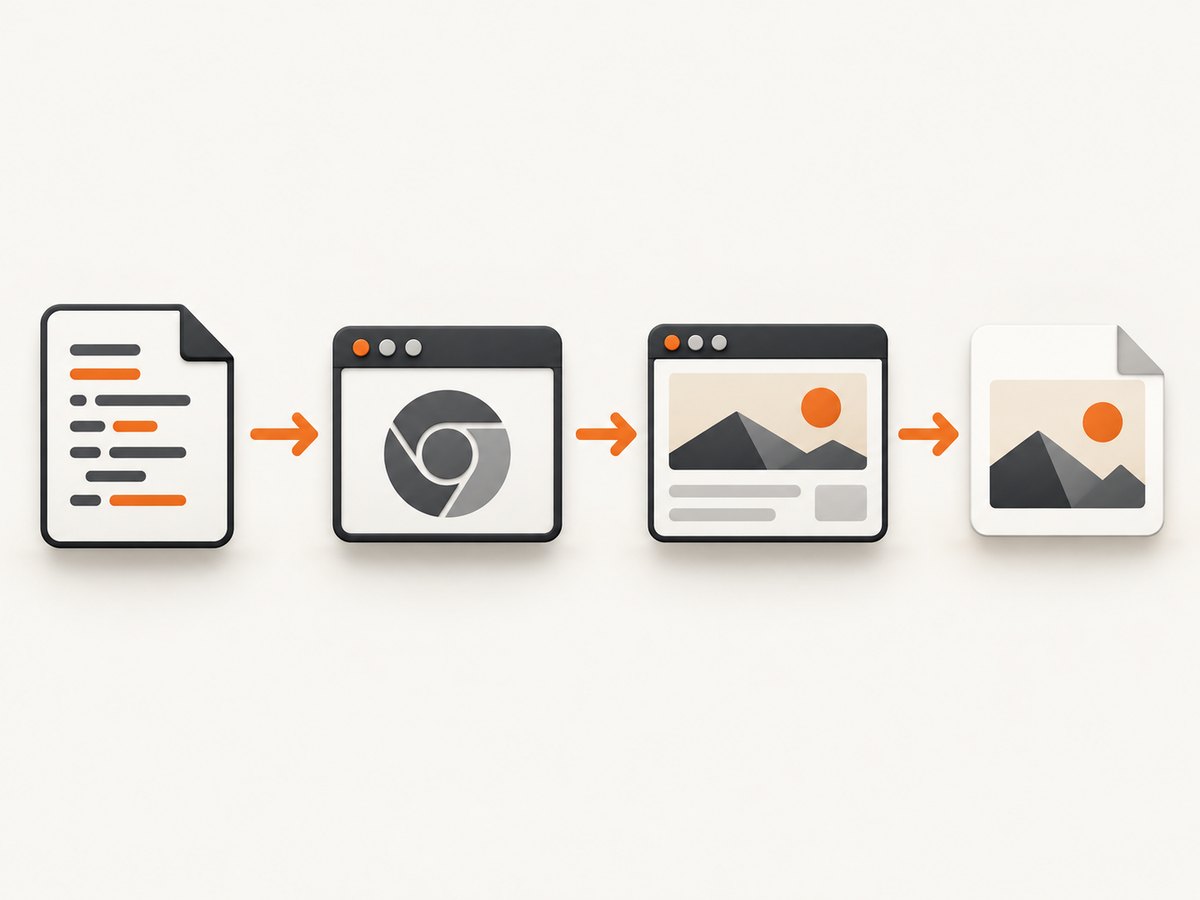
import puppeteer from 'puppeteer';

const browser = await puppeteer.launch({
  headless: 'shell'
});

try {
  const page = await browser.newPage();
  await page.goto('https://example.com', { waitUntil: 'networkidle2' });
  console.log(await page.title());
} finally {
  await browser.close();
}
Run it with:
node shot.mjsThe try/finally block matters in scripts and workers: it closes the browser when navigation, evaluation or output fails. networkidle2 waits until only a small number of network connections remain. For sites that keep analytics or sockets open, use domcontentloaded and then wait for a specific selector or a bounded delay.
Capture a screenshot or PDF
After navigation, Puppeteer can write a screenshot or PDF. Full-page screenshots include content below the viewport, while a normal screenshot captures only the visible area.
import puppeteer from 'puppeteer';

const browser = await puppeteer.launch({ headless: 'shell' });
try {
  const page = await browser.newPage();
  await page.setViewport({ width: 1440, height: 900, deviceScaleFactor: 1 });
  await page.goto('https://example.com', { waitUntil: 'networkidle2' });

  await page.screenshot({
    path: 'example-full.png',
    fullPage: true,
    type: 'png'
  });

  await page.pdf({
    path: 'example.pdf',
    format: 'A4',
    printBackground: true,
    margin: { top: '16mm', right: '16mm', bottom: '16mm', left: '16mm' }
  });
} finally {
  await browser.close();
}
For a single component, locate it and call elementHandle.screenshot():
const card = await page.waitForSelector('.pricing-card', { visible: true });
if (!card) throw new Error('pricing card was not found');
await card.screenshot({ path: 'pricing-card.png' });
Use a selector wait for dynamic pages rather than assuming a fixed delay. A delay can still be useful for animations or late-loading fonts, but keep it bounded.
Useful launch and page options
Viewport, device scale and color scheme
await page.setViewport({
  width: 1280,
  height: 800,
  deviceScaleFactor: 2,
  isMobile: false,
  hasTouch: false
});
await page.emulateMediaFeatures([
  { name: 'prefers-color-scheme', value: 'dark' }
]);
A larger deviceScaleFactor produces denser pixels but increases memory and output size. Set the viewport before navigation when responsive layout is part of the result.
Waiting for application state
await page.goto(url, { waitUntil: 'domcontentloaded', timeout: 45_000 });
await page.waitForSelector('#app-ready', { timeout: 20_000 });
await page.waitForFunction(() => document.fonts.status === 'loaded');
Use waitUntil: 'load' for traditional pages, domcontentloaded for faster first render, or networkidle2 when network quiescence is meaningful. Never wait forever: set navigation and selector timeouts and report the URL in errors.
Custom headers, cookies and authentication
await page.setExtraHTTPHeaders({ 'Accept-Language': 'en-US' });
await page.setCookie({
  name: 'session',
  value: process.env.SESSION_VALUE,
  domain: 'example.com',
  path: '/',
  httpOnly: true,
  secure: true
});
await page.goto('https://example.com/account');
Keep credentials in environment variables or a secret manager. Do not print cookies, authorization headers or page HTML containing sensitive data.
Run JavaScript, click controls and hide content
await page.evaluate(() => {
  document.querySelectorAll('.cookie-banner, .chat-widget').forEach(el => el.remove());
});
await page.click('button[data-accept]');
await page.addStyleTag({ content: '.ads, .newsletter { display: none !important; }' });
Prefer a real click when the page changes state through event handlers. Use DOM removal or injected CSS only when you control the target or have verified that removing the element does not alter the content you need.
Using an existing browser with puppeteer-core
puppeteer-core does not download Chrome. It is intended for remote browsers or installations managed by your operating system, container image or infrastructure team. Supply an executable path or connect to a browser endpoint:
npm i puppeteer-coreimport puppeteer from 'puppeteer-core';
const browser = await puppeteer.launch({
headless: 'shell',
executablePath: process.env.CHROME_HEADLESS_SHELL
});
try {
const page = await browser.newPage();
await page.goto('https://example.com');
} finally {
await browser.close();
}Puppeteer guarantees compatibility with its bundled browser, not arbitrary browser versions. With a separately managed binary, pin and validate the browser and Puppeteer versions together. A wrong path, missing execute permission or incompatible revision commonly produces launch errors.
If your infrastructure exposes a remote debugging endpoint, use the connection method documented for your Puppeteer release instead of launching a local process. Treat the endpoint as a privileged service and protect it from public access.
Platform, CI and Docker considerations
Supported Chrome for Testing platforms include Windows x64, macOS x64 and arm64, Debian and Ubuntu Linux x64 and arm64, and openSUSE and Fedora variants. Linux package requirements differ by distribution; follow the current system requirements rather than copying a dependency list from an unrelated image.
For reproducible builds, cache the Puppeteer browser download between CI jobs and pin your Node and package versions. If the cache is unavailable, run npx puppeteer browsers install during image or job setup and fail the build clearly if it cannot download the binary.
Puppeteer documents a Docker image that includes Chrome for Testing and dependencies. Its example uses --init for child-process management and --cap-add=SYS_ADMIN for the documented sandboxed browser configuration. Docker is optional for local development; use the flags only when they match your container security policy. Ensure every worker closes its browser so orphaned Chrome processes do not exhaust memory.
Common errors and fixes
| Error or symptom | Likely cause | Fix |
|---|---|---|
| “Could not find Chrome” or missing executable | Install scripts were disabled, the cache is empty, or the configured path is wrong | Run npx puppeteer browsers install, inspect the cache configuration, or correct executablePath. |
headless: 'shell' is rejected |
Old Puppeteer version | Upgrade Puppeteer and consult its current headless-mode documentation; use the supported option for the installed release. |
| Browser exits immediately in Linux CI | Missing system packages, sandbox restrictions or an incompatible container | Follow distribution-specific requirements, use the documented Docker setup, and capture the complete launch stderr. |
| Navigation timeout | Slow origin, blocked request, never-ending connection or an overly short timeout | Set an appropriate timeout, use a less strict waitUntil, wait for a known selector, and log response status and URL. |
| Blank or incomplete screenshot | Capture happened before client rendering, fonts or lazy images finished | Wait for an application-ready selector, document.fonts.ready, image completion, or a bounded delay; verify the viewport and full-page setting. |
| Shell output differs from normal Chrome | Headless shell is a separate binary and does not completely match regular Chrome | Use headless: true when Chrome fidelity matters, then compare the rendered result. |
| Out-of-memory or many zombie processes | Browsers and pages are not closed, or too many concurrent jobs share one host | Close pages and browsers in finally, limit concurrency, and monitor process and memory usage. |
Performance, reliability and cost
Shell mode is intended for automation that can work without the complete Chrome feature set and may perform better for suitable workloads. Puppeteer does not publish a universal speed multiplier, so benchmark your own pages if latency determines the design. Measure navigation time, screenshot time, memory per concurrent page and failure rate at the target viewport.
Reuse one browser process for a controlled batch of pages, but create a fresh page or incognito context per job to isolate cookies and storage. Recycle the browser after a bounded number of jobs if you observe memory growth. Limit parallel pages according to available CPU and RAM; more concurrency can increase total completion time when the host is saturated.
Reliability improves when you use explicit readiness checks, bounded timeouts, retries only for transient network failures, and structured logs containing URL, Puppeteer version, browser revision, viewport and failure stage. Do not retry authentication failures or deterministic selector errors indefinitely.
The software itself has no per-screenshot Puppeteer charge, but you pay for the machine, container runtime, bandwidth, storage and engineering time required to keep a browser fleet healthy. A managed screenshot API can be cheaper for sporadic jobs when browser installation and operations would otherwise dominate.
Or skip the browser setup
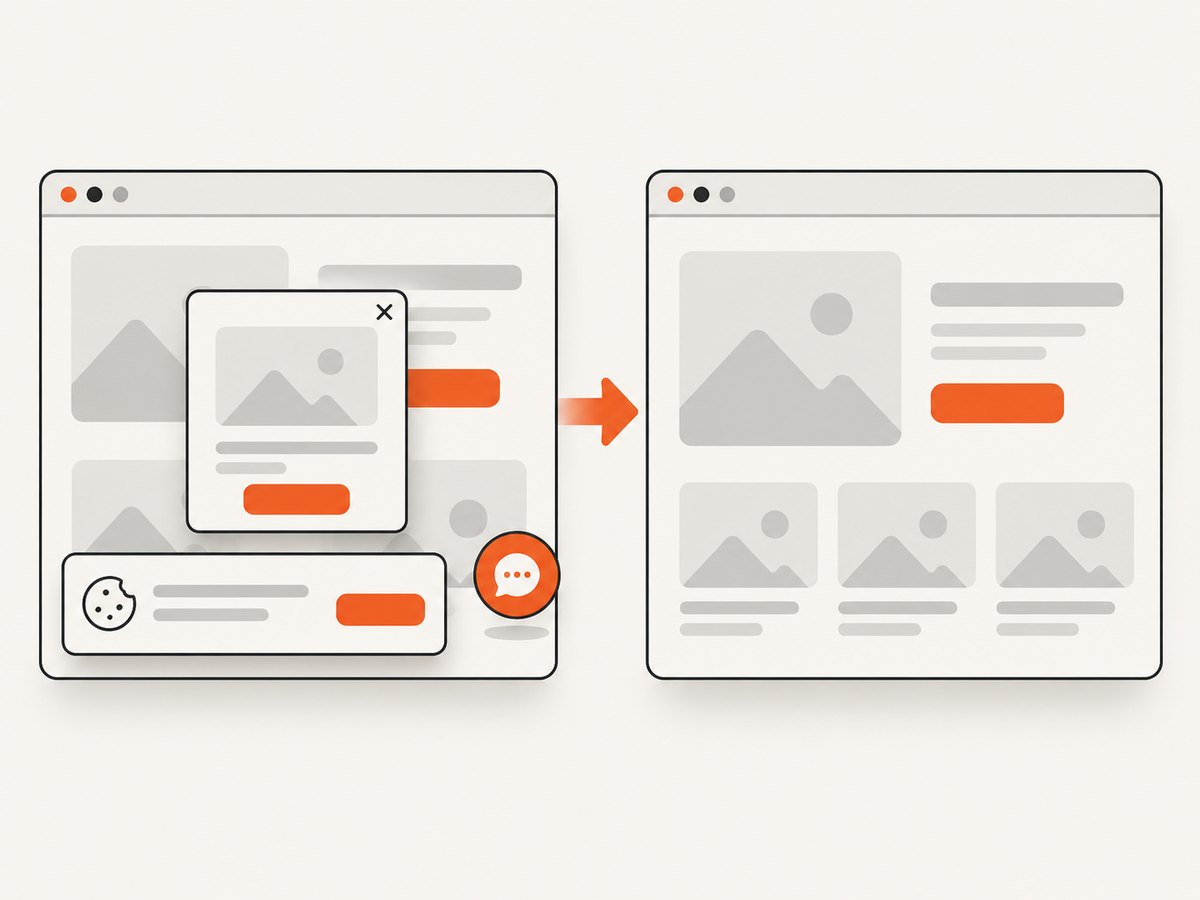
ScreenshotNeo provides a website screenshot API and MCP server. One GET request returns PNG, JPEG, WebP or PDF. Before capture it accepts cookie and consent banners and removes more than 60 known consent platforms, newsletter popups and chat widgets; each step can be disabled. Bot checks and CAPTCHAs, blank pages, timeouts, failed loads and cache hits are not billed, and the response identifies the result with X-Page-Verdict and X-Billed headers.
Read the complete option list in the ScreenshotNeo API documentation. It supports full-page captures with lazy images loaded, CSS-element capture, dark mode, 12 device presets or custom viewports, retina scale, PDF paper sizes and margins, custom CSS and JavaScript, clicks, selector or network-idle waits, request blocking, headers, cookies, user agents, authorization, timezone, geolocation, transparent backgrounds, resizing, chosen cache TTLs, signed image links, asynchronous jobs with signed webhooks, bulk capture of up to 100 URLs per call, a usage API and an OpenAPI specification. Parameter names used by other screenshot APIs also work, which simplifies migration.
curl -G "https://api.screenshotneo.com/v1/shot" -d access_key=YOUR_API_KEY --data-urlencode url=https://stripe.com -o shot.webpimport requests
r = requests.get("https://api.screenshotneo.com/v1/shot", params={"access_key": "YOUR_API_KEY", "url": "https://stripe.com"}, timeout=90)
open("shot.webp", "wb").write(r.content)const q = new URLSearchParams({ access_key: 'YOUR_API_KEY', url: 'https://stripe.com' });
const res = await fetch(`https://api.screenshotneo.com/v1/shot?${q}`);An MCP server exposes take_screenshot, get_page_info and capture_pdf to Claude, Cursor and other MCP clients. The Free plan includes 1,000 shots per month with no card; paid plans start at $5 for 3,000 shots. Create a free ScreenshotNeo account and start with the included monthly shots.
FAQ
Is headless: 'shell' the same as headless: true?
No. The string selects the separate chrome-headless-shell binary; boolean true selects newer regular Chrome headless mode.
Does puppeteer-core download chrome-headless-shell?
No. You must provide a compatible executable path, channel or remote browser connection.
Can shell mode render every website?
It can automate many pages, but it does not completely match regular Chrome. Validate sites that depend on browser features or pixel-level fidelity.
Why did my install not download a browser?
Your package manager may have blocked lifecycle scripts, or a cache/configuration setting may redirect downloads. Run the documented browser installation command and inspect the configured cache.
Should I use a fixed delay for screenshots?
Prefer a readiness selector or application state check. Add a bounded delay only for behavior such as animations or late font loading that cannot be observed directly.


