How to Handle SSL Certificate Errors in Puppeteer Headless Mode
Fix Puppeteer HTTPS failures by repairing certificates, aligning trust stores, and using safe diagnostics for headless Chrome.
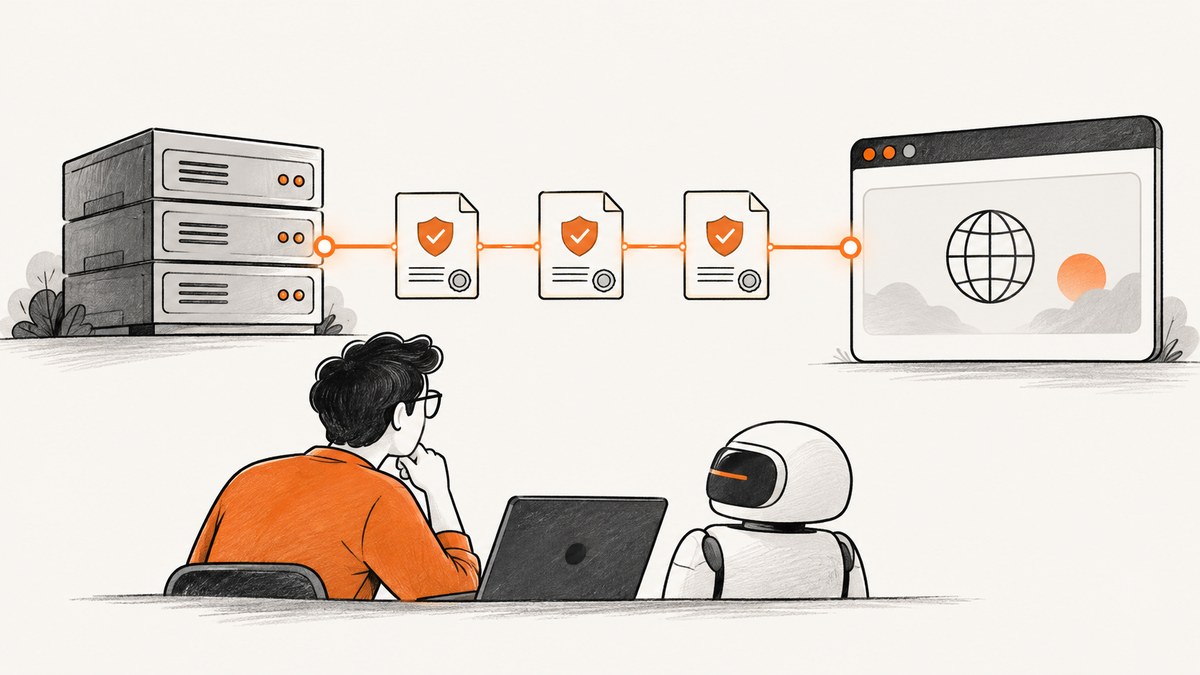
Direct answer: capture the exact Chromium navigation error, inspect the certificate from the same host or container that launches Puppeteer, and repair the certificate or trust chain first. For a private service, install its issuing CA in the operating-system or browser trust store used by headless Chrome. For a public service, renew the certificate, correct the hostname/SAN, and configure the server to send every required intermediate certificate. Treat certificate bypasses as disposable test-only diagnostics.
Headless Chrome uses the same TLS rules as Chrome, but it may run with a different executable, profile, proxy, CA store, or container image. That is why a URL can work in your desktop browser and fail in CI.
1. Identify the exact failure
Start by recording the complete error from page.goto(). The remedy depends on the error:
| Error | Likely cause |
|---|---|
net::ERR_CERT_AUTHORITY_INVALID |
The issuing CA is unknown, often because the certificate is self-signed or an internal CA is missing. |
net::ERR_CERT_COMMON_NAME_INVALID |
The URL hostname does not match a certificate SAN entry. |
net::ERR_CERT_DATE_INVALID |
The certificate is expired, not yet valid, or the runtime clock is wrong. |
| TLS handshake or protocol errors | Incompatible TLS policy, a broken chain, a proxy, or server-side negotiation failure. |
| Browser launch errors | Missing shared libraries, fonts, sandbox setup, or writable profile paths. Ignoring certificates cannot fix these. |
2. Reproduce the request in the same runtime
Run checks inside the same container, VM, or host that starts Chromium. A desktop browser may use a different network route and trust store.
# Show the certificate chain and the name presented by the server
openssl s_client -connect example.test:443 -servername example.test -showcerts </dev/null

# Check the URL with the runtime's normal CA verification
curl -vI https://example.test/
Check all of the following:
- The URL hostname is present in the certificate’s Subject Alternative Name (SAN).
- The validity dates include the current time, and the container clock is correct.
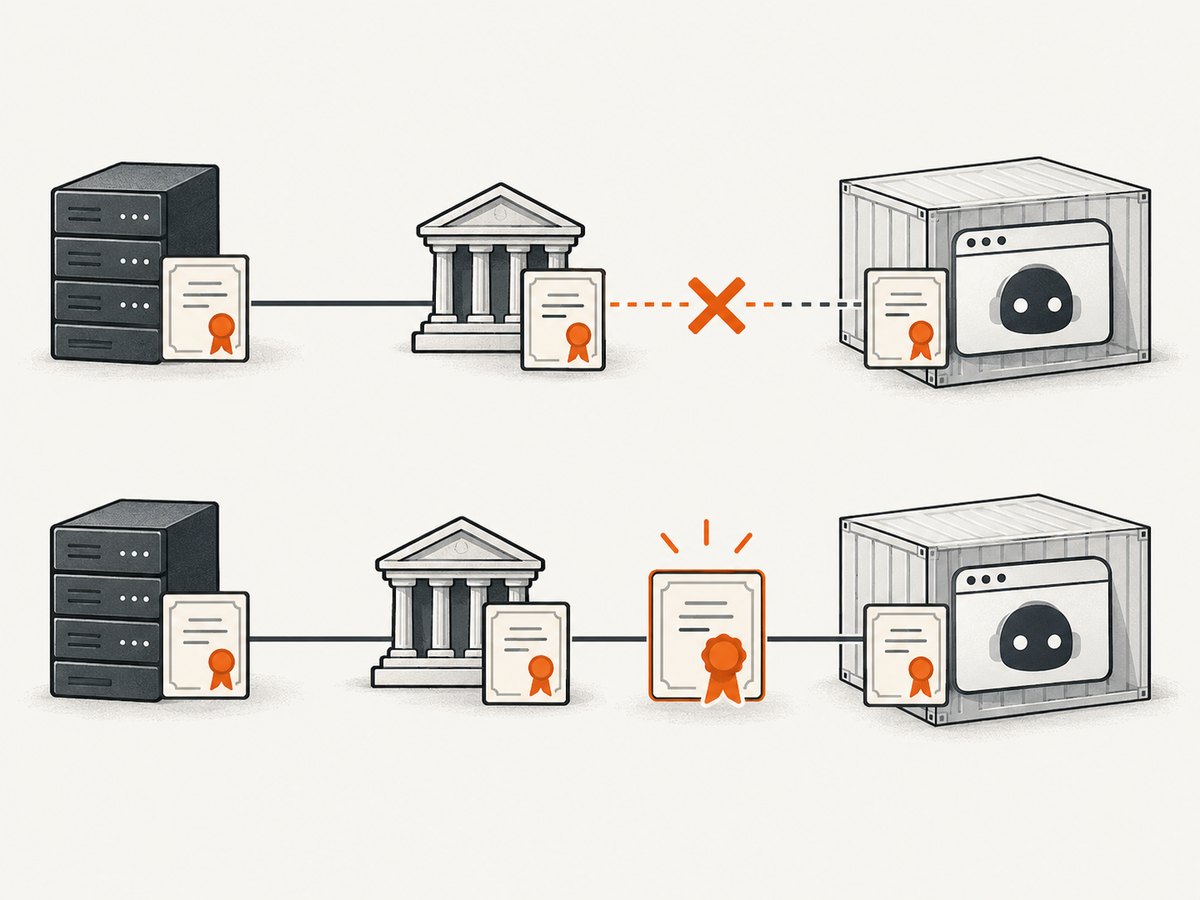
- The server sends the leaf certificate plus required intermediate certificates.
- The endpoint is not being re-signed by a corporate HTTPS proxy.
- The container has a current CA bundle and NSS libraries.
Compare with a normal Chrome session only after confirming that the URL, proxy, DNS path, and credentials are the same.
3. Use a clean Puppeteer diagnostic script
Puppeteer launches current headless mode by default; puppeteer.launch() is equivalent to {headless: true}. The separate headless: 'shell' mode uses the chrome-headless-shell binary. See the official headless modes guide.
import puppeteer from 'puppeteer';

const browser = await puppeteer.launch({
  headless: true,
  // Set this only when you intentionally manage the browser binary.
  // executablePath: process.env.CHROME_PATH,
});

try {
  const page = await browser.newPage();
  page.on('requestfailed', request => {
    console.error('request failed', request.url(), request.failure());
  });

  await page.goto('https://example.test', {
    waitUntil: 'networkidle2',
    timeout: 30_000,
  });

  console.log('loaded:', await page.title());
} catch (error) {
  console.error(error);
  process.exitCode = 1;
} finally {
  await browser.close();
}
The current LaunchOptions reference documents options such as args, executablePath, headless, timeout, and userDataDir. Check the version installed in your project before copying older snippets: APIs and defaults can change.
4. Repair public certificates
- Renew an expired certificate and verify the server clock.
- Add every DNS name used by clients to the certificate SAN list. Redirects must also end at a hostname covered by its certificate.
- Configure the web server or load balancer to send the complete chain, including intermediates.
- Test from the deployment image with
opensslandcurl, then rerun Puppeteer.
Do not solve a public certificate problem by adding a global ignore flag. That hides expiry, hostname mismatches, revoked certificates, and interception.
5. Trust a private or self-signed service
For an internal endpoint, install the issuing CA in the trust store used by the headless process, rebuild immutable CI images with that CA, and restart Chromium after changing trust material. Installing the CA is preferable to trusting one leaf certificate because it supports normal certificate rotation.
Debian or Ubuntu container example
# Copy your internal root CA as a PEM/CRT file first
sudo cp internal-root-ca.crt /usr/local/share/ca-certificates/internal-root-ca.crt
sudo update-ca-certificates

# Confirm the endpoint now validates
curl --fail --silent --show-error https://internal.example.test/
Use the equivalent documented trust-store procedure for your base image. Ensure the CA file is distributed securely and rotated when the authority changes. Restart the browser process; an already running Chromium process may retain old trust material.
6. Check Linux dependencies and writable paths
Puppeteer’s Linux troubleshooting guide lists ca-certificates, libnss3, fonts, and other shared libraries as Chrome dependencies. It also documents writable profile and cache paths. Read-only containers can fail before navigation or produce misleading errors.
# Example locations for a non-root, writable runtime
export XDG_CONFIG_HOME=/tmp/puppeteer-config
export XDG_CACHE_HOME=/tmp/puppeteer-cache
mkdir -p "$XDG_CONFIG_HOME" "$XDG_CACHE_HOME"
Keep Chromium’s sandbox enabled where possible. Puppeteer’s official warning is: “Running without a sandbox is strongly discouraged. Consider configuring a sandbox instead.” See the troubleshooting guide for container-specific setup.
7. Align browser, Puppeteer, proxy, and profile
- Browser binary: Puppeteer normally downloads a compatible Chrome for Testing. If you use a system browser, set
executablePathintentionally and verify its version. - Proxy: Check
HTTP_PROXY,HTTPS_PROXY, andNO_PROXY. A corporate proxy may replace the site’s certificate with one signed by an internal CA. - Profile: Use a dedicated, writable
userDataDir; do not assume your desktop profile is available in CI. - Dependencies: Keep the browser, CA bundle, fonts, and Puppeteer version in the same pinned image.
- Installation: Puppeteer downloads Chrome for Testing by default. The installation guide estimates roughly 170 MB on macOS, 282 MB on Linux, and 280 MB on Windows for the browser download.
If package-manager install scripts are disabled, install the browser explicitly with Puppeteer’s documented browser-install command and set cache paths deliberately. See the installation guide and configuration guide.
8. Certificate bypasses: test-only escape hatch
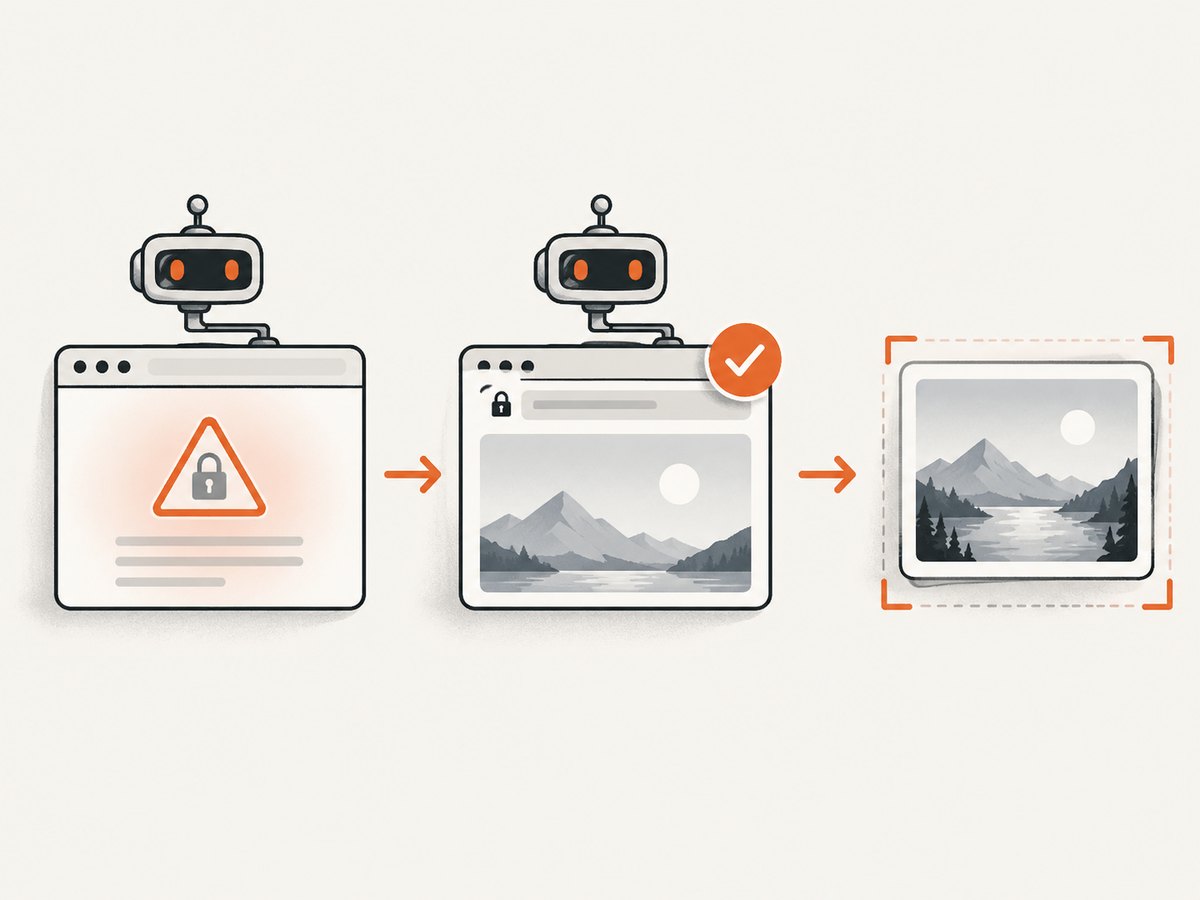
Chrome DevTools Protocol exposes Security.setIgnoreCertificateErrors, which enables or disables ignoring all certificate errors for the debugging client. It is global, so it can conceal expired, mismatched, revoked, or intercepted certificates. See the CDP Security schema.
Some older Puppeteer examples use ignoreHTTPSErrors or pass --ignore-certificate-errors. Check whether your installed Puppeteer version supports the option before using it. If a controlled test must exercise a private certificate, isolate the test environment and target, document the reason, and ensure the setting cannot reach production traffic.
// Disposable integration test only. Never enable this for production traffic.
import puppeteer from 'puppeteer';

const browser = await puppeteer.launch({
  headless: true,
  args: ['--ignore-certificate-errors'],
});
try {
  const page = await browser.newPage();
  await page.goto('https://internal-test.example', { waitUntil: 'networkidle2' });
} finally {
  await browser.close();
}
9. A repeatable troubleshooting checklist
- Save the exact navigation error and URL, including redirects.
- Inspect the chain, SAN, dates, and proxy from the same runtime.
- Repair public certificates and intermediates, or install the private CA.
- Install
ca-certificates,libnss3, fonts, and other documented dependencies. - Provide writable XDG and profile directories.
- Verify the selected Chrome executable and Puppeteer version.
- Check proxy environment variables and
NO_PROXY. - Keep the Chrome sandbox enabled where possible.
- Only then run a narrowly scoped, disposable bypass test, and remove it before deployment.
10. Common errors and fixes
| Symptom | Cause to confirm | Fix |
|---|---|---|
| Works in desktop Chrome, fails in CI | Different CA store, proxy, browser binary, or container clock | Inspect all four in the CI image and install the required CA. |
ERR_CERT_AUTHORITY_INVALID after adding an internal CA |
CA installed on the host but not in the image, or Chromium was not restarted | Install it in the image used by Puppeteer and restart the browser. |
ERR_CERT_COMMON_NAME_INVALID on a redirect |
Final redirect hostname is absent from SAN | Issue a certificate covering every served hostname or correct the redirect. |
ERR_CERT_DATE_INVALID intermittently |
Clock skew or a partially rotated certificate | Synchronize time and inspect every load-balanced endpoint. |
| Chrome cannot start | Missing libraries, sandbox permission, or read-only home/cache | Follow Puppeteer’s dependency list, keep the sandbox, and set writable paths. |
| Requests fail only through a company network | TLS inspection proxy re-signs traffic | Install the company’s root CA or configure an approved NO_PROXY route. |
| Bypass appears to work but security tests pass incorrectly | Global certificate validation was disabled | Remove the bypass and test with the repaired trust chain. |
11. Reliability, performance, and cost considerations
- Reliability: Pin Puppeteer, Chrome for Testing, the CA bundle, and the container image together. A browser or trust-store update can change TLS behavior.
- Startup time: Reuse a browser process when safe, but create isolated pages and close them. Avoid repeatedly downloading Chrome in CI by caching the documented browser cache.
- Diagnostics: Log the navigation error, URL, browser version, proxy mode, and image identifier. Do not log private keys or sensitive cookies.
- Security: Repair trust instead of suppressing validation. If a bypass is unavoidable for a test, isolate its network access and make the setting impossible in production configuration.
- Cost: Self-hosted Puppeteer costs the compute, storage, and maintenance of the browser runtime. A screenshot API can remove that operational work; evaluate billing behavior for failed pages and certificate errors before choosing one.
12. Or skip the browser setup
If your goal is a clean screenshot rather than browser infrastructure, ScreenshotNeo provides a website screenshot API and MCP server. One GET request returns PNG, JPEG, WebP, or PDF, and the API documentation lists the options.
curl -G "https://api.screenshotneo.com/v1/shot" \
  -d access_key=YOUR_API_KEY \
  --data-urlencode url=https://stripe.com \
  -o shot.webp
import requests
r = requests.get(
"https://api.screenshotneo.com/v1/shot",
params={"access_key": "YOUR_API_KEY", "url": "https://stripe.com"},
timeout=90,
)
r.raise_for_status()
open("shot.webp", "wb").write(r.content)const q = new URLSearchParams({
access_key: 'YOUR_API_KEY',
url: 'https://stripe.com'
});
const res = await fetch(`https://api.screenshotneo.com/v1/shot?${q}`);
if (!res.ok) throw new Error(`Screenshot failed: ${res.status}`);
const buffer = Buffer.from(await res.arrayBuffer());
await import('node:fs/promises').then(fs => fs.writeFile('shot.webp', buffer));ScreenshotNeo accepts cookie and consent banners before capture and removes more than 60 known consent platforms, newsletter popups, and chat widgets; each step can be turned off. Bot checks, blank pages, timeouts, failed loads, and cache hits are not billed, and the response identifies the result with X-Page-Verdict and X-Billed headers. Its MCP server exposes take_screenshot, get_page_info, and capture_pdf for Claude, Cursor, and other MCP clients. One thousand screenshots per month are free with no card, and paid plans start at $5 for 3,000 shots. Create a free ScreenshotNeo account.
13. FAQ
Should I always set ignoreHTTPSErrors in headless mode?
No. First repair the endpoint or install its private CA. A global bypass removes certificate validation and can hide real defects.
Why does headful Chrome work while headless fails?
Compare the executable, profile, proxy variables, CA store, container image, and system clock. The rendering mode itself is usually not the root cause.
Do I need to install a CA in Puppeteer code?
Usually no. Install the CA in the operating-system or browser trust store used by the Chromium process, then restart Chromium.
Can a missing Linux package look like an SSL error?
Yes. Browser-launch failures and missing NSS libraries can appear near navigation failures. Follow Puppeteer’s dependency and writable-path guidance before changing TLS settings.
Is a self-signed leaf certificate acceptable for production?
Use a managed private CA and distribute its root trust securely. A temporary bypass is suitable only for an isolated test.


