How to Print HTML Across Multiple PDF Pages With Puppeteer
Use Puppeteer, print CSS, and page.pdf() to create reliable multi-page PDFs with controlled breaks, margins, backgrounds, and debugging.

Use Puppeteer’s page.pdf() method and let the browser paginate normal content naturally. Add print-specific CSS with @page, choose margins and paper size deliberately, and use break-before: page when a section must begin on a fresh sheet. Puppeteer uses print media styles by default when generating a PDF, so your @media print rules control the printed layout.
This guide shows a complete implementation, explains every pagination option that matters, covers common failure modes, and includes a production checklist. At the end, you can also use ScreenshotNeo when you need PDF capture without maintaining a browser process.
1. Create a multi-page PDF with Puppeteer
Install Puppeteer in a Node.js project:
npm install puppeteerCreate an HTML document whose content is taller than one sheet. Normal block content will flow onto additional pages automatically.
<!doctype html>
<html lang="en">
<head>
  <meta charset="utf-8">
  <title>Quarterly report</title>
  <style>
    @page {
      size: A4;
      margin: 16mm;
    }

    * { box-sizing: border-box; }

    body {
      margin: 0;
      color: #202124;
      font: 12pt/1.5 Arial, sans-serif;
    }

    h1, h2, h3 {
      line-height: 1.2;
      break-after: avoid;
    }

    .start-new-page {
      break-before: page;
    }

    .keep-together {
      break-inside: avoid;
    }

    @media print {
      a { color: inherit; text-decoration: none; }
    }
  </style>
</head>
<body>
  <h1>Quarterly report</h1>
  <p>This introduction appears on the first page.</p>

  <section class="keep-together">
    <h2>Summary</h2>
    <p>Summary content flows naturally and avoids a break when it fits.</p>
  </section>

  <section class="start-new-page">
    <h2>Detailed findings</h2>
    <p>This section starts on a new page.</p>
  </section>

  <p>Add enough content here to continue across multiple pages.</p>
</body>
</html>
Then load the file and call page.pdf():
const puppeteer = require('puppeteer');

(async () => {
  const browser = await puppeteer.launch({ headless: true });
  try {
    const page = await browser.newPage();
    await page.goto('file:///absolute/path/report.html', {
      waitUntil: 'networkidle0'
    });

    await page.pdf({
      path: 'report.pdf',
      format: 'A4',
      printBackground: true,
      preferCSSPageSize: true,
      waitForFonts: true
    });
  } finally {
    await browser.close();
  }
})();
page.pdf() waits for fonts by default in current Puppeteer documentation, and the explicit waitForFonts option makes that intent clear. It does not guarantee that application data, images, or other external resources have finished loading, so handle those separately.
2. How pagination works
There are two different decisions: how content flows and where a page may start.
Natural flow
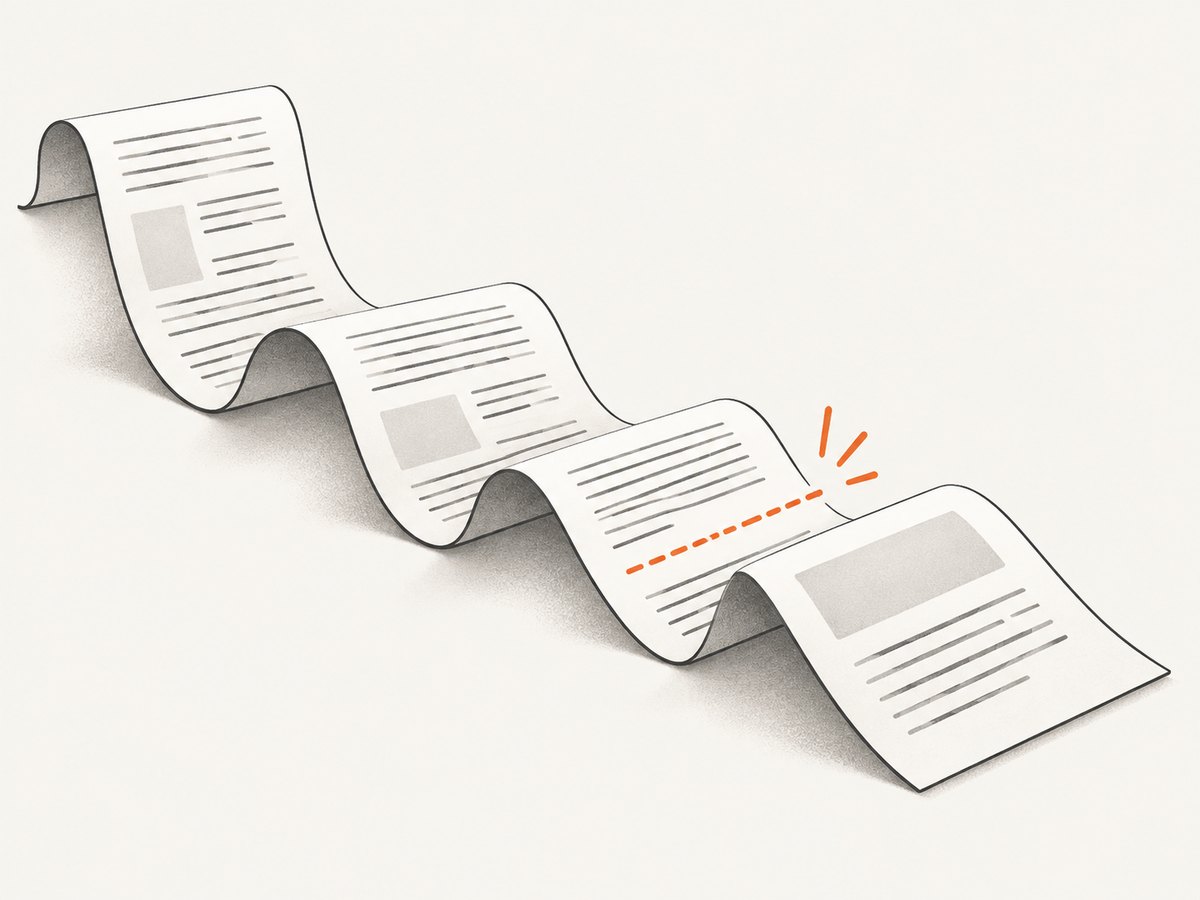
Unless you add a forced break, the browser lays out blocks continuously and fragments them across pages. A long paragraph, list, or table can continue onto the next page. This is the best default for reports and articles because it adapts when text length changes.
Forced section breaks
Use the modern fragmentation properties at meaningful boundaries:
.chapter {
  break-before: page;
}

.appendix {
  break-after: page;
}

.card {
  break-inside: avoid;
}

h2 {
  break-after: avoid;
}
break-before: page requests a page break before an element in paged media. break-inside: avoid discourages splitting a block, but it cannot keep an element together if the element is taller than the available printable area. CSS fragmentation rules define how these declarations interact with available space, widows, and orphans. See the MDN CSS fragmentation guide and break-before reference.
3. Choose paper size, margins, and ownership
Puppeteer supports format (such as A4 or Letter), explicit width and height, margins, and background printing. The documented default format is Letter, and printBackground defaults to false. Review the Puppeteer PDFOptions API for the complete option list.
| Option | Use it for | Practical note |
|---|---|---|
format |
Standard paper such as A4 or Letter | Simple and readable; do not also rely on a conflicting CSS size. |
width, height |
Custom paper dimensions | Useful for labels or fixed-size documents. |
margin |
Printable whitespace | Set CSS and API margins consistently. |
preferCSSPageSize |
Let @page control size |
When true, CSS size takes priority over format, width, and height. |
printBackground |
Include background colors and images | Must be true when those backgrounds are part of the design. |
landscape |
Rotate the paper orientation | Helpful for wide tables and charts. |
pageRanges |
Export selected pages | Use a range such as 1-3 after pagination is stable. |
displayHeaderFooter |
Repeating PDF headers and footers | Pair with Puppeteer’s header and footer templates. |
Choose one source of truth for paper sizing. If your design uses @page { size: A4; }, set preferCSSPageSize: true. If the caller owns the size, use format or dimensions and avoid an opposing CSS rule. The CSS paged media model covers page size, orientation, margins, and printable areas in detail: MDN CSS paged media.
4. Print CSS that survives real documents
Keep headings with their following content
h1, h2, h3 {
  break-after: avoid;
}

p, li {
  orphans: 3;
  widows: 3;
}
These rules reduce headings stranded at the bottom of a page and tiny fragments at the top or bottom. They are preferences, not absolute guarantees.
Tables
Long tables may span pages. Use a table header row that can repeat in print-capable layouts, and avoid placing a table inside a wrapper with a fixed height or overflow: hidden. Test rows containing long text because an individual row may still need to split or move.
thead {
  display: table-header-group;
}

tfoot {
  display: table-footer-group;
}

table {
  width: 100%;
  border-collapse: collapse;
}

tr, img, figure {
  break-inside: avoid;
}
Images and backgrounds
Use intrinsic dimensions or responsive widths so images do not exceed the printable area. If a background is visually required, pass printBackground: true. Otherwise, Puppeteer omits backgrounds by default.
Fixed-height containers
A common reason for a “one-page” or clipped PDF is a layout wrapper such as height: 100vh, max-height, or overflow: hidden. Remove those constraints in @media print:
@media print {
  .screen-panel {
    height: auto;
    max-height: none;
    overflow: visible;
  }
}
5. Print media versus screen media
page.pdf() uses print CSS media by default. That means rules inside @media print apply and screen-only rules may not. If you need a PDF that matches the screen stylesheet, call page.emulateMediaType('screen') before generating the file. Puppeteer documents this behavior in its emulateMediaType API.
await page.emulateMediaType('print');
await page.pdf({ path: 'print-layout.pdf', format: 'A4' });

// For screen styling instead:
await page.emulateMediaType('screen');
await page.pdf({ path: 'screen-layout.pdf', format: 'A4' });
Use print media when pagination and paper output are the goal. Whichever mode you choose, inspect selectors that are hidden, resized, or restyled by media queries.
6. Wait for content before creating the PDF
waitUntil: 'networkidle0' waits for network activity to quiet during navigation, but single-page applications may fetch data later. Wait for an application-specific selector or condition:
await page.goto('https://example.com/report', {
  waitUntil: 'domcontentloaded'
});

await page.waitForSelector('#report-ready', { timeout: 30000 });
await page.evaluate(() => document.fonts.ready);

await page.pdf({
  path: 'report.pdf',
  format: 'A4',
  printBackground: true,
  preferCSSPageSize: true
});
For images, wait until the document’s images report complete:
await page.waitForFunction(() => {
  return [...document.images].every((image) => image.complete);
});
Do not use an arbitrary delay as your only readiness check. A selector or application signal is more reliable; a short delay can still be useful for animations that must settle.
7. Headers, footers, and page ranges
For repeating metadata, enable header and footer display and supply templates. Puppeteer exposes special classes such as pageNumber and totalPages in templates:
await page.pdf({
  path: 'report.pdf',
  format: 'A4',
  displayHeaderFooter: true,
  headerTemplate: '<div style="font-size:9px;width:100%;text-align:center">Quarterly report</div>',
  footerTemplate: '<div style="font-size:9px;width:100%;text-align:center">Page <span class="pageNumber"></span> of <span class="totalPages"></span></div>',
  margin: { top: '22mm', bottom: '20mm', left: '16mm', right: '16mm' }
});
Reserve enough top and bottom margin for these templates. To export only selected pages after reviewing pagination, pass pageRanges: '2-4'.
8. Troubleshooting checklist
| Symptom | Likely cause | Fix |
|---|---|---|
| Everything appears on one page | Content is short, or a fixed-height wrapper clips it. | Check the rendered DOM, remove fixed height and hidden overflow, and confirm the content exceeds one paper area. |
| Sections start on unexpected pages | Conflicting breaks, margins, or an element taller than a page. | Remove unnecessary forced breaks, inspect computed styles, and remember that oversized blocks cannot stay together. |
| Colors or background images are missing | printBackground is false. |
Set printBackground: true and verify the asset URL loads. |
| Screen layout appears in the PDF | Media type was changed to screen or print rules are incomplete. | Use the default print media or call emulateMediaType('print'); inspect @media print. |
| Fonts change pagination | Web fonts have not loaded before capture. | Await document.fonts.ready and keep waitForFonts: true. |
| Images are blank | Images are lazy-loaded or still downloading. | Scroll or trigger lazy loading, wait for image completion, and verify network permissions. |
| Content is cut off horizontally | Fixed widths exceed the paper or landscape is needed. | Use responsive widths, a wider format, or landscape: true. |
| Navigation times out | The page keeps connections open or external resources fail. | Use a suitable waitUntil, wait for a known selector, and set a deliberate timeout with error handling. |
9. Reliability, performance, and cost considerations
Launch one browser process and reuse it for multiple pages or jobs when your workload permits. Creating a fresh browser for every PDF adds startup overhead. Always close pages and browsers in finally blocks so failed jobs do not leak processes.
Keep navigation and readiness timeouts explicit. A page that waits forever on analytics, streaming requests, or a blocked third-party host can stall a worker. Prefer a bounded timeout and return a useful error to the caller.
Pagination depends on actual font metrics, resource sizes, paper dimensions, and CSS. A small content change can move a heading or table row to the next page. Store representative fixtures and inspect generated PDFs when changing styles.
Puppeteer itself does not charge per PDF; your costs come from the machine or service running Chromium, storage, and operational maintenance. For occasional captures, a hosted screenshot and PDF API can remove browser installation and worker management.
10. Or skip the browser setup
ScreenshotNeo provides a website screenshot and PDF API. Send one GET request with a URL; configure PDF paper size, margins, landscape mode, and page ranges when you need controlled output. The API also supports custom CSS and JavaScript, selectors, waiting rules, headers, cookies, user agents, blocking rules, and asynchronous jobs. See the ScreenshotNeo documentation for parameter details.
cURL
curl -G "https://api.screenshotneo.com/v1/shot" \
  -d access_key=YOUR_API_KEY \
  --data-urlencode url=https://stripe.com \
  -o shot.webp
Python
import requests

r = requests.get(
    "https://api.screenshotneo.com/v1/shot",
    params={"access_key": "YOUR_API_KEY", "url": "https://stripe.com"},
    timeout=90,
)
r.raise_for_status()
open("shot.webp", "wb").write(r.content)
Node.js
const q = new URLSearchParams({
  access_key: 'YOUR_API_KEY',
  url: 'https://stripe.com'
});
const res = await fetch(`https://api.screenshotneo.com/v1/shot?${q}`);
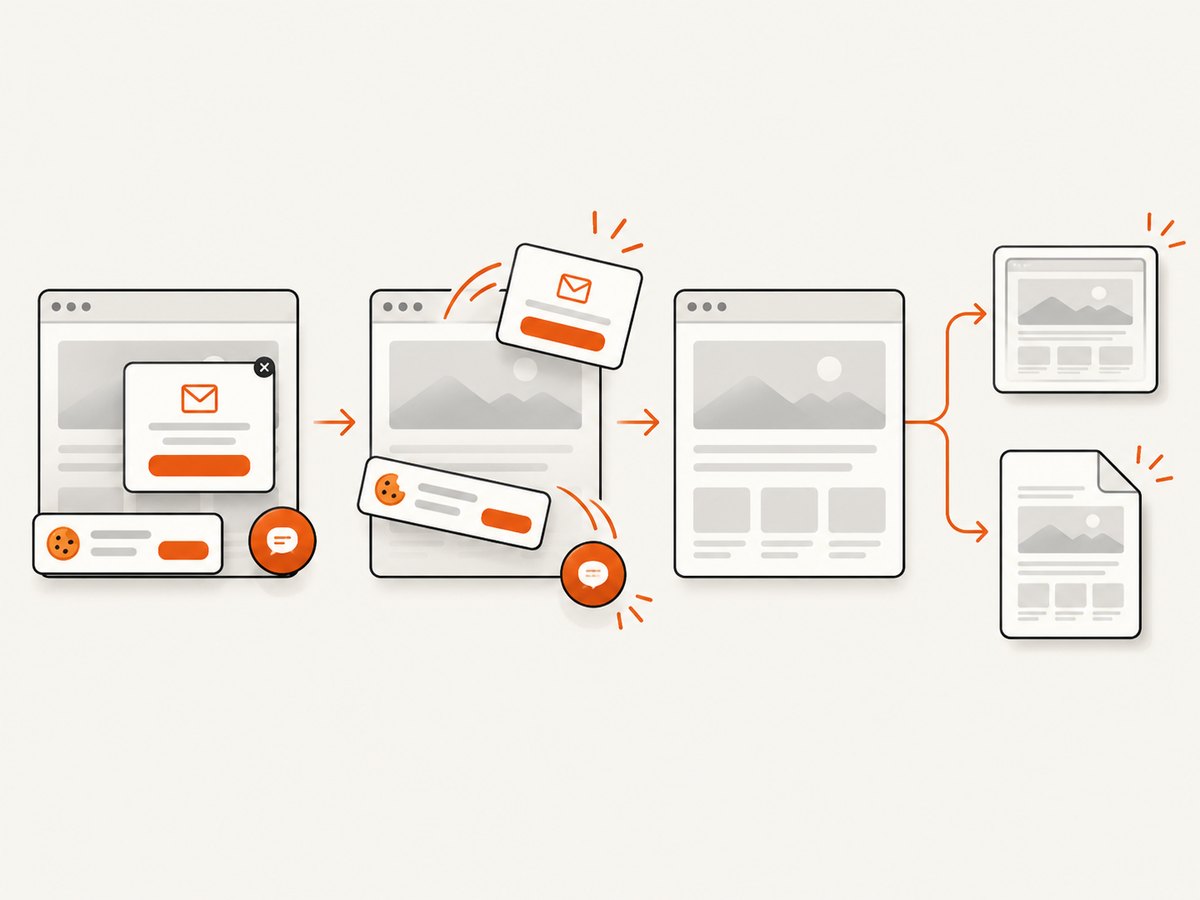
ScreenshotNeo removes cookie banners, newsletter popups, and chat widgets before capture. Bot checks, blank pages, failed loads, timeouts, and cache hits are not billed; response headers identify the page verdict and billing status. An MCP server provides take_screenshot, get_page_info, and capture_pdf tools for Claude, Cursor, and other MCP clients. The Free plan includes 1,000 screenshots per month without a card, and paid plans start at $5 for 3,000 shots. Create a free ScreenshotNeo account.
11. Frequently asked questions
Does Puppeteer automatically create multiple PDF pages?
Yes. Content that exceeds the selected paper’s printable area flows onto additional pages unless CSS or a fixed-height container prevents it.
Should I use format: 'A4' or @page { size: A4; }?
Either works. Use preferCSSPageSize: true when CSS owns the paper definition; otherwise let the Puppeteer option own it and avoid conflicting declarations.
Why is break-inside: avoid ignored?
It is a preference. An element taller than the available page cannot fit as one unit, so the browser must fragment it.
How do I make a PDF look like the screen?
Call page.emulateMediaType('screen') before page.pdf(), then verify that the screen layout fits the selected paper.
Can I export only certain pages?
Yes. Use the pageRanges PDF option, such as '1-2' or '4', after confirming the final pagination.
12. Production checklist
- Choose one owner for paper size and margins.
- Keep normal content in natural flow.
- Use forced breaks only at intentional boundaries.
- Remove fixed heights and hidden overflow in print styles.
- Wait for application data, fonts, and images.
- Set
printBackgroundwhen backgrounds matter. - Use explicit timeouts and close resources in
finally. - Review representative PDFs after CSS or content changes.
With print CSS, deliberate page sizing, and targeted readiness checks, Puppeteer can produce multi-page PDFs without manually splitting HTML into separate documents.


