Why Puppeteer Extracted HTML Does Not Match Its Screenshot
Puppeteer’s HTML and screenshot capture different things: live DOM markup and rendered pixels. Learn how to control readiness, viewport, fonts, images, lazy content, and animations.
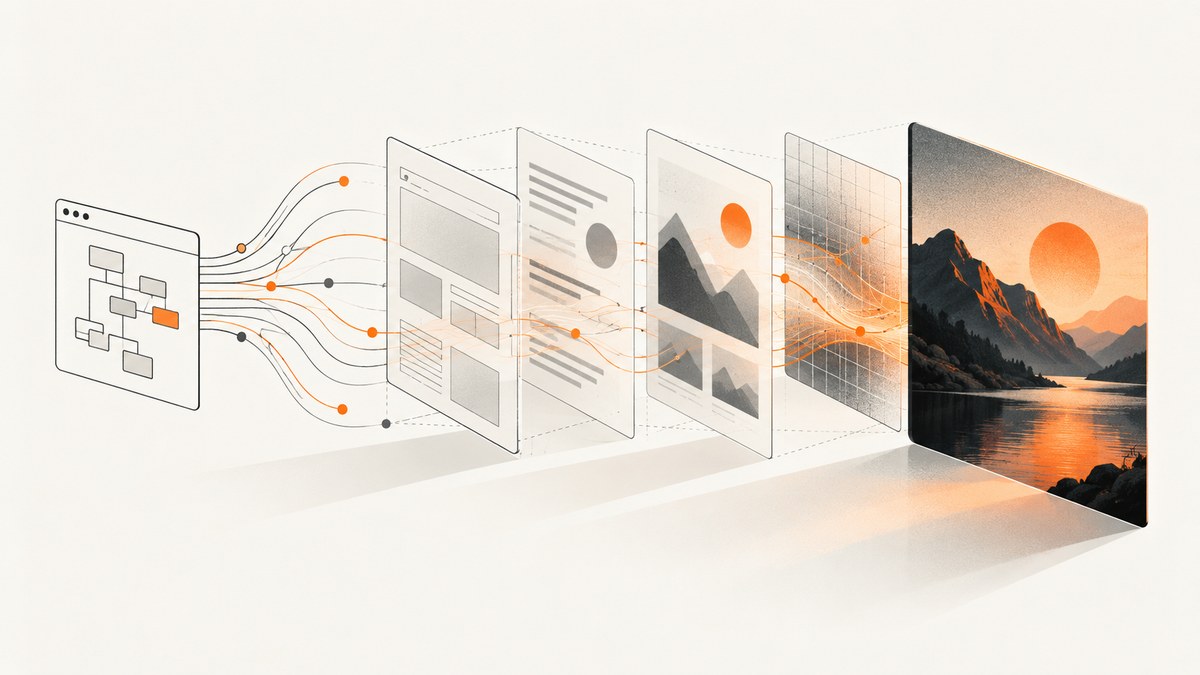
page.content() and page.screenshot() are not two ways to save the same page. page.content() serializes the live DOM as HTML, including the DOCTYPE. page.screenshot() captures pixels after the browser applies styles, lays out content, loads assets, and paints a particular frame. The HTML can be accurate while the screenshot differs because the page reached another state, used another viewport, had different assets ready, or was captured during an animation.
To debug a mismatch, capture both from the same controlled browser state. Fix the viewport and emulation before navigation, wait for application-specific readiness and required assets, then compare the DOM and pixels. The examples below use Puppeteer with Node.js.
1. Understand what each capture contains
page.content() returns serialized markup for the current DOM. It does not contain computed layout, resolved font metrics, rasterized images, or the pixels produced by CSS. A screenshot is the browser’s rendered output at a moment in time. CSS can hide an element, generated content can appear without a corresponding child node, and an image can exist in the DOM before its pixels are decoded.
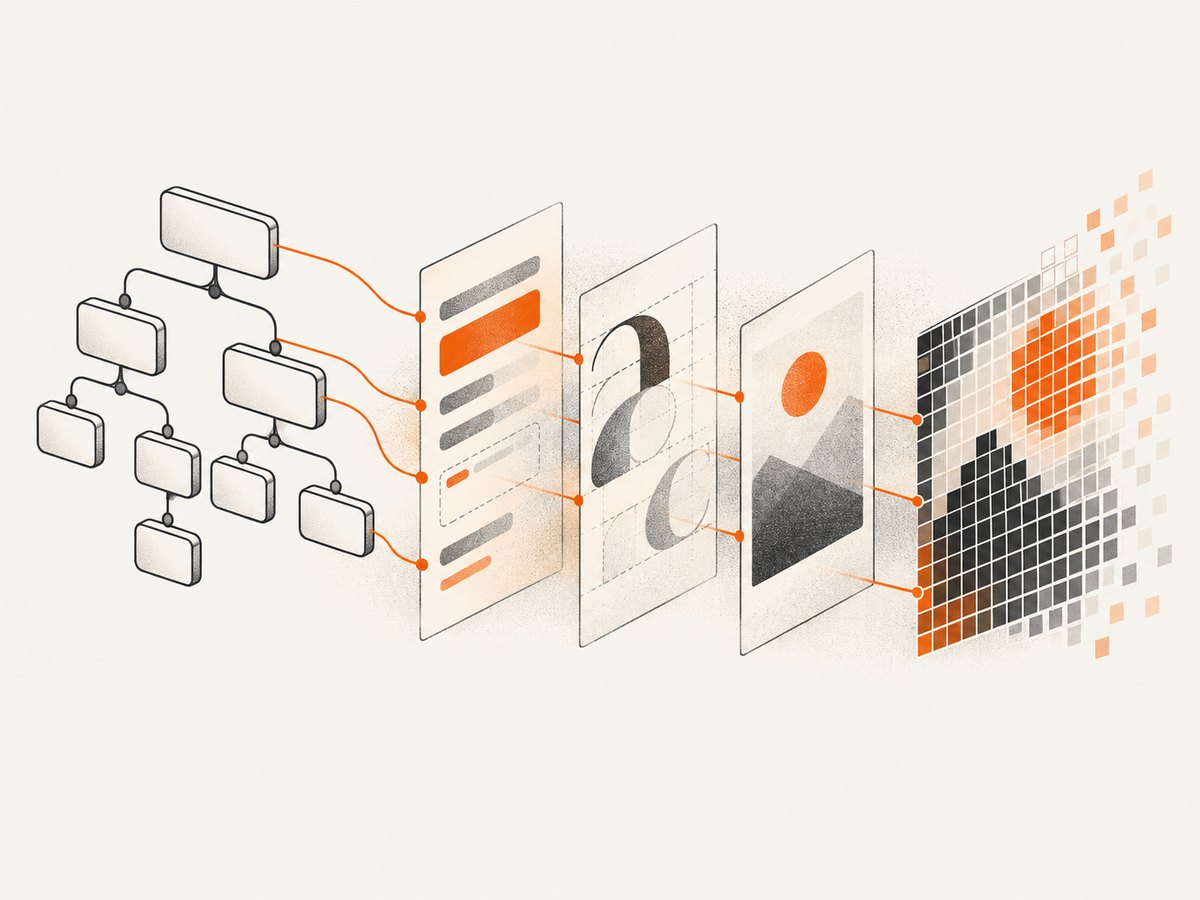
JavaScript may also alter classes, styles, or nodes after the initial response. Shadow DOM content and CSS pseudo-elements further complicate a comparison based only on ordinary child HTML. The two captures can disagree visually without either API returning incorrect data.
| Capture | Represents | Useful for |
|---|---|---|
page.content() |
Serialized current DOM markup | Inspecting nodes, attributes and application output |
page.screenshot() |
Rendered pixels for a viewport, element or page | Visual review, image comparison and regression checks |
2. Make the capture reproducible
Before diagnosing details, hold the browser conditions steady. Set viewport dimensions and device scale factor before navigating: responsive breakpoints can rearrange or hide content at different sizes. Also keep the browser version, user agent, color scheme, reduced-motion setting and locale consistent between runs. Puppeteer’s setViewport API changes the page dimensions; device emulation combines viewport and user-agent settings.
Here is a complete runnable example. It saves the current DOM and a full-page screenshot from the same point in the run. Install Puppeteer with npm install puppeteer, save this as capture.mjs, and run node capture.mjs https://example.com.
import puppeteer from 'puppeteer';

const target = process.argv[2] ?? 'https://example.com';
const browser = await puppeteer.launch({ headless: true });

try {
  const page = await browser.newPage();
  await page.setViewport({
    width: 1440,
    height: 900,
    deviceScaleFactor: 1,
  });
  await page.emulateMediaFeatures([
    { name: 'prefers-reduced-motion', value: 'reduce' },
  ]);

  const response = await page.goto(target, {
    waitUntil: 'domcontentloaded',
    timeout: 30000,
  });
  console.log({
    requestedUrl: target,
    finalUrl: page.url(),
    status: response?.status(),
    viewport: page.viewport(),
  });

  // Replace this with the page's own visual-ready condition when available.
  await page.waitForSelector('body', { timeout: 10000 });
  await page.evaluate(async () => {
    if (document.fonts?.ready) await document.fonts.ready;
    await Promise.all(
      [...document.images].map(async (img) => {
        if (!img.complete) {
          await new Promise((resolve) => {
            img.addEventListener('load', resolve, { once: true });
            img.addEventListener('error', resolve, { once: true });
          });
        }
        if (img.decode) await img.decode().catch(() => {});
      }),
    );
  });

  const html = await page.content();
  await page.screenshot({ path: 'page.png', fullPage: true });
  await import('node:fs/promises').then(({ writeFile }) =>
    writeFile('page.html', html),
  );
} finally {
  await browser.close();
}
The sample has bounded navigation and selector waits, but its generic body selector does not prove that a specific application has finished rendering. Replace it with a meaningful readiness condition, such as a known content element or an application-provided ready flag. Always inspect the response status and final URL: redirects, error pages, and authentication flows can make a successful navigation different from the page you intended to capture.
3. Wait for visual readiness, not just navigation
A navigation lifecycle event says something about document loading, not that the application looks final. Client-side code can fetch data, replace nodes, inject CSS, or render after navigation. Capture page.content() and the screenshot only after the same readiness condition.

- Wait for application content. Prefer a stable selector or app-owned signal that means the view is ready. A selector becoming visible may be a better condition than merely existing.
- Wait for fonts.
document.fonts.readywaits for fonts known to the document at that point. If the intended font is unavailable, fallback glyph widths can change line wrapping even after the wait resolves. - Decode images. Check that important images have loaded and have a positive
naturalWidth. Callingdecode()can help ensure the image is ready to paint. A failed image should be handled explicitly instead of hanging the capture. - Check geometry and content. Verify the target element has a nonzero bounding box and expected text or attributes before saving either artifact.
- Bound every wait. Use timeouts and report which readiness step failed. A page that never becomes ready should fail with a useful diagnostic, not wait forever.
These checks do not cover every asset. CSS background images, styles injected later, elements created after the check, and application timers can still change the rendered result. If they matter, have the application signal readiness after those operations or inspect the relevant network and DOM activity.
4. Check viewport, assets, lazy loading and animation
Viewport and emulation
Compare runs using the same width, height, device scale factor, user agent and media conditions. Responsive CSS can change columns, visibility, typography and selected assets while leaving most markup intact. Device scale affects the screenshot’s pixel dimensions and can expose rasterization differences. Set these conditions before navigation so the page initializes in the intended mode.
Fonts and images
Font fallback can change word widths and therefore line breaks, card heights and page length. An image element in the HTML does not prove that its image has decoded or painted. For critical assets, assert that the expected font is available and that images have completed successfully with positive dimensions. If a screenshot still differs, check CSS backgrounds and assets inserted after your readiness check.
Lazy content and full-page screenshots
fullPage: true captures the document’s current full height. It does not automatically fetch every item on an infinite-scroll page. Content may be loaded only when the page is scrolled, and that scrolling can change both the DOM and document height.
For finite lazy-loaded content, scroll in bounded increments, wait for the relevant content signal after each step, and stop at a known end condition or maximum scroll count. Then return to the intended scroll position if taking a viewport screenshot. Avoid unbounded loops on pages that keep adding content.
Animation and timers
Two screenshots can differ by a single animation frame even when their HTML is identical. For deterministic capture, use a test mode that disables or freezes animations, or wait for the particular animation to finish. Reduced-motion emulation can help when the site honors that preference, but does not freeze every script-driven effect. Record the capture time relative to any timers or rotating content.
5. A diagnostic workflow
- Record requested URL, final
page.url(), response status, browser version, viewport, device scale, user agent and media settings. - Navigate and wait for an application-specific visual-ready condition.
- Wait for fonts and decode critical images; verify expected text and positive element geometry.
- Check for late network requests, timers, lazy loading, shadow roots and generated CSS content.
- At one controlled point, save
await page.content()andawait page.screenshot(...). Note whether the image is viewport, element-clipped or full-page. - Compare screenshots or image regions as well as DOM snapshots. DOM-only inspection can miss rendering incompatibilities.
- Repeat with fixed viewport, fonts, assets and animation state. If the mismatch disappears, restore one variable at a time to isolate the cause.
When investigating a visual defect, pair DOM inspection with screenshot or image comparison. This is the same reason visual regression testing needs image-level checks: identical-looking markup is not proof of identical rendering, and markup differences do not always imply a visible change.
6. Common errors and fixes
| Symptom | Likely cause | Fix |
|---|---|---|
| Screenshot has missing CSS or default styling | Stylesheets are delayed, blocked, or not ready when capture runs | Wait for app readiness; inspect failed requests and stylesheet availability before capture. |
| Text wraps differently | Fallback font, changed viewport, scale, or font-loading race | Fix viewport and emulation; await fonts and verify the intended font is usable. |
| Image appears blank | Image has not loaded or decoded, failed, or is lazy-loaded offscreen | Check complete, naturalWidth and decode status; trigger the site’s lazy-loading condition. |
| HTML includes content absent from the image | Element is hidden, clipped, offscreen, covered, or captured at another responsive state | Inspect computed styles and geometry; confirm viewport, scroll position and overlay state. |
| Screenshot changes from run to run | Animation, timer, dynamic data, or nondeterministic asset timing | Freeze test data and animation state; capture after a defined ready signal. |
| Full-page image ends before expected content | Infinite-scroll items were never requested | Scroll with a finite plan, wait for appended content, and check the end condition before capture. |
| Navigation timeout on an otherwise visible page | Long-lived requests such as analytics prevent a network-idle condition | Use a lifecycle event suited to navigation, then wait for an app-owned ready condition with its own timeout. |
| Final URL or page is unexpected | Redirect, challenge, consent flow, or authentication state | Log final URL and response status; configure the intended session and inspect the resulting page. |
7. Performance, reliability and cost
Every additional wait improves certainty only if it checks something relevant. Waiting for all network activity to stop can be slow or never complete on pages with polling, streaming, or analytics. Prefer a specific readiness signal, then wait for only the fonts, images, and geometry needed for the capture. Set timeouts and preserve diagnostic output on failure.
Reusing a browser process can avoid repeatedly starting Chromium in a capture service, but isolate pages and browser contexts when cookies or storage must not leak between jobs. Pinning the browser version and fonts improves repeatability; it also means upgrades should be treated as a change to the rendering environment. A mismatch caused by a failed page load should be reported separately from a genuine visual difference.
For self-hosted Puppeteer, cost depends on the compute and storage used by your own deployment; the capture code itself does not define a service price. Consider browser memory, concurrent pages, screenshot size and retry policy when estimating operational cost. Retry transient failures with limits and preserve the original status and error so retries do not hide persistent problems.
Or skip the browser setup
If you need a clean screenshot rather than a DOM-versus-pixel diagnosis, ScreenshotNeo returns a screenshot or PDF from one API request. It accepts cookie and consent banners and removes 60+ known consent platforms, newsletter popups and chat widgets before capture; each step can be turned off. Bot checks, blank pages, timeouts, failed loads and cache hits are not billed, and response headers say the page verdict and billing status. An MCP server exposes screenshot, page-info and PDF tools for AI agents. There are 1,000 screenshots per month free with no card; paid plans start at $5 for 3,000. See the API documentation.
curl -G "https://api.screenshotneo.com/v1/shot" -d access_key=YOUR_API_KEY --data-urlencode url=https://stripe.com -o shot.webpimport requests
r = requests.get(
"https://api.screenshotneo.com/v1/shot",
params={"access_key": "YOUR_API_KEY", "url": "https://stripe.com"},
timeout=90,
)
open("shot.webp", "wb").write(r.content)const q = new URLSearchParams({ access_key: 'YOUR_API_KEY', url: 'https://stripe.com' });
const res = await fetch(`https://api.screenshotneo.com/v1/shot?${q}`);
if (!res.ok) throw new Error(`Screenshot request failed: ${res.status}`);
await import('node:fs/promises').then(({ writeFile }) =>
writeFile('shot.webp', Buffer.from(await res.arrayBuffer())),
);For API options and capture configuration, use the ScreenshotNeo docs. Sign up for 1,000 free screenshots a month with no card.
FAQ
Does page.content() return the original server response?
It returns serialized markup for the current live DOM. JavaScript may have changed that DOM since the response arrived.
Can I use HTML alone to prove a screenshot is correct?
No. HTML inspection can confirm structure and content, but it cannot establish the final pixels, font rendering, clipping, or compositing.
Does fullPage: true scroll through the whole site?
It captures the current document height. It does not guarantee that scrolling-triggered or infinite-scroll content has loaded.
Why do screenshots differ on the same machine?
The page may be captured at a different animation frame, after different asynchronous work, or with different asset and application state. Control those inputs and capture from a shared readiness point.


