How to Take Hundreds of Screenshots Efficiently with Puppeteer
Build a reliable Puppeteer screenshot batcher with browser reuse, bounded concurrency, retries, readiness checks, unique files and failure logs.
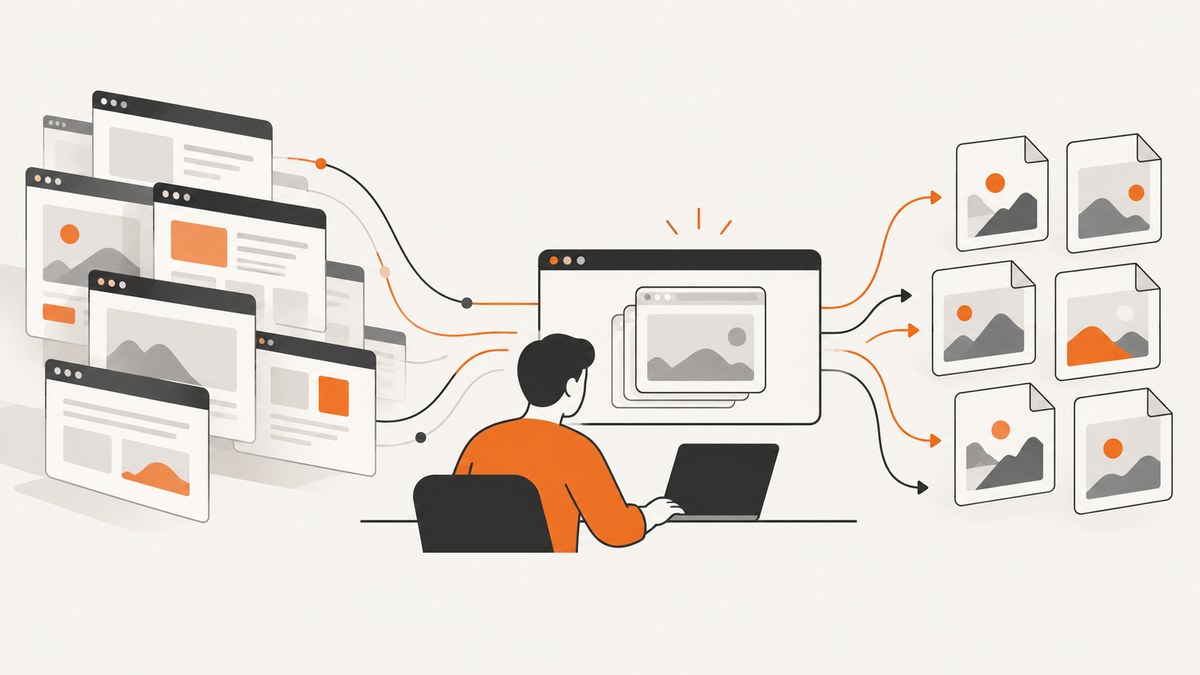
To take hundreds of screenshots efficiently with Puppeteer, launch one browser, process URLs through a small worker pool, reuse the browser while giving each job its own page (or isolated browser context), wait for a site-appropriate readiness condition, save deterministic file names, retry transient failures, and close every page and the browser in finally blocks. Puppeteer does not define a universal safe concurrency number or a screenshots-per-second rate, so measure memory and throughput on your pages and machine.
Puppeteer’s official guide identifies Page.screenshot() as the screenshot API. It can save directly to a path or return image bytes, while ElementHandle.screenshot() captures one element. See the official screenshots guide and the Page.screenshot API reference for version-specific signatures.
1. Install Puppeteer and define the batch
Create a project and install Puppeteer. The package downloads a compatible browser unless your environment is configured to use an existing executable.
mkdir screenshot-batch
cd screenshot-batch
npm init -y
npm install puppeteer
Put URLs in an array, a JSON file, a database query, or a queue. Keep the input separate from output naming so a URL containing query strings, slashes, or Unicode cannot create an invalid path.
const urls = [
  'https://example.com/',
  'https://pptr.dev/guides/screenshots',
  'https://www.wikipedia.org/'
];
2. A complete worker-pool script
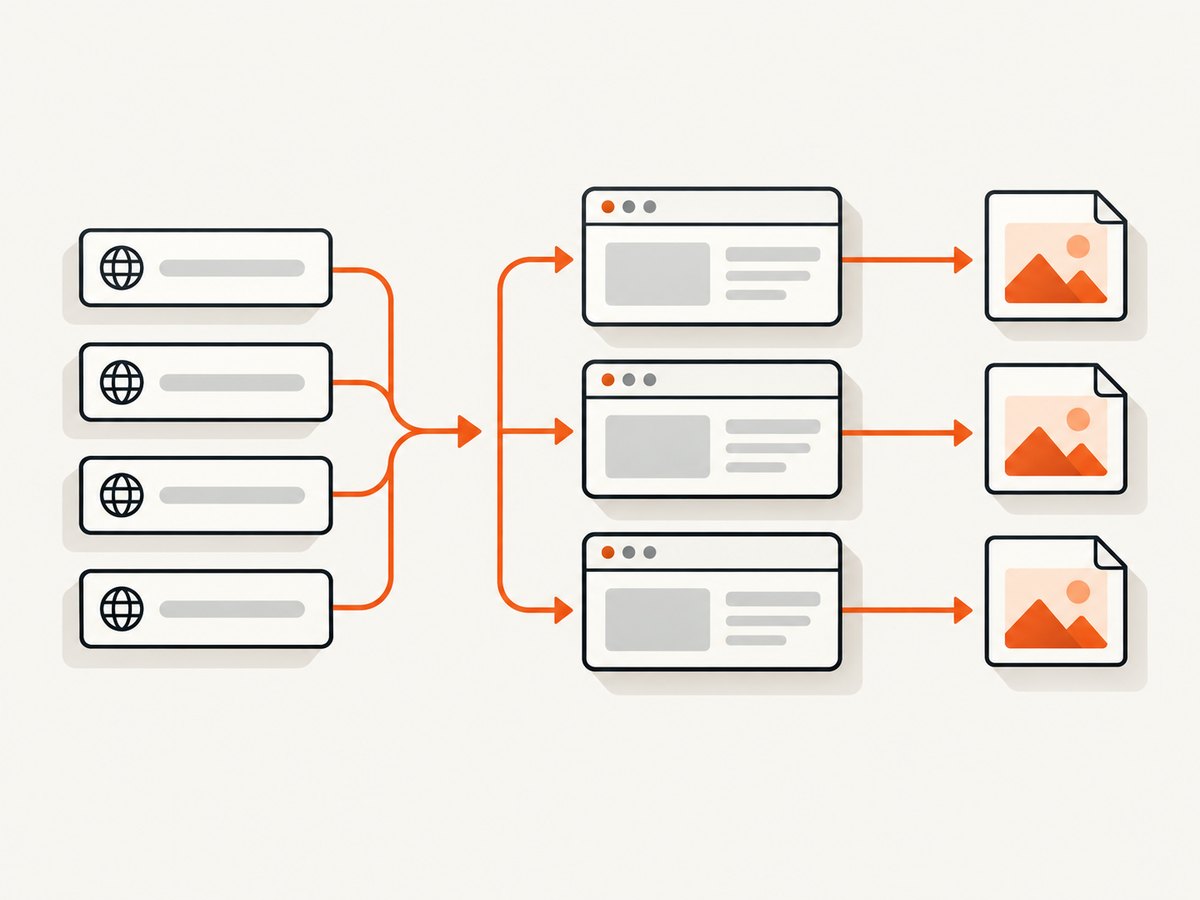
The following runnable Node.js program launches one browser and uses a fixed number of workers. Each worker owns one page at a time. The concurrency value is deliberately configurable: start small, observe memory and failures, then adjust for your workload.
const fs = require('node:fs/promises');
const path = require('node:path');
const crypto = require('node:crypto');
const puppeteer = require('puppeteer');

const urls = [
  'https://example.com/',
  'https://pptr.dev/guides/screenshots',
  'https://www.wikipedia.org/'
];

const OUTPUT_DIR = path.resolve('shots');
const CONCURRENCY = Number(process.env.CONCURRENCY || 4);
const MAX_RETRIES = Number(process.env.MAX_RETRIES || 2);
const NAVIGATION_TIMEOUT = Number(process.env.NAVIGATION_TIMEOUT || 45000);

function fileName(url, index) {
  const digest = crypto.createHash('sha1').update(url).digest('hex').slice(0, 10);
  return `${String(index).padStart(4, '0')}-${digest}.png`;
}

async function capture(browser, url, index) {
  const page = await browser.newPage();
  try {
    // Set the viewport before navigation so responsive layout is deterministic.
    await page.setViewport({ width: 1440, height: 900, deviceScaleFactor: 1 });
    page.setDefaultNavigationTimeout(NAVIGATION_TIMEOUT);
    page.setDefaultTimeout(NAVIGATION_TIMEOUT);

    await page.goto(url, {
      waitUntil: 'domcontentloaded',
      timeout: NAVIGATION_TIMEOUT
    });

    // Replace this with a site-specific selector when the app renders later.
    await page.waitForNetworkIdle({ idleTime: 500, timeout: 15000 }).catch(() => {});

    const output = path.join(OUTPUT_DIR, fileName(url, index));
    await page.screenshot({
      path: output,
      fullPage: true,
      type: 'png'
    });

    return { index, url, output, ok: true };
  } finally {
    await page.close();
  }
}

async function captureWithRetry(browser, url, index) {
  let lastError;
  for (let attempt = 0; attempt <= MAX_RETRIES; attempt++) {
    try {
      return await capture(browser, url, index);
    } catch (error) {
      lastError = error;
      if (attempt < MAX_RETRIES) {
        const delay = 500 * (2 ** attempt);
        await new Promise(resolve => setTimeout(resolve, delay));
      }
    }
  }
  return {
    index,
    url,
    ok: false,
    error: lastError instanceof Error ? lastError.message : String(lastError)
  };
}

async function main() {
  await fs.mkdir(OUTPUT_DIR, { recursive: true });
  const browser = await puppeteer.launch({ headless: true });
  const results = new Array(urls.length);
  let nextIndex = 0;

  async function worker() {
    while (true) {
      const index = nextIndex++;
      if (index >= urls.length) return;
      results[index] = await captureWithRetry(browser, urls[index], index);
      console.log(JSON.stringify(results[index]));
    }
  }

  try {
    const workerCount = Math.min(Math.max(1, CONCURRENCY), urls.length || 1);
    await Promise.all(Array.from({ length: workerCount }, worker));
  } finally {
    await browser.close();
  }

  const failures = results.filter(result => !result.ok);
  await fs.writeFile(
    path.join(OUTPUT_DIR, 'results.json'),
    JSON.stringify({ results, failures }, null, 2)
  );
  if (failures.length) process.exitCode = 1;
}

main().catch(error => {
  console.error(error);
  process.exitCode = 1;
});
Run it with node batch.js. Set a different limit without editing the file:
CONCURRENCY=2 MAX_RETRIES=3 node batch.jsWhy this structure works for large batches
- One browser, many pages: browser startup is performed once. Pages can run in parallel inside that browser.
- Bounded concurrency: a worker limit prevents launching hundreds of tabs at once. Puppeteer does not prescribe the correct value; measure your workload.
- Per-job cleanup:
finallycloses a page even when navigation or capture fails. - Retry isolation: a failed URL is retried without restarting the whole batch.
- Deterministic output: an index and hash avoid collisions when URLs have similar names.
- Failure records: successful files remain available while
results.jsonidentifies URLs that need attention.
3. Choose the right readiness condition
waitUntil: 'domcontentloaded' means the initial HTML has been parsed. It does not guarantee that client-rendered content, images, fonts, or charts are ready. Puppeteer’s guide demonstrates networkidle2, but no single navigation condition fits every application. Pages with polling or analytics requests may never become truly idle.
| Condition | Use it when | Watch for |
|---|---|---|
domcontentloaded |
The screenshot target is present in initial HTML. | Late JavaScript content may be missing. |
load |
Images and subresources should finish their normal load event. | Some resources can delay or block the event. |
networkidle2 |
The app settles after a short period with few active requests. | Polling, websockets, ads, or telemetry can keep traffic active. |
| Selector wait | A known component marks completion, such as [data-ready="true"]. |
The selector must be stable across releases. |
| Delay | A fixed animation or rendering delay is the only practical signal. | It can waste time or still be too short on slow pages. |
For an application with a reliable marker, prefer a selector:
await page.goto(url, { waitUntil: 'domcontentloaded' });
await page.waitForSelector('[data-screenshot-ready="true"]', {
  visible: true,
  timeout: 30000
});
await page.screenshot({ path: output, fullPage: true });
For lazy-loaded images, scroll before the final capture so image requests are triggered:
await page.evaluate(async () => {
  await new Promise(resolve => {
    let y = 0;
    const step = 600;
    const timer = setInterval(() => {
      window.scrollBy(0, step);
      y += step;
      if (y >= document.body.scrollHeight) {
        clearInterval(timer);
        window.scrollTo(0, 0);
        resolve();
      }
    }, 50);
  });
});
4. Screenshot options and output choices
Page.screenshot() accepts common controls for output and geometry:
| Option | Effect | Guidance |
|---|---|---|
fullPage |
Captures the complete page height. | Output dimensions vary with page length; fixed viewport captures are easier to compare. |
clip |
Captures a rectangular region. | Use { x, y, width, height } for a stable area. |
path |
Writes the image to disk. | Use unique, sanitized paths and create the directory first. |
type |
Selects PNG, JPEG, or WebP. | PNG is the documented default; choose based on fidelity and size. |
quality |
Controls lossy image quality. | It applies to non-PNG formats, not PNG. |
omitBackground |
Preserves transparency where supported. | Useful for isolated graphics; verify the consuming tool supports alpha. |
encoding |
Returns bytes as a buffer or encoded data. | Omit path when uploading directly instead of writing files. |
Capture one element after waiting for it to appear:
const card = await page.waitForSelector('.product-card');
await card.screenshot({ path: 'product-card.png', type: 'png' });
Set responsive dimensions before goto. A browser can have multiple pages with different viewports, and many sites change layout based on viewport size.
await page.setViewport({
  width: 1280,
  height: 800,
  deviceScaleFactor: 2,
  isMobile: false,
  hasTouch: false
});
5. Pages, browser contexts, and session isolation
Use separate pages when jobs may share a normal anonymous session. Use a BrowserContext when cookies, local storage, permissions, or login state must be isolated between jobs.
const context = await browser.createBrowserContext();
const page = await context.newPage();
try {
  await page.setViewport({ width: 1440, height: 900 });
  await page.goto(url, { waitUntil: 'domcontentloaded' });
  await page.screenshot({ path: output, fullPage: true });
} finally {
  await context.close();
}
Contexts and pages consume resources. Create them per job only when isolation is required, and measure the effect locally. During a screenshot capture, Puppeteer waits for operations such as newPage() and Page.close() to finish; bringToFront() does not provide the same synchronization.
6. Reliability: retries, timeouts, and failure handling
Differentiate transient failures from deterministic ones. A timeout caused by a slow origin may succeed on retry; a malformed URL will not. Record the URL, attempt count, error message, and elapsed time so the batch can be resumed instead of repeated.
- Set navigation and operation timeouts explicitly.
- Retry a small number of times with backoff.
- Do not retry a URL forever; cap attempts and write a failure report.
- Close pages in
finallyand close the browser after all workers settle. - Keep output names stable so rerunning a failed subset does not overwrite unrelated captures.
- For authenticated sites, load credentials through environment variables or a secure store rather than hard-coding them.
7. Performance and cost considerations
Browser reuse removes repeated launch overhead, while bounded parallelism can reduce total wall-clock time compared with a strictly sequential loop. These are engineering expectations, not Puppeteer benchmarks. The best concurrency depends on page complexity, image size, JavaScript execution, network speed, available CPU, and memory.
Measure your own workload:
const started = performance.now();
// run the batch
console.log(`Batch milliseconds: ${Math.round(performance.now() - started)}`);
Run a representative sample at concurrency values such as 1, 2, 4, and 8. Track completion time, failed navigations, peak memory, output size, and downstream upload time. Increase the limit only while reliability and memory remain acceptable. Reuse a browser for a bounded batch, but recycle it between very large batches if you observe leaks or degraded stability.
Puppeteer itself has no per-screenshot service charge when run locally; your costs are the machine or hosted browser environment, network transfer, storage, and engineering time. Image format matters: PNG preserves detail but is often larger, while JPEG or WebP can reduce storage when lossy compression is acceptable.
8. Common errors and fixes
| Error or symptom | Likely cause | Fix |
|---|---|---|
TimeoutError: Navigation timeout |
The origin is slow, blocked, or never reaches the selected condition. | Raise the timeout for that site, use a selector or domcontentloaded, and inspect the URL manually. |
| Screenshot is blank | Capture happened before client rendering, or the page returned a bot check. | Wait for a known selector, log the final URL and title, and handle bot checks separately. |
| Lazy images are missing | Images load only after entering the viewport. | Scroll through the page, wait for image completion, then capture. |
| Out-of-memory or browser crash | Too many pages, very large full-page images, or heavy applications. | Lower concurrency, close pages promptly, use clips where possible, and split the batch. |
| Files overwrite one another | Names were derived only from a hostname or title. | Include the input index and a URL hash in every path. |
| Different jobs share login state | All pages use the same default context. | Create a separate browser context for each isolation boundary. |
| Fonts differ in output | Fonts are not installed or have not finished loading. | Install required fonts in the runtime and wait for document.fonts.ready. |
9. Or skip the browser setup
If your goal is a dependable batch of clean website captures rather than maintaining Chromium workers, ScreenshotNeo provides a GET endpoint and an MCP server for AI agents. It removes cookie and consent banners, newsletter popups, and chat widgets before capture. Bot checks, blank pages, timeouts, failed loads, and cache hits are not billed, and each response identifies the result with X-Page-Verdict and X-Billed headers. Its MCP tools include take_screenshot, get_page_info, and capture_pdf.

One request returns PNG, JPEG, WebP, or PDF. The parameter names used by other screenshot APIs also work, which can simplify migration. See the ScreenshotNeo API documentation for the complete option list.
cURL
curl -G "https://api.screenshotneo.com/v1/shot" \
  -d access_key=YOUR_API_KEY \
  --data-urlencode url=https://stripe.com \
  -o shot.webp
Python
import requests

r = requests.get(
    "https://api.screenshotneo.com/v1/shot",
    params={"access_key": "YOUR_API_KEY", "url": "https://stripe.com"},
    timeout=90,
)
r.raise_for_status()
open("shot.webp", "wb").write(r.content)
Node.js
const q = new URLSearchParams({
  access_key: 'YOUR_API_KEY',
  url: 'https://stripe.com'
});
const res = await fetch(`https://api.screenshotneo.com/v1/shot?${q}`);
if (!res.ok) throw new Error(`HTTP ${res.status}`);
const bytes = Buffer.from(await res.arrayBuffer());
require('node:fs').writeFileSync('shot.webp', bytes);
For larger workflows, ScreenshotNeo includes full-page capture with lazy images loaded, CSS-selector element capture, dark mode, device presets or custom viewports, retina scale, custom CSS and JavaScript, click and wait controls, request blocking, headers, cookies, user agents, authorization, timezone, geolocation, transparent backgrounds, resizing, configurable caching, signed links, asynchronous jobs with signed webhooks, bulk capture of up to 100 URLs per call, a usage API, and an OpenAPI specification.
The Free plan includes 1,000 screenshots per month with no card. Paid plans start at $5 for 3,000 shots; every feature is available on every plan, and yearly billing gives two months free. Create a free ScreenshotNeo account.
10. Batch checklist
- Set a consistent viewport before navigation.
- Choose a readiness condition for each class of site.
- Use one browser with a measured worker limit.
- Use contexts when cookies or local storage must be isolated.
- Generate unique output paths.
- Retry transient errors with a cap and backoff.
- Close every page and context in cleanup code.
- Persist successes and failures so a rerun can target only failed URLs.
- Measure duration, memory, output size, and failure rate on representative pages.
FAQ
How many Puppeteer pages can I run at once?
There is no universal number in the Puppeteer documentation. Start with a small configurable worker limit and increase it only after measuring memory and reliability on your pages.
Should every screenshot use networkidle2?
No. Polling applications, delayed rendering, and long-lived connections may never become idle. A site-specific selector or explicit readiness signal is often more reliable.
Is a new browser required for every URL?
No. Reuse one launched browser and create pages for jobs. Use separate browser contexts when session isolation is required.
Can I capture only part of a page?
Yes. Use clip for a rectangle or ElementHandle.screenshot() for a selected element.
What should I do when a page blocks automation?
Record the final URL and response state, treat bot checks as a failed job, and avoid infinite retries. If you need clean captures without maintaining browser detection and consent handling, use the ScreenshotNeo endpoint described above.


