How to Find and Interact With Iframe Elements in Puppeteer
Find iframe documents as Puppeteer Frame objects, wait for dynamic content, and interact with controls inside nested frames.
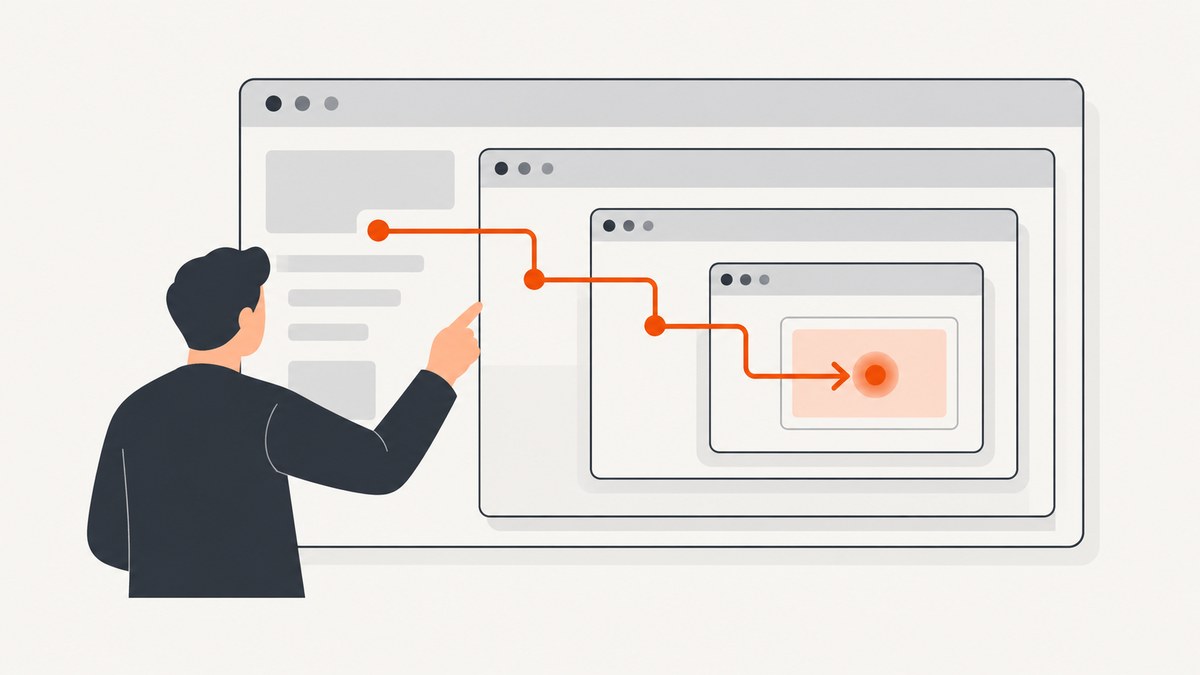
In Puppeteer, an iframe’s document is represented by a Frame object. Find attached frames with page.frames() or the frame tree, or locate the <iframe> element and call contentFrame(). Then query and interact with content through that frame, for example with frame.locator('button').click(). A selector run against the main page does not search inside child frames.
This guide shows how to discover frames, wait for dynamically added iframes and late content, handle nested frames, and diagnose common failures. Examples use Puppeteer’s current Frame and Locator APIs; check the official documentation for the version installed in your project: Frame API, Page API, and page interactions guide.
1. Understand Puppeteer’s frame model
A page has a main frame and may have child frames. Each iframe document has its own execution context. This separation is why page.locator('button') or page.$('button') only finds a button in the main document; it does not automatically search iframe documents.
Puppeteer exposes attached frames through page.frames(). You can also start at page.mainFrame() and inspect its childFrames(). A frame can attach, navigate, or detach as the page changes, so do not assume a frame object or element handle from an earlier document is still the right target after navigation.
2. Find an iframe by inspecting the page
When you do not yet know which iframe contains the target, enumerate the frames and inspect their URLs and names. A URL is useful when the embedded site is stable; a name or the iframe element’s ID can distinguish frames that share a host.
import puppeteer from 'puppeteer';

const browser = await puppeteer.launch({ headless: true });
try {
  const page = await browser.newPage();
  await page.goto('https://example.com', { waitUntil: 'domcontentloaded' });

  for (const frame of page.frames()) {
    console.log({ url: frame.url(), name: frame.name() });
  }

  const frame = page.frames().find(candidate =>
    candidate.url().includes('/embedded-form')
  );
  if (!frame) throw new Error('Embedded form frame not found');

  await frame.locator('input[name="email"]').fill('reader@example.test');
  await frame.locator('button[type="submit"]').click();
} finally {
  await browser.close();
}
This is a runnable pattern, but the example URL and selectors must match the page you automate. Do not match on a URL fragment that changes per session when a stable frame name, host, or iframe attribute is available.
Walk the tree when frames are nested
page.frames() gives you the attached frames on the page. To understand parent-child relationships, walk down from the main frame. A frame’s JavaScript and selectors operate in that frame’s own context; access a nested iframe by resolving that iframe inside its parent.
function printFrameTree(frame, depth = 0) {
  console.log(`${'  '.repeat(depth)}${frame.name() || '(unnamed)'} ${frame.url()}`);
  for (const child of frame.childFrames()) {
    printFrameTree(child, depth + 1);
  }
}

printFrameTree(page.mainFrame());
Frame URLs may be empty or temporary before navigation completes. Treat the tree as a current snapshot, not a permanent inventory.
3. Get a Frame from an iframe element
If you know the iframe element’s selector, wait for it in the main page and call contentFrame(). This is the direct bridge from an ElementHandle for an HTMLIFrameElement to its associated Puppeteer Frame.
const iframeElement = await page.waitForSelector('iframe#payment');
if (!iframeElement) throw new Error('iframe#payment not found');

const paymentFrame = await iframeElement.contentFrame();
if (!paymentFrame) throw new Error('The element is not an attached iframe');

await paymentFrame.locator('input[name="email"]').fill('reader@example.test');
await paymentFrame.locator('button[type="submit"]').click();

await iframeElement.dispose();
Use a specific selector such as an ID, a stable name, or a distinguishing attribute if the page has multiple iframes. If a navigation replaces the iframe document, reacquire the iframe or frame and then locate the controls again. Dispose of retained element handles when you are done with them.
4. Interact with controls inside a frame
Once you have a Frame, use its locator API for frame-scoped actions. Locators are the recommended default for interaction: they wait for readiness preconditions and retry actions that fail because an element is not ready. Typical tasks include filling a field, clicking a button, and waiting for a result.
const frame = await (await page.waitForSelector('iframe#payment'))?.contentFrame();
if (!frame) throw new Error('Payment frame unavailable');

const email = frame.locator('input[name="email"]');
await email.fill('reader@example.test');
await frame.locator('input[name="postalCode"]').fill('10001');
await frame.locator('button[type="submit"]').click();
await frame.locator('[role="status"]').wait();
Use the selectors and values that the target form expects. A successful click only means Puppeteer performed the action; your workflow should still wait for an observable outcome, such as a confirmation element, a navigation, or a changed status.
Use lower-level frame selectors when needed
Frame selector methods such as waitForSelector() are useful when you specifically need an element handle or want to wait for a selector in the frame. The documented method works across navigations and throws if a matching element never appears. If you retain the returned handle, dispose of it when finished.
const button = await frame.waitForSelector('button[type="submit"]', {
  timeout: 10_000
});
if (!button) throw new Error('Submit button not found');
await button.click();
await button.dispose();
Prefer locator actions for routine interactions. Choose a handle when you need its specific lower-level behavior, such as passing it to another API or evaluating something on that exact element.
5. Wait for an iframe that appears later
When application code inserts the iframe asynchronously, use page.waitForFrame() with a predicate or URL condition instead of guessing with a fixed delay. The predicate can inspect the iframe element associated with a frame.
const frame = await page.waitForFrame(async candidate => {
  const element = await candidate.frameElement();
  if (!element) return false;
  return await element.evaluate(el => el.id === 'payment');
});

await frame.locator('button[type="submit"]').click();
This example checks the owning element’s ID. The official API example demonstrates inspecting the element’s name; adapting the predicate to a stable ID is useful when that is how your page identifies the iframe. If the frame is identified reliably by its URL, use the documented URL form instead. Set a suitable timeout for your page’s behavior so a missing frame fails with a useful error rather than hanging indefinitely.
Wait for late content inside an attached frame
A frame can exist before its application has rendered a control. In that case, wait within the frame, not on the parent page. A frame locator’s wait() or frame.waitForSelector() can wait for the target selector.
const frame = await page.waitForFrame(candidate =>
  candidate.url().includes('/embedded-form')
);

await frame.locator('input[name="email"]').wait();
await frame.locator('input[name="email"]').fill('reader@example.test');
Use a selector that represents the condition your next action needs. Waiting for an iframe element proves only that the iframe exists; it does not prove that the inner form is ready.
6. Handle nested iframes
For an iframe inside another iframe, first obtain the parent frame, locate the nested iframe element within it, and resolve that element’s content frame. Repeat for each level. A selector in the parent frame cannot cross into its child.
const outerElement = await page.waitForSelector('iframe#checkout');
if (!outerElement) throw new Error('Outer iframe not found');
const outer = await outerElement.contentFrame();
if (!outer) throw new Error('Outer frame unavailable');

const innerElement = await outer.waitForSelector('iframe#challenge');
if (!innerElement) throw new Error('Nested iframe not found');
const inner = await innerElement.contentFrame();
if (!inner) throw new Error('Nested frame unavailable');

await inner.locator('input[name="code"]').fill('123456');
If you are unsure of the nesting, inspect page.frames() or walk the tree first, then identify the frame using stable properties. Reacquire frames and elements when the page navigates or replaces embedded content.
7. Common iframe problems and fixes
| Symptom | Likely cause | Fix |
|---|---|---|
| The iframe selector works, but the inner button is missing | The query ran in the main frame, whose document does not contain the child document’s elements. | Resolve the iframe with contentFrame() or find its Frame, then query there. |
contentFrame() returns no frame |
The handle is not an attached iframe, or it was detached while the page changed. | Confirm the selector points to an iframe and reacquire it after attachment or navigation. |
waitForFrame() times out |
The frame was never inserted, the predicate does not match, or the expected navigation did not happen. | Log page.frames(), check the actual URL/name/element attributes, and correct the predicate or page precondition. |
| The frame exists, but a field times out | The embedded application has not rendered the field, or its selector is stale or wrong. | Wait for the field in the frame; verify its selector and wait for the application state that renders it. |
| It works once, then fails after navigation | The previous frame or element handle belongs to an earlier document or detached frame. | After navigation, reacquire the frame and its elements rather than reusing stale handles. |
| A nested control cannot be found | The selector is running one frame level too high. | Resolve each nested iframe from its owning parent frame, then query inside the innermost frame. |
| An interaction is flaky | The target may not be ready at the moment of action. | Use a locator, wait for the relevant selector, and wait for a post-action result instead of adding an arbitrary sleep. |
8. Choose the right discovery method
| Situation | Approach | Why |
|---|---|---|
| You are inspecting an unfamiliar page | page.frames() or the main frame tree |
Shows currently attached frames and their relationships. |
| You know the iframe element selector | contentFrame() |
Connects the identified iframe handle to its frame. |
| The iframe is created asynchronously | page.waitForFrame() |
Waits for an attachment matching a URL or predicate. |
| The iframe is attached but its controls are delayed | Wait in the Frame with a locator or waitForSelector() |
Waits for the actual inner element your next step needs. |
| You need a resilient click or fill | Frame-scoped locator | Provides readiness checks and retries for interaction. |
| You specifically need an element handle | Frame selector method | Gives lower-level control; remember to dispose of retained handles. |
9. Performance, reliability, and cost
Frame discovery is usually a small part of browser automation. Reliability depends more on selecting the correct frame and waiting for meaningful page conditions than on adding delays. Prefer stable IDs, names, URLs, or other attributes; avoid selecting the first iframe when several are present. Wait for the frame and the inner target separately when they become ready at different times.
Close the browser in a finally block so failures do not leave a Chromium process running. Dispose of handles you retain, and reacquire them after navigation. If you run many captures or automations, browser startup and page loading are part of the workload; reuse a browser where appropriate to your application architecture, while keeping each page’s state isolated as required by your workflow.
Self-managed Puppeteer has no per-screenshot API charge, but you operate the browser and its runtime environment. Your actual cost depends on infrastructure, execution time, retries, and maintenance. A screenshot service trades browser setup and upkeep for an API request and its plan limits; compare the workflow and required controls rather than assuming one option is always cheaper.
10. Or skip the browser setup
If your goal is to capture the rendered page rather than automate controls inside an iframe, ScreenshotNeo provides a website screenshot API. Its one-call endpoint returns an image or PDF, and the parameter names used by other screenshot APIs also work. See the ScreenshotNeo API documentation for the available options.
curl -G "https://api.screenshotneo.com/v1/shot" -d access_key=YOUR_API_KEY --data-urlencode url=https://stripe.com -o shot.webpimport requests
r = requests.get(
"https://api.screenshotneo.com/v1/shot",
params={"access_key": "YOUR_API_KEY", "url": "https://stripe.com"},
timeout=90,
)
open("shot.webp", "wb").write(r.content)const q = new URLSearchParams({ access_key: 'YOUR_API_KEY', url: 'https://stripe.com' });
const res = await fetch(`https://api.screenshotneo.com/v1/shot?${q}`);
if (!res.ok) throw new Error(`Screenshot request failed: ${res.status}`);
await Bun.write('shot.webp', res);ScreenshotNeo accepts cookie and consent banners like a visitor and removes more than 60 known consent platforms, newsletter popups, and chat widgets before capture; each step can be turned off. Bot checks and CAPTCHAs, blank pages, timeouts, failed loads, and cache hits cost nothing, and response headers report the page verdict and billing status. Its MCP server provides take_screenshot, get_page_info, and capture_pdf tools for Claude, Cursor, and other MCP clients. The Free plan includes 1,000 shots a month with no card; paid plans start at $5 for 3,000 shots. Every feature is on every plan.
Create a free ScreenshotNeo account for 1,000 screenshots a month with no card.
11. FAQ
Can Puppeteer interact with a cross-origin iframe?
Use the Puppeteer Frame associated with the iframe and frame-scoped selectors. The important distinction is the separate frame context; a parent-page selector does not search the embedded document.
Should I use page.frames() or contentFrame()?
Use page.frames() to inspect attached frames, and contentFrame() when you already have the iframe element handle. Use waitForFrame() when attachment happens later.
Why does my iframe load but have no controls?
The embedded application may render its controls after the frame attaches. Wait for the required selector inside the frame, then perform the interaction.
Can I use a screenshot API to click an iframe button?
A screenshot endpoint captures a rendered page; it does not replace Puppeteer’s frame-scoped interaction workflow. Use browser automation when the task requires clicking or filling controls.


