Why Image Selectors Return Null in Headless Puppeteer
A null result means Puppeteer found no matching node in the queried frame at that moment. Learn how to check selector timing, frames, lazy images, and image load state.

If page.$('img.hero') returns null in headless Puppeteer, Puppeteer did not find a matching element in the page’s main frame when that query ran. That result does not, by itself, mean headless mode cannot select images. A missing DOM node and an existing <img> whose image file has not loaded are different problems, and need different checks.
First check whether the rendered DOM contains a matching node. If it does, inspect its image properties and loading state separately. The examples below use current Puppeteer APIs; check the documentation and your installed package version if an option behaves differently.
1. What null actually tells you
page.$(selector) returns the first matching element, or null when there is no match. page.$$(selector) returns all matches, or an empty array. These are ordinary no-match results, not evidence that Puppeteer crashed. The page shortcut queries the main frame; it does not search every iframe automatically. See the [Puppeteer Page API](https://pptr.dev/api/puppeteer.page).
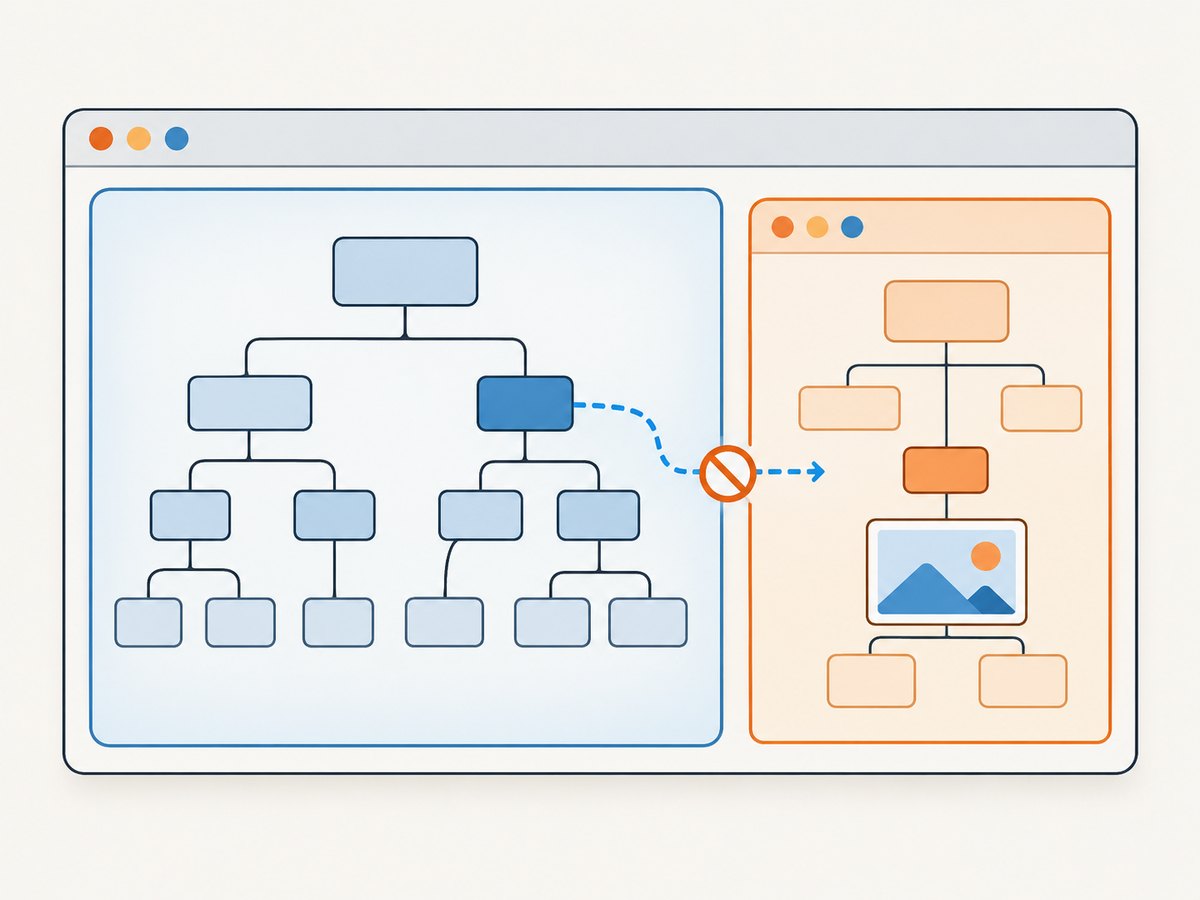
Keep these cases separate:
- No node matches: check the selector, whether the application has rendered the element yet, and which frame contains it.
- A node matches but the image is unavailable: check
src,srcset,currentSrc, loading properties, and browser request errors. - The node exists but is not visible: check CSS, viewport position, and lazy-loading behavior. Visibility and selector presence are not the same condition.
An image request failing does not make an existing img node stop matching a DOM selector. The browser exposes image resource state through properties on HTMLImageElement. See [MDN’s img reference](https://developer.mozilla.org/en-US/docs/Web/HTML/Reference/Elements/img).
2. A runnable diagnostic script
This script navigates to a page, reports the matching image elements, waits for a target selector, then prints the selected image URL and dimensions. Save it as inspect-images.js.
const puppeteer = require('puppeteer');

(async () => {
  const browser = await puppeteer.launch({ headless: true });
  try {
    const page = await browser.newPage();
    page.setDefaultTimeout(10_000);

    const response = await page.goto('https://example.com', {
      waitUntil: 'domcontentloaded',
      timeout: 30_000,
    });
    console.log('HTTP status:', response?.status());
    console.log('Final URL:', page.url());
    console.log('Title:', await page.title());

    const images = await page.$$eval('img', imgs => imgs.map(img => ({
      alt: img.alt,
      src: img.getAttribute('src'),
      srcset: img.getAttribute('srcset'),
      loading: img.loading,
      complete: img.complete,
      currentSrc: img.currentSrc,
      naturalWidth: img.naturalWidth,
      naturalHeight: img.naturalHeight,
    })));
    console.log('Images in main frame:', images);

    const selector = 'img.hero';
    try {
      const image = await page.waitForSelector(selector, { timeout: 10_000 });
      const state = await image.evaluate(img => ({
        tagName: img.tagName,
        alt: img.alt,
        src: img.getAttribute('src'),
        srcset: img.getAttribute('srcset'),
        currentSrc: img.currentSrc,
        loading: img.loading,
        complete: img.complete,
        naturalWidth: img.naturalWidth,
        naturalHeight: img.naturalHeight,
      }));
      console.log('Target image:', state);
    } catch (error) {
      console.error(`Selector did not appear: ${selector}`);
      console.error(error.message);
      console.error('URL at failure:', page.url());
      console.error('Main-frame image count:', images.length);
      throw error;
    }
  } finally {
    await browser.close();
  }
})().catch(error => {
  console.error(error);
  process.exitCode = 1;
});
Install Puppeteer in a project with npm install puppeteer, then run node inspect-images.js. Replace the example URL and selector with the page and element you are investigating. The script intentionally logs the broad image inventory before waiting for a narrow selector: that tells you whether the selector is wrong or no images have appeared in the main frame.
3. Diagnose the selector and render timing
Check the rendered markup, not the source you expected
A selector must match the DOM that exists after navigation and any required application interaction. Inspect actual attributes and count before assuming a class or ID is present:
const inventory = await page.$$eval('img', imgs => imgs.map(img => ({
  alt: img.alt,
  id: img.id,
  className: img.className,
  src: img.getAttribute('src'),
  srcset: img.getAttribute('srcset'),
})));
console.log(inventory);
console.log('Matches:', await page.locator('img.hero').count());
Check capitalization, punctuation, escaping, nesting, and whether the element is actually an img. A visual image may be a CSS background, an SVG element, a canvas, or an image inside a component with different markup. Those will not match img. A broad selector such as img helps establish what element types are present; then narrow it using observed attributes.
If the application inserts the image after an API response or user action, an immediate page.$ can run too early. Wait for the DOM condition you expect:
const image = await page.waitForSelector('img.hero', {
  timeout: 10_000,
  visible: true,
});
waitForSelector returns as soon as the selector condition is satisfied if the element already exists; otherwise it waits and throws on timeout. The default timeout documented for the method is 30 seconds, configurable through its options or page defaults. It waits for the selector condition, not successful image decoding. See [Puppeteer’s waitForSelector API](https://pptr.dev/api/puppeteer.page.waitforselector).
For a client-rendered page, choose a condition tied to the application state, if one is available. Increasing a timeout can give delayed rendering more time, but cannot fix a selector that never matches or a query sent to the wrong frame. If content only appears after clicking or scrolling, perform that action before the query.
Use Locators for interactions
Puppeteer Locators automatically wait for an element to be present and in a suitable state for an action. They are helpful when the next step is clicking or interacting with a control:
await page.locator('img.hero').wait();
await page.locator('button.load-gallery').click();
await page.locator('img.gallery-item').wait();
Use the method appropriate to the task for your installed Puppeteer version. A Locator can handle action timing; it cannot repair an incorrect selector or make a main-frame query search another frame. See [Puppeteer’s page interactions guide](https://pptr.dev/guides/page-interactions).
4. Check frames and shadow DOM boundaries
page.$ queries the main frame. If the page’s image is inside an iframe, first identify the frame and query it there. For example, you can inspect frame URLs and look for a known iframe URL or name:
for (const frame of page.frames()) {
  console.log('Frame:', frame.url());
  const count = await frame.$$eval('img', imgs => imgs.length).catch(() => 0);
  console.log('Image count:', count);
}

const targetFrame = page.frames().find(frame =>
  frame.url().includes('/gallery')
);
if (!targetFrame) throw new Error('Gallery frame not found');
const frameImage = await targetFrame.waitForSelector('img.hero', {
  timeout: 10_000,
});
Choose a frame based on evidence from the page, not an assumed URL fragment. Frame content can load later, so a frame inventory taken immediately after navigation may need to be repeated after the application reaches the relevant state.
Shadow DOM is another boundary to consider. A selector from the document does not necessarily cross every component boundary as a regular CSS query would. Inspect the page’s component structure and use Puppeteer’s supported locator or shadow-root querying approach for the version in use. First establish that the image exists within that component before changing the query strategy.
5. An image node can exist while its resource is pending
Once a selector returns an element, inspect the resource separately. Useful properties include:

getAttribute('src')andgetAttribute('srcset'): the markup’s source attributes.currentSrc: the URL the browser selected, including a choice from responsivesrcsetcandidates. It does not prove the resource loaded. See [MDN currentSrc](https://developer.mozilla.org/en-US/docs/Web/API/HTMLImageElement/currentSrc).complete: whether the browser considers image loading complete. On its own, it is not a success check.naturalWidthandnaturalHeight: intrinsic dimensions available after a successful image load; zero dimensions are a useful clue to investigate, not a diagnosis by themselves.
A page can have srcset without a useful value in the literal src attribute. Look at currentSrc when determining which candidate was chosen. The img element’s source and loading behavior is documented by [MDN](https://developer.mozilla.org/en-US/docs/Web/HTML/Reference/Elements/img).
Account for lazy loading
With native loading="lazy", browsers can defer fetching an image until it is near the viewport. The window load event may fire while lazy images remain unloaded. See [MDN’s lazy-loading guide](https://developer.mozilla.org/en-US/docs/Web/Performance/Guides/Lazy_loading). Scroll the target into view before expecting its image resource to load:
const image = await page.waitForSelector('img.lazy-card', {
  timeout: 10_000,
});
await image.evaluate(img => img.scrollIntoView({ block: 'center' }));
await page.waitForFunction(selector => {
  const img = document.querySelector(selector);
  return img && img.complete && img.naturalWidth > 0;
}, { timeout: 15_000 }, 'img.lazy-card');
This wait checks one image’s loaded dimensions, rather than merely waiting for a matching node. If the image is in an iframe, run the check in that frame. If it is intentionally lazy and far down a long page, scrolling through the page may be needed to trigger more images.
6. Options: choose the condition you need
| Approach | Use it for | What it does not establish |
|---|---|---|
page.$ / page.$$ |
Immediate existence check and inventory | Does not wait for later rendering; page.$ queries the main frame |
waitForSelector |
A node expected to appear asynchronously | Does not establish that the image file loaded or decoded |
| Locator | An interaction that needs an element in an actionable state | Does not correct a wrong selector or frame choice |
| Image properties | Inspecting a matched image’s selected URL and load state | Only useful after finding the DOM node; properties alone may not reveal the request failure cause |
| Request and console logs | Investigating failed image loads and page errors | Does not substitute for confirming selector and frame scope |
These methods answer different questions. Use a DOM query to establish existence, a wait to handle asynchronous insertion, and image state or request diagnostics to investigate loading.
7. Common errors and fixes
| Symptom | Likely cause | Fix |
|---|---|---|
page.$ returns null immediately |
The element has not rendered yet, or selector does not match | Inspect page.$$eval('img', ...), verify markup, then wait for the specific expected selector |
waitForSelector times out |
The selector never appears, the app needs an interaction, or the node is in another frame | Log URL/title and broad DOM inventory at failure; perform the needed action or query the correct frame |
img matches but currentSrc is empty |
The source may not yet be assigned or selected | Check the DOM attributes after rendering and inspect application state |
complete is true but dimensions are zero |
The resource may have failed or resolved without usable image data | Check currentSrc, request failures, response status, and page console output |
| Image appears in a visible browser but not Puppeteer’s query | The inspected page state may differ, or image is in a frame or shadow root | Compare URL, interaction state, frame list, and rendered DOM in the same run |
| Lazy image remains unavailable offscreen | Its resource fetch may be deferred until near the viewport | Scroll it into view, then wait for successful image dimensions |
| Image uses responsive markup | The browser may choose a source from srcset |
Inspect currentSrc as well as src and srcset |
| Navigation wait hangs or gives a misleading signal | The chosen navigation event does not correspond to app readiness | Wait for the application’s expected selector or state; avoid treating navigation completion as image readiness |
8. Reliability, performance, and cost considerations
Use the narrowest useful wait condition. Waiting for a specific selector or image state makes failures easier to interpret than waiting an arbitrary number of seconds. Avoid using “network idle” as a universal proof that every image is ready: the relevant question is whether the target node exists and whether its chosen image resource loaded. Pages can continue making background requests, while lazy images may not have started fetching.
On failure, record the final URL, page title, HTTP status where available, selector, image count, frame URLs, and relevant image properties. These details distinguish redirects, delayed rendering, frame scope, and resource problems. Add request-failure logging when resource diagnosis is needed:
page.on('requestfailed', request => {
  console.log('Request failed:', request.url(), request.failure()?.errorText);
});
page.on('console', message => {
  if (message.type() === 'error') console.log('Page console:', message.text());
});
Headless browser work has an operational cost: launching browsers, keeping them available, and waiting on pages consume compute and time. Reuse a browser process across related pages when the application’s isolation requirements permit it, close pages and browsers when finished, and set reasonable navigation and selector timeouts. Avoid retrying a permanently wrong selector; retries add delay without improving the result. Whether self-hosting is economical depends on request volume, page complexity, and the infrastructure you already operate, so measure your own workload rather than relying on an unrelated benchmark.
9. Or skip the browser setup
If your goal is to capture a page rather than debug Puppeteer, [ScreenshotNeo](https://screenshotneo.com) is a website screenshot API and MCP server. Its one-call API returns an image or PDF. Example using the supplied cURL pattern:
curl -G "https://api.screenshotneo.com/v1/shot" \
  -d access_key=YOUR_API_KEY \
  --data-urlencode url=https://stripe.com \
  -o shot.webp
For full request options and setup, see the [ScreenshotNeo API docs](https://screenshotneo.com/docs/). Python and Node.js versions:
import requests

r = requests.get(
    "https://api.screenshotneo.com/v1/shot",
    params={"access_key": "YOUR_API_KEY", "url": "https://stripe.com"},
    timeout=90,
)
open("shot.webp", "wb").write(r.content)
const q = new URLSearchParams({
access_key: 'YOUR_API_KEY',
url: 'https://stripe.com',
});
const res = await fetch(`https://api.screenshotneo.com/v1/shot?${q}`);
if (!res.ok) throw new Error(`Screenshot request failed: ${res.status}`);
await Bun.write('shot.webp', res);ScreenshotNeo accepts cookie and consent banners before capture and removes more than 60 known consent platforms, newsletter popups, and chat widgets; each step can be turned off. Bot checks, blank pages, timeouts, failed loads, and cache hits cost nothing, and response headers report the page verdict and billing status. Its MCP server offers take_screenshot, get_page_info, and capture_pdf for Claude, Cursor, and other MCP clients. The free plan includes 1,000 shots a month with no card; paid plans start at $5 for 3,000 shots. [Create a free account](https://screenshotneo.com/account/sign-up/).
10. FAQ
Does headless mode change how page.$ matches images?
The documented behavior is that it returns the first match or null. A null result means no match in the queried main frame at that time; it does not establish a headless-specific selector limitation.
Does waitForSelector('img') mean the image downloaded?
No. It establishes that a matching DOM element appeared. Inspect image state and, when needed, browser request failures to investigate the resource.
Why does the page load event fire before images are ready?
Native lazy loading can defer image fetches until an image approaches the viewport, so the window load event may occur while lazy images remain unloaded.
What should I check first when src looks empty?
Inspect srcset and currentSrc. Responsive markup can make the browser’s selected URL differ from the literal src attribute.


