How to Make Puppeteer Include Images When Generating PDFs
Make Puppeteer PDFs include lazy-loaded images reliably by triggering loads, checking image readiness, and accounting for print CSS.

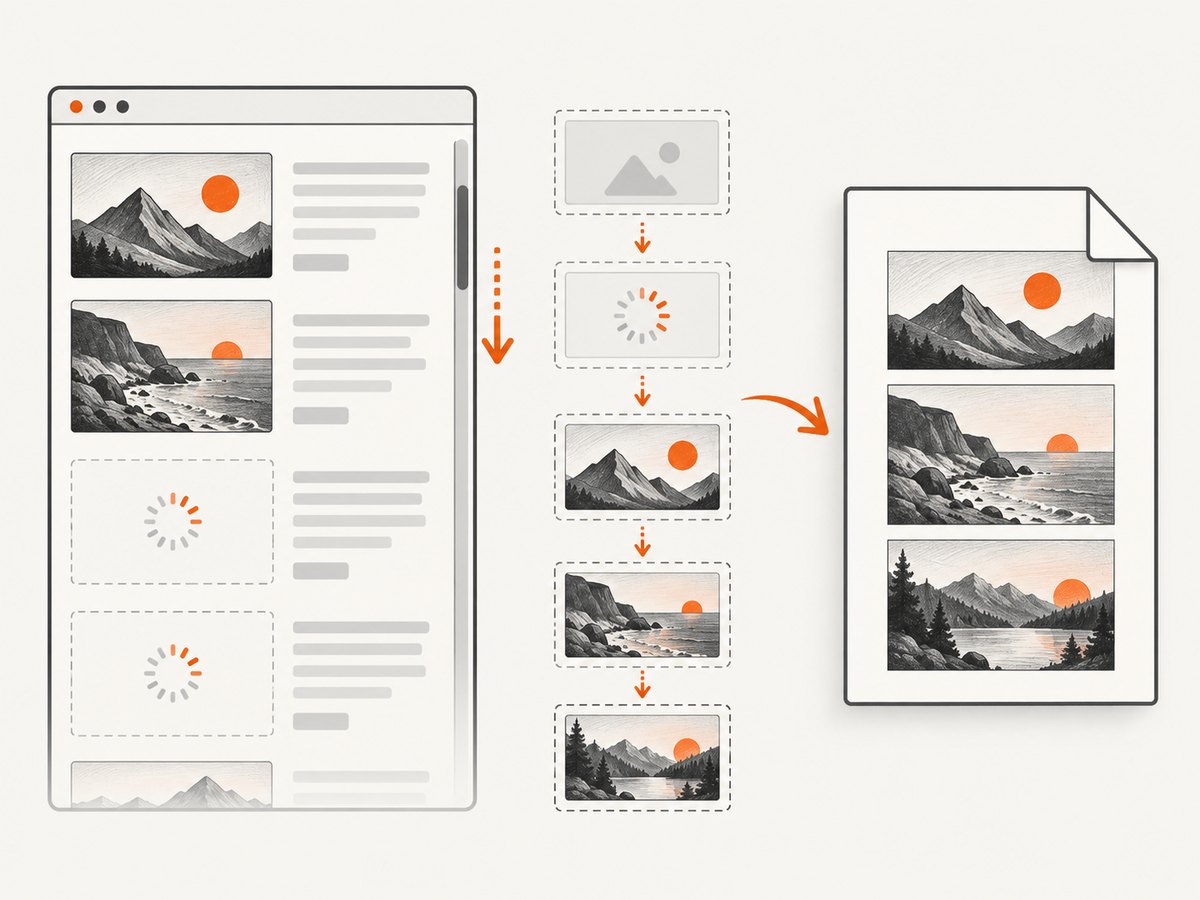
Short answer: Puppeteer does not provide a built-in page.pdf() option that guarantees every image is ready. Navigate with an appropriate lifecycle condition, trigger lazy-loaded content, wait for each required image to finish successfully, then call page.pdf(). Also inspect print CSS because PDFs use print media by default.
A selector wait only proves that an <img> element exists in the DOM. It does not prove that the image request finished or that the resource decoded to usable pixels. Likewise, networkidle0 and networkidle2 describe a quiet network, not semantic image readiness. The reliable solution is a site-aware readiness step followed by a bounded page-side check.
1. Complete Puppeteer example
The following script handles navigation, lazy loading, image readiness, diagnostics, print media, and PDF creation. Install Puppeteer with npm install puppeteer, save this as pdf-with-images.mjs, and run it with Node.js.
import puppeteer from 'puppeteer';

const targetUrl = process.argv[2] ?? 'https://example.com';
const outputPath = process.argv[3] ?? 'page.pdf';

const browser = await puppeteer.launch({
  headless: true,
  // args: ['--no-sandbox'] // Use only when your deployment requires it.
});

try {
  const page = await browser.newPage();
  await page.setViewport({ width: 1440, height: 1000, deviceScaleFactor: 1 });

  // Use a navigation milestone, but do not treat it as image readiness.
  await page.goto(targetUrl, {
    waitUntil: 'networkidle2',
    timeout: 60_000
  });

  // Trigger common viewport-based lazy loaders. Adjust for the target site.
  await page.evaluate(async () => {
    const step = Math.max(window.innerHeight, 600);
    for (let y = 0; y < document.body.scrollHeight; y += step) {
      window.scrollTo(0, y);
      await new Promise(resolve => setTimeout(resolve, 100));
    }
    window.scrollTo(0, 0);
  });

  // Wait until ordinary img resources have completed successfully.
  await page.waitForFunction(() => {
    const images = [...document.images];
    return images.every(image =>
      image.complete && image.naturalWidth > 0
    );
  }, { timeout: 30_000 });

  // Report failures before generating the PDF.
  const failedImages = await page.evaluate(() =>
    [...document.images]
      .filter(image => !(image.complete && image.naturalWidth > 0))
      .map(image => ({
        src: image.currentSrc || image.src,
        alt: image.alt
      }))
  );
  if (failedImages.length) {
    console.warn('Images not ready:', failedImages);
  }

  // PDF uses print media by default. Use 'screen' only when required.
  await page.emulateMediaType('print');
  await page.pdf({
    path: outputPath,
    format: 'A4',
    printBackground: true,
    preferCSSPageSize: true,
    margin: { top: '16mm', right: '14mm', bottom: '16mm', left: '14mm' }
  });

  console.log(`Wrote ${outputPath}`);
} finally {
  await browser.close();
}
This predicate is practical page-context logic, not an official Puppeteer recipe. Adapt it when a page intentionally contains empty images, placeholders, tracking pixels, or images implemented as CSS backgrounds.
2. Why images disappear from Puppeteer PDFs
| Symptom | Likely cause | What to check |
|---|---|---|
| Image element is present but blank | Request has not completed, or it failed | complete, naturalWidth, request failures |
| Only images below the fold are missing | Lazy loading waits for visibility | Scroll or invoke the site’s loader before waiting |
| Images appear in a browser but not PDF | Print CSS hides them or changes dimensions | @media print, display, visibility, page breaks |
| PDF hangs while waiting | A broken image can never satisfy the predicate | Use a timeout and log unresolved URLs |
| Background artwork is absent | CSS backgrounds are not in document.images |
Inspect computed styles and print background settings |
Puppeteer’s PDF guide demonstrates navigation with waitUntil: 'networkidle2' and notes that fonts are awaited by default. The PDFOptions reference documents waitForFonts, which waits for document.fonts.ready; it does not list an equivalent image-wait option. The Page.pdf() reference states that print media is used unless you emulate another media type.
3. Navigation waits versus image waits
Choose the wait that proves the condition you actually need:
domcontentloaded: the initial document has been parsed. Late requests and application rendering may still be running.load: the page’s load event fired. Client-side rendering and lazy images may still be pending.networkidle0: no more than zero active connections for the documented quiet period. Analytics, websockets, polling, and ads can prevent it from settling.networkidle2: no more than two active connections for the quiet period. It is useful as a general settling point, but it says nothing about whether every intended image succeeded.waitForSelector('img'): a matching node exists. The selector API does not wait for the image resource.- Page-side image predicate: checks the actual resource state. Trigger lazy loading first and add exclusions for intentional placeholders.
The lifecycle definitions are in Puppeteer’s lifecycle event documentation. Treat all navigation waits as stages in a pipeline, not as a substitute for an image-specific check.
4. Triggering lazy-loaded images
Lazy loading is site-specific. Common implementations use native loading="lazy", an IntersectionObserver, or a framework that copies a URL from data-src into src. A full-page scroll is a useful general trigger:
await page.evaluate(async () => {
  for (let y = 0; y < document.body.scrollHeight; y += 700) {
    window.scrollTo(0, y);
    await new Promise(resolve => setTimeout(resolve, 150));
  }
  window.scrollTo(0, 0);
});
For a known page, target the actual content instead:
await page.evaluate(() => {
  document.querySelectorAll('[data-src]').forEach((img) => {
    if (!img.getAttribute('src')) img.setAttribute('src', img.dataset.src);
  });
});
Do not blindly copy data-src on production sites; some applications use it for responsive source selection or placeholders. Inspect the DOM and network activity first.
5. A bounded, diagnostic readiness wait
A permanently broken URL must not block a PDF worker forever. This helper waits up to a limit, then returns unresolved resources for logging:
async function waitForImages(page, timeout = 30_000) {
  try {
    await page.waitForFunction(() => {
      const required = [...document.images].filter(image =>
        !image.dataset.optional
      );
      return required.every(image =>
        image.complete && image.naturalWidth > 0
      );
    }, { timeout });
  } catch (error) {
    const pending = await page.evaluate(() => [...document.images]
      .filter(image => !(image.complete && image.naturalWidth > 0))
      .map(image => image.currentSrc || image.src));
    error.pendingImages = pending;
    throw error;
  }
}
Use naturalWidth > 0 rather than complete alone. A failed request can set complete to true while providing no usable pixels.
6. Print media, dimensions, and CSS
PDF output is generated with print CSS by default. A stylesheet may hide navigation images, set a zero height, or apply page-break rules that make content appear missing. Compare both modes:

await page.emulateMediaType('screen');
// Capture a diagnostic screenshot here if needed.
await page.emulateMediaType('print');
await page.pdf({ path: 'output.pdf', printBackground: true });
If the design should follow screen rules, call page.emulateMediaType('screen') immediately before page.pdf(). Keep printBackground: true when colored backgrounds or background images are part of the document. CSS background images still need their own checks because they are not represented by document.images.
7. Authenticated, blocked, or cross-origin images
- Authentication: set cookies, an authorization header, or a page-level user agent before navigation. Confirm that image requests receive the same credentials when required.
- Hotlink protection: an image CDN may reject the browser’s origin or referer. Inspect the response status and the final
currentSrc. - Request blocking: ad and tracker filters can accidentally block an image CDN. Review every interception rule.
- Mixed content: an HTTPS document may refuse HTTP images. Replace URLs or serve the assets securely.
- Content security policy: CSP or signed URLs can expire between navigation and PDF creation. Generate the page and PDF within the token’s validity window.
Listen for failed requests while diagnosing:
page.on('requestfailed', request => {
  const type = request.resourceType();
  if (type === 'image') {
    console.warn('Image request failed', request.url(), request.failure());
  }
});
8. Performance and reliability checklist
- Set a navigation timeout and an image-wait timeout; never rely on an unbounded wait.
- Scroll only as far as needed for the document. Very long pages can trigger thousands of requests.
- Reuse a browser process for batches, but create a fresh page per job and close it in a
finallyblock. - Set a deterministic viewport, device scale factor, timezone, and locale when visual output must be reproducible.
- Use
preferCSSPageSize: truewhen the site defines@page; otherwise set an explicit paper format and margins. - Record the target URL, navigation timing, unresolved image URLs, and PDF options with each job.
- Retry transient navigation or CDN failures with a small bounded retry count. Do not retry a consistently unauthorized URL indefinitely.
- Cache stable assets at the network or application layer when policy permits, but invalidate cached content when fresh images are required.
9. Or skip the browser setup
ScreenshotNeo provides a website screenshot API and PDF capture endpoint when you do not want to maintain Puppeteer workers. Its capture options include full-page output with lazy images loaded, custom JavaScript and CSS, waits for a selector, delay, or network idle, custom headers and cookies, blocking rules, and PDF paper size, margins, landscape mode, and page ranges. See the ScreenshotNeo API documentation for the parameter list.
curl -G "https://api.screenshotneo.com/v1/shot" -d access_key=YOUR_API_KEY --data-urlencode url=https://stripe.com -o shot.webpimport requests
r = requests.get("https://api.screenshotneo.com/v1/shot", params={"access_key": "YOUR_API_KEY", "url": "https://stripe.com"}, timeout=90)
open("shot.webp", "wb").write(r.content)const q = new URLSearchParams({ access_key: 'YOUR_API_KEY', url: 'https://stripe.com' });
const res = await fetch(`https://api.screenshotneo.com/v1/shot?${q}`);Before capture, ScreenshotNeo accepts cookie and consent banners and removes more than 60 known consent platforms, newsletter popups, and chat widgets; each step can be turned off. Bot checks, blank pages, timeouts, failed loads, and cache hits are not billed, and the response identifies the result with X-Page-Verdict and X-Billed headers. An MCP server exposes take_screenshot, get_page_info, and capture_pdf for Claude, Cursor, and other MCP clients. The Free plan includes 1,000 screenshots per month without a card; paid plans start at $5 for 3,000.
Create a free ScreenshotNeo account and start with 1,000 screenshots per month at no charge.
10. Troubleshooting guide
“The PDF is created, but every image is blank”
Check that the page has real src or currentSrc values, then inspect failed image requests. Confirm that request interception, CSP, authentication, and hotlink protection are not blocking the CDN.
“Only below-the-fold images are missing”
Trigger the lazy loader by scrolling or by calling the application’s own loading function. Run the readiness predicate after the trigger, not before it.
“The wait times out”
Log unresolved URLs. One broken tracking pixel or optional placeholder can hold up an all-images predicate. Exclude known optional images or change the policy to fail the job only when required selectors remain unavailable.
“Images work in screenshots but not in PDFs”
Inspect print CSS and emulate print before taking a diagnostic screenshot. Look for display:none, zero dimensions, white-on-white styling, and page-break rules. Enable printBackground for background artwork.
“Network idle never happens”
Persistent analytics, polling, or websocket connections can keep the page busy. Use a shorter lifecycle milestone and an explicit readiness condition for the content you need.
11. FAQ
Does waitForSelector('img') wait for image bytes?
No. It waits for a DOM node. Check complete and naturalWidth, with site-specific exclusions.
Should I use networkidle0 or networkidle2?
Use either as a navigation settling hint, then perform an image-specific wait. Neither guarantees that lazy or application-triggered images rendered.
Does Puppeteer wait for fonts before printing?
Yes. Current PDF options default waitForFonts to true and wait for document.fonts.ready. That behavior does not cover images.
How do I include CSS background images?
Inspect computed styles for background-image, ensure print CSS keeps them visible, and validate the referenced resources separately; they are not included in document.images.
Can I make a screen-looking PDF?
Yes. Call page.emulateMediaType('screen') before page.pdf(), while remembering that paper size, margins, and pagination still apply.
12. Final checklist
- Navigate with a bounded timeout.
- Trigger lazy content deliberately.
- Wait for required images to be complete with a positive natural width.
- Log failed and unresolved URLs.
- Review print media CSS and background settings.
- Generate the PDF with explicit paper, margin, and background options.
- Close the page and browser even when a job fails.
This sequence separates DOM presence, network settling, resource success, and print layout—the four checks that determine whether images appear in the final PDF.


