How to Fix Puppeteer’s Intermittent “Protocol Error: IO.read: Target Closed”
Puppeteer’s `IO.read: Target closed` usually means Chrome or the page closed while Puppeteer was reading a PDF stream. Trace the failure, fix its lifecycle cause, and make PDF rendering more reliable.

Puppeteer’s Protocol error (IO.read): Target closed means Puppeteer sent a Chrome DevTools Protocol IO.read command after the browser target or its CDP session had closed. The read call is where the failure becomes visible; it does not, by itself, prove that the call was malformed. With page.pdf(), the stack may end in Puppeteer’s protocol-stream reader because Chrome closed while Puppeteer was retrieving the generated PDF.
Start by finding what closed first: the page, the browser process, or the connection. Capture Chrome’s output, record the exact browser and package versions, and check process and resource limits before changing launch flags. If the failure occurs only on large or resource-heavy documents, simplify the workload and test PDF streaming on the exact Puppeteer version you deploy.
This guide covers the PDF case in depth, plus the same error while reading streamed resources. It gives a diagnostic sequence, an instrumented Node.js example, a bounded PDF workflow, deployment checks, and targeted fixes.
1. What the error tells you
The DevTools Protocol uses IO.read to read data from a protocol stream. Puppeteer can use a stream when it retrieves PDF output or consumes certain resources. If the target or its session closes before a read completes, Puppeteer can reject the operation with Target closed. A report involving a very large HTML document shows this during Page.pdf(); a separate production report shows the message while a streamed image resource was being consumed. These cases share a lifecycle symptom, but they do not establish one universal cause. See the [large HTML PDF report](https://github.com/puppeteer/puppeteer/issues/6618) and the [streamed resource report](https://github.com/openzim/zimit/issues/455).
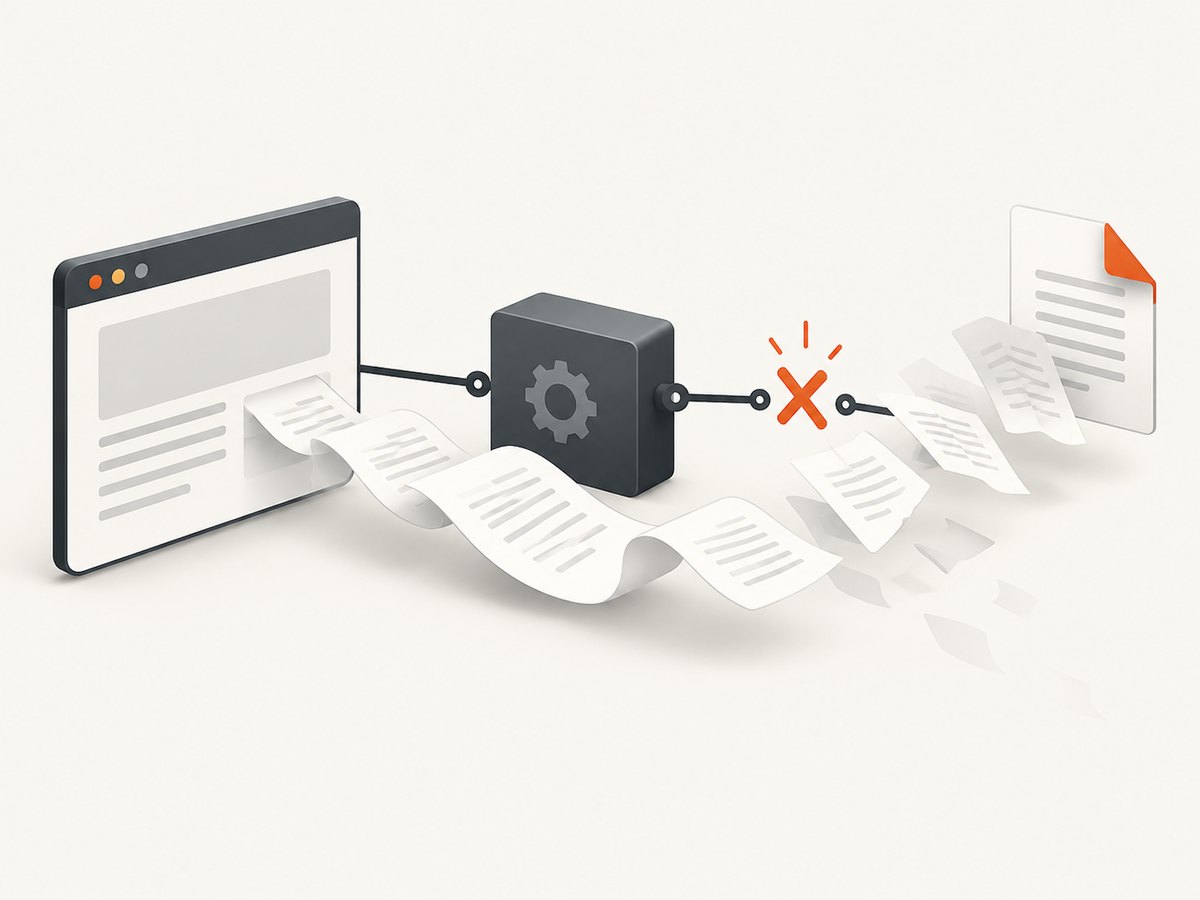
The error can appear after navigation, during printing, or while a result is being read. If it happens after page.pdf() starts, do not assume the document has finished printing just because the page loaded. If it occurs before PDF generation, investigate navigation and browser stability first. Determine the failure stage before applying a fix.
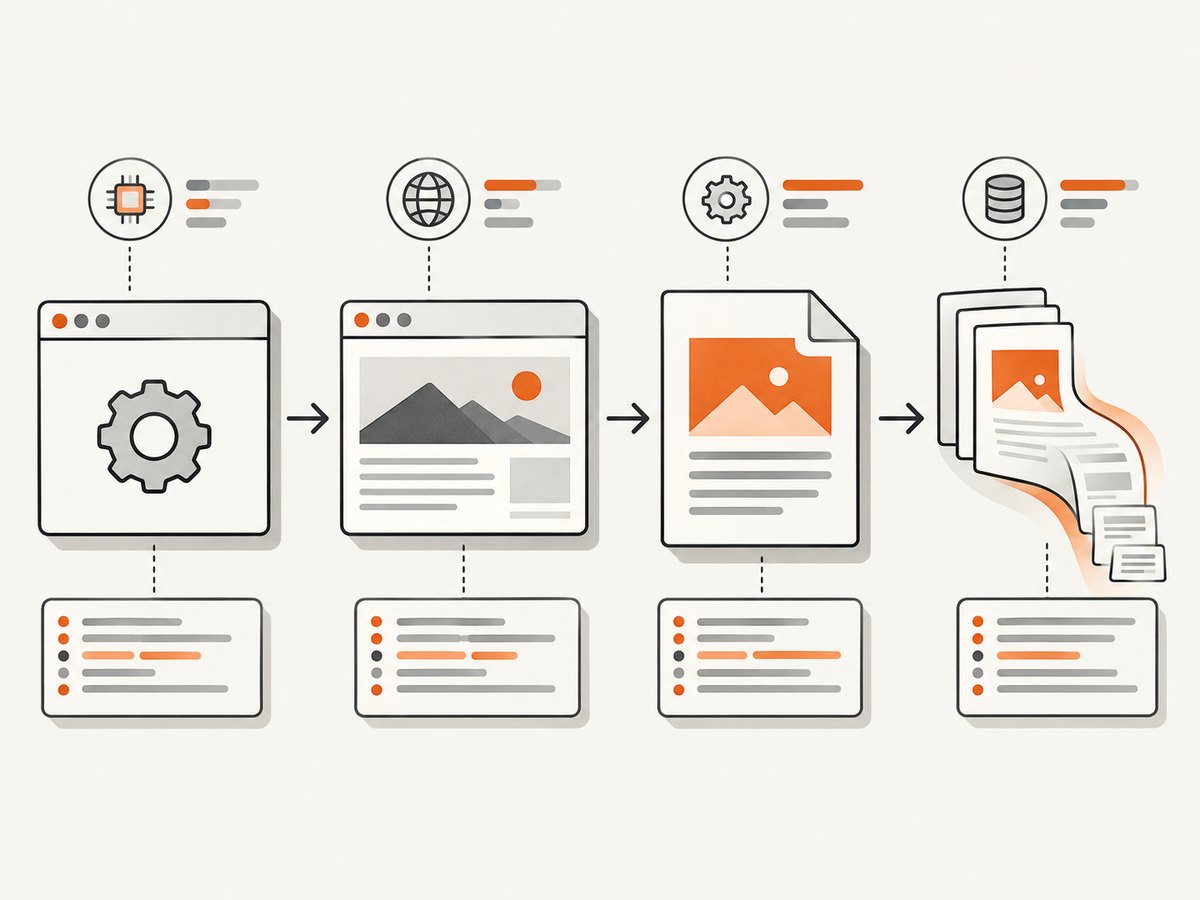
2. Follow this diagnostic sequence
- Reproduce one failure with useful logs. Enable
dumpioso Chrome’s output reaches the Node process. Temporarily enable Puppeteer protocol logging withNODE_DEBUG="puppeteer:*". In versions that expose it, inspectbrowser.debugInfo.pendingProtocolErrorsfor protocol calls that were pending when the connection closed. Avoid leaving verbose protocol logs enabled in routine production traffic: they add noise and may expose page or request details. - Record which stage fails. Log before and after browser launch, page creation, navigation or
setContent(), and PDF creation. Add browser disconnect and page close listeners. Run one controlled reproduction withheadless: falseand optionallyslowMoto observe whether the page or browser exits first. Do not use the visible-browser run as a performance comparison. - Check the environment before changing flags. Record Node.js,
puppeteerorpuppeteer-core, Chrome/Chromium, operating system, architecture, launch arguments, container memory and CPU limits, and available shared memory. Puppeteer’s guaranteed compatibility is with its bundled browser; a separate executable adds compatibility risk. Compare the deployed versions with the [Puppeteer troubleshooting guide](https://pptr.dev/troubleshooting). - Check process and filesystem setup. In containers, verify Chrome’s shared libraries, sandbox requirements, writable temporary/profile paths, and child-process cleanup. Puppeteer’s [Docker guide](https://pptr.dev/guides/docker) calls for an init process such as Docker’s
--init, and documents the capability needed by its official sandboxed image. Read-only containers still need writable locations for Chrome profile and configuration data. - Reduce page work if the failure follows document complexity. Try a smaller document, fewer remote images, fewer external stylesheets, and fewer fonts or scripts. One intermittent PDF report found that inlining CSS and converting images to data URLs stopped that workload’s failures; treat it as a workload-specific mitigation, not a general guarantee. Compare the failing and simplified versions to find which dependency or resource load changes the outcome.
- Change PDF handling only after capturing evidence. Test
page.createPDFStream()if the installed Puppeteer release provides it, set explicit timeouts, and wait for the content lifecycle you actually need. A community report describes success after using a 60-second timeout and waiting forloadanddomcontentloaded. Validate this behavior against your exact release and document; a longer timeout cannot repair a browser that has crashed.
3. Add instrumentation to your Node.js job
This CommonJS example records major stages, captures browser disconnection and page errors, and routes Chrome output to the Node process. It uses setContent() because it makes a reproducible HTML input straightforward; if your job navigates to a URL, replace that call with page.goto(url, { waitUntil: 'domcontentloaded', timeout: 60000 }) and log the URL without credentials or sensitive query parameters.
const puppeteer = require('puppeteer');

async function render(html) {
  let browser;
  try {
    console.log('launching browser');
    browser = await puppeteer.launch({
      headless: true,
      dumpio: true,
      // Keep the bundled browser unless you have a tested reason to override it.
    });

    browser.on('disconnected', () => {
      console.error('browser disconnected');
    });

    const page = await browser.newPage();
    page.on('close', () => console.error('page closed'));
    page.on('error', error => console.error('page crashed:', error));
    page.on('console', message => {
      if (message.type() === 'error') console.error('page console:', message.text());
    });
    page.on('requestfailed', request => {
      console.error('request failed:', request.url(), request.failure()?.errorText);
    });

    console.log('setting content');
    await page.setContent(html, {
      waitUntil: ['load', 'domcontentloaded'],
      timeout: 60000,
    });

    console.log('creating PDF');
    const pdf = await page.pdf({
      format: 'A4',
      printBackground: true,
      timeout: 60000,
    });
    console.log('PDF created:', pdf.length, 'bytes');
    return pdf;
  } finally {
    if (browser) {
      // This runs after the PDF operation settles; do not close the browser
      // from another timer or request handler while a job is still reading.
      await browser.close().catch(error => {
        console.error('browser close failed:', error.message);
      });
    }
  }
}

render('<!doctype html><html><body><h1>Report</h1></body></html>')
  .then(pdf => require('node:fs').writeFileSync('report.pdf', pdf))
  .catch(error => {
    console.error('render failed:', error);
    process.exitCode = 1;
  });
Run it once with protocol logging when the normal logs do not reveal the closing event:
NODE_DEBUG="puppeteer:*" node render.jsProtocol debug output varies across Puppeteer versions. Keep a copy of the complete error stack, the last stage marker, Chrome stderr, and the environment/version details together. If logs show that the browser disconnected before PDF creation returned, investigate the browser process or host limits. If the browser remains connected but an individual page closes, inspect your own cleanup, cancellation, and timeout code for a page-close race.
4. Use a bounded PDF path
For URL-driven content, wait for the lifecycle event that matches the page. domcontentloaded indicates that the document was parsed; it does not mean every image, web font, or asynchronous application request has finished. load waits for the page’s load event, which can itself be delayed by dependencies. networkidle0 and networkidle2 can be useful for some pages, but pages with polling, analytics, or long-lived requests may never become idle. Choose deliberately and retain a timeout.
For HTML provided directly, the following pattern uses a stream where available. The API and behavior of createPDFStream() can vary by Puppeteer version, so check the documentation for the exact version in your lockfile. If it is unavailable, use page.pdf() with an explicit timeout as in the preceding example.
const fs = require('node:fs');
const { pipeline } = require('node:stream/promises');
const puppeteer = require('puppeteer');

async function savePdf(html, outputPath) {
  const browser = await puppeteer.launch({ headless: true, dumpio: true });
  try {
    const page = await browser.newPage();
    await page.setContent(html, {
      waitUntil: ['load', 'domcontentloaded'],
      timeout: 60000,
    });
    await page.emulateMediaType('screen');

    if (typeof page.createPDFStream !== 'function') {
      throw new Error('This Puppeteer version does not provide createPDFStream()');
    }
    const pdfStream = await page.createPDFStream({
      format: 'A4',
      printBackground: true,
      timeout: 60000,
      margin: { top: '1cm', right: '1cm', bottom: '1cm', left: '1cm' },
    });
    await pipeline(pdfStream, fs.createWriteStream(outputPath));
  } finally {
    await browser.close();
  }
}

const html = '<!doctype html><html><body><h1>Report</h1></body></html>';
savePdf(html, 'report.pdf').catch(error => {
  console.error(error);
  process.exitCode = 1;
});
Streaming changes how your application receives output; it does not guarantee that Chrome will remain alive. Use a fresh page or browser after a confirmed crash, and do not reuse a closed target. Put cleanup in a finally block that runs only after the job settles. Avoid a global timeout handler that closes the browser while a PDF operation is still reading its stream.
5. Container, browser, and lifecycle checks
Keep browser and Puppeteer versions aligned
Log the installed Puppeteer package version and browser executable/version at startup. Prefer Puppeteer’s bundled browser for the installed package. If you set executablePath to system Chrome or a separately downloaded Chromium build, treat that as an explicit compatibility variable and verify the pairing when upgrading. Also record launch arguments; flags copied from serverless or WSL examples can change process behavior and are not universally appropriate.
Make the container support Chrome
- Install the shared libraries and fonts required by the chosen Chrome build and rendered documents.
- Ensure temporary, cache, and user-data/profile directories are writable. Chrome may fail before a page exists if startup cannot write its configuration.
- Use an init process such as
docker run --initor an equivalent entrypoint so child Chrome processes are reaped. - For the official Puppeteer container, follow its sandbox requirements, including the documented
SYS_ADMINcapability. - Check memory, CPU, and
/dev/shmconstraints alongside HTML size, image count, and font volume. Record limits with each failure so resource pressure can be correlated.
--no-sandbox is sometimes used to diagnose a sandbox launch problem, but Puppeteer’s troubleshooting guidance strongly discourages running Chrome without a sandbox. It can hide a deployment configuration problem and reduces browser isolation. Use it only as a controlled diagnostic in an environment where you understand the security cost; fix the sandbox setup for normal deployment.
6. Common errors and fixes
| Symptom | Likely area to investigate | Useful next step |
|---|---|---|
IO.read: Target closed during page.pdf() |
Browser or target closed while Puppeteer retrieved PDF output; document rendering may be demanding | Capture Chrome output and stage logs; test a smaller document and bounded PDF workflow. |
Navigation failed because browser has disconnected |
Browser process or CDP connection exited during navigation | Inspect Chrome stderr, process limits, container logs, browser version, and any external process manager. |
Target closed after a timeout or cancellation |
Your job may close the page/browser while an operation is still pending | Trace cancellation and cleanup paths; serialize work per page and close it after operations settle. |
| Chrome cannot start or reports missing libraries | Container dependencies, permissions, sandbox, or unwritable profile paths | Follow the official [troubleshooting guide](https://pptr.dev/troubleshooting); verify shared libraries and writable paths. |
| Failure only with system Chrome or after an upgrade | Puppeteer and executable compatibility changed | Record both versions, reproduce with the bundled browser, and upgrade or pin a tested pair. |
| Failure only on large documents | Resource pressure or slow/unstable external assets | Reduce remote dependencies, inline assets selectively, and compare resource and memory use. |
| Failure in a read-only container | Chrome cannot create profile or cache data | Point XDG and user-data paths to writable mounted or temporary directories. |
| Many orphaned Chrome processes | Container init/reaping or job cleanup is incomplete | Use an init process and ensure every browser is closed once its job settles. |
7. Reliability, performance, and cost tradeoffs
There is no reliable prevalence figure for this error in the cited documentation and issue reports, so do not use a percentage to estimate your risk. Track your own failure rate by stage, browser version, document size, host, and resource limit. Preserve a minimal failing HTML artifact where privacy allows; it is often more actionable than a generic retry.
Rendering a PDF is CPU- and memory-intensive relative to returning already available data, particularly when Chrome must load many images, fonts, or scripts. Reduce unnecessary page work and avoid running more concurrent browser jobs than the host can support. A single long timeout can tie up a worker; set bounded operation and job deadlines based on your service’s needs, and make queue behavior explicit.
Retries are appropriate only after diagnosing lifecycle causes. If you retry, bound the attempt count, use a fresh page or browser after a confirmed closure, and record each attempt. A retry can conceal a crash or resource limit, multiply expensive work, and duplicate side effects in pages that submit forms or trigger application actions. For stable rendering, keep browser versions pinned during a deployment and change one variable at a time.
8. Or skip the browser setup
If your task is to capture a website screenshot rather than generate a custom PDF from HTML, [ScreenshotNeo](https://screenshotneo.com) is a website screenshot API and MCP server from Yorker Media. One GET request returns a PNG, JPEG, WebP, or PDF. See the [API documentation](https://screenshotneo.com/docs/) for request options and formats.
curl -G "https://api.screenshotneo.com/v1/shot" \
  -d access_key=YOUR_API_KEY \
  --data-urlencode url=https://stripe.com \
  -o shot.webp
import requests
r = requests.get(
"https://api.screenshotneo.com/v1/shot",
params={"access_key": "YOUR_API_KEY", "url": "https://stripe.com"},
timeout=90,
)
r.raise_for_status()
open("shot.webp", "wb").write(r.content)const q = new URLSearchParams({
access_key: 'YOUR_API_KEY',
url: 'https://stripe.com',
});
const res = await fetch(`https://api.screenshotneo.com/v1/shot?${q}`);
if (!res.ok) throw new Error(`Screenshot request failed: ${res.status}`);
await require('node:fs/promises').writeFile('shot.webp', Buffer.from(await res.arrayBuffer()));Cookie and consent banners, newsletter popups, and chat widgets are removed before the shot; each cleanup step can be turned off. Bot checks, blank pages, timeouts, failed loads, and cache hits cost nothing, and the response identifies the page verdict and billing status in headers. Its MCP server lets AI agents use screenshot, page-info, and PDF-capture tools. The free plan includes 1,000 shots per month with no card; paid plans start at $5 for 3,000 shots.
Get 1,000 free screenshots a month with no card.
9. Frequently asked questions
Does IO.read: Target closed mean my PDF is corrupt?
No. It means Puppeteer could not complete a protocol read because the target or session closed. It does not tell you whether a partial artifact exists or whether the document itself is valid. Check the operation result and output file separately.
Should I switch from page.pdf() to createPDFStream()?
It is a useful version-dependent diagnostic and output-handling option, not a guaranteed fix. Check that your release supports it, set a timeout, and confirm the browser remains alive while the stream is consumed.
Can I just increase the timeout?
A longer bounded timeout may help when rendering or loading takes longer than the default. It will not fix a browser crash, a page closed by your application, or an incompatible executable.
Why does the same job succeed sometimes?
Intermittence can arise when timing, external resources, or available host resources vary. Instrument the failing stage and compare successful and failed runs; the message alone does not identify which variable changed.
Is this only a PDF error?
No. The same lifecycle error can occur while another protocol stream is being read. Apply the same first step: establish what target or session closed and when.


