How to Resolve Different Puppeteer Rendering on Linux and Windows
Puppeteer screenshots can differ across Linux and Windows because of browser versions, fonts, runtime libraries, and capture settings. Use this workflow to isolate the cause and make captures repeatable.
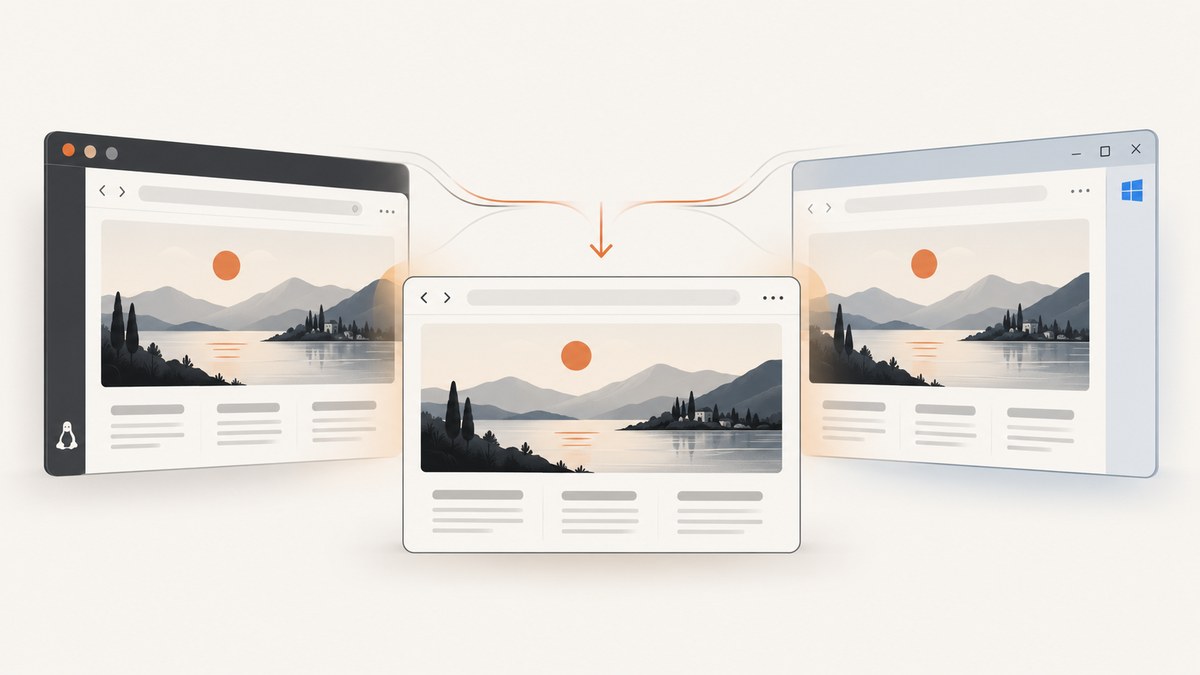
Puppeteer does not promise pixel-identical screenshots on Linux and Windows. The fastest way to resolve a mismatch is to make the browser build and capture inputs comparable, then check fonts and Linux runtime dependencies. Change the page’s CSS only after you know the browser environments are equivalent.
Differences can come from the Puppeteer or Chromium version, installed fonts and font fallback, missing Linux libraries, headless versus headful mode, graphics configuration, viewport, device scale factor, or page resources. A useful diagnosis separates layout differences from differences in how text and pixels are rasterized.
1. Record what each machine is actually running
Start by collecting a baseline on both systems. “Puppeteer on Windows” and “Puppeteer on Linux” are not sufficiently precise descriptions: they may launch different browser builds, use different modes, and resolve different fonts.
| Record | Why it matters |
|---|---|
| Puppeteer package version | It determines the expected browser compatibility and available behavior. |
| Browser product, version, and executable path | A machine may use Puppeteer’s downloaded browser or a separately installed Chrome or Chromium. |
| OS version and CPU architecture | They affect available libraries, fonts, and graphics behavior. |
| Headless/headful mode and launch arguments | Mode and flags can affect rendering and resource availability. |
| Viewport, device scale factor, locale, and timezone | They influence responsive layout, text formatting, and pixel dimensions. |
| Page data and network resources | Different content, fonts, or images can change the output even when code is identical. |
Puppeteer’s installation flow downloads a compatible Chrome for Testing build by default; it can also be configured to use another executable. Log the browser actually launched on each machine rather than assuming the installed desktop Chrome is being used. See the [Puppeteer installation guidance](https://pptr.dev/guides/installation) and record the executable path and browser version alongside the screenshot artifact.
const puppeteer = require('puppeteer');

(async () => {
  const browser = await puppeteer.launch({ headless: true });
  try {
    const page = await browser.newPage();
    console.log({
      puppeteerVersion: require('puppeteer/package.json').version,
      browserVersion: await browser.version(),
      userAgent: await page.evaluate(() => navigator.userAgent),
      viewport: page.viewport(),
      platform: process.platform,
      architecture: process.arch,
    });
  } finally {
    await browser.close();
  }
})();
Run this on Windows and Linux, and save the output with the screenshot. If the versions or mode differ, align those first. When using puppeteer-core or a custom executable path, explicitly record the configured executable as well.
2. Hold the page and capture inputs constant
Use the same HTML or application data, assets, viewport dimensions, device scale factor, locale, timezone, and screenshot options. Test against a stable page that does not change with time, geolocation, randomized content, or personalized state.
Wait for fonts and other essential resources before capturing. A page can report that it has loaded while a web font is still pending or has failed; a fallback font can change line wrapping, element heights, and all content below the text. This example sets a known viewport, checks the font loading set, waits for network activity to settle, and captures a full-page image:
const puppeteer = require('puppeteer');

(async () => {
  const browser = await puppeteer.launch({ headless: true });
  try {
    const page = await browser.newPage();
    await page.setViewport({ width: 1365, height: 900, deviceScaleFactor: 1 });
    await page.goto('https://example.com', { waitUntil: 'networkidle0', timeout: 60000 });
    await page.evaluate(() => document.fonts.ready);
    await page.screenshot({ path: 'page.png', fullPage: true });
  } finally {
    await browser.close();
  }
})();
Replace the example URL with the page under investigation. If the site keeps long-lived connections open, networkidle0 may never happen; use an application-specific readiness selector or a bounded delay instead. Waiting longer does not fix a missing font or a request that consistently fails.
For repeatable local and CI captures, explicitly set the viewport and device scale factor rather than relying on defaults:
await page.setViewport({
  width: 1365,
  height: 900,
  deviceScaleFactor: 1,
});
A device scale factor above one increases output pixel dimensions and can change rasterization. It does not make two operating systems use the same fonts. Match it when comparing systems.
3. Determine whether layout or rasterization differs
Compare page geometry before comparing screenshots by eye. If an element’s bounding box differs, investigate viewport, responsive CSS, browser version, media settings, loaded assets, and font metrics. If geometry matches but glyph edges look different, the likely area is font selection, font files, or platform text rendering.
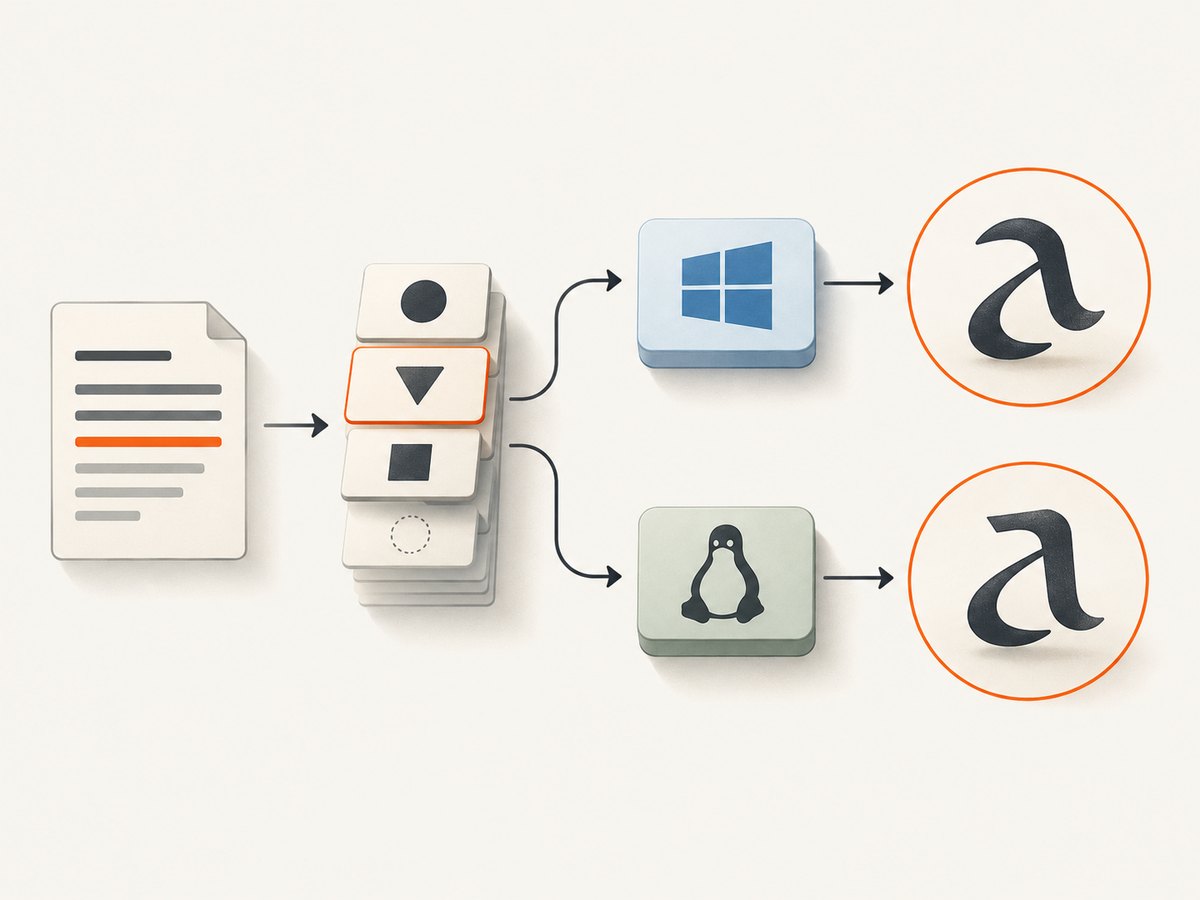
Use a small DOM probe to save computed styles and dimensions for important elements on each platform:
const report = await page.evaluate(() => {
  const selectors = ['body', 'h1', 'p'];
  return selectors.map((selector) => {
    const element = document.querySelector(selector);
    if (!element) return { selector, missing: true };
    const style = getComputedStyle(element);
    const rect = element.getBoundingClientRect();
    return {
      selector,
      rect: { x: rect.x, y: rect.y, width: rect.width, height: rect.height },
      fontFamily: style.fontFamily,
      fontSize: style.fontSize,
      fontWeight: style.fontWeight,
      lineHeight: style.lineHeight,
    };
  });
});
console.log(JSON.stringify(report, null, 2));
This reveals the CSS font stack, not always the final physical font file selected by the operating system. Verify that the intended font loaded successfully in the browser and that its file is available on both systems. Check the browser’s font inspection tools or enable request logging for font resources. A CSS declaration such as font-family: Arial, sans-serif can still resolve differently when the expected font is missing or mapped differently.
When the same web font is loaded, confirm that the response succeeded, the font supports the characters in question, and the relevant weight/style exists. Synthetic bold or fallback for a particular script can change text widths. Historical Puppeteer issue reports describe Windows/Linux and headless text differences, but they are anecdotal reports rather than proof that every mismatch is caused by fonts.
4. Check Linux libraries and fonts
Chrome on Linux depends on system shared libraries. A missing dependency can prevent Chrome from launching or can affect functionality. Puppeteer’s troubleshooting guide recommends inspecting unresolved libraries and describes common dependencies for Debian-family and CentOS systems. Package names and requirements vary by distribution and browser build, so check the current guide for the target image instead of copying a package command intended for another distribution. See [Puppeteer’s troubleshooting guide](https://pptr.dev/troubleshooting).
# Run against the Chrome executable used by Puppeteer on the Linux host.
ldd /path/to/chrome | grep 'not found'
Use the actual executable path from your launch configuration or installation. If the command reports unresolved libraries, install the appropriate packages for the distribution and rebuild the image. If Chrome exits immediately, capture its launch error and stderr; a missing shared object is different from a page navigation timeout.
Install the fonts your pages require deliberately. A minimal container may lack common Latin fonts, emoji fonts, or fonts for scripts such as Arabic, CJK, or Indic writing. Validate representative characters and weights, and pin the font packages or font files used by your deployment. A font fallback can affect line breaks and layout far beyond the text itself.
Also follow Puppeteer’s current sandbox guidance for your environment. Avoid treating --no-sandbox as a general rendering fix: sandbox configuration is a runtime security and launch concern, while it does not standardize fonts or browser versions. Use the supported configuration for the container or service where Chrome runs.
5. Match headless mode and graphics behavior
Puppeteer runs headless by default and can be configured to run full Chrome. Ensure both machines use the same mode and the same launch arguments. Headless, headful, and headless-shell execution may not rasterize identically in every browser version or host environment.
Record GPU and compositing conditions when the symptom involves gradients, transforms, canvas, video, or antialiasing. A Windows desktop may have different graphics drivers and acceleration from a Linux container. Change one variable at a time and preserve the old screenshot for comparison.
Do not apply old issue-thread flags as universal fixes. A historical report proposed --font-render-hinting=none for a particular text rendering case. Treat that as a diagnostic lead for a similar symptom, not a current recommended default. First establish that the same browser build, mode, fonts, and viewport are in use; then test any flag against your current Chrome version and page.
6. Make CI and production repeatable
- Pin the browser toolchain. Keep the Puppeteer package and corresponding browser build controlled in the lockfile and build process.
- Version the Linux image. Maintain a Dockerfile that fixes the base image and installs the runtime libraries and font set your pages need.
- Keep capture inputs explicit. Define viewport, scale, locale, timezone, wait condition, and screenshot options in one shared capture function.
- Save diagnostic artifacts. Store browser/version logs, a representative screenshot, and relevant page console or request errors when a capture differs.
- Compare on upgrades. When changing Puppeteer, Chrome, OS image, or fonts, run representative pages and inspect both geometry and pixel differences.
Cloud runtimes need the same care as containers you manage. Puppeteer’s troubleshooting guidance notes that the default Google Cloud Run Node.js runtime lacks some packages needed by Headless Chrome and describes supplying dependencies with a custom Dockerfile. Follow the current platform-specific setup; a successful build on a developer workstation does not prove the production runtime has the same libraries.
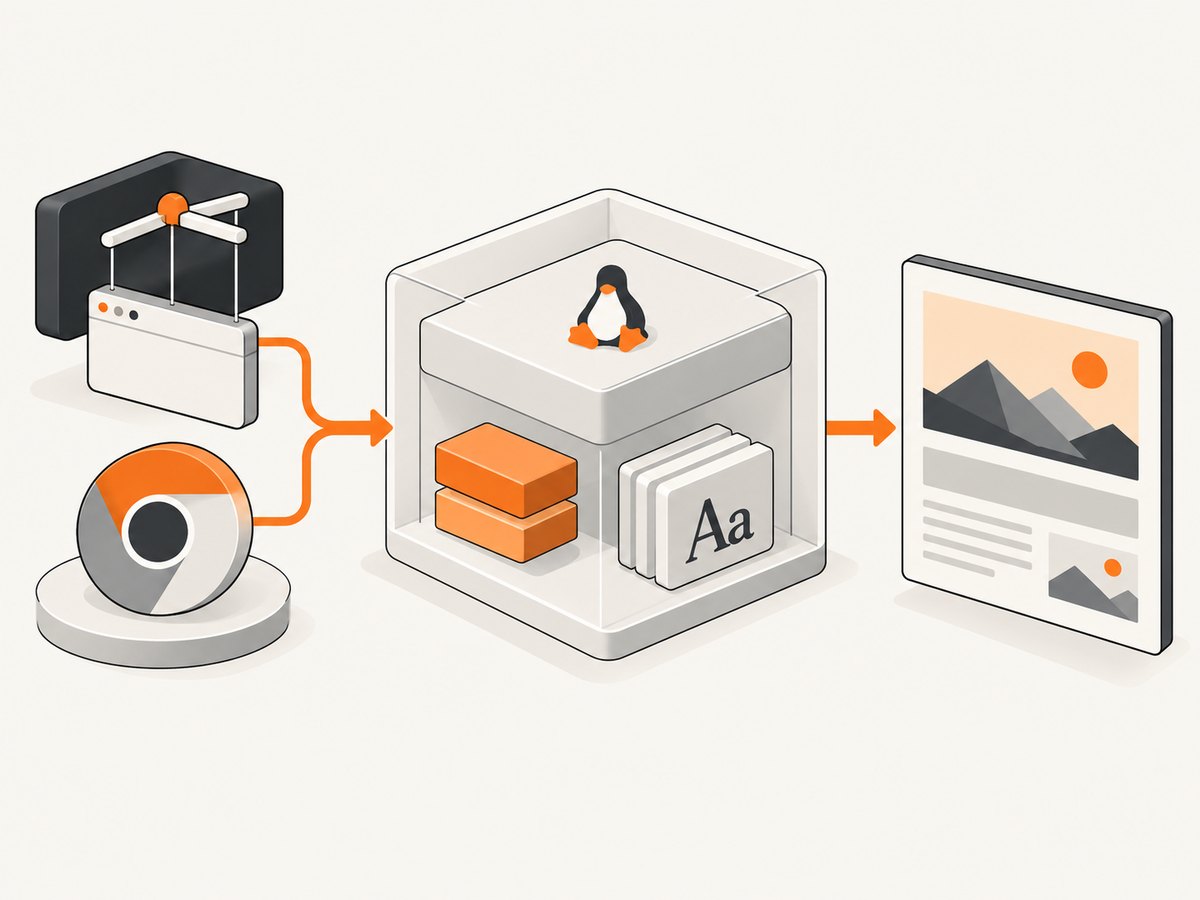
Once the environment is stable, reduce any remaining mismatch to a minimal HTML/CSS page. If its computed geometry still differs, isolate the CSS or browser behavior. That gives you a small reproducible case instead of making speculative changes to a large application.
7. Troubleshoot common symptoms
| Symptom | Likely cause | What to check or fix |
|---|---|---|
| Chrome will not launch on Linux | Missing shared library, incompatible runtime, or sandbox configuration | Inspect launch stderr and run ldd on the actual Chrome executable. Install dependencies for the target distribution and follow current sandbox guidance. |
| Text wraps differently | Different font or fallback, font not loaded, viewport mismatch, or different font weight | Compare computed styles and bounding boxes; inspect font requests and installed fonts; match viewport and browser build. |
| Only glyph edges look different | Platform rasterization or graphics configuration | Check whether geometry and line breaks match. Match headless mode and inspect host graphics configuration before testing flags. |
| Screenshot dimensions differ | Different viewport, device scale factor, or full-page content height | Set viewport and scale explicitly; wait for fonts and content; check whether lazy-loaded elements expanded the page. |
| Screenshot is intermittently incomplete | Capture occurs before fonts, images, or app rendering is ready | Wait for the required selector or font readiness and inspect failed network requests. Prefer a clear readiness condition to an arbitrary long delay. |
| Works locally, fails in cloud | Different executable, runtime libraries, fonts, architecture, or launch permissions | Log environment details in the service and use a versioned image with required dependencies. |
| Applying a launch flag changes nothing | The underlying cause is a missing font, different browser, or page input | Return to the baseline comparison and alter one variable at a time. Avoid carrying historical flags forward without evidence. |
8. Performance, reliability, and cost considerations
Launching a browser for every capture adds startup work. For a controlled service, reusing a browser process can reduce repeated startup overhead, but isolate pages or contexts carefully and close them when finished. A reused browser does not make output more consistent by itself; it makes it more important to manage page state, cookies, cache, and resource cleanup.
Wait conditions are a tradeoff. Waiting for full network idleness can be dependable for static pages but can stall on analytics, polling, or persistent connections. Waiting for a specific selector or app readiness signal is often more targeted. Put a timeout around navigation and readiness checks, and log which stage timed out so failures can be distinguished from slow rendering.
For reliability, keep browser versions and fonts stable, pin the OS image, and retain a known-good screenshot for comparison. A pixel-diff threshold can help detect changes, but it can also flag harmless antialiasing variation; pair it with DOM geometry and style checks. This dossier provides no measured prevalence or universal performance benchmark, so measure capture time and resource use in your own workload.
Self-hosted Puppeteer has no per-screenshot API price in this guidance, but it does consume compute and engineering time: browser processes, Linux dependencies, font maintenance, upgrades, retries, and monitoring. Budget timeouts and concurrency based on your own pages and deployment. A failed launch, bot check, or network delay should be recorded distinctly from a valid screenshot so automation does not silently treat an error page as success.
Or skip the browser setup
ScreenshotNeo offers a website screenshot API and MCP server for developers. A single request returns a PNG, JPEG, WebP, or PDF; see the ScreenshotNeo API documentation. For example, this cURL request saves a WebP screenshot:
curl -G "https://api.screenshotneo.com/v1/shot" -d access_key=YOUR_API_KEY --data-urlencode url=https://stripe.com -o shot.webpThe equivalent Python request is:
import requests

r = requests.get(
    "https://api.screenshotneo.com/v1/shot",
    params={"access_key": "YOUR_API_KEY", "url": "https://stripe.com"},
    timeout=90,
)
open("shot.webp", "wb").write(r.content)
And Node.js:
const q = new URLSearchParams({ access_key: 'YOUR_API_KEY', url: 'https://stripe.com' });
const res = await fetch(`https://api.screenshotneo.com/v1/shot?${q}`);
if (!res.ok) throw new Error(`Screenshot request failed: ${res.status}`);
await require('node:fs/promises').writeFile('shot.webp', Buffer.from(await res.arrayBuffer()));
Cookie banners are accepted and removed before the shot, along with known newsletter popups and chat widgets. Bot checks, blank pages, failed loads, timeouts, and cache hits are not billed; response headers report the page verdict and billing status. Its MCP server provides take_screenshot, get_page_info, and capture_pdf for Claude, Cursor, and other MCP clients. The free plan includes 1,000 screenshots per month with no card; paid plans start at $5 for 3,000 screenshots. Learn about ScreenshotNeo or sign up for 1,000 free screenshots a month with no card.
FAQ
Can I make Linux and Windows screenshots pixel-identical?
Do not assume so. Matching the browser, fonts, inputs, and mode removes common sources of variation, but platform rendering can still differ. Decide whether your requirement is matching layout and content or literal pixel equality.
Should I change my CSS to compensate for Linux?
Only after comparing browser versions, font loading, viewport, and computed geometry. A CSS workaround can hide an environment problem and create a new mismatch elsewhere.
Does document.fonts.ready prove the correct font rendered?
No. It helps wait for the document’s font loading set, but you should also verify that the intended font request succeeded and that the required font and glyphs are available.
What should I attach to a rendering bug report?
Include Puppeteer and browser versions, executable path, OS and architecture, mode and launch options, viewport and scale, font/resource status, a screenshot from each system, and geometry/style output for the affected elements.


