How to Access and Automate Login Dialog Fields with Puppeteer
Learn to automate HTML login forms, JavaScript dialogs, and HTTP authentication challenges with Puppeteer, with selectors, waits, errors, and secure patterns.

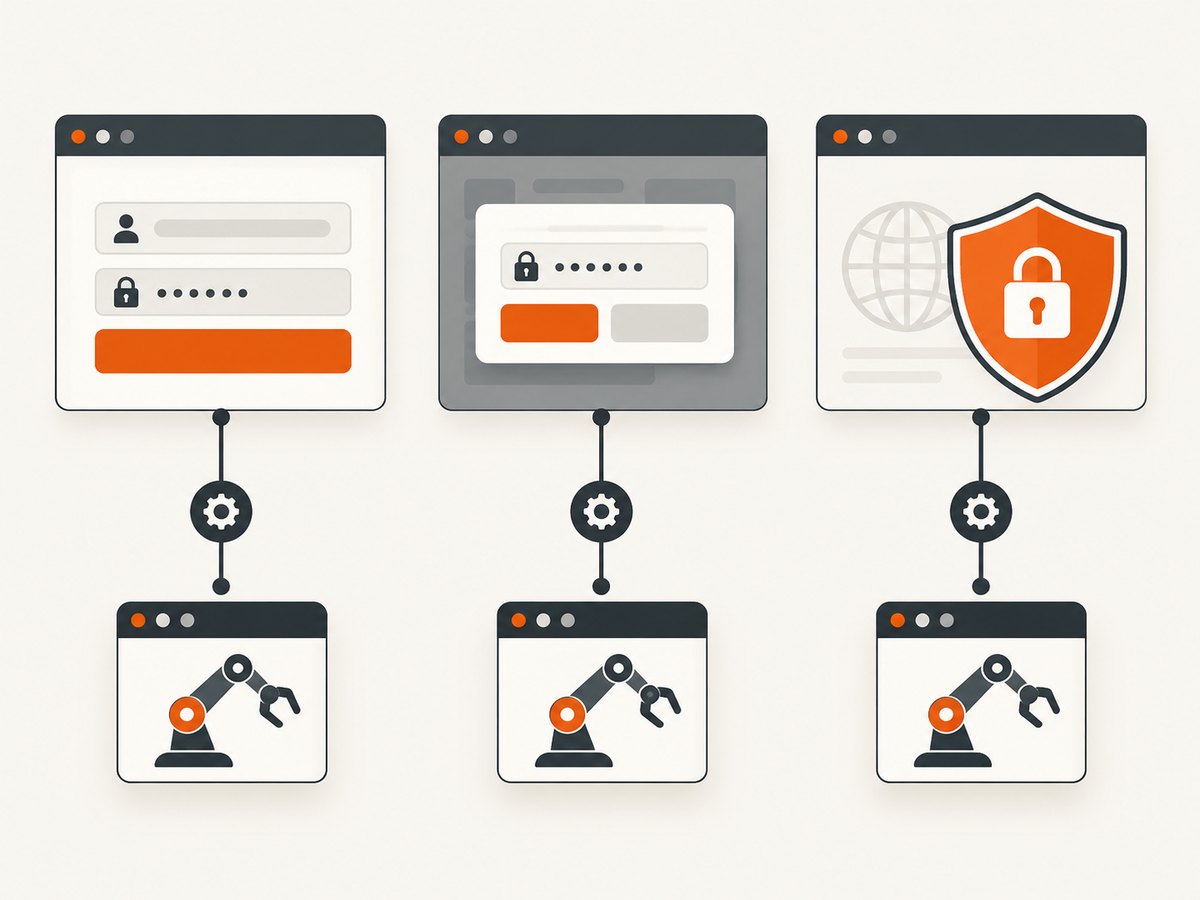
“Login dialog” can mean three different browser mechanisms, and Puppeteer uses a different API for each:
- HTML form or modal: username and password controls are normal DOM elements. Find them with selectors or Locators, fill them, and submit the form.
- JavaScript dialog: an
alert,confirm,prompt, orbeforeunloaddialog is handled through the page’sdialogevent. It does not contain an ordinary username/password form. - HTTP authentication challenge: a browser credential prompt generated by the server is handled with
page.authenticate()before navigation.
Start by identifying where the controls live. A form rendered inside the page is DOM content; a native browser credential prompt is not. The distinction determines whether you use Locators, a dialog event handler, or Page.authenticate().
1. Identify the kind of login dialog
| What you see | Where it lives | Puppeteer API | What to wait for |
|---|---|---|---|
| Username/password form or modal | Page DOM | Locators and selectors | Fields, submit result, or authenticated UI |
| Alert, confirm, prompt, beforeunload | Browser JavaScript dialog | page.on('dialog') |
The action that opens the dialog |
| HTTP Basic or Digest prompt | Network authentication challenge | page.authenticate() |
Protected navigation response or page content |
If a prompt looks like a small browser-owned username/password box, do not try to select it with CSS. It is probably an HTTP authentication challenge. If the login window is styled like the site and appears in the document, inspect it as DOM. Puppeteer’s current interaction guide recommends Locators because they wait for elements to exist and be ready for the requested action. See the Puppeteer page interactions guide and Page API.
2. Automate an HTML login form or in-page modal
Use an authorized test account and inspect the target application to find stable selectors. Prefer a label association, accessible role, name, or stable ID over a positional selector such as div:nth-child(2). The following complete script uses the current Locator style. Replace the example selectors and success condition with those from your application.
import puppeteer from 'puppeteer';

const username = process.env.TEST_USERNAME;
const password = process.env.TEST_PASSWORD;
if (!username || !password) throw new Error('Set TEST_USERNAME and TEST_PASSWORD');

const browser = await puppeteer.launch({ headless: true });
try {
  const page = await browser.newPage();
  await page.goto('https://authorized-test.example/login', {
    waitUntil: 'domcontentloaded',
    timeout: 30_000,
  });

  const userField = page.locator('input[name="username"]');
  const passwordField = page.locator('input[name="password"]');
  await userField.fill(username);
  await passwordField.fill(password);

  await Promise.all([
    page.waitForNavigation({ waitUntil: 'networkidle0', timeout: 30_000 }),
    page.locator('button[type="submit"]').click(),
  ]);

  // Use an application-specific authenticated condition.
  await page.locator('[data-testid="account-home"]').wait();
  console.log('Login succeeded');
} finally {
  await browser.close();
}
The Promise.all matters when clicking submit starts a navigation. Registering the navigation wait and clicking separately can race: the navigation may begin before Puppeteer starts waiting. If the application submits with fetch and stays on the same URL, remove waitForNavigation() and wait for a page-specific authenticated element, response, or URL change instead.
Choosing robust selectors
input[name="email"]orinput[autocomplete="username"]is usually clearer than a generated class.- Use a stable test attribute such as
[data-testid="login-submit"]when the application provides one. - If the form is inside an iframe, obtain the frame and locate fields there; page-level selectors cannot cross frame boundaries.
- For a shadow DOM component, use the component’s supported accessibility or locator strategy rather than assuming ordinary document selectors can reach every internal node.
Do not print passwords, page HTML containing credentials, or cookies. Read secrets from environment variables or an appropriate secret store. Use a dedicated account with the minimum permissions needed by the test.
When the login modal appears after a click
await page.locator('button[data-action="open-login"]').click();
await page.locator('input[name="username"]').fill(username);
await page.locator('input[name="password"]').fill(password);
await page.locator('button[type="submit"]').click();
await page.locator('[data-testid="signed-in-nav"]').wait();
Waiting through the Locator keeps the sequence readable and lets Puppeteer wait for the control to be present and actionable. If animation or an overlay prevents interaction, wait for the modal’s visible state or remove the overlay in the test environment rather than adding arbitrary long sleeps.
3. Handle JavaScript dialogs
JavaScript dialogs are not login forms. They expose a type, message, and (for prompts) a default value. Attach the listener before the action that opens the dialog. For a prompt, pass text to accept(); for an alert or confirm, accept or dismiss according to the expected behavior.
import puppeteer from 'puppeteer';

const browser = await puppeteer.launch();
try {
  const page = await browser.newPage();
  page.on('dialog', async dialog => {
    console.log(`Dialog type: ${dialog.type()}`);
    console.log(`Message: ${dialog.message()}`);

    if (dialog.type() === 'prompt') {
      await dialog.accept('test input');
    } else {
      await dialog.dismiss();
    }
  });

  await page.goto('https://authorized-test.example/');
  await page.locator('button[data-action="open-prompt"]').click();
} finally {
  await browser.close();
}
A prompt can collect one text value, but it is not a pair of username and password fields. If your requirement is to test a JavaScript prompt, assert the resulting page state after accepting or dismissing it. The Puppeteer Dialog API documents the available methods and properties.
4. Handle HTTP authentication prompts
For HTTP Basic or Digest authentication, set credentials before requesting the protected resource:
import puppeteer from 'puppeteer';

const browser = await puppeteer.launch();
try {
  const page = await browser.newPage();
  await page.authenticate({
    username: process.env.TEST_USERNAME,
    password: process.env.TEST_PASSWORD,
  });
  await page.goto('https://authorized-test.example/protected', {
    waitUntil: 'domcontentloaded',
    timeout: 30_000,
  });
  console.log(await page.title());
} finally {
  await browser.close();
}
page.authenticate() is specifically for an HTTP authentication challenge. Puppeteer enables request interception behind the scenes, which can affect performance. Set authentication before goto(); setting it after the challenge has already failed may require another navigation.
5. Complete runnable examples in common environments
Run Puppeteer with Node.js
npm install puppeteer
TEST_USERNAME='test-user' TEST_PASSWORD='secret' node login.mjs
Use the Puppeteer version installed in your project consistently. APIs evolve, so check the matching official documentation when upgrading.
Use a persistent authenticated session
For repeated tests, a temporary user data directory can preserve cookies between runs. Treat that directory as sensitive and delete it when it is no longer needed.
const browser = await puppeteer.launch({
  headless: true,
  userDataDir: './tmp-authorized-profile',
});
Do not share a profile between unrelated users or parallel jobs. Cookies and local storage can cause one test to appear authenticated when it should not be.
6. Troubleshooting common failures
| Symptom | Likely cause | Fix |
|---|---|---|
| “No node found” or Locator timeout | Wrong selector, delayed modal, iframe, or shadow DOM | Inspect the live markup, wait for the modal, and target the correct frame or component. |
| Click times out because an element is covered | Animation, cookie banner, or overlay | Wait for the overlay to disappear, close it in the test flow, or use a stable test environment. |
| Submit finishes but navigation never occurs | Single-page app uses fetch or history APIs | Wait for an authenticated element, URL condition, or relevant response instead of navigation. |
| Navigation wait hangs | The click did not navigate, or the wrong event was expected | Use the documented Promise.all pattern only for navigation clicks; otherwise wait for the app’s actual state change. |
| HTTP prompt remains visible | Authentication was configured after navigation | Call page.authenticate() before goto() and retry the request. |
| Dialog handler does nothing | Listener was attached after the triggering click | Register page.on('dialog', ...) before the action. |
| Credentials appear in logs | Debug output printed form values, URLs, or headers | Remove logging of secrets and redact diagnostic output. |
| Works locally but fails in CI | Different browser version, viewport, timing, proxy, or environment variables | Pin and review the Puppeteer version, verify secrets are present, capture non-sensitive diagnostics, and use condition-based waits. |
7. Reliability, performance, and security checklist
- Use condition-based waits: prefer Locators, URL checks, response checks, and authenticated UI markers over fixed delays.
- Set explicit timeouts: a bounded navigation and selector timeout prevents a stuck job from consuming a worker indefinitely.
- Close every browser: put
browser.close()in afinallyblock so failures do not leak Chromium processes. - Control concurrency: launching many full browsers can exhaust CPU and memory. Reuse a controlled browser or worker pool where appropriate.
- Consider interception cost: HTTP authentication enables request interception, so measure throughput in your own environment.
- Keep credentials private: use environment or secret management, never source-control passwords, and avoid screenshots or traces that expose them.
- Verify success explicitly: a 200 response or URL change alone does not prove that the application accepted the credentials.
8. Or skip the browser setup
If your goal is a screenshot of a page after its login flow, or a reliable capture of a public page, ScreenshotNeo provides a single request instead of maintaining Chromium automation. Read the full options in the ScreenshotNeo documentation.

curl -G "https://api.screenshotneo.com/v1/shot" -d access_key=YOUR_API_KEY --data-urlencode url=https://stripe.com -o shot.webpimport requests
r = requests.get("https://api.screenshotneo.com/v1/shot", params={"access_key": "YOUR_API_KEY", "url": "https://stripe.com"}, timeout=90)
open("shot.webp", "wb").write(r.content)const q = new URLSearchParams({ access_key: 'YOUR_API_KEY', url: 'https://stripe.com' });
const res = await fetch(`https://api.screenshotneo.com/v1/shot?${q}`);ScreenshotNeo removes cookie and consent banners, newsletter popups, and chat widgets before the shot. Bot checks, blank pages, timeouts, failed loads, and cache hits are not billed; response headers identify the page verdict and whether it was billed. Its MCP server provides take_screenshot, get_page_info, and capture_pdf tools for Claude, Cursor, and other MCP clients. The free plan includes 1,000 screenshots per month with no card; paid plans start at $5 for 3,000 shots. Create an account at ScreenshotNeo’s free sign-up page.
9. Frequently asked questions
Can Puppeteer fill a native browser username/password prompt with CSS?
No. A native HTTP authentication prompt is outside the page DOM. Use page.authenticate() before navigation.
Should I use page.type() or a Locator?
Use the current Locator interaction style where possible. Locators wait for suitable elements and keep the action tied to the selector. Follow the API matching your installed Puppeteer version.
How do I know whether login succeeded?
Check an application-specific authenticated element, URL, response, or session state. Do not infer success from a click completing.
Can a JavaScript prompt handle two credentials?
A prompt accepts one text value. It is a different mechanism from an HTML form and an HTTP authentication challenge.
Why does waitForNavigation() fail after submit?
The application may submit asynchronously without navigation. Wait for the resulting authenticated state instead.
Does ScreenshotNeo log me into a private application?
The supplied ScreenshotNeo facts describe screenshot capture options such as custom headers, cookies, user agents, and authorization. Configure those options according to the documentation and your authorized application’s requirements.


