Why Puppeteer Ignores CSS @media print Rules and How to Fix It
Puppeteer normally uses print CSS for PDFs. Learn why @media print appears broken, how to verify media state, and how to fix layout, colors, fonts, and timing.
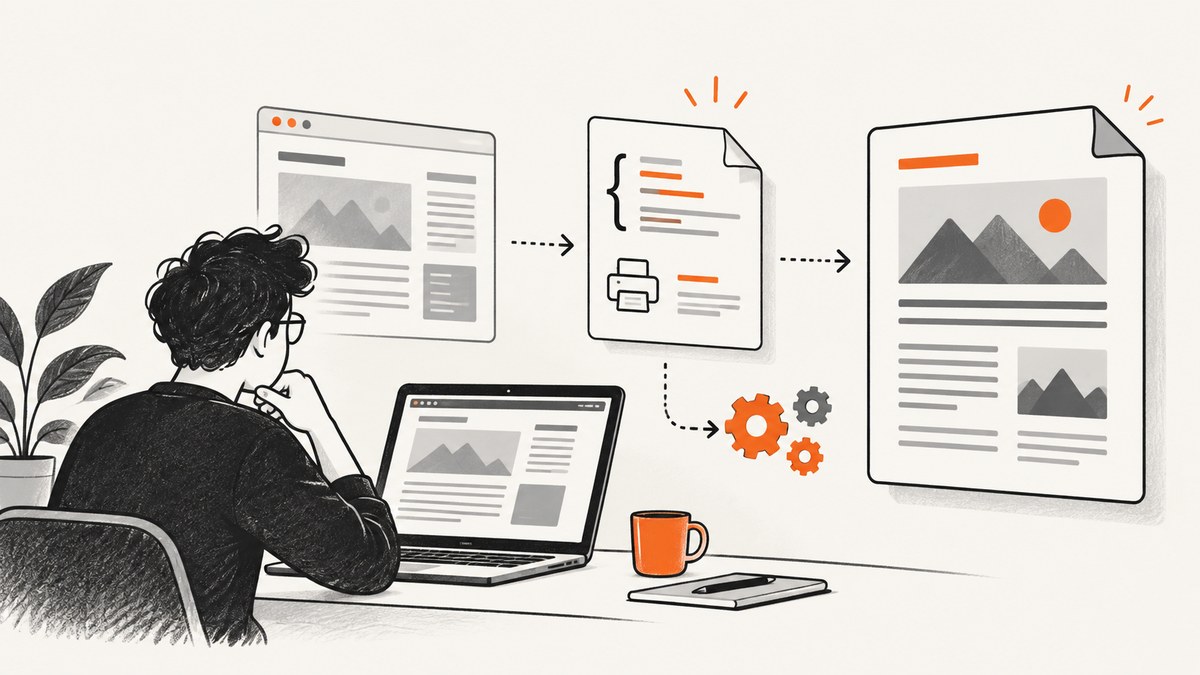
Short answer: Puppeteer does not generally ignore @media print. According to the Page.pdf() documentation, page.pdf() generates a PDF using the print CSS media type by default. If print rules are missing, check whether your code called page.emulateMediaType('screen'), whether the stylesheet and selectors match, and whether the page finished rendering before PDF generation.
This guide gives you a repeatable diagnosis, complete Puppeteer examples, PDF option details, and fixes for the symptoms developers usually describe as “Puppeteer PDF not applying print CSS.”
What media type does Puppeteer use for PDFs?
The default media type for page.pdf() is print. A stylesheet such as this should therefore apply during normal PDF generation:
@media print {
  .screen-only { display: none; }
  .invoice { break-inside: avoid; }
}
Puppeteer also supports explicit media emulation. page.emulateMediaType('screen') selects screen media, while page.emulateMediaType('print') selects print media. Passing null disables CSS media emulation. See the official emulateMediaType reference.
First diagnostic: check for a screen override
Search every code path that runs before page.pdf(). This is the most common configuration explanation when print rules appear inactive:

await page.emulateMediaType('screen');
const pdf = await page.pdf();
Remove the screen override when you want print styling, or replace it with an explicit print setting. The explicit call is useful while debugging even though it is not normally required.
import puppeteer from 'puppeteer';

const browser = await puppeteer.launch();
const page = await browser.newPage();

await page.goto('https://example.com', { waitUntil: 'networkidle2' });
await page.emulateMediaType('print');

const mediaState = await page.evaluate(() => ({
  print: matchMedia('print').matches,
  screen: matchMedia('screen').matches,
}));
console.log(mediaState); // { print: true, screen: false }

await page.pdf({
  path: 'output.pdf',
  format: 'A4',
  printBackground: true,
});

await browser.close();
This check tells you which media query is active. It does not prove that a stylesheet loaded, that a selector matches, or that the declaration wins the cascade.
A minimal reproducible print-CSS example
Start with a tiny page that makes the expected behavior obvious. If this works but your application does not, the problem is page-specific.
import puppeteer from 'puppeteer';

const html = `<!doctype html>
<html>
<head>
  <style>
    body { font-family: sans-serif; }
    .screen-only { background: #ffe08a; padding: 12px; }
    @media print {
      .screen-only { display: none; }
      .print-only { display: block; }
    }
    .print-only { display: none; }
  </style>
</head>
<body>
  <div class="screen-only">Visible on screen</div>
  <div class="print-only">Visible in the PDF</div>
</body>
</html>`;

const browser = await puppeteer.launch();
const page = await browser.newPage();
await page.setContent(html, { waitUntil: 'load' });
await page.emulateMediaType('print');
await page.pdf({ path: 'print-test.pdf', printBackground: true });
await browser.close();
Complete PDF generation with reliable readiness checks
Navigation completion and application readiness are separate concerns. Puppeteer waits for fonts by default during PDF generation, but that does not guarantee that your API data, charts, images, or client-side rendering have completed. Add an application-owned readiness signal.
import puppeteer from 'puppeteer';

const browser = await puppeteer.launch();
const page = await browser.newPage();
await page.goto('https://example.com/report', {
  waitUntil: 'networkidle2',
});

await page.waitForSelector('[data-report-ready]', { timeout: 30000 });
await page.emulateMediaType('print');

const state = await page.evaluate(() => ({
  print: matchMedia('print').matches,
  ready: Boolean(document.querySelector('[data-report-ready]')),
}));
console.log(state);

await page.pdf({
  path: 'report.pdf',
  format: 'A4',
  printBackground: true,
  preferCSSPageSize: true,
  margin: { top: '12mm', right: '12mm', bottom: '12mm', left: '12mm' },
});
await browser.close();
networkidle2 is useful for navigation, but it is not a universal guarantee that every application render is complete. Prefer a selector, promise, or explicit window flag controlled by your application.
PDF options that are often mistaken for media problems
| Symptom | Relevant option | What it controls |
|---|---|---|
| Background colors or images are missing | printBackground |
Background painting. Its default is false. |
| CSS page size is ignored | preferCSSPageSize |
When true, CSS @page dimensions take priority over PDF size options. |
| Paper size is wrong | format, width, height |
PDF geometry. These are independent of the active media type. |
| Content is too large or too small | scale, margins, viewport |
Scaling and available page area. |
| Landscape output is expected | landscape: true |
Orientation. |
| Colors look muted | -webkit-print-color-adjust |
Color adjustment for printing; it does not activate a media query. |
For example:
@page {
  size: A4;
  margin: 12mm;
}

html {
  -webkit-print-color-adjust: exact;
}
await page.pdf({
  path: 'styled.pdf',
  printBackground: true,
  preferCSSPageSize: true,
});
Why a print rule can still appear not to work
1. A screen emulation call runs later
Check helper functions, shared PDF utilities, and middleware. A later emulateMediaType('screen') call wins. Log media state immediately before page.pdf().
2. The stylesheet did not load
Inspect response status, stylesheet URLs, CSP errors, blocked requests, and relative paths. In a page with frames, confirm that the stylesheet belongs to the frame containing the printed element.
3. The selector does not match
Use page.$eval() or browser developer tools to verify the class, attribute, and DOM structure. A rule cannot apply to an element that is created later or rendered inside a shadow root you did not target.
4. Another declaration wins
Inline styles, higher-specificity selectors, !important, and later rules can override a print declaration. Inspect computed styles under print media and compare the winning declaration.
5. The content is in a different page or frame
Puppeteer prints the current page. If your app opens a popup, uses an iframe, or navigates to a new document, make sure you apply media emulation and readiness checks to the page that produces the PDF.
6. The page is captured before dynamic content is ready
Charts, images, fonts, and data-driven components may still be changing. Wait for an application signal, then capture. Do not assume that an idle network automatically means the UI is complete.
Print layout, page breaks, and CSS @page
Media selection and page geometry are separate. Use print rules for visibility and layout, then use @page and PDF options for paper behavior.
@media print {
  .toolbar, .navigation, .chat-widget { display: none !important; }
  .invoice { break-inside: avoid; }
  h2 { break-before: page; }
}

@page {
  size: Letter;
  margin: 0.5in;
}
If CSS dimensions should control the final page, set preferCSSPageSize: true. Otherwise Puppeteer’s format, width, or height can determine the PDF geometry.
Debugging checklist
- Confirm the code calls
page.pdf()after navigation and app readiness. - Search for every
emulateMediaTypecall. - Log
matchMedia('print').matchesimmediately before capture. - Check stylesheet responses and browser console errors.
- Verify the selector against the actual DOM and frame.
- Inspect computed styles and cascade order.
- Enable
printBackground: truefor backgrounds. - Review
format, dimensions, margins, scale, andpreferCSSPageSize. - Wait for a page-specific ready signal.
- Compare a minimal reproduction with the real page.
Or skip the browser setup
If your goal is a clean screenshot or PDF of a URL rather than browser-level control, ScreenshotNeo provides a single request API. Its capture service accepts consent banners before taking the shot, then removes more than 60 known consent platforms along with newsletter popups and chat widgets. Bot checks, blank pages, timeouts, failed loads, and cache hits are not billed, and response headers identify the page verdict and billing result.
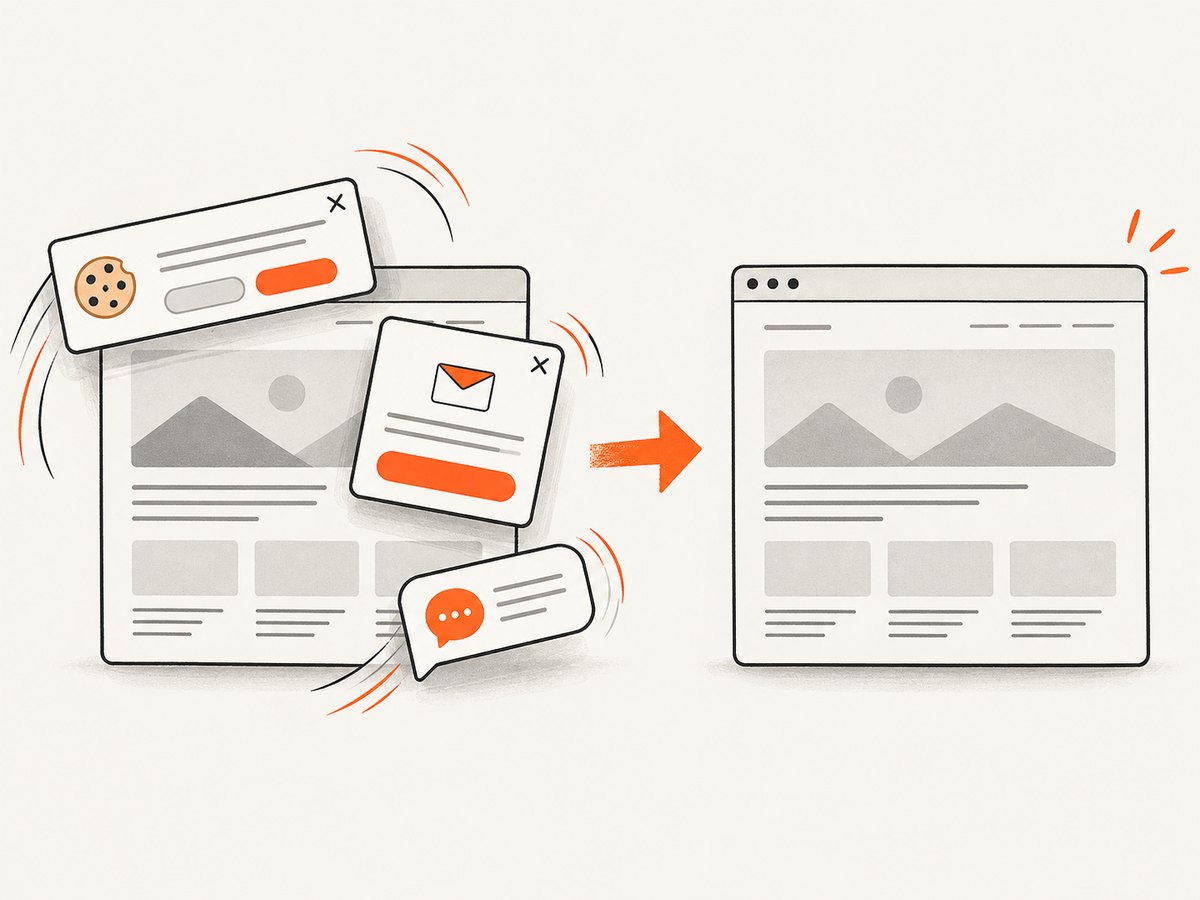
See the ScreenshotNeo API documentation for all options. A basic request is:
curl -G "https://api.screenshotneo.com/v1/shot" -d access_key=YOUR_API_KEY --data-urlencode url=https://stripe.com -o shot.webpimport requests
r = requests.get("https://api.screenshotneo.com/v1/shot", params={"access_key": "YOUR_API_KEY", "url": "https://stripe.com"}, timeout=90)
open("shot.webp", "wb").write(r.content)
const q = new URLSearchParams({ access_key: 'YOUR_API_KEY', url: 'https://stripe.com' });
const res = await fetch(`https://api.screenshotneo.com/v1/shot?${q}`);
ScreenshotNeo also supports full-page capture, CSS-selector element capture, dark mode, device presets, custom viewports, retina scale, PDF paper settings and page ranges, custom CSS and JavaScript, click and wait actions, request blocking, headers, cookies, user agents, timezone, geolocation, transparent backgrounds, resizing, TTL caching, signed links, asynchronous webhooks, bulk capture, usage reporting, and an MCP server with take_screenshot, get_page_info, and capture_pdf for AI clients.
There is a free plan with 1,000 screenshots per month and no card. Paid plans start at $5 for 3,000 screenshots, and every feature is available on every plan. Create a free ScreenshotNeo account.
Performance, reliability, and cost considerations
Browser PDF generation costs time and memory for each Chromium page. Reuse a browser process when generating many documents, create isolated pages per job, close pages after capture, and avoid waiting on unnecessary third-party requests. Use explicit readiness signals so retries do not produce partially rendered PDFs.
For repeatable output, pin the Puppeteer version, keep CSS page dimensions explicit, and record the URL, media state, PDF options, and application revision with each artifact. When using ScreenshotNeo, choose a cache TTL for stable pages, use asynchronous jobs and signed webhooks for long runs, and use bulk capture for up to 100 URLs per call. Clean shots are billed; failed loads and cache hits are not.
FAQ
Does page.pdf() require emulateMediaType(‘print’)?
No. Print media is the documented default. An explicit call is useful for diagnosis and makes intent clear.
How do I generate a screen-styled PDF?
Call await page.emulateMediaType('screen') before page.pdf().
Why are my print backgrounds missing?
Set printBackground: true. Background painting is separate from media-query activation.
Does networkidle2 guarantee a complete PDF?
No. Wait for the application’s own ready condition when content is rendered asynchronously.
Can I check the active media query?
Yes: await page.evaluate(() => matchMedia('print').matches).
When should I use preferCSSPageSize?
Use it when CSS @page dimensions should take precedence over Puppeteer’s PDF size settings.


