How to Add Page Numbers and Custom Headers to Merged PDFs with Puppeteer
Render print-ready PDFs with Puppeteer headers and page numbers, then merge files safely with pdf-lib and preserve global pagination.

To add page numbers and custom headers to a merged PDF, first decide whether Puppeteer will render the complete document in one page.pdf() call or whether you will concatenate PDFs that were generated separately. Puppeteer can inject pageNumber and totalPages into a header or footer for the PDF operation it is printing. Those variables do not create a global counter across files that are merged later. If separate PDFs already exist, assemble the final page order with a PDF library, then apply any document-wide numbering or stamping with a tool that operates on the assembled file.
What Puppeteer numbers automatically
Puppeteer’s PDFOptions includes headerTemplate, footerTemplate, and displayHeaderFooter. Header and footer display is disabled unless you enable it. The templates can contain special classes, including pageNumber and totalPages. The current page and total therefore describe the PDF produced by that single Page.pdf() call. See the Puppeteer PDFOptions reference and the Page.pdf() reference.
For example, this script renders one complete HTML document and prints “Page N of M” in the footer.
import puppeteer from 'puppeteer';
import { writeFile } from 'node:fs/promises';

const browser = await puppeteer.launch({ headless: true });
try {
  const page = await browser.newPage();
  await page.setContent(`
    <!doctype html>
    <html>
      <head>
        <meta charset="utf-8">
        <style>
          @page { size: A4; margin: 24mm 18mm 22mm; }
          body { font: 11pt/1.45 Arial, sans-serif; color: #222; }
          h1 { page-break-after: avoid; }
          .chapter { break-before: page; }
        </style>
      </head>
      <body>
        <h1>Merged report</h1>
        <p>All chapters are rendered in one print operation.</p>
        <section class="chapter"><h2>Chapter one</h2><p>Content...</p></section>
        <section class="chapter"><h2>Chapter two</h2><p>Content...</p></section>
      </body>
    </html>`, { waitUntil: 'networkidle0' });

  const pdf = await page.pdf({
    format: 'A4',
    printBackground: true,
    displayHeaderFooter: true,
    headerTemplate: `
      <div style="width:100%;font-size:9px;text-align:center;color:#555;">
        Merged report
      </div>`,
    footerTemplate: `
      <div style="width:100%;font-size:9px;text-align:center;color:#555;">
        Page <span class="pageNumber"></span> of
        <span class="totalPages"></span>
      </div>`,
    margin: { top: '24mm', right: '18mm', bottom: '22mm', left: '18mm' }
  });
  await writeFile('report.pdf', pdf);
} finally {
  await browser.close();
}
Use explicit margins. Puppeteer documents margins as unset by default, and a custom header or footer needs reserved space. Without enough top or bottom margin, body content can overlap the template. Keep template markup small and self-contained; do not assume that your application’s external CSS, fonts, or assets are available inside the header and footer.
Print CSS, paper size, and layout controls
Page.pdf() uses the print CSS media type. Put print-specific rules in @media print or regular print stylesheets. If the page was designed for screen media and you intentionally want those rules, call page.emulateMediaType('screen') before generating the PDF.
await page.emulateMediaType('screen');
const pdf = await page.pdf({
  width: '210mm',
  height: '297mm',
  displayHeaderFooter: true,
  headerTemplate: '<div style="font-size:8px;width:100%;text-align:right;">Internal</div>',
  footerTemplate: '<div style="font-size:8px;width:100%;text-align:center;"><span class="pageNumber"></span></div>',
  margin: { top: '20mm', bottom: '18mm', left: '15mm', right: '15mm' }
});
Choose either a named format such as A4 or Letter, or explicit dimensions. If you use CSS @page rules and JavaScript options together, make the intended source of truth obvious and inspect representative pages. Use printBackground: true when background colors or images are part of the design. Use CSS properties such as break-before, break-after, break-inside, and legacy page-break-* rules to control chapter and table boundaries.
When the PDFs are generated separately
Suppose you generate chapter-a.pdf and chapter-b.pdf independently, then concatenate them. Each file has its own page count, so each file’s pageNumber starts at one and its totalPages stops at that file’s final page. Concatenating the bytes does not rewrite those printed strings. This is a consequence of Puppeteer’s per-document print operation, not a promise of a cross-file counter.
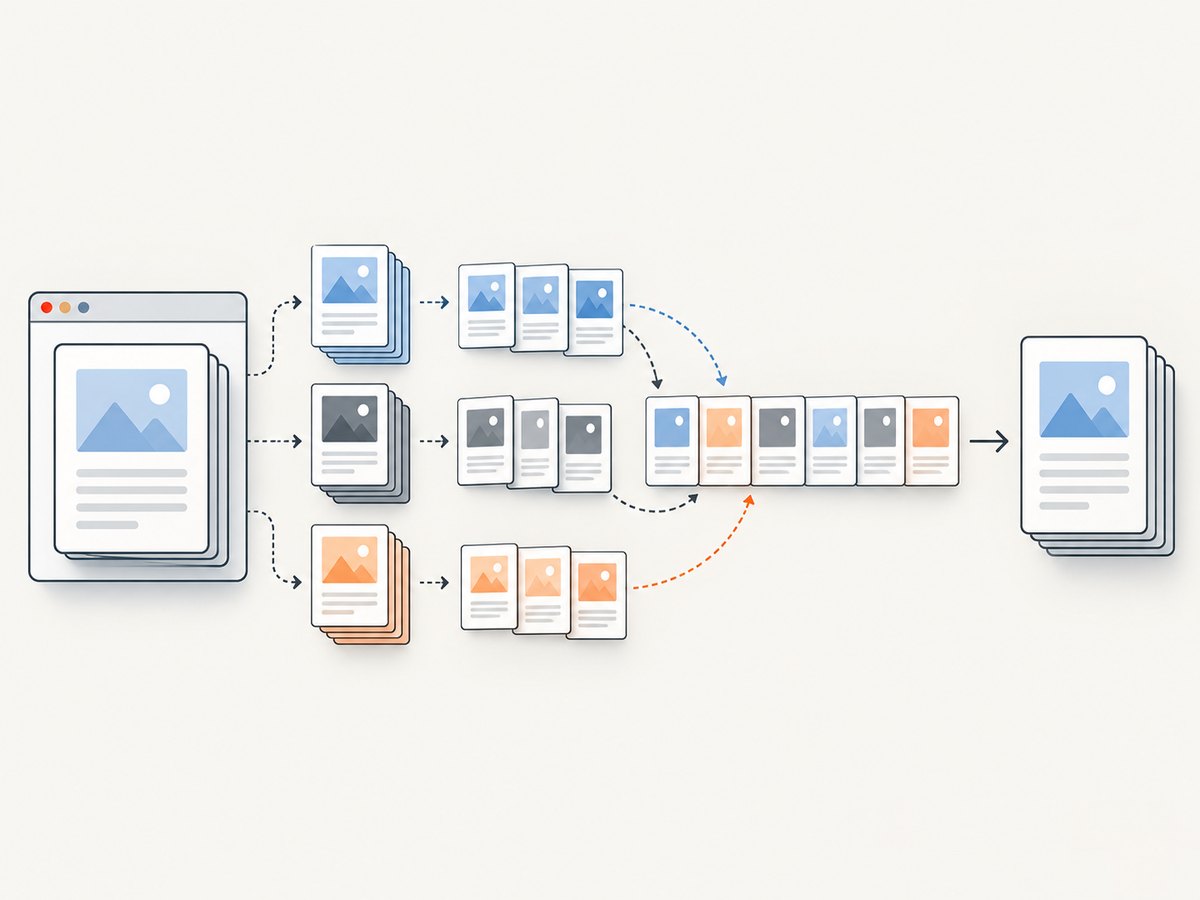
You have three practical choices:
- Render once: combine the HTML or data before printing. This is the simplest way to obtain a correct global page count from Puppeteer.
- Merge, then stamp: copy pages into a destination PDF, determine the final order and count, and add page numbers with a PDF post-processing library.
- Use a PDF SDK: an import and stamping product such as PDFlib+PDI is an option when existing PDFs need advanced import, headers, footers, or stamps. Confirm licensing and feature support for your deployment.
Merge existing PDFs with pdf-lib
The official pdf-lib PDFDocument API documents loading source documents, copying selected pages, and adding the copied pages to a destination document. The following program merges files in a chosen order.
import { readFile, writeFile } from 'node:fs/promises';
import { PDFDocument } from 'pdf-lib';

const inputFiles = ['chapter-a.pdf', 'chapter-b.pdf', 'appendix.pdf'];
const output = await PDFDocument.create();

for (const file of inputFiles) {
  const source = await PDFDocument.load(await readFile(file));
  const pages = await output.copyPages(source, source.getPageIndices());
  for (const page of pages) output.addPage(page);
}

await writeFile('merged.pdf', await output.save());
The order of inputFiles and the order passed to addPage() determine the final order. For a range, pass selected indices instead of source.getPageIndices(). Validate the result with files that resemble production input. Page-copy APIs do not, by themselves, guarantee preservation of every advanced feature such as encryption, interactive forms, bookmarks, unusual page boxes, annotations, or embedded assets.
Adding global numbers after the merge
After merging, you need a stamping operation that knows the destination page index. pdf-lib can draw text and graphics on pages, but you must choose a font, position, and coordinate system and test the result against your page sizes. A minimal example uses a standard font and places a number near the bottom-right corner.
import { readFile, writeFile } from 'node:fs/promises';
import { PDFDocument, StandardFonts, rgb } from 'pdf-lib';

const doc = await PDFDocument.load(await readFile('merged.pdf'));
const font = await doc.embedFont(StandardFonts.Helvetica);
const pages = doc.getPages();
const total = pages.length;

pages.forEach((page, index) => {
  const { width, height } = page.getSize();
  const label = `Page ${index + 1} of ${total}`;
  const size = 9;
  const textWidth = font.widthOfTextAtSize(label, size);
  page.drawText(label, {
    x: width - textWidth - 24,
    y: 18,
    size,
    font,
    color: rgb(0.35, 0.35, 0.35)
  });
});

await writeFile('merged-numbered.pdf', await doc.save());
This approach draws over the existing page. If the source content already occupies the footer, add a white rectangle first, reserve footer space in the original render, or stamp into a newly created margin. Mixed page sizes require calculating coordinates per page, as shown above. Rotated pages may need additional handling because their effective display orientation and media boxes differ.
A reliable two-stage implementation
- Normalize inputs. Decide paper sizes, orientation, margins, fonts, and whether forms, links, bookmarks, or encryption must survive.
- Render HTML sources. Wait for the content you need, select print or screen media deliberately, and use explicit header/footer margins.
- Inspect each source. Confirm that local page counters and headers do not overlap content.
- Assemble. Copy pages in the required order into a destination PDF.
- Stamp globally. Draw the final “Page N of M” only after the destination page count is known, or render all content in one Puppeteer call instead.
- Validate. Open the final PDF, check first, middle, and last pages, and verify mixed sizes, long tables, blank pages, links, forms, and bookmarks if they matter.
Common errors and fixes
| Symptom | Cause | Fix |
|---|---|---|
| Every merged section starts at page 1 | Each PDF was printed independently. | Render one combined document or stamp after merging with the final page index. |
| Header covers the first lines | Top margin is missing or too small. | Set displayHeaderFooter: true and an explicit top margin; inspect at the target paper size. |
| Footer is missing | displayHeaderFooter defaults to false. |
Enable it and provide a footerTemplate. |
| Page count is unexpectedly high or low | Print CSS, fonts, dimensions, or media type changed line wrapping. | Use the intended print media, load fonts before printing, and set format or dimensions explicitly. |
| Screen styling does not appear | Page.pdf() uses print media. |
Add print rules or call page.emulateMediaType('screen'). |
| Blank pages appear | Forced breaks, oversized elements, or margin and height combinations create an extra sheet. | Review break-* rules, element heights, and @page dimensions. |
| Images or charts are empty | Assets were not loaded before printing. | Wait for network idle and for critical selectors or images; use a deterministic asset host. |
| Merge loses forms or bookmarks | Page-copy behavior varies by feature and library version. | Test representative files and select a tool whose documented feature set covers the requirement. |
| Numbers are clipped on mixed pages | A fixed coordinate was used for different page sizes or rotations. | Read each page’s dimensions and calculate the stamp position per page. |
| Code works locally but fails in deployment | Browser executable, sandbox, fonts, or package versions differ. | Pin Puppeteer and pdf-lib versions, install the required browser, and log the exact runtime versions. |
Performance and reliability
Browser startup is expensive compared with reusing a browser process. For a service, launch a controlled pool of pages or contexts, set concurrency limits, and close pages after each job. Avoid unbounded parallel PDF renders because each page can consume substantial memory when images and long documents are involved.
Wait only for conditions that represent readiness. networkidle0 can hang on applications that keep connections open; a selector wait or bounded delay may be more reliable. Set an overall job timeout and record whether the failure occurred while loading, rendering, merging, or stamping. Keep source HTML and generated PDFs associated with a request identifier so a failed post-processing step can be retried without rendering everything again.
For repeatable output, pin the Puppeteer version and browser revision, install the same fonts in every environment, and avoid time-dependent content. Cache static assets where appropriate. Large images, full-page captures, and very long tables increase memory use; split extremely large reports into controlled sections if your requirements allow it.
Cost and operational planning
Puppeteer itself is an open-source browser automation library, but your total cost includes compute, browser storage, fonts, PDF retention, queueing, and engineering time for compatibility testing. Rendering all content in one pass reduces post-processing complexity, while a merge-and-stamp pipeline lets independent producers work in parallel and supports pre-existing PDFs. Choose based on document size, retry requirements, and the PDF features you must preserve.
Or skip the browser setup
If your input is a URL and you need a clean PDF or screenshot rather than a custom multi-file report, ScreenshotNeo provides a single API request. Its PDF options include paper size, margins, landscape mode, and page ranges. It can also wait for a selector, delay, or network idle, set headers, cookies, user agent, authorization, timezone, and geolocation, run custom CSS or JavaScript, click an element, hide selectors, block requests or resource types, and cache results with a TTL you choose.
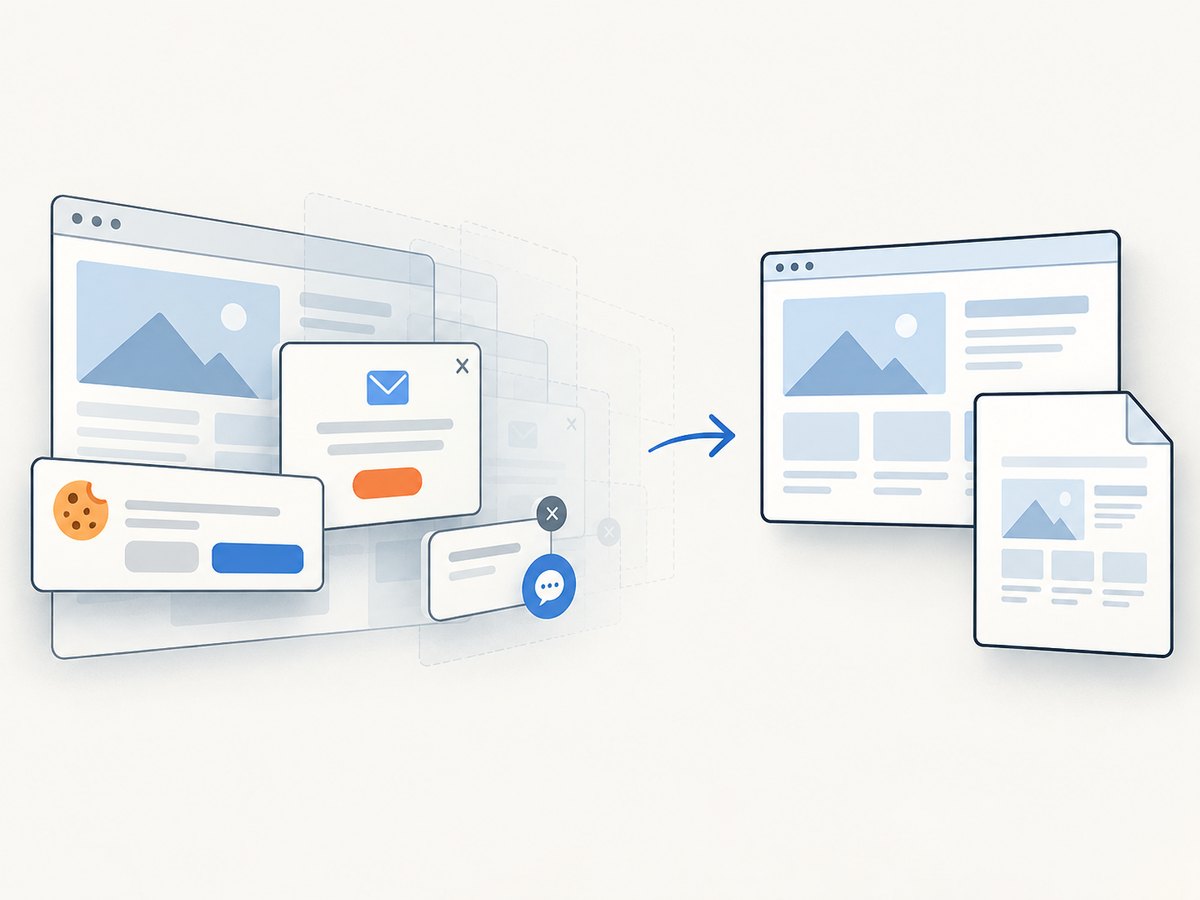
Cookie banners, newsletter popups, and chat widgets are removed before the shot. Bot checks, blank pages, timeouts, failed loads, and cache hits are not billed, and the response identifies the result with X-Page-Verdict and X-Billed headers. ScreenshotNeo also provides an MCP server with take_screenshot, get_page_info, and capture_pdf tools for Claude, Cursor, and other MCP clients. The first 1,000 screenshots each month are free with no card; paid plans start at $5 for 3,000 shots.
See the ScreenshotNeo API documentation for the current request options.
cURL
curl -G "https://api.screenshotneo.com/v1/shot" \
  -d access_key=YOUR_API_KEY \
  --data-urlencode url=https://stripe.com \
  -o shot.webp
Python
import requests

r = requests.get(
    "https://api.screenshotneo.com/v1/shot",
    params={"access_key": "YOUR_API_KEY", "url": "https://stripe.com"},
    timeout=90,
)
r.raise_for_status()
open("shot.webp", "wb").write(r.content)
Node.js
const q = new URLSearchParams({ access_key: 'YOUR_API_KEY', url: 'https://stripe.com' });
const res = await fetch(`https://api.screenshotneo.com/v1/shot?${q}`);
if (!res.ok) throw new Error(`Screenshot failed: ${res.status}`);
const bytes = Buffer.from(await res.arrayBuffer());
await import('node:fs/promises').then(fs => fs.writeFile('shot.webp', bytes));
Create a free ScreenshotNeo account to use 1,000 screenshots a month with no card, then move to $5 for 3,000 when you need more.
FAQ
Can totalPages count pages from several PDFs?
No. It reports the total for the single PDF operation in which Puppeteer rendered the template. A later merge does not update the text.
Should I merge first or render one large HTML document?
Render one document when you control the source and need Puppeteer’s automatic global counter. Merge first when sources already exist or are produced independently, then stamp after assembly.
Can I put images or external CSS in a header template?
Keep templates self-contained and verify the exact Puppeteer version. The cited API documents the template options and special classes but does not guarantee every external asset or CSS behavior.
How do I handle a cover without a page number?
Render or stamp conditionally by page index. For a one-pass Puppeteer document, use CSS and separate cover markup; for post-processing, skip drawing on index zero and number subsequent pages according to your chosen convention.
What should I test before shipping?
Test long and short documents, mixed page sizes, landscape pages, missing assets, custom fonts, tables that split across pages, blank-page rules, links, forms, bookmarks, encryption, and retries using the exact production versions.


