How to Generate a Multi-Page PDF with Puppeteer
Generate a multi-page PDF with Puppeteer using Page.pdf(), print CSS, paper settings, and reliable page-break rules.
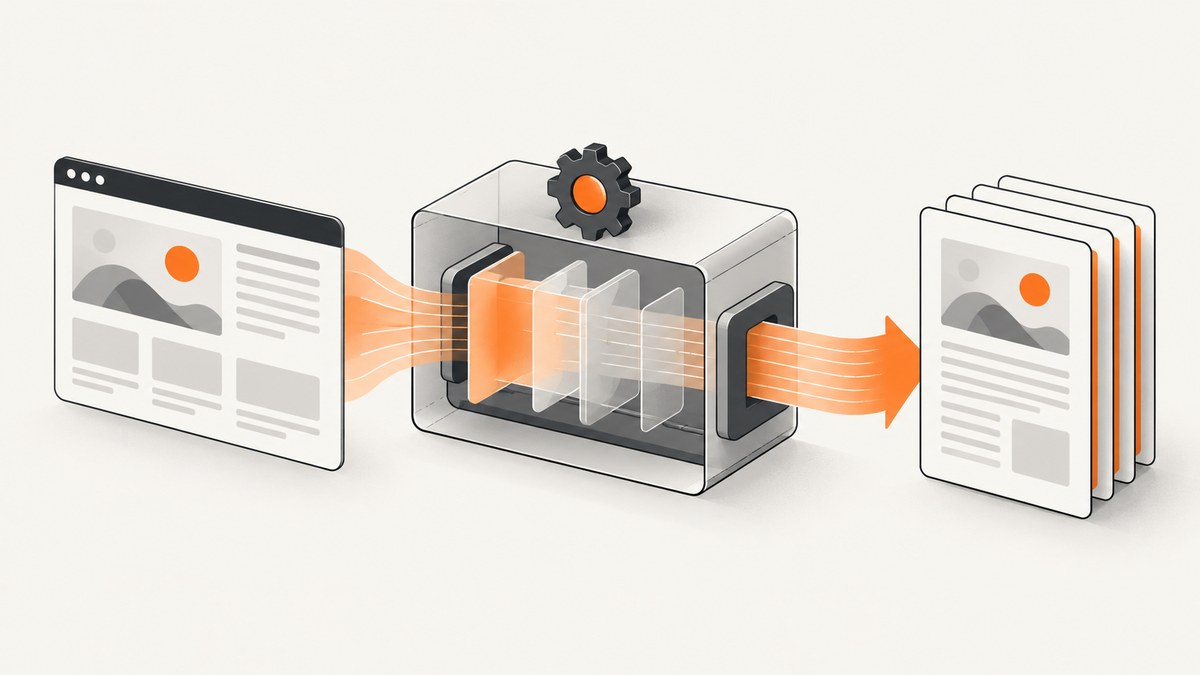
To generate a multi-page PDF with Puppeteer, navigate to or populate a page, then call page.pdf(). Choose a paper size and margins, enable background graphics if needed, and use print CSS to control page breaks. Puppeteer renders with print media by default; the browser view and PDF can therefore differ.
This guide covers URL and HTML input, runnable code, paper and print options, pagination, headers and footers, troubleshooting, and operational trade-offs. The examples use Puppeteer’s documented APIs. See the Puppeteer PDF generation guide, the Page.pdf() reference, and the PDFOptions reference for details.
1. Generate a PDF from a URL
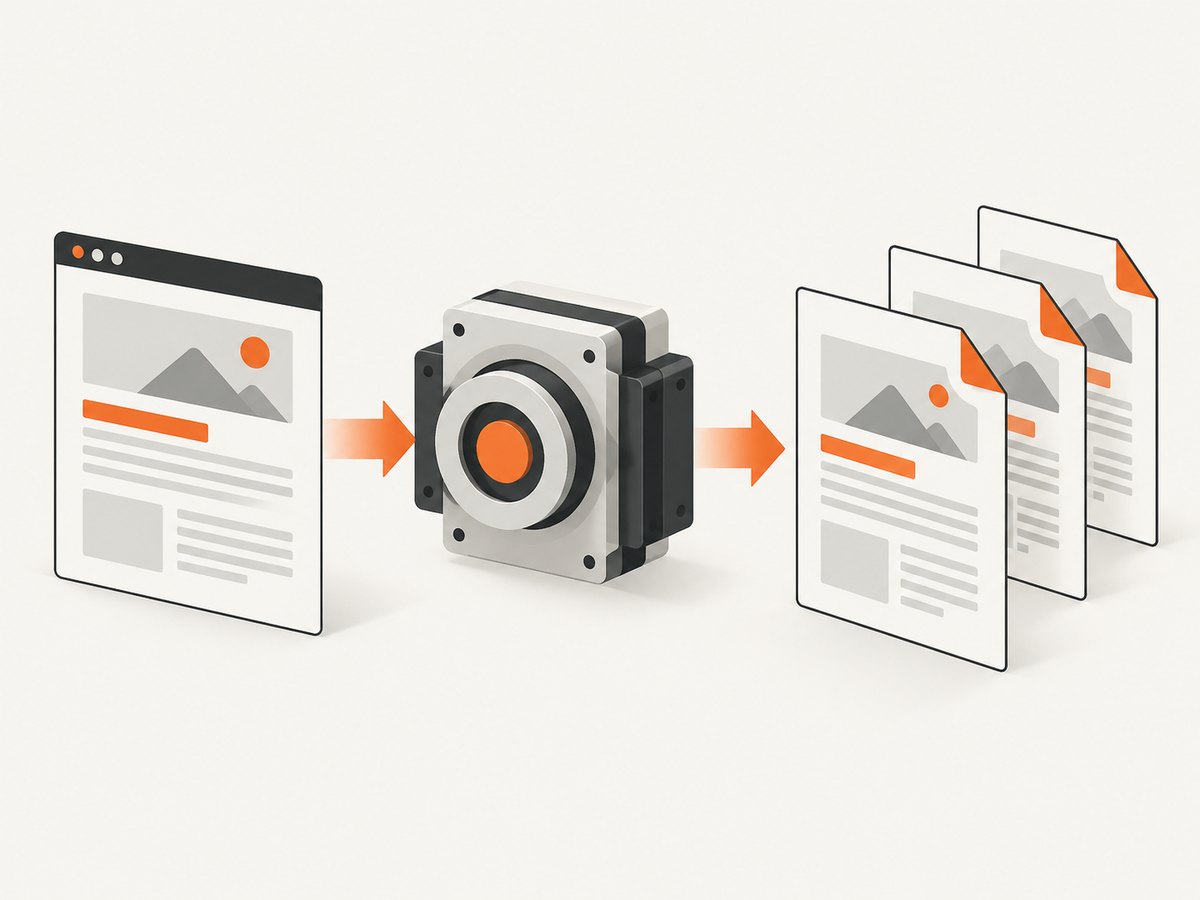
Install Puppeteer in a Node.js project, save this as make-pdf.mjs, and run it with node make-pdf.mjs. Puppeteer’s package downloads a compatible browser during installation in the standard setup. If your environment manages Chrome separately, follow the Puppeteer installation and browser configuration guidance for that setup.
import puppeteer from 'puppeteer';

const browser = await puppeteer.launch();
try {
  const page = await browser.newPage();
  await page.goto('https://example.com', {
    waitUntil: 'networkidle2',
    timeout: 60_000,
  });

  await page.pdf({
    path: 'output.pdf',
    format: 'A4',
    printBackground: true,
    preferCSSPageSize: true,
  });
} finally {
  await browser.close();
}
Page.pdf() returns a promise for PDF bytes (Uint8Array). Supplying path writes the output file; omit it when you want to upload, store, or stream the bytes yourself. The official guide uses networkidle2 in its basic example. Treat that as an example wait strategy, not proof that every site has finished rendering: some pages keep requests open, load content after scrolling, or update after network activity settles.
2. Set up the project and generate from HTML
For a new project, install Puppeteer with your package manager. For example:
npm install puppeteerIf you are generating a document from application data rather than an existing website, set the page content directly. Wait for content-dependent assets as needed before saving. This example uses a self-contained HTML string and print styles:
import puppeteer from 'puppeteer';

const html = `
<!doctype html>
<html>
<head>
  <meta charset="utf-8">
  <style>
    @page { size: A4; margin: 18mm; }
    body { font: 12pt/1.5 Arial, sans-serif; color: #222; }
    h1, h2 { break-after: avoid-page; }
    .chapter { break-before: page; }
    .keep-together { break-inside: avoid-page; }
    @media print {
      * { -webkit-print-color-adjust: exact; print-color-adjust: exact; }
    }
  </style>
</head>
<body>
  <h1>Project report</h1>
  <p>Generated from application data.</p>
  <section class="chapter">
    <h2>A new chapter</h2>
    <p class="keep-together">Keep a short block together when possible.</p>
  </section>
</body>
</html>`;

const browser = await puppeteer.launch();
try {
  const page = await browser.newPage();
  await page.setContent(html, { waitUntil: 'load' });
  await page.pdf({
    path: 'report.pdf',
    printBackground: true,
    preferCSSPageSize: true,
  });
} finally {
  await browser.close();
}
For externally hosted fonts or images, confirm they load before capture. Page.pdf() waits for fonts by default, according to the guide, but that does not ensure every image, client-side data request, or delayed widget is ready. Add a targeted wait for the page’s own ready condition when the content is populated asynchronously.
3. Choose paper size, margins, and page ranges
Pick one source of truth for page dimensions. Use format for standard paper such as A4 or Letter, or use width and height for custom dimensions. When format is supplied, it takes precedence over width and height. When the document’s CSS @page rule should control dimensions, set preferCSSPageSize: true; otherwise Puppeteer may scale the content to fit the paper size configured in the PDF options.
| Need | Option or CSS | Practical note |
|---|---|---|
| Standard paper | format: 'A4' or another supported format |
Use one paper format consistently for predictable pagination. |
| Custom dimensions | width and height |
Use CSS units such as inches, millimeters, or pixels as supported by the API. |
| CSS-controlled paper | @page and preferCSSPageSize: true |
CSS page dimensions take priority over the PDF format and dimension options. |
| Explicit whitespace | margin |
The PDF options default to no margins; set them deliberately. |
| Selected pages only | pageRanges: '1-5, 8, 11-13' |
Ranges refer to the generated PDF pages. |
Example with explicit dimensions, margins, and a page range:
await page.pdf({
  path: 'selected-pages.pdf',
  format: 'Letter',
  margin: {
    top: '20mm',
    right: '16mm',
    bottom: '22mm',
    left: '16mm',
  },
  pageRanges: '1-5, 8',
  printBackground: true,
});
Margins can also be set with CSS @page. Avoid specifying conflicting CSS and option values without checking the result. For reports with a header or footer, leave enough room so page content does not overlap that furniture.
4. Make content paginate cleanly
Multi-page output is the result of print layout, page dimensions, margins, and content flow. There is no single page-break rule that works for every document. Use print-specific CSS and inspect representative long and short documents, tables, images, and headings.
@media print {
  h1, h2, h3 {
    break-after: avoid-page;
  }
  .new-section {
    break-before: page;
  }
  figure, .summary-card {
    break-inside: avoid-page;
  }
  thead {
    display: table-header-group;
  }
}
Use break-before to start a section on a fresh page, break-after to avoid leaving a heading at the bottom of a page, and break-inside to request that a short block stay together. These are layout requests, not a guarantee that oversized content can fit on one page. A block taller than the printable area still has to flow across pages. Long tables and large images deserve special attention; constrain image dimensions for print and consider whether a wide table needs landscape paper.
Inspect pages with the same viewport-independent print rules that will be used in production. If a site has a screen-only navigation bar or hides important details for printing, define its behavior under @media print. If a background color disappears, enable printBackground and use -webkit-print-color-adjust: exact where exact colors matter. The API reference notes that PDF rendering uses print media by default and that print color handling may alter colors.
5. Control screen versus print rendering
By default, PDF generation uses print CSS media. If the page has a carefully designed screen layout that you specifically need to preserve, set screen media before calling pdf():
await page.emulateMediaType('screen');
await page.pdf({ path: 'screen-layout.pdf', printBackground: true });
Choose based on the output you want. Print media usually suits documents because it can hide navigation and adjust spacing for paper. Screen media may retain a web layout but can create awkward page breaks or excessive whitespace. Check the resulting PDF rather than assuming either media mode reproduces the browser window exactly.
6. Add headers, footers, and page numbers
Set displayHeaderFooter: true and pass HTML templates for page furniture. Puppeteer documents placeholders including date, title, url, pageNumber, and totalPages. Keep template markup simple and reserve room with margins.
await page.pdf({
  path: 'numbered.pdf',
  format: 'A4',
  displayHeaderFooter: true,
  margin: { top: '22mm', bottom: '22mm', left: '16mm', right: '16mm' },
  headerTemplate: '<div style="font-size:8px; width:100%; text-align:center"><span class="title"></span></div>',
  footerTemplate: '<div style="font-size:8px; width:100%; text-align:center">Page <span class="pageNumber"></span> of <span class="totalPages"></span></div>',
});
Header and footer templates are HTML strings. Keep them self-contained, avoid depending on your application’s page styles, and verify that the text fits at the chosen paper size and margins.
7. Wait for the right content state
A successful navigation event does not always mean a single-page application has finished loading its report data. Choose a wait condition that matches the page:
- Use
waitUntil: 'load'when ordinary page load is enough. - Use
networkidle2when a mostly quiet network is a reasonable signal, as in Puppeteer’s basic guide example. - Wait for a known selector when the application displays a specific report element only after rendering.
- Wait for an explicit application readiness signal when your own page controls data loading.
await page.goto(url, { waitUntil: 'domcontentloaded', timeout: 60_000 });
await page.waitForSelector('[data-report-ready="true"]', { timeout: 30_000 });
await page.evaluate(() => document.fonts.ready);
await page.pdf({ path: 'report.pdf', format: 'A4', printBackground: true });
Replace the selector with a real readiness marker from your application. For third-party pages, there may be no reliable marker; combine navigation with a relevant selector or bounded delay only when needed. Lazy-loaded images may require scrolling or another page-specific action before capture. A network-idle event alone cannot force content that the page loads only after interaction.
8. Handle errors and awkward cases
| Symptom | Likely cause | Fix |
|---|---|---|
| PDF is blank or missing report data | Capture ran before client-side rendering completed, or navigation reached an error page. | Check the navigation response and page state; wait for a real content selector or app readiness signal. |
| Navigation times out | The site is slow, blocked, or keeps connections open. | Set a suitable timeout and wait for a less strict event such as domcontentloaded, then wait for the content you need. |
| Some images are absent | Images are lazy-loaded, failed, or still downloading. | Scroll relevant sections into view, wait for image completion where appropriate, and verify remote resources are accessible from the browser environment. |
| Colors or backgrounds differ | Print media changes styles or background printing is disabled. | Set printBackground: true; check @media print and -webkit-print-color-adjust. |
| Content is unexpectedly scaled | CSS page size and PDF options disagree, or content does not fit. | Choose CSS @page with preferCSSPageSize, or use a consistent option-based paper size and review widths. |
| Headings split from their content | Print styles do not control page breaks. | Apply break-after: avoid-page to headings and test blocks near page boundaries. |
| Browser process remains open | An error bypassed cleanup. | Put browser.close() in a finally block, as in the examples. |
| Browser fails to launch in a container | Browser dependencies, executable configuration, or runtime permissions differ from local development. | Use the documented Puppeteer browser installation for the deployment environment and inspect launch errors; avoid copying browser flags blindly. |
When generating many documents, also guard against unbounded concurrency. Each browser page consumes resources, and a burst of captures can exhaust memory or process limits. Reuse a browser process where appropriate, create and close pages per job, and cap concurrent jobs based on the limits of your host. Always close the browser after fatal errors.
9. Save bytes, control output size, and plan operations
For an HTTP service, you can return the generated bytes directly instead of writing a temporary file. The Page.pdf() return value is a Uint8Array; set the response content type to application/pdf in your server framework and send those bytes. If you write to disk, use unique paths for concurrent jobs and remove temporary files after delivery.
PDF size and generation time depend on page content, image dimensions, fonts, and the target browser environment. Large images and long documents generally require more memory and produce larger files. Reduce source image dimensions when the print resolution does not need them, avoid unnecessary page resources, and set a maximum document size or page count if users can submit arbitrary URLs. A screenshot or PDF job can also encounter an unavailable site, CAPTCHA, authentication wall, or content that never becomes ready; define timeouts and return a useful error rather than holding a request indefinitely.
Puppeteer itself gives control over the browser workflow, but you operate the browser process, dependencies, queueing, retries, and output storage. Cost therefore depends on your compute, traffic, and operational requirements; the research sources do not provide a universal performance benchmark or cost figure. Measure representative documents in your own deployment before choosing concurrency or timeouts.
10. Or skip the browser setup
If you need a PDF from a URL without managing a Puppeteer browser, ScreenshotNeo provides a screenshot and PDF API. Its documentation describes the request options; the example below uses the product’s PDF output option:
curl -G "https://api.screenshotneo.com/v1/shot" \
  -d access_key=YOUR_API_KEY \
  --data-urlencode url=https://stripe.com \
  -d format=pdf \
  -o page.pdf
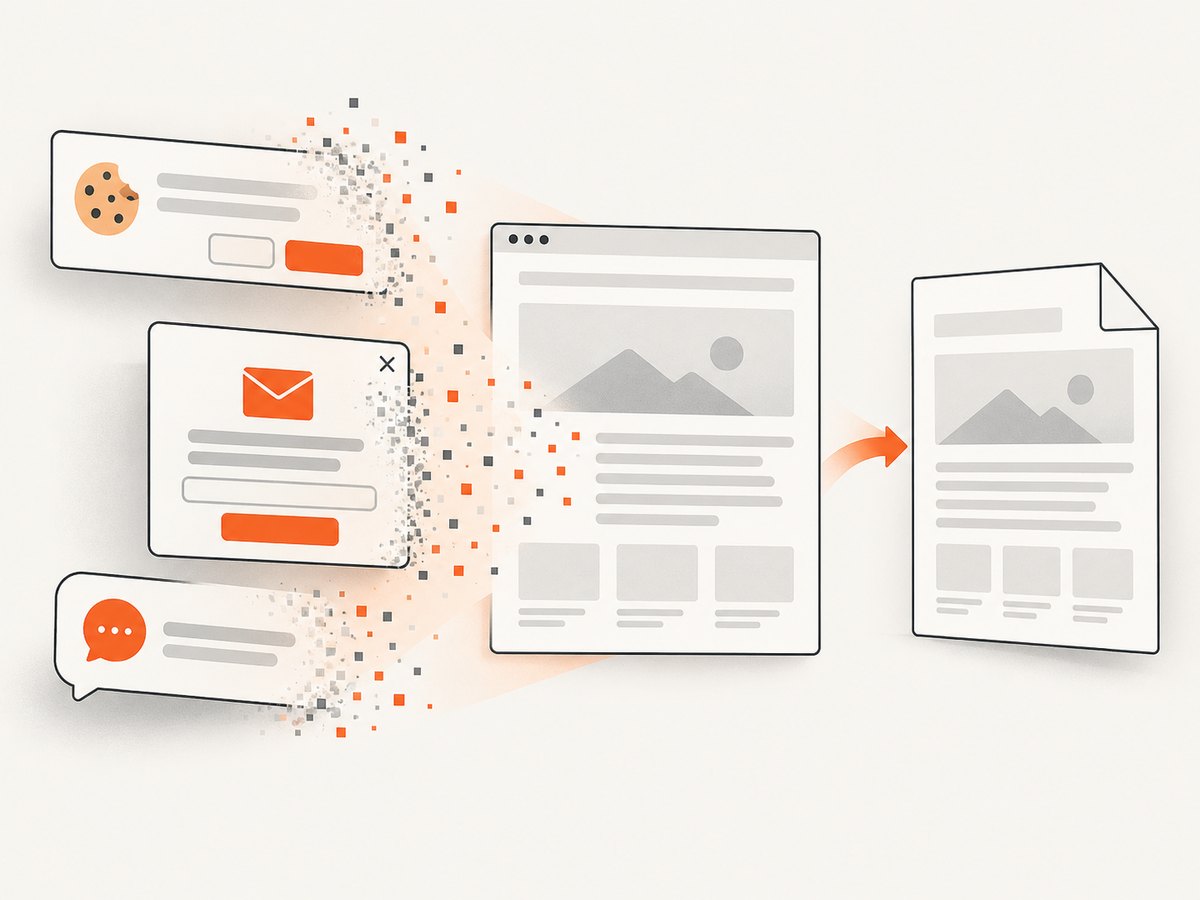
ScreenshotNeo accepts cookie and consent banners before capture and removes more than 60 known consent platforms, newsletter popups, and chat widgets; each step can be turned off. Bot checks, blank pages, timeouts, failed loads, and cache hits cost nothing, and response headers report the page verdict and billing status. Its MCP server gives AI agents tools for screenshots, page information, and PDF capture. The free plan includes 1,000 shots a month with no card; paid plans start at $5 for 3,000 shots. See ScreenshotNeo for product details, or create a free account to get 1,000 screenshots a month with no card.
11. FAQ
Does Puppeteer create multiple pages in one PDF?
Yes. page.pdf() prints the page’s rendered document, which can flow across as many paper pages as its content requires.
Can I create a PDF without writing a file?
Yes. Omit path and use the returned PDF bytes in your application.
Does Puppeteer use print CSS?
Yes. PDF generation uses print media by default. Use page.emulateMediaType('screen') first if you specifically need screen media.
Why does the page count change when I adjust margins?
Margins reduce the printable area, changing where content wraps and breaks. Keep paper size, margins, and CSS consistent when comparing output.
Which Puppeteer version should I use?
Check Puppeteer’s current supported browsers page when selecting a release and browser. Browser pairings change over time; pin and update versions deliberately in production.


