How to Take Screenshots of Multiple Pages Automatically with Puppeteer
Automate reliable screenshots for many URLs with Puppeteer: navigation readiness, full-page capture, filenames, concurrency, errors, and scaling.
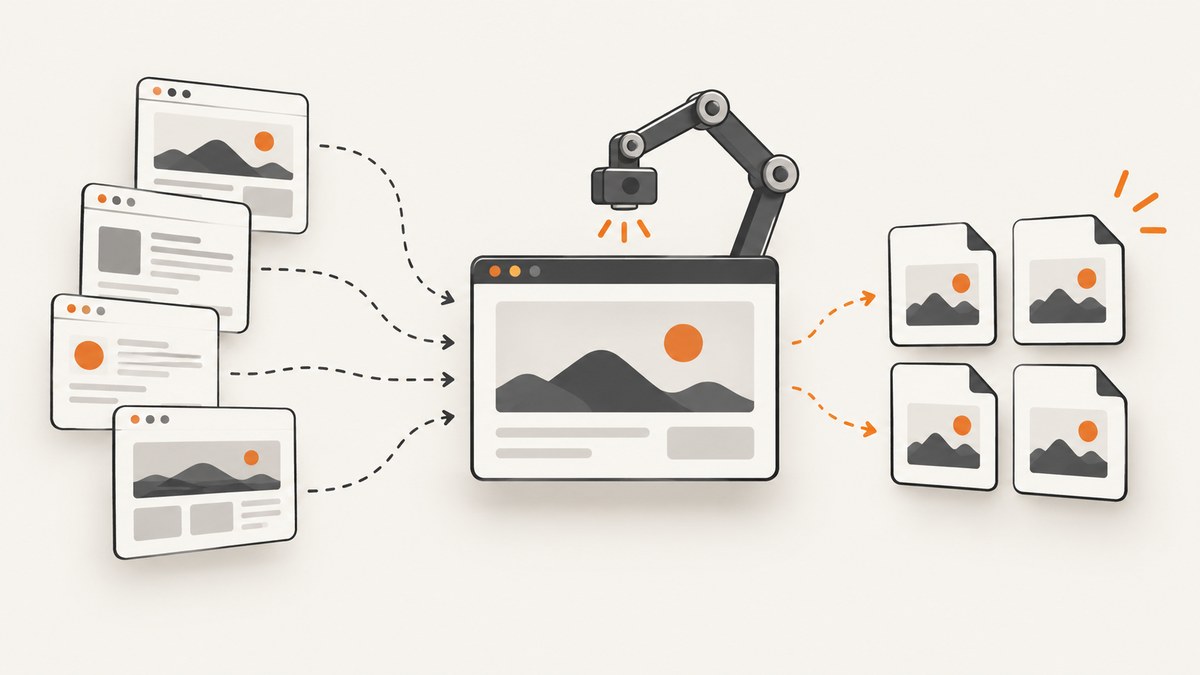
Use one Puppeteer browser, create a Page for each URL, wait for a readiness condition, and call page.screenshot() with a unique output path. Set fullPage: true for the entire document or use the viewport and clip for a region. Sequential processing is the easiest starting point; bounded concurrency can reduce total time when the machine and target sites can handle it.
Puppeteer’s official guide demonstrates the launch, navigation, screenshot, and browser-close workflow. Its API describes Page.screenshot() as capturing a screenshot of the page. See the Puppeteer screenshot guide and Page.screenshot API.
1. Install Puppeteer
mkdir page-shots
cd page-shots
npm init -y
npm install puppeteer
mkdir screenshots
Puppeteer downloads a compatible browser during installation. If your deployment supplies Chromium separately, use puppeteer-core and configure executablePath instead.
2. Capture a list of URLs sequentially
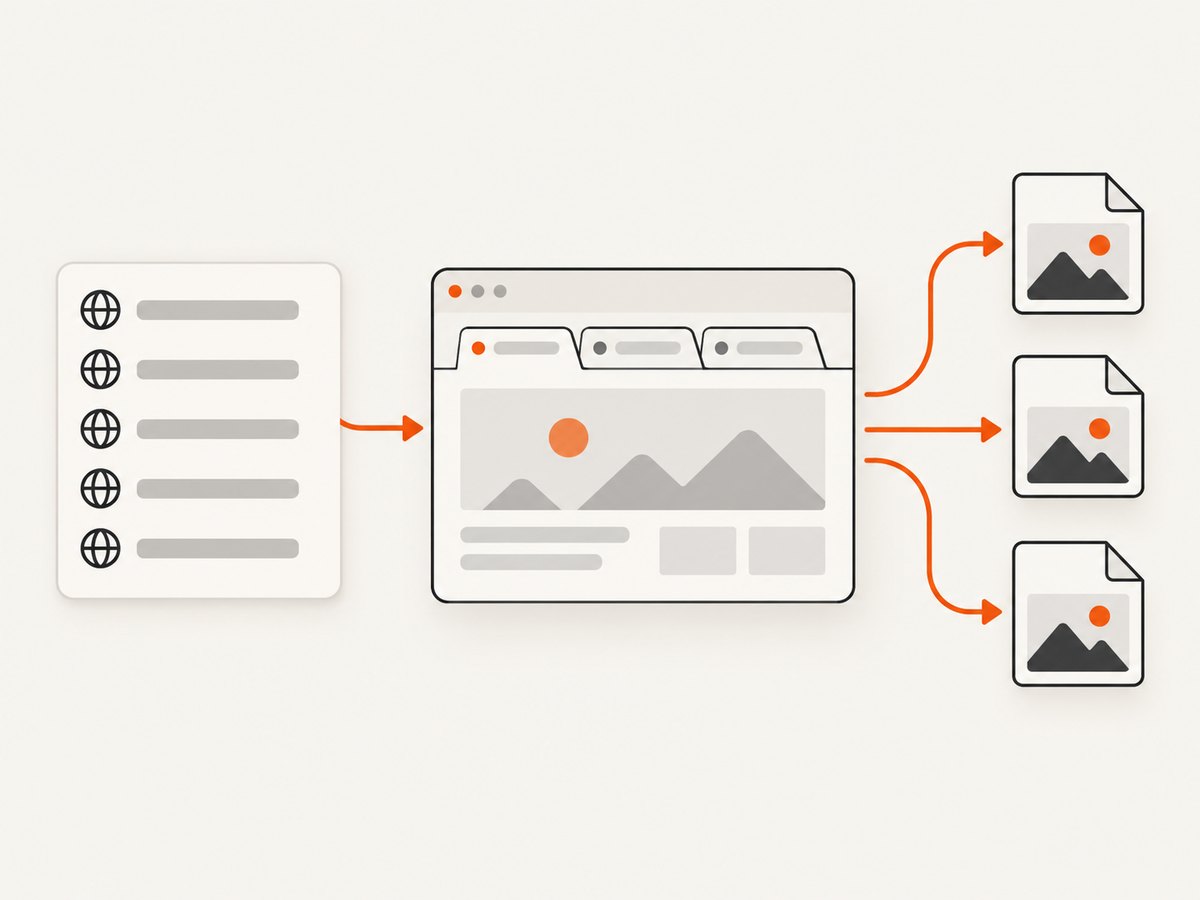
This complete script creates one browser, opens each URL in its own page, waits for networkidle2, writes a predictable filename, records failures per URL, and always closes the browser.
import puppeteer from 'puppeteer';
import { mkdir } from 'node:fs/promises';

const urls = [
  'https://example.com/',
  'https://example.org/',
  'https://pptr.dev/',
];

function fileName(index, url) {
  const host = new URL(url).hostname.replace(/[^a-z0-9.-]/gi, '_');
  return `screenshots/${String(index + 1).padStart(3, '0')}-${host}.png`;
}

await mkdir('screenshots', { recursive: true });
const browser = await puppeteer.launch({ headless: true });
const results = [];

try {
  for (const [index, url] of urls.entries()) {
    const page = await browser.newPage();
    try {
      await page.setViewport({ width: 1440, height: 900, deviceScaleFactor: 1 });
      const response = await page.goto(url, {
        waitUntil: 'networkidle2',
        timeout: 60000,
      });

      if (!response) throw new Error('Navigation returned no response');
      if (response.status() >= 400) {
        throw new Error(`HTTP ${response.status()} for ${url}`);
      }

      const path = fileName(index, url);
      await page.screenshot({ path, fullPage: true, type: 'png' });
      results.push({ url, path, status: 'ok' });
      console.log(`Saved ${path}`);
    } catch (error) {
      results.push({ url, status: 'failed', error: error.message });
      console.error(`Failed ${url}: ${error.message}`);
    } finally {
      await page.close();
    }
  }
} finally {
  await browser.close();
}

const failed = results.filter(result => result.status === 'failed');
if (failed.length) process.exitCode = 1;
networkidle2 means Puppeteer waits until there are no more than two network connections for the relevant period. It is a useful default for many pages, but it is not proof that an application has finished rendering. Pages with long-lived connections, delayed client rendering, or a known application state need a more specific wait.
3. Choose the right readiness condition
| Condition | Use it when | Example |
|---|---|---|
domcontentloaded |
The initial HTML is enough and background requests do not affect the image. | await page.goto(url, { waitUntil: 'domcontentloaded' }) |
load |
Images and other load-event resources should be available. | await page.goto(url, { waitUntil: 'load' }) |
networkidle2 |
You want a mostly idle page and the site does not keep many connections open. | await page.goto(url, { waitUntil: 'networkidle2' }) |
| Selector | A specific component signals that the UI is ready. | await page.waitForSelector('[data-ready="true"]', { timeout: 30000 }) |
| Application state | A chart, SPA route, or client-side data load has a known completion condition. | await page.waitForFunction(() => window.appReady === true) |
| Fixed delay | A short animation or delayed widget must settle and no stronger signal exists. | await new Promise(resolve => setTimeout(resolve, 1000)) |
You can combine conditions. For example, navigate with domcontentloaded, wait for a content selector, then add a short delay for an animation. Avoid using an unnecessarily long delay for every page because it increases batch time.
4. Control viewport, format, and the captured area
await page.setViewport({
  width: 1365,
  height: 768,
  deviceScaleFactor: 2,
});

await page.screenshot({
  path: 'screenshots/dashboard.webp',
  type: 'webp',
  quality: 85,
  fullPage: false,
});

await page.screenshot({
  path: 'screenshots/hero.png',
  clip: { x: 0, y: 0, width: 1200, height: 500 },
});
fullPage: truecaptures the document length instead of only the visible viewport.clipcaptures a rectangle in page coordinates.pathdetermines where bytes are written; the extension can infer the format.typeexplicitly selectspng,jpeg, orwebp.qualityapplies to formats that support lossy quality, such as JPEG and WebP, but not PNG.- Set the viewport before navigation when responsive layout matters. Changing viewport properties can trigger a reload.
Capture one element
const card = await page.waitForSelector('.pricing-card');
if (!card) throw new Error('Pricing card was not found');
await card.screenshot({ path: 'screenshots/pricing-card.png' });
An element screenshot attempts to scroll a hidden element into view first. Check that the selector identifies one stable element and that fonts or images have loaded before capture.
5. Process pages concurrently with a limit
Opening every URL at once can exhaust memory, file descriptors, CPU, or the target site’s capacity. Use a deliberate limit and measure it for your workload. The following worker pool keeps at most three pages active.
import puppeteer from 'puppeteer';
import { mkdir } from 'node:fs/promises';

const urls = [
  'https://example.com/',
  'https://example.org/',
  'https://pptr.dev/',
  'https://developer.mozilla.org/',
];
const concurrency = 3;
await mkdir('screenshots', { recursive: true });

const browser = await puppeteer.launch({ headless: true });
let next = 0;

async function worker() {
  while (true) {
    const index = next++;
    if (index >= urls.length) return;
    const url = urls[index];
    const page = await browser.newPage();
    try {
      await page.setViewport({ width: 1440, height: 900 });
      await page.goto(url, { waitUntil: 'networkidle2', timeout: 60000 });
      await page.screenshot({
        path: `screenshots/page-${index + 1}.png`,
        fullPage: true,
      });
      console.log(`Saved page ${index + 1}: ${url}`);
    } catch (error) {
      console.error(`Failed page ${index + 1}: ${url}: ${error.message}`);
    } finally {
      await page.close();
    }
  }
}

try {
  await Promise.all(Array.from({ length: concurrency }, worker));
} finally {
  await browser.close();
}
Puppeteer supports multiple Page instances in one browser. Its screenshot coordination means page creation and closing operations in a browser context wait for an active screenshot, but the documentation does not define a universal safe concurrency value. Start conservatively and increase the limit only after observing memory, CPU, navigation failures, and target-site behavior.
6. Work with pages that are already open
If another part of your program created the tabs, enumerate them instead of navigating a new list.
const pages = await browser.pages();
for (const [index, page] of pages.entries()) {
  await page.screenshot({
    path: `screenshots/open-tab-${index + 1}.png`,
    fullPage: true,
  });
}
browser.pages() lists open pages across browser contexts. context.pages() scopes the list to one context. Non-visible background pages are not included by the browser page enumeration APIs described in the documentation. See the Browser.pages API and BrowserContext.pages API.
7. Isolate cookies and local storage with browser contexts
const context = await browser.createBrowserContext();
const page = await context.newPage();
await page.setCookie({
  name: 'session',
  value: 'example-value',
  domain: 'example.com',
});
await page.goto('https://example.com/account', { waitUntil: 'networkidle2' });
await page.screenshot({ path: 'screenshots/account.png', fullPage: true });
await context.close();
Browser contexts provide separate user contexts with isolated cookies and local storage. Use one when URLs must not share authentication or personalization. Reuse a context when pages intentionally share state.
8. Make filenames safe and deterministic
Do not use the raw URL as a filename. Query strings, slashes, Unicode characters, and duplicate URLs can overwrite files or produce invalid paths. Use an index plus a sanitized hostname, as in the first example, or add a stable hash of the URL. Keep the original URL in a JSON manifest alongside each image so the files remain traceable.
9. Troubleshooting
| Symptom | Likely cause | Fix |
|---|---|---|
| Navigation timeout | The site is slow, blocked, or holds connections open. | Raise the timeout for this URL, use a suitable waitUntil, wait for a real selector, and inspect the URL from the same network. |
| Blank or incomplete SPA | Screenshot ran before client rendering or data loading finished. | Wait for an application-specific selector or waitForFunction; a fixed delay alone is less reliable. |
| Images are missing | Lazy loading has not been triggered, or image requests failed. | Scroll the page before capture, wait for image completion, and verify resources in page logs. |
| HTTP 401 or 403 | The page requires authentication or rejects the browser request. | Provide the required cookies or headers where appropriate, use a permitted user agent, and confirm access is authorized. |
| CAPTCHA or bot-check page | The destination is challenging automated browsers. | Do not attempt to bypass access controls. Use an approved integration or capture a permitted public page. |
| Files overwrite each other | Multiple URLs share the same derived filename. | Include the input index or a URL hash in every output path. |
| Out-of-memory errors | Too many full-page pages or concurrent browsers are active. | Use one browser, close pages promptly, lower concurrency, and avoid unnecessarily large viewports. |
| Unexpected mobile layout | Viewport was set after navigation or device emulation was incomplete. | Set viewport before navigation and use a consistent device preset for every page. |
10. Performance, reliability, and cost considerations
- Reuse one browser: launching a browser for every URL adds startup overhead and uses more resources.
- Close each page: long batches otherwise accumulate memory and page state.
- Bound concurrency: the fastest setting depends on page size, JavaScript work, full-page height, and machine resources; Puppeteer’s documentation does not publish a universal benchmark.
- Choose readiness precisely: waiting for a known selector is often more predictable than an arbitrary delay.
- Retry selectively: retry transient navigation failures with a limit and backoff, but record permanent HTTP errors separately.
- Keep a manifest: store URL, timestamp, viewport, readiness rule, output path, and error so a failed item can be rerun without repeating successful captures.
- Control output size: JPEG or WebP quality settings reduce storage for photographic pages; PNG preserves lossless detail but does not accept a quality setting.
- Respect site policies: automate only pages you are allowed to access, and avoid sending more traffic than the destination can handle.
11. Or skip the browser setup
ScreenshotNeo provides a website screenshot API and MCP server. One GET request returns a PNG, JPEG, WebP, or PDF, so you do not need to install or operate Puppeteer for hosted captures. Read the ScreenshotNeo API documentation for all options.
cURL
curl -G 'https://api.screenshotneo.com/v1/shot' -d access_key=YOUR_API_KEY --data-urlencode url=https://stripe.com -o shot.webpPython
import requests
r = requests.get('https://api.screenshotneo.com/v1/shot', params={'access_key': 'YOUR_API_KEY', 'url': 'https://stripe.com'}, timeout=90)
r.raise_for_status()
open('shot.webp', 'wb').write(r.content)
Node.js
const q = new URLSearchParams({ access_key: 'YOUR_API_KEY', url: 'https://stripe.com' });
const res = await fetch(`https://api.screenshotneo.com/v1/shot?${q}`);
if (!res.ok) throw new Error(`HTTP ${res.status}`);
const fs = await import('node:fs/promises');
await fs.writeFile('shot.webp', Buffer.from(await res.arrayBuffer()));
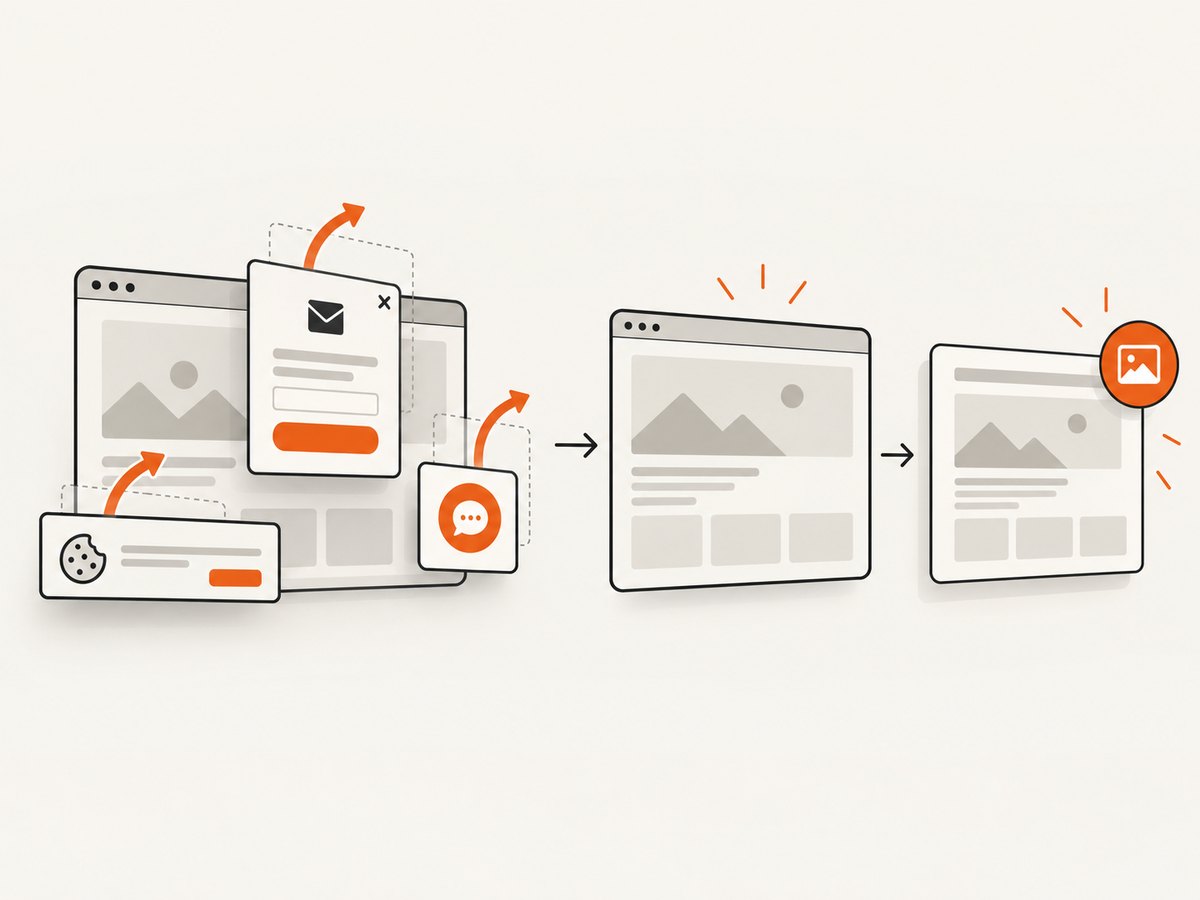
ScreenshotNeo removes cookie and consent banners, newsletter popups, and chat widgets before capture. Bot checks, blank pages, failed loads, timeouts, and cache hits are not billed, and response headers report the page verdict and billing status. Its MCP server provides take_screenshot, get_page_info, and capture_pdf tools for Claude, Cursor, and other MCP clients. The Free plan includes 1,000 screenshots each month with no card; paid plans start at $5 for 3,000 screenshots. Create a free ScreenshotNeo account.
12. FAQ
Should I create one Page per URL?
Yes, that keeps navigation and page state separate while reusing one browser process. Reuse a page only when you intentionally want to replace its contents.
Does networkidle2 guarantee a complete screenshot?
No. It is a network-idle heuristic. A page-specific selector or application state is a stronger signal when available.
When should I use a browser context?
Use separate contexts when cookies, authentication, or local storage must be isolated between captures.
Can I capture only part of a page?
Yes. Use clip for coordinates or an element handle for a specific DOM element.
What is a sensible concurrency limit?
There is no universal value. Start with a small limit such as two or three workers, then adjust based on memory, CPU, page failures, and the destination’s traffic limits.


