How to Navigate to PDF Documents with Puppeteer in Headless Mode
Learn why PDF navigation fails in Puppeteer headless mode, how to wait for PDF links safely, validate responses, and use reliable fallbacks.
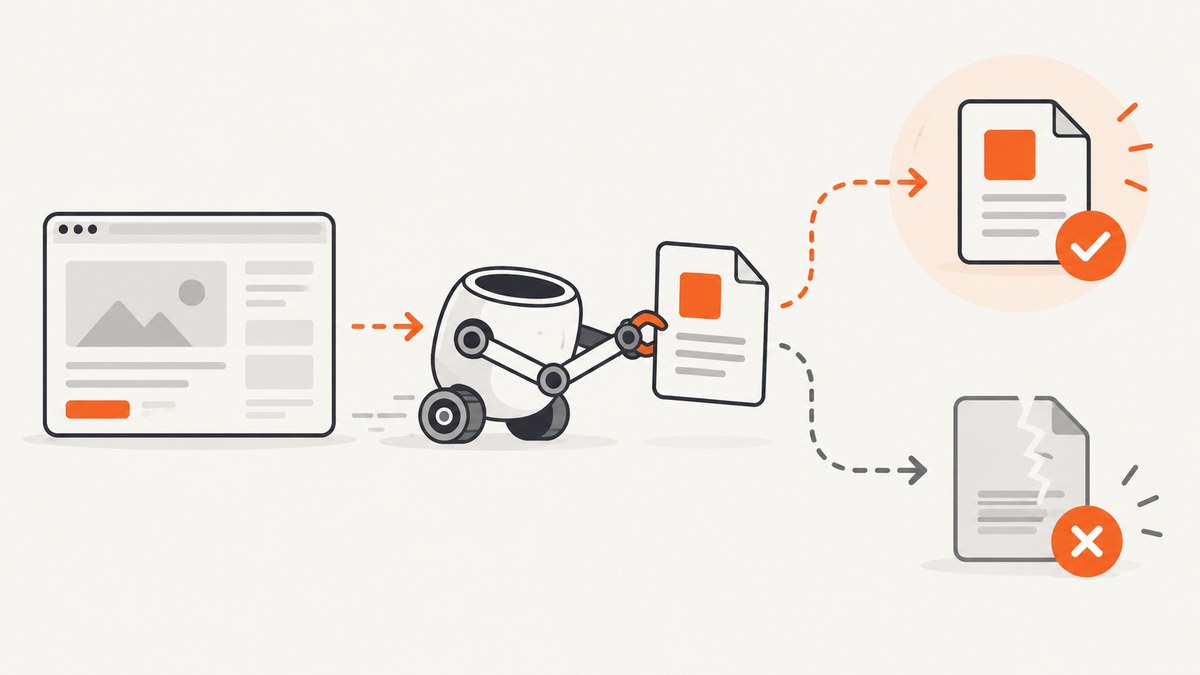
Direct answer: Puppeteer can navigate to an existing PDF in regular headless Chrome, but Page.goto() does not support PDF navigation in Chrome’s headless shell mode. Check which headless mode you launched before debugging the URL. For a link click, create the navigation wait before clicking: await Promise.all([page.waitForNavigation(), page.click(selector)]). Always validate the response status and content type. If you need deterministic PDF bytes, fetch the URL with an HTTP client instead of relying on the browser’s PDF viewer. If you need to create a PDF from HTML, use page.pdf().
What “navigate to a PDF” means
There are three different jobs that are often described with the same sentence:
- Open an existing PDF URL: the server already returns PDF bytes, usually with
Content-Type: application/pdf. - Follow a link that leads to a PDF: a page click causes a navigation or download.
- Generate a PDF from HTML: the browser renders a page and Puppeteer writes a new PDF with
page.pdf().
The first job is affected by the headless shell limitation. The second also needs correct synchronization. The third does not navigate to an existing PDF and should use the PDF generation API.
Headless modes and the PDF limitation
Puppeteer’s Page.goto() documentation warns: Headless shell mode doesn’t support navigation to a PDF document.
Chrome exposes distinct run modes, including regular headless Chrome, headful Chrome, and headless shell. A script can therefore fail even when the URL is valid simply because it launched the unsupported mode.
Start with an explicit launch configuration and record the mode used by your deployment. Regular headless mode is the usual choice for browser navigation:
import puppeteer from 'puppeteer';

const browser = await puppeteer.launch({
  headless: true
});
const page = await browser.newPage();

const response = await page.goto('https://example.com/file.pdf', {
  waitUntil: 'networkidle2',
  timeout: 60000
});

if (!response) {
  throw new Error('No main resource response was returned');
}
if (!response.ok()) {
  throw new Error(`PDF request failed with HTTP ${response.status()}`);
}

const contentType = response.headers()['content-type'] || '';
if (!contentType.toLowerCase().includes('application/pdf')) {
  throw new Error(`Expected a PDF, received ${contentType || 'unknown content type'}`);
}

console.log('PDF URL:', response.url());
await browser.close();
A resolved goto() promise does not guarantee success. In headless shell, navigation can resolve for HTTP 404 or 500 responses, so inspect response.ok() or the status code. A null response can also indicate same-document navigation; it is not proof that a PDF was downloaded.
Complete click-to-PDF pattern
When a click triggers navigation, create waitForNavigation() before the click. Doing these operations in separate statements introduces a race: the navigation can begin before the listener is installed.
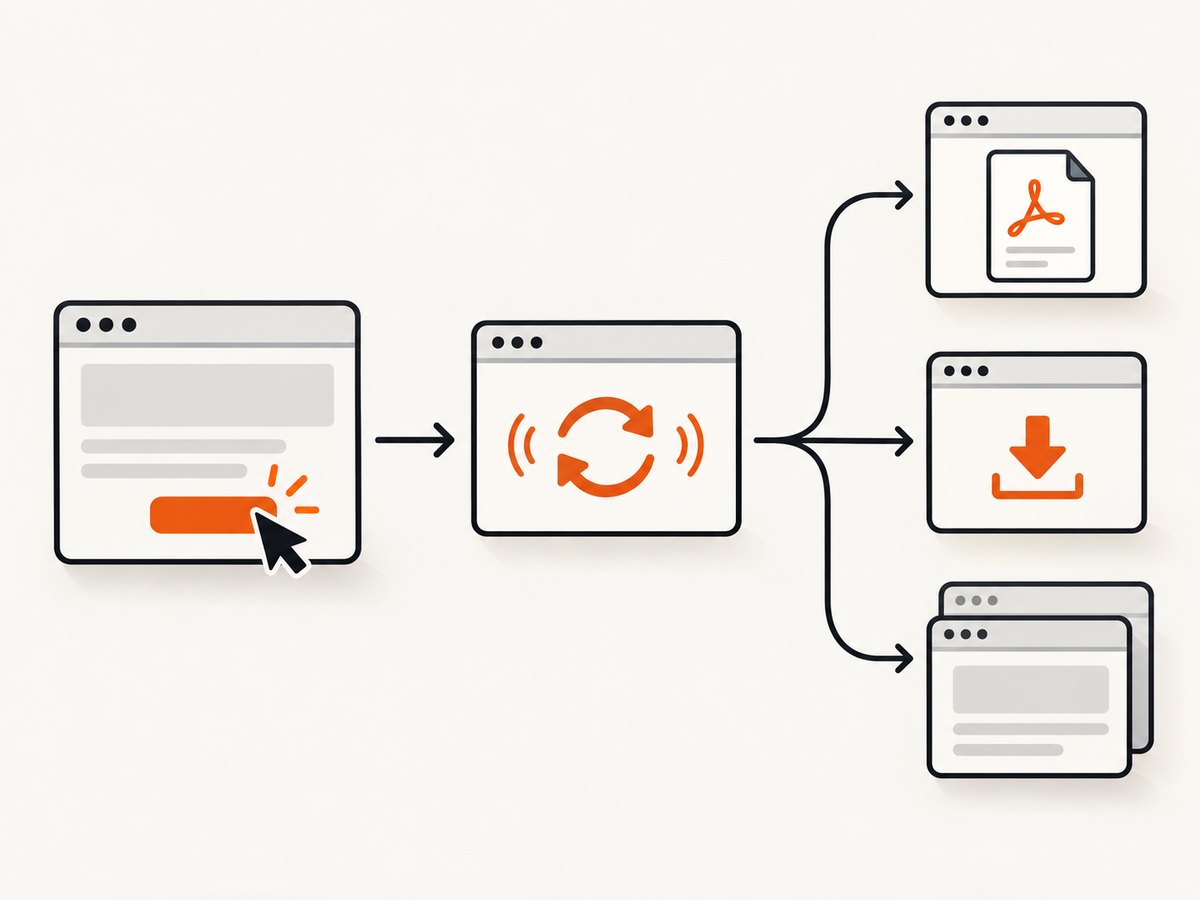
import puppeteer from 'puppeteer';

const browser = await puppeteer.launch({headless: true});
const page = await browser.newPage();
await page.goto('https://example.com/reports', {waitUntil: 'domcontentloaded'});

const [response] = await Promise.all([
  page.waitForNavigation({waitUntil: 'networkidle2', timeout: 60000}),
  page.click('a[href$=".pdf"]')
]);

if (!response) {
  throw new Error('No navigation response; the click may have caused a download or same-document change');
}
if (!response.ok()) {
  throw new Error(`PDF navigation failed: HTTP ${response.status()}`);
}

const type = (response.headers()['content-type'] || '').toLowerCase();
if (!type.includes('application/pdf')) {
  throw new Error(`The link did not return a PDF: ${type || 'missing content type'}`);
}

console.log('Resolved URL:', response.url());
await browser.close();
Use the selector that actually triggers navigation. A link with target="_blank", a JavaScript download, or a response with Content-Disposition: attachment may not produce a normal page navigation. Those cases require download handling or direct HTTP retrieval.
When direct HTTP retrieval is the better solution
If your application needs the exact PDF bytes, use an HTTP client. This avoids depending on Chromium’s internal PDF viewer and works in headless shell mode because no browser navigation is required.
const pdfUrl = 'https://example.com/file.pdf';
const pdfResponse = await fetch(pdfUrl, {
  headers: {
    'Accept': 'application/pdf'
  }
});

if (!pdfResponse.ok) {
  throw new Error(`HTTP ${pdfResponse.status}`);
}

const contentType = pdfResponse.headers.get('content-type') || '';
if (!contentType.toLowerCase().includes('application/pdf')) {
  throw new Error(`Expected application/pdf, received ${contentType || 'unknown'}`);
}

const pdfBytes = new Uint8Array(await pdfResponse.arrayBuffer());
// Save or parse pdfBytes with the PDF library used by your application.
Pass authentication headers, cookies, or a user agent when the PDF is protected. Follow redirects according to your HTTP client’s defaults, then validate the final response. Do not infer success from a URL ending in .pdf; many applications use extensionless routes or return an HTML login page from a PDF-looking URL.
Generating a PDF from HTML with page.pdf()
If the source is HTML and the goal is a PDF file, navigate to the HTML page and call page.pdf(). Puppeteer uses print CSS by default. Call page.emulateMediaType('screen') when the output should follow screen styles.

import puppeteer from 'puppeteer';

const browser = await puppeteer.launch({headless: true});
const page = await browser.newPage();
await page.goto('https://example.com/report', {
  waitUntil: 'networkidle2',
  timeout: 60000
});

await page.emulateMediaType('screen'); // omit for default print CSS
await page.pdf({
  path: 'report.pdf',
  format: 'A4',
  printBackground: true,
  margin: {top: '16mm', right: '16mm', bottom: '16mm', left: '16mm'}
});

await browser.close();
Choose this route for invoices, reports, and pages you control. It is separate from opening a PDF that a server already produced.
Authentication, cookies, redirects, and downloads
Authenticated PDFs
For browser navigation, set credentials or headers before opening the URL:
await page.setExtraHTTPHeaders({Authorization: `Bearer ${process.env.PDF_TOKEN}`});
const response = await page.goto(pdfUrl, {waitUntil: 'networkidle2'});
For session-based access, establish the session first, then use page.cookies() to reproduce it in a direct HTTP client. Keep secrets out of logs and error messages.
Redirects and login pages
Inspect response.url() after navigation. A successful HTTP status can still represent an HTML login page. Validate both the final URL when appropriate and the Content-Type header.
Downloads and new tabs
A click may download a file without changing the current page. Configure a download directory in the browser context and listen for a new target when the link opens a tab. If you only need bytes, direct retrieval is usually simpler and easier to verify.
Timeouts and readiness
Use domcontentloaded for a fast response when the PDF itself is the main resource. Use networkidle2 when a page click starts redirects or application code must finish first. Set a timeout that matches your environment and catch timeout errors so jobs can be retried.
Do not use an arbitrary long sleep as the only synchronization mechanism. Wait for navigation, a known selector, or the download event. For generated PDFs, wait for fonts, images, and application data that affect the rendered page before calling page.pdf().
Common errors and fixes
| Error or symptom | Likely cause | Fix |
|---|---|---|
| “Navigation to PDF is not supported” | Chrome was launched in headless shell mode. | Use regular headless Chrome or fetch the PDF directly with an HTTP client. |
goto() resolves for a missing file |
HTTP 404 or 500 is not automatically thrown. | Check response, response.ok(), and the status code. |
waitForNavigation() times out after a click |
The action downloaded a file, opened a new tab, or changed the URL without navigation. | Handle downloads or targets, or retrieve the URL directly. |
Navigation response is null |
Same-document navigation or a non-navigation action. | Inspect the page URL, download events, and network requests. |
| PDF viewer appears blank | Viewer behavior varies by Chromium version and mode. | Process raw bytes directly when viewer rendering is unnecessary. |
| Expected PDF but received HTML | Authentication expired, a redirect reached login, or the server returned an error page. | Check status, final URL, content type, cookies, and authorization. |
| Generated PDF has missing backgrounds | Print output does not include backgrounds by default. | Set printBackground: true. |
| Generated PDF uses the wrong styles | page.pdf() uses print media by default. |
Call page.emulateMediaType('screen') before generating. |
Performance, reliability, and cost considerations
- Reuse the browser: launch one browser per worker and create isolated pages or contexts for jobs.
- Close resources: close pages and browsers in
finallyblocks so failed jobs do not exhaust memory. - Prefer direct retrieval for bytes: an HTTP request avoids browser startup, PDF viewer rendering, and unnecessary page resources.
- Retry selectively: retry transient network failures and 5xx responses, but do not blindly retry 4xx authorization errors.
- Bound every wait: configure navigation, request, and download timeouts.
- Log useful diagnostics: record status, final URL, content type, mode, and elapsed time without recording credentials.
- Control concurrency: too many Chromium pages can cause memory pressure and increase timeouts.
There is no universal Puppeteer benchmark for this workflow. Measure your own URLs, authentication path, PDF size, and concurrency. The browser mode, network, server response, and downstream PDF processing all affect latency.
Or skip the browser setup
ScreenshotNeo provides a website screenshot API and PDF endpoint when you need a rendered capture without maintaining Puppeteer. One GET request returns a PNG, JPEG, WebP, or PDF. See the ScreenshotNeo API documentation for the complete parameter list.
curl -G "https://api.screenshotneo.com/v1/shot" -d access_key=YOUR_API_KEY --data-urlencode url=https://stripe.com -o shot.webpimport requests
r = requests.get("https://api.screenshotneo.com/v1/shot", params={"access_key": "YOUR_API_KEY", "url": "https://stripe.com"}, timeout=90)
r.raise_for_status()
open("shot.webp", "wb").write(r.content)const q = new URLSearchParams({ access_key: 'YOUR_API_KEY', url: 'https://stripe.com' });
const res = await fetch(`https://api.screenshotneo.com/v1/shot?${q}`);
if (!res.ok) throw new Error(`HTTP ${res.status}`);
const bytes = new Uint8Array(await res.arrayBuffer());Cookie banners, newsletter popups, and chat widgets are removed before the shot. Bot checks, blank pages, failed loads, timeouts, and cache hits are never billed, and response headers identify the page verdict and whether the request was billed. An MCP server lets Claude, Cursor, and other MCP clients call take_screenshot, get_page_info, and capture_pdf. The service includes 1,000 screenshots a month free with no card; paid plans start at $5 for 3,000 shots.
Create your free ScreenshotNeo account to get started.
Practical decision checklist
- Are you opening an existing PDF or generating one from HTML?
- Which Chrome mode did Puppeteer launch?
- Does the response status indicate success?
- Is the final content type actually
application/pdf? - Did a click navigate, download, or open another target?
- Would direct HTTP retrieval remove the need for a browser?
- For HTML-to-PDF, have you selected print or screen media and enabled backgrounds?
FAQ
Can Puppeteer display a PDF in headless mode?
It can navigate to PDF documents in supported headless Chrome modes. Headless shell mode has a documented limitation and does not support PDF navigation.
Should I use waitUntil: 'networkidle2' for every PDF?
No. It is useful when a page click or redirect needs network settling. For a direct PDF resource, domcontentloaded may be sufficient, provided you still validate the response.
Does page.pdf() download an existing PDF?
No. It creates a new PDF from the current HTML page. Use an HTTP client or supported navigation when the PDF already exists.
Why does a PDF URL return status 200 but still fail?
The response may be an HTML login page, an error document, or another resource. Check the final URL and Content-Type, then inspect authentication and redirects.


