How to Fix Puppeteer’s “Navigation Timeout of 30000 ms Exceeded” Error
Puppeteer’s 30-second navigation timeout means a wait condition did not finish in time. Diagnose the operation, choose the right readiness signal, and apply a bounded fix.
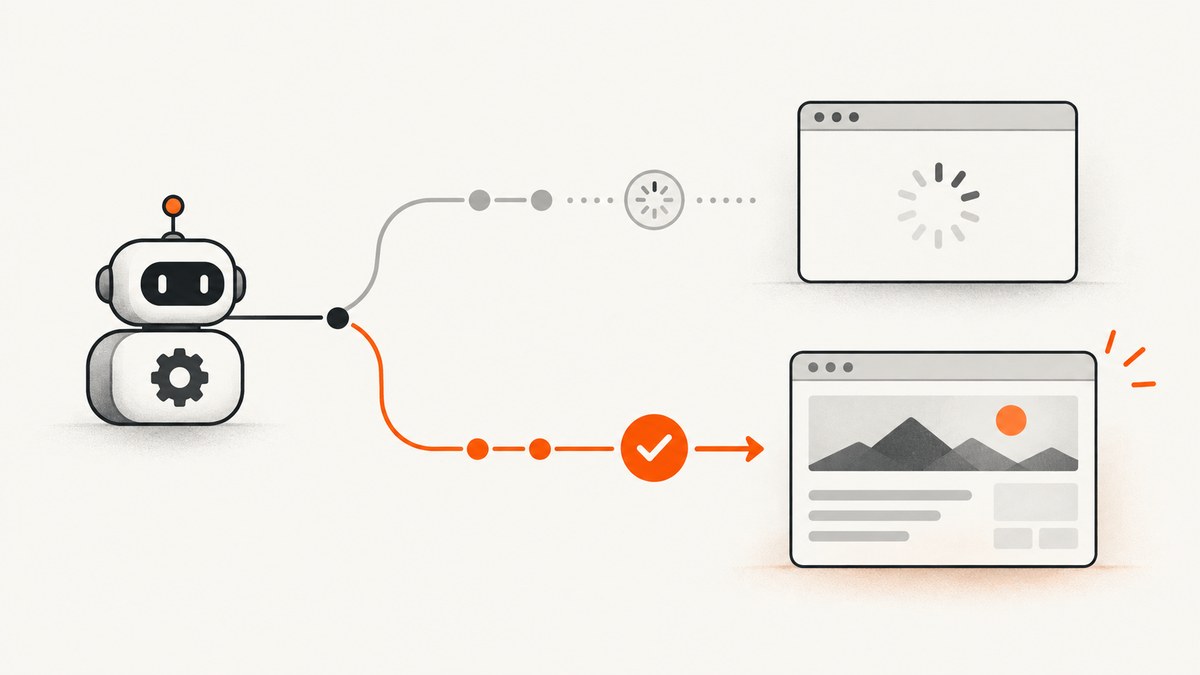
Puppeteer’s “Navigation Timeout of 30000 ms Exceeded” error means the lifecycle condition you asked it to wait for did not complete within the default 30,000 milliseconds. It does not tell you whether the cause is a slow server, a blocked request, a third-party script, a strict readiness condition, or a navigation race.
Start by identifying which operation timed out and what it was waiting for. Then choose the least strict readiness condition that still gives your task the content it needs. Increase the timeout only when the expected operation needs more time; avoid disabling it without an independent deadline.
1. What the 30-second timeout means
Puppeteer’s wait options use a default maximum wait time of 30,000 milliseconds. For navigation, the default waitUntil condition is load. If you provide an array of lifecycle events, Puppeteer waits until every event in that array has fired. A timeout means that condition was not satisfied before the deadline; it does not prove that the page failed to load entirely.

These conditions describe different milestones:
| Condition | What it waits for | Often useful when |
|---|---|---|
domcontentloaded |
The document has been parsed and the DOM content-loaded event has fired. | You need the initial DOM and can wait for application content separately. |
load |
The page’s load event has fired. This is the default. | You need the normal page load milestone and its required resources have finished loading. |
networkidle0 |
There are no more than zero active network connections for the defined idle period. | The page settles its network activity and that is a meaningful readiness signal. |
networkidle2 |
There are no more than two active network connections for the defined idle period. | A small number of persistent connections are expected. |
Network-idle conditions can be a poor fit for pages that keep connections open, poll APIs, or load analytics and other third-party resources continuously. For those pages, wait for the content your task actually needs, such as a report container or a known application-ready signal.
2. Identify the operation and the readiness requirement
Before changing configuration, find the call named in the stack trace. The timeout may come from page.goto(), page.reload(), page.goBack(), page.goForward(), page.setContent(), or page.waitForNavigation(). It may also come from a wait that follows navigation, such as waitForSelector(); read the full error and stack to distinguish them.
- Record the operation, URL, and chosen
waitUntilvalue. - Capture the response status and final URL when navigation returns a response.
- Decide what the next step needs: a parsed DOM, a loaded page, a particular selector, or an application-specific ready state.
- Check whether the same URL behaves differently in your server or container than on your development machine.
A successful navigation wait is not the same as a successful HTTP response. Current Page documentation notes that headless shell navigation does not throw solely because a valid HTTP status such as 404 or 500 was returned. Inspect the response status separately.
3. Use the least strict wait that fits the task
If you only need the initial DOM, try domcontentloaded. If you need content that appears after client-side rendering, navigate first and wait for a selector or application signal. If you need loaded images or fonts for a screenshot or PDF, wait for those relevant assets or for the page’s own ready marker; changing to an earlier event alone may produce incomplete output.
Initial DOM: wait for DOM parsing
const response = await page.goto(url, {
  waitUntil: 'domcontentloaded',
  timeout: 60_000,
});

console.log({
  requestedUrl: url,
  finalUrl: page.url(),
  status: response ? response.status() : null,
});
Application content: wait for a specific selector
await page.goto(url, {
  waitUntil: 'domcontentloaded',
  timeout: 60_000,
});

await page.waitForSelector('#report-ready', {
  timeout: 15_000,
});
The second timeout belongs to the selector wait. If it expires, investigate whether the selector is correct, whether the page reached the expected route, or whether the application failed to render the content. Raising the navigation timeout will not fix a selector that never appears.
Use full load when your task needs it
await page.goto(url, {
  waitUntil: 'load',
  timeout: 60_000,
});
Keep load when the task depends on resources associated with that milestone. If a page never reaches it because an optional external resource is blocked or slow, inspect that resource before choosing a different condition.
4. Increase the timeout for genuinely slow navigation
When the page normally needs longer than 30 seconds, set a larger bounded timeout. Use a per-call setting when only one operation is slow:
await page.goto(url, {
  waitUntil: 'domcontentloaded',
  timeout: 60_000,
});
Use a page default when several navigation-related operations on that page need the same limit:
page.setDefaultNavigationTimeout(60_000);

await page.goto(url, { waitUntil: 'load' });
await page.reload({ waitUntil: 'domcontentloaded' });
setDefaultNavigationTimeout() affects navigation-related methods including back, forward, goto, reload, setContent, and waitForNavigation. It sets a maximum; it does not make a slow request faster or guarantee that navigation will succeed. Prefer the smallest limit that accommodates the expected workload so failures are detected promptly.
5. Complete runnable Node.js example
This example accepts a URL from the command line, uses an explicit bounded timeout, reports the final URL and response status, and closes the browser even if navigation fails. Install Puppeteer in your project with npm install puppeteer, then save this as capture.js and run node capture.js https://example.com.
const puppeteer = require('puppeteer');

async function main() {
  const url = process.argv[2];
  if (!url) {
    throw new Error('Usage: node capture.js <url>');
  }

  const browser = await puppeteer.launch({ headless: true });
  try {
    const page = await browser.newPage();
    page.setDefaultNavigationTimeout(60_000);

    page.on('requestfailed', request => {
      console.error('Request failed:', request.url(), request.failure()?.errorText);
    });

    const response = await page.goto(url, {
      waitUntil: 'domcontentloaded',
    });

    console.log({
      requestedUrl: url,
      finalUrl: page.url(),
      status: response ? response.status() : null,
    });

    await page.screenshot({ path: 'page.png', fullPage: true });
  } finally {
    await browser.close();
  }
}

main().catch(error => {
  console.error(error);
  process.exitCode = 1;
});
The example listens for failed requests to help diagnose missing resources; a failed optional analytics request may not matter to the capture. A screenshot taken after domcontentloaded can still miss content rendered later, so replace or supplement the wait with a selector or app-ready signal when the page needs time to render.
6. Diagnose external resources and environment differences
A page can depend on scripts, stylesheets, fonts, images, or API calls hosted elsewhere. Slow or inaccessible resources may prevent the chosen lifecycle event from firing. A Puppeteer issue report describes a page.setContent() timeout involving external scripts; the reporter said removing external resources allowed PDF generation. Treat this as a useful diagnostic pattern, not proof that every timeout has the same cause.
- Inspect failed requests and their error text.
- Check whether required hostnames resolve and are reachable from the actual machine, container, or CI worker.
- Compare local and deployed DNS, TLS, proxy, firewall, and outbound-network behavior.
- Determine whether third-party scripts, fonts, ads, analytics, or API calls are required for the output.
- For
setContent(), inspect the HTML it receives and any external resource URLs it references.
Use browser request logging to identify slow or failed resources. Avoid treating every failed request as fatal: first establish whether that resource is part of the output your task needs.
7. Avoid click and navigation races
If clicking an element triggers navigation, start waiting for navigation and clicking in the same Promise.all(). Waiting only after the click can miss a fast navigation; waiting before the click without coordinating the actions can also leave the wait hanging if the click does not navigate.
const [response] = await Promise.all([
  page.waitForNavigation({
    waitUntil: 'domcontentloaded',
    timeout: 30_000,
  }),
  page.click('a.next'),
]);

console.log('New URL:', page.url());
console.log('Status:', response ? response.status() : null);
If the click updates content without a full navigation, waitForNavigation() is the wrong signal. Wait for the changed URL, selector, or application state instead.
8. When to disable the timeout
Passing timeout: 0 disables the wait timeout. That can be appropriate for a controlled operation whose completion is bounded elsewhere, but it can also leave a worker waiting indefinitely when a resource hangs. Pair it with an independent deadline or cancellation mechanism in your job runner, and make sure the deadline closes or abandons the browser operation.
await page.goto(url, {
  waitUntil: 'domcontentloaded',
  timeout: 0,
});
// The job runner must enforce its own deadline and cancellation.
Disabling Puppeteer’s timeout does not disable network failures or provide an alternate readiness condition. In ordinary automation, a realistic bounded timeout and a task-specific wait are easier to operate.
9. Common errors and fixes
| Symptom | Likely cause | Fix |
|---|---|---|
goto() times out at 30 seconds |
The default load condition did not fire in time. |
Check required resources; use domcontentloaded if initial DOM is enough, or increase the bounded timeout if full load is expected to take longer. |
| Navigation succeeds but screenshot is blank or incomplete | The DOM event fired before client-side content or assets were ready. | Wait for the specific content selector or app-ready signal before capture. |
networkidle0 never completes |
Persistent connections, polling, or ongoing third-party requests keep the page active. | Use a selector or application signal; use a less strict idle condition only if it matches the task. |
setContent() times out |
External resources referenced by the supplied HTML may be slow or unreachable. | Inspect resource requests and test whether the output can be generated without the external dependency. |
| Timeout happens after clicking a link | The click and navigation wait were not coordinated, or the interaction does not cause full navigation. | Use the documented Promise.all() pattern for real navigation; wait for a state change when there is no navigation. |
| Navigation returns 404 or 500 without throwing | A valid HTTP error status is separate from a navigation timeout. | Inspect response.status() and handle the status according to the application. |
| Works locally, fails in a container | DNS, TLS, proxy, firewall, or outbound access differs in deployment. | Compare network access and failed requests from the environment that runs Puppeteer. |
| Raising the timeout does not help | The condition never becomes true, or the code is waiting for the wrong event. | Check the operation, event, selector, final URL, and resource failures before raising the limit again. |
10. Performance, reliability, and cost considerations
A larger timeout improves tolerance for legitimately slow pages but also means a stalled job can occupy a browser and worker longer. Choose a task-level deadline, bound retries, and record enough context to distinguish slow pages from unreachable resources. Avoid unlimited waits in bulk jobs.
For reliability, make readiness explicit: record the requested and final URL, response status, wait condition, elapsed time, and failed requests. If a page can be served with a known ready marker, waiting for that marker is usually easier to reason about than waiting for all network activity to stop. If you capture many URLs, use the same readiness policy only where the pages share behavior; a single timeout setting cannot make different sites equally predictable.
There is no fixed cost figure implied by Puppeteer’s timeout itself. Operational cost depends on how long browser processes and workers remain occupied, how many retries run, and the infrastructure you use. A short but appropriate timeout can avoid wasting capacity on pages that cannot satisfy the requested condition; an excessively short timeout can create retries and incomplete captures.
11. Or skip the browser setup
If your goal is a website screenshot rather than browser automation itself, ScreenshotNeo provides a screenshot API and MCP server. It accepts a URL in one GET request and can return an image or PDF. See the API documentation for request options.
curl -G "https://api.screenshotneo.com/v1/shot" -d access_key=YOUR_API_KEY --data-urlencode url=https://stripe.com -o shot.webpimport requests
r = requests.get("https://api.screenshotneo.com/v1/shot", params={"access_key": "YOUR_API_KEY", "url": "https://stripe.com"}, timeout=90)
open("shot.webp", "wb").write(r.content)const q = new URLSearchParams({ access_key: 'YOUR_API_KEY', url: 'https://stripe.com' });
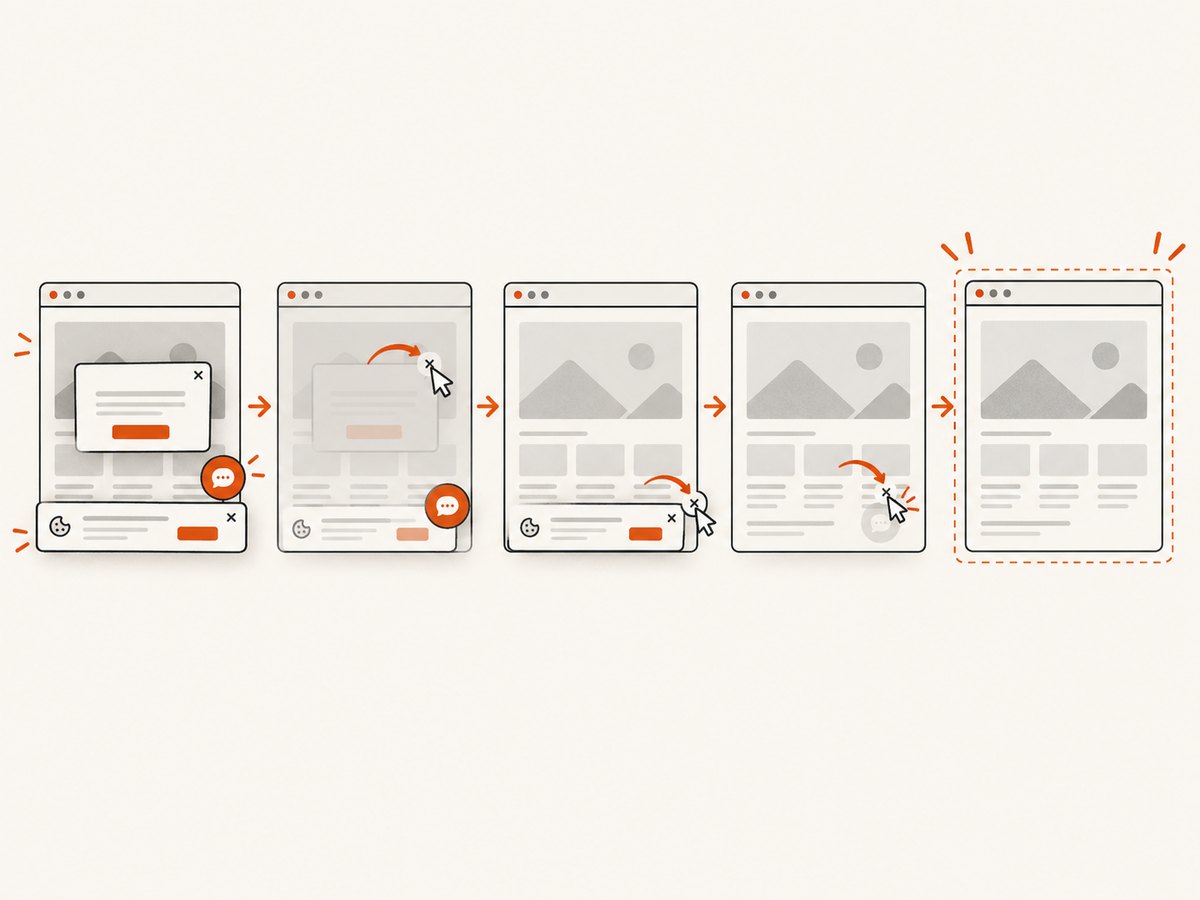
const res = await fetch(`https://api.screenshotneo.com/v1/shot?${q}`);ScreenshotNeo accepts cookie and consent banners like a visitor and removes more than 60 known consent platforms, newsletter popups, and chat widgets before capture; each step can be turned off. Bot checks and CAPTCHAs, blank pages, timeouts, failed loads, and cache hits are not billed, and response headers report the page verdict and billing status. Its MCP server includes take_screenshot, get_page_info, and capture_pdf for Claude, Cursor, and other MCP clients. The free plan includes 1,000 screenshots a month with no card; paid plans start at $5 for 3,000 screenshots. Sign up for 1,000 free screenshots a month, no card required.
12. FAQ
Does the message mean the website is down?
No. It means the requested wait condition did not finish before the timeout. The site may have returned a response while a later lifecycle event or resource remained pending.
Should I always use networkidle0 for screenshots?
No. Pages with persistent connections or recurring requests may never become idle. Wait for the rendered content or application-ready signal your screenshot requires.
Can a 404 cause this exact timeout?
A valid HTTP status such as 404 or 500 is a separate result from a navigation timeout. Inspect the response status rather than assuming the timeout message describes the HTTP result.
Does increasing the timeout repair blocked scripts?
No. It gives a slow operation more time, but it does not repair blocked or unreachable resources. Inspect request failures and deployment network access.
Sources
- Puppeteer Page API: navigation methods, default navigation timeout, navigation response behavior, and click/navigation coordination.
- Puppeteer WaitForOptions: maximum wait time and the meaning of timeout zero.
- Puppeteer issue #12077: a reported
setContent()timeout associated with external resources.


