How to Fix Puppeteer Navigation Timeout Errors
Fix Puppeteer navigation timeouts by finding the operation that stalled, choosing the right readiness condition, and setting a bounded timeout.
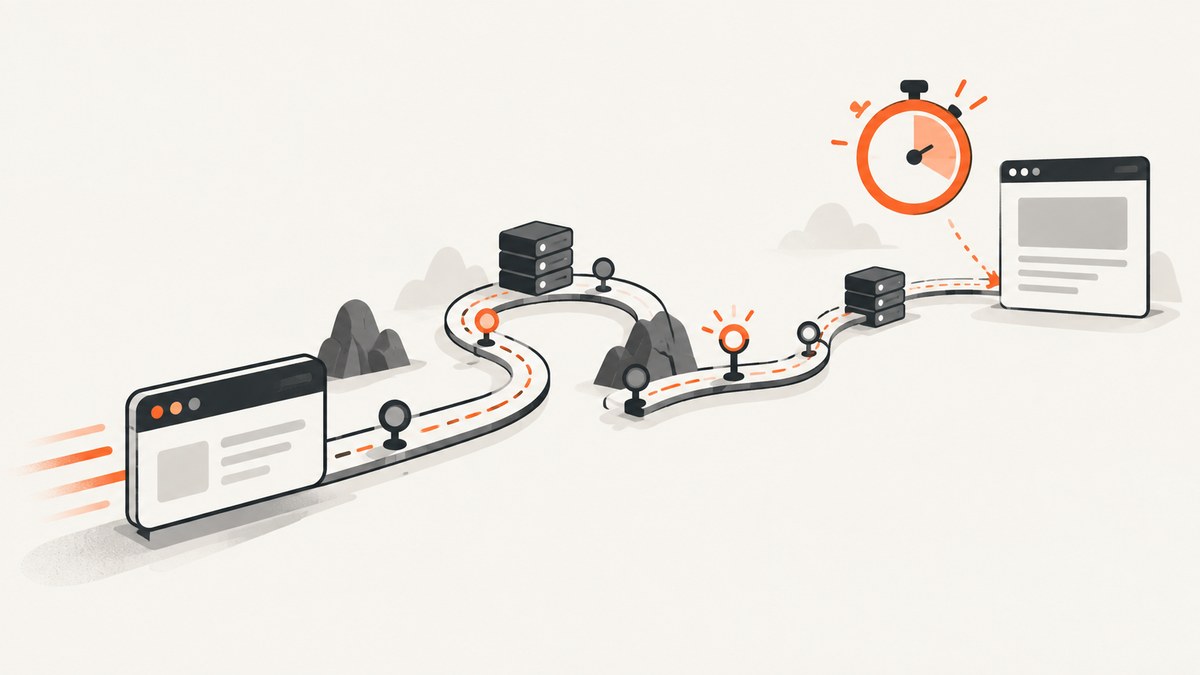
Puppeteer’s Navigation timeout of 30000 ms exceeded means an operation reached its 30-second deadline before its configured completion condition was satisfied. The fix depends on which operation timed out: use a narrower waitUntil condition if the page is usable before all network activity ends, set an appropriate per-call or page-wide timeout if the work genuinely needs longer, and wait for the specific content your script needs. If a click triggers navigation or a response, register the corresponding wait before the click.
Start with the operation named in the stack trace. A Puppeteer TimeoutError can come from navigation, selector waits, response waits, or other operations. Increasing a navigation timeout will not fix a selector wait or an event wait registered too late.
1. Identify what timed out
Record the URL, operation, timeout, and readiness condition. This makes it possible to tell a slow document load from a network-idle condition that never settles or an event race. Puppeteer’s documented default for common navigation and wait operations is 30 seconds. Where an operation supports it, timeout: 0 disables the deadline; use that only when your own job-level controls bound the wait.
try {
  const response = await page.goto('https://example.com', {
    waitUntil: 'domcontentloaded',
    timeout: 30000,
  });
  console.log('status:', response?.status() ?? 'no HTTP response');
} catch (error) {
  console.error({
    name: error.name,
    message: error.message,
    url: page.url(),
    defaultNavigationTimeout: page.getDefaultNavigationTimeout(),
  });
  throw error;
}
The response, when present, represents the final redirected response. A null response is possible for cases such as navigating to about:blank. A successful HTTP status does not prove that the application reached the state your script needs, so check the relevant page content or application signal separately. [Puppeteer Page.goto API]
2. Choose a readiness condition that fits the page
waitUntil controls when goto() considers navigation complete. The right choice depends on what you need next:
| Condition | Use it when | What it does not prove |
|---|---|---|
domcontentloaded |
The document has been parsed and your next step can wait for its own required content. | Images, stylesheets, and other subresources may still be loading; client-side data may not be ready. |
load |
Your work depends on the page load event and its required subresources. | The application may still fetch data or render content after load. |
networkidle0 / networkidle2 |
Network activity is expected to settle and that quiet period is relevant to your task. | It does not guarantee the specific content you need appeared. Polling, streams, ads, analytics, or persistent connections can prevent the condition from settling. |
Use network idle only when the site’s traffic can become quiet. Puppeteer identifies an unsatisfied waitUntil condition as a possible cause of navigation timeouts. If a document is visibly usable but the idle wait expires, try domcontentloaded or load, then wait for the required selector or application marker. [Puppeteer navigation guide]
For example, wait for the DOM and then for the result your script actually consumes:
await page.goto('https://example.com/catalog', {
  waitUntil: 'domcontentloaded',
  timeout: 30000,
});
await page.waitForSelector('[data-testid="catalog-results"]', {
  visible: true,
  timeout: 15000,
});
The selector timeout is its own deadline. Choose a value that matches the expected application response time and fail clearly if the marker does not appear. If the application exposes a meaningful ready state or URL change, wait for that instead of assuming a navigation event means every client-side update has finished.
3. Set the smallest useful timeout
For a single slow route, set a per-navigation timeout. This avoids changing other operations on the page:
await page.goto('https://example.com/report', {
  waitUntil: 'load',
  timeout: 60000,
});
For a consistent page-level policy, set the default navigation timeout. It applies to goto, reload, goBack, goForward, setContent, and waitForNavigation. Read the current value during diagnosis:
page.setDefaultNavigationTimeout(60000);
console.log(page.getDefaultNavigationTimeout()); // milliseconds
Use the per-call setting when only one operation needs more time; use the default when the same policy should apply to these navigation methods on that page. A larger deadline gives a slow or stuck page more time to occupy a worker. It does not make an unsatisfiable condition satisfiable, so first verify that the chosen wait condition is appropriate. [setDefaultNavigationTimeout API]
4. Register event waits before the triggering action
A common cause of waitForNavigation() timing out after a click is ordering: the action may trigger navigation before the script begins waiting. Create the promise first, then trigger the event:
const navigationPromise = page.waitForNavigation({
  waitUntil: 'domcontentloaded',
  timeout: 30000,
});
await page.click('a.next');
const response = await navigationPromise;
console.log('new URL:', page.url(), 'status:', response?.status());
This pattern also handles a click that does not navigate in the way expected: the navigation promise will reject at its deadline. If the control updates the current page with client-side routing, a full navigation may not occur. Wait instead for the expected URL or content change.
For a request triggered by a click, register waitForResponse() first:
const responsePromise = page.waitForResponse(
  response => response.url().includes('/api/items') && response.ok(),
  { timeout: 15000 },
);
await page.click('#load-items');
const response = await responsePromise;
console.log('API status:', response.status());
await page.waitForSelector('[data-testid="item-row"]');
Registering a response or navigation wait after the action can miss the event entirely, leaving the script waiting for an event that already happened. [Puppeteer network guide]
5. A complete runnable Puppeteer example
This Node.js example launches Chromium, navigates with a bounded timeout, waits for a page-specific marker, records the final URL and response status, and closes the browser even if navigation fails. Install Puppeteer in your project with npm install puppeteer, save the script as capture.js, then run node capture.js.
const puppeteer = require('puppeteer');

(async () => {
  const url = process.argv[2] || 'https://example.com';
  const browser = await puppeteer.launch({ headless: true });

  try {
    const page = await browser.newPage();
    page.setDefaultNavigationTimeout(30000);

    console.log('Opening:', url);
    const response = await page.goto(url, {
      waitUntil: 'domcontentloaded',
      timeout: 30000,
    });

    // Replace this with a selector that proves your target page is ready.
    await page.waitForSelector('body', {
      timeout: 10000,
    });

    console.log({
      finalUrl: page.url(),
      status: response?.status() ?? null,
      title: await page.title(),
    });
    await page.screenshot({ path: 'page.png', fullPage: true });
  } catch (error) {
    console.error('Capture failed:', error.name, error.message);
    throw error;
  } finally {
    await browser.close();
  }
})().catch(() => {
  process.exitCode = 1;
});
For a production job, choose a readiness selector specific to the page rather than treating body as proof that the data is ready. Decide how your job handles non-success HTTP responses, redirects, and partial application state; a screenshot can be produced even when the page’s intended content did not load.
6. Troubleshoot common failures
| Symptom | Likely cause | Fix |
|---|---|---|
Navigation timeout of 30000 ms exceeded from goto() |
The document is slow, or the selected readiness condition never completes. | Log waitUntil; use domcontentloaded or load if appropriate; wait explicitly for required content. Raise the timeout only if the operation legitimately needs more time. |
Timeout occurs only with networkidle0 or networkidle2 |
Background traffic keeps the page active. | Use a document lifecycle condition and then wait for the application’s selector or ready signal. |
waitForNavigation() times out after click |
The wait was created after the click, or the click uses client-side routing without full navigation. | Register the promise before clicking. If there is no full navigation, wait for URL or content change instead. |
waitForResponse() times out |
The listener started too late, the action did not issue that request, or the predicate is too restrictive. | Register the wait first, inspect the request URL/status, and make the predicate match the actual request. |
| Navigation succeeds but expected data is missing | The load event occurred before asynchronous application data rendered, or the response was an error page. | Inspect the response status and final URL, then wait for an application-specific selector or state. |
| Increasing the timeout changes nothing | The stack trace points to a different wait operation, the target/browser closed, or the condition can never become true. | Identify the exact operation in the stack, check selector and event ordering, and investigate target closure separately. |
| The same URL is unreachable outside Puppeteer | Possible DNS, proxy, TLS, authentication, server latency, or robots/WAF issue. | Verify the URL and access path independently, then resolve the network or access issue before tuning Puppeteer waits. |
Use the URL as a fully qualified address, including https://. Record redirects and the final response rather than assuming the original host returned the page. If the browser or target closes, treat that as a separate failure; repeatedly increasing navigation time will not repair a closed target.
7. Performance, reliability, and cost considerations
Each wait is time your worker may spend on one page. A 60-second navigation deadline can be reasonable for a known slow workflow, but applying it everywhere increases the maximum time a stuck page can consume. Prefer short, meaningful readiness conditions and explicit per-step limits. Use an outer job deadline as well, especially when a queue or batch processes many URLs.

Network-idle waits can be less reliable on pages with polling, streaming, advertisements, analytics, or long-lived connections. A selector that signals the required content is often a better readiness test, provided the selector is stable and specific. A generic selector such as body only proves that a body exists.
For batch jobs, collect the URL, operation, configured deadline, wait condition, final URL, and response status with each failure. This lets you distinguish slow origins from a flawed condition and avoid retrying every timeout identically. Set retry limits and backoff in your own job logic; retries cannot fix a permanently inaccessible page and add more work for a page that never reaches the required state.
Or skip the browser setup
If your goal is to obtain a page screenshot rather than control a browser session, ScreenshotNeo provides a screenshot API and MCP server. The API accepts one GET request and returns an image or PDF. See the ScreenshotNeo website and API documentation for configuration.
curl -G "https://api.screenshotneo.com/v1/shot" -d access_key=YOUR_API_KEY --data-urlencode url=https://stripe.com -o shot.webpimport requests
r = requests.get(
"https://api.screenshotneo.com/v1/shot",
params={"access_key": "YOUR_API_KEY", "url": "https://stripe.com"},
timeout=90,
)
open("shot.webp", "wb").write(r.content)const q = new URLSearchParams({ access_key: 'YOUR_API_KEY', url: 'https://stripe.com' });
const res = await fetch(`https://api.screenshotneo.com/v1/shot?${q}`);
if (!res.ok) throw new Error(`ScreenshotNeo returned HTTP ${res.status}`);
await require('node:fs/promises').writeFile('shot.webp', Buffer.from(await res.arrayBuffer()));ScreenshotNeo removes cookie banners, popups, and chat widgets before the shot. Bot checks, blank pages, and failed loads are never billed. Its MCP server gives AI agents tools to take screenshots. The Free plan includes 1,000 screenshots a month with no card; paid plans start at $5 for 3,000 shots. Sign up for 1,000 free screenshots a month, with no card.
FAQ
Can I set the timeout to zero?
Where the operation documents timeout: 0, it disables that operation’s deadline. Use it only when another bounded control, such as a job deadline, prevents an indefinitely stuck worker.
Does a successful goto() mean the page is ready?
It means the selected navigation condition completed. It does not guarantee that client-rendered data or the particular element your task needs is ready.
What if the page uses a single-page application?
Client-side route changes may not trigger a full navigation. Wait for the expected URL or rendered content instead of waiting indefinitely for waitForNavigation().
Should I always use networkidle0?
No. Use it only when the page can become quiet and quiet network activity is relevant to your task. Persistent background requests can prevent it from completing.


