How to Use Puppeteer with Netlify
Deploy Puppeteer on Netlify Functions with compatible Chromium, reliable bundling, timeouts, troubleshooting, and a no-browser ScreenshotNeo option.
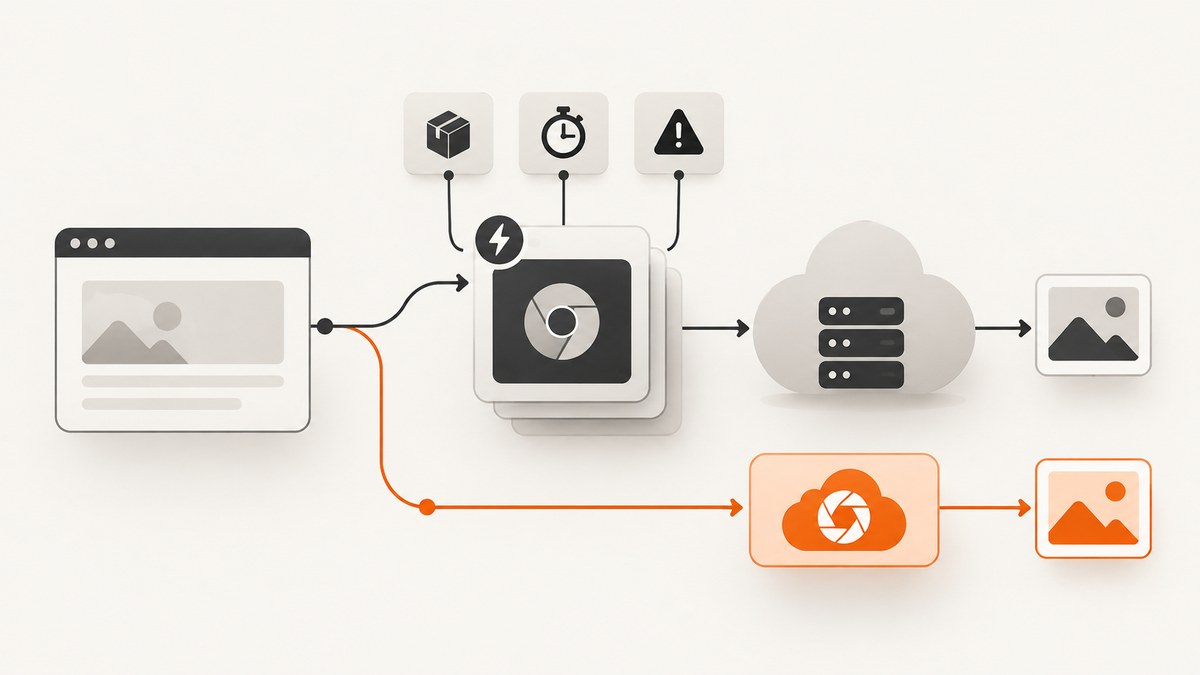
Short answer: run Puppeteer inside a Netlify Function and provide a Linux-compatible Chromium binary. For a production deployment, the common pattern is puppeteer-core plus @sparticuz/chromium: launch Puppeteer with Chromium’s serverless arguments and the executable path returned by the package, then always close the browser in a finally block. Netlify must include the browser package and its runtime files in the deployed function bundle.
This guide shows the complete setup, explains the trade-offs between puppeteer and puppeteer-core, covers synchronous and Background Functions, and gives a troubleshooting checklist for the errors that usually appear only after deployment. Package releases and Netlify limits change, so verify the current compatibility guidance before pinning versions.
1. How the deployment works
Puppeteer is the automation library. Chrome or Chromium is a separate runtime dependency that must exist wherever your function executes. The standard puppeteer package downloads a compatible Chrome for Testing during installation. puppeteer-core does not download a browser; your application must supply one and pass its path to launch(). See the Puppeteer installation guide and configuration guide.

On Netlify, the function source normally lives in netlify/functions/ and is built and deployed with the site. The handler receives a web-standard Request and returns a Response. Netlify documents this layout in its Functions getting started guide.
The serverless Chromium package @sparticuz/chromium supplies a Linux Chromium binary and launch arguments intended for serverless platforms, including Netlify examples. Its release must be compatible with the Puppeteer release you install.
2. Create the Netlify project
- Create a Node.js project and install the runtime dependencies as production dependencies.
- Put the function in
netlify/functions/, outside the publish directory. - Deploy with the browser package present in the build output; do not rely on a Chrome cache on your laptop.
- Run the function with Netlify Dev before deploying, then verify an actual deployment because local Chrome and the production Linux bundle are different environments.
mkdir netlify-puppeteer
cd netlify-puppeteer
npm init -y
npm install puppeteer-core @sparticuz/chromium
Use a current, mutually compatible release of both packages. Avoid copying an old version pairing from a blog post. If your package manager blocks install scripts and you choose the full puppeteer package, its browser download may be skipped; that produces a runtime “Could not find Chrome” error. Puppeteer’s troubleshooting documentation describes this failure mode.
A minimal project can look like this:
netlify-puppeteer/
├── netlify/
│   └── functions/
│       └── screenshot.mjs
├── package.json
└── netlify.toml
If you change the functions directory, configure it in the Netlify project settings or in netlify.toml. The directory should remain outside the published site directory. See Netlify’s function configuration documentation.
3. A complete Puppeteer Netlify Function
The following function accepts a url query parameter, loads the page, takes a PNG screenshot, and returns it. It uses Chromium’s executable path and arguments, sets bounded navigation and browser-operation timeouts, and closes the browser even when an exception occurs.
import puppeteer from "puppeteer-core";
import chromium from "@sparticuz/chromium";

export default async function handler(request) {
  const requestUrl = new URL(request.url);
  const target = requestUrl.searchParams.get("url");

  if (!target) {
    return new Response(JSON.stringify({ error: "Missing url query parameter" }), {
      status: 400,
      headers: { "content-type": "application/json" }
    });
  }

  let parsed;
  try {
    parsed = new URL(target);
  } catch {
    return new Response(JSON.stringify({ error: "url must be a valid absolute URL" }), {
      status: 400,
      headers: { "content-type": "application/json" }
    });
  }

  if (!["http:", "https:"].includes(parsed.protocol)) {
    return new Response(JSON.stringify({ error: "Only http and https URLs are allowed" }), {
      status: 400,
      headers: { "content-type": "application/json" }
    });
  }

  let browser;
  try {
    browser = await puppeteer.launch({
      args: chromium.args,
      defaultViewport: { width: 1440, height: 900, deviceScaleFactor: 1 },
      executablePath: await chromium.executablePath(),
      headless: "shell"
    });

    const page = await browser.newPage();
    page.setDefaultNavigationTimeout(45000);
    page.setDefaultTimeout(15000);

    await page.goto(parsed.href, { waitUntil: "networkidle2" });
    const image = await page.screenshot({
      type: "png",
      fullPage: true
    });

    return new Response(image, {
      status: 200,
      headers: {
        "content-type": "image/png",
        "cache-control": "no-store"
      }
    });
  } catch (error) {
    console.error("Screenshot failed", error);
    return new Response(JSON.stringify({
      error: "Screenshot failed",
      detail: error instanceof Error ? error.message : String(error)
    }), {
      status: 502,
      headers: { "content-type": "application/json" }
    });
  } finally {
    if (browser) {
      await browser.close();
    }
  }
}
Call it locally with a URL-encoded target:
curl "http://localhost:8888/.netlify/functions/screenshot?url=https%3A%2F%2Fexample.com" -o example.pngThe headless value and Chromium arguments are release-sensitive. If the selected Chromium release documents a different headless setting, follow that package’s current README.
4. Run and deploy the function
Install the Netlify CLI, authenticate, and start the local development server. Netlify supports browser invocation for GET requests and also provides netlify functions:invoke for other request shapes. The CLI function management guide covers both approaches.
npm install -g netlify-cli
netlify login
netlify init
netlify dev
Open the printed local URL and request /.netlify/functions/screenshot?url=.... Inspect the terminal logs for launch and navigation errors. After that local check, deploy through your normal Netlify workflow:
netlify deploy --prodNetlify’s build system must include puppeteer-core, @sparticuz/chromium, and the Chromium files required at runtime. If you keep dependencies inside an unbundled function folder, Netlify does not recursively install them for each folder; its CLI documentation recommends an explicit prebuild or postinstall installation step for that layout. A root-level package installation, as shown above, is simpler for most projects.
5. Choosing puppeteer or puppeteer-core
| Choice | Browser source | Use it when | Main risk |
|---|---|---|---|
puppeteer |
Install script downloads a compatible Chrome for Testing | You want Puppeteer to manage the browser download | Install scripts may be disabled, and the downloaded browser must be included in the function bundle |
puppeteer-core + @sparticuz/chromium |
Your application supplies a serverless Chromium binary | You need an explicit Linux browser suited to a serverless bundle | You must keep the Chromium and Puppeteer releases compatible |
With the full puppeteer package, do not assume the browser downloaded on a development machine will be available after deployment. Confirm the install step runs during the Netlify build and that the resulting files are packaged. With puppeteer-core, an explicit executablePath is mandatory; a path such as /usr/bin/google-chrome from a workstation will not exist in Netlify’s runtime.
6. Screenshots, PDFs, selectors and page state
Once the browser launches, Puppeteer can perform the normal browser automation tasks. Set the viewport before navigation when responsive layout matters, and use a selector or a bounded delay when the page renders asynchronously.
await page.setViewport({ width: 1280, height: 800, deviceScaleFactor: 2 });
await page.goto(target, { waitUntil: "domcontentloaded" });
await page.waitForSelector("main", { timeout: 10000 });
await page.screenshot({ path: "/tmp/page.webp", type: "webp", quality: 85 });
For a PDF, use the page’s print settings:
const pdf = await page.pdf({
  format: "A4",
  printBackground: true,
  margin: { top: "16mm", right: "12mm", bottom: "16mm", left: "12mm" }
});
return new Response(pdf, {
  headers: { "content-type": "application/pdf" }
});
Useful edge cases include pages that never become idle because analytics or WebSockets keep connections open, lazy-loaded images that appear only after scrolling, cookie dialogs that cover the content, and pages that require authentication. Prefer domcontentloaded plus a specific waitForSelector when networkidle2 does not settle. Scroll deliberately to trigger lazy loading, set cookies or extra headers before navigation, and close consent dialogs before the screenshot.
7. Netlify limits and long-running work
Netlify’s documented defaults currently include 1024 MB of memory, a 60-second synchronous execution limit, a 30-second scheduled-function limit, and a 15-minute Background Function limit. These are platform defaults, not a promise about Puppeteer startup time or page throughput. Check your project settings and plan before relying on them. Netlify also lists default payload limits of 6 MB for buffered request/response bodies and 20 MB for streamed responses, so a large PDF or full-page image may need to be written to object storage and returned as a link.
Use a synchronous function when the browser work is small and the caller needs the bytes immediately. Use a Background Function when navigation, rendering, or post-processing can exceed the request window. Background Functions return HTTP 202 initially and do not stream the completed result; write the output to a database, object store, or another destination, then let the client poll or receive a callback. Netlify’s Background Functions overview lists scraping and slower processing as examples.
8. Troubleshooting checklist
“Could not find Chrome”
Cause: Puppeteer’s install script did not run, or a browser was never supplied to puppeteer-core.
Fix: use @sparticuz/chromium with its executablePath(), or verify that the full Puppeteer browser download runs during the Netlify build and is bundled.
Executable path errors
Cause: the function uses a developer-machine Chrome path.
Fix: pass the path returned by the serverless Chromium package. Do not hard-code a macOS, Windows, or local Linux path.
Chromium exits immediately
Cause: an incompatible browser/Puppeteer release, missing serverless arguments, or a binary that is not compatible with Netlify’s Linux runtime.
Fix: align package releases, use the package’s documented arguments, and inspect the deployed function logs.
Works locally but fails after deployment
Cause: local Chrome or cached dependencies are masking a missing production file.
Fix: inspect the build output and production logs. Confirm Chromium is a production dependency and is included by Netlify’s bundler.
Navigation timeout
Cause: slow origin servers, blocked resources, an infinite-loading page, or a wait condition that never resolves.
Fix: set a finite navigation timeout, choose domcontentloaded when appropriate, wait for a concrete selector, and move unavoidable long jobs to a Background Function.
Out-of-memory or oversized response
Cause: full-page captures, high device scale factors, large PDFs, or multiple pages in one invocation.
Fix: reduce the viewport scale, capture only the required element, process one page at a time, store large results externally, and check Netlify’s current memory and payload limits.
9. Reliability and performance practices
- Always close the browser in
finally; leaked processes make warm invocations less reliable. - Reuse a browser only when you have measured the memory behavior and can isolate pages. A fresh browser per request is simpler, while a reused browser can reduce repeated startup cost.
- Set navigation and action timeouts explicitly. Never let a target site hold the function indefinitely.
- Use a narrow wait condition instead of global network idle on sites with analytics, ads, or persistent connections.
- Block unnecessary resources only when the resulting screenshot remains correct; fonts, CSS, and images can be essential to layout.
- Log the target hostname, elapsed stages, and sanitized error messages. Do not log credentials or complete authorization headers.
- Validate and restrict user-supplied URLs if the endpoint is public. Consider an allowlist to reduce SSRF exposure.
- For retries, distinguish navigation failures from invalid URLs and authentication failures. Retrying a permanently blocked page only increases cost and latency.
10. Or skip the browser setup
If your goal is simply to obtain a clean website screenshot, ScreenshotNeo provides a hosted API so your Netlify function does not need to package or launch Chromium. One GET request returns PNG, JPEG, WebP, or a PDF. Its capture pipeline accepts cookie and consent banners like a visitor and removes more than 60 known consent platforms, newsletter popups, and chat widgets before the shot; each step can be turned off. Bot checks and CAPTCHAs, blank pages, timeouts, failed loads, and cache hits cost nothing, and the response identifies the result with X-Page-Verdict and X-Billed headers.

cURL:
curl -G "https://api.screenshotneo.com/v1/shot" -d access_key=YOUR_API_KEY --data-urlencode url=https://stripe.com -o shot.webpPython:
import requests
r = requests.get("https://api.screenshotneo.com/v1/shot", params={"access_key": "YOUR_API_KEY", "url": "https://stripe.com"}, timeout=90)
open("shot.webp", "wb").write(r.content)
Node.js:
const q = new URLSearchParams({ access_key: 'YOUR_API_KEY', url: 'https://stripe.com' });
const res = await fetch(`https://api.screenshotneo.com/v1/shot?${q}`);
See the ScreenshotNeo API documentation for all options. You can select full-page or CSS-element captures, dark mode, device presets or any viewport, retina scale, PDF paper and margin settings, custom CSS and JavaScript, clicks, waits, blocked resources, headers, cookies, user agents, authorization, timezone, geolocation, transparent backgrounds, resizing, caching with a chosen TTL, signed image links, asynchronous jobs with signed webhooks, bulk capture for up to 100 URLs per call, usage data, and an OpenAPI specification. Parameter names used by other screenshot APIs also work to simplify migration. ScreenshotNeo also provides an MCP server with take_screenshot, get_page_info, and capture_pdf tools for Claude, Cursor, and other MCP clients.
The Free plan includes 1,000 screenshots each month with no card. Paid plans start at $5 for 3,000 shots; yearly billing gives two months free, and every feature is available on every plan. Create a free ScreenshotNeo account.
11. Frequently asked questions
Can Netlify Functions run a normal desktop Chrome installation?
Do not assume a desktop Chrome path exists. Supply a Linux-compatible browser in the function bundle and use its documented executable path.
Should I return the screenshot directly?
Return it directly for small images. For large images or PDFs, store the bytes and return a job identifier or signed download URL to stay within response limits.
Why does networkidle2 never finish?
Persistent analytics, advertisements, WebSockets, or long polling can keep connections open. Use domcontentloaded and wait for the specific element that proves the page is ready.
Is a Background Function a faster browser?
No. It gives suitable asynchronous work a longer execution window, up to Netlify’s documented limit. Browser startup, page behavior, memory, and bundle size still determine actual performance.
Do I need Puppeteer if I only need screenshots?
No. A hosted screenshot API such as ScreenshotNeo removes browser packaging and provides capture, PDF, waiting, blocking, and delivery options through HTTP.


