Printing a One-Long-Page PDF with Puppeteer
Create a single tall PDF page with Puppeteer using custom dimensions or CSS @page, then troubleshoot sizing, print styles, fonts, colors, and limits.
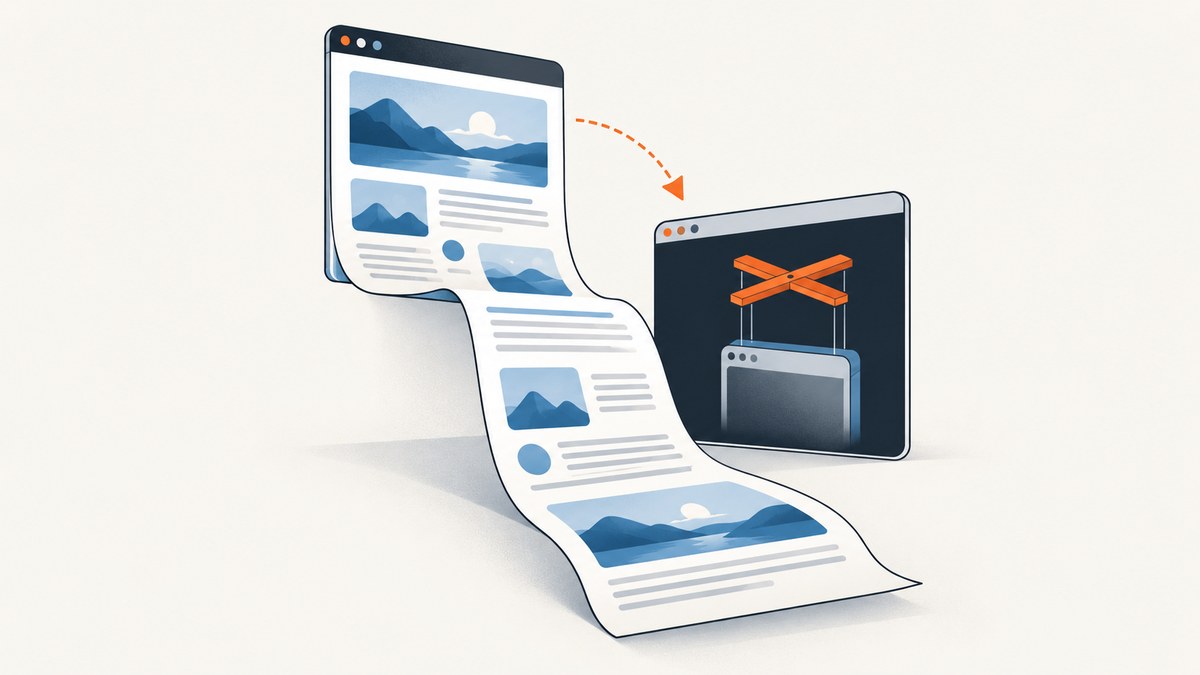
Use Puppeteer’s page.pdf() with a custom paper height when you need the entire document on one tall PDF page. You can define the dimensions in JavaScript with width and height, or define them in CSS with @page and enable preferCSSPageSize: true. Puppeteer prints with the CSS print media type by default, so print styles, margins, backgrounds, fonts, and color adjustment all affect the result.
Puppeteer’s documentation does not publish a maximum supported custom page height. Choose a height appropriate to your content, generate the PDF in the exact browser runtime you deploy, and inspect the output for clipping, unexpected page breaks, or unreadable scaling.
1. Minimal one-long-page PDF
This is the smallest useful pattern. The height is deliberately explicit; replace it with a dimension that fits your document.
import puppeteer from 'puppeteer';

const browser = await puppeteer.launch();
const page = await browser.newPage();

await page.goto('https://example.com', { waitUntil: 'networkidle2' });

await page.pdf({
  path: 'long.pdf',
  width: '8.5in',
  height: '120in',
  margin: 0,
  printBackground: true,
});

await browser.close();
The result is one PDF sheet measuring 8.5 by 120 inches if the content fits inside that rectangle. This uses Puppeteer’s documented PDFOptions controls. A tall page is not the same as a normal multi-page Letter or A4 document: use custom dimensions instead of a standard format when the page must remain one sheet.
2. Decide how the page size is controlled
There are two sound ways to choose the page dimensions. Pick one as the source of truth so CSS and JavaScript do not silently disagree.
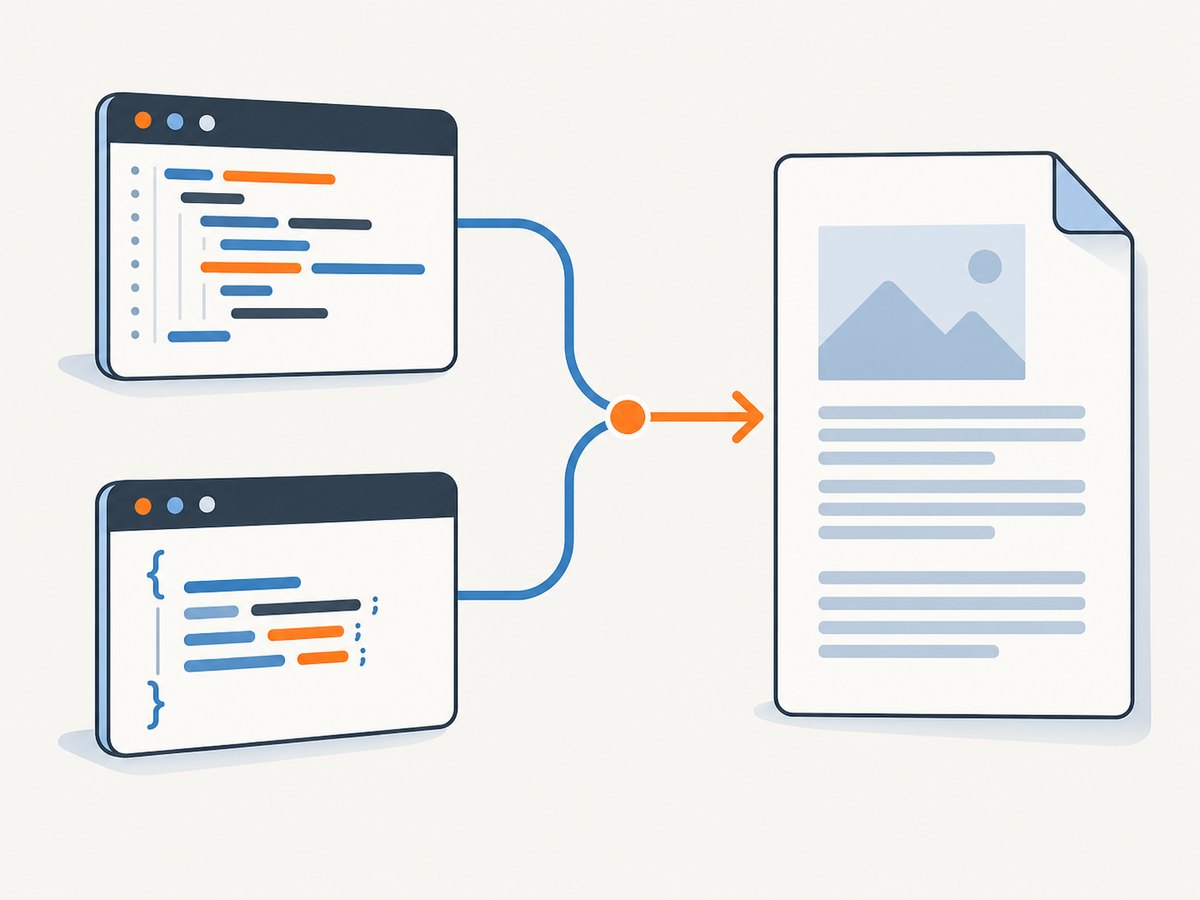
| Approach | How it works | Best when | Watch for |
|---|---|---|---|
| JavaScript width and height | Set width and height in page.pdf(). |
Your application calculates a target size or keeps print layout configuration in code. | A conflicting format takes priority over width and height. |
CSS @page |
Set size in CSS and pass preferCSSPageSize: true. |
The document owns its print dimensions and designers maintain print CSS. | The default for preferCSSPageSize is false; without enabling it, Puppeteer scales content to the configured paper size. |
API-controlled dimensions
await page.pdf({
  path: 'long-api-size.pdf',
  width: '8.5in',
  height: '120in',
  margin: {
    top: '0.25in',
    right: '0.25in',
    bottom: '0.25in',
    left: '0.25in',
  },
  printBackground: true,
});
Width and height accept CSS length values such as inches, millimetres, centimetres, and pixels. Set margins explicitly when the PDF needs an inset. The documented default is no margin, which is useful for edge-to-edge capture but can leave content too close to the physical edge for some printers.
CSS-controlled dimensions
<style>
  @page {
    size: 8.5in 120in;
    margin: 0;
  }

  @media print {
    body {
      margin: 0;
    }
  }
</style>
await page.pdf({
path: 'long-css-size.pdf',
preferCSSPageSize: true,
printBackground: true,
});With preferCSSPageSize: true, the CSS @page size takes priority. Do not also pass a conflicting format. Puppeteer states that format takes priority over width and height, so a leftover format: 'A4' can turn an intended tall sheet into a conventional page.
3. Complete runnable example
The following Node.js script creates a local HTML document, waits for its assets, selects print or screen styling, and writes one tall PDF. Save it as long-pdf.mjs, install Puppeteer with npm install puppeteer, and run node long-pdf.mjs.
import puppeteer from 'puppeteer';

const html = `
<!doctype html>
<html>
<head>
  <meta charset="utf-8">
  <style>
    @page {
      size: 8.5in 120in;
      margin: 0;
    }

    * { box-sizing: border-box; }
    html, body { margin: 0; padding: 0; }
    body {
      width: 8.5in;
      font-family: Arial, sans-serif;
      color: #172033;
      background: #ffffff;
    }
    .page {
      padding: 0.5in;
    }
    .section {
      min-height: 900px;
      margin-bottom: 24px;
      padding: 28px;
      background: #eef3ff;
      break-inside: avoid;
    }
    @media print {
      -webkit-print-color-adjust: exact;
      print-color-adjust: exact;
    }
  </style>
</head>
<body>
  <main class="page">
    <h1>One long report</h1>
    <section class="section">First section</section>
    <section class="section">Second section</section>
    <section class="section">Third section</section>
  </main>
</body>
</html>`;

const browser = await puppeteer.launch();
try {
  const page = await browser.newPage();
  await page.setContent(html, { waitUntil: 'networkidle0' });

  // Use this only when the design depends on screen media rules.
  // await page.emulateMediaType('screen');

  await page.evaluate(async () => {
    if (document.fonts) await document.fonts.ready;
  });

  await page.pdf({
    path: 'one-long-page.pdf',
    preferCSSPageSize: true,
    printBackground: true,
    margin: 0,
    scale: 1,
    timeout: 60000,
    waitForFonts: true,
  });
} finally {
  await browser.close();
}
The CSS height in this example is a fixed design choice, not a universal limit. If the content grows beyond 120 inches, increase the height or use a measurement step before calling page.pdf(). If it is much shorter, reduce the height to avoid unnecessary blank space.
4. Print media, screen media, and visual fidelity
Page.pdf() generates a PDF with the print CSS media type by default, as described in the official Page.pdf() reference. That means rules inside @media print apply, while screen-only rules may not. If your layout was designed for the viewport and you need those screen rules, call:
await page.emulateMediaType('screen');
await page.pdf({
  path: 'screen-styled-long.pdf',
  width: '8.5in',
  height: '120in',
  printBackground: true,
});
Use one media mode intentionally. A page can look correct in a headed browser and still change substantially in print mode because navigation, sticky elements, colors, and responsive breakpoints are different.
Backgrounds and exact colors
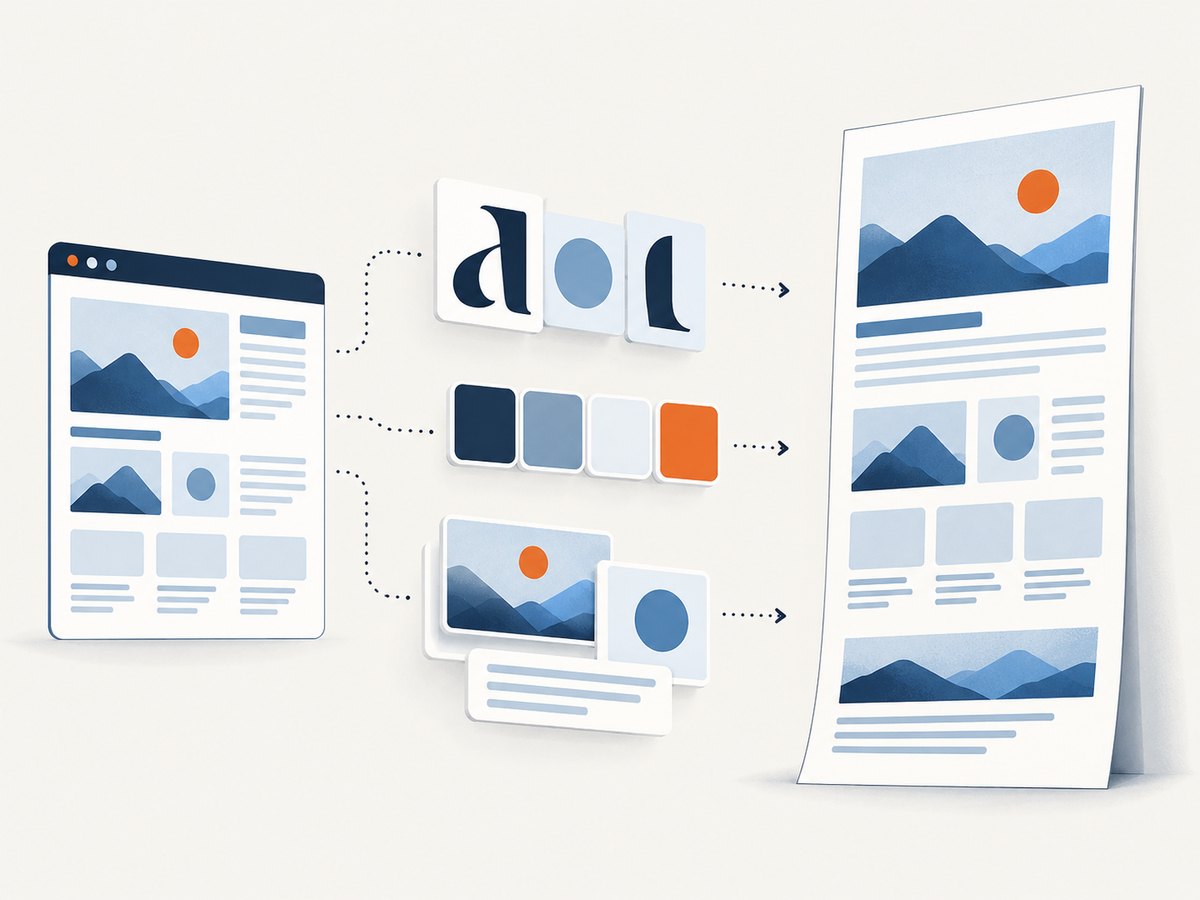
printBackground defaults to false. Set it to true when panels, gradients, charts, or page backgrounds belong in the PDF. Browsers also adjust printed colors by default. Add -webkit-print-color-adjust: exact (and the standard print-color-adjust: exact) to the print stylesheet when preserving exact colors matters.
Fonts and images
The PDF option waitForFonts defaults to true, and Puppeteer waits for font readiness during PDF generation. You should still wait for application-specific assets: verify that images have loaded, wait for a chart library to finish drawing, or wait for a selector that signals the page is ready.
await page.goto(url, { waitUntil: 'networkidle2' });
await page.waitForSelector('[data-report-ready]', { timeout: 30000 });
await page.evaluate(() => document.fonts?.ready);
5. Measuring content before choosing the height
A fixed height is predictable, but dynamic reports often need a measured height. Measure the document after fonts and asynchronous content are ready, convert the CSS pixel height into a PDF dimension, then add your desired padding. The conversion depends on the CSS pixel and physical-unit relationship used by the browser, so treat the result as an input to validation rather than a promise that every page will fit perfectly.
const contentHeight = await page.evaluate(() => {
  return Math.max(
    document.body.scrollHeight,
    document.documentElement.scrollHeight,
  );
});

const paddingPx = 48;
const heightPx = contentHeight + paddingPx;

await page.pdf({
  path: 'measured-long.pdf',
  width: '816px',
  height: `${heightPx}px`,
  margin: 0,
  printBackground: true,
});
Inspect the generated file with a PDF parser or viewer. Check the page count, page dimensions, bottom edge, and the last meaningful element. A measurement can be wrong when content expands after the measurement, when web fonts swap late, or when a browser extension or script changes the DOM.
6. Options that affect a long single page
| Option | Effect | Guidance |
|---|---|---|
width, height |
Set custom paper dimensions. | Use for a tall sheet; avoid a conflicting format. |
format |
Selects Letter, A4, and other standard paper sizes. | It takes priority over width and height, so omit it for custom dimensions. |
preferCSSPageSize |
Lets CSS @page size take priority. |
It defaults to false; set true for CSS-owned sizing. |
margin |
Creates printable inset around the content. | Set explicitly; use zero for edge-to-edge layouts. |
printBackground |
Includes background graphics. | Defaults to false; enable for colored panels and charts. |
scale |
Scales the rendered page. | Allowed range is 0.1 to 2. Scaling changes apparent text and content size. |
landscape |
Rotates standard paper orientation. | Useful for a wide custom design; keep width and height intentional. |
timeout |
Controls PDF generation timeout. | The default is 30 seconds. Increase it for genuinely slow rendering after fixing readiness issues. |
waitForFonts |
Waits for fonts before creating the PDF. | Defaults to true; retain it unless you have a measured reason not to. |
7. Avoiding accidental page breaks
A one-long-page PDF can still contain multiple PDF pages if the configured sheet is too short or CSS forces breaks. Remove rules such as break-before: page and page-break-before: always from sections that must remain continuous. For cards, tables, and figures that should not split, use:
.card, figure, table, .section {
  break-inside: avoid;
  page-break-inside: avoid;
}
This does not override a sheet that is physically too short. If an unbreakable block is taller than the remaining space, the browser may move it or overflow it. Keep large blocks smaller than the available page height, or allow them to break when continuity is more important than keeping each block intact.
8. Troubleshooting
The PDF is several pages instead of one
Cause: the configured height is too short, a format overrides your custom dimensions, or CSS adds page breaks.
Fix: remove format, confirm preferCSSPageSize is enabled when using @page, increase the height, and search print CSS for page-break rules.
The page is blank or content is missing
Cause: the script captured before asynchronous rendering completed, or the selected print media rules hide the content.
Fix: use waitUntil: 'networkidle2' or 'networkidle0', wait for a page-ready selector, await document.fonts.ready, and compare print and screen media styles.
Background colors and images disappeared
Cause: printBackground is false by default, and CSS color adjustment can change output.
Fix: pass printBackground: true and add -webkit-print-color-adjust: exact in print CSS.
Text uses a fallback font
Cause: the font request failed, the font was not loaded before capture, or a remote font is blocked.
Fix: check browser console and network errors, host a reliable font source, wait for document.fonts.ready, and keep waitForFonts: true.
The bottom of the document is clipped
Cause: content expanded after measurement, an element is positioned outside normal flow, or the chosen height has insufficient padding.
Fix: measure after all content is ready, include bottom padding, inspect absolutely positioned elements, and validate the final page boundary in a PDF viewer.
PDF generation times out
Cause: a page never reaches its ready condition, a resource is slow, or the document is unusually complex.
Fix: identify the slow resource, use a precise readiness selector, avoid waiting forever for third-party requests, and raise timeout only when the longer render is expected.
9. Performance, reliability, and cost considerations
Tall pages concentrate all layout, painting, font rendering, and image decoding into one capture. Large images and long DOM trees consume memory, while complex shadows, SVG filters, charts, and animations increase render time. Disable animations for print, use appropriately sized images, and remove off-screen elements that are not part of the document.
For repeatable output, pin your Puppeteer and Chromium versions, set an explicit viewport and timezone where the page depends on them, wait on application-level readiness, and archive representative PDFs for regression checks. A custom height is a rendering choice, not a documented universal browser capacity. Test the exact deployment environment and monitor failures such as navigation timeouts, missing fonts, and unexpected page counts.
PDF generation itself has no Puppeteer service charge, but your application pays for browser CPU, memory, storage, and bandwidth. Reuse a browser process when safe, create isolated pages per job, and limit concurrency according to available memory. If a job fails, distinguish a failed render from a valid PDF with an unexpected layout so retries do not hide deterministic CSS problems.
10. Or skip the browser setup
ScreenshotNeo provides a website capture API and MCP server for developers. It can return a screenshot or PDF from one GET request, with options for full-page capture, custom CSS and JavaScript, waiting conditions, cookies, headers, device settings, caching, and PDF paper settings. See the ScreenshotNeo documentation for the request options.
curl -G "https://api.screenshotneo.com/v1/shot" -d access_key=YOUR_API_KEY --data-urlencode url=https://stripe.com -o shot.webpimport requests
r = requests.get("https://api.screenshotneo.com/v1/shot", params={"access_key": "YOUR_API_KEY", "url": "https://stripe.com"}, timeout=90)
open("shot.webp", "wb").write(r.content)const q = new URLSearchParams({ access_key: 'YOUR_API_KEY', url: 'https://stripe.com' });
const res = await fetch(`https://api.screenshotneo.com/v1/shot?${q}`);Cookie banners, newsletter popups, and chat widgets are removed before the shot. Bot checks, blank pages, timeouts, failed loads, and cache hits are not billed, and the response identifies the result with X-Page-Verdict and X-Billed headers. Its MCP server lets AI agents use take_screenshot, get_page_info, and capture_pdf from Claude, Cursor, or another MCP client. The Free plan includes 1,000 screenshots per month with no card; paid plans start at $5 for 3,000 shots. Create a free ScreenshotNeo account.
11. FAQ
Can Puppeteer create an infinitely tall PDF?
No documented maximum is provided in the cited Puppeteer references. Browser and PDF viewer limits still apply, so test the target runtime and inspect the output.
Should I use pixels or inches for height?
Use the unit that matches your source of truth. Inches or millimetres make physical print dimensions clear; pixels can be convenient when height comes from DOM measurement.
Why does my page look different from a screenshot?
PDF generation uses print media by default. Use page.emulateMediaType('screen') when the screen stylesheet is the intended design, then explicitly handle backgrounds, fonts, and responsive dimensions.
Does scale make a short page taller?
It scales rendered content within the page. It does not replace choosing an adequate paper height and can make text and spacing harder to control.
Can standard A4 or Letter be one long page?
Those formats are fixed conventional sheets. For one continuous tall page, use custom width and height or CSS @page dimensions.


