How to Fix Puppeteer Operation Not Permitted Errors on AWS Lambda
Fix Puppeteer permission errors on AWS Lambda by checking package modes, Chromium paths, writable storage, runtime, and architecture—in that order.
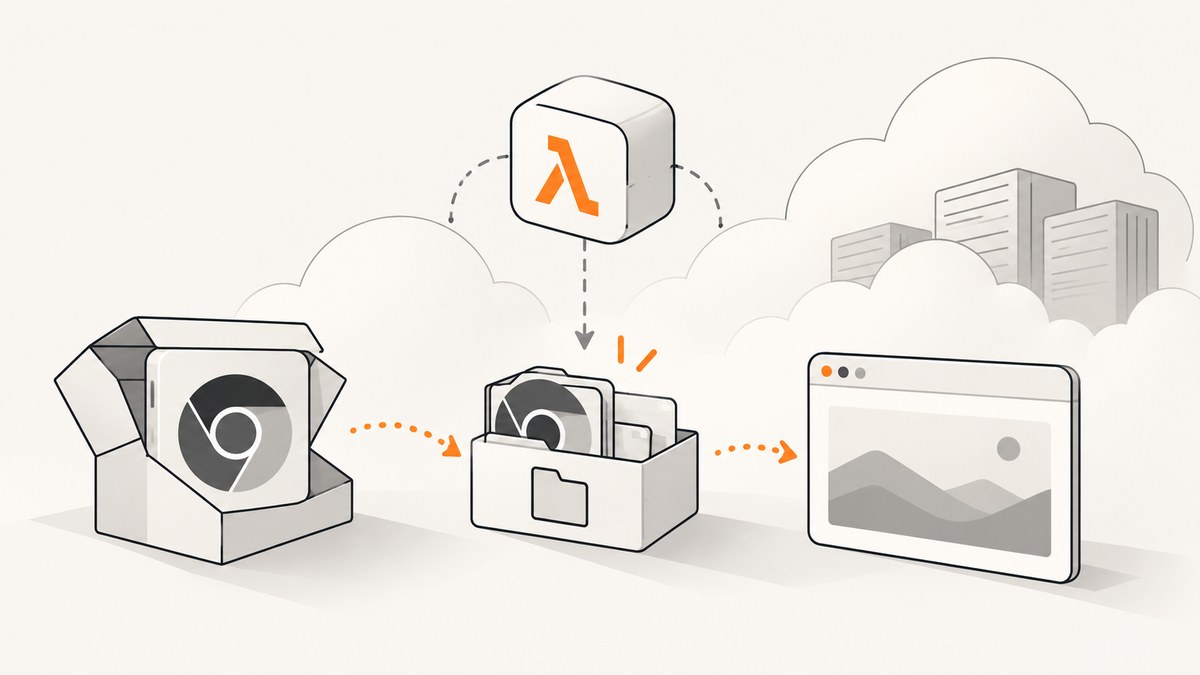
Direct answer: Puppeteer’s “Operation not permitted” error on AWS Lambda usually means the Chromium binary or one of its parent directories lacks the required permissions, Puppeteer is pointing at the wrong executable, Chrome is trying to write outside Lambda’s writable /tmp directory, or the browser build does not match the Lambda runtime or CPU architecture. Check the full error and path first, then fix those causes in that order.
Set executable files and directories in the deployment package to mode 755, and ordinary files to 644, before you create the deployment archive. Use a serverless-compatible Chromium build, pass Puppeteer its extracted absolute executable path, direct browser data to /tmp, and align Puppeteer, Chromium, Node.js, and Lambda architecture. Changing permissions cannot fix a missing shared library or a binary built for the wrong architecture.
1. Identify what is actually being denied
Start with the complete CloudWatch error, including the path named in it and any nested Chromium output. “Operation not permitted” is a symptom, not a diagnosis. A denial on /var/task or /opt points toward package permissions; a profile error points toward a write location; “cannot execute binary file” suggests an architecture or binary mismatch. A missing shared library is a dependency problem.
| Error or symptom | What it usually means |
|---|---|
EACCES, permission denied, or Operation not permitted on /var/task or /opt |
A file or parent directory in the deployed package cannot be read or executed as needed. |
cannot execute binary file |
The binary may target the wrong CPU architecture or may not be suitable for Lambda. |
ENOENT or “executable not found” |
The path is wrong, the file was not packaged, or extraction did not create the expected path. |
error while loading shared libraries: libnss3.so |
The browser expects a native library unavailable in the runtime. File-mode changes do not install it. |
| Chrome reports profile, cache, or configuration write errors | Chrome is attempting to write in a read-only location rather than under /tmp. |
| Browser disconnects or times out after repeated invocations | Check memory, temporary-storage use, cleanup, and version compatibility. |
Lambda’s deployment guidance says that the runtime needs permission to read deployment-package files. For Chromium, readability alone is not enough: the executable and directories along its path need execute permission too. See [AWS’s Lambda deployment troubleshooting guide](https://docs.aws.amazon.com/lambda/latest/dg/troubleshooting-deployment.html).
2. Set package permissions before deployment
Correct the modes in the build or packaging step, before zipping and deploying. The usual modes are 755 for executable files and directories, and 644 for ordinary files. A directory’s execute bit lets the runtime traverse it. Setting the browser binary to 755 does not help if its containing directory is not traversable.
# Run from the directory you are packaging.
# Adjust the path so it names the Chromium executable in your build.
chmod 755 path/to/chromium

# Ensure directories are traversable and regular files are readable.
find path/to/browser -type d -exec chmod 755 {} +
find path/to/browser -type f -exec chmod 644 {} +
chmod 755 path/to/chromium

# Inspect the modes before creating the deployment archive.
stat -c '%a %n' path/to/chromium
find path/to/browser -maxdepth 2 -type d -exec stat -c '%a %n' {} \;
If your build runs on a platform without GNU stat, use that platform’s equivalent mode-inspection command. Keep the executable’s final chmod 755 after any broad file-mode command, since a general file pass can remove its execute bits. Verify the modes in the artifact you deploy, not only in your source checkout: archive creation, CI steps, and copying files between systems can change or discard mode bits.
For a Lambda layer, inspect the files inside the layer archive and check the path where Lambda mounts them. For a container image, inspect the final image’s filesystem and user permissions. The same basic rule applies, but the deployed filesystem layout differs.
3. Use a Lambda-compatible Chromium build and its actual path
A desktop Chrome binary downloaded for a developer machine is not a safe assumption for Lambda. It may target another architecture, expect libraries that are absent from the Lambda runtime, or exceed the practical deployment-size constraints of a ZIP-based function. Puppeteer’s [troubleshooting guide](https://pptr.dev/troubleshooting) discusses Lambda’s approximately 50 MB deployment-package constraint and points to serverless Chromium options. That figure is approximate; packaging mode and deployment arrangement matter.
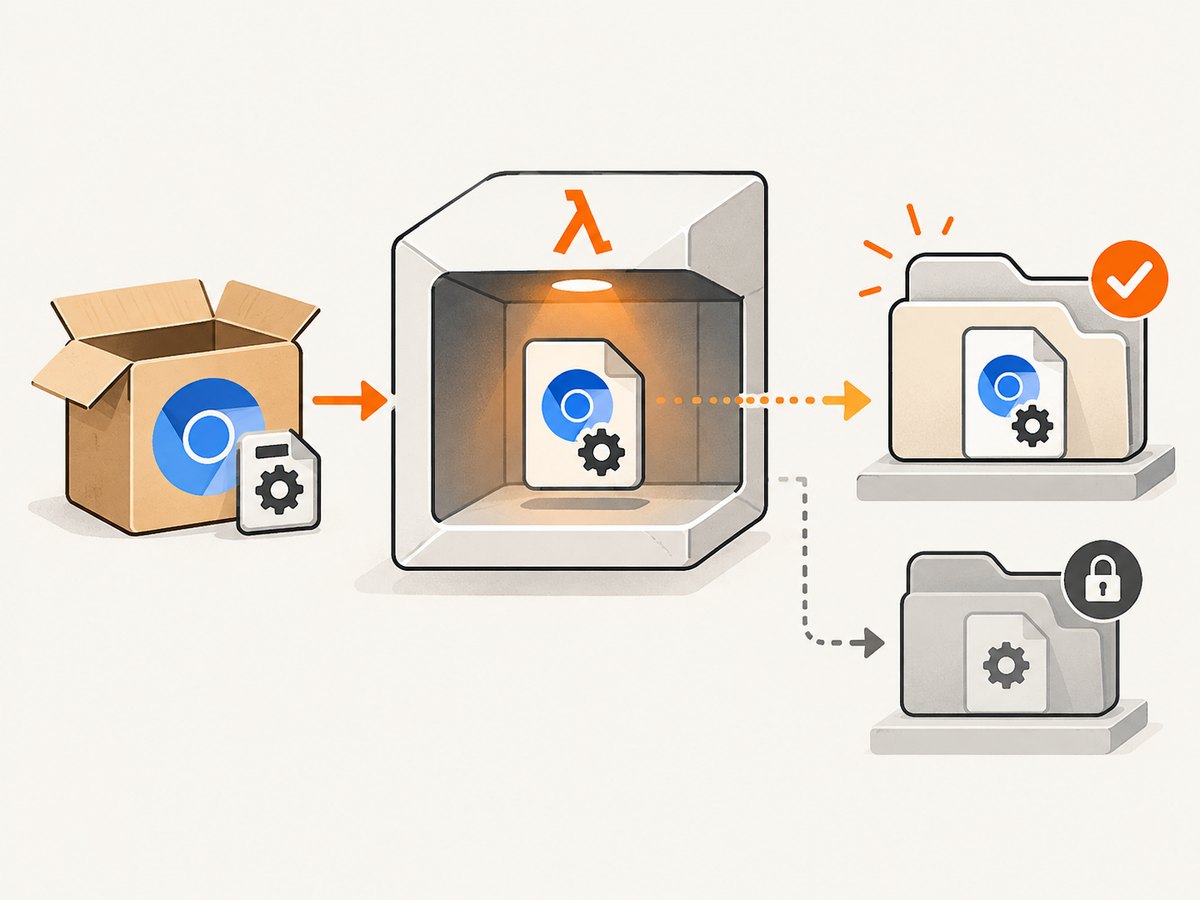
A common approach is @sparticuz/chromium, documented as a serverless Chromium package. Its helper extracts the browser assets and provides launch arguments intended for serverless use. Follow the package’s current instructions for the version and architecture you deploy: [@sparticuz/chromium documentation](https://github.com/Sparticuz/chromium).
The key detail is to use the path returned by the package’s extraction helper, not a guessed relative path such as ./bin/chromium. Log the resolved path and confirm that it exists before calling Puppeteer. A path that works locally can differ after deployment or extraction.
4. Runnable Node.js example with Puppeteer and serverless Chromium
This handler illustrates the important configuration points: extract Chromium, use its absolute path and arguments, point configuration and cache at /tmp, use a writable profile directory, and close the browser even if navigation or capture fails. Install compatible versions of puppeteer-core and @sparticuz/chromium for the runtime and architecture selected for your Lambda. The browser package manages the Chromium binary; puppeteer-core avoids bundling Puppeteer’s ordinary desktop browser download.
const chromium = require('@sparticuz/chromium');
const puppeteer = require('puppeteer-core');
const fs = require('node:fs/promises');
const path = require('node:path');

exports.handler = async (event) => {
  const url = event.url;
  if (typeof url !== 'string' || !/^https?:\/\//i.test(url)) {
    return { statusCode: 400, body: 'Provide an http or https URL.' };
  }

  process.env.XDG_CONFIG_HOME = '/tmp/.chromium';
  process.env.XDG_CACHE_HOME = '/tmp/.chromium';

  const profile = path.join('/tmp', `puppeteer-${Date.now()}`);
  let browser;

  try {
    const executablePath = await chromium.executablePath();
    const stat = await fs.stat(executablePath);
    if (!stat.isFile()) throw new Error(`Not a file: ${executablePath}`);
    console.log('Chromium executable:', executablePath);

    browser = await puppeteer.launch({
      args: chromium.args,
      executablePath,
      headless: true,
      userDataDir: profile,
    });

    const page = await browser.newPage();
    await page.goto(url, {
      waitUntil: 'networkidle2',
      timeout: 30000,
    });
    const screenshot = await page.screenshot({ type: 'png' });

    return {
      statusCode: 200,
      headers: { 'content-type': 'image/png' },
      isBase64Encoded: true,
      body: screenshot.toString('base64'),
    };
  } finally {
    if (browser) await browser.close();
    await fs.rm(profile, { recursive: true, force: true }).catch(() => {});
  }
};
In a production handler, also validate and constrain which URLs the function is allowed to visit. The example accepts a URL from the event for clarity; an internet-facing function that captures arbitrary URLs can be misused to request internal or otherwise restricted addresses. That is an application-level concern, separate from Chromium permissions.
The example uses networkidle2 because it is a familiar option, not because it fits every site. Analytics, streaming pages, and long-polling applications may never become idle. Use domcontentloaded or a targeted selector wait where appropriate, and set a timeout that fits the Lambda function’s total time budget.
5. Keep Chromium’s writable data under /tmp
Lambda’s deployed application directories are not a suitable place for Chrome to create its profile, cache, or configuration. Set the XDG locations and Puppeteer’s userDataDir to paths under /tmp. Puppeteer’s documentation gives XDG_CONFIG_HOME=/tmp/.chromium and XDG_CACHE_HOME=/tmp/.chromium as examples for read-only or containerized environments; it also supports an explicit writable profile directory. See [Puppeteer’s troubleshooting guidance](https://pptr.dev/troubleshooting).
Lambda provides temporary storage at /tmp, but browser extraction and profiles consume it. Reusing one predictable profile path can leave residue across warm invocations or cause concurrent work to collide. A unique path per invocation avoids that collision; remove it in a finally block when it is no longer needed. If you intentionally reuse extracted browser assets or a cache, account for that storage and clean it when appropriate. Check the function’s configured ephemeral-storage capacity if extraction or capture fails under load.
6. Match the browser, runtime, and architecture
Confirm the Lambda function’s CPU architecture—x86_64 or arm64—and use a Chromium build that supports that architecture and runtime. Keep the Puppeteer and Chromium package versions compatible. A deployment can have correct permissions and still fail because the browser is for another architecture, expects a different system library, or does not match the Node.js runtime image.
A missing libnss3.so is a useful example: it means the executable’s native dependencies are unavailable. Repeated chmod commands will not provide the library. Use a compatible browser distribution or a container image that supplies the required libraries, then verify the resulting image in Lambda’s target environment.
AWS CloudWatch Synthetics offers managed runtime combinations for Puppeteer and Chromium. Those combinations change over time, and dependency updates can introduce breaking changes. If you use a managed runtime, check the current AWS compatibility information and test upgrades deliberately. A managed runtime can reduce browser packaging work, while a custom package or container gives you more control over browser versions and native dependencies.
7. Choose a deployment approach
| Approach | Useful when | Check carefully |
|---|---|---|
Serverless Chromium package, such as @sparticuz/chromium |
You want a browser package with extraction support and serverless launch arguments. | Architecture and runtime support, compatible Puppeteer version, extraction path, package size, and /tmp use. |
| Lambda layer | You want to keep browser files separate from function code or share them across functions. | Layer mount path, file modes, runtime compatibility, architecture, layer contents, and version updates. |
| Container image | You need tighter control over native libraries or a larger dependency set. | Image architecture, final image contents and modes, cold-start impact, writable storage, and image maintenance. |
| AWS CloudWatch Synthetics runtime | Your task fits an AWS-managed Puppeteer and Chromium runtime. | Current managed browser/runtime pairing, supported options, and changes during runtime updates. |
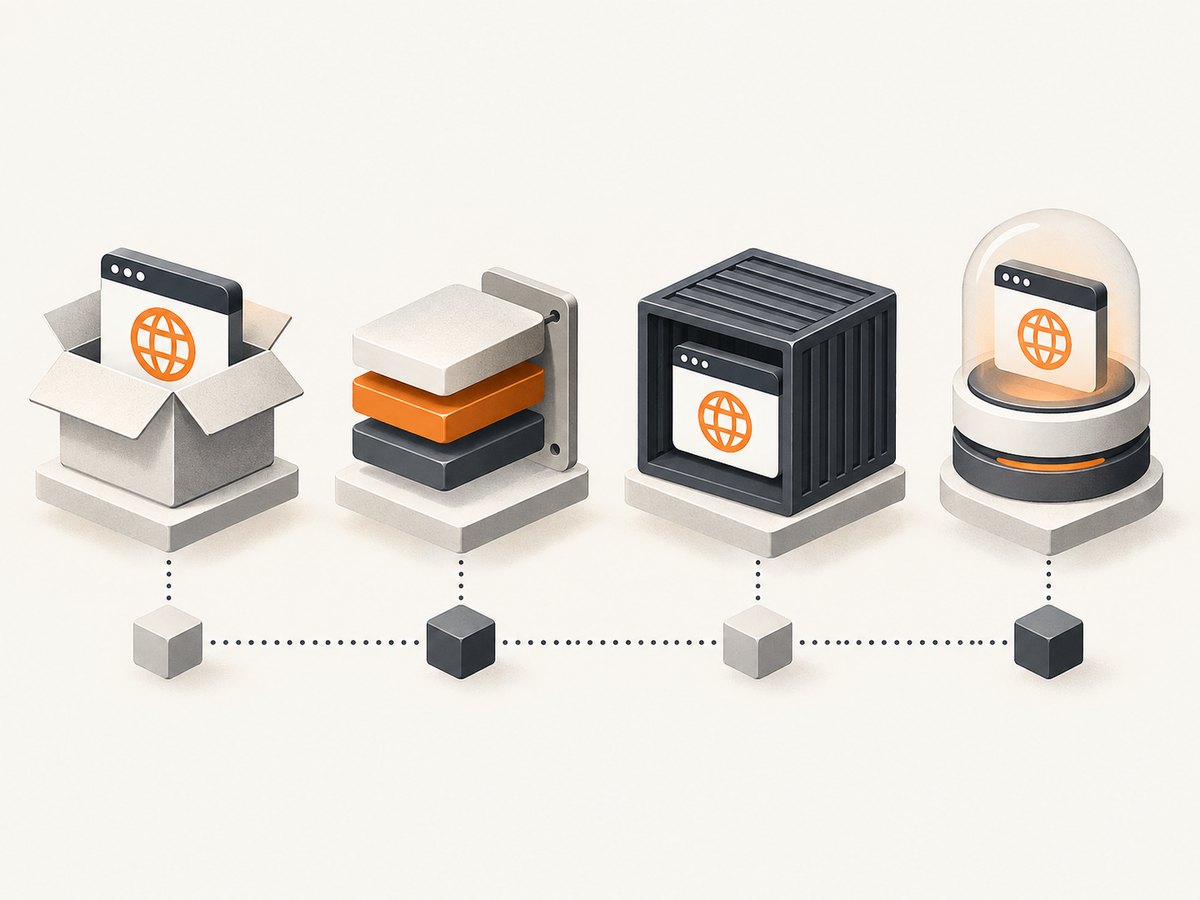
Compare the approaches on the same dimensions: runtime and architecture coverage, Puppeteer/Chromium version coupling, package size and cold-start impact, native-library control, temporary-storage needs, maintenance responsibility, and how much of the browser environment AWS manages.
8. Launch arguments and browser options
Start with the arguments supplied by the serverless Chromium package you chose. Serverless builds often need sandbox-related flags such as --no-sandbox or --disable-setuid-sandbox, depending on the image and security model. Do not paste a generic list of flags into every deployment. Some flags are redundant or obsolete for a newer browser, and changes can affect security or rendering. Use the package’s documented defaults, then add a flag only when a specific runtime requirement calls for it.
In Puppeteer’s launch configuration, the options most relevant to this failure are:
executablePath: the absolute path returned by the browser package or layer helper.args: the compatible serverless browser arguments, usually supplied by the browser package.userDataDir: a writable directory under/tmp.headless: use headless mode for Lambda execution.timeoutand navigation wait settings: bound browser work so a page does not consume the entire invocation window.
When debugging, temporarily log the executable path, Lambda architecture, runtime version, package versions, and the first browser error. Avoid logging credentials, cookies, or sensitive page content.
9. Troubleshooting checklist
- Read the full error. Record the exact failing path and classify it as a permission, path, dependency, architecture, or write-location problem.
- Inspect the deployed artifact. Confirm the Chromium file and its parent directories are present and have the expected modes: executable and directories
755, ordinary files644. - Log the resolved executable. Call the package’s extraction helper and check that the returned absolute path exists as a file.
- Check architecture and runtime. Confirm the Lambda architecture and Node.js runtime match the browser package you installed.
- Move browser writes to
/tmp. Set XDG cache/config paths anduserDataDir; check available temporary storage. - Investigate libraries separately. If the error names a missing
.sofile, use a build or image with that dependency rather than changing modes. - Close and clean up. Always close the browser in
finally; remove per-invocation profiles and inspect warm-invocation behavior. - Test after dependency changes. Recheck a compatible Puppeteer/Chromium pair whenever you update the browser package, runtime, layer, or container base image.
Symptom-by-symptom fixes
| Symptom | Cause to verify | Fix |
|---|---|---|
Permission denied in /var/task or /opt |
Package file or directory modes lack read/execute bits. | Set modes in the build, inspect the archive, and redeploy. |
| Cannot execute binary | Wrong architecture or desktop-only binary. | Use a Lambda-compatible build for the configured architecture. |
| Executable not found | Wrong relative path or omitted package contents. | Use the extraction helper’s absolute path and check the artifact or layer layout. |
Missing libnss3.so |
Runtime does not include a native dependency the browser needs. | Choose a compatible browser package or supply the library in a suitable container image. |
| Profile/cache cannot be created | Chrome is writing outside writable temporary storage. | Use /tmp for XDG paths and the profile. |
| Timeout or disconnect on later invocations | Unclosed browser, accumulated temporary files, resource pressure, or version mismatch. | Close reliably, clean temporary data, inspect memory and ephemeral storage, and align versions. |
10. Performance, reliability, and cost considerations
Browser startup and extraction add work to an invocation, and a larger browser package or container can affect deployment and cold-start behavior. The dossier’s approximately 50 MB figure is a warning about a common ZIP-package constraint, not a universal size limit for every Lambda packaging approach. Choose a layer, package, or container based on the browser and dependency footprint you actually need.
Set navigation and function timeouts with headroom for extraction, page load, rendering, and returning the result. Waiting for network idle can be slow or impossible on pages with persistent connections. Prefer a specific selector or a more suitable navigation event when the page behavior allows it. Browser processes also consume memory; test representative pages at the Lambda memory setting you plan to deploy.
For reliability, close the browser in every invocation path, isolate profile directories when invocations can overlap, and clean up large temporary artifacts. Track repeated timeouts and disconnects alongside memory and /tmp use. Pin compatible dependency versions and retest when updating the runtime, browser package, or managed Synthetics runtime. Lambda billing depends on function execution and configuration; the browser setup itself does not imply a separate fixed fee, so estimate costs using your invocation volume, duration, memory, and storage choices against current AWS pricing.
11. Or skip the browser setup
If the task is simply to obtain a screenshot, ScreenshotNeo offers a one-request screenshot API. It accepts a URL and returns PNG, JPEG, WebP, or PDF. See the [ScreenshotNeo documentation](https://screenshotneo.com/docs/) for request options and details.
curl -G "https://api.screenshotneo.com/v1/shot" \
  -d access_key=YOUR_API_KEY \
  --data-urlencode url=https://stripe.com \
  -o shot.webp
import requests
r = requests.get(
"https://api.screenshotneo.com/v1/shot",
params={"access_key": "YOUR_API_KEY", "url": "https://stripe.com"},
timeout=90,
)
r.raise_for_status()
open("shot.webp", "wb").write(r.content)const q = new URLSearchParams({
access_key: 'YOUR_API_KEY',
url: 'https://stripe.com'
});
const res = await fetch(`https://api.screenshotneo.com/v1/shot?${q}`);
if (!res.ok) throw new Error(`Screenshot request failed: ${res.status}`);
const bytes = Buffer.from(await res.arrayBuffer());
require('node:fs').writeFileSync('shot.webp', bytes);Cookie banners, popups, and chat widgets are removed before the shot. Bot checks, blank pages, and failed loads are never billed; response headers report the page verdict and billing status. An MCP server lets AI agents use screenshot tools. The Free plan includes 1,000 screenshots a month with no card, and paid plans start at $5 for 3,000. Learn more about [ScreenshotNeo](https://screenshotneo.com), then [sign up free](https://screenshotneo.com/account/sign-up/) to get 1,000 screenshots a month with no card.
12. FAQ
Does chmod 755 fix every Lambda Chromium launch failure?
No. It fixes missing execute permission when that is the cause. It cannot correct a wrong path, wrong architecture, incompatible browser, read-only profile location, or missing native library.
Should I put the Chromium executable in /tmp?
Use the browser package’s supported extraction method and path. Chromium’s cache, configuration, and profile should use writable /tmp locations. Do not assume the executable itself must be copied there unless the package’s instructions require it.
Can I keep a browser open between warm invocations?
That adds lifecycle and concurrency concerns. The dependable baseline is to launch per invocation and close in finally. If you choose reuse, handle stale browser processes, simultaneous requests, and leftover profile data explicitly.
When should I choose a Lambda layer or container image?
Use a layer when you want browser files separated from function code and its layout works with your runtime. Consider a container when you need control over native libraries or a larger dependency set. In both cases, check architecture, modes, writable storage, and version compatibility.


